Blogs
|
Today’s post on Office 365 was written by Raja Ukil, chief information officer at Wipro Limited.
The world of IT is changing, and our business is changing as a result. Much of our success has been built on developing large line-of-business applications for Fortune 500 companies. However, today many of our customers’ IT budgets are going directly to business departments that are deploying cloud-based solutions rather than building traditional IT infrastructure and management models.
With customers asking us to help transform their businesses with cloud services, we realized that we needed to first transform ourselves to remain a challenger.
And how did we transform?
We decided to replace most of our extensive on-premises email, collaboration, and office productivity infrastructure with Microsoft Office 365, primarily to reduce costs and give employees more modern communications services. We realized that if we could deploy cloud productivity services to most of our 156,000 employees around the world, we could certainly speak with conviction when our customers ask us to do the same for them.
We looked briefly at other solutions but didn’t feel they were enterprise-calibre or flexible enough for our needs. And with our IT staff and end users already well versed in Microsoft products, we didn’t want to introduce more changes and disruptions.
Using Office 365 made it simple to create a hybrid email environment, with 125,000 mailboxes migrated to the cloud and 31,000 mailboxes remaining on-premises. These on-premises mailboxes include shared mailboxes, conference rooms and application-specific email IDs, and a few that were in compliance with U.S. government data security regulations and customer contractual requirements.
We spent considerable time and effort on upfront planning and change management to ensure that we got it right. We then rolled out the Office 365 services one at a time, with dedicated, round-the-clock support to ensure that employees had a good experience. With executive support from the CEO and careful planning, we enjoyed great success migrating 125,000 mailboxes to the cloud in just 18 weeks.
My vision is for our globally dispersed workforce to operate as a tight-knit community. With Office 365, it’s as easy for an engineer in Bangalore to have a conversation with a colleague in Boston as if they met in a hallway. With just a single mouse-click, they can chat online and share screens, thereby collaborating in real-time to enhance productivity.
With the Office 365 co-authoring capability, teams can now work together in real-time to edit documents and pull together proposals and schedules quickly, without a lot of email back-and-forth. And with the social element—Yammer—teams can have continuous conversations that drive engagement and faster turnaround.
Our next focus after email and Yammer is to deploy Office 365 document sharing and file storage. With everyone’s files stored in the cloud, employees will be completely device- and location-independent. This will be a huge uplift for productivity.
By successfully moving to Office 365, we can now speak with conviction about digital transformation through cloud services. We have done it ourselves at scale and will help our customers do the same.
—Raja Ukil
Read the full story and about Wipro’s successful move to Office 365.
The post Speaking with conviction appeared first on Office Blogs.
Office Blogs
.
Blog
.
<span class='date ' tip=''><i class='icon-time'></i> Aug 23, 2015 09:19pm</span>
|
|
Today at Microsoft Ignite, we announced some exciting new Office 365 admin features. We focused on two key themes important to you—the Office 365 IT administrator—visibility and control. Enhancing these attributes, gives you greater capability to monitor how your organization is running and enable the necessary controls to keep your data safe.
Greater transparency with new Office 365 reporting dashboards
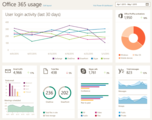
To truly understand how your organization is running, you need to see how your end users are consuming the services. Today, we introduced both a new and improved reporting dashboard and an Office 365 content pack for Power BI. With the new reporting dashboard, you get a better user interface with greater visibility into usage across Office 365 services. The new reporting dashboard provides a much more visual reporting experience with trend and summary views. To get more details, simply select the desired reporting tile for more detailed reports. We have plans to add more reports for additional Office 365 services including Yammer and Office 365 ProPlus in the future.
We also showed an early preview of an Office 365 content pack for Power BI. The Office 365 content pack enables you to use the powerful reporting and analytics capabilities of Power BI to analyze and create interactive dashboards. The Office 365 content pack for Power BI combines usage reporting data with information from Active Directory (AD) so more combinations of data can be used to gain richer insights into Office 365 service adoption.
Here is an example of a dashboard that you can create with the Office 365 content pack for Power BI:
With both the in-product Office 365 usage reports and the Office 365 content pack for Power BI, you now have more tools at your disposal to monitor how your users are using the service and how you can maximize the ROI. Rollout for the new reporting dashboard reports is targeted to begin in Q3 2015. Availability of the Office 365 content pack for Power BI is expected in the coming months.
More control with workload-specific admin roles
With the greater visibility, your organization may also want to enable more control on how your organization’s data is being accessed by administrators. We are excited to introduce new global workload-specific service admin roles for Exchange Online, SharePoint Online and Skype for Business Online. These new roles provide your organization with more options to improve compliance by limiting access to data to only those who need it. If your organization manages your Office 365 IT administrators according to workloads, then this feature is for you.
In addition, there is now more flexibility in assigning roles. If your Office IT administrator has multiple responsibilities i.e. SharePoint Online and Skype for Business Online responsibilities but not Exchange Online, you can assign multiple roles to that administrator. You are no longer limited to only one role assignment per administrator.
With the new workload-specific admin roles and the ability to select multiple roles, we aim to provide you more options to select the right administrator permissions and control who has access to your data. The rollout for workload-specific admin roles is targeted for this June.
Better manage your organization
With the new and improved Office 365 reporting dashboards and new workload-specific admin permissions rolling out over the next few months, you will gain significantly more visibility and transparency into your organization and more controls to limit access of your data to better manage your organization.
Stay tuned to Office Blogs and the Office 365 Roadmap for more information.
—Lawrence Chiu, senior product marketing manager for the Office 365 team.
The post What’s new in Office 365 administration from Microsoft Ignite appeared first on Office Blogs.
Office Blogs
.
Blog
.
<span class='date ' tip=''><i class='icon-time'></i> Aug 23, 2015 09:18pm</span>
|
|
You have questions. We have answers.
Microsoft is bringing the Microsoft Technology Center, a state-of-the-art environment, which includes the most current technology platforms, devices and applications, to you virtually. Hear about real situations users face every day and gain explicit know-how knowledge on the latest and most innovative solutions in market, with the opportunity to dialogue with the Microsoft Technology Architects and your peers virtually.
Register for the virtual event series and get the latest information about Office 365 and Skype for Business. We hope to see you there!
The post Live from a Microsoft technology center—Office virtual events appeared first on Office Blogs.
Office Blogs
.
Blog
.
<span class='date ' tip=''><i class='icon-time'></i> Aug 23, 2015 09:18pm</span>
|
|
Editor’s Note 5/14/2015
This post and the FAQs have been updated to clarify the status of the preview. The import service is available as a public preview as outlined in this blog post. Interested customers do not need to join a preview program or first release program.
Large migration projects are never simple and it has always been challenging to move email archive data to the cloud. Two years ago we released the PST Capture Tool, which makes this process easier by locating PST files scattered across your organization, collecting them into one place, and then uploading the contents directly into Exchange Online mailboxes. But no matter how you cut it, moving dozens or hundreds of terabytes across your existing Internet connection is going to be a costly and lengthy process. We have consistently been approached by customers and partners asking for help with migrations that could easily take multiple years to complete, because of the time required to move data across the wire.
But no longer! We are thrilled to announce the new Office 365 Import Service, which provides two new options for speeding up the process of importing PST files into Exchange Online mailboxes.
Option 1: For smaller sets of data, we are enabling network uploads of PST files to Microsoft servers, which we then import into Exchange Online mailboxes.
Option 2: For larger datasets, you can copy PST archive files onto hard drives and mail them directly to Microsoft datacenters. Once we receive the drives, we copy the PST files to internal servers and then import the mail into Exchange Online mailboxes.
Both of these options use our internal datacenter network, with significantly faster throughput and lower latency. We’ll publish more precise data on expected speeds in the coming months.
Accessing the import service is easy. When you first log on to the Office 365 admin center there is a new IMPORT tab on the left-hand navigation bar. (If you don’t see this tab, make sure that you are assigned the mailbox import export RBAC role. For more info, see this article.) Once you’re on the IMPORT page, you can create a new drive shipping or network upload job.
You can find all the details about the Office 365 Import Service on this TechNet article.
—Danny Popper, program manager for the Office 365 Information Protection Team
Frequently asked questions
Q. What happens to my data?
A. Behind the scenes, the Office 365 Import Service sits on top of the Azure Import Export service. When you upload your data or physically ship your hard drives, the data is temporarily staged within Microsoft Azure file storage until it is imported into Exchange Online mailboxes. All hard drives are encrypted with BitLocker protection, and the BitLocker key is sent separately from the drives. This protects them in the event they are lost or stolen in transit. We are also working on an additional layer of Azure RMS-based encryption on each file and will turn that on during the course of the preview. If you choose to physically ship hard drives to Microsoft datacenters, they will be returned to you once the data is copied into Azure. We are also working on an additional layer of Azure RMS-based encryption on each file and will turn that on in the coming months.
Q. How do I enable the O365 Import Service for my tenant?
A. You don’t! The service is already turned on and available for all eligible tenants (see next question). If you don’t see the UX shown above, follow these steps to grant yourself the required access role.
Q. Who is eligible for the service?
A. The O365 Import Service is currently available for Office 365 Commercial, Office 365 Education and multi-tenant Government (Government Pricing) customers. At the present time, the service is not available for:
Office 365 Dedicated or Office 365 Government Community Cloud (GCC) customers.
Mailboxes hosted in the Brazil, China, Japan or Australia datacenters.
Cross-premises archive mailboxes (where the primary mailbox is on-premises and the archive mailbox is hosted in Exchange Online).
We are committed to enabling these scenarios as soon as we can.
Q. How much will the service cost?
A. There is no cost to participate in the preview, which will last through at least the end of August.
Q. Where can I get more details?
A. Right here! This TechNet article has detailed, step-by-step instructions for hard drive shipping and network uploads, as well as a list of frequently asked questions.
Q. Will other types of data be added in the future?
A. Yes, over time we will be extending this service to support additional data types across Office 365.
The post Making email archive migration easier with the Office 365 Import Service appeared first on Office Blogs.
Office Blogs
.
Blog
.
<span class='date ' tip=''><i class='icon-time'></i> Aug 23, 2015 09:17pm</span>
|
|
In this episode, Jeremy Thake and Richard DiZerega talk to Andrew Salamatov about the Outlook announcements at Build and Ignite along with a two hackathons that were run in New York and Chicago.
http://officeblogspodcastswest.blob.core.windows.net/podcasts/EP44.mp3
Download the podcast.
Show notes
Build 2015
Build 2015 Recorded sessions
Jeremy and Rob’s kick off session
Got questions or comments about the show? Join the O365 Dev Podcast on the Office 365 Technical Network.
The podcast RSS has been submitted to all the stores and marketplaces but takes time, please add directly with the RSS http://feeds.feedburner.com/Office365DeveloperPodcast.
About Andrew Salamatov
Andrew ia senior program manager at Microsoft, having worked there for six years. At Microsoft, Andrew worked on the Exchange team his entire career. Starting on Exchange Web Services, Andrew designed notifications protocol and throttling. Later, he moved on to working on mail apps.
Starting on Exchange Web Services, Andrew designed notifications protocol and throttling. Later, he moved on to working on mail apps.
About the host
Jeremy is a technical product manager at Microsoft responsible for the Visual Studio Developer story for Office 365 development. Previously he worked at AvePoint Inc., a large ISV, as the chief architect shipping two apps to the Office Store. He has been heavily involved in the SharePoint community since 2006 and was awarded the SharePoint MVP award four years in a row before retiring the title to move to Microsoft. You can find Jeremy blogging at www.jeremythake.com and tweeting at @jthake.
About Richard
Richard is a solution architect at the Microsoft Technology Center in Dallas, Texas, where he helps large enterprise customers architect solutions that maximize their Microsoft investments. Although a developer at heart, he has spent a good portion of the last decade architecting SharePoint-centric solutions in the areas of Search, Portals/Collaboration, Content/Document Management, and Business Intelligence. He is a passionate and skillful technology evangelist with great interest in innovative solutions that include Azure, Windows Phone, Windows 8, Lync, Kinect, and much more. You can find his blog at http://blogs.msdn.com/b/richard_dizeregas_blog/ and follow him on Twitter at @richdizz.
Useful links
Office 365 Developer Center
Blog
Twitter
Facebook
StackOverflow
http://aka.ms/AskSharePointDev
http://aka.ms/AskOfficeDev
http://aka.ms/AskOffice365Dev
Yammer Office 365 Technical Network
O365 Dev Podcast
O365 Dev Apps Model
O365 Dev Tools
O365 Dev APIs
O365 Dev Migration to App Model
O365 Dev Links
UserVoice
The post Office 365 Developer Podcast: Episode 044 on Ignite and Hackathons appeared first on Office Blogs.
Office Blogs
.
Blog
.
<span class='date ' tip=''><i class='icon-time'></i> Aug 23, 2015 09:17pm</span>
|
|
Today’s post was written by Christina Hansen and Kristen Messer, teachers from the Manteca Unified School District.
I’ve seen "Send to OneNote" as a print option for over a decade. But until just over a year ago, it meant nothing to me. That is when the school board approved funding for the Manteca Unified School District (MUSD) Going Digital initiative, a year-long process of taking our District 1-to-1. But we did not just jump on the "1-to-1 bandwagon" our 1-to-1 initiative goes far beyond just getting a device into the hands of every student. It is a plan to make our students college- and career-ready by teaching them the 21st-century skills they need to succeed, and we are doing this by changing the relationship between teaching and learning. OneNote has been a major player in our plan—from the first planning stages of Going Digital to teacher collaboration before the 1-to-1 rollout, to teacher and student communication in class.
In Manteca Unified, teachers were issued Surface Pro 2 devices the semester prior to when the students were issued their Windows 8.1 devices. While the outside of the teacher device looks different than the student device, the inside is the same. Both are Windows 8.1 tablets with the Office 365 software suite. MUSD knew that teachers needed to be comfortable with their device before they would be able to lead students with devices. In order to ease the concerns of and effectively introduce 1,200 Kindergarten-12th grade teachers to the realm of all things digital, MUSD created Tech Champs and Digital Support Technicians. This group of 100+ teachers and support staff from across 30 schools in MUSD met monthly to discuss the best ways to meet the needs of teachers at individual school sites. These staff members then acted as cheerleaders and liaisons at their individual school sites. The District Office administration created a OneNote Notebook for this group. During meetings, we could find agendas and such. But in the long stretches between meetings we able to ask questions, share information, complete Excel surveys (from links in the Notebook) and inspire and encourage each other.
It did not take long for District Office administration to start using OneNote Staff notebooks during meetings. And from there it has trickled down to school site administration. Principals share staff meeting agendas and notes while teachers contribute photos, websites and lesson plans.
And of course teachers in MUSD were quick to embrace OneNote notebooks. They have created different sections for different subjects and added links to supplemental materials, videos and images. Where once a filing cabinet stood in the corner stuffed so tightly that one could barely add another sheet of paper, now the OneNote notebook easily keeps track of all of those papers scanned into OneNote’s digital format separated into sections waiting for additional pages to be added with ease.
Beyond OneNote for the teacher’s use is OneNote Class Notebooks, a game-changing addition to the OneNote program.
The day in the life of an eighth grader attending Great Valley Elementary (MUSD) revolves around OneNote Class Notebooks. Each class period begins with students adding to their weekly planner in digital ink. The variety of ink hues and widths presents an opportunity to improve organization through a grade-level wide color coded system: blue denotes class work, red denotes homework. Once a red assignment is completed, students highlight it in green so that parents can be aware of what has been completed in their child’s list of work, and what is yet to be done.
Each class/subject/teacher has outfitted their own OneNote Class Notebook, allowing the educator to tailor the organizational features and content. Students have access to notes, PowerPoint presentations, informational materials, homework and assessment for all six of the class they attend each day inside the sleek organizational system of OneNote. This eliminates one of the most common problems in a paper-laden educational system: the lost paper. Digital handouts cannot be forgotten on a desk, crammed into the bottom of a backpack, or run out of copies. It is always there, ready and available at a click. Backpacks are no longer overburdened. Juanita K., an eighth grader, expresses the positives in moving to OneNote Class Notebooks, "It’s so much easier than carrying around a lot of books every day for each class because it’s all in your device." Absent students can pick up right where they left off, and often from home using their personal Wi-Fi. Student work always has a name, thus ending the era of the no-name paper graveyard.
From the educator’s perspective, it is an indescribable change. Instead of lugging home bags of paperwork, I simply start up my Surface Pro 2 and open the notebook for whichever class I would like to access. Finding a particular student is as simple as typing their name into the search bar. I can view compositions as students are crafting and provide feedback, which is monumentally more effective during the writing process rather than after. Class brainstorming can be recorded in real-time using the Collaboration Space, where the conversations can continue outside of class and are accessible to all students to use, even those who may be out of the classroom that day.
OneNote Class Notebooks have redefined the instruction at my school site and level. Organizational practices are inherently taught through the program. Expectations and procedures move seamlessly between content areas and assignments because OneNote has become the way to disseminate content and showcase knowledge in every eighth-grade classroom. Students automatically locate and produce content; parents and families keep track of student learning through a living planner document; educators can easily interact with student work throughout the learning process. It is a cycle of education and growth made possible solely through OneNote Class Notebooks.
But the benefits do not stop at my grade level or even at my school. Throughout MUSD, teachers and students are embracing OneNote Class Notebooks. Many teachers have started using OneNote for parent conferences because it is so convenient to organize work samples throughout the year that showcase a student’s strengths and provide concrete examples of where students can improve. A high school chemistry teacher makes electrons, protons and neutrons come to life, while a biology teacher uses OneNote for lab write up where students can insert photos from the lab and use digital ink to complete tables and graphs. A history teacher shows a reenactment of the Civil War. A fourth-grade teacher collaboratively brainstorms adjectives with her class. A second-grade teacher checks for mastery of fractions by providing circles and asking students to color one-half or two-thirds. And special education teachers discreetly provide additional assistance via OneNote to those students who need it. Students are also using a blank page in OneNote coupled with digital ink as a whiteboard for a quick check for understanding. Gone are the days of faded dry erase markers, ink on fingers or clothes, and laundering cloths used for erasing. The teacher can quickly see who is progressing and who may need a little more help.
I have a feeling that MUSD staff and students will become even more enamored with OneNote over the next several months as we settle into our Going Digital initiative and find additional ways to encourage collaboration and creativity, to make learning personally engaging and meaningful for students, and to keep ourselves organized and excited about teaching. So the next time you hit "Print," go ahead and choose "Send to OneNote" and see just where it can take you and your students.
The post OneNote Class Notebooks have redefined the instruction at my school appeared first on Office Blogs.
Office Blogs
.
Blog
.
<span class='date ' tip=''><i class='icon-time'></i> Aug 23, 2015 09:17pm</span>
|
|
This month’s Power Query update includes 11 new or improved features including:
Support for all Excel 2013 Desktop SKUs
OData V4 support
Unified Options dialog
Option to disable the Native Database Queries prompt
Support for custom ADFS Authentication Services
Updated Facebook connector due to Facebook API changes
Support for Fixed Decimal Number type
Alternate Windows Credentials
Online Search is now Data Catalog Search and in a new ribbon location
New transformations
Additional performance improvements for loading medium and large datasets.
Continue reading below for more details about each feature.
Support for all Excel 2013 Desktop SKUs
With this update, we’re making Power Query available to all Excel 2013 Desktop SKUs. There are some differences in features, depending on what SKU users are running:
Microsoft Office 2013 Professional Plus, Office 365 ProPlus or Excel 2013 Standalone: Full Power Query feature set.
All other desktop SKUs—Full Power Query feature set, except the following data connectors: Corporate Power BI Data Catalog, Azure-based data sources, Active Directory, HDFS, SharePoint Lists, Oracle, DB2, MySQL, PostgreSQL, Sybase, Teradata, Exchange, Dynamics CRM, SAP BusinessObjects and Salesforce.
Power Query detects your Excel 2013 SKU when launched and enables the appropriate set of features.
OData V4 support
We’re adding support for OData V4 feeds. You can just use the existing OData Feed connector, which will now also accept feeds built using the latest OData version.
Unified Options dialog
We have combined Workbook Settings and Options into a single dialog, organized by scope (current file versus global) and categories for easier navigation.
Option to disable the Native Database Queries prompt
One useful capability when connecting to databases is the ability to provide a custom SQL statement. This is helpful for customers who have complex SQL queries to pull data for their reports and want to get started with Power Query. However, there is a potential risk for these queries to contain malicious SQL code that could delete or modify content in a database when executed. Because of this risk, we have an existing security prompt whenever users try to run a native database query outside of the data source dialogs. It turns out that lots of customers are using this capability within Custom Columns or similar scenarios, so they can dynamically build and execute native database queries. The downside is that they would get prompted for approval of every distinct SQL statement, which would make the experience very inconvenient.
To enable these customers to achieve their scenarios, we’re introducing an option to disable Native Database Query security prompts. However, please beware of the potential risks mentioned above before using. You can find this option within the Options dialog, under Global > Security.
Support for custom ADFS Authentication Services
With this update, we added support for using custom ADFS authentication endpoints through our Organizational Account credential type. This allows access to data sources that require ADFS authentication such as some on-premises instances of Dynamics CRM. After Power Query is registered by your admin, you will be able to approve a custom endpoint when prompted for access. You can also manage the list of already-approved endpoints within the Options dialog, under Global > Security.
Updated Facebook connector
As of April 30th 2015, Facebook expired v1.0 of its Graph API. The Graph API is what Power Query uses behind the scenes for the Facebook connector, allowing you to connect to your data and analyze it. This expiration means some changes in the Facebook connector as it currently exists. The most important difference is the set of permissions we’re able to leverage and the data those permissions return. For example, Friends Lists and News Feeds are commonly used permissions that are now changed or inaccessible.
Queries built before April 30th 2015 may no longer work or return less data. After April 30th, Power Query leverages v2.2 in all calls to the Facebook API. You’ll likely need to re-authenticate to approve the new set of permissions. More details on the change in the Facebook API are available here.
Support for Fixed Decimal Number type
We have added support for Fixed Decimal Number type. This new type can be found in the Data Type drop-down menu under Home and Transform tabs in the Query Editor, as well as in the Change Type column context menu.
Alternate Windows Credentials
Added an option to use Alternate Windows Credentials (rather than current user) to the Windows credentials option in the Credentials dialog.
Online Search is now Data Catalog Search and in a new ribbon location
We renamed Online Search to Data Catalog Search and moved it from the Get External Data group to the Power BI group on the Power Query ribbon tab.
New transformations
We continue making incremental improvements to the set of transformations supported in the Query Editor. This month, we added the following new transformations:
Remove Blank Rows.
Median Operation available for Group By and Aggregate Column.
Convert DateTimeZone value to Local Time.
Performance improvements
In addition to all the functional improvements described above, we also made Power Query faster when loading medium and large datasets into your Excel Workbook. Your queries will take approximately 20 percent less time to load than what they used to take with last month’s update.
That’s all for this month. As mentioned previously, we’re making lots of incremental improvements to Power Query and we hope that you find it better with every new monthly update. Please continue sending us feedback using our "Send a Smile/Frown" feature, or by voting for what you’d like to see next.
—Miguel Llopis, program manager on the Power Query team
———————
Power Query for Excel is available with an Office 365 subscription, Office 2010 Professional Plus with Software Assurance, Office 2013 Desktop SKUs or Excel 2013 Standalone. Download the add-in and learn more about getting started.
Learn about all the powerful analytics and visualization features in Excel and take your analysis further by sharing and collaborating on business insights with colleagues using Power BI.
Learn more about Power Query
See all analytics and visualization features in Excel
Get your Office 365 subscription
Try Power BI
Follow us: Facebook and Twitter
The post 11 updates to Power Query appeared first on Office Blogs.
Office Blogs
.
Blog
.
<span class='date ' tip=''><i class='icon-time'></i> Aug 23, 2015 09:16pm</span>
|
|
Today’s post was written by Stacey Roshan, High School Math Teacher at the Bullis School in Maryland.
Have you ever been super excited about "gamifying" a review session only to realize that the competitive feel in the room becomes overwhelming? Each year, around this time, I play a game of AP Calculus Jeopardy review with my class. We have just finished learning new material and are ready to hit review mode. The game is a way to begin synthesizing material from the beginning of the course through to the end. The timing of this activity usually falls right before spring break, so throwing in a Jeopardy game seems particularly appropriate as a way to enliven the classroom before the vacation.
Using OneNote to take the game beyond simply an in-class experience certainly enhanced this activity. Requiring students to make corrections and write brief reflections on the problems they solved in class forces them to look back at the questions we had solved together. I think this assignment really gives some closure to the activity. And I love the fact that students create an organized, searchable resource (ePortfolio) to study from! So how did I make this happen?
My top three goals in setting up this activity were to:
Have this activity to become a resource students could study from later.
Increase participation from all students.
Avoid having the game to turn into a speed race.
Here are the problems faced in reaching these goals and how I solved them with the tools, like OneNote.
Problem 1: Awarding points based on speed
The one problem that I’ve often run into is that Jeopardy is a speed race. And honestly, the last thing that I want is to award points based on speed. I was never the quickest one in the class to respond to answers and I know a lot of times it made me feel like my peers were smarter, which we all know is not the case. But it took me a while to discover this. And so, in my teaching, I really look for ways to allow students to work at their own pace. It’s definitely a huge inspiration behind my flipped classroom.
Problem 2: Students don’t take notes during a typical game
Another issue that I’ve run into when playing games is that students don’t take as careful notes as they typically do during instruction or classwork. Obviously, if they are feeling pressed for time, they are going to just scribble their work anywhere to get to the proper answer. And in a Jeopardy-type game, it’s really hard for students to take notes since we are shuffling through categories.
Traditional AP Calculus Jeopardy setup
So back to the activity at hand—the AP Calculus Jeopardy review. Traditionally, l simply split the class into teams and display my Jeopardy PowerPoint on the projector. Students "buzz in" when they think they have the correct answer jotted down on their piece paper. I even tried giving a time minimum (i.e. you cannot buzz in before one minute) but then it became pretty arbitrary when choosing who to call on. And that resulted in me losing some of the enthusiasm behind the game. And maybe the worst part of all, students really didn’t have any notes to study from. And the purpose of this activity was to kick start our review.
Solution 1: New and improved AP Calculus setup
Tool 1: PearDeck
This year decided to use PearDeck to push out the Jeopardy questions to each student’s computer screen. Briefly, the way PearDeck works is that the teacher creates an interactive presentation within the platform and then students’ log on to that presentation from their own computers. The teacher controls the pace of the presentation and students engage with the interactive slides. The teacher receives student responses in real-time.
Tool 2: Wacom tablets
I also have a class set of Wacom tablets so that students can handwrite on their screens. Using PearDeck’s drawing question type, I can ask students to use their Wacom tablets + pen to handwrite. One of the features of PearDeck that I love is that the teacher can see what students are writing as they are writing!
Session dashboard view in PearDeck; updated in real-time.
When playing AP Calculus Jeopardy, I could see which student was coming up with the most detailed, thorough response (in a timely manner); this provided me a way to award points in a way that wasn’t purely time-based. And since students were inking directly on the question at hand, I could ask students to take a screenshot of the slide after they had written their response to serve as a resource to study from.
Which takes me to tool #3….
Tool 3: OneNote
The next piece of this puzzle was to have students document the activity to have as a resource to study from later. This is where OneNote comes in. I had students organize all the screenshots they had taken of their PearDeck slides into appropriate tabs in their OneNote notebook. With OneNote, all you have to do is drag the image onto the appropriate OneNote page to copy it there. And a huge added bonus—with OneNote’s awesome OCR support, text search within all images works seamlessly. This allows students to easily search their questions for key words and topics as they do their studying.
Solution 2: Revising answers and reflecting on takeaways
Finally, I wanted students to think about our game. Again, the purpose of this activity was to help them begin to synthesize all of the material from the beginning of the year and to call attention to areas where they needed review. Since everything is so neatly organized in their OneNote notebooks, I asked students to write corrections and reflections to all of the questions we had covered. I thought this part of the activity was a great way to force students to look back over their work in a calmer environment and ask them to recall what we had discussed on the board when talking about that particular question. Perhaps them knowing that this reflection piece was required helped them stay engaged and focused when we were talking about the question as a class on the board.
Example of a student correcting work in their OneNote notebook.
Reflections
All in all, I was really pleased with this activity and will definitely use this format in future games we play. I think this activity is a perfect addition to my student’s ePortfolio, as the reflection piece was built right into the assignment. And I think the game mentality of Jeopardy encouraged students to engage with their full energy. I will admit that I was worried that there were several moving parts to this assignment, but it really didn’t turn out to be a problem. Note that most of my students have Macs, so I don’t feel that OneNote is limited to only those with PC’s!
To learn about more interactive activities using technology in the classroom, read my TechieMusings blog and follow me on Twitter @buddyxo.
—Stacey Roshan
The post AP Calculus Jeopardy review -"Gamifying" with OneNote and PearDeck appeared first on Office Blogs.
Office Blogs
.
Blog
.
<span class='date ' tip=''><i class='icon-time'></i> Aug 23, 2015 09:15pm</span>
|
|
It probably comes as no surprise to most business owners that email is a primary way hackers can gain access to sensitive company data and information. But it may alarm you to know that small businesses are particularly vulnerable. Specifically, overall cyber-attacks on companies with 250 or fewer employees doubled in the first six months of last year—and the loss per attack was more than $188,000 on average. The effect of cyber-attacks on the American economy as a whole is a high cost of $100 billion annually, according to the Center for Strategic and International Studies.
That’s one reason the great Sony email hack of 2014 was such a big deal—it left every business wondering how they could avoid the same fate. It stands to reason that if such a large company, with multiple layers of security, can be hacked, small businesses with fewer resources have no hope, right?
Maybe not. There are many ways to ensure your business is protected through secure email. Since your business’s security is only as strong as your weakest link, the secret is to get employees involved and invested in the success of your security. Here are seven tips to get you started.
Make it a top priority to create and implement a cybersecurity plan.
Of course, this involves more than simply considering how to ensure secure email service—it should also include strategies for keeping your website, payment information, and other information safe—but addressing email security should be a main part of your plan. The Federal Communications Commission created a handy tool, the Small Biz Cyber Planner 2.0, to assist you in creating a customized plan.
Consider email encryption.
Email encryption helps to protect personal information from hackers by only permitting certain users to access and read your emails. There are several methods of email encryption depending on the level of security—and convenience—you require. For example, you could download or purchase extra software that will plug in to your Microsoft Outlook. Or, you could install an email certificate like PGP (Pretty Good Privacy), which allows your employees to share a public key with anyone who wants to send them an email and use a private key to decrypt any emails they receive. Another simple solution is to use a third-party encrypted email service. Office 365 provides ready to use encryption options like S/MIME and Office 365 Message Encryption services to help you meet these needs with little up front work.
Ensure passwords are secure.
All employees should have their own password for their work computer and email system. These passwords should be reset every three months; also consider requiring multifactor authentication when employees change their passwords. The strongest passwords consist of at least 12 characters and a combination of numbers, symbols, lower-case letters, and capital letters. Passwords should not be something obvious (e.g., birthdays, children’s names, etc.) but should be memorable. In other words, employees should steer clear of the two most common—and worst—passwords of 2014: "password" and "123456."
Also, employees should not use the same password for multiple accounts or websites. Consider allowing the use of a password manager or single sign on function. Some great solutions for small businesses looking for tools to store codes, bank accounts, email accounts, PIN numbers, and other account information in one place include CommonKey, LastPass, and Password Genie.
How do you know whether your password has been compromised? Sign up for watchdog services like PwnedList or Breach Alarm, which monitor leaked passwords and will report automatically to you if any of your email addresses are vulnerable.
Develop an email retention policy that makes sense.
Ask employees to purge emails that do not support business efforts and implement a policy to ensure compliance. Many companies institute a 60-90-day standard, with steps toward automatic archiving and permanent removal after a set time period. Remembering to delete emails that don’t comply with this standard can be difficult for some employees, so frequent reminders may be necessary.
Train employees in email security.
Employees play a crucial role in keeping data secure through email. They should be trained on what types of behaviors to refrain from and what types of emails to avoid. Unfortunately, according to InfoSight, nearly half of all companies spend less than 1 percent of their security budget on programs that train employees on how to be aware of security threats. Yet 64 percent of organizations experienced some level of financial loss due to computer breaches and 85 percent detected computer viruses. Wouldn’t it be worth the low cost of training to mitigate the potentially large cost of a hack?
Specifically, employees should be trained to comply with the following rules:
Never open links or attachments from unknown persons.
Don’t respond to emails that request a password change and require you to divulge personal information—no matter how official the source appears.
Ensure antivirus and anti-spy software is updated on your computer.
Encrypt any emails containing sensitive data before sending.
Don’t use your company email address to send and receive personal emails.
Don’t automatically forward company emails to a third-party email system.
In addition, some companies have found success in instituting programs that test employees with phishing campaigns, spear-phishing emails, and other cybersecurity threats and then reward them when they pass these tests.
Office 365 offers capabilities to help educate users in context to keep them out of trouble while keeping them productive with features like as Data Loss Prevention Policy Tips to inform users if they are attempting to share data in an unsafe manner. Additionally, Exchange Online Advanced Threat Protection adds new protection for specific types of advanced threats.
Maintain strict standards for company-related mobile device usage.
When using a company-issued mobile device, or a personal mobile device where you send and receive company emails, employees should encrypt data, keep the device password-protected, and install approved security apps so hackers cannot access devices via shared WiFi networks. Office 365 provides built-in mobile device management capabilities, providing options to help you keep your data safe with conditional access, device management, and selective wipe of company data.
Avoid common pitfalls when securing email.
Besides all of the things we’ve already discussed, email can remain unsecured in other ways as well. Be sure to consider the following:
All computers—not just a few—should use email encryption. There’s no point in encrypting emails unless the same standard is applied across the board.
Unlocked computers should never be left unattended. Make it company policy for employees to lock their computers (which should be password-protected at login) before getting up from their desks.
By being purposeful when creating policies involving your small business’s emails, you will head off a lot of issues before they even come to pass. Get employees on board and reward them for assisting in developing an environment where information is secure. Together, it’s possible to keep employee, customer, and business data safe—one email at a time.
The post The small business’s guide to secure email appeared first on Office Blogs.
Office Blogs
.
Blog
.
<span class='date ' tip=''><i class='icon-time'></i> Aug 23, 2015 09:15pm</span>
|
|
Today’s post on Office 365 was written by Mike McNamara, chief information officer at Tesco.
In late 2014, I participated as a judge in a Tesco Hackathon. I’ve done this before, but this time there was something new about the competition. Instead of just asking developers to come up with an exciting new app in 24 hours, we used Yammer to involve more non-technical Tesco colleagues. Suddenly, out of nowhere, a group of young retail colleagues in the North of England got a team together and presented a great idea to make our Store Locator app more social and friendly; when you look up the location of the nearest Tesco, along with the usual opening hours and whether or not the store has a pharmacy, you get a glimpse into the human side of our company, with colleagues’ stories and pictures. It’s a brilliant idea that helps build strong customer response to our brand, and it all came about because of the new communication and collaboration tools in Microsoft Office 365 to the business.
This is just one example of why our new business productivity platform is so important to Tesco. The story goes back about 10 years, when Tesco began to evolve from a UK-based grocery store to a multi-national, multi-channel, general merchandizing business. We’ve grown from 500 stores in the mid-1990s to 7,599 retail stores and franchises today with 500,000 colleagues working for Tesco in 12 countries. While this transformation didn’t happen overnight, in the last three years, we have made great strides in fostering a collective pride in, and connection to, our global company. The result is more engaged employees who are empowered to improve the Tesco customer experience.
Today 48,500 colleagues use Office 365 to collaborate better in hundreds of ways, streamlining business processes and virtual teamwork across time zones and geographies. For example, take the complex supply chain and global coordination required to launch the spring line for our F&F clothing brand. Colleagues all over the world use SharePoint team sites to orchestrate the many steps it takes, from sourcing raw cotton in India, to sending it to another country for printing, and to another country for cutting and sewing, and to yet another country for adding in a zip. And because colleagues can get a lot of the background work done through online collaboration, we’re no longer flying buyers around the world, which was massively expensive and inefficient. Instead, we use SharePoint Online to expedite product design and manufacture on a huge scale to meet the retail deadlines of fashion’s major spring and fall seasons so our customers can choose from styles that are timely and relevant.
Retail colleagues use Yammer on their smartphones to create a fantastic network for communicating with peers in spontaneous, store-to-store dialogue. If you are a baker with 20 years’ experience and you want to share some new ideas about a better way to display cakes, you can share your thoughts and get feedback and make changes happen that result in a better customer experience. I get great satisfaction from the way that Tesco is erasing hierarchical communications and democratizing the business to the point where anyone can contribute.
Every day on my Yammer feed I see people talking, creating communities, solving problems, and sharing ideas—all with the goal to deliver more value to the customer. By using Office 365, everyone is equally able to turn that goal into reality.
—Mike McNamara
Read the full story to better understand how Tesco is using Office 365 to inspire employees and improve customer service.
The post Democratizing a global business while building brand and customer loyalty appeared first on Office Blogs.
Office Blogs
.
Blog
.
<span class='date ' tip=''><i class='icon-time'></i> Aug 23, 2015 09:14pm</span>
|