Blogs
|
This post was written by Vijay Kumar, senior product marketing manager, and Raji Dani, principal program manager for the Office 365 Security team.
As a cloud services provider, we recognize that organizations understandably want to have full control over access to their content stored in cloud services. Today at RSA, we announced Customer Lockbox for Office 365, a new capability designed to provide customers with unprecedented control over their content in the service. Customer Lockbox gives customers explicit control in the very rare instances when a Microsoft engineer may need access to customer content to resolve a customer issue.
In our efforts to maximize data security and privacy for Office 365 customers, we have engineered the service to require nearly zero interaction with customer content by Microsoft employees. Nearly all service operations performed by Microsoft are fully automated and the human involvement is highly controlled and abstracted away from customer content. As a result, only in rare cases—such as when troubleshooting a customer issue with mailbox or document contents—does a Microsoft engineer have any reason to access customer content in Office 365.
Microsoft Engineers do not have standing access to any service operation. All access is obtained through a rigorous access control technology called Lockbox. Today, Lockbox enforces access control through multiple levels of approval within Microsoft, providing just-in-time access with limited and time-bound authorization. In addition, all access control activities in the service are logged and audited.
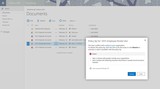
With today’s announcement, we are bringing customers into the Lockbox approval process for instances involving access to customer content. Use of the Customer Lockbox feature ensures that Microsoft engineer does not get access to the customer’s content without customer’s explicit approval. When the customer gets the request for access, they can scrutinize the request and either approve or reject it. Until the request is approved, the Microsoft engineer will not be granted access.
Of course transparency and control are important in achieving trust, and all Customer Lockbox activity will be available to customers via the Office 365 Management Activity logs for easy integration into customer security monitoring and reporting systems.
Customer Lockbox will be available for Exchange Online by the end of 2015, and for SharePoint Online by the first quarter of 2016.
For more information about our trust principles and how we manage security, privacy and compliance, please visit the Office 365 trust center at trust.office365.com.
Frequently asked questions
Q: Is Customer Lockbox available to all customers?
A: Our intent is to make Customer Lockbox available to all Office 365 commercial plans, as described here. Customers interested in using it will have the ability to opt-in.
Q: Who is notified when there is a request to access customer’s content?
A: Administrators in the customer’s Office 365 environment are notified that there is a request for access.
Q: Who can approve or reject these requests in customer’s organization?
A: Administrators in the customer’s Office 365 environment can control who can approve or reject Customer Lockbox requests.
Q: Under what circumstances do Microsoft engineers need access to customer’s content?
A: No one at Microsoft has standing access to customer content in Office 365. Further, we have engineered Office 365 such that majority of service operations are automated and abstracted from Microsoft engineers. An example of a rare circumstance when Microsoft engineers may need access to customer content is if the customer makes a support request that requires access.
Q: What happens if a customer reject the Microsoft engineer’s access to content?
A: Microsoft can only proceed following approval of a Customer Lockbox request. If a customer rejects a Customer Lockbox request, no access to customer content will occur. If a user was experiencing a service issue that required Microsoft to access customer content in order to resolve (though such circumstances are rare), then the service issue might simply persist. Microsoft would inform the customer of this outcome.
Q: What happens to a Customer Lockbox request that was not acted upon by the customer in a timely manner?
A: Customer Lockbox requests have a default lifetime of 12 hours, after which they expire and Microsoft engineer will not get access to customer content.
The post Announcing Customer Lockbox for Office 365 appeared first on Office Blogs.
Office Blogs
.
Blog
.
<span class='date ' tip=''><i class='icon-time'></i> Aug 23, 2015 09:29pm</span>
|
|
Today’s post was written by Nagesh Pabbisetty, partner group program manager on the Office 365 Information Protection team.
The IT landscape is rapidly evolving, with trends like BYOD access, accelerated migration to the cloud, and many enterprises working with multiple cloud providers. These trends heighten the importance for companies to monitor access to their data as part of their overall approach to IT security.
Today within Office 365, there are a variety of ways for service administrators to obtain transactional information, with all of these methods providing a synthesized view of what is happening in Office 365. In our continuing effort to provide greater transparency into Office 365 service operations, we are working to deliver more event types, greater detail in event records, and consistent schemas for per-person, per-transaction logs for all user, admin and operational events. In addition, we are enabling instrumentation across the entire Office 365 service suite and providing standard RESTful APIs with OAuth v2 for easy consumption of these logs, to power your security, compliance and operational applications that serve your business needs.
The new Office 365 Management Activity API
Today we are announcing the new Office 365 Management Activity API and preview program. The Management Activity API is a RESTful API that provides an unprecedented level of visibility into all user and admin transactions within Office 365. The benefits of the Management Activity API include:
Access to more than 150 transaction types, with more planned in the future.
Activity logs from SharePoint Online, Exchange Online and Azure Active Directory, with plans to expand to additional Office 365 services within the suite.
A consistent schema across all activity logs in the service with a common core—fields including tenant, service, user, action, object, location and IP address, among others.
Simple on/off option for customers to enable instrumentation for the activity logs
We will release the API as part of a private preview program this summer. Starting today, customers and partners can sign up here to join the preview program.
ISVs are already building security and compliance solutions!
Select partners have already begun building solutions with the new API as part of a pre-release program. These rule-based, variance-based and machine learning-based security and compliance solutions provide sophisticated reports, interactive visualizations and operational dashboards to satisfy the complex needs of today’s enterprises. The partner solutions run the gamut, from those providing Office 365-specific solutions, to others that combine Office 365 logs with logs from other cloud services as well as on-premises installations. These integrations create a single pane of glass for integrated operations, security and compliance across the enterprise.
Next steps
Whether you are an admin or work in information security or compliance, you want to have a single view of security and compliance across your entire enterprise to know:
Who is accessing your information
Whether your security and compliance checks are working
Who is using your services
The Office 365 Management Activity API provides you with the increased visibility needed in today’s environment. We encourage you to sign up for the Office 365 Management Activity API preview program now, as space is limited.
Read on to learn more about the partners participating in the pre-release program, and descriptions in their own words about the solutions they have built using Office 365 Management API.
Come visit our booth at the RSA and Microsoft Ignite conferences to get an in-depth view of the sophisticated solutions being built on top of the Management Activity API.
PARTNER
DESCRIPTION
AlertLogic
Alert Logic Security-as-a-Service (SaaS) solution protects cloud, hybrid and on-premises datacenter infrastructure, delivering deep insight and continuous protection for over 3,000 customers worldwide. AlertLogic can aggregate the Office 365 Management Activity events with other security information to identify potential threats and help customers protect their environment.
AvePoint
AvePoint enables enterprise collaboration across platforms and devices. Founded in 2001, AvePoint serves over 14,000 organizations worldwide and has a product portfolio including DocAve, Governance Automation, and Compliance Guardian. DocAve Policy Enforcer helps organizations rapidly respond to unauthorized modifications to Microsoft SharePoint configurations, security and management in the cloud and on-premises.
BetterCloud
BetterCloud, trusted by 50,000-plus organizations worldwide, provides critical insights, automated management and intelligent data security for cloud office platforms. By leveraging open APIs, BetterCloud securely connects with your data at its source. BetterCloud for Office 365, currently in Beta, provides intelligent alerting, monitoring and insights for the Microsoft Cloud Platform.
CloudLock
Cloud Access Security Broker (CASB) CloudLock provides a unified Cybersecurity dashboard for organizations adopting multiple SaaS applications. Office 365 is now supported by its Cloud Security Fabric, integrating previously released Office 365 and Azure APIs with the new Office Management Activity APIs.
Cogmotive
Cogmotive provides automated Office 365 report building software used by customers worldwide to manage more than two million Office 365 seats. Cogmotive is building a powerful audit and compliance tool that will collect data on all employee Office 365 activities and analyze behaviors to help security officers prevent and respond to incidents.
Logentries
Logentries provides a real-time log management and analytics service built for the cloud, making business insights from machine-generated log data easily accessible to development, IT and business operations teams of all sizes. Logentries empowers Office 365 admins to better manage their system security and compliance by providing usage monitoring, data visualizations and alerting on abnormal user behavior.
Netskope
With Netskope’s Safe Cloud enablement solution, organizations can direct usage, protect sensitive data and ensure compliance in real-time, on any device, including native apps on mobile devices and whether on premises or remote and with the broadest range of deployment options in the market.
Palerra
Palerra designed LORIC™ to protect enterprise clouds, giving security administrators the information they need to discover, understand and remediate risks through correlation, big data analytics and machine learning. LORIC protects Office 365 applications such as OneDrive, SharePoint and Exchange Online, monitoring user activity in these applications.
Rapid7
Rapid7 helps reduce risk of breach, detect and investigate attacks, and build effective cybersecurity programs. Informed by deep knowledge of attacker methods, Rapid7 UserInsight allows you to detect and investigate security incidents faster. It identifies intruders that use stealth attack methods, such as stolen credentials and lateral movement.
SkyHigh Networks
SkyHigh Networks helps enterprises safely adopt cloud services while meeting their security, compliance and governance requirements. Over 350 enterprises, including Aetna, Cisco, DIRECTV, Hewlett-Packard and Western Union, use SkyHigh to gain visibility into all cloud services in use and their associated risk; analyze cloud usage to identify security breaches, compromised accounts and insider threats; and seamlessly enforce security policies.
Sumo Logic
Sumo Logic provides a cloud-based machine data analytics service that helps enterprises gain deep operational, compliance and security insights across hybrid environments at unprecedented scale while reducing cost and complexity. Sumo Logic for Office365 is a centralized dashboard to monitor system and user activity that helps enterprises to improve their security and compliance posture.
The post Announcing the new Office 365 Management Activity API for security and compliance monitoring appeared first on Office Blogs.
Office Blogs
.
Blog
.
<span class='date ' tip=''><i class='icon-time'></i> Aug 23, 2015 09:28pm</span>
|
|
Today’s post was written by Rajesh Jha, corporate vice president for the Office 365 team.
In running the Office 365 service globally, we know that security, privacy and compliance are imperatives for customers, and that’s why these remain unwavering priorities for us. We recognize as a cloud service provider that providing customers with visibility into actions taken on their content and control over access to their content in the cloud are essential to earning and maintaining their trust, and so transparency and control are ongoing focus areas for our security investments in Office 365.
Today, we are announcing three new capabilities that significantly enhance customers’ transparency and control of their data in Office 365. These new capabilities give customers greater visibility into actions taken related to their data, and enhanced control over access to their content residing in Office 365.
Security and compliance signals
We currently provide customers with a range of logs on their user interactions with content in Office 365. This provides customers with visibility that is important for meeting business policies, as well as regulations. Today we are announcing the expansion of these logs to include the majority of user, admin and policy related actions across Exchange Online and SharePoint Online in Office 365. We are also introducing a new Office 365 Management Activity API through which customers and partners can use the logs as Security and Compliance signals within solutions that provide monitoring, analysis and data visualization.
The solutions built with this API will provide organizations with greater visibility into actions taken on their content, as well as enhanced security, for example, as an input into a Security Incident and Event Management (SIEM) system. Several Office 365 partners have already built early solutions using this new API as part of a pre-release program. We will release the API more broadly this summer as part of a private preview program. Interested customers and partners can sign up here to be included in the preview program. Learn more in this blog.
Customer Lockbox
For the purpose of maximizing data security and privacy for Office 365 customers, we have engineered the service to require nearly zero interaction with customer content by Microsoft employees. Nearly all service operations performed by Microsoft are either fully automated so there is no human interaction, or the human involvement is abstracted away from Office 365 customer content. As a result, there are very few activities requiring any direct involvement by a Microsoft engineer. But, we didn’t want to stop there. We are taking the next step by putting the customer in explicit control over access to their content in the very rare instances when a Microsoft engineer does to log into the Office 365 service.
This new capability, Customer Lockbox for Office 365, provides unprecedented customer control over content residing in Office 365, so customers can be assured that their content will not be accessed by Microsoft employees without their explicit approval. It brings customers into the access approval loop, requiring the customer to provide explicit approval of access to their content by a Microsoft employee for service operations. The Customer Lockbox feature will be enabled in Office 365 for Exchange Online by the end of this year, and for SharePoint Online in the first quarter of 2016. You can learn more about Customer Lockbox in this blog.
Advanced encryption for email
Today, Office 365 encrypts customer content at rest and in transit. In addition, Office 365 has a number of customer-controlled encryption solutions such as Rights Management, S/MIME and Office 365 Message Encryption. In 2014, in addition to BitLocker for drive level encryption, we implemented content level encryption with per-file encryption for documents in SharePoint Online and OneDrive for Business.
In the next few months, we will add a similar content level encryption for email in Office 365. Implementing this feature will increase the separation of server administration from the data stored in Office 365, resulting in an added layer of security. This new layer of content level encryption uses keys that are protected using hardware security modules certified to FIPS 140-2 Level 2. This new advanced encryption for email will be provided in Office 365 by the end of 2015.
We are already working on additional security features that build upon the content-level encryption enhancements. In 2016, we expect to enable customers to generate and control their own keys for encrypting content in Office 365.
Additional investments going forward
Today’s announcements are just part of our continued investments in security, privacy and compliance capabilities within Office 365. Recently, we also announced new security controls such as advanced threat protection for email, new Data Loss Prevention capabilities in SharePoint Online and mobile device management for Office 365. Our work is ongoing and you can expect much more from us in this area moving forward. For more information about our trust principles and how we manage security, privacy and compliance, please visit the Office 365 trust center at trust.office365.com.
—Rajesh Jha
The post Enhancing transparency and control for Office 365 customers appeared first on Office Blogs.
Office Blogs
.
Blog
.
<span class='date ' tip=''><i class='icon-time'></i> Aug 23, 2015 09:28pm</span>
|
|
Today’s post was written by Shobhit Sahay, technical product manager for the Office 365 team.
Everywhere your data exists, moves or is shared, we want to protect it. Office 365 has provided Data Loss Prevention (DLP) capabilities for email since Exchange 2013. As collaboration extends beyond email to sites and documents, we are extending the DLP capabilities to these services. Last year at TechEd Barcelona, we showed a quick glimpse of our vision for expanding DLP and today we are pleased to share more details on these capabilities.
Announcing upcoming public preview of DLP for SharePoint Online/OneDrive for Business
For the last couple of months, we have worked hard to test some of these cool new capabilities in a private preview with select customers. Later this quarter, we will bring a public preview of these capabilities to every single eligible Office 365 tenant.
Last year we made some early DLP capabilities from Phase 1 available allowing you to find sensitive information in SharePoint Online/OneDrive for Business. These helped you identify high-risk items and allowed you to take manual actions on that sensitive content. But with the Phase 2 public preview, you can now create proactive policies to remediate violations and empower your users with policy tips and notification emails so they can take the right decision while working with sensitive data, just like you do today with DLP in Exchange. Let us now look at these enhancements in detail.
Easily set up your DLP policies for your organization
With the public preview, admins can now easily set up DLP policies for SharePoint Online/OneDrive for Business from the Office 365 compliance center. Policies take the simple construct of conditions, actions and exceptions and admins can use any of the existing out of box templates to get started.
End users empowered through constant policy education
We understand that end users are a critical part of the solution to keeping data safe. As such, we help them make the right decisions when working with sensitive data, providing them with rich notifications in the context of where they are working. Furthermore, if they move out of context, we send an email notification with the policy tip information. All of this is configurable by the admin, who can set up rules that allow users to override policies by providing a business justification, which allows users to be productive while still being compliant.
Tracking policy usage and incident management
Admins can track the effectiveness of policies with the rich reporting built into Office 365. In addition, they can create admin-facing incident reports with information about each incident that can later be reviewed by their security teams.
What’s available now? What’s coming later?
With all the great new capabilities, you might ask, "What is coming next?" Well, we are not done here, we will continue to innovate and release a new set of capabilities in our Phase 3 release. Here is a view of what’s available now versus what is coming in Phase 3, which is planned for second half of 2015.
Available in Phase 2 public preview
Coming in Phase 3
Create automated policies with any of the
available built-in sensitive information types
Exceptions for locations and conditions
Detect external sharing and apply appropriate actions
Ability to encrypt content as an action
Scope the policies to specific locations or sites
Support for custom classifications and document fingerprinting
Scanning for document properties (metadata)
Shared by/by member of conditions
Block or restrict access to the sensitive content
Detect content scanning errors
Customizable Policy tips and user notifications via policy tip and email
Richer content types and more enforcement endpoints
Admin facing Incident reports and reporting
Announcing public preview of DLP for Office 2016 applications
Last month when we announced the Office 2016 preview, we mentioned DLP as one of the core capabilities within the Office applications. Later this quarter, we will make these DLP capabilities available in the preview for three different Office applications—Word, Excel and PowerPoint. With these capabilities, end users can be notified in real-time on the sensitive content they are working right within the familiar Office applications they love and use.
Let’s look at some of these capabilities in detail.
Admins can easily set up policies for SharePoint Online/OneDrive for Business that will automatically apply to Word, Excel and PowerPoint 2016 applications. If users open a sensitive file from SharePoint Online/OneDrive for Business, they will be notified of the sensitive information in context within the Office application.
Depending on the policy, the user can simply choose to ignore the policy or be asked to provide a business justification in order to continue working on the sensitive data. Users also have the option of turning off notification policies from within the Office applications.
With these advanced capabilities, you will have the ability to create DLP policies across different services while retaining the best end user experience
We look forward to you using these capabilities.
—Shobhit Sahay
Frequently asked questions
Q. When is the public preview planned for DLP in SharePoint Online/OneDrive for Business?
A. Public preview is targeted for second quarter of 2015. All eligible tenants will start seeing these capabilities in their tenants then. We will be adding more enhancements to DLP in SPO/ODB later in the second half of 2015.
Q. When is the public preview planned for DLP in Office 2016 applications? How can I get access?
A. Public preview is targeted for second quarter of 2015. For more details on the Office 2016 Preview program and instructions on how to download the applications, please visit the Office 2016 Preview program on the Microsoft Connect site.
Q. Can DLP policies on Office applications be configured on their own? (i.e., without requiring the SPO policy)
A. No, DLP policies in Office applications are designed to work in unison with SharePoint Online/OneDrive for Business, so policies created for the service are also applied in Office applications automatically.
The post Evolving Data Loss Prevention in SharePoint Online/OneDrive for Business and Office applications appeared first on Office Blogs.
Office Blogs
.
Blog
.
<span class='date ' tip=''><i class='icon-time'></i> Aug 23, 2015 09:27pm</span>
|
|
Today’s post on OneNote was written by Andrew Howard, principal of the Sandymoor School in the UK.
OneNote has truly revolutionized the way schools can use technology to enhance and transform their processes. For a number of years, schools have used technology to replace old ways of doing things. The chalkboard was replaced by the whiteboard, which in turn was replaced by the interactive whiteboard. But this is merely replacement; if a teacher from the Victorian age were to come forward in time to view a normal school, they would recognize an amazing amount of the day-to-day work of a modern teacher. However, this is without OneNote. I have written before on how we are using the OneNote Class Notebook to create digital exercise books, but there is another member of the OneNote stable that is revolutionizing the admin of schools—the OneNote Staff Notebook.
Using OneNote to coordinate and collaborate effectively from the admin side of things was obvious from the moment I started using OneNote. The one drawback was the number of separate notebooks I needed. Effectively, you need a separate notebook for every combination of meeting and staffing committee in the organization. However, it was still worth it, for the evidence and ability to keep on top of discussions, innovations and collaborative working in the school. The one thing I use OneNote heavily for, and more so since introducing the OneNote Staff Notebook, has been the process of pre-meeting discussions and collaborations. Every meeting has a OneNote page, with the details required for the meeting, and pre-meeting questions already loaded; everyone who is contributing is required to not just read the meeting notes ahead of time, but have put down some thoughts and points for further discussion. This frequently leads to much richer discussions in the meetings. And, of course, the minutes are recorded in OneNote for everyone to refer to after the event. The simple tools in OneNote make for much better organization all round. In addition, with the ability to create task lists and all the full integration in the whole Office 365 ecosystem, everything is easier to manage.
But it is in the day-to-day running of the school where the OneNote Staff Notebook really comes into its own. There are, effectively, three sections—the collaborative space, the content library and the individual staff areas.
The Collaborative space is a notebook where everyone can read, write and create. We have our collaborative space sectioned up into a number of areas, but the most used is the Inset (or staff training) section. In this area, we have all the guidance for our Action Research-based staff development program, and staff collaborate on different areas of school development in this space. This provides a great source of evidence, too, for staff performance management. The Collaborative space has sections devoted to initiatives that groups are working on, which provides a wonderful transparency for everyone to be able to see what is going on and contribute if they wish.
"I have found that OneNote is a great way to communicate with other colleagues, it enables us to share ideas and have conversations about students without having to have face-to-face meeting time. It means that we can stay ahead of the game, and are both able to see easily when changes are made or ideas are updated." RRU—Assistant Head
We also have a section for financial matters—in the UK, we are funded directly from central government and so have to show that we are being prudent in spending the tax payer’s money. Part of this is the need to show that purchases are made following a selection process, choosing the ‘best’ value from a minimum of three quotes. This can be intensely time-consuming, so a section is set up for just this. Because of the ability to print direct to OneNote, any quote, whether it’s a webpage, or an email, can be easily attached to the OneNote page for review by the financial team.
The Content Library is probably the area that filled up most quickly with a wide range of resources moved from the more traditional staff shared area (or network storage) into a note page or section. This creates a much more user-friendly route to find information for staff, all in one location. Staff meeting notes, for example, are published here, for all staff to read whenever they need to. There are also sections on important policies and procedures, along with dates and deadlines. The OneNote Staff Notebook is an adaptable staff handbook containing everything that new and existing staff needs, all in the one place.
This on its own would be enough to make this a powerful tool for school administrators to want to embrace, but when added to the final section, the individual staff pages, make the OneNote Staff Notebook a deal sealer when it comes to transforming the effective running of the school.
Every member of staff has their own section within the OneNote Staff Notebook, which is theirs to use. There are pre-populated sections for performance management, meetings, parental communication, etc. Staff can personalize the section for their own roles too. This provides excellent communication and makes the OneNote Staff Notebook a document that all staff refers to on a regular basis as it is their own effective admin notebook. We encourage all staff to use this for all their admin and most are now doing this.
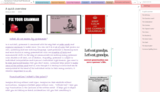
Here, for example, we have the Head of English developing a grammar and spelling guide, which will be pushed out to all Class Notebooks once it’s been finalized by staff. I can review her work, comment, suggest and approve as she works on the various sections.
"One Note is great for providing resources for students, cutting down on expensive photocopying. I’m also really appreciating not having to carry home lots of exercise books. The Content Library is a great place to add resources that can be referred to again and again." JRO-Head of English
The simple fact that OneNote highlights in bold when a notebook, section or page has been altered makes the whole system streamlined. A quick scan through the sections and I can easily see whether there is anything I need to act on. This means that staff knows they can work on things they are passionate about and I can encourage and provide support without having to delay things due to arranging a meeting to be updated on developments.
In simple terms, OneNote and its full integration with the Office 365 ecosystem provides a streamlined, transformed approach to the administration of a school as well as the delivery of teaching and learning. The combinations and flexibility of this digital notepad has ensured that the Sandymoor School is committed to building OneNote into the heart of all its systems and practices. OneNote provides the transformation necessary to live by our founding ethos to be a ‘Fresh Approach to Education.’
—Andrew Howard
The post OneNote Staff Notebooks—streamlining the administration of a school appeared first on Office Blogs.
Office Blogs
.
Blog
.
<span class='date ' tip=''><i class='icon-time'></i> Aug 23, 2015 09:27pm</span>
|
|
On today’s Office Mechanics show, we’ll take a look at new Outlook mail and calendar experiences across the Windows desktop, Windows 10, iOS and Android. Ben Walters joins Jeremy Chapman again to the give an end-to-end tour of Outlook across platforms and device types.
Email is still the most common way many people communicate at work. New Outlook experiences in Office 2016 Preview, Windows 10 IT Pro and Developer Preview and on phones provide the richest Outlook capabilities to date.
On the desktop, Outlook in the Office 2016 IT Pro and Developer Preview is cloud-connected, it innovates on how attachments are discovered and used, integrates with machine learning to de-clutter your inbox and has an updated look and feel.
Outlook Mail and Calendar in Windows 10 provides rich authoring capabilities, improved touch support with new swipe gestures for inbox triage and pinch to zoom in the calendar; it also works with a broader list of email services and protocols. Outlook Mail and Calendar are part of recent Windows 10 Technical Preview builds.
Outlook for iOS and Outlook for Android lets you do many of the tasks you might have previously reserved for Outlook on your PC of Mac. From Focused inbox and quick email triage, to accessing cloud storage and your calendar, Outlook Mobile helps you get more done and is constantly evolving with new capabilities.
Of course, if you want to learn even more and see all of these Outlook apps in action, you’ll want to check out the show.
The post Early look at the new Outlook on the desktop, Windows 10 and phones appeared first on Office Blogs.
Office Blogs
.
Blog
.
<span class='date ' tip=''><i class='icon-time'></i> Aug 23, 2015 09:27pm</span>
|
|
Today we are excited to announce we have removed the preview label from Outlook for Android.
In January, we released Outlook for iOS and a preview of Outlook for Android. At the time, the iOS version of Outlook was ahead of the Android version in terms of features and performance. We set a high bar for where we wanted Outlook for Android to be before we removed the preview label. Since our preview release we’ve updated Outlook for Android 17 times—that’s more than one update per week—to meet this bar. A big part of that work has been improving the performance and stability of the app along with work on localization, accessibility and other fit and finish pieces. The other part of this work was about delivering features to add new value, match the iOS version and respond to your feedback.
Along with apps like Sway, the new Office universal apps for Windows 10, OneNote and others—Outlook is an example of Office’s new development model for building mobile apps—deliver a great first version of our apps and then iterate quickly with the help and feedback of our users. This removal from preview is not a change in that plan or a statement that we are ‘done.’ We will continue our pace of updates to make the app better each week in response your feedback.
In case you haven’t been using Outlook as your primary email app yet, here are some of the end user features we have delivered in the past three months:
Improved look and feel
We’ve continued to polish the look and feel of the app. We updated our icon sets and simplified our fonts to provide a more consistent Outlook experience across operating systems and devices. But it was also important for Outlook to feel like a natural part of Android. We use common Android design principles like the Navigation Drawer to house the multiple tools offered in the app and have common actions like settings available in the App Overflow menu.
IMAP support
Outlook has always provided rich support for Office 365, Exchange, Outlook.com, iCloud, Gmail and Yahoo! Mail accounts. In February, we added the ability to sync mail from email providers that support IMAP, like AOL.com and Comcast.net.
Revised People section
Earlier this month, we improved Outlook’s People section. We replaced our previous, lightweight "top contacts" view with a unified view or your contacts from all your email accounts. Selecting a contact lets you view their contact information, launch a new email, start a phone call or map your way to their location with a single click. Outlook also provides quick-clicks to easily find all the emails, meetings and files shared with the contact.
Directory search
In addition to updating our People section, we added directory search into Outlook. Sometimes you need contact details for someone in your company or school who’s not saved as a contact. Outlook integrates your full organizational directory (also known as the Global Address List or GAL) in the People section. Just type in the name of the person you’re looking for in the search bar and then select Search Directory. We’ve also integrated this same capability into the email compose experience so email within your organization is easier than ever.
Three-day view in Calendar
In April, we added a Three-day calendar view when in landscape. This complements the Agenda and Day views to show more of your calendar at once. This is especially useful on larger devices like the Samsung Galaxy Note 4.
We also delivered other improvements in the Calendar, including support for zero-length meetings, a ‘remove from calendar’ action for canceled meetings and an improved calendar day picker when creating and editing meetings.
Customize swipe gestures
Outlook’s swipe gestures make rapid email triage literally a one touch experience. You can swipe right or left to take actions like archive, delete, move, flag, mark as read/unread or schedule. Unlike other email apps, Outlook lets you personalize these swipe gestures to match your unique email habits. We added this feature in February.
Change folders for swipe gestures
Also in February, we added the ability choose and change your default folders for the Archive and Schedule swipe gestures at any time. Previously, Outlook prompted you to choose a folder for these actions during first use. Now when your email habits change, you can adjust these by going to Settings > Choose an account > Advanced Settings > System Folders.
Empty trash/deleted items folders
You can now permanently delete items from your deleted items folder. This was one of our top requested features from users.
What’s next
This is just the beginning and we will continue shipping valuable new experiences every few weeks to help you get even more done while on the go, as well as expand the capabilities that matter to IT. A key component in this process is your feedback, which helps us prioritize new feature releases, find bugs and improve the application for the Outlook community as a whole. Please share your feedback with us right from Outlook by navigating to Settings > Help > Contact Support.
Thanks for using Outlook!
—Outlook Team
Frequently asked questions
Q. What markets and languages is Outlook for Android available in?
A. Outlook for Android is available in all markets supported by the Google Play Store. Users in any of these markets will be able to download Outlook.
The Outlook user interface is translated in 30 languages: English, Norwegian (Bokmål), Catalan, Croatian, Czech, Danish, Dutch, Finnish, French, German, Greek, Hungarian, Indonesian, Italian, Japanese, Korean, Malay, Polish, Portuguese, Romanian, Russian, Simplified Chinese, Slovak, Spanish, Swedish, Thai, Traditional Chinese, Turkish, Ukrainian and Vietnamese.
Q. What versions of Android are supported?
A. Outlook can run on Android 4.0 and above.
The post Outlook for Android comes out of preview appeared first on Office Blogs.
Office Blogs
.
Blog
.
<span class='date ' tip=''><i class='icon-time'></i> Aug 23, 2015 09:26pm</span>
|
|
We’re thrilled for the //build and Ignite 2015 conferences to kick off. We’ve spent the months since TechEd Europe in Barcelona last October preparing and pulling together tons of great new capabilities, content and experiences, which we will share with Office developers at these two conferences. Let’s dive into what we’ve cooked up for our spring release.
We’ve crafted the sessions for //build and Ignite to cover the new capabilities, as well as provide guidance about how to get started building for Office 365.
The sessions for //build include:
//build Sessions
616 | Office Development Matters and Here’s Why…
630 | Get Your Hands Dirty with the Office 365 APIs, Authentication and SDKs
743 | Tried and True Practices for Transforming SharePoint Solutions to Cloud-ready Solutions
651 | Extending Custom Solutions with Excel, PowerPoint and Word Add-ins
655 | Overview of Cross-platform Mobile Development with Office 365
728 | Integrating Web Apps with Office 365
641 | Supercharging Your Custom Solutions with the Office 365 Unified API Endpoint
676 | Building Solutions with Office Graph
701 | Deep Dive into the Office 356 Groups REST API
694 | Build an Add-in for Outlook.com, Outlook and Office 365 that Reaches Over 400 Million Users
632 | Office 365 and Azure: A Developer’s Guide for Maximizing the Cloud
699 | Building Office Add-ins Using Node.JS
722 | iOS and Android Apps with Office 365
715 | Connecting to OneNote in the Cloud with Office 365 APIs
661 | Building Multi-Device Apps with Xamarin with Office 365 APIs
734 | New OneDrive APIs for developing against OneDrive and OneDrive for Business
742 | New Outlook APIs for developing against Outlook.com and Office 365
689 | Building a Single Page App Using Angular and Typescript Using Office 365 APIs
758 | Making Money with Office 365
643 | Introducing the Skype Developer Platform and the New Skype Web Developer Capabilities
767 | Building Universal Windows Apps with Office 365 APIs
The sessions for Ignite are:
Ignite Sessions
PRE11 | Office 365 Development On-ramp
FND2202 | Office Development Matters and Here’s Why…
BRK3157 | Light Up Mobile Apps with the Office 365 APIs
BRK3170 | Deep Dive into Custom App Provisioning and Deployment in Microsoft Office 365
BRK3164 | Deep Dive into Safe SharePoint Branding in Office 365 Using Repeatable Patterns and Practices
BRK3203 | Extending Custom Solutions with Excel, PowerPoint and Word Add-ins
BRK3101 | Developing with Microsoft OneNote in the Cloud with Office 365 APIs
BRK4117 | Get Your Hands Dirty with the Office 365 RESTful APIs
BRK4114 | Integrating Custom File Types with Office 365 with Files Handler Add-ins
BRK3199 | Supercharging Your Custom Solutions with the Office 365 Unified API Endpoint
BRK3118 | Getting Started Building Provider-hosted Apps On-premises or in the Cloud
BRK3127 | SAP Gateway for Microsoft: Securely Integrate an On-premises SAP System to Microsoft Technologies
BRK4123 | Building Business Apps Like They Do in the Valley with AngularJS, Node.js and More
BRK4104 | Setting Up Your On-premises SharePoint Environment for Custom App Development
BRK4111 | Future-proofing Your On-premises SharePoint Development
BRK4109 | Developing with Yammer: Extensibility and API Overview
BRK4126 | Dealing with Application Lifecycle Management in Microsoft Office 365 App Development
BRK2195 | Everything You Need to Know about the Office Store
BRK3156 | Build an Add-in for Outlook.com, Outlook and Office 365 that Reaches Over 400 Million Users!
BRK3145 | Building Tenant-wide Apps with the New Exchange REST APIs
Office 365 Developer Program
While you’re there, sign up for our Office 365 Developer Program—launching at //build—to stay in the know on all things Office 365 developer. Once you’re signed up, you’ll receive a welcome email with details on how to get your free one-year Office 365 developer subscription. This will help you start building add-ins and connecting to APIs right away. Then you will continue to receive special resources, newsletters and key insights into developing for Office 365.
Onsite mini labs
We will also have two mini labs available as part of the Office 365 Developer Program. These labs are designed to help developers build a successful add-in or connect to Office 365 APIs in five steps or less. Once you sign up and complete a mini lab, you will receive an exclusive Office 365 Developer Program hoodie.
Express talks
At the //build conference we are hosting 15-minute presentations on key news that we’ve announced, as well as partner presentations on lots of topics we think developers will love!
Partner
Title
Speaker
Insightly
Learn How Insightly Built Out Integrations with Microsoft Office 365 and Over 20 Other Saas Applications Without Breaking a Sweat
Mohit Kukreja
Docusign
How to Build an App with Docusign
Dan Reid
Drip
How Marketing Automation Can Help You Connect with Users, Drive More Usage and Build Better Apps
Rob Walling
Telerik
Build Compelling .NET Apps that Span Web, Mobile and Desktop
Michael Crump
Telerik
Modern Web Apps with Kendo UI and Office 365
Sam Basu
Boomerang
Bringing Boomerang to Office 365
Alex Moore
Do.Com
Making Meetings Productive on Do.Com with the Office 365 REST API
Pascal Carole
Uber
Improving Your Daily Outlook
Rahul Bijor and Amritha Prasad
SmartSheet
SmartSheet’s Integration Using Office Graph API: Lessons From the Trenches
Brian Harper
K2
Building Enterprise Productivity Apps with the Unified API Endpoint
Jonathan King
Nintex
Build Low-code Workflow Solutions in Minutes with Nintex for Office 365
Sean Fiene
Salesforce
Learn How Salesforce Successfully Built its Next Generation Outlook Integration Using the New Office Add-ins Model.
Phil Richardson
Building Solutions with Office Graph
Helge Solheim, Jon Meling
Office 365 Unified API Speed Date
Yina Arenas
Yes, You Are an Office Developer: An Overview of Office 365 Extensibility
Dorrene Brown
Build an Outlook Add-in and Reach Millions of Users!
Pretish Abraham
Extend File Behavior with File Handler Add-ins in Office 365
Dorrene Brown
Running Office 365 apps on a Raspberry Pi2 with AzureAD and node.js
Andrew Connell
Why TypeScript?
Dan Wahlin
At the Ignite conference we will be holding Theater Sessions as well, covering the following topics:
Topic
Speaker
Yes, You Are an Office Developer: An Overview of Office 365 Extensibility
Dorrene Brown
Running Office 365 Apps on a Raspberry Pi2 with AzureAD and node.js
Andrew Connell
Building Solution with Office Graph
Helge Solheim and Jon Meling
Office 365 Unified API Speed Date
Yina Arenas
Office 365 Development: Let’s Get Real
Mike Fitzmaurice and Chris O’Brien
Extend File Behavior with File Handler Add-ins for Office 365
Dorrene Brown
Office 365 Developer Program Overview
Sonya Koptyev
Partners
It wouldn’t be a conference without our key partners who have built showcase solutions for Office 365. Our partners will have dedicated booths at the //build conference, where their key experts will be available to discuss their solutions and discuss lessons learned. Come visit in the Office 365 Partner area.
Connect with Office 365 at the events
If you’re attending, stop by our booth say hello. We’ll have extra fun swag on hand and our product engineers and experts ready to answer your questions. If you’re not able to join us in person, watch for updates on dev.office.com/latestnews for the latest and greatest on our announcements and resources for building for Office 365.
Connect with Office 365 online
If you’re not attending the events, there are plenty of ways to catch the news of all the cool new stuff we’re announcing. Just follow dev.office.com/latestnews for details on all the announcements. We’ll also be live tweeting from the events, so follow @OfficeDev. You can also follow along on our Office Developer Facebook page.
You can also watch the live stream of the keynote address, the breakout sessions and a session we are hosting on all the Office 365 developer news from //build on Channel 9. We’ll post the exact link on all our social channels once it’s available. Either way, we hope to see you or hear from you soon.
The post What’s in store for Office developers at //build and Ignite 2015? appeared first on Office Blogs.
Office Blogs
.
Blog
.
<span class='date ' tip=''><i class='icon-time'></i> Aug 23, 2015 09:26pm</span>
|
|
Ignite, Microsoft’s new, premier enterprise technology event, kicks off May 4th in Chicago. If you’re planning to attend the event, try your luck in the Ignite Trip Report Challenge sweepstakes. To participate, create a remarkable trip report of your learnings at Ignite using the newest Office application, Sway, and get a shot at winning one of three awesome prizes—Surface Pro 3, Bose QuietComfort 20i Acoustic Noise-Cancelling headphones or GoPro HERO3 with an Office 365-branded chest harness. This gives you a fun way to share your experience with your colleagues back at the office while offering you the chance to win a great prize! Start building your Sway now, so it’s easy to add content once you are onsite at Ignite.
Get started:
Create a free account at sway.com.
Start building your Ignite Trip Report in Sway by providing the information on each of the eight Ignite experiences below.
Ignite Experience #1—Introduce Yourself
Start your Sway with an introduction including your name, where you are based, your organization and your area of interest/expertise. Include 2-3 goals for the week at Ignite. Remember, Sways are public, so all you have to do to share your Sway is share the link.
Bonus tip: Add in a link to your profile on the Office 365 Network and Twitter/LinkedIn to help other attendees connect with you!
Ignite Experience #2—Keynote Key Takeaways
What announcement(s) in Monday’s keynote will impact your organization the most and why? In your Sway, note the news or demos in the keynote that you are most excited about or will have the biggest impact on your organization.
Bonus tip: Try the Twitter embed feature in Sway to pull in your favorite keynote-related tweet. Tag @office365_tech so we can follow along!
Ignite Experience #3—Best Sessions
What is your favorite session(s) from the week? Explain why and include the top three takeaways from the session as well as the speaker’s name.
Bonus tip: Videos of each session will be published to ignite.microsoft.com within 24 hours of the session. Share the link to the video if it’s available so your colleagues can check it out.
Ignite Experience #4—Hands-on Time with Products
To complete this challenge, you will need to grab a screenshot or picture of you exploring your favorite product(s) in the Office space on the Expo floor. It could be OneNote, Skype for Business, SharePoint or any of the others. Head to the Office booth in the Expo Hall to get started.
Bonus Tip: Try using a product or application that is new to you. This is a great chance to get tips from the pros at the booth and test drive new technologies like Delve, Clutter, Office 365 Video and others.
Ignite Experience #5—Photo Time
Head over to the Office 365 Network photo booth in the Office area of the Expo Hall and get your photo taken with your favorite product props. Add the picture to your Sway.
Bonus tip: There are a number of different ways to pull photos in to Sway. Upload from OneDrive, a USB, or even import from Twitter.
Ignite Experience #6—After-Hours Fun
Snap a picture and tag the best connection you made at one of the many after-hours events, such as the Welcome Reception Monday night, SharePint, #IamMEC, or just an impromptu gathering with friends new and old. Add the picture and a brief description to your Sway along with any relevant tweets.
Bonus tip: Provide a link to your new connection’s Yammer or Twitter profile to help them build their network.
Ignite Experience #7—Partner Solutions
Head to the Expo Hall to check out some of the innovative solutions delivered by Microsoft partners. Many offer fun activities and giveaways at their booths, so this is also a great opportunity to add to your swag bag. Add a picture of the partner booth and a comment about what makes their solution interesting or noteworthy to your Sway.
Bonus Tip: Add the link of the partner so your Sway audience can easily learn more about the organization and their offerings.
Ignite Experience #8—Attendee Party
No Microsoft event is complete without a special party on the last night! Snap a few photos and add them to your Sway along with notes on your favorite things about the party. We’ll read these and consider ideas for future parties!
Bonus tip: Try using the stack or group features to add more than one photo to Sway.
When complete, submit your Sway to the Ignite Trip Report Challenge group on the Office 365 Network by 12 p.m. CDT Friday, May 8th for a chance to win one of the great prizes. Winners will be announced in the same group at 5:00 p.m. CDT Friday, May 8th. Get more information about the Ignite Trip Report Challenge in this Sway. See Official Rules here.
Join us onsite at Ignite
We also have a number of activities planned for Office 365 Network members who will be onsite at the event in Chicago:
Stay on top of event discussions and info in the Ignite Event group on the Office 365 Network.
Come to the Office 365 Network Breakfast Meetup Tuesday, May 6th at 8:00 a.m. CDT in the Hall B Meal area to meet other people active on the network and the community team. Meeting invite here.
Test your luck in the Ignite Trip Report Challenge by building an interactive trip report using Sway and submitting it to the Ignite group.
Get social updates and participate in daily contests by following @office365_tech on Twitter.
Snap a photo with your favorite product props at the Office 365 Network photo booth in the Office Expo area. Prints and digital files will be available immediately.
The post Going to Microsoft Ignite? Take the Trip Report Challenge! appeared first on Office Blogs.
Office Blogs
.
Blog
.
<span class='date ' tip=''><i class='icon-time'></i> Aug 23, 2015 09:25pm</span>
|
|
Enterprise technology is evolving at lightning-fast speed, sparking trends like big data, cloud computing, unified communications, mobility and social. But how do businesses effectively capitalize on these trends to drive collaboration, productivity and better value for their customers?
Register now to find out on the next Modern Workplace on May 5th, where we’ll come to you live from Ignite, Microsoft’s premier technology conference in Chicago. Microsoft luminaries Julia White, general manager of Product Marketing for Office, Gurdeep Singh Pall, corporate vice president of Skype, and other guests will give us a preview of some of the latest technology and how it can revolutionize the way you work.
The evolving role of technology
May 5th | 8:00 a.m. PDT / 3:00 p.m. GMT
Special guests
Julia White—general manager of product marketing for Office, will share her thoughts on where technology is headed and how it will help businesses become more productive than ever before.
Gurdeep Singh Pall—corporate vice president of Skype, will show what’s new in the latest release of Skype for Business and how it can be used along with other new technology to drive innovation and collaboration.
Thomas Boxrud—director of the Information Services Group for Underwriters Laboratories, a global safety science company, will outline how they’re using Office 365 to reduce costs and position their business for future growth.
Tune in to the live broadcast for a chance to ask questions of studio guests and Microsoft Office 365 product managers both during and after the show. For more information, visit www.modernworkplace.com.
Register today!
The post Next on Modern Workplace—the evolving role of technology appeared first on Office Blogs.
Office Blogs
.
Blog
.
<span class='date ' tip=''><i class='icon-time'></i> Aug 23, 2015 09:25pm</span>
|