Blogs
|
In this episode, Jeremy Thake introduces the show with Richard diZerega and Frank Marasco. The main interview this week is with James Montemagno from Xamarin.
http://officeblogspodcastswest.blob.core.windows.net/podcasts/EP40.mp3
Download the podcast.
Weekly updates
The API Economy: Consuming our web API from a Single Page app by Kirk Evans
Making seattle.master responsive by Heather Soloman
Creating an Azure Logic app that connects with SharePoint Online by Corey Roth
Key skills and topics for today’s SharePoint/Office 365 developer by Chris O’Brien
Add custom ribbon button in site page to popup all SharePoint apps by Andre Lage
Show notes
Xamarin.com
James blog
James code samples
Office 365 API and Xamarin samples
Got questions or comments about the show? Join the O365 Dev Podcast on the Office 365 Technical Network.
The podcast RSS has been submitted to all the stores and marketplaces but takes time, please add directly with the RSS http://feeds.feedburner.com/Office365DeveloperPodcast.
About James
I am currently a Developer Evangelist at Xamarin.I have been a .NET developer for over a decade working in a wide range of industries including game development, printer software, and web services. Before joining Xamarin I was a professional mobile developer on the Xamarin platform for over two years, with several published apps on iOS, Android and Windows. In my spare time you will find me most likely cycling around Seattle or guzzling gallons of coffee at a local coffee shop.
About the host
Jeremy is a technical product manager at Microsoft responsible for the Visual Studio Developer story for Office 365 development. Previously he worked at AvePoint Inc., a large ISV, as the chief architect shipping two apps to the Office Store. He has been heavily involved in the SharePoint community since 2006 and was awarded the SharePoint MVP award four years in a row before retiring the title to move to Microsoft.
You can find Jeremy blogging at www.jeremythake.com and tweeting at @jthake.
Useful links
Office 365 Developer Center
Blog
Twitter
Facebook
StackOverflow
http://aka.ms/AskSharePointDev
http://aka.ms/AskOfficeDev
http://aka.ms/AskOffice365Dev
Yammer Office 365 Technical Network
O365 Dev Podcast
O365 Dev Apps Model
O365 Dev Tools
O365 Dev APIs
O365 Dev Migration to App Model
O365 Dev Links
UserVoice
The post Office 365 Developer Podcast: Episode 040 on Xamarin development with James Montemagno appeared first on Office Blogs.
Office Blogs
.
Blog
.
<span class='date ' tip=''><i class='icon-time'></i> Aug 23, 2015 09:46pm</span>
|
|
When we announced Sway, we knew that people would want to work on standout class projects, eye-catching business reports, engaging vacation recaps, or more, together—it’s the way things are done now, right? But Sway up until now has been a tool for individual authors to create polished content in a new and interactive way to share with their audiences. However, we know you’ve asked for shared editing in Sway in our feedback channels (such as UserVoice), and that Office has delivered real-time editing and collaboration features for years, allowing people to work together to share their collective ideas. On top of that, we can’t tell you how many times that we on the Sway team have said to each other, "I wish I could work on this Sway with you!" So now we’re rolling out co-authoring in Sway!
Whatever you want to make, it’s easy to create and edit Sways with other people. Simply share an edit link with anyone you’d like to work with. When your family, friends, classmates or colleagues click the link and log in, your Sway will show up on their "My Sways" page, too (with an icon indicating it’s a shared Sway to help you all stay organized). They can edit the Sway just as you can—and at the same exact time as well. As always with Sway, your work is saved automatically as you go along. Sound good? Read on to learn more about how it works:
Invite others to edit a Sway you’ve created
In the top right, tap or click Share and select the new add an author icon to generate an edit link. Then copy the URL and share it via email, social media, or however else you wish—with however many people you want to work with.
Tap or click Share and select the new add an author icon to generate an edit link.
Simply copy the edit link and share it with however many people you want to work with.
Keep track of who is editing and who has access
It’s easy to check who has editing permissions to one of your Sways, as well as which Sways you can edit which have been shared with you by others. On your My Sways page, tap or click the shared Sway icon for any Sway to see who has access to edit it. You can also now tap or click the My Sways drop-down next to filter your view of your My Sways page to show just your own Sways, Sways that have been shared with you, or both combined.
To see who has access to edit any particular shared Sway, tap or click the shared Sway icon (which has two silhouettes on it).
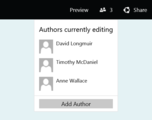
If you’re editing a Sway at the same time as other people, you can also see a count of how many people are working on the Sway at the same time as you, and who they are! Also, you can see where in the Sway other people are editing so you can avoid stepping on each other’s edits (it’s like two people trying to use the same keyboard at the same time). You’ll see their initials show up next to whatever Card they’re currently editing.
If you do try to edit the exact same location that someone else is modifying, the last one to make an edit wins. Go ahead, try this at home! But then be nice and let people get their work done in peace. J
It’s easy to see how many other people are editing a Sway at the same time as you, and where in the Sway they’re working.
Revoke editing permissions and remove other authors
As the original owner of a Sway, it’s easy for you to remove other editors and revoke all edit and view links to your Sway. Simply tap or click Share in the top right, select Need to revoke access? and then select Revoke All Shared Links. If you want to share editing or viewing links again, or with a new set of people, simply repeat the sharing process described earlier.
Make a copy of a Sway
We’ve also received a lot of requests from people who want to easily make a copy of a Sway, for a number of reasons. Sometimes it’s because you want to copy that book report template you used last month, or create multiple versions of the same presentation (maybe one for each client you work with).
We think now is a great time to roll out the ability to copy a Sway, together with shared editing. Say you’re ready to work together, but you aren’t quite sure how the other people will change your lovingly-crafted Sway. Now you can make a copy of your Sway to preserve that original so you don’t have to worry. Making a copy is also the easiest way to make your second and third Sways once you have one you like! It’s also a great way to have a template Sway for future Sways you might want to create. For example, a teacher can now create a template report for his or her students to use as a basis for their work. When duplicating the template, Sway adds a personal copy to their account, without affecting the original.
To copy a Sway you’re editing or viewing, tap or click the … in the top right and select Duplicate this Sway. Also, on your My Sways page, simply tap or click the … for a desired Sway and then click or tap the middle icon, which looks like a stack of documents.
To make a copy of a Sway from your My Sways page, tap or click … on the Sway and then tap or the middle icon.
A couple fun things to try now that you can create and edit Sways with others
Live Swaying in class—Project a Sway in a classroom, and watch how a group of students can contribute their ideas to it together at the same time. We already know of teachers who have students each make their own Sways, and then collect these Sways together into a single Sway using the embed feature. Now students can add their work directly to a class Sway that can be shared with parents as easily as sending the link!
Capturing an event—Use Sway at an event to do a live blog with other attendees—it’s a new way to "cover" a conference in real-time while allowing letting others follow along who are not attending. Everyone in attendance can add to their section of notes and other authors can watch it update live while previewing the Sway!
Working together—Of course, try out working together on some of the most common scenarios: writing reports, designing projects, crafting proposals or piecing together presentations. We on the Sway team are using these collaboration features all the time now—including for our own telemetry reports, where we periodically make a copy to generate a record, yet keep the original Sway up-to-date with the latest information and analysis.
Try these scenarios out and give us feedback! Let us know what other collaboration scenarios you’d like to use Sway for. Drop a note on our UserVoice page so we can read the details, see what suggestions others have contributed, and vote on them as well!
What’s next for Sway collaboration features?
It’s been a fun journey building these collaboration features—check out this blog post for more background from our team. Of course, this is just the first step towards making Sway a truly collaborative app you can use to bring your ideas together with others’ using Sway’s canvas. We know we have more work to do, but in the spirit of Sway Preview we wanted to get this initial feature set in your hands right away and get feedback as early as possible.
We need your feedback to help fine tune the current collaboration experience and prioritize all the different potential improvements we could make. As always, contact us through UserVoice to let us know your thoughts and vote on ideas, or join in the conversation by commenting in UserVoice to tell us why a feature is important. We’re excited to hear from you!
—Sway team, @Sway
Get Sway | Follow Sway
The post Sway is now collaborative—create and edit together with others! appeared first on Office Blogs.
Office Blogs
.
Blog
.
<span class='date ' tip=''><i class='icon-time'></i> Aug 23, 2015 09:46pm</span>
|
|
We’re excited to announce today that Sway is now collaborative and lets you create and edit together with others. Check out this blog post for more detail.
One of the great things about working at Microsoft is that you can build on the work of other teams. Several members of the Sway team formerly worked on Word and OneNote. We’re able to learn from that experience as well as build on some shared pieces of technology in Office. We’ve built the core collaboration infrastructure for Sway based on the co-authoring technology pioneered in OneNote several years ago, which has been lighting up across Office over the last number of years. Building on our shared technology helps us not only get these features into your hands sooner, but also addresses the really hard challenges. For example, while it is not uncommon for online editing tools to support co-authoring these days, especially tools with only basic feature sets, it is much harder to find tools that reliably support this scenario when the authors go offline.
Think about this challenge for a moment—if you can assume that everyone is online, you can send the edits to all the co-authors, and things will generally work OK if you do that with little delay. If someone goes offline, most tools drop that user and they can no longer edit. But in Office, we think that scenario is really important—who knows what the network is doing and when it will be there? When an editor goes offline though, the problem of syncing up later becomes far harder. Not only do they no longer see what others are doing, they make edits of their own—perhaps moving or deleting things others have modified, moved or deleted. This is a difficult problem, and OneNote and Word have really worked hard to ensure collaboration is seamless in the current versions. In Sway that infrastructure is there for when the day comes that we too support offline editing. (And yes, we want that!)
As you may have noticed, Office apps such as the web versions of Word, Excel, PowerPoint and OneNote all support real-time co-authoring and have been advancing their capabilities in this space (use them for free at office.com). Sway gets to draft off of their work, so we’re much obliged to our colleagues.
—Sway team, @Sway
Get Sway | Follow Sway
The post More background on building collaboration into Sway appeared first on Office Blogs.
Office Blogs
.
Blog
.
<span class='date ' tip=''><i class='icon-time'></i> Aug 23, 2015 09:45pm</span>
|
|
With the 2015 Cricket World Cup in full swing, there’s all sorts of folks who are interested in digging into the details about their home team, their upcoming rivals or their favorite players. With all the data available, how do you get it into shape so that you can analyze what’s important to you (or your team)? This is a job for Excel and its data analysis tools—Power Query and Power View.
In this post, we explore how to grab Cricket data from a handful of different sources, mash it up using Excel’s Power Query and then, with Power View, visualize the results in ways that are informative, interactive, interesting and even cool.
One of the PowerView sheets from one of ten Power View sheets in the workbook.
Want to follow along, or see all this for yourself? You can download the workbook and check out what we’ve done: WCRecords_Cricket_v2.xlsx
Let’s take a look at the steps taken to create this workbook. Along the way, feel free to imagine how a data analysis project of your own might be similar.
Find interesting data
First, we need to find some interesting data, and there’s an ocean of interesting data online. For the Cricket World Cup, we used www.cricketarchive.com, which has all sorts of public data organized into tables based on various slices—players, teams, seasons—that is interesting to analyze, mash-up and visualize. (The term mash-up means the same as transform, it’s just more fun to say). Now that we found a data source, we are ready to bring it into our workbook and begin to shape or merge it in ways that were interesting to us. That’s a job for Power Query.
Connect to the data using Power Query
Power Query excels (no pun intended) at connecting to all sorts of different data sources. Whether the data is in a workbook, in a company database, an OData feed or some website that has nifty tables posted, Power Query can connect to any—or all of them. But what’s even more compelling is that Power Query then allows you to take all those different connections and shape, merge, append or otherwise mash them up however you want.
In our case, we wanted to connect to a bunch of the tables from www.cricketarchive.com and create connections among them to see how different players, teams, and countries or regions have fared in their competitions over the years.
For example, we connected to the cricket archive from Power Query to make data available within our workbook. From there we were able to make a bunch of other connections to that site, all of which are available in the workbook. But it’s not enough just to link to data, once we have a connection to the data, we want to shape and transform it in ways that meet our needs.
Clean up and transform data using Power Query
Connecting to online data is pretty cool, but that’s just the tip of the Power Query iceberg of functionality. Beneath the surface, Power Query is a powerhouse of data transformation, letting you shape any data source in all sorts of ways—without changing the underlying data source. That point is worth clarifying: when you transform data (remove columns, change data types, merge data sources, so on) using Power Query, you only transform your view (or instance) of the data. The underlying data source remains unchanged.
Let’s use an analogy, to illustrate this important point. Let’s say you have an app on your phone that displays pictures. With that app, you can put special lenses on any picture to give the picture a special hue, warp it—or apply other fun transformations to the picture. You apply these transformations to the picture, so that your view of the photo is how you want it—but the original photo remains unchanged. The same goes with Power Query transformations—you can adjust your view of the underlying data sources, and bring your view into Excel for further analysis, but the underlying data sources remain unchanged.
Back to our cricket data. In this workbook we performed transformations such as:
Renamed columns
Split columns
Changed data types
Removed null values from columns
Merged with additional data sets
Other transformations
We specified these transformations in Query Editor, which is where Power Query queries are created, modified, managed or changed. You can open Query Editor from the Power Query ribbon in Excel. Simply select Show Pane to display all queries in the workbook and then double-click the query from the Workbook Queries pane.
Steps to launch the Query Editor in order to specify transformations in the selected query.
Once the query is opened in the Query Editor window, transformations made in the query are recorded in the Applied Steps section, in the order they were applied. When Power Query runs the query again (remember, against the original and unchanged data sources) your view of that data (transformed by your applied steps) can be created again with fidelity.
We applied a bunch of transformations—on a bunch of different tables we found at www.cricketarchive.com—and had a pretty good data model against which we could start our analysis. And perhaps the most interesting and compelling way of analyzing data is doing so with visualizations.
To see a step-by-step tutorial on how to combine and transform data using Power Query, check out this article. And remember, you can also download the workbook and play with it all you want.
Now that we used Power Query to transform the data, visualizing the data is a job for Power View. And that brings us to our final step.
Visualize the data using Power View
With the data transformed, it’s time to glean interesting facts, trends and insights from what we how have. To create visualizations, we need a new Power View report sheet, which is created as its own sheet in the workbook. To insert a Power View sheet, select Power View on the ribbon and then click the Power View button.
When a new Power View sheet is created, the Power View Fields pane is displayed, and beside it, a blank canvas awaits your creativity.
Blank Power View sheet.
To get started, simply drag a field from Power View Fields and drop it onto the canvas. Power View creates a basic visualization, based on the field added to the canvas. Note that you can create visualizations by dragging fields to the box at the bottom of the Power View Fields pane—either approach creates a visualization. Drag another field onto the canvas (even onto the visualization Power View just created), and the fun begins.
You can play around with the fields and visualizations until you get the desired visualization.
The following image shows two fields that have been dropped onto the canvas and a third being added. Ground was added first and then Runs margin was dropped on top of it. Losing team is being added to the existing visualization.
The next image shows the Power View visualization after the Losing team field is dropped onto the canvas:
Looks pretty basic, we know. But with a bit of creativity, or some intent on what you want to analyze and learn, you can create all sorts of interesting visualizations, or collections thereof, with Power View. To learn more about how to create visualizations, take a look at this series of tutorials.
The following three images show additional Power View visualizations. The first one shows centuries by players over many years of the Cricket World Cup, the second demonstrates how to interact with Power View visualizations, and the third shows batsman aggregates across Cricket World Cups.
The Power View reports are interactive, too. Here’s the same report, with 2011 selected:
And here’s another Power View report, with a completely different visualization:
There are many more Power View reports in the workbook, which you’re welcome to check out for yourself—just download the workbook and explore.
We hope you enjoyed this post, and best of luck to you and your favorite cricket team! We look forward to writing more posts in the future.
—Selvakumar Rajakumar, senior support escalation engineer for the SQL Business Intelligence team (CSS)
—Muthukumaran Arumugam, support engineer for the SQL Business Intelligence team (CSS)
—Carla Sabotta, senior content developer for the SQL Server team
—David Iseminger, senior content developer for the Power BI team
——————————-
Power Query for Excel is available with an Office 365 ProPlus subscription, Office 2010 Professional Plus with Software Assurance, Office 2013 Professional Plus or Excel 2013 Standalone. Learn more about how to get started with Power Query for Excel.
Power View for Excel is available with an Office 365 ProPlus subscription, Office 2013 Professional Plus or Excel 2013 Standalone. Learn more about how to get started with Power View for Excel.
Learn about all the powerful data analysis features in Excel and take your analysis further by sharing and collaborating on business insights with colleagues using Power BI.
The post Cricket World Cup fever-analyzing the data with Power Query appeared first on Office Blogs.
Office Blogs
.
Blog
.
<span class='date ' tip=''><i class='icon-time'></i> Aug 23, 2015 09:44pm</span>
|
|
Today’s post on Excel was written by Felienne Hermans, an assistant professor at Delft University of Technology in the Netherlands, where she heads the Spreadsheet Lab.
Should a university teach a course on Excel? I have heard this question a lot. But while doing research for my Ph.D. thesis at Delft University of Technology, I noticed the whole world is run by Excel. A manager at a big Dutch bank once told me, "If email goes down, that will be uncomfortable, but if Excel stops working, we’ll all go home." Excel is so omnipresent in business, yet, we at the university do not help students become proficient in the application.
For example, I was recently visited by a student from the Architecture department. For his graduation project, he was supposed to create a spreadsheet calculating the impact of different building styles. The model was not the problem, he told me, but rather he needed to know how to build the spreadsheet and ensure the calculations were correct. He needed my help.
And he was not the only one. Many of our graduates will work with spreadsheets in their jobs, probably every week. They are going to need to use spreadsheets to calculate the carry load of bridges, do investment planning or keep track of their work in the biology lab. The reality is that Excel is an important tool to learn because it is powerful enough to model many aspects of the world and simple enough to be understandable by most.
As a professor at the Delft University of Technology, I pitched the idea of teaching Excel skills as a university-wide elective. There was some initial resistance, because, again, why are we teaching students about a specific tool? And the elective was supposed to be for students of all majors, which presented some administrative issues. But after I started the class, we had students from many departments enroll. It was clear that the students saw value in learning about data analysis for various career paths. The participating students created wonderful projects like a model of water flow in Nigerian rivers.
Not only was the class successful, but I realized the class could be useful beyond universities. Having 50 students take your class is great, but the world is big and many people could benefit from my knowledge on Excel and data analysis. The opportunity came when my university started to offer free courses online using edX, a non-profit organization started by MIT and Harvard and one of the leading massive open online course (MOOC) providers. Using this platform, I am now able to offer my lessons to anyone that is interested. My classes consists of a series of videos and associated quizzes, which are graded by the system automatically. It is like having a little teacher in your computer, phone or tablet. Across eight weeks, I will provide weekly updates with new videos and exercises.
Online learning experience on edX.
My first course, called Data Analysis to the Max, starts April 7th and already has over 17,000 people enrolled from across the globe.
Map of students registered for class and introducing themselves on edX.
There is plenty of room for more to join! To enroll, just sign up on the course page. Will I see you in class?
—Felienne Hermans
The post Teaching Excel and data analysis—one professor’s efforts to prepare students for today’s careers appeared first on Office Blogs.
Office Blogs
.
Blog
.
<span class='date ' tip=''><i class='icon-time'></i> Aug 23, 2015 09:44pm</span>
|
|
Join us Tuesday, April 14th at 9 a.m. PT/12 p.m. ET to learn the basics of OneDrive for Business, including using and updating the sync app, working with the OneDrive for Business site and common troubleshooting scenarios.
To add the webcast to your calendar, visit Office 365| Summit Events.
Presenters
Rory Lenertz is a technical readiness engineer focusing on SharePoint Online. Rory has been working with SharePoint Online for over four years with an emphasis on Knowledge Base articles and support readiness materials.
Brian Bishop is a technical readiness engineer. He’s worked for Microsoft since 2006 as a support engineer and content creator. His current focus is building SharePoint readiness training and documentation.
For more information on future Office 365 support webcasts, visit the Office 365 l Summit website.
The post Support Corner webcast—supporting common scenarios in OneDrive for Business appeared first on Office Blogs.
Office Blogs
.
Blog
.
<span class='date ' tip=''><i class='icon-time'></i> Aug 23, 2015 09:43pm</span>
|
|
Today’s post on Office 365 was written by Nguyen Thi Minh Thuy, principal at Nguyen Sieu School.
As the principal of Nguyen Sieu School, one of the first private schools established in Vietnam, I feel tremendous responsibility to continuously improve the traditions established over the last 25 years, while introducing new approaches. I believe in student-centered learning and an increased emphasis on teaching English. My goal is to retain the traditional values of Vietnamese culture and learning, while equipping students to become global citizens. We have made great strides, becoming the first Vietnamese school to achieve accreditation with Cambridge International Examinations. In so doing, we have joined an international network of schools, which brings opportunities to equip our students with the confidence to compete with their international counterparts.
Another way we maximize the capabilities of our students is through implementing better IT tools for teaching and learning. That’s why our students are using Microsoft Office 365 cloud-based communication and collaboration services. Achieving anytime, anywhere learning through online collaboration with teachers and classmates has been an empowering experience for our students. It is a great way to help our graduates to perform successfully in the twenty-first century workplace.
We had been using Google Apps for Education for daily operations, but its components were not as integrated as we would have liked for implementing on a large scale across the school. I envisioned digital collaboration between students and teachers as another way to reinforce our school’s caring, supportive atmosphere—our teachers are regarded as the students’ second mothers and fathers—but we never achieved that level of connection using Google Apps. Today, students and teachers collaborate closely in their lessons using Microsoft OneNote and Microsoft SharePoint Online. They store documents in the cloud, downloading them to work with the latest version, on any device, anywhere they have Internet access. We have extended the learning environment beyond the classroom walls—and enhanced our reputation for innovation in education.
Our teaching staff and administrators also share ideas with colleagues and stay organized using Office 365 services. Teachers use OneNote to develop lesson plans and everyone prefers the spontaneous exchanges we have on our new social network, Yammer, which is more efficient and private than posting on Facebook. We use Lync Online video conferencing to connect with colleagues in other Cambridge-accredited schools around the world—saving time and money in travel costs.
All this began just six months ago, when I and the teaching staff attended a series of workshops at the school hosted by Microsoft Vietnam. That’s when we gained hands-on experience with Office 365. At Nguyen Sieu School, we are proud to have a team of qualified teachers who have a great passion for education and possess a willingness to learn new teaching methods. Office 365 has certainly sparked their enthusiasm for applying IT to their lessons. We began a pilot project at the school in September 2014, with a goal to have approximately 800 of our more than 1,800 students using Office 365 by the end of this academic year.
In my job, I get the most satisfaction from watching the students grow, academically and socially. Watching them use Office 365 to gain confidence working with modern technology in all aspects of their lives has been wonderful, for me personally and the entire Nguyen Sieu School community.
—Nguyen Thi Minh Thuy
For more information, read the full story here at Why Microsoft.
The post Choosing Office 365 to empower graduates to compete in a global workplace appeared first on Office Blogs.
Office Blogs
.
Blog
.
<span class='date ' tip=''><i class='icon-time'></i> Aug 23, 2015 09:43pm</span>
|
|
Today’s post on Excel was written by Purna Duggirala president of chandoo.org.
We all know that Excel is packed with tons of powerful features, libraries of formulas and galleries of interesting charts, making it one of the most useful tools for business analysts. I believe that, among the great secrets of Excel, there are several that are easy to use and quickly add value to your work. Let’s take a look at these features—what I like to call the low-hanging fruit— including Sparklines, Conditional Formatting, Slicers and a few simple but useful formulas you may not have noticed.
Sparklines
Sparklines, first introduced in Excel 2010, are charts that provide simple visualization representations of trends across a row of your data—in a single worksheet cell. Sparklines offer excellent real-estate savings on crowded dashboard worksheets and can be extremely insightful for the amount of space used. This feature is unbelievably cool and ridiculously simple to use. And yet, not many analysts capitalize on these powerful tiny charts.
To create your own Sparklines, select the data range and on the ribbon click Insert and then select the Sparklines type—Line, Column or Win/Loss. Next enter the target range where you want the Sparkline displayed. That’s all there is to it.
Conditional Formatting
The options available in the Conditional Formatting feature allow you to quickly create heat maps, turning a table of data into a continuous spectrum of colors for insightful visual analysis. This is a simple and effective way to explore your data and find interesting patterns.
Below is a heat map where the color scale option was applied in literally 10 seconds from the same sales data used in the Sparklines example above to illustrate the high (dark green) and low (white) sales data across products and time.
To create a heat map using Conditional Formatting, select your raw data and then on the ribbon under Home, click Conditional Formatting > Color Scales and then pick a color scale. You can also adjust color scale options by editing the formatting rule.
SMALL and LARGE functions
While everyone knows MAX and MIN functions, very few take advantage of LARGE and SMALL—functions that help you find the first, second or nth largest (or smallest) value in your data.
Using the same sales data from the examples above, the LARGE functions is able to quickly identify the top two products for each month of our data. See the example below, done with the help of INDEX and MATCH, two other super useful functions for analysis.
For more on these formulas, download this workbook: Powerful Excel features.
Remove Duplicates
There are many constants in corporate life and cleaning and organizing data is one of them. Remove Duplicates, a feature introduced in Excel 2007, remains one of my favorites. It is very easy to use and solves an important problem we all face—duplicates in data.
Just select the data and then on the ribbon under Data, click the Remove Duplicates button and watch Excel clean your data. It’s that simple.
Slicers
Think of Slicers as visual filters. They help you quickly narrow down to a subset of data and visualize it (either in a raw data format or through a connected chart). Slicers were introduced in Excel 2010 and became even better in Excel 2013.
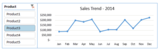
For example, we can quickly create an interactive sales trend chart using slicers. When presenting sales data, we can now easily toggle between the different products using the same chart.
To add a slicer to your charts in Excel 2013, select the data range and on the ribbon click Insert > Slicer, then select the part of your data that you want to use as a filter. For the example above, we chose the Product column. Then you are done!
To play with the interactive chart and see more on this technique, download this workbook: Powerful Excel features.
Join me at the PASS BA Conference 2015
If you find these simple features useful, you are going to love the rest of them.
Come and join me for three days of awesome insights, interactive labs, powerful demonstrations and full-day training on various advanced aspects of Excel at the PASS Business Analytics Conference in Santa Clara, CA April 20-22. There are a ton of sessions on all aspects of Excel, from formulas, to the intricacies of Power BI and other analytics tools.
Take a look at the conference schedule and then sign-up for my pre-conference session on advanced and interactive charts to know how to impress your boss with jaw-droppingly awesome charts.
Register today for the PASS Business Analytics Conference!
—Purna Duggirala
The post 5 easy and powerful Excel features you may not know about appeared first on Office Blogs.
Office Blogs
.
Blog
.
<span class='date ' tip=''><i class='icon-time'></i> Aug 23, 2015 09:42pm</span>
|
|
Last year Office announced an ongoing partnership to create better connections between Office and Dropbox. We continue to work closely with the Dropbox team to make it easier to work with your Office applications and Dropbox. We’ve already connected your Office and Dropbox experience on your iOS and Android devices. Today, the next milestone in our partnership is available, integration between Dropbox on the web and Office Online.
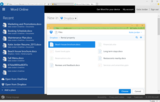
Now, when working in Office Online you can add your Dropbox account to easily browse, open and edit Office files with Office Online. You can also create new files in Office Online, and save them directly to your Dropbox.
Add your Dropbox account to Office Online
Navigate and open files on Dropbox from Office Online
Use Word Online to edit documents on Dropbox
The same integration is available from Dropbox in a web browser. You can now access Office Online directly from the file you are viewing. Just click the Open button when you’re previewing a Word, PowerPoint or Excel file from Dropbox on the web, and you can edit the file right from your browser using Office Online.
So whether you start in Office Online, or from Dropbox, it’s simple to work with Office and Dropbox on the web. All Dropbox and Office Online users have access to this new experience today. If you are an Office user that also uses Dropbox, go to www.Office.com today to give it a try.
The post Office Online and Dropbox web integration now available appeared first on Office Blogs.
Office Blogs
.
Blog
.
<span class='date ' tip=''><i class='icon-time'></i> Aug 23, 2015 09:42pm</span>
|
|
In this episode, Jeremy Thake and Richard diZerega interview Todd Baginski about the Property Inspector hero demo on top of the Office 365 platform.
http://officeblogspodcastswest.blob.core.windows.net/podcasts/EP41.mp3
Download the podcast.
Weekly updates
Populate your Office 365 Developer Tenant with sample data
Updated Fiddler OAuth Inspector
Office 365 Dev Patterns and Practices in upcoming conferences
PnP app model recipes
Remote Timer Jobs
Site Columns and Content Types
Site Provisioning
Themes
Show notes
Property Inspector on dev.office.com
TechEd Europe debut of Property Inspector
ITUnity development articles
Got questions or comments about the show? Join the O365 Dev Podcast on the Office 365 Technical Network.
The podcast RSS has been submitted to all the stores and marketplaces but takes time, please add directly with the RSS http://feeds.feedburner.com/Office365DeveloperPodcast.
About Todd Baginski
Todd Baginski is an nine-time Microsoft SharePoint Server MVP and SharePoint Top 25 Influencer who uses Microsoft SharePoint, Office 365, Azure, Mobile, Office, and cloud technologies to create Internet websites, mobile apps and line of business applications for businesses of all sizes. Todd works closely with Microsoft to create demos, code samples and articles to help developers around the world learn how to properly implement SharePoint, Office, mobile, and cloud technologies. In his free time Todd enjoys playing with his son, relaxing with his wife, and playing a variety of sports like skiing, lacrosse, hockey and softball.
About the hosts
Jeremy is a technical product manager at Microsoft responsible for the Visual Studio Developer story for Office 365 development. Previously he worked at AvePoint Inc., a large ISV, as the chief architect shipping two apps to the Office Store. He has been heavily involved in the SharePoint community since 2006 and was awarded the SharePoint MVP award four years in a row before retiring the title to move to Microsoft.
You can find Jeremy blogging at www.jeremythake.com and tweeting at @jthake.
Richard is a solution architect at the Microsoft Technology Center in Dallas, Texas, where he helps large enterprise customers architect solutions that maximize their Microsoft investments. Although a developer at heart, he has spent a good portion of the last decade architecting SharePoint-centric solutions in the areas of Search, Portals/Collaboration, Content/Document Management, and Business Intelligence. He is a passionate and skillful technology evangelist with great interest in innovative solutions that include Azure, Windows Phone, Windows 8, Lync, Kinect, and much more. You can find his blog at http://blogs.msdn.com/b/richard_dizeregas_blog/ and follow him on Twitter at @richdizz.
Useful links
Office 365 Developer Center
Blog
Twitter
Facebook
StackOverflow
http://aka.ms/AskSharePointDev
http://aka.ms/AskOfficeDev
http://aka.ms/AskOffice365Dev
Yammer Office 365 Technical Network
O365 Dev Podcast
O365 Dev Apps Model
O365 Dev Tools
O365 Dev APIs
O365 Dev Migration to App Model
O365 Dev Links
UserVoice
The post Office 365 Developer Podcast: Episode 041 on the Property Inspector hero demo with Todd Baginski appeared first on Office Blogs.
Office Blogs
.
Blog
.
<span class='date ' tip=''><i class='icon-time'></i> Aug 23, 2015 09:41pm</span>
|