Blogs
|
Today’s post on Office 365 Video was written by Mark Kashman, senior product manager on the Office 365 team.
If a picture is worth a thousand words, video then makes a James Joyce novel look tiny. Video is a popular medium for effective, engaging internal communications—and its importance is growing. Office 365 Video, too, is growing, providing organizations with a secure, company-wide destination for posting, sharing and discovering video content. And the video experience—embedded within Office 365—meets IT requirements and wins the hearts and minds of users.
Today, we are excited to announce the rollout of Office 365 Video to all eligible Office 365 business customers worldwide. We’re also pleased that Office 365 Video "gets mobile" with a new, native iPhone app and modern web experiences.
Office Mechanics show on Office 365 Video with host, Jeremy Chapman, talking to Mark Kashman about all the new mobility enhancements, an overview of functionality and future innovation.
Office 365 Video gets mobile
New, native iPhone app
We’re pleased to release the first Office 365 Video app into the App Store. The app gives users the same level of access and capabilities as the web experience—natively—making it fast and intuitive.
The power of video at your fingertips. The power to communicate more easily across your organization—be it executive messages, insights from the field, training and more—now with you on the go. Office 365 Video for iPhone makes searching for and playing your company videos extremely easy. You can even create a video on your iPhone, or take a raw video, and upload it directly into Office 365 Video to the channel of your choice. Azure Media Services, then, outputs to the HLS format for optimized playback on the iPhone.
The Office 365 Video for iPhone app allows you to navigate channels, search for and playback videos, and upload new videos directly to your company’s Office 365 Video portal.
Once your tenant gets Office 365 Video, you can install and use Office 365 Video for iPhone. Learn more how to use Office 365 Video for iPhone.
Responsive portal pages and the new HTML-5 player
It’s a BYOD world—and we support that! We have been hard at work modernizing the Office 365 Video portal pages so they look great across devices and provide playback on all web browsers across phones, tablets and desktops (Windows PC, Windows Phone, Mac, Android and iOS). You’ll notice that the pages dynamically adjust to optimize player size, column width, menu and more. The first page you’ll see become responsive is the individual video player page, with all portal pages to follow shortly after.
We have also introduced a new HTML-5 player so users can play videos no matter which device they are viewing on. This is in addition to the Flash player we introduced initially. Now, no matter which mobile browser you are navigating Office 365 Video from, when you click play on the playback page, you’ll get a secure, adaptive video stream. It just works. And if it’s your message, it gets heard.
Office 365 Video portal pages (Home, Channels, playback, search, etc.) will be scale up and down page elements and video player for a great user web experience across devices.
Meet Office 365 Video and review all browser requirements and HTML-5 support.
Additional enhancements based on First Release feedback
During the last few months, we have received a tremendous amount of feedback through various listening channels. We take this seriously and review everything on a regular basis. Here is a quick list of additional enhancements we made to the user interface, admin controls and service performance overall:
Smarter "You may also like"—We increased the use of the Office Graph to make video recommendations more personal and relevant.
Share via email—In addition to easily sharing via Yammer, users can now click the mail icon from each playback page and send an email with a direct link to the video.
Built-in CDN—All videos are now backed by a built-in content distribution network (CDN) that improves playback performance across the globe.
More granular permissions management—Within channels, there are now three permission levels that can be assigned to users: Owners, Editors and Viewers. Plus, Global Tenant Admins now have admin access to all video channels.
Note: the create and manage a channel in Office 365 Video article has been updated to reflect this update.
Improved performance overall—All upload activity, channel creation and search crawls now result in a much faster user experience.
Thank you for sharing your thoughts. They are making Office 365 Video better every day.
Looking ahead
I’d like to take a moment and give you a sense of where we are going next with Office 365 Video. In the near future, we will enable users to select their own thumbnails; provide the ability to embed videos outside of the portal (on Sites’ pages, internal blog posts and in Yammer feeds); allow developers to use the public Video APIs (in preview here for your review); and make it easier to connect on-premises environments to Office 365 Video via SharePoint Server 2016 hybrid investments.
If you have an idea for a future Office 365 Video feature, please visit our UserVoice page and submit your feedback and vote items up!
We will share and show more at Ignite (May 4-8 in Chicago). Hope to see you there.
Join our YamJam to ask your questions
On Friday, April 17th, the Office 365 Network will host an Office 365 Video YamJam from 9:00-10:00 a.m. PDT / 4:00-5:00 p.m. GST. For those unfamiliar with a YamJam, it is similar to a "TweetJam" on Twitter or an "Ask Me Anything (AMA)" on Reddit, except it takes place on Yammer. In this YamJam, customers and partners can connect directly with the Office 365 Video product team to ask questions and learn more about the announcement. Join the Office 365 Video group to participate.
Thanks for reading more than a pictures worth—and happy videoing.
—Mark Kashman
Frequently asked questions
Q. Is Microsoft planning to release native apps for platforms beyond the iPhone?
A. We began to improve Office 365 Video mobility with investments in a native app (first for the iPhone), an HTML-5 player and responsive web pages. We will continue to improve mobility and review additional investments in web and app components.
Q. Will all Office 365 Video portal pages be responsive, and are they all beginning to roll out today?
A. Yes. We started with a responsive design for individual video playback pages. Over the coming months we will update the service to enable responsive design into the Home, Channel, Search Results and admin pages.
Q. Which Office 365 plans are eligible for Office 365 Video?
A. Office 365 Video is included in the Office 365 E1, E3 and E4 subscription plans (and the corresponding A2, A3 and A4 plans for Academic customers). Government plans are in the final planning stage and coming soon. We are currently reviewing the video needs for users on other plans (e.g. Kiosk) and how to enable the right solution for those scenarios.
Q. Do customers have to incur additional costs for Azure Media Services consumption?
A. The integrated Azure Media Services usage does not incur additional cost to customer; videos stored in Office 365 will count against SharePoint Online team sites pooled storage.
Q. What Office 365 workloads must I have deployed for Office 365 Video to work?
A. Office 365 Video requires SharePoint Online. Once Office 365 Video has been rolled out to a qualified customer (as specified in the previous FAQ), Office 365 Video will be enabled for all users that have one of the eligible plans and have a SharePoint Online license assigned.
Q. When can I expect to see Office 365 Video in my tenant?
A. Beginning today, Office 365 Video will start rolling out to eligible Office 365 business customers worldwide. We expect to be at 100% worldwide within 1-2 months.
Q. Can I turn off Office 365 Video for my tenancy?
A. Yes. You can disable and enable it from within the SharePoint Online admin center.
Q. Will Office 365 Video be available for the Office 365 Business SKUs (formerly the Small Business plans) or the Office 365 Dedicated plans?
A. No, Office 365 Video will not be available for the Office 365 Business SKU or the Office 365 Dedicated plans.
The post Office 365 Video begins worldwide rollout and gets mobile appeared first on Office Blogs.
Office Blogs
.
Blog
.
<span class='date ' tip=''><i class='icon-time'></i> Aug 23, 2015 09:35pm</span>
|
|
This month’s Office 365 Dev Digest was written by Jeremy Thake, technical product manager for the Office 365 Dev team.
Welcome to the second edition of Dev Digest, designed to help you—the Office 365 developer—keep-up-to date with what’s new in Office 365 development.
It was great to hear that the first monthly digest was useful to you. Everyone here in Redmond is getting pumped to show you what we’ve been doing around the Office 365 developer platform at //Build and Ignite in a few weeks. We look forward to seeing you in our sessions, at our booth and online! Don’t forget to join the discussion on our Yammer network also.
In the future, keep an eye out for the Dev Digest on the third Thursday of every month.
Latest dev news
Check out the latest news from Office Blogs that is useful to know as an Office 365 developer. I’m particular excited with the improvements to the API Sandbox for the Office 365 APIs that now support C# samples. You can also vote on UserVoice for other languages to be supported. Engineering teams are watching very closely, so have your say!
Increasing opportunities for JavaScript developers on the Office 365 platform
Cricket World Cup fever-analyzing the data with Power Query
Download the new Salesforce App for Outlook
Announcing the Office 2016 IT Pro and Developer Preview
Dev documentation
The Microsoft Content Publishing team works hard producing documentation to help developers learn our platform. Here are the key new and updated articles for this month:
Apps for Office
New: AppInsights and Office Extensions
Office 365 APIs
New: StartUpload method
Updated: Create JavaScript web apps using CORS to access Office 365 APIs
Updated: Set up your Office 365 development environment
Updated: Integrate Office 365 APIs into .NET Visual Studio projects
Updated: Resource reference for the Mail, Calendar, and Contacts REST APIs
For more documentation check out Office developer documentation.
Code samples
Our team is continually on the lookout for new code samples to help you jump start your own projects. Here is a list of the most recent new and updated samples from Microsoft as well as the community.
Connect your iOS app to Office 365 and make your first API call
Office 365 code snippets sample for iOS
Connect your Android app to Office 365 and make your first API call
Office 365 code snippets sample for Android
Connect your Windows app to Office 365 and make your first API call
Populate your Office 365 Developer Tenant with sample data
Python/Django Sample using Office 365 Contacts API
Python/Django Sample using Office 365 Mail API
VCard import/export tool built with Ruby on Rails
js Wrapper for Office 365 APIs Client Library
Office 365 CORS Sample for jQuery
For more code samples check out the dev.office.com/code-samples.
Most recent Office 365 Dev podcasts
Since joining Microsoft last year, I have been running around campus interviewing people about various dev topics. If you would like to hear me interview someone on a particular topic, please submit your suggestions in the Yammer group and I’ll go hunt the relevant people down to interview.
Here are the most recent podcast interviews:
Office 365 Office 365 Developer Podcast: Episode 042 on Exchange development futures with Venkat and Pretish
Office 365 Developer Podcast: Episode 041 on the Property Inspector hero demo with Todd Baginski
Office 365 Developer Podcast: Episode 040 on Xamarin development with James Montemagno
Office 365 Developer Podcast: Episode 039 on the API Sandbox
For more podcasts check out dev.office.com/podcasts.
Patterns and practices
The Microsoft Patterns and Practices team is working hard to release samples to show the power of the App Model. Don’t forget to join the monthly community calls to hear the updates from them directly on Skype for Business.
Here are the latest updates from the team:
Office 365 Developer Patterns and Practices (PnP) - April release details
PnP March community call recording
New training package created based on the PnP guidance at OfficeDevPnPTraining
Numerous new videos in the PnP Channel 9 check at OfficeDevPnPVideos
Numerous updates and new articles to PnP section in MSDN at OfficeDevPnPMSDN
Here are the latest guidance documents:
CSOM releases and new capabilities—latest API changes GitHub
Upload large files sample app for SharePoint (Updated) MSDN Github
Branding and site provisioning solutions for SharePoint 2013 and SharePoint Online MSDN
Use remote provisioning to brand SharePoint pages MSDN
Update the branding of existing SharePoint sites and page regions MSDN
Customize your SharePoint site UI by using JavaScript MSDN GitHub
Using Microsoft Azure WebJobs with Office 365 MSDN GitHub
Autotagging sample app for SharePoint MSDN Github
For more on patterns and practices check out dev.office.com/patterns-and-practices. All questions related on released materials and guidance can be added to our Yammer group at OfficeDevPnPYammer.
Dev community blog posts
The Office 365 dev community has been busy this month. It is really exciting to see the effort people put in to their posts in their spare time to share with the community. Check out these articles from the Microsoft field, MVPs and more:
Using TypeScript in a SharePoint 2013 App | IT Unity
Populate your Office 365 Developer Tenant with sample data - Exchange dev blog - Site Home - MSDN Blogs
"Just the Essentials" SharePoint Master Pages for SharePoint 2013 | Our SharePoint Experience
Updated Fiddler OAuth Inspector - Kirk Evans Blog - Site Home - MSDN Blogs
John Liu .NET - Blog - Azure Logic Apps: Build SharePoint Workflows by clicking buttons: a picture guide
My time break for SharePoint: Add Custom Ribbon Button in Site Page to Popup all SharePoint Apps
Chris O’Brien: Key skills and topics for today’s SharePoint/Office 365 developer
Making seattle.master Responsive | Our SharePoint Experience
The API Economy: Consuming Our Web API from a Single Page App - Kirk Evans Blog - Site Home - MSDN Blogs
A Sample SharePoint App That Calls A Custom Web API - Kirk Evans Blog - Site Home - MSDN Blogs
Ruby gem for Mail, Calendar, and Contacts APIs - Exchange dev blog - Site Home - MSDN Blogs
Wictor Wilén - SharePoint MCA, MCSM, MCM and MVP - SharePoint Online and Azure AD Dynamic Groups
Office 365 APIs and Node.js - Exchange dev blog - Site Home - MSDN Blogs
Upcoming events
There are plenty of events on the horizon…don’t miss out on these great events with Office 365 content. Our team looks forward to meeting you all at these events, so don’t be shy come say hello at the Office 365 booth!
April 29 - May 1
Build in San Francisco
May 4 - 8
Ignite in Chicago
May 18 - 21
Dev intersections
June 24 - 26
SPTechCon Dev Days
Aug 18 - 20
SharePoint Fest Seattle
For more events check out dev.office.com/events.
Until next month, please join our community discussions at www.yammer.com/itpronetwork and follow us on @OfficeDev on Twitter and on Facebook.
Also, be sure to follow along with us on our daily developer mission: Jeremy Thake (@jthake), Chris Johnson (@loungflyz), Sonya Koptyev (@SonyaKoptyev), Dave Pae (@davidpae) and Jim Epes (@j_epes).
—Jeremy Thake
The post Office 365—monthly Dev Digest for April appeared first on Office Blogs.
Office Blogs
.
Blog
.
<span class='date ' tip=''><i class='icon-time'></i> Aug 23, 2015 09:35pm</span>
|
|
Today’s post was written by Seth Patton, senior director of product management for the SharePoint team.
In February, we shared our vision on the evolution of SharePoint, outlining our plans for continued cloud innovation with SharePoint in Office 365, and providing a glimpse of the work underway to deliver our next on-premises server release, SharePoint Server 2016. With Ignite just a few weeks away, we’re getting ready to share more details on the innovation we’re bringing to SharePoint 2016. In the meantime, I wanted to provide an update on release timing and share some of the key enhancements and new capabilities we’re focused on.
Today, we are confirming that SharePoint Server 2016 will become generally available in Q2 2016, with a public beta planned for Q4 2015. We also want to confirm our commitment to delivering on-premises releases of SharePoint for the foreseeable future. We envision a future where we will continue to have customers who choose a combination of on-premises, cloud and hybrid deployments for many years to come. We’re excited to start sharing information on our SharePoint investments at Microsoft Ignite, so below I’ve highlighted some of the most relevant sessions to attend if you’re interested in learning more about the road ahead.
As we think about the next version of SharePoint Server, we’re paying close attention to trends in content management, team collaboration, user experiences across devices, and how the cloud can be blended into existing on-premises scenarios in new and compelling ways. In particular we are focused on delivering value to customers as part of their on-premises deployments, while at the same time making it easier to take advantage of cloud innovation thru hybrid deployments of SharePoint Server with Office 365. With that backdrop, SharePoint Server 2016 will deliver enhancements and new capabilities in three major areas:
Improved user experiences
Cloud-inspired infrastructure
Compliance and reporting
Improved user experiences
Making decisions faster and keeping in contact are critical capabilities for increasing effectiveness in any organization. Users’ ability to access information while on the go is now a workplace necessity. SharePoint Server 2016 will provide improved mobile access to content, people and applications along with touch-based experiences across devices and screen sizes. It will make file storage and document collaboration more people-centric. And it will enable improved user experiences and capabilities derived from innovations in Office 365, available either as part of your on-premises deployment or through a hybrid implementation of SharePoint Server 2016 and Office 365. For example, users will be able to quickly discover contextually relevant information and data that is stored across both on-premises and cloud environments powered by Office Graph and Delve. And, we’re focused on helping you streamline communications with richer integration with Exchange and Yammer, as well as broadening access and management of new types of media thru integration with Office 365 Video as examples.
Learn more about improved user experiences and hybrid investments at Microsoft Ignite:
Implementing Next Generation SharePoint Hybrid Search with the Cloud Search Service Application
MVP Panel: SharePoint On-Premises, Online and Everything in Between
Cloud inspired-infrastructure
SharePoint 2016 is the first on-premises server release representative of our experience running SharePoint at scale in Office 365, bringing our own internal investments to your datacenter that improve performance, reliability and scale as well as enabling true hybrid scenarios that can enrich your existing on-premises investments.
In addition, with an improved, simplified user experience and integration with products such as the next release of Windows Server, the next generation of SQL Server, and Exchange Server 2016, SharePoint Server 2016 will simplify end-user training and support for IT.
Finally, we’re focused on enabling a broad ecosystem of solutions and partners through a standardized set of APIs and experiences that span on-premises and the cloud.
Learn more about how we’re reshaping SharePoint at Microsoft Ignite:
The Evolution of SharePoint: Overview and Roadmap
What’s New for IT Professionals in SharePoint Server 2016
Compliance and reporting
Data Loss Prevention (DLP) is non-negotiable, and overexposure to information can have legal and compliance implications. SharePoint Server 2016 will provide a broad array of features and capabilities designed to make certain that sensitive information remains protected with investments in DLP, new scenarios to enable data encryption, and compliance tools that span on-premises servers and Office 365 while providing a balance between enabling user self-service and ensuring content usage adheres to corporate policy.
Dive into compliance and reporting with these selected Ignite sessions:
Microsoft SharePoint Data Security and Compliance
End-to-End Data Loss Prevention
Technology Adoption Program (TAP)
If you’re interested in providing feedback on early versions of SharePoint 2016, we invite you to nominate your company for the Technology Adoption Program (TAP). Joining the on-premises TAP provides companies with a number of advantages, such as providing input and feedback for future releases of SharePoint, Project Server, and/or Exchange Server; developing a close relationship with the product teams; and receiving Pre-Release information about SharePoint, Project Server and Exchange.
We look forward to seeing you at Ignite (May 4-8 in Chicago) where we’ll be sharing more details about SharePoint Server 2016, including a sneak-peek at an early version of the product. We’re excited about SharePoint Server 2016 and we’re sure you will be too!
—Seth Patton
The post SharePoint Server 2016 update appeared first on Office Blogs.
Office Blogs
.
Blog
.
<span class='date ' tip=''><i class='icon-time'></i> Aug 23, 2015 09:34pm</span>
|
|
Today’s post was written by Jared Spataro, general manager for the Office marketing team.
Today I’m excited to share that the Office Universal apps preview for Windows 10 for phone is expected to be available by the end of the month. With this announcement, we’re rounding out our Office on Windows line-up, and I wanted to take the opportunity to explain our strategy of Universal and Desktop apps.
Office Universal
Our Office Universal apps are designed for on-the-go productivity. They’re touch-first, built for tablets and phones, and optimized for viewing, quick edits, notes and mark-up. On a tablet, the Universal apps are fast, fluid, and streamlined for an immersive, hands-on experience. They’re fantastic for reading and perfect for touch- and pen-based content creation. On a phone, the Universal apps adapt to the smaller form factor. Commands and controls are moved to the bottom of the screen so you can triage your work and make edits one-handed with your thumb. (That may sound like a small thing—but wait until you try it. It makes all the difference!)
Word Universal for Windows 10 for phones
PowerPoint Universal for Windows tablets
Office Desktop
While on-the-go productivity is increasingly important, people haven’t stopped using the Office Desktop applications for their most important creative work—and we expect that to continue for years to come. The upcoming release of our Windows Desktop apps (Office 2016) will offer our richest feature set ever for professional content creation. These apps are tuned for sophisticated authoring, easy collaboration, pixel-perfect layouts and deep analysis—and are designed for the precision and control of a keyboard and mouse. In Office 2016 some of the key investment areas include:
Modern productivity. Updated look and feel—Office 2016 will deliver a modern look and feel that is visually aligned with Office across platforms and devices. So no matter what form factor you’re using, your Office experience will be familiar, consistent, and intuitive. Cloud connections—With a redesigned Backstage experience, we’re making it easier to use cloud services to create, open, edit and save your files directly from the desktop. In addition, new modern attachments in Outlook make it easy to attach files from OneDrive and automatically configure permission for the recipients—all without leaving Outlook. Intelligent experiences—The new Office apps will learn as you work, taking advantage of subtle cues and clues to help you stay focused on priority work. Tell Me, a new search tool available in Word, PowerPoint and Excel, will enable you to find the commands you need by simply typing what you want to do.
Business intelligence. Office 2016 will also include a number of valuable business intelligence enhancements built right into Excel. New data visualizations will make sophisticated analysis faster and easier. And Power Query (previously offered as a separate download) will be fully integrated into Excel, giving the app native features for discovering, combining and refining data from different sources.
IT control and manageability. For the Enterprise, Office 2016 will deliver improved controls and information management. Word, Excel and PowerPoint will include new Data Loss Prevention (DLP) features to manage sensitive information like credit card or social security numbers. Flexible click-to-run deployment options will allow IT admins more control over Office updates. And improved integration with Microsoft SCCM and Azure Active Directory will give organizations powerful controls for managing the Office apps across devices.
With the preview release of the new Universal apps for Windows 10 for phones, we’ll have an exciting line-up of Windows 10 apps across form factors. The Universal apps will deliver tailored tablet and phone experiences for on-the-go productivity, and the Desktop apps will offer our broadest, deepest feature set for professional content creation. To experience them for yourself, I’d encourage you to download the apps and give them a try. The Universal apps for tablets went live in February with the Windows 10 Technical Preview, the Desktop IT Pro and Developer preview for Office 2016 launched last month, and the Universal apps for Windows 10 for phones are expected to be available with the Windows 10 Technical Preview by the end of April. Stay tuned to the Office blog for more updates on our Windows strategy. It’s an exciting time for Windows and Office, and there’s more to come in the next few weeks.
—Jared Spataro
The post Modern productivity—Office on Windows appeared first on Office Blogs.
Office Blogs
.
Blog
.
<span class='date ' tip=''><i class='icon-time'></i> Aug 23, 2015 09:33pm</span>
|
|
This post is written by Kevin Shaughnessy, senior program manager and Shobhit Sahay, technical product manager for the Office 365 team.
Regardless which email system or service you use, when an email message you send can’t be delivered you’ll receive a non-delivery report (NDR), also known as a bounce message. The NDR will tell you the message wasn’t delivered, but after that it’s mostly technical jargon designed more for computer science professionals than for the typical email user. You’re often left to fend for yourself to try to fix the issue, searching the web and posting questions on forums for clues to what’s going on and, more importantly, how to fix it. While advances in technology over the last 30 years have been immense, the state of the art in NDRs is still just an homage to 1982—overly technical and ill-designed for the modern email user. But that’s about to change.
Over the next several months, NDRs generated by Office 365 will be enhanced to make it easier to understand and fix message delivery problems. To start, the stark and technical appearance of the "classic" NDRs will be replaced with a look that’s more approachable, more visually appealing. They’ll explain the problem and why it’s happening in everyday language, with clear instructions on how to fix the problem. They’ll include an at-a-glance view of the problem and who’s responsible for fixing it (the sending side, the receiving side, or Microsoft). And while a key objective is to make NDRs helpful to those who aren’t computer professionals, even the technically oriented bits, like the error details and message headers, get a makeover to the benefit of email admins and technical support professionals alike.
Sample end-user section of an enhanced NDR
To help you get the most out of these updates let’s take a closer look at the various elements of the enhanced NDRs.
The Office 365 logo
The first thing you’ll notice at the top of an enhanced NDR is the Office 365 logo.
The logo doesn’t mean that Office 365 was responsible for the error—it just means that Office 365 generated the NDR and that either the sender or the recipient is hosted in Office 365. This can help reduce the confusion concerning which messaging endpoints or services are involved in the email transaction, information often obscured or unclear in NDRs today.
Cause section
Enhanced NDRs include a new Cause section that briefly states in everyday language the reason the message wasn’t delivered.
It’s short and to the point—most people don’t want to know all the technical details about why their message couldn’t be sent. They just want to solve their problem quickly and get on with their lives. Your message couldn’t be delivered, here’s the problem, here’s how to solve it.
Fix-it Owner Indicator
In the past when you got an NDR it was difficult to assess who needed to fix the problem, and you could spend a lot of time investigating only to discover that the source of the issue was on the other end of the email transaction. But with the Fix-it Owner Indicator you can skip the uncertainty and wasted time trying to figure out whose problem it is, and get the issue to the correct person right away. The Fix-it Owner Indicator, appearing immediately after the Cause section, is an at-a-glance view of the issue and who needs to fix it.
This indicator shows the three basic "actors" in an Office 365 email transaction—the sender, Office 365 and the recipient. The area marked in red is where the problem usually must be fixed, and it includes a brief snippet of what the issue is. The example above indicates that it’s the sender (kevin) who needs to correct the out-of-date recipient address information.
In the next example, the Fix-it Owner Indicator shows that it’s the receiving side that’s responsible for fixing the problem.
While the sender still shows kevin, on the receiving side it’s now the domain name, contoso.com, that’s displayed, rather than the recipient’s alias. Why? Because in this example the email admin of contoso.com, not the recipient, will have to fix the problem at the domain level (for example, when the domain is configured to reject messages from anonymous users). If the recipient herself is likely responsible for the fix then her alias would be shown here instead of the domain name.
Sometimes it’s unclear exactly who needs to fix it—the same problem could be caused by an issue on either end of the email transaction. So the indicator may not always correctly identify who’s responsible for resolving the problem in all situations, 100% of the time; but it’ll be right the majority of the time.
While the Fix-it Owner Indicator is useful to quickly grasp the issue and potential resolution, the sections that follow it include detailed steps and guidance for how to fix the problem.
How to Fix It
The How to Fix It section of the enhanced NDRs is primarily designed for the end-user who receives the NDR. It uses everyday language to tell them how to fix the issue.
Yet not all issues can be addressed by the person who sent the message. Sometimes someone else will have to fix it: their email admin, the owner of the distribution list they sent the message to, the recipient, the recipient’s email admin, or Microsoft Support. When Office 365 detects that the sender likely can’t resolve it themselves, Office 365 succinctly summarizes what needs to be fixed, and provides guidance to communicate the information to the person who can.
More Info for Email Admins
While the top section of the NDR is mostly designed for end-users, the section that follows it is specifically for email admins and technical support. The More Info for Email Admins section provides an in-depth explanation of the problem and solution, usually includes expanded technical details, and often contains a link to a web-based article for more detailed steps and reference information.
The More Info for Admins section includes easy-to-identify Original Message Details and Error Details sub-sections to make it simpler to jump right to the most important technical specifics. The information in these sections is especially useful when you’re contacting Microsoft for assistance. If you ever have to engage Microsoft Support about an NDR, provide them with the entire NDR message. But if for some reason you can’t do that, give them the information from the Original Message Details and Error Details sections—this will greatly help expedite resolution of the issue.
Note that while the language in this section is typically designed for the email admin of the sender, the details may be most applicable to the recipient’s email admin (not always the same as the sender’s email admin). The Fix-it Owner Indicator can be used to help determine which email admin will benefit the most from this information.
Message Hops
And lastly, while the original message headers—in vintage mono-spaced typeface and archaically word-wrapped magnificence— still appear at the bottom of the enhanced NDRs, a neatly formatted version of them in the Message Hops section is also included. This makes it simpler to follow the message’s server to server hop path so you can more quickly spot problems between message hops.
Not all NDRs generated by Office 365 will appear as enhanced NDRs right away. But over the next several months we expect that most of the ones that Office 365 generates will be recast into the enhanced format. After all, no one wants the delivery of their message to fail, but when it does, it shouldn’t take a degree in computer science to understand why and what to do to fix it. Enhanced NDRs in Office 365 will make it easier to understand and resolve many message delivery failures when they do happen, so you can get them fixed and get back to business in less time than ever before.
—Kevin Shaughnessy
The post Enhanced non-delivery reports (NDRs) in Office 365 appeared first on Office Blogs.
Office Blogs
.
Blog
.
<span class='date ' tip=''><i class='icon-time'></i> Aug 23, 2015 09:33pm</span>
|
|
We on the OneNote team are always working to improve our experiences and provide more to our customers. From big release to small updates and enhancements we are always listening to your feedback. In today’s post we wanted to introduce you to a couple recent updates: Clip to OneNote in Bing Image Search and an update to the OneNote Online Spell Check.
Introducing Clip it to OneNote
Recently, the Bing Image Search team announced a brand new experience that lets you do more, learn more and be inspired through image search. The OneNote team is proud to be involved in this partnership and is pleased to introduce Clip it to OneNote, a new feature in Bing Image Search.
Clip it to OneNote lets you organize images and links that you’re researching into your personal online notebook. Here’s what the widget looks like when you click it in Bing Image Search:
Click Clip to send the selected results to a page created in OneNote. For example on OneNote for iPhone:
As always all your notes are on all your devices. Researching a topic? Found an inspiration? Quickly clip it to OneNote and save it for later.
OneNote Online Spell Check update
Here on the OneNote team, we love to use OneNote for all sorts of things. At work, we have shared workspaces where everyone can contribute and see ideas for projects. Shared notebooks help us to keep track of to-dos, share our schedules and brainstorm and develop ideas. When developing ideas into well-formed thoughts and plans the OneNote Online Proofing tools, such as Spell Check, keep us looking professional and save us time.
Right-click on a word to display spell check options.
But sometimes quickly brainstormed ideas remain just that and don’t need to go through proofing for final presentation. Now in OneNote Online it’s easy to hide the red squiggly lines that highlight spelling errors. With this update to OneNote Online you can quickly hide your spelling errors and focus on your content rather than those red squiggles. On the Home tab, under Spelling, select Hide Spelling Errors. Poof, they are gone.
OneNote Online now has the option to hide spelling errors.
Spelling errors are hidden anytime you use OneNote Online on your machine, until you choose to show them again in the Spelling drop-down menu.
We also love using OneNote Online at home, for things like trip planning and Hide Spelling Errors comes in handy for this too! For example, if you’re collecting information from the web for an upcoming trip, you can hide spelling errors and focus on the content, not those red squiggles.
This feature comes to OneNote Online because of your feedback! We love to hear from you and make improvements based on the things you’ve told us you need. Please continue to share your thoughts and ideas through the Give Feedback to Microsoft button at the top right of the OneNote Online app.
———————————
Download OneNote: onenote.com
Try Bing Image Search: bing.com/images
Follow OneNote: twitter.com/msonenote
Like OneNote: facebook.com/OneNote
The post Bing Image Search + OneNote & OneNote Online Spell Check update appeared first on Office Blogs.
Office Blogs
.
Blog
.
<span class='date ' tip=''><i class='icon-time'></i> Aug 23, 2015 09:32pm</span>
|
|
We just touched the surface of the problem area in today’s announcement, so we’d like to dive a little further with you in this post since this truly was an interesting problem.
How does Sway automatically crop images?
First a little background. When we built Sway’s "designer in a box" code, we created an algorithm that we call "Smart Cropping," and this has been working silently in the background since Sway Preview started in October 2014. This algorithm evaluates pictures in order to understand what is interesting and what isn’t so Sway can create well-composed image crops.
When you drop a picture into your Sway, there’s a lot going on behind the scenes. Sway identifies things like faces, invariant regions (what’s uniform), horizons and other strong lines, and more, as well as how all of these elements play together. Then Sway looks at the context in which the author is using the picture. Is it in a heading? A title? A full-bleed ("intense") image? Does it have to fit within an interactive element? Sway then makes a choice of what it will show from that image (and how) given the unique constraints for your device and the chosen layout and style. Sway could consider things like the "rule of thirds" or the overall composition in order to deliver beautiful content.
Smart Cropping can’t stand alone
Of course, Smart Cropping alone isn’t good enough. For starters, the algorithm itself can always be improved. (And we’ll continue to make it better!) In fact, if you ever notice that your image isn’t cropped to what you thought was important and you don’t understand why, we’d appreciate it if you left us some feedback on UserVoice or by tweeting us. This way we can understand what we need to do to make Sway’s Smart Cropping even smarter.
Another reason Smart Cropping can’t stand alone is the subjective nature of what you want to include in your Sway. We could have the best algorithm in the world, but Sway still wouldn’t know the difference between your child and a random child sitting next to each other (…at least not yet?). (In fact, one of our own team members was frustrated to see that Smart Cropping had excluded his daughter from an image he had taken of her playing soccer, focusing instead on a different player!)
Additionally, we made some stylistic decisions to include extreme horizontal crops for some of our heading cards. This means Sway may knowingly make a less than ideal cropping decision to achieve the stylistic effect of the design you’ve chosen. We have received a lot of feedback from exasperated users outlining this exact problem, asking why we wouldn’t give them a way to manually reposition the crop.
Unfortunately, just letting users manually reposition the crop in Sway isn’t as intuitive as it may seem. Let’s think about this a little bit… When you manually crop a picture (or even reposition it within the current constraint, like you might with a repositioning feature), you very specifically set length and width dimensions. But what does this mean when you hit Remix!, change the style or layout, move your picture to a different context (like from a title card to a heading card), or view your Sway on a different device? Yes, we understand that sometimes you just want to manually crop your image (and we are considering adding this as an override), but when you abstract the problem, what is the user truly trying to achieve in the majority of cases? From our user studies and from your feedback, we believe that the true issue was that what was important wasn’t in focus, not that the user wanted to fine-tune the crop (and worry about the myriad of devices and what their crop would look like on each one). And getting to the heart of what you want and intended, versus asking you to always specify the exact design details, is what Sway is all about.
So why Focus Points?
We considered a lot of different solutions, some that were very similar to manual cropping and others (like Focus Points) that were very different. We decided to move forward with the Focus Points approach because of its overall simplicity and because of how much more valuable it is for Sway to understand what’s important to you. Just imagine what else Sway could do with an understanding of what’s important to you, not just what settings you chose! By knowing, say, what two discrete portions of the image you care about, Sway could choose a better "unimportant" part of the image for text placement; or create different crops to induce parallax and bring them together; or animate between the two regions to make sure they’re both included. The potential is endless!
It’s tackling challenging problems like this, to bring you a product that you love that is unlike anything you’ve used before, which makes working on Sway so exciting. We’ll continue to listen to your feedback and refine the experience, so please get in touch! We’re listening on the other end whenever you have suggestions or feedback for us. Sway on!
—Sway team, @Sway
Get Sway | Follow Sway
The post The philosophy behind Focus Points in Sway appeared first on Office Blogs.
Office Blogs
.
Blog
.
<span class='date ' tip=''><i class='icon-time'></i> Aug 23, 2015 09:32pm</span>
|
|
Recently we announced that Sway now allows shared editing and same-time collaboration, so you can work together to easily bring your ideas to life in an interactive way with friends, family and coworkers. Enabling collaboration in Sway was a top requested feature in our feedback forums, and it was a big step in our journey with Sway Preview—a journey which we’re continuing with more updates to announce today!
Sway now lets you create interactive charts
Since we introduced Sway to the world, it has always been our plan to add support for interactive charts and graphs, so you could support your narrative with the help of interactive data visualizations, along with other sorts of rich multimedia. In January, we added support for embedding Excel Online charts and graphs via embed codes, which was a great step. Now, we’re happy to announce that we’re rolling out support for creating interactive charts right within Sway!
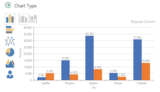
With the addition of native charts, it’s easy to add a variety of interactive data visualizations to enhance your Sways—including column, stacked column, bar, stacked bar, line, pie, donut pie, area, stacked area and bar charts with people icons. Check out an example interactive chart in this Sway, where you can tap or click "sales" or "profits" to filter the chart accordingly!
It’s now easy to add a variety of interactive data visualizations to enhance your Sways.
To get started making a chart in Sway, open the Cards tab and either tap or click a Chart (Preview) Card, or drag one onto the Storyline. The "click here" link in the Chart (Preview) Card will take you to a visualization of the chart, where you can add or edit your data, as well as choose the chart type and its appearance.
We’re attaching the word "Preview" to the chart Card right now since we’ll definitely keep working on charts and ultimately let you edit the chart in the Storyline as well, but we wanted to get the feature out to you as soon as possible and start getting feedback! Let us know what you think on UserVoice.
You can easily add and modify your chart’s data, its type and its appearance.
Focus Points—bring what’s important in your pictures into focus
There’s a lot going on behind the scenes when you drag and drop a picture into Sway, especially if it’s being stylized as a background image for a heading or title. Sway automatically crops your image by evaluating it and picking out what’s important, like your family’s faces or the horizon line in your beach photo, while also considering how to make the image fit the screen size and match the particular style you chose. While we continue to improve Sway’s intelligence, we know Sway doesn’t always get the cropping right. (For example, Sway doesn’t know which person accidentally photo-bombed your family photo.) Because of this, we’re adding the ability for you to express more intent to Sway on what’s most important in your images, to help ensure you end up with cropping you like.
By using Focus Points in Sway, it’s easy to tell Sway what to focus on in your image with just a couple of taps or clicks. Whether you’re in the Storyline or the Sway Canvas, tap or click the image and select Focus Points in the toolbar or the buttons that appear. When the Focus Points pane opens, just tap or click on what’s important in your image! You can also move Focus Points around by dragging them, or remove them by tapping or clicking them again. And at the bottom of the pane, you can see a preview of how the resulting crop could look on tablet/PC screens and mobile screens.
If you don’t want the image to be cropped at all, just select The entire image is important checkbox. This can keep you from losing important things, like text in the image or your company’s logo.
It’s easy to use Focus Points to tell Sway what parts of your image are important and ensure they’re always included in the cropping.
Sway remembers your Focus Point choices for your image even if you move it around, make it a background image for a heading, Remix! your creation’s style or layout, or view it on a different device. Sway will continue to adapt the cropping across device sizes, but don’t worry—the parts of your image you said were important will always be included.
Now, you might be wondering: why doesn’t Sway just have crop handles and let me manually specify exactly how to crop the image? Well, because Sway continuously adapts the formatting to make sure your creation looks great on any screen, manual image cropping isn’t as intuitive as it seems. If you crop a picture, you very specifically set the dimensions. But what would this mean when you hit Remix!, change the style or layout, or view your Sway on a different device? It would mean Sway wouldn’t be as flexible to adapt your design to look great on any screen. We may eventually add manual cropping as an override, but for now, Focus Points lets you get the image cropping you intend while still letting the magic of Sway make your creation look great. Read more about these interesting challenges in this companion blog post.
Accent—a new option for formatting your content
For a while now, we’ve had Emphasis as the sole way to differentiate text in your Sways. The idea behind Emphasis is that you use it to ask Sway to change the selected text by making it more noticeable, typically from a distance. Therefore, depending on the style you are using, Emphasis will cause text or headings to be bold, underlined, colored, highlighted, bigger, brighter, more animated, etc.
Now we’ve added Accent—an additional way to differentiate content in your Sway. Accent allows you to express your intent by telling Sway to be more subtle. With Accent, you can make a piece of content look different from its surroundings, while retaining the same visual impact level and layout. So changes to accented content are more refined, such as italics, soft glows, drop shadows, or saturation. At the moment, Accent can only be applied to text, and its effect in all styles will be italic formatting, but longer term Accent will be available for all content types and may apply different subtle changes depending on the style.
So you can think of using Emphasis for content you want the reader view as key, such as your thesis or an important quote. Use Accent when you want to subtly differentiate something from its surroundings, such as which children in the class received honors or a word that is in a foreign language.
To use Accent, simply select some text then tap or click Accent in the toolbar.
To use Accent, select the desired text then tap or click Accent in the toolbar.
Accent makes content look subtly different from its surroundings, while retaining the same visual impact level and layout.
It’s easier to embed your Word, PowerPoint, Excel and PDF files from your OneDrive or PC/Mac
In January, we announced support for adding your content from popular third-party sites via embed codes, and we’ve been expanding the list of supported sites since then. In addition to other types of content, this has meant you can embed in your Sway a Word, Excel, PowerPoint or PDF document that is stored on your OneDrive. That way, anybody viewing your Sway can scroll the pages of your Word document, filter the charts and tables or your Excel spreadsheet, or flip through slides of your PowerPoint presentation. In other words, embeds preserve the original formatting and layout of your documents, and including them in Sway lets you display them along with other multimedia.
While many people are used to seeing this type of embedded content across the web, not everybody is familiar with creating the embed codes for the content they’d like to include in their Sway—including embeds for Office documents.
We updated Sway to make it super simple for you to embed your Word, Excel, PowerPoint and PDF documents in your creations. All you have to do now is drag and drop a document into Sway from your OneDrive, or upload a document from your PC or Mac. Sway will ask if you’d like to import the text and graphics from your document into Sway, or if you’d like to embed the document "as-is" as described above:
When you choose Embed, Sway will automatically do the work for you of generating the embed code for your document and adding it to Sway. (If you uploaded a document, Sway will add it to your OneDrive.)
Of course, you can still choose to manually create embed codes in Word, PowerPoint, and Excel Online (for documents you’ve uploaded and stored in your OneDrive). Generate the embed code from File tab (Share option) and then copy the code to an "Embed" Card in your Sway.
Check out how embedded documents look in this Sway:
Sway for iPhone v1.3 updates
A few weeks ago, we released a major update to Sway for iPhone. In that update we added a number of capabilities such as Emphasis for text, bullets and numbering, support for video and more. With those changes, Sway for iPhone users could more easily create polished, interactive content on the go (this video shows those updates in action).
We made a few more changes to the app and have an updated version of Sway for iPhone for you in the App Store! Its improvements include:
Improved sign in experience—It’s easier to get going with Sway for iPhone. If you’re already signed in to Word, Excel, PowerPoint or OneNote on your iPhone, Sway will automatically log you in. You can go from launching the app for the first time to making and editing Sways in seconds!
Improved accessibility—With Sway for iPhone v1.3, we have better support for reading and editing using Apple VoiceOver.
Bug fixes—We continue to respond to your feedback by fixing bugs and improving app performance. For example, we made the image upload process more stable.
—Sway team, @Sway
Get Sway | Follow Sway
The post Sway updates—create interactive charts, image Focus Points, Accent, easier document embeds and Sway for iPhone updates appeared first on Office Blogs.
Office Blogs
.
Blog
.
<span class='date ' tip=''><i class='icon-time'></i> Aug 23, 2015 09:31pm</span>
|
|
We love when technology makes an impact on people’s lives—it’s really at the core of why we’re here! When we received word that an instructor used Office Mix to conduct a full week’s worth of blended classroom lectures so he could miss class to be with his wife and newborn daughter, we knew we had to share his heartwarming story.
This story has a great ending but let’s start at the beginning. With class starting September 30th, Justin Harbin, an instructional designer at Lancaster Bible College was under a lot of pressure knowing his daughter could be born on that day, the next day or the day after. It was going to be a hectic week and Harbin was set to be out of class during a very critical time. He used Office Mix to create a full week’s worth of blended classroom lectures, while he missed class to be with his wife and newborn daughter. That’s life balance we can all appreciate!
Harbin’s lectures were the start of an accelerated undergrad program conducted over six weeks. It included four one-hour classes five days a week. As such, there would be no room for time off and no way to bump the course schedule last-minute.
Harbin had a lot of content, but had to deliver it online in an engaging way that would drive discussion among the students while he was out of class. Plus, it had to be easily uploaded to the school’s learning management system (LMS), Schoology.
With one week to go before class started, Harbin turned to Office Mix, which enabled him to create five mini, interactive lectures. He added annotations, videos, narration, quizzes and recaps—all the good stuff teachers need to help them better evaluate students. Harbin then coupled his online class with discussion boards on the school’s LMS.
Harbin’s approach was a success! He was able to teach his class, while also taking the time off to be with his wife and witness the birth of their daughter.
The following Tuesday, Harbin met with students. "I was overwhelmed by how well it worked. Students grasped core concepts and interacted to a level where there was a lot of critical thinking, discussions were deep. It went far beyond the traditional audio and PowerPoint presentations we were used to," said Harbin.
He now uses Office Mix regularly to embed assignments, walkthroughs, and expectations into the syllabus for easy reference by students.
From an instructor perspective, Harbin says, "Office Mix drives the interaction and engagement across student, content, and instructor, which is at the core of any blended classroom. It works extremely well when you have a vast amount of content to cover."
We tend to agree and couldn’t be more proud. We bet his family feels the same!
The post Teacher uses Office Mix to deliver lessons appeared first on Office Blogs.
Office Blogs
.
Blog
.
<span class='date ' tip=''><i class='icon-time'></i> Aug 23, 2015 09:29pm</span>
|
|
Today, businesses are required to understand a growing amount of company, market and social data to drive effective business decisions and remain competitive. This trend of analytics everywhere is driving a shift in the roles of business consumers, as the need for direct data access, ad-hoc analyses and in-depth reporting is growing beyond the capacity of their IT departments. Many specialized business intelligence and analytics solutions are entering the market to take advantage of this trend with most requiring installation of new data systems or new training of employees to learn new tools. But if you look closely—Excel—the Office productivity tool you already know and love, may already have the business analytics tools you need to empower you to drive the information analyses and data-driven decisions critical to your business.
Building data models with drag-and-drop ease.
Starting with Office 2013, Excel comes with a suite of self-service analytics features that allow you to find, connect, shape, model and analyze your company data in intuitive ways. While the product has always been a powerful calculation device, today’s Excel comes with in-memory technology that allows it to support hundreds of millions of rows of business data with incredible performance—letting you do the necessary analysis without the need for using a database or waiting for IT to develop the models for you.
But like with most evolutions of a product, it can be hard to believe until you experience it for yourself. That is why we have provided innovative interactive tours that let you get a taste of each self-service analytics feature. In just one-click, these web-based tours put you in the driver’s seat of a demo without the need for installations or trial sign-ups. After taking the tours, the Excel for Business Analytics site provides you with the information you need to help get started using these features, whether you already have Excel 2013 or need to upgrade.
Discovering data insights with 3D geospatial maps.
Check out all the tours available for you and get started taking control of your data!
————————————-
Get to all your data
Power Query for Excel helps you discover and bring all your data together so you can start analyzing in seconds. Connect to data from public data, on-premises data sources, Hadoop datasets, streaming data and cloud services. Use search inside Excel to find data around you. Then freely shape and merge data from multiple sources so you can analyze all within Excel.
Create sophisticated data models
After connecting to your data, use Power Pivot for Excel to put it all together in sophisticated data models. This used to be something that only the IT department could do, but now you have the power to create models on your own desktop. Use the visual canvas to identify the relationships between the data tables and simply draw relationships to build your model.
Analyze with stealth and power
With Power Pivot for Excel, you can enhance your business data with custom calculated fields, hierarchies and KPIs to analyze in the way that makes most sense to your business needs. Best of all, still take advantage of familiar analysis tools, like Pivot Tables and Pivot Charts, but now with more power. Excel’s in-memory technology allows you to analyze hundreds of millions of rows of data.
Perform analysis across 3-D maps
With Power Map for Excel, perform geospatial explorations of your data by taking advantage of any data with location to plot across 3-D maps. Interact and story tell with this captivating map tool to see your data in new perspectives and unlock deeper insights.
The post Take control of data with Excel’s business analytics tools appeared first on Office Blogs.
Office Blogs
.
Blog
.
<span class='date ' tip=''><i class='icon-time'></i> Aug 23, 2015 09:29pm</span>
|