Blogs
|
Today’s post was written by Kelli Etheredge, teacher and Microsoft Innovative Educator at the St. Paul’s Episcopal School in Mobile, Alabama.
We all have our "go to" tools when we want to work efficiently. For me, when I really need to accomplish a task, I clear my desk, close my door, turn on Vivaldi, and open OneNote. Regardless of the project—lesson redesign with a teacher, research on learning spaces, creating professional development sessions—all of my notes, ideas, questions… everything is in OneNote. OneNote has been my go to tool ever since I discovered its power eight years ago.
Two years ago, my administration asked me to help the 5th and 6th-grade teachers transition to a 1:1 learning environment with teacher created/curated content rather than textbooks. In my design of the program, the unquestionable tool at the center of this learning initiative was (and is) OneNote. Because I had been using a collaborative OneNote notebook with my own students since 2008, I knew it would meet the needs of every teacher—regardless of discipline. And so the process of building our own textbooks for our 5th and 6th graders began.
Fast forward eighteen months. At the start of this school year, every 5th and 6th grader received a Lenovo Tablet 2 with their teacher-created textbooks loaded on it. Unlike the traditional hardback textbook, our teacher curated textbooks are interactive; they include text, images, videos and links to quizzes. The possibilities are limitless—whatever the teachers want to share with the students they can—simply by adding a page, inserting a file, or adding a hyperlink. Unlike the newer digitized eTextbooks, our teacher curated textbooks allow for personalization. The tablet has a digitized stylus so students are not only able to type, but they are able to handwrite, draw diagrams and graph within OneNote. Each student is, therefore, able to personalize their OneNote textbooks by annotating, tagging and adding materials in any way they would like and in the ways that best suit their learning styles. Mrs. Sara Holt, the 5th-grade reading teacher, sees the personalization OneNote allows as one of the more powerful aspects of the learning initiative. "OneNote has encouraged student creativity and helped them discover their learning preferences," Mrs. Holt shares. "When I gave the students their OneNote notebook, I had it organized by reading strategies. A student asked if she could organize it differently so that all of her vocabulary was together, etc., and I said, ‘of course!’ Because of the flexibility of the program, she was empowered to organize the material in a way that made sense to her." Mrs. Holt also loves the creativity that the program has allowed the students. "When I ask them to create a timeline (or anything visual), they can use the drawing tools to use different colors, shapes, whatever works for them. They achieve the same learning goal as in years past—or really BETTER than in years past—because they have more ownership in their work."
Students utilize the highlighting tools to organize their notes for studying.
The 5th-grade team utilizes OneNote for content delivery and have seen a tremendous difference between what they and their students could do before our learning initiative and what they are able to do now. In math, for example, before this year, students did not take notes on the day’s lesson. However, this year, Mrs. Lori Harris built her OneNote notebook with her daily interactive lessons she uses on her Promethean Board. Now, while she demonstrates a skill at the front of the room, every student sees the same content in their OneNote. They can write to the side of the slide or on the picture of the slide and takes notes as they listen. Additionally, the practice exercises—that used to be done by one student at the front of the room—are now done by everyone at their desk in their OneNote notebook. Mrs. Harris notes how invaluable this access is, "When they go home to study, they have the exact lesson I taught with their practice questions. Everything is right there for them as they prepare for their assessments."
Students take notes on their math concepts right in their OneNote notebook on the printouts of their teacher’s Promethean Board slides that she uses in class.
The accessibility of content is a common plus among all of the teachers. No more heavy backpacks, lost papers, or missed notes. Everything the students need is in one place—OneNote. The 5th-grade history teacher, Mrs. Jodi Ivey, loves that her students can access content she shared in class when they are at home. "OneNote has given me the opportunity to reteach and reinforce concepts with my students when they are at home," Mrs. Ivey explains, "A student was struggling with a concept, and I encouraged him to go back to the section in OneNote and not only review the text but watch the videos I shared in class again. He watched the videos twice! The next day he was able to discuss the concept with the class and demonstrate that he understood the concepts. Thanks to OneNote, we were able to collaborate even without me being there."
Additionally, because we are an Office 365 school, our students sync their notebooks to their personal OneDrive account and can access their notebooks anytime, anywhere. Whether they are on their tablet, phone, or grandmother’s computer, they are able to access their teacher curated textbooks and their work within the notebook.
As the year has progressed, some of our teachers transitioned from the packaged notebooks to the shared notebooks teachers can create using the Class Notebook app. When we launched the program, we did not have access to the Class Notebook app, but once the teachers learned about its functionality, they were certainly interested. The 5th/6th-grade writing teacher, Mrs. Heather Robinson, as well as the 5th-grade English teacher, Mrs. Donna Frederick, set up OneNote Class Notebooks for their students. They quickly discovered the instant feedback they could provide their students within the notebook is invaluable. Mrs. Frederick finds that, "The ability to proof, provide feedback, and edit all within OneNote has cut down on our process time dramatically." Mrs. Robinson reiterates her point:
"The OneNote Class Notebook cut down on the amount of class time I needed to coach the papers. I was able to record all of my comments and explanations for my revision marks and then allow students to listen to the comments and revise during class. In the past, I have been able to coach 4-5 students per class, which translated to at least a week of revision work. While students at the beginning of the revision list were able to get coached and spend several days revising in class, those at the end of the revision list spent many days working on other classwork and had very little in-class revision time. This time, because I inserted an audio recording of my feedback for each student, I coached an entire class in one day.
The other benefit to using OneNote to record my comments was that students were able to listen to my comments as many times as they needed. In the past, I have met with students one-on-one and had them take notes as we discussed their paper. While this was a fantastic way to revise in terms of individual attention, students often returned to their desks with a head full of ideas that quickly faded as they slugged through their revisions. Note taking, however diligent, left gaps in their recall, and often students forgot what their own comments meant. The result was a paper only partially revised. With OneNote, students could review my comments on each section and revise as they listened. Also, if students had questions about my comments or notes, I recorded our discussions about them, and students were able to go back and listen to their own interpretations as they worked through the revision process.
I polled students for feedback, and every single student said that they like the recorded sessions much better. When I asked why, they said that they often forgot what we discussed in our coaching sessions, and being able to listen to the session over and over again made revision much easier.
One final note: grades on these papers were far higher than on previous papers!"
Teachers provide written and audio feedback to help students improve their writing or math skills.
The success of the learning initiative is certainly spreading. Many of our 7th and 8th-grade teachers are preparing to transition to teacher curated textbooks using OneNote. When her textbook went on back order at the start of the year, 7th-grade history teacher, Mrs. Kathy Walker, began using OneNote to share materials with her students. Mid-year, she transitioned to a OneNote Class Notebook with her students and loves the conveniences of seeing students notes from class and their homework all in one place. As a result, she is able to check in and see who is paying attention and who needs further help on their note taking skills or homework.
Students in 7th-grade with hybrid laptops are able to handwrite their notes in class, and their teachers can see their notes within the OneNote Class notebook.
Additionally, Mrs. Margaret Cadden, 7th-grade math teacher, decided to pilot a class notebook with the students in her class who have hybrid laptops. Even though Mrs. Cadden does not have a hybrid laptop with a digitized stylus, she is able to use her Promethean Board and OneNote to write within the notebook as she teaches class. Additionally, her students are able to take notes and complete their homework right in the class notebook. She loves the instantaneous nature of the notebook and the ability to see the student’s work. As a result, she is planning on implementing OneNote Class Notebooks with all her classes next year.
Student notes from 7th-grade math, using colors to help differentiate concepts within the discussion.
Favorite features within the OneNote Class Notebook varies among teachers, but for 8th-grade science teacher Mr. Brian Thomas, the collaborative features are what sold him on its use in his class. Mr. Thomas recently used the OneNote Class Notebook feature so students could easily collaborate on a project to solve a real-world problem of their choosing. Students were able to work on the project both inside and outside of class. A collaborative project of this nature in the past would have taken months because students, who cannot drive, had a hard time meeting outside of class to complete the tasks. With OneNote, however, students, regardless of their after school activities, could access their collaborative space at times that worked for them and add ideas and plans to their section. Because the assignment was somewhat competitive, students utilized the password protection function so none of the other teams could see their ideas. Students, of course, shared their passwords with Mr. Thomas, so that the project progressed, Mr. Thomas could see everyone’s contributions and check-in with groups who seemed to be imbalanced in their efforts.
Within the collaborative space, students can add their information to the same page, and teachers can see who has contributed to the project.
As if the transformation OneNote is having in our classrooms is not enough, thanks to the Staff Creator Notebook app, the functionality and efficiency of OneNote is moving from our work with students to our administrative work as well. Recently, the school decided to revitalize an advisee program from years past. A team of teachers are working together to create the topics and resources that will be used within the program. With busy schedules and different planning periods, finding time to collaborate is challenging. With the OneNote Staff Notebook, the team has been able to work on the project whenever they are open. We are able to have conversations within the notebook and keep moving on the project. Utilizing OneNote for this process ensures that when we do meet our time is more efficient and productive.
Educators are able to accomplish committee work more efficiently with OneNote’s Staff Notebook, saving teachers from unnecessary and unproductive meetings.
For the last eight years, I have used OneNote professionally and personally almost every day. (The only days I don’t open OneNote are the days when I am completely unplugged.) Out of all the resources I have at my disposable in my professional "tool box," hands down OneNote is my most powerful tool. My school is also discovering the power of OneNote. Regardless of discipline and grade level, every teacher who introduces OneNote into his or her classroom reaches the same conclusion—OneNote is the ONE tool we cannot do without.
The post OneNote—the ONE tool I can’t do without (and neither can my school) appeared first on Office Blogs.
Office Blogs
.
Blog
.
<span class='date ' tip=''><i class='icon-time'></i> Aug 23, 2015 09:24pm</span>
|
|
Developers get new ways to build with the Office platform, reach more people and extend their impact
Office is the world’s most popular set of productivity tools for getting things done and is used by over 1.2 billion people around the world today. Developers play a critical role in the world of Office by building new experiences for users and customers that we could never have imagined. Developers can extend Office apps using add-ins to expose their custom capabilities to users and connect to Office 365 through open APIs.
Today at the Build conference, we announced the next wave of new capabilities for developers to develop new integrated experiences that enhance productivity for more than a billion Office users around the globe.
A sneak peek of the new Office Graph API—Now developers can build powerful solutions that tap into rich data and machine learning capabilities to build smarter applications, all through a new single unified API endpoint.
Expanded Office add-in capabilities—With Excel for iPad support for add-ins, developers can reach over 100M additional Office users. Word and PowerPoint for iPad are coming soon.
Add-ins for Outlook.com—Extend Outlook.com with your own capabilities to over 400 million users.
Unified APIs for enterprise and consumers—Accessing data wherever it lives will be simpler through a standardized set of commercial and consumer APIs in Outlook and Outlook.com, OneNote, OneDrive and OneDrive for Business.
Simpler API endpoint access—Access Office 365 data through a single API endpoint.
Office 365 Groups API—Developers can now build applications that leverage the native team collaboration capabilities of Office 365 Groups.
New Skype Developer Platform—New developer tools and opportunities for Skype for Business and Skype enable web developers to create solutions that allow businesses to connect with customers, vendors or partners through a simple Skype button, mobile apps, browser-based chat allowing sharing, audio, video calls and more.
Office 365 Developer Program—To provide easy access to the latest news and resources, we’re introducing a new community for developers working with Office.
Unleash intelligence with Office Graph
Office Graph is an intelligent fabric that applies machine learning to map the connections between people, content and interactions across Office 365. If that sounds familiar, it may be because Office Graph already powers experiences like Delve.
Today, we are providing a sneak peek of this powerful functionality to developers, enabling them to develop smarter applications for any industry or organization. These new APIs not only expose a rich set of relationships and queries, but in time they will also allow developers to add their own data to the graph.
The first two scenarios that we’re making available in Preview today are "trendingAround" and "workingWith." The trendingAround scenario allows developers to query relationships around a person or a piece of data in Office 365 and determine how it’s trending in the information network, while workingWith reveals people relationships and informal collaborations based on the interaction on various pieces of content within Office 365.
To learn more about these capabilities visit dev.office.com/officegraph.
Excel for iPad gets add-in support
Starting shortly, Office for iPad will have the ability to include add-ins just like their desktop and online cousins. With this, developers can extend Office and put their applications in the hands of millions of Office users when they are using their iPad. We will start with Excel and then bring add-ins to Word and PowerPoint for iPad in the near future and will follow up with Office for Android extensibility later this year.
Dunn & Bradstreet add-in running in Excel for iPad.
Add-ins for Outlook.com and streamlined commercial and consumer service APIs
A few months ago at Inbox Love, we shared our plans to bring add-ins to Outlook.com, allowing developers to leverage a single Outlook API across consumers and enterprise—extending the Office 365 opportunity to our 400 million active Outlook.com users. Today we’re pleased to say that we’re coming closer to this goal and we will begin rolling out add-ins for Outlook.com this summer. We are working with some popular services for our launch including:
Uber—Need a ride to your meeting or event? No problem, setup an Uber ride reminder for any calendar event with a single tap.
Boomerang—Take control of your messages. With Boomerang you can write it now and schedule it to be delivered at the perfect time, get reminders if you don’t hear back and suggest free time to meet with someone.
PayPal—Quickly send money to your friends without leaving your inbox.
But Outlook is just the first step. Today, we’re also announcing unified consumer and commercial APIs for OneDrive and OneNote that are available now in Preview.
We know you strive to write the most efficient code as possible, by streamlining the APIs for Outlook in Office 365, Outlook.com, OneNote, OneDrive and OneDrive for Business, we made it simpler for you to write code once—no matter if you’re targeting consumer or commercial services.
Learn more about these API at the links below to get started today:
Outlook.com
OneNote.com (Preview)
OneDrive.com (Preview)
Single API endpoint for Office 365
Last year we launched the new Office 365 APIs to help developers work with Office 365 services in a simpler and more consistent manner. Today, we are previewing the next step in this journey with a single unified API endpoint: graph.microsoft.com to access these API services.
The new endpoint provides a simpler way to authenticate and access user information, files, groups, sites, mail, calendar and other Office 365 data. This removes the need to use multiple endpoints to query all Office 365 resources.
For example, the new Office 365 Groups REST API supports both management functions such as create, read, update and delete operations, in addition to content operations around conversations, files and events. It enables third-party apps to both leverage the single Groups definition managed in Azure Active Directory (AAD) and as well as its native collaboration experiences. Office 365 Groups is a key part of our vision for modern collaboration—it helps teams self-organize, work together across any tool of their choice and build upon the expertise of others. The Office 365 Groups service creates a standard definition for team membership across Exchange, OneDrive, and later Yammer, Skype for Business and the rest of Office 365, managed through AAD.
This new endpoint is currently in Preview, but developers can learn more about it at: dev.office.com/unifiedAPIs.
Developing with the Skype Developer Platform
Helping developers build for productivity impact means supporting the range of collaboration and communication that helps people get things done. New APIs and SDKs for Skype for Business Server enable developers to create solutions that allow businesses to connect with customers, vendors or partners through browser-based chat, sharing or audio and video calls. We are releasing a public Preview of our new Skype Web SDK, which enables developers to build tailored experiences for the web that integrate communications (messaging, A/V, presence) directly in-line with their own content and activities. These scenarios have historically required the local desktop client to be installed, but are now available on-demand from any browser. This will include support for WebRTC in Win10 and across other browsers later this calendar year, eliminating the need for plug-ins for the most common scenarios.
The new Skype Developer Platform provides developers the opportunity to create business and vertical apps, extending capabilities and features that are required for their business and communications. For the first time, developers can utilize the reach of the Skype network of over 380 million connected users and the enterprise capabilities of Skype for Business Server to build intelligent, personal, collaborative experiences within the context of their applications. Imagine a scenario where a patient needs to talk to the doctor for an appointment directly from the browser or mobile device.
Ready to try it out and develop your app? Please visit our new Developer website at developer.skype.com to navigate to all the information and content needed to get you and your organization ready. If you are interested to try out the brand new Web SDK and provide feedback to us, join our Preview at: connect.microsoft.com/UCDEV/skypedeveloperpreview.
Join the community of Office developers
We have heard from developers that they want easier access to tools and assistance to help them develop products and solutions for Office.
Today we are introducing the new Office 365 Developer Program.
Members receive monthly newsletters from the Office team with all the latest and greatest information about developing with Office along with a free Office 365 Developer subscription to help get started with development. The MVP community will be on hand too and we will host a series of challenges and shine a spotlight on developer’s solutions.
Get started today
Right now is an incredibly exciting time with a huge opportunity for developers to reach the 1.2 billion Office users worldwide, while helping shape the future of work. Our goal is to make it possible for developers to tap into the power and data across Office to build transformative experiences that enhance productivity and deliver greater impact for users.
Visit the Office Dev Center today and start taking advantage of the growing capabilities and possibilities for developing on the Office platform:
Sign up—Visit the dev.office.com and click the Sign Up button to join a vibrant and growing community of developers building solutions for Office 365.
Get started—Visit dev.office.com/getting-started to get started with Office development
The post Today at Build—new possibilities with the Office platform appeared first on Office Blogs.
Office Blogs
.
Blog
.
<span class='date ' tip=''><i class='icon-time'></i> Aug 23, 2015 09:24pm</span>
|
|
We are thrilled to announce that Uber, Boomerang and PayPal are among the first partners to bring add-ins to our 400 million active Outlook.com users—leveraging the new unified consumer and commercial Outlook APIs announced earlier today at Build.
The Outlook APIs create an open platform for developers to build contextual experiences for Outlook.com and Office 365 users that simplify everyday tasks, helping them get more done without the hassle of switching between multiple applications. Here’s an early peek at what Uber and Boomerang will bring to our users this summer.
Uber—Need a ride to your meeting or event? No problem, set up an Uber ride reminder for any calendar event with a single tap.
Boomerang—Send messages at the perfect time, get a reminder if your email doesn’t receive a response, and add a smart calendar assistant that lets you schedule meetings and share your real-time availability, all without leaving your email.
We’ll have more information to share about the PayPal experience, as well as other third-party partner announcements, in the near future.
Build your add-in today
Add-ins are easy to build with open standards like HTML, CSS3, and JavaScript for user interfaces, with the option to integrate further using REST APIs and OAuth for secure access to data and services - all delivered to a global audience of Outlook.com and Office 365 customers. And best of all, developers get the benefit of write once, run anywhere technology, meaning their apps will work in Outlook.com, Outlook Web App and Outlook desktop.
If you’re one of the many developers at Build, stop by the Office 365 booth and talk with the team about our new Napa development tools that make it easy to get started. Also be sure to visit the teams from Uber and Boomerang to get a closer look at what they’re working on.
For everyone else, go to dev.outlook.com and see how to get started with add-ins for Outlook today.
Thanks!
—Pretish Abraham, principal program manager lead on the Outlook team.
Frequently asked questions
Q. I want to get started building an add-in targeted at consumers on Outlook.com. Is there any way I can test the add-in on Outlook.com right now?
A. We have a limited number of Outlook.com developer accounts available. Please visit dev.outlook.com for details on how you can request an account.
Q. Can the same add-ins really be used across Outlook.com, Outlook 2013 and Outlook Web App?
A. Absolutely, add-ins for Outlook let you reach your users on any of these applications.
Q. Will add-ins be available for Outlook.com users in all markets?
A. Add-ins will be available worldwide, but availability of individual add-ins is dependent on the publisher.
The post Add-ins for Outlook.com—build an experience that reaches 400 million users appeared first on Office Blogs.
Office Blogs
.
Blog
.
<span class='date ' tip=''><i class='icon-time'></i> Aug 23, 2015 09:23pm</span>
|
|
In this episode, Jeremy Thake and Richard DiZerega talk to Rob Howard and Chakkaradeep Chandran about the announcements from Build 2015.
http://officeblogspodcastswest.blob.core.windows.net/podcasts/EP43.mp3
Download the podcast.
Show notes
Build 2015
Build 2015 Recorded sessions
Jeremy and Rob’s kick off session
Got questions or comments about the show? Join the O365 Dev Podcast on the Office 365 Technical Network.
The podcast RSS has been submitted to all the stores and marketplaces but takes time, please add directly with the RSS http://feeds.feedburner.com/Office365DeveloperPodcast.
About Rob Howard
Rob Howard joined Microsoft in August of 2005 and currently works as a program manager on the Office Developer Platform team, where he works on the app models for Office clients, servers and services. His goal is to enable developers to build collaborative productivity applications more efficiently and effectively by leveraging the capabilities of Office, SharePoint, Exchange and a variety of other Office applications and services. In previous releases, Rob worked on areas like the SharePoint app model, csom, sandboxed solutions, SharePoint solution deployment, the fab 40 and SharePoint Designer. Rob has a passion for collaborative applications because they can enhance individual and organizational productivity by ensuring that the people and information vital to completing a task are connected and readily available in the appropriate contexts.
About Chaks
Chaks works as a program manager for Microsoft with the Visual Studio team. He currently owns the Office 365 API tooling developer experience within Visual Studio, which helps developers discover and consume Office 365 services in their applications. This involves understanding how developers use Visual Studio and build an intuitive way to consume services. Chaks assesses product opportunities and defines the required product experience that allows developers to build cloud applications that connect people, documents and enterprise data to collaborate business processes on modern devices. You can find Chaks blogging at Chaks Corner and tweeting at@Chakkaradeep.
About the hosts
Jeremy is a technical product manager at Microsoft responsible for the Visual Studio Developer story for Office 365 development. Previously he worked at AvePoint Inc., a large ISV, as the chief architect shipping two apps to the Office Store. He has been heavily involved in the SharePoint community since 2006 and was awarded the SharePoint MVP award four years in a row before retiring the title to move to Microsoft.
You can find Jeremy blogging at www.jeremythake.com and tweeting at @jthake.
Richard is a solution architect at the Microsoft Technology Center in Dallas, Texas, where he helps large enterprise customers architect solutions that maximize their Microsoft investments. Although a developer at heart, he has spent a good portion of the last decade architecting SharePoint-centric solutions in the areas of Search, Portals/Collaboration, Content/Document Management, and Business Intelligence. He is a passionate and skillful technology evangelist with great interest in innovative solutions that include Azure, Windows Phone, Windows 8, Lync, Kinect, and much more. You can find his blog at http://blogs.msdn.com/b/richard_dizeregas_blog/ and follow him on Twitter at @richdizz.
Useful links
Office 365 Developer Center
Blog
Twitter
Facebook
StackOverflow
http://aka.ms/AskSharePointDev
http://aka.ms/AskOfficeDev
http://aka.ms/AskOffice365Dev
Yammer Office 365 Technical Network
O365 Dev Podcast
O365 Dev Apps Model
O365 Dev Tools
O365 Dev APIs
O365 Dev Migration to App Model
O365 Dev Links
UserVoice
The post Office 365 Developer Podcast: Episode 043 on Build 2015 announcements appeared first on Office Blogs.
Office Blogs
.
Blog
.
<span class='date ' tip=''><i class='icon-time'></i> Aug 23, 2015 09:23pm</span>
|
|
This post was written by Steffi Svendsen, teacher and Microsoft Innovative Educator Expert at the Skjetten Primary School in Norway.
Living in the 21st century, the use of technology plays an important role in education. And I can understand why school leaders, educators, students and parents feel overwhelmed when they are introduced to new tools, programs, apps and so forth if the main focus is on the shifting to the new technology, rather than implementing the right technology. However, at Skjetten Primary School we all have one secret weapon—OneNote!
From my perspective, OneNote is the best educational tool, with so many useful tools just waiting to be discovered and used in new and exciting ways. However, I would also like to bring the school as a whole into this educational use of OneNote. Not only are OneNote notebooks easily shared, through Office 365, but OneNote also has a lot of nifty collaboration and assessment features; no matter what device you use.
Since Office 365 is cloud-based, the school leaders can share OneNote notebooks to administrate the school in real-time collaboration. The leaders at our school use OneNote to maximize their time, thus they can spend more time on the core business—teaching and learning.
School leaders gain administrative efficiency, time to impact learning
School leaders maintain "Administrative-meetings" notebooks to share agendas, notes and documents for upcoming meetings. By doing so, staff can prepare for meetings or follow the meeting virtually when unable to attend in person.
Another nifty tool is the "Send to OneNote" feature. As a team leader, I can send emails directly from Outlook to our shared OneNote notebook and keep the team updated at all times. Outlook also lets you create tasks and assign them to a specific team member. So everyone knows what to do and when they are expected to be done with the task.
Research shows that it is important for school leaders to be engaged with their teaching staff. Professor Viviane Robinson and Dr. Margie Hohepa (2009) found that school leaders have twice the impact on the students, if they promote and/or participate in effective teacher professional learning. After our school leaders started using OneNote they improved their leadership just by making their meetings more organized and effective. They now have more time to focus and discuss, and even participate in, the professional learning development at our school. They have altered their leadership which, enhances the learning of both teachers and students at the Skjetten Primary School.
Teacher teams collaborate on lesson plans
Our teachers work in teams by grade level—1st-grade teachers are one team, 3rd-grade teachers are a team and so forth. Since we started using OneNote, teachers have made staff time more effective and organized by collaborating in a shared OneNote "Team" notebook. Each team sets up their own notebook, enabling them to share lesson plans, timetables, curriculum, student information, events and information from weekly team meetings, just to name a few.
OneNote Team page. Each month we start with a new main page containing a general overview including events, meetings and a table for scheduled absence, which is linked to the weekly agendas for that month.
And in terms of saving time, the OneNote search engine is a true gem. The built-in search function not only allows you to search for keywords and text, it even allows you to search for words inside audio and video recordings. This is great if you have audio and video recordings from classes. You can also narrow or widen your search.
"Teacher Sheets" as a content library for students
When our school started using Office 365, sharing OneNote notebooks with our students became simpler, as a result we created a read-only "Teacher Sheets" notebook. This has been a huge time saver for teachers and students. Teachers can easily copy lesson plans, information, homework, worksheets, answer keys, group overviews etc. into this shared notebook, and students can just as easily copy and paste the specific pages into their own notebooks. Our teaching has become more effective, and it maximizes the time students are engaged with their tasks in the classroom, which again is important in relations to student’s outcome.
OneNote Teacher Sheets notebook. Regardless of subject matter or grade level, the OneNote pages usually contain goals, a work list, criteria and assessment criteria.
Using OneNote and custom tags for assessments
Our formative assessments, in every subject matter and every grade level, allows us to monitor student learning and to provide ongoing feedback. OneNote in the classroom is a marvelous tool when it comes to formative assessment. Teachers always have access to students’ shared so they can see what students are working on, where they are at, and what the teachers needs to work on to help them reach their learning goals.
I also believe it is important to teach the students how to assess themselves, becoming metacognitive, and thus become aware of their own learning process. Teaching children self-assessment in the classroom will benefit them in the future. They must know how to monitor their performance when working with new learning activities, and how to reach the new goals. Learning to assess to what degree they have met the target is therefore of great importance. And OneNote makes this development easier.
At the Skjetten Primary School, we use two stars and one wish in assessment, to provide feedback on students’ work and to facilitate peer assessment and self-assessment.
We also use customized tags to measure to what degree the students have met their learning objectives.
Both of these methods are not only effective in terms of assessment for learning, it also makes the feedback more visual for those involved.
Student collaboration with OneNote
Our students also create, share and collaborate on a regular basis. Here are some examples how 7th graders at the Skjetten Primary School use OneNote.
OneNote page illustrating how students collaborate with each other and the teacher during a group project.
Shared notebook where students created a storyboard. When students work on a group project they usually create a shared notebook for the project so everyone has access to the work.
Example showing how you can address assessment and feedback. Before we started our Biography-Project, students had to read a biography and assess the text based on the criteria—using two stars and one wish. This forces students to reflect upon why they assess the way they do. As you can see from the picture on the left this student is very good at being specific and concrete.
Collaborating with parents
Collaboration and assessment also includes the students’ parents. For example, I use OneNote to prepare for my teacher-parent conferences. This approach is highly effective, timesaving, organized and visually presented on the SMART Board. I also send assessments directly to parents by the end of our meeting through the OneNote-Outlook integration. Parents and I have the same notes from our teacher-parent conference; assessments, feedback, where the child is at, what the next step is, input from both parents and students etc.
So as you can see, OneNote really is a secret weapon and these are just a few of MANY ways and reasons for why OneNote should be used in education.
The post Our secret weapon—OneNote for sharing, collaborating and assessing appeared first on Office Blogs.
Office Blogs
.
Blog
.
<span class='date ' tip=''><i class='icon-time'></i> Aug 23, 2015 09:23pm</span>
|
|
Today’s post was written by Jared Spataro, general manager for the Office marketing team.
Over the last 12 months, we’ve transformed Office from a suite of desktop applications to a complete, cross-platform, cross-device solution for getting work done. We’ve expanded the Office footprint to iPad and Android tablets. We’ve upgraded Office experiences on the Mac, the iPhone and on the web. We’ve even added new apps to the Office family with Sway and Office Lens. All designed to keep your work moving, everywhere. But that doesn’t mean we’ve forgotten where we came from. While you’ve seen us focus on tuning Office for different platforms over the last year, make no mistake, Office on Windows desktop is central to our strategy.
In March we introduced an IT Pro and Developer Preview for the 2016 release of our Office desktop apps on Windows, and now—as a next step—we’re ready to take feedback from a broader audience. Today we’re expanding the Office 2016 Preview, making it available to Office users everywhere in preparation for general availability in Fall 2015.
Office 2016 previewers will get an early look at the next release of Office on Windows desktop, but more importantly they’ll help to shape and improve the future of Office. Visit the Office 2016 Preview site to learn more about the Preview program and if it’s right for you.
New in Office 2016
Since March, we’ve shared some glimpses of what’s to come in Office 2016. Today, we’d like to give a more holistic view of what customers at home and work can expect in the next release. In Office 2016, we’re updating the Office suite for the modern workplace, with smart tools for individuals, teams, and businesses.
Your documents, anywhere—Across the Office 2016 applications, it’s easier to use the power of feature-rich applications to create, open, edit and save files in the cloud from your desktop, so you can access them from anywhere and on any device. In addition, new modern attachments in Outlook make it easy to attach files from OneDrive and automatically configure permission for the recipients—without leaving Outlook. All making it easier to share and collaborate on your work with others.
Collaboration—Real-time co-authoring is available in the Office Online apps today and we’re bringing that experience to the Windows Desktop applications, starting with Word. When you and your team are working in Word 2016 and/or Office online, you’ll be able to see where other editors are working and what they are writing—all in real-time.
Smart Applications—Applications will learn as you work, taking advantage of subtle cues and clues to help you stay on task and get more out of Office. Tell Me, a new search tool available in Word, PowerPoint, and Excel, serves up the commands you need by simply typing what you want to do. Clutter—a new Exchange feature that lights up in Outlook—uses machine learning to analyze your email patterns and de-clutter your inbox by moving lower priority messages out of your way and into a new Clutter folder. And Insights, powered by Bing, finds you contextual information from the web within the reading experience.
Data analysis made faster and easier—New analysis capabilities are built into Excel, so you can pull, map, analyze and visualize your data faster and easier than ever.
One-click forecasting. Create forecasts on your data series with one click to predict future trends.
Intuitive data connecting and shaping capabilities. With integrated Power Query, use Excel as your personal analysis workspace by connecting to and viewing all the data around you. Take advantage of a broad range of data sources, including tables from websites, corporate data like SAP Business Objects, unstructured sources like Hadoop, and services like Salesforce. After bringing all your data together in one place, quickly shape and combine to fit your unique business needs and get to analysis in seconds
Easy data modeling and powerful analysis. With improved Power Pivot features as part of Excel, map different data sets with drag-and-drop ease to build data models to give you the bigger picture of your business. Take advantage of intuitive analysis functions, automatic time grouping and other features that enhance your PivotTable and PivotChart analysis experience. Now with the ability to calculate 100s of millions of rows of data, perform deeper analysis with high speed.
Publish to Microsoft Power BI Preview. Effortlessly publish and share your Excel workbooks to users of Power BI.
New modern charts and graphs, including TreeMap, Sunburst, Waterfall, Box & Whisker and Histogram & Pareto in Excel help you to present your data in fresh ways.
New for IT
Office 2016 will offer new security, compliance, and deployment features, giving organizations more control over sensitive data and IT more flexibility in deployment and management.
Compliance and security controls
Data Loss Protection (DLP). DLP is now available in Word, Excel, and PowerPoint. IT admins can centrally create, manage and enforce policies for content authoring and document sharing. End users will see policy tips or sharing restrictions when the apps detect a potential policy violation.
Outlook Multi-factor authentication. Multi-factor authentication now available in Outlook through integration with the Active Directory Authentication Library (ADAL).
Information Rights Management (IRM). IRM protection is now extended to Visio files, enabling both online and offline protection of Visio diagrams.
Flexible deployment and management options
Better network traffic management. New Background Intelligence Transfer Service (BITS) helps prevent congestion on the network. BITS throttles back the use of bandwidth when another critical network traffic is present.
Enhanced distribution management. Improved integration with ConfigMgr allows IT admins to efficiently download and distribute monthly Office updates using the native ConfigMgr features.
Flexible update management. Admins can now manage the pace at which they receive feature updates and bug fixes while continuing to receive regular security updates.
Simplified activation management. New controls in the Office 365 Admin Portal allows admins to manage device activations across users.
Ready to get started with the Office 2016 Preview? Join here. Office 2016 Preview is still a work in progress, and while not all of the features we expect to ship in the fall are available for use now, new features will be added every month. We’ll share details on fresh updates to the Office 2016 Preview as they become available right here on the Office Blog. Meanwhile, we look forward to hearing your feedback on Office 2016!
The post Office 2016 Public Preview now available appeared first on Office Blogs.
Office Blogs
.
Blog
.
<span class='date ' tip=''><i class='icon-time'></i> Aug 23, 2015 09:22pm</span>
|
|
In October 2014, we introduced Office Sway to the world as a brand new app joining the Office family. It’s been inspiring to see the variety of ways people have used Sway in their educational, professional, and personal lives. People all over the world tell us how excited they are to quickly create and share their ideas with a variety of multimedia using Sway’s polished, interactive, web-based canvas. Sway Preview has been an awesome journey as we’ve been listening intently to our customers and taking direction from their input. We’ve made significant improvements over the last few months based on that feedback; our customers really have shaped this product with us! Of course, there is so much more we can do and we’re not done taking feedback, in fact—we’ll always continue to listen! Today, we are excited to address a very popular request by announcing the start of Sway’s rollout to Office 365 business and education subscribers!
Sway is rolling out to Office 365 customers in First Release later this month
We’ve always believed that Sway’s promise—making it simple to create and share polished, professionally designed, interactive content—would appeal to professionals, educators and students. In fact, we’ve already seen many educators using Sway in really creative ways during Preview. We’ve also added features relevant to business and education customers—including simultaneous coauthoring, creating interactive charts, embedding Office documents (such as Excel charts and graphs) and more—all while crafting the basics of the Sway experience to be tighter and smoother.
Later this month, Sway will support Office 365 work and school credentials, meaning all qualified* Office 365 for business or education subscribers can start Swaying, too! Sway for Office 365 will be available to First Release customers initially, and then we will roll out Sway to all eligible Office 365 customers over the coming months. Both Sway on the web and the next Sway for iPhone update will support logging in with Office 365 work or school accounts.
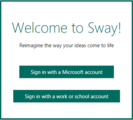
Sway will soon allow you to log in using an Office 365 work or school account. The interface may vary when available.
What’s different about the Office 365 version of Sway versus the consumer (Microsoft account) version?
The fundamental value of Sway for business and education users is the same as for consumers: to easily create interactive reports, presentations, lessons and more that are polished, engaging, professional, and look great across devices. Therefore, the Sway creation experience will look and feel the same whether you’re logged in with a Microsoft account or an Office 365 work or school account. Sway is still your digital design assistant no matter how you use it. However, a few things will be different when you log in with an Office 365 work or school account:
Content sources in the Insert tab will be optimized for Office 365—We’re evaluating which sources make sense for Office 365 users to access in order to easily pull together their multimedia content right within the app. For example, we’ll be replacing consumer OneDrive with OneDrive for Business and ultimately, Facebook with Delve. We’ll continue to tune that set of sources in Sway for Office 365 based on customer feedback.
Sways are private to your organization by default—Office 365 users will see a fourth option called My organization under the Share button, which requires that viewers are logged in with credentials from your organization to see the Sway. My organization will be the default setting for all new Sways in Sway for Office 365. It is still possible to make Sways (such as product brochures, newsletters or class projects) accessible to those outside your organization by choosing either People with the link or Public as the sharing setting.
Sharing to consumer social networks is more intentional—We’ve heard from Office 365 customers that they would like to make sharing organizational content to consumer social networks more intentional, so we’ve removed those buttons from the top level of the product. You can still share to social media (say, if you’re a marketer sharing a company brochure) if you change the sharing level to People with the link or Public and then copy/paste the link directly to the social network.
Office 365 Admins can control the experience—Initially, admins will have some basic controls over Sway: the ability to turn off the Sway service and to disable external sharing at the organizational level. We’ll continue to grow the list of admin controls over time, using our extensive experience in understanding and accommodating admin control requests.
How should business and education customers use Sway?
Professionals will be able to use Sway to save time at work and easily create engaging, eye-catching interactive reports, presentations, and more which flow responsively across all device types. For example, marketing plans/campaigns, blogs, proposals and sales pitches, project plans/updates, brochures/digital fliers, newsletters, weekly/monthly/quarterly/annual reports, training manuals, and so much more. Why make a boring PDF that is hard to read on a phone when you can make a Sway?
In education, teachers can use Sway to engage students by creating and sharing interactive lessons and study guides, field trip reports, assignments and class project recaps, which they can also share easily with parents. Many teachers also document their best teaching practices with Sway and share them with colleagues. Students can have fun while learning and stay engaged by using Sway to breathe new life into reports, assignments, projects, study materials, and portfolios.
Sway will support more languages this quarter
Sway.com has been accessible worldwide without restriction during Preview, and we’ve seen some great Sways written in non-English languages. But the Sway user interface has only been available in English, and we want to deliver the Sway experience to users worldwide in their language. This quarter Sway.com and Sway for iPhone will support more language versions, for both consumers and Office 365 business and education users. We’ll initially support Dutch, French, German, Italian, Japanese, Portuguese and Spanish, with more coming soon.
Sway will begin rolling out local language support to the user interface this quarter.
Keep the feedback coming and we’ll keep working to improve and expand Sway’s set of capabilities. Today’s announcements will make Sway available to an even broader set of people in organizations and around the world. We’re excited to have you come Sway with us!
—Sway team, @Sway
*Sway will be available to customers (initially in First Release) with subscriptions to the following SKUs: Office 365 E4, Office 365 E3, Office 365 E1, Office 365 ProPlus, Office 365 Business, Office 365 Business Premium, Office 365 Business Essentials, Office 365 OneDrive for Business, Office 365 Small Business, Office 365 Small Business Premium, Office 365 Midsize Business, Office 365 EDU E4, Office 365 EDU E3, Office 365 EDU E1, or Office 365 EDU ProPlus.
Get Sway | Follow Sway
The post Sway is coming to Office 365 for business and education and adding more languages appeared first on Office Blogs.
Office Blogs
.
Blog
.
<span class='date ' tip=''><i class='icon-time'></i> Aug 23, 2015 09:22pm</span>
|
|
Last month, we announced that the new Skype for Business client for Windows desktop and the online service in Office 365 have begun rolling out. Continuing the momentum, today at the Microsoft Ignite conference, we talked about modern meetings, which require that participants in any location can see, hear and collaborate within the meeting as easily as if everyone is sitting in the same room. We announced today that later this year we will deliver the ability to broadcast Skype for Business meetings to up to 10,000 people at a time. We also showed two new features coming this summer to Skype for Business: pre-loaded meeting attachments, which speeds meeting start times by having meeting content automatically show up at the start of a call; and in-call co-authoring, which makes it easy to initiate a co-authoring session so multiple people can work together on a single document right from within a meeting.
Today, we’re also pleased to announce that Skype for Business Server is now generally available, and Office 365 and Skype for Business Server customers can now reach anyone in the entire Skype directory with Skype Directory Search.
IT pros will love the key improvements and new features of Skype for Business Server, such as support for SQL Server AlwaysOn; native video interoperability with Cisco Tandberg VTCs; and a call quality dashboard to provide richer reporting options. With the server release, we’re also delivering enhancements to the Skype Developer Platform, and have announced a public preview of our new Skype web SDK, which enables developers to build tailored experiences for the web that integrate communications (messaging, A/V, presence) directly in-line with their own content and activities.
Partners are already taking advantage of the extensibility in Skype for Business. Genesys, a market leader in customer care solutions, today announced that they are building on the Skype Developer Platform to deliver native integration with Skype for Business in their Genesys Customer Experience Platform. In addition, Event Zero, Nectar and Unify Square have plans to announce tools for IT pros that add to the built-in management and monitoring capabilities that help customers successfully plan, adopt and operate a Skype for Business communication environment. You can learn more about Skype for Business partner solutions here.
We’ve made it easy for Lync Server 2013 customers to adopt Skype for Business Server via in-place upgrade. Customers can utilize existing hardware to quickly take advantage of the new server capabilities. In addition, customers who upgrade to Skype for Business Server will be able to take advantage of future cloud enhancements such as broadcast meetings via a hybrid server and cloud approach.
Moving ahead with Skype for Business
We released the Skype for Business client for Windows desktop as part of the April Office update, and expect that even more customers will automatically upgrade from Lync to Skype for Business with the May Office update. If your organization is using Lync today and has not yet adopted the Skype for Business client, now is the time to take action to ensure your end users are aware and ready for the change. Here’s what you can do to get ready:
To best prepare for Skype for Business Server and the new innovation we’re delivering in the coming months, including broadcast meetings, get in touch with one of our global or national launch partners. These system integrators have the highest level of experience, training and commitment to the Skype for Business platform in their respective geographies, and are ready to help customers benefit from Skype for Business.
The post Skype for Business gains momentum appeared first on Office Blogs.
Office Blogs
.
Blog
.
<span class='date ' tip=''><i class='icon-time'></i> Aug 23, 2015 09:22pm</span>
|
|
Today’s post was written by Julia White, general manager for the Office Marketing team.
Today, at our first-ever Ignite Conference in Chicago, we announced new capabilities and solutions from across the company, all of which help IT Pros fuel innovation and transformation within their organizations. I was thrilled to join corporate vice president of Skype engineering Gurdeep Singh Pall on stage during today’s keynote to showcase the innovation we’re delivering across Office to empower IT Pros.
For Office, our focus is on reinventing productivity for people and organizations. All of the new and coming Office capabilities we showed today at Ignite extend from our belief that productivity is at the heart of business success. But, how we work, where we work, with whom we work is changing rapidly and the technology must enable this modern workplace. Successful organizations have moved from static hierarchies of people and the way communication flows between them, to dynamic networks of open sharing; from individual productivity to collective value co-creation; from work being where you go to being what you do. And, for organizations, it is also about attracting and retaining the best, new talent. Today, workplace technology is a key factor as the Millennial generation become the majority of the workforce.
For Microsoft and IT Pros together, this is our collective opportunity, and it couldn’t be a more exciting time! The cloud makes it possible to delight users, and at a lower cost than ever before. It’s now possible to deliver on the technology expectations driven by consumer experiences. Before we jump into more about Office 365, I want to also highlight that this week at Ignite, we will showcase Skype for Business Server 2015, Exchange 2016 and SharePoint 2016 in-depth for the first time. Across these new releases, you will see new user experiences, compliance and protection updates, impressive scale and performance improvements, and great support for hybrid deployment models that combine on-premises and Office 365. We know many customers rely deeply on our servers and we are absolutely committed to delivering a great wave of on-premises technology.
Now, let’s break down what the workplace experience means.
Teams
Where work used to be a solitary pursuit, it’s now a communal one. People still work individually on their own devices, in their own space, often on their own time, but teams are increasingly central to how work gets done. Today we showed capabilities that enable teams to work more effectively together, with the foundation of new Office 365 Groups. The ability to quickly bring people together to solve a business problem must be simple, lightweight, user-managed, while letting team members work the way they want to, which is exactly how we built Office 365 Groups. It is the ubiquitous team element that allows members to email, meet, take notes, create content, video, IM, tweet—and ensure all the team members always have all the context. We showed a preview of the Office 365 Groups "hub" in Office Delve and group conversation in Outlook 2016, and this is just the beginning.
Human Mobility
Today, work is what we do, not where we go. Our charter is to ensure people can be productive wherever they are, using whatever device they have. We know that 80 percent of time spent on phones and tablets is within native applications, which is why we have invested so deeply to create fantastic native apps for Word, PowerPoint, Excel, Outlook, OneNote, Skype, OneDrive, Yammer and more—across all devices and platforms. The new Office universal applications for Windows 10 are another great step on this journey. And, with 100 million Office for iOS and Android downloads, and 500 million Skype for Android downloads, we know we’re on the right track!
Meetings
Today, meetings are as often ad-hoc as they are pre-scheduled, and there are very few meetings where everyone is in the room—most meetings include one or more virtual attendees. We know that 55 percent of communication is body language, so audio-only meetings just don’t cut it. Virtual attendees cannot be treated like second-class citizens! Moving forward, every meeting scheduled in Office 365 will automatically be a Skype for Business meeting, so users don’t have to do anything additional to make every meeting a video meeting. And, with 830 million meetings scheduled with Office 365 each month, that just made a lot of meetings a lot more productive! But, video meetings need to be as simple and seamless as walking into a conference room and sitting down. With the roll-out of the new Skype for Business experience, we are seeing this happen. It’s easy to get a meeting up and running in a few clicks, and video just works, particularly with the great hardware integration across the Surface Hub, Skype Room Systems, and with our partners including Crestron, Polycom and Smart. Today, we also announced Skype for Business broadcast meetings letting you broadcast meetings up to 10,000 people real-time, and supporting dynamic playback. But, we’re not stopping there! Today, we also showed how Hololens takes meetings from 2-D video to 3-D holograms with a mind-blowing look into how companies are using this technology.
Content co-creation
With the Office 2016 Public Preview release today, you will see how Office has shifted from "me-centric" to "we-centric" work. All Office content is default saved to and shared from OneDrive; content is created and edited with real-time co-authoring coming to Word 2016 desktop, and email attachments are a thing of the past with Outlook’s new attachments that are simply shared from the cloud. I encourage you to get into the Office 2016 Preview and try it out for yourself. More details on Office 2016 can be found here.
I’m also excited to announce that Sway—which has been in consumer preview since October—will roll out to Office 365 business and education subscribers later this month! Sway, the newest member of the Office family, provides a dynamic, interactive canvas for sharing your ideas—with only a few clicks to get to gorgeous. We’ve seen amazing uses for Sway in the consumer preview and we’re thrilled that you can now Sway at work, too. You can find out more about Sway in Office 365 in this blog post.
Intelligence
The number of Internet-connected devices will double next year and we will grow from 4.4ZB of data created in 2013 to 44ZB of data created in 2020. And, remember, a ZB is 1 billion petabytes. Getting insight from this data isn’t just like finding the needle in the haystack—it’s like finding a needle in the universe! Technology must help us close the gap between this information and the insights we need.
Before this crush of information, it used to be about making apps user-friendly—which was the solution—easier navigation, customizable menus to help users get work done. Today, experiences must be inherently intelligent to empower productiveness.
This is the genesis of the Office Graph, an intelligent fabric that applies machine learning to map the relationships and signals between people, content and interactions that occur across Office 365. Using the Office Graph, Clutter in Outlook removes low priority email based on the individual’s past behavior. And Delve uses the Office Graph to deliver personalized views of the people and content that are most relevant to each individual. Today, we showed an early preview of a new organization view in Delve, which provides an interactive dashboard for teams and individuals to identify key trends across employee engagement, team connections and even views like work life balance. Stay tuned to for more to come on this in 2015.
Information Protection
Of course, none of the amazing productivity experiences matter if your business information isn’t secure. We want Office 365 to be the most trusted cloud service, and we know that we can never stop in this pursuit. To this end, we recently announced important steps forward related to the transparency and control of information residing within Office 365. This includes file-level encryption for all content and email in Office 365, which is the foundation from which we can take the next step of "customer controlled keys" technology that we are planning for release 2016. We also announced the Customer Lockbox capability, which provides unprecedented customer control of data access within Office 365.
What’s next
All of these experiences are either possible today in Office 365, or will be released in 2015. Ultimately, the goal of Office 365 is to help IT drive business impact and delight users. A decade ago, rolling out experiences like this would require significant integration work, custom coding, new hardware and storage purchases, and taking on more legacy project debt. Now, IT gets the keys to the car, without having to build each piece of the car. IT can make the technology optimized for each individual business needs, engage with users on making the productivity tools most effective and drive new insights for the organization—because IT Pros know their business the best. It is incredibly exciting to work hand in hand with our IT partners and see how much is possible.
Office is at the forefront of this evolving, modern workplace as we continue to deliver innovative experiences that rethink the entire notion of what it means to be productive. Stay on top of everything we’re talking about this week at Ignite through the Ignite site. And, as always, stay tuned to the Office blog for updates across everything in Office 365.
The post Modern productivity-Office news at Ignite appeared first on Office Blogs.
Office Blogs
.
Blog
.
<span class='date ' tip=''><i class='icon-time'></i> Aug 23, 2015 09:21pm</span>
|
|
Today’s post was written by Paul Andrew, technical product manager for Datacenter and Networking on the Office 365 team.
In March we announced Azure ExpressRoute connectivity to Office 365, which enables Office 365 customers to use Azure ExpressRoute to establish a private, managed connection to Office 365 for highly predictable performance and the reliability that comes with dedicated connectivity.
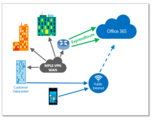
A key part of delivering ExpressRoute for Office 365 are the network partners that provide connectivity between Office 365 services and your on-premises network. Network Service Providers manage and extend the customer’s WAN, routing it for direct connectivity to Office 365 and Azure services. Exchange Providers offer connectivity at the carrier neutral facilities where ExpressRoute is available. You can have a layer 3 connection directly at the carrier neutral facilities into your network equipment or contract another network company to provide a link to your premises.
Today, we are pleased to announce the launch partners that will first offer this service, starting this summer.
AT&T will offer ExpressRoute for Office 365 as a Network Service Provider via AT&T NetBond at Microsoft Office 365 locations including Dallas, Silicon Valley and Washington DC.
BT will offer ExpressRoute for Office 365 as a Network Service Provider at all of their available global locations including Amsterdam and London.
Equinix will offer ExpressRoute for Office 365 as an Exchange Provider at all of their available ExpressRoute locations including Amsterdam, Atlanta, Chicago, Dallas, Hong Kong, London, Los Angeles, New York, Sao Paulo, Seattle, Silicon Valley, Singapore, Sydney, Tokyo and Washington DC.
Additional ExpressRoute network providers will add Office 365 to their service offerings in the months following initial general availability. All Azure ExpressRoute partners are listed here. And you can learn more about Azure ExpressRoute for Office 365 here.
—Paul Andrew, @pndrw
The post Announcing first network partners to offer ExpressRoute for Office 365 appeared first on Office Blogs.
Office Blogs
.
Blog
.
<span class='date ' tip=''><i class='icon-time'></i> Aug 23, 2015 09:19pm</span>
|