Blogs
|
"OneNote has truly changed and evolved my classroom…adapting to the students’ needs on a quicker and more individualized basis." — Michael Williams, Teacher and technology champion at Weston Ranch High School, Manteca USD (Watch his Office Mix to learn more.)
Today we are announcing a number of top requested features for OneNote Class Notebooks, OneNote Staff Notebooks, and OneNote across platforms coming soon to Office 365 customers. We realize that many schools and their IT administrators need a little time to prepare for major changes, like automatic installation of the OneNote Class Notebook app for Office 365 Education tenants. These updates will be available worldwide beginning in late May through mid-June—so you can count on them showing up in your summer planning for technology next school year in most of the world!
OneNote Class Notebooks get easier for teachers
Teachers in K-12 often have autonomy in choosing apps and services for the classroom and IT staff want to empower teachers to make technology decisions that are best for their students. We consistently heard from teachers that they were excited about trying OneNote Class Notebooks for organization and collaboration with their students. That’s why we are making the OneNote Class Notebook "wizard" automatically available to all teachers and faculty with Office 365 Education. Moreover, we are making Class Notebooks more discoverable for teachers by putting in their My Apps page in the App Launcher and accessible via simple URL. No more complicated permissions and setup scenarios—OneNote Class Notebooks will now be available to all teachers and faculty! Similarly, you will notice that we simplified the naming of the app from your feedback: OneNote Class Notebook (dropping "Creator").
OneNote Staff Notebooks get easier and goes global
We’ve had a great response to the OneNote Staff Notebook, and like the OneNote Class Notebooks, we will also be rolling out Staff Notebooks to all existing and new Office 365 Education customers with E1 or E3 plans. Creating a OneNote Staff Notebook at your school will be as easy as logging into Office 365 and going to the My Apps page.
In addition to making the Staff Notebook available more broadly, we will start rolling out the Staff Notebook in 45 more languages across new 60 markets. The list of languages is the same as the January 15th announcement with Class Notebooks. Plus, we heard your requests all the way in the Middle East and will soon be rolling out of OneNote Class Notebook and Staff Notebook in right-to-left languages, Arabic and Hebrew.
See the Excel Power Map below for the current country list:
New features for Class and Staff Notebooks
Over the past few months, we’ve been listening to educator feedback on Class and Staff Notebooks, as well as talking and visiting with schools. Based on this customer feedback, today we are happy to announce new capabilities-driven from these top requests. The features below are rolling out in the coming weeks across the globe.
Support for Active Directory security groups lists when adding students—To help make it easier for teachers to quickly get all students into a class notebook, we will be supporting Active Directory security groups in the Add Student Names page of the wizard. This will save a teacher time by allowing the entire class list to be added with one entry. For example, now a teacher can enter a SharePoint Group alias into the Student Names field called Mrs. Smith Period 1. Assuming the directory has been set up with groups for each teacher’s class, we will use this information to create the private student spaces for the entire class based on the students listed in that Active Directory security group. Here is an example:
Ability to remove students and co-teachers from class notebooks—Another top request we’ve heard is to allow teachers to easily remove student or co-teacher permissions. If a student leaves a class, or a co-teacher or student teacher leaves the organization, it will be easy to remove that person via our new Remove Student and Remove Teacher Similar to how we allow a teacher to add a student, removing one will be just as easy. This feature will only remove the permissions of the student, the student notebook will be kept in place so the teacher has time to package it up before manually deleting it or archiving it.
This functionality will also be added to the Staff Notebooks to allow the removal of Staff members and Staff co-owners.
Have another feature that you would like to see in the product? Share your feature requests via our User Voice site or send us an email at OneNoteEDU@microsoft.com describing your school or classroom scenario. We love your feedback and feature suggestions, as you can see from our actions on them above!
New APIs and LTI support for automation and LMS integration
Extending the Class and Staff Notebook solution to existing learning management platforms and making them more automatic have been other top requests we’ve heard. In addition to our April release of OneNote APIs on Office 365, our new and upcoming REST APIs will allow IT administrators to automate Class and Staff Notebook administration processes such as class roster management and movement of pages in and out of OneNote. Partners will also be able to use the APIs to integrate the Class and Staff Notebooks deeply into their solution. The API will allow programmatic access for:
Creating Class and Staff Notebooks
Adding & removing students and teachers (for roster synchronization with Student Information Systems)
Copying OneNote pages (for integration into Learning Management System assignment distribution and collection workflows)
Replicating notebooks (for end of year archival scenarios)
We are also excited to announce upcoming Class Notebook support for the LTI (Learning Tools Interoperability) Standard. This will enable integration of the Class Notebook Creator with all major Learning Management System (LMS) providers—including Blackboard, Moodle, Canvas, Schoology, Sakai and Desire2Learn—as well as many other providers and any other LTI compliant learning platform.
Teachers with the LTI app installed will be able to launch the Class Notebook Creator, walk through the creation process, and add the created notebook to their LMS course, all without leaving their learning environment.
Student-focused updates for OneNote across devices
Of course, we cannot forget about the most important group in education: students. Last week, we released a few updates specifically for students who are using OneNote on different devices, including Apple devices.
First, we made OneNote for Mac improvements from the top customer requests:
Audio recording—Great for students recording their classes/lectures and jumping back to the most important points.
View math equations—Now teachers can create equations in OneNote on a Windows device and they will show up for students on a Mac.
Recover deleted pages—No more permanently deleted items if a student or teacher mistakenly deletes it.
We also added Handwriting Search across all platforms and copy/paste pages on OneNote for iPad, key for Class and Staff Notebook scenarios where you want to move pages from the Content Library to a Private Notebook.
We are excited for summer break as much as anyone, but even more excited for the amazing things school administrators, teachers and students will do with OneNote next school year. We love the feedback and the stories, which we will be sharing even more now with our new twitter handle @OneNoteEDU. Be sure to use #OneNoteClass and #OneNoteStaff.
Also, now that you have some time, don’t forget your free professional development available at OneNoteInEducation.com.
Have a fun and safe summer!
The post OneNote gets ready for summer technology planning with updates for everyone appeared first on Office Blogs.
Office Blogs
.
Blog
.
<span class='date ' tip=''><i class='icon-time'></i> Aug 23, 2015 09:09pm</span>
|
|
The ability to take OneDrive for Business files offline, apply changes and then sync those changes back is fundamental to helping people manage their files effectively across devices.
Many organizations want to ensure their users are only able to sync files to managed- or domain-joined PC’s thereby limiting data leakage possibilities on unmanaged home and personal computers. Today we’re excited to announce that we’re releasing this capability for OneDrive for Business administrators! This complements the other data loss prevention investments we’re making right across Office 365.
To find out all the details on this exciting new feature then check out the OneDrive blog and our comprehensive TechNet article.
We’re constantly striving to provide tools to allow IT administrators to protect key business files on OneDrive for Business and we’ve got more IT management capabilities coming during 2015, stay tuned!
The post OneDrive for Business introduces new data loss prevention capabilities for sync appeared first on Office Blogs.
Office Blogs
.
Blog
.
<span class='date ' tip=''><i class='icon-time'></i> Aug 23, 2015 09:08pm</span>
|
|
Today’s post was written by Juliet Wei, senior product marketing manager for the Yammer team.
With the whirlwind of Microsoft’s first-ever Ignite conference behind us, I’d like to take this opportunity to recap some of the Yammer highlights and key takeaways from the event.
Our inaugural conference was successful on a massive scale, attended by 24,000 people including IT pros, developers, business leaders and influencers. Thousands of you packed into Yammer’s 20+ sessions to learn more about our new focus on team collaboration and see the experiences we’re currently working on in action. The deep level of engagement and enthusiasm you brought over the course of five days both humbled and invigorated us.
The Yammer sessions built upon the foundational sessions from Day 1 of the event, where we laid out the Office 365 holistic set of modern, connected collaboration solutions for dynamic teams. Many of the key innovations coming to Office 365 are inspired by concepts that have long existed in Yammer. That’s because Yammer has deeply influenced Office 365’s approach to collaboration over the past three years. For instance, the new Office 365 Groups service, which creates a standard definition of team membership using Azure Active Directory, builds on the idea of user-created groups in Yammer that are open by default. And Office Graph, our machine learning engine, is inspired by the Yammer enterprise graph, which makes it possible to discover and build on the work of others. By expanding on these and other Yammer concepts, Office 365 celebrates the work Yammer has done to date while providing a platform for Yammer to innovate on an even greater scale.
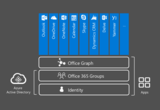
Some of you have asked how we think about the co-existence of Yammer and Office 365 Groups. To clarify, Office 365 Groups is an architectural element of Azure Active Directory—not an Office 365 app or experience—whereas Yammer is THE immersive social experience within Office 365. Together with identity, Office 365 Groups and Office Graph comprise a shared intelligent fabric across Office 365 that’s also extensible.
Take a look at the schematic below, which illustrates the point:
As you can see, every app in Office 365 and beyond will hook into the intelligent fabric. For example, integration into the Office 365 Groups service enables each app to deliver innovative new experiences such as Outlook Group Conversations, a massive improvement over traditional distribution lists, and modern attachments in OneDrive for Business. The first apps to take advantage of the Office 365 Groups service include Outlook, OneDrive, OneNote, Skype and Dynamics CRM. Yammer and Delve will soon hook into the service too as announced at Ignite.
As a core part of Office 365, Yammer is committed to leveraging the Office 365 Groups membership service, which will significantly improve and expand the Yammer experience. Building this integration depends on the completion of the foundational identity work we’re currently doing with Azure Active Directory, so we’re targeting Office 365 Groups integration to be available during the first half of 2016.
The Office 365 Groups service is a great example of how Yammer can use the Office 365 platform to deliver greater innovation. Some of the new cross-suite collaboration scenarios enabled by integration with Office 365 Groups include:
The ability to escalate your Yammer group conversation to a Skype group meeting.
Easily accessing file sync and share capabilities in OneDrive from your Yammer group.
Leveraging intelligence from the Office Graph to deliver better insights to your team in Yammer.
Giving teams in Yammer the ability to schedule group events in Outlook calendaring.
So if you’re wondering how Yammer and Office 365 Groups fit together, think about the Office 365 Groups service making your Yammer experience even more powerful.
While these cross-suite scenarios enabled by Yammer integration with the Office 365 Groups service are indeed exciting, there’s no need to wait to get your team started on Yammer. Industry-leading companies all around the world are already using and realizing enormous success with Yammer. And with the work we’re doing every day to make Yammer itself a better place for teams, we believe there is no better way to help your team work smarter and make a bigger impact than with Yammer. If you haven’t already done so, activate Yammer today and check out the resources in the Office 365 Success Center to drive adoption in your organization!
If you’d like to learn more about what we’re delivering next in Yammer, join our YamJam. On Wednesday, May 27th, the Office 365 Network will host a YamJam from 9:00-10:00 a.m. PDT to discuss Yammer’s new product direction. Members of the product engineering team will be on hand to answer your questions. For those unfamiliar with a YamJam, it is similar to a "TweetJam" on Twitter or an "Ask Me Anything (AMA)" on Reddit, except it takes place on Yammer. It provides the opportunity for the community to ask questions and have a discussion with a panel of internal Microsoft experts on a particular topic.
Here’s how to participate:
Request access to the Office 365 Network. All requests will be approved as quickly as possible.
Join the Enterprise Social group. You can find it by using the Browse Groups function or through the search bar.
Log in at 9:00 a.m. PDT on Wednesday, May 27th to ask questions, follow the discussions and connect with Microsoft team members.
—Juliet Wei
The post Recapping Yammer highlights and key takeaways from Ignite appeared first on Office Blogs.
Office Blogs
.
Blog
.
<span class='date ' tip=''><i class='icon-time'></i> Aug 23, 2015 09:08pm</span>
|
|
On today’s Office Mechanics show, we’ll take a look at the new Office 2016 Public Preview on Windows 10—both on the desktop and on a phone. Ben Walters joins Jeremy Chapman again to the give an app-by-app tour of Office 2016 Public Preview on a Surface Pro 3 and a Lumia phone.
The Office 2016 Public Preview has been available since May 4th and today we are giving an early look at some of the capabilities coming to Office across Windows PCs and devices. There is more focus than ever on data analysis and visualization and in the show, Ben demonstrates what this means using the new chart types in Excel. Office 2016 makes it even easier to create, open, edit and save files in the cloud. We show how the attachment experience in Outlook integrates with OneDrive and automatically configures permissions for recipients. Beyond sharing files from a common location in the cloud, collaboration is also improved with real-time co-authoring—and we demonstrate what this will look like in Word on the show.
Office 2016 has new compliance and security controls coming—like Data Loss Prevention (DLP)—native in the application experiences for Excel, Word and PowerPoint. Secure authentication is coming to Outlook to add support for things like Multi-Factor Authentication and Information Rights Management (IRM) is coming to Visio. I demonstrate DLP in Excel and show how we can protect information like credit card and identity numbers using DLP policy.
Beyond the desktop, we also show the updated Windows Phone experience for Office. Ben highlights the richness and fidelity of the apps, including the new palette user interface to make the most of the reduced screen size. He also takes a round trip in the mail, calendar and reading experiences on the phone.
Of course in the short time we had, we were only able to scratch the surface on all the things coming to Office. To see it in action, be sure to watch the show!
—Jeremy Chapman
The post Early look at Office 2016 Public Preview for Windows—on the desktop and phone appeared first on Office Blogs.
Office Blogs
.
Blog
.
<span class='date ' tip=''><i class='icon-time'></i> Aug 23, 2015 09:08pm</span>
|
|
We are pleased to announce an update to Outlook.com that lets you make the most of the moments that matter to you—featuring a refined inbox, new ways to collaborate, an upgraded calendar and much more. This update is rolling out today, in Preview, to a small group of customers and is the first of many innovations coming as we upgrade Outlook.com to a new Office 365-based infrastructure. These new features will be made available to a broader audience through an opt-in program in the coming weeks.
Let’s take a look at what’s new.
Familiar, but refined inbox
Your inbox is part of your daily routine. It’s where you keep in touch with family and friends, check the shipping status of packages and find deals from your favorite companies. These new inbox features are aimed at creating a richer and more engaging inbox, while maintaining the same look and feel you love. Here’s what’s new:
Clutter—Get help managing your inbox. Clutter works on your behalf, sorting messages you’re likely to ignore into a separate folder, so you can focus on what matters. The more you use Outlook.com, the better Clutter gets. You can help train Clutter by dragging messages in or out of the Clutter folder and you can turn it on or off depending on your preferences.
Search Suggestions and Refiners—Find what you need, fast. Suggestions put the people you communicate with and the content in your mailbox at your fingertips when searching for content. Refiners let you pivot your search results based on the sender, folder, date received and attachments. We’ve also added highlighting, making it easy to spot your search terms within the results.
New themes—We’ve added 13 new themes with graphic designs to help you express your personality in your inbox.
Link preview—Just paste a link into your message and Outlook.com automatically generates a rich preview to give your recipients a peek into the contents of the destination. It works great with any webpage, but try it with video links from Vimeo and YouTube for something even better.
Inline images—Copy and paste images directly into the body of your message, right where you want them.
Pop-out read and compose—Multi-tasking is easy with messages that pop out into new windows.
Pins and Flags—Keep essential emails at the top of your inbox with Pins and mark others for follow-up with Flags. Pins are now folder specific, great for anyone who uses folders to organize their email. Quickly find and manage your flagged items with inbox filters or the new Task module, accessible from the app launcher.
Add-ins—Announced earlier this month at Build, add-ins appear while you’re reading or composing a message and are designed to help you complete the task at hand. In addition to the Bing Maps, My Templates and Suggested Meetings add-ins that are built-into Outlook.com, we’re excited to have third-party add-ins on the way from Uber, Boomerang and PayPal. Watch for more partner announcements soon.
The Bing Maps add-in lets you effortlessly open a map and get directions to a location found in the body of a message.
New ways to collaborate
Whether you’re planning a camping trip with friends, working on a project with classmates or just trying to get everyone to agree on dinner plans—email is one of the most important ways you get things with others. With that in mind, we’re adding several new features to make staying on the same page a cinch.
New Skype experience—Seamlessly shift conversations between email and Skype. Chat with a group, or one-on-one, using all your favorite Skype emoticons. Start a voice or video call by pressing the call button.
Simplified sharing from OneDrive—Sharing files through the cloud is the best way to keep everyone on the same page, but uploading a file and setting permissions can add a lot of extra steps. Now it’s easy, just attach the file to your draft message—drag and drop or with the file picker—and with one click you can convert it to a shared OneDrive link.
Side-by-side views—Open an attachment and see it side-by-side with the email. You can view or edit Word, PowerPoint and Excel documents while simultaneously replying to the original message. Best of all, any changes you make to the file are automatically saved and attached to your response when you hit send—no need to download, edit, save and re-attach the revised file. Side-by-side view works great with photos too.
With side-by-side views, your content and conversations coexist. It works great with the free online version of Word, Excel and PowerPoint.
Get time back on your side
The Outlook.com calendar is one of the best ways to stay in sync with your friends and family. With new features and improved navigation, you can easily manage shared calendars, quickly find events by searching for the name, invitees, location or description and stay on top of the dates that matter to you with over 100 country and religious calendars.
New collapsible panels on the left and right side of the calendar make it even easier to manage your time and stay on top of upcoming events.
New mobile web experience
The Outlook apps across Windows, iOS and Android provide a rich app-based for phones, but for those who prefer to access their account on a mobile browser, we’re introducing a cleaner experience with new features like swipe gestures and support for add-ins. You’ll also find great new mobile-friendly views for your calendar and contacts.
Your voice, your vote
In addition to the new features we’re announcing today, we’re also excited to share an important change to how we gather and prioritize feedback. We want to foster a more dynamic conversation—giving our community a chance to see and hear what others are saying and at the same time, creating a direct line of communication with the team that builds Outlook.com.
Today we’re launching the Outlook UserVoice, an open forum for you to share feedback, recommend features, and vote for the ideas you like best. Joining the conversation in the updated web experience is easy—just click Feedback under the Gear icon and you can make your suggestion without leaving your inbox. If you’d like to see and vote on other ideas, you can always visit Outlook.UserVoice.com and sign-in with your Microsoft account.
Simply post your idea or comment to give feedback directly to the Outlook.com team.
We hope you’re eager to try out all of these new features. Stay tuned for more news from the Outlook.com team, including exciting new announcements and details on how you can opt-in to the new experience.
Thanks!
The Outlook.com team
Frequently asked questions
Q. Will I need to change my email address?
A. No. We will never make you change your email address.
Q. Will I need to change or update any settings on my phone or other apps to keep receiving email?
A. The vast majority of customers will not need to make any changes. If changes are needed, Outlook team will proactively send instructions to ensure you stay connected.
Q. Will Outlook.com users have to pay for an Office 365 subscription?
A. No. Outlook.com will remain a free, ad-supported service.
Q. After receiving the update, I don’t see any ads. Will the updated user interface be ad-free?
A. No, Outlook.com will remain an ad-supported service.
Q. When will I be able to opt-in and get these new features?
A. Opt-in details will be shared in the coming weeks.
Q. I have a custom domain configured with Outlook.com. Will I be able to keep it?
A. Yes, if you have a custom domain configured on Outlook.com today, it will continue to work after this update.
The post New ways to get more done in Outlook.com appeared first on Office Blogs.
Office Blogs
.
Blog
.
<span class='date ' tip=''><i class='icon-time'></i> Aug 23, 2015 09:07pm</span>
|
|
Today’s post was written by Julia White, general manager of the Office Marketing team.
"Amaze your customers!" is how Bob Stutz opened his recent blog announcing the general availability of the spring 2015 release of Microsoft Dynamics CRM Online. I share Bob’s enthusiasm since many people—especially those involved in sales—will be amazed at how they can save time and sell more through seamless integration of Dynamics CRM Online with Office 365. For the Office team, reinventing productivity is our mantra and we’re excited to collaborate with our Dynamics CRM teammates to help people become more productive, especially when they’re on the go. And aren’t salespeople always on the go?
In addition to delivering increased productivity, our CRM and Office 365 platforms work together to provide sales professionals the Office tools they already prefer: Excel, Outlook, OneNote, PowerPoint, SharePoint, Skype, Word and Yammer. But rather than talking about these improvements, let’s walk through some of these new features:
Email integration with Dynamics CRM—Use the new CRM App for Outlook to track incoming email and view contextual Dynamics CRM information about the people sending you email, including sales activities, cases and opportunities. This add-in also makes it easy for users to create new CRM records directly from Outlook.
Email folder tracking—This is a new and intuitive way of tracking incoming email activities on any device that supports Exchange. Now you can track your email directly from virtually any device.
Sharing notes and insights—Salespeople can share information more easily with OneNote embedded inside Dynamics CRM. You can create and view notes containing text, photos, voice, spreadsheets—even handwritten notes on a napkin—all within the context of the account, opportunity or any other record. With OneNote embedded in Dynamics CRM, account information is automatically linked with the CRM Online record.
Immersive Excel experience—Now you can use Microsoft Excel Online to do a quick analysis right from Dynamics CRM Online, eliminating the frustration, time and effort required to switch between applications. Salespeople can view their data in familiar Excel spreadsheets, perform what-if analyses and upload changes with one click, all while maintaining the sales workflow.
Self-service analytics—You can effectively analyze customer data using Microsoft Dynamics CRM integrated with Power BI. Using the new out-of-the-box connector and templates for Power BI, organizations can analyze sales performance, drive pipeline goals, prepare forecasts and efficiently manage account team activities.
Call to action
You’ll find more highlights about the spring 2015 Release of Microsoft Dynamics CRM here. If you’re a current Dynamics CRM customer, start using these new features to immediately enhance your productivity. Otherwise, take advantage of our free 30-day trial to experience full Microsoft Dynamics CRM functionality.
We’re delighted to work with our Dynamics counterparts to meld the best of CRM Online with Office 365—and we’re even more excited to reinvent productivity for our customers involved in sales, service or marketing activities. Amazing, indeed!
—Julia White
The post Amazing business productivity through Office 365—Dynamics CRM integration appeared first on Office Blogs.
Office Blogs
.
Blog
.
<span class='date ' tip=''><i class='icon-time'></i> Aug 23, 2015 09:07pm</span>
|
|
In this episode, Jeremy Thake and Richard DiZerega talk to Andrew Connell and Mike Fitzmaurice at DevIntersections conference in Scottsdale, Arizona poolside.
http://officeblogspodcastswest.blob.core.windows.net/podcasts/EP46.mp3
Download the podcast.
Weekly updates
My thoughts on future of SharePoint and Office 365 Development including SharePoint 2016 On-Premises | Nik Patel
Easier prepare for a meeting with the Mavention Meeting Outlook Add-in - Waldek Mastykarz
Consuming Azure Hosted Web API from SharePoint Online using JavaScript and Office 365 identities | www.silver-it.com
Chris O’Brien: Presentation deck/videos - Comparing SharePoint add-ins (apps) with Office 365 apps
Office 365 API Walkthrough for Windows Store App - Exchange dev blog - Site Home - MSDN Blogs
Chris O’Brien: Info and some thoughts on Office 365 "NextGen" portals - Microsites, Boards and the Knowledge Management portal
Next Generation Office 365 Development with APIs and Add-ins - Richard diZerega’s Blog - Site Home - MSDN Blogs
Show notes
Office 365 is a Development Platform: ePaaS
Top 10 Build 2015 recordings not to be missed on Office development!
Got questions or comments about the show? Join the O365 Dev Podcast on the Office 365 Technical Network.
The podcast RSS has been submitted to all the stores and marketplaces but takes time, please add directly with the RSS http://feeds.feedburner.com/Office365DeveloperPodcast.
About Andrew Connell
Andrew is an entrepreneur and developer with an emphasis in Microsoft SharePoint and content management systems (CMS). In April of 2005 he was recognized by Microsoft for his community contributions by being awarded Most Valuable Professional (MVP) for Microsoft Content Management Server and has received the award annually for SharePoint Server every year since. Most of his work these days involves working with the Microsoft SharePoint, Office 365 and web development technologies.
Read more at about Andrew Connell and follow him on @andrewconnell.
About Mike Fitzmaurice
Mike is a vice president of Product Technology for Nintex, and he used to work at Microsoft where he was involved with every version of SharePoint technology from pre-"Tahoe" through the 2010 release. He cares about process automation, integration, collaboration, and a lot of other "ation"s.
About the hosts
Jeremy is a technical product manager at Microsoft responsible for the Visual Studio Developer story for Office 365 development. Previously he worked at AvePoint Inc., a large ISV, as the chief architect shipping two apps to the Office Store. He has been heavily involved in the SharePoint community since 2006 and was awarded the SharePoint MVP award four years in a row before retiring the title to move to Microsoft.
You can find Jeremy blogging at www.jeremythake.com and tweeting at @jthake.
Richard is a Software Engineer in Microsoft’s Developer Experience (DX) group, where he helps developers and software vendors maximize their use of Microsoft cloud services in Office 365 and Azure. Richard has spent a good portion of the last decade architecting Office-centric solutions, many that span Microsoft’s diverse technology portfolio. He is a passionate technology evangelist and frequent speaker are world-wide conferences, trainings, and events. Richard is highly active in the Office 365 community, popular blogger at http://www.richdizz.com, and can be found on twitter at @richdizz. Richard is based, born, and raised in Dallas, Texas, but works on a world-wide team based in Redmond. In his spare time, Richard is an avid builder of things (BoT), musician, and lightning fast runner.
Useful links
Office 365 Developer Center
Blog
Twitter
Facebook
StackOverflow
http://aka.ms/AskSharePointDev
http://aka.ms/AskOfficeDev
http://aka.ms/AskOffice365Dev
Yammer Office 365 Technical Network
O365 Dev Podcast
O365 Dev Apps Model
O365 Dev Tools
O365 Dev APIs
O365 Dev Migration to App Model
O365 Dev Links
UserVoice
The post Office 365 Developer Podcast: Episode 046 platform dev with Mike Fitzmaurice and Andrew Connell appeared first on Office Blogs.
Office Blogs
.
Blog
.
<span class='date ' tip=''><i class='icon-time'></i> Aug 23, 2015 09:06pm</span>
|
|
Earlier this year Microsoft acquired Equivio, an eDiscovery software company focused on document analytics, to accelerate our efforts to help customers meet legal and compliance challenges. Today we’re excited to announce that eDiscovery capabilities powered by Equivio Zoom are coming soon to Office 365. Equivio Zoom will become available through a preview program starting in June, followed by a broader release before the end of this year. Here’s a closer look at how it works.
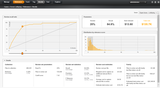
With Equivio Zoom you can better understand your Office 365 data and reduce your eDiscovery costs. Equivio Zoom helps you analyze unstructured data within Office 365, perform more efficient document review, and make decisions to reduce data for eDiscovery. You can work with data stored in Exchange Online, SharePoint Online, OneDrive for Business and Skype for Business. You can select groups, individual mailboxes and sites, as well as use keyword search to scope the data you want, and then easily analyze it with Equivio Zoom.
More efficient document review
Equivo Zoom streamlines and speeds up the document review process by identifying redundant information with features like Near-Duplicate Detection, which provides information about how similar documents are to each other; and Thread Analysis, which identifies emails that contain other emails in a thread, allowing you to review just the unique emails rather than every single one. These features reduce document review costs significantly. And when you export data, the near-duplicate and email thread metadata are available to be loaded into other eDiscovery tools.
Reduce data for eDiscovery
Equivio Zoom also offers a Relevance feature, which applies predictive coding technology to teach the system to identify relevant documents. Zoom learns from your tagging decisions on sample documents, and the system applies statistical and self-learning techniques to calculate the relevance of each document in the data set. This enables you to focus on key documents and make quick yet informed decisions on case strategy. By ranking documents by relevance, you can also precisely cull the data and prioritize review.
Understand unstructured data
Themes and Search are powerful features for early case assessment and internal investigations that help you quickly map the collection and find key data points. Themes groups related documents, allowing you to identify topics of interest, drill down to discover more material, find similar documents, and intuitively explore your data set by following up on related themes. You can also use the typical search capabilities that you would expect, such as wildcards, Boolean logic, conceptual search and term expansion.
To learn more about this technology, you can watch our eDiscovery Redefined: Real Time and In-Place session from the Microsoft Ignite conference earlier this month. The Equivio-specific content, including a demo, begins at the 36:50 mark in the recording.
We will provide additional updates on Equivio Zoom, including pricing and full technical details, in the coming months. In addition to enabling you to analyze Office 365 data, we’ll be adding the ability to send data to Equivio Zoom from Exchange Server 2016 and SharePoint Server 2016 on-premises environments.
If you are interested in participating in the invitation-only Preview program, please apply at prereleaseprograms-public.sharepoint.com, use referral code 8721. In the comments field of the nomination form tell us you are interested in Equivio and why you would be a great addition to the Preview program.
—Quentin Christensen, lead program manager at Microsoft
The post Analyze Office 365 data with Equivio Zoom appeared first on Office Blogs.
Office Blogs
.
Blog
.
<span class='date ' tip=''><i class='icon-time'></i> Aug 23, 2015 09:06pm</span>
|
|
It’s been an exciting month for Sway and our journey with Sway Preview! At the Ignite conference, we announced that Sway would roll out to Office 365 business and education customers and add support for more languages. Today we’re excited to announce the start of these rollouts, as well as other changes that expand the type of content you can add and the ways you can visualize the multimedia that brings your Sways to life. Check out the details below!
Sway for Office 365 rollout has started
Sway now supports six more languages, with more to come
Insert Wikipedia snippets about people, places and other terms
Add personal and community images from Flickr
Add new structure to your Sway with the Grid Card
Sway for Office 365 rollout has started
Today, we’re beginning the rollout of Sway to qualified Office 365 business and education customers. This opens the door for many new people to use Sway at work and school, and we’re excited to get a whole new set of feedback from these customers as part of Sway Preview! We even have a dedicated UserVoice forum for feedback on the Sway for Office 365 experience.
As mentioned earlier this month, Sway for Office 365 is initially rolling out to First Release customers, and it will become available to all eligible Office 365 customers over the coming months. Today’s rollout includes support in Sway on the web for Office 365 work and school credentials, with the next update to Sway for iPhone supporting these accounts as well. Sway on the web now also has a simplified sign in interface that provides the corresponding Sway experience for you, depending on whether you sign in with a Microsoft account or an Office 365 work or school account.
Sway.com now has a simplified sign in experience.
With Sway for Office 365, professionals can save time at work and easily create engaging, eye-catching interactive reports, presentations, and more which flow responsively across all device types.
Teachers can use Sway to engage students, faculty and parents with interactive lessons, assignments, project recaps, newsletters and more.
Students can have fun while learning and stay engaged by using Sway to breathe new life into reports, assignments, projects, study materials, and portfolios.
If your organization is not already in First Release, Office 365 admins can visit the Office 365 admin center (under Service settings > Updates) and select either Entire organization or Select people to turn First Release on. The setting change can take up to 24 hours to take effect. At that point, Sway will begin to roll out to your organization.
Sway now supports six more languages, with more to come
Also as promised earlier this month, Sway on the web now supports six more languages, for both consumers and Office 365 business and education users. Now you can use the Sway web interface in Dutch, French, German, Italian, Portuguese and Spanish (in addition to English). Support for Japanese is also coming soon, with other languages to follow. Sway will automatically set its language according to your browser’s language settings, but you can change languages by adjusting your browser settings if you speak multiple supported languages. Sway for iPhone will be updated soon to support these languages as well, and become available in the App Store for markets where those are official languages.
Insert Wikipedia snippets about people, places or other terms into your Sway
Suggested searches in Sway helps you while you create by anticipating what content you might want to incorporate. It uses natural language processing to continuously show you tags for related words and phrases you might be interested in searching on, based on what you’ve already written and the specific content in the area you’re working on.
In March, we expanded the results of Suggested searches to include YouTube videos and tweets, in addition to images from Bing Image Search. Now, Suggested search results include Wikipedia snippets that you can easily add to your creation to complement the other multimedia you use to share your narrative.
For example, let’s say you’re creating a Sway about ancient history and use Suggested searches to find additional information about famous historians and philosophers—including Herodotus. As long as a Wikipedia article exists, and it has an infobox containing an image (an infobox is the small fact table on the right side of many Wikipedia articles), the Suggested search results will include a Wikipedia article abstract. Then you can easily add that snippet to your Sway, which brings the snippet’s picture together with the Wikipedia article’s first paragraph as its caption, as well as a citation.
Sway’s Suggested search results can now include Wikipedia snippets containing an image and article abstract.
Add personal and community images from Flickr
Sway makes it easy for you to pull together your rich multimedia content from a variety of sources, right within the app. Millions of people use Flickr to store and share their images in its community. By integrating Flickr into the consumer version of Sway, now you can easily access your Flickr images and quickly drag and drop them right into your creations. And that is not all! If you don’t have a Flickr account, you can still search for community images tagged with Creative Commons licenses.
Sway now lets you browse your personal images from Flickr, as well as searching Flickr community images (shown).
Get started by selecting Flickr from the Insert tab. Then search for images using the search box. You can also connect to your Flickr account right within Sway to access your personal images without leaving the app. Photostream displays all images that you uploaded to Flickr, and Albums helps you navigate individual albums you’ve created.
Add new structure to your Sway with the Grid Card
We’ve added another powerful way to visualize and structure your multimedia content in Sway! The new Grid Card organizes any images, videos and text you’ve added to it into a uniform grid, which will adjust automatically to look great on each screen size where it is displayed.
The Grid Card can be a great way to put together a series of photos that are all similar, when you want to display them close together in your Sway, using the same size, and all on the screen at once. It’s also another great example of how Sway lets you express your intent ("keep these things together, all showing at once and visually consistent with each other") and acts as your digital design assistant to ensure your creation looks great across devices.
The new Grid Card displays your images, videos and text in a consistent grid that adapts to look great across screen sizes.
There are two ways to get started. You can add a blank Grid Card from the Cards tab, and then add multimedia to it. Or, select a collection of images, videos and text you’ve already added, select Group, and then choose the Grid option that appears on the left. Sway will ensure that your images and other content look great in a Grid layout, even if they weren’t originally the same size or aspect ratio. Sway intelligently inspects and crops the images to fit in the grid, and you can also use Focus Points to help make sure what’s important shines through. We’re really excited about the new possibilities that the Grid Card provides. Give it a try and let us know what you think!
Thanks for all the feedback you’ve been providing during our Sway Preview journey together. Please keep it coming! And welcome to all of our new Sway for Office 365 users! As always, feel free to drop us a line on UserVoice.
—Sway team, @Sway
Get Sway | Follow Sway
The post Sway has started rolling out to Office 365, added more languages, and more! appeared first on Office Blogs.
Office Blogs
.
Blog
.
<span class='date ' tip=''><i class='icon-time'></i> Aug 23, 2015 09:06pm</span>
|
|
This month’s Office 365 Dev Digest was written by Jeremy Thake, technical product manager for the Office 365 Dev team.
Welcome to the third edition of Dev Digest, designed to help you—the Office 365 developer—keep-up-to date with what’s new in Office 365 development. We have a huge amount of news to share with you this month based on all the announcements that were made at Build 2015 in San Francisco.
For me, the most exciting announcements were the:
Support for Office add-ins in Excel for iPad (and very soon Word and PowerPoint) and Word, PowerPoint and Excel Online.
New Office 365 Unified API endpoint preview and add-in Commands inside Outlook 2016 Preview.
Office 365 Store support for web applications in the Users’ My Apps page.
Latest dev news
Check out the latest news from Office Blogs that is useful to know as an Office 365 developer. Personally, I think it’s exciting to see Office for Android phone in preview this month. But obviously, the biggest news was all our announcements at Build 2015 this year in San Francisco.
Announcing the new Office 365 Management Activity API for security and compliance monitoring - Office Blogs
Office for Android phone Preview now available
Today at Build—new possibilities with the Office platform
Support for work and school notebooks on Office 365 (in Preview)
Top 10 Build and Ignite sessions
There were a ton of great sessions at Build and Ignite. Here is a list of the most popular sessions from both events now available on-demand:
1. Build 2015 day one keynote
This is not to be missed with Rob Lefferts on stage with our CEO Satya Nadella demonstrating Outlook add-ins like Uber, SAP and our Unified API using the Office Graph Explorer.
2. Office 365 development…why it matters
This was my only session of the week with Rob Lefferts and we did a demo palooza of all the new announcements.
3. Integrating web apps with Office 365
Todd Baginski and Dorrene Brown did a great job of demonstrating the Property Manager Hero and how it was put together. It’s a great project to showcase what you can do with the Office 365 APIs in a real-world scenario.
4. Supercharging your custom solutions with the Office 365 Unified API endpoint
Yina Arena has been spearheading the Unified API endpoint efforts and she does an amazing job of explaining what it’s all about in-depth.
5. iOS and Android apps with Office 365
Todd Baginski and Josh Gavant showcase how to build native iOS and Android apps against the Office 365 API SDKs.
6. Connecting to OneNote in the cloud with Office 365 APIs
One of the most exciting announcements for me was the fact that you can call the OneNote APIs with an Azure AD token!
7. Building multi-device apps with Xamarin with Office 365 APIs
Chaks and James did a great job demonstrating Xamarin and Office 365 APIs, they are a pleasure to watch!
8. Building a single-page app using Angular and TypeScript using Office 365 APIs
Andrew is one of my favorite presenters and he killed this session on Angular and TypeScript.
9. Building Office add-ins using Node.JS
Another one by Andrew Connell, I really want to personally get plugged into Node.JS and this was a great intro.
10. Get your hands dirty with the Office 365 APIs, Authentication and SDKs
Rob Howard totally blew away the crowd with his Fiddler skills explaining the Auth stack on Office 365 and Azure.
Dev documentation
The Microsoft Content Publishing team works hard producing documentation to help developers learn our platform. Here are the key new and updated articles for this month:
Office Add-ins
Office add-ins (Improved and simplified getting started experience with new Napa.)
Get started creating a content app for Excel with Napa
Get started creating a task pane app with Napa
Get started creating a mail app for Outlook with Napa
Publish add-ins for Office and SharePoint (Consolidated all Office Store-related publishing and updated content.)
Validation policies for add-ins submitted to the Office Store (version 1.7)
Brand your app for Office or SharePoint
Office 365 APIs
Get Started
Preview features
Unified API
Office graph
Release notes
SharePoint add-ins (Improved and simplified getting started experience.)
SharePoint add-ins
Get started creating SharePoint-hosted add-ins
Get started creating provider-hosted add-ins
Tools for developing add-ins for SharePoint
Set up a development environment for add-ins for SharePoint on Office 365
Set up an on-premises development environment for add-ins for SharePoint
SharePoint Online
How to avoid getting throttled or blocked in SharePoint Online
For more documentation check out Office developer documentation.
Code samples
Our team is continually on the lookout for new code samples to help you jump-start your own projects. Here is a list of the most recent new and updated samples from Microsoft as well as the community.
Email Peek (An iOS sample app that peeks at just email conversations you truly care about when you are away.)
Office 365 Directory sample for web using the Office 365 unified endpoint
Office 365 Profile for Windows using the Office 365 unified endpoint
Office 365 Profile for Android using the Office 365 unified endpoint
Office 365 Profile for iOS using the Office 365 unified endpoint
New Android code snippets for creating a recurring calendar event and working with email attachments
For more code, samples check out the dev.office.com/code-samples.
Most recent Office 365 Dev podcasts
Since joining Microsoft last year, I have been running around campus interviewing people about various dev topics. If you would like to hear me interview someone on a particular topic, please submit your suggestions in the Yammer group and I’ll go hunt the relevant people down to interview.
Here are the most recent podcast interviews:
Episode 046 on platform dev with Mike Fitzmaurice & Andrew Connell
Episode 045 on SharePoint development post-Build & Ignite conference
Episode 043 on Build 2015 announcements
Episode 044 on Ignite and Hackathons
Episode 042 on the future of Exchange development with Venkat and Pretish
For more podcasts check out dev.office.com/podcasts.
Patterns and practices
The Microsoft Patterns and Practices team is working hard to release samples to show the power of SharePoint Add-ins. Don’t forget to join the monthly community calls to hear the updates from them directly on Skype for Business.
Here are the latest updates from the team:
Office 365 Developer Patterns and Practices (PnP)— May release details
PnP May community call recording at Channel 9
New training package created based on the PnP guidance at OfficeDevPnPTraining
Numerous new videos in the PnP Channel 9 check at OfficeDevPnPVideos
Numerous updates and new articles to PnP section in MSDN at OfficeDevPnPMSDN
Here are the latest guidance documents:
Injecting JavaScript into SharePoint the safe way
Query SharePoint change log with ChangeQuery and ChangeToken MSDN GitHub
Transform farm solutions to the SharePoint add-ins MSDN GitHub
Recipe - Custom field type
Recipe - Remote Timer Jobs
Recipe - Site Columns and Content Types
Recipe - Site Provisioning
Recipe - Themes
Recipe - MMS manipulation
Recipe - Elevated Privileges
Customize OneDrive for Business site branding
SharePoint metadata, site navigation and publishing site features
For more on patterns and practices check out dev.office.com/patterns-and-practices. All questions related on released materials and guidance can be added to our Yammer group at OfficeDevPnPYammer.
Dev community blog posts
The Office 365 dev community has been busy this month. It is really exciting to see the effort people put into their posts in their spare time to share with the community. Check out these articles from the Microsoft field, MVPs and more:
My thoughts on future of SharePoint and Office 365 Development including SharePoint 2016 On-Premises | Nik Patel
Easier prepare for a meeting with the Mavention Meeting Outlook Add-in—Waldek Mastykarz
Consuming Azure Hosted Web API from SharePoint Online using JavaScript and Office 365 identities | www.silver-it.com
Chris O’Brien: Presentation deck/videos—Comparing SharePoint add-ins (apps) with Office 365 apps
Office 365 API Walkthrough for Windows Store App—Exchange dev blog - Site Home - MSDN Blogs
Chris O’Brien: Info and some thoughts on Office 365 "NextGen" portals—Microsites, Boards and the Knowledge Management portal
Next Generation Office 365 Development with APIs and Add-ins—Richard diZerega’s Blog - Site Home - MSDN Blogs
Info and some thoughts on Office 365 "NextGen" portals—Microsites, Boards and the Knowledge Management portal
Next Generation Office 365 Development with APIs and Add-ins - Richard diZerega’s Blog—Site Home - MSDN Blogs
Office 365 iOS Apps Using Swift
What Should you Make of Angular 1.x, 2.0 and Moving Forward
Integrating AngularJS with Azure Active Directory Services
Upcoming events
There are plenty of events on the horizon…don’t miss out on these great events with Office 365 content. Our team looks forward to meeting you all at these events, so don’t be shy come say hello at the Office 365 booth!
June 24 - 26
SPTechCon Dev Days
Aug 18 - 20
SharePoint Fest Seattle
For more events check out dev.office.com/events.
Office Store News
The Office Store has made a number of advancements.
The dedicated Office 365 Storefront, easily discoverable from the 365 App Launcher, will deploy to the first waves of customers at the start of June. The storefront will promote SaaS solutions (registered with Azure AD and using OAuth2/OpenID Connect for authentication/authorization) as well as featuring the existing apps/add-ins in the Office Store.
Outlook makes it even easier for users to discover Outlook add-ins in the Office Store via the latest Outlook 15 update, and will appear in Outlook 16 when it is Released to Market in June. This will enable direct acquisition of Mail add-ins from within Outlook itself. Outlook 16 also will pioneer the new "Add-in commands" for Office clients, in which developers can specify in their Manifest that their add-in be assigned a dedicated tab in the Outlook ribbon for hosting multiple Add-in Command buttons for their solution (such as Upload, Save, etc.). This feature starts as an Outlook Preview and will migrate to the other Office clients in the coming months.
The Office Store is now live with the streamlined acquisition flow for SharePoint and Mail add-ins, in which users can install directly into a SharePoint site or Outlook inbox without having to leave the Store experience. No more starting within the Office product! This lets you create impactful ad campaigns (on your website or in email) to drive customers to the Store to directly acquire add-ins. You can also add the "Download from the Office Store" badge to your campaigns, in small, medium, or large.
Want your Excel or Word add-in to reach more users on more devices? Make sure you resubmit your Word or Excel add-in using version 1.1 of the manifest schema and office.js 1.1. To reach customers on iOS, you’ll also need to provide your seller ID in the seller dashboard. Look for us equip all the clients and Office services, on all platforms, with Office Store functionality over the coming months.
In case you hadn’t noticed, the Office Store has now been localized for 60 markets worldwide —every market where Office.com is localized—and offers add-ins in 40 languages! We’ve worked with Lionbridge to launch localization and market reach services for Office Store apps—full pricing details on their portal.
The BetterwithOffice.com site is live, with three SMB-focused videos and case studies about customers of your solutions that Office professionally produced. Look for Office to localize these videos, add more and start marketing them to customers and to add an EDU set of videos early in 2016!
Developers can get a peek preview of how their Office Store submission looks and behaves before releasing it to the world, via a new feature called Preview. Previews are not visible unless an Office Store visitor has the code needed to enter into the Store search box. Developers can "hide" their solution during Office Store submission via Seller Dashboard, simply by including an alphanumeric Preview code of up to 20 characters in the Notes field. The Store team will send a confirmation email regarding Preview status and developers can later "unhide" their add-in by responding to the same email address.
Want to persuade more customers to contact you about purchasing—or want to get better user reviews for your app? Our Best Practices Add-in has been published to the Office Store as an Office Preview offering. Just search for code build15 in the Store and you can then install this hidden solution to your SharePoint dev site. (You can get it on Github, too, but the Store version takes care of the licensing flows). The add-in comes packed with sample code on GitHub that you can copy into your solution to make it more engaging. You can pop an email form to gather contact info for new customers; solicit reviews and feedback; expose premium features; launch tutorials and just generally engage your prospects to convert them to paid customers. You also should think about pushing all those harvested email addresses into an outbound email campaign engine like Marketo, Mail Chimp or the free Drip account we are providing (on a limited basis) to Developer Program members.
Want to watch the full set of announcements from Build 2015? Watch the video on Channel9.
Top new add-ins the Office Store
Since mid-April, we’ve seen more than a dozen top-rated add-ins published through the Office Store validation process. Some are updates, most are brand new—and several were published in a variety of European languages.
Here’s a partial list:
Theme Builder
by SONJAsAPPs
SharePoint tool to change the look and feel of your site.
Resource Forecast
by Corporate Project Solutions Ltd.
SharePoint add-in that gives users the ability to view resource demand/availability.
SideKick DCM Ultimate
by SkyLite Systems
Scalable, customizable dynamic case management built for SharePoint.
Key/Badge Management
by ProcessLynx
SharePoint add-in that simplifies the management of keys and employee badges in your company.
Smartsheet for Outlook (Beta)
Coordinate and collaborate on any type of work in real time, right from your inbox.
Navigator
by Corporate Project Solutions Ltd.
SharePoint add-in that lets users quickly navigate to key areas of PWA.
Pro3 Supplier Management
by Derigo Oy
SharePoint add-in for managing suppliers.
Site Radar
by Architect 365
SharePoint solution provides an interactive analytics dashboard for monitor your team site usage.
BeyondCore Apps
by BeyondCore (invite only)
One-click analysis, statistical evaluation and narrative explanation for Word, Excel and PowerPoint.
Wazoku Office App
by Wazoku
Enables you to seamlessly attach documents directly to your ideas from within Word, Excel or PowerPoint.
CloseFox
by CloseFox
Increase revenue by empowering your team to better use sales videos and documents. Outlook add-in.
QuickTix
by Blue Sphere Solutions Ltd.
An Outlook add-in that makes time entry by users of ConnectWise simple.
Until next month, please join our community discussions at www.yammer.com/itpronetwork and follow us on @OfficeDev on Twitter and on Facebook.
Also, be sure to follow along with us on our daily developer mission: Jeremy Thake (@jthake), Chris Johnson (@loungflyz), Sonya Koptyev (@SonyaKoptyev), Dave Pae (@davidpae) and Jim Epes (@j_epes).
—Jeremy Thake
The post Office 365—monthly Dev Digest for May appeared first on Office Blogs.
Office Blogs
.
Blog
.
<span class='date ' tip=''><i class='icon-time'></i> Aug 23, 2015 09:05pm</span>
|