Blogs
|
Just over a year ago we launched the OneNote partner ecosystem and a new service for developers to connect their products to OneNote via an API (the technical pipeline between an app on your phone or tablet and a cloud service like OneNote).
Since then, our ecosystem has grown to include a wide variety of complimentary partner experiences that extend the power of OneNote to a range of apps, devices and services, such as hardware and software scanners, mail apps, web clippers, news readers and tools.
Heading into our second year, we’re excited to welcome three new partners into the fold, including cloudHQ, Equil and WordPress.
cloudHQ
When you deal with a lot of cloud services on a daily basis—it’s great to be able to connect them all together to easily share files, notes and pictures. cloudHQ offers a cloud app integration for anyone that’s looking for an easy collaboration solution, and wants to keep everything safely backed up. Scenarios include an automatic sync of your OneNote notebook with a folder in Dropbox, or an account in Salesforce; either of which will let you view and edit your information, in real-time, with nothing to download.
To learn more and get started, visit cloudHQ’s OneNote page.
Equil
Connecting OneNote notebooks to the physical world using digital pens is one of our favorite scenarios for using OneNote. The Equil Smartpen 2 and Smartmarker from Luidia are solutions to connect the physical surfaces of notepads and whiteboards to digital notebooks like OneNote. By connecting the Equil Note app with OneNote, you can easily keep all your notes together, whether you created them by writing on your Surface Pro 3, typing on your iPad, writing in your notebook, or sketching on a whiteboard.
For more information about the Smartpen 2 and Smartmarker, visit www.myequil.com.
WordPress
WordPress is the world’s largest blogging and publishing platform. How great would it be if you could connect OneNote to WordPress to transform ideas and information into meaningful blog posts? Thanks to a new OneNote plug-in for WordPress, you can!
For installation instructions visit here.
Once you’re up and running, simply author your posts in OneNote, then in WordPress, click the OneNote button and your content is added.
Next in WordPress pick the pages you’re ready to publish.
That’s all there is to it!
We hope you get to experience the productivity of connecting your favorite apps, services and devices to OneNote. Check out our favorites at www.onenote.com/apps and if one of your favorites doesn’t connect with OneNote yet, let the developers know and have them get in touch with us at @onenotedev. We’d love to hear from them!
If you’re a developer, we have lots of new capabilities and tools for you, and more to come over the next few months. Head over to dev.onenote.com and check out our new roadmap on our developer blog.
The post OneNote welcomes three new partners—cloudHQ, Equil and WordPress appeared first on Office Blogs.
Office Blogs
.
Blog
.
<span class='date ' tip=''><i class='icon-time'></i> Aug 23, 2015 09:04pm</span>
|
|
Over the past few years, you’ve provided feedback on how we could improve the experience for creating connectors to set up mail flow in Office 365. We heard you loud and clear…
Out with old, in with the new. We completely overhauled the connector experience in Office 365 to provide you with better guidance, a simplified user interface and an easier way to check that everything works as expected.
This topic digs into all the details, but here are a couple highlights.
No more guess work
Setting up mail flow can be complex given the number of systems that can be involved on a mail path. Here’s a quick look at the different mail flow scenarios in Office 365:
Depending on your scenario, you may or may not need to set up connectors. Wouldn’t it be great to know up front whether you need to create connectors for your scenario? Since we thought so, we created some guidance and made some additions to the setup wizard to help you along. You can start with this TechNet article for a list of the different mail flow scenarios and whether connectors are needed.
Enhancements to the connector setup wizard
To set up a connector, go to the Office 365 admin center, navigate to the Exchange admin center, click ADMIN and then click Exchange.
The connectors tab is on the mail flow page of the Exchange admin center.
Once you begin the process of creating a connector, specify your mail flow scenario to determine if a connector is mandatory or optional. For example, although a connector isn’t needed for mail to flow between your Office 365 organization and a partner organization you do business with, you might want to create one to apply addition restrictions.
Know that it’s working
Previously, you’d create a connector and then cross your fingers that it worked as expected. Give those fingers a rest. You can now validate that a connector works before you start using it.
After running through a few validation steps, the results are displayed to let you know if anything needs fixing. And to make sure you’re not left scratching your head about how to fix any problems, we’ve included a link to a troubleshooting topic to help you out.
Don’t worry—if you can’t validate the connector right away, you can still save it and validate it later. We’d love to hear your feedback so we can continue to improve your experience with Office 365!
Learn more
Do I need to create a connector?
Configure mail flow using connectors in Office 365
Set up connectors to route mail between Office 365 and your own email servers
Set up connectors for secure mail flow with a partner organization
The post Announcing a new way to create connectors in Office 365 appeared first on Office Blogs.
Office Blogs
.
Blog
.
<span class='date ' tip=''><i class='icon-time'></i> Aug 23, 2015 09:04pm</span>
|
|
Today post on OneNote was written by Marija Petreska and Hristo Uzunov from a primary school in Drugovo Macedonia.
The one thing my students carry with them at all times is their phones, so I often think of ways they can be used in the service of education. My students use a lot of apps they aren’t aware that can be used for learning—like Instagram for sharing photos and videos, Tumblr for digital vocabulary walls, SoundCloud for building an audio library and finally Office Lens for streamlining class work.
When I first installed Office Lens, I was already using Scannable and CamScanner and thought it was just another pocket scanner, so I didn’t pay much attention to the send to OneNote, Word or OneDrive feature. It was at the Educator Exchange (E2) event that I discovered I can turn an image into text using Office Lens. It was the first thing I tried in my classroom when I got back, since I’ve been having a lot of trouble with our textbooks. Schools in Macedonia give students free textbooks to use for the year. It’s great that they don’t have to buy their own textbooks, but not so great if you are a Math or English teacher because there are a lot of exercises in the textbooks. Since students can’t write the answers in the book they have to rewrite the exercises in their notebooks. You can only imagine how thrilled they were to see how using Office Lens to send a snapshot of an exercise to OneNote allows them to do the exercise in OneNote.
I could also now attach the audio file from the exercise so everyone could listen to the lesson at their own speed and not together as a class. There isn’t a student in my school who is not using Office Lens and doing their Math and English exercises in OneNote.
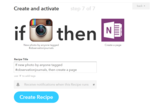
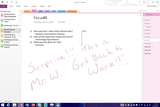
Over the years, I have noticed that when I ask a student to read out loud they start right away, never first reading the text to themselves, check a dictionary or ask me about the pronunciation of some words. If I correct the student, they just go on reading and ignore my input. But if I tell them we are recording, the student will ask for some time to read the passage to themselves, ask their classmates or search for the pronunciation of words using online dictionaries and typically come to me once or twice to make sure they read the word right. If I correct them while recording they will start over. So I made a habit of recording my students reading. I like to use different digital storytelling apps, but we mostly use SoundCloud. Since ten students are recording and posting at the simultaneously it is impossible for me to listen to all of them at the same time and post comments or point out the mispronounced words. So I use an If This Than That (IFTTT) recipe, which automatically sends the students SoundCloud recordings to a OneNote notebook called, My Students Read. Later I can listen to all the recordings and give them feedback. And if they don’t finish their reading on the lesson they can do it at home and every time they publish their recordings it’s saved in my notebook.
Now all the recordings from the users I follow (make sure you only follow your students) go to My Students Read notebook under the Reading section.
Another app my students use is Tumblr. There are at least 5 to 10 new words we cover each lesson and we need to find a way to keep track and have them all in one place. So for homework, apart from writing them down a couple of times, (that’s how I got my nickname, Ms. Ten Times) they have to keep an online journal of the unfamiliar words, usually explained with an image or video or quote which makes Tumblr perfect. With the IFTTT recipe, we can easily put all blog posts from the students into one shareable OneNote notebook.
The posts then go directly to my Vocabulary Wall notebook under the section New Vocabulary, so we have all the new words explained by each student in one place
The school year ends in less than a month and there will be a lot of traveling, selfies and sunsets that I can later use as a learning activity. Last year, my older students kept observation journals and used an app called Jelly. The activity is very simple; they have to look around any new place they visit and take a snapshot of anything they don’t know the English word for. Over this summer vacation, their only homework will be to take as many photos of the things they can’t name. The only condition is to use the hashtag #observationjournals, so all the photos posted with this hashtag are sent to a collaborative OneNote notebook. When they have time for some learning, they can sit down to check out each other’s photos and search for some answers.
There you have it my three OneNote recipes and the one app that will keep our books new.
The post How a Macedonian teacher incorporates mobile technologies and OneNote in her classroom appeared first on Office Blogs.
Office Blogs
.
Blog
.
<span class='date ' tip=''><i class='icon-time'></i> Aug 23, 2015 09:03pm</span>
|
|
Today’s post was written by Andy Jankowski, founder and managing director for Enterprise Strategies, a Microsoft partner.
When I first read Gartner’s prediction that," Through 2015, 80 percent of social business efforts will fail to achieve the intended benefits due to an overemphasis on technology and inadequate leadership involvement*," I laughed and then, I cried. For the last five years, my company, Enterprise Strategies has helped Fortune 500 organizations roll out enterprise social networks and establish a new, more social way of working. It all started when a group of ex-management consultants recognized the potential of social inside of companies, and thought they could make a dent in the information silos, broken communication chains, and inefficient or non-existent collaboration processes of large corporations. What we didn’t realize is that what seemed so obvious to us, was viewed by many as not important enough to spend time on. Why?
One reason is that although enterprise social networks are based on the same social networks that have transformed the way we communicate in our personal lives, there’s a key difference between how we use them with friends and how we use them at work: We don’t come to work for the relationships. Relationships are the glue of consumer social media. We connect to people on Facebook because we are or want to be friends. In a work setting, people come together as colleagues working to solve business challenges, and then build relationships to make the work experience more effective and enjoyable.
In the early days of enterprise social, we approached it as a means to improve communication and collaboration, but enterprise social networks require a different kind of glue than consumer social networks, namely, work objects.
While relationships are the glue of social media, work objects are the glue of internal social networks. A work object is a report, sales proposal, project deliverable, executive presentation, or customer question that needs to be addressed. It’s the stuff employees actually work on together. Everything outside of work objects is secondary, and that’s where the focus needs to be.
Nowhere did this scenario play out more clearly than during the Yammer adoption program we ran at Aon, a global professional services firm that provides risk management, insurance and reinsurance brokerage, human resource solutions and outsourcing services. Dressed in suits, accustomed to reading and writing large highly-regulated business documents, and generally pressed for time, our audience was as excited to see us as a red cancellation notice on an airport flight monitor. We knew we had one chance to make an impact, and as such, we went right for the…work object.
Our approach for driving the adoption and business value of enterprise social networks has several components, one of which is what we call business team activation. Business team activation is an artfully crafted combination of business process reengineering and change management.
Here is how it works
The term Enterprise Social Network leads everyone to believe that all activities related to one can and should include the entire enterprise. We, too, believe this to be true, with the exception of how initial business value is presented and attained. It is very hard to quantify the value of "improved enterprise communication" or "better collaboration across business and geographic boundaries." In fact, it is my personal belief that many of the egregious value claims that were initially made by enterprise social software companies, present company excluded of course, led to people trying to quantify the unquantifiable (e.g., the ROI of improved communication). I do believe in the power of these platforms, but if I were to set my expectations with the connotation of the marketing and sales presentations I have seen my disappointment would be inevitable. So what is a well-meaning employee tasked with proving the business value of an enterprise social network to do?
Start with the small picture
We actually begin our projects by interviewing company executives to confirm and deeply understand each executive’s business objectives. Please note that I did not say their objectives for an enterprise social platform. The objectives we seek and which serve as the basis for our entire enterprise social network adoption program, are the actual—existed before we arrived—business objectives of the company. With this understanding, we are able to back into the business processes that most directly impacts the attainment of these objectives.
Our next set of meetings is with the business process owners themselves (i.e., the people who actually orchestrate and do the work) to better understand the way these processes are currently being executed from a people, process and technology perspective. With this knowledge, we are able to back into what use cases make up each business process. And, finally, which of these use cases an enterprise social network can most impact. To put this in perspective, we may be engaged at a 70,000-person company, but at this point we are working to improve a single business process of one business team. This process may be something like "naming a new product before it goes to market" or "fiscal period end close," but the key is that it is an existing process that:
Requires input from, and information held by, multiple people.
Is executed on a regular basis.
Is critically important to the organization.
Can be materially impacted (e.g., cycle time and errors reduced, quality of results improved, etc.) by leveraging the inherent benefits of an enterprise social network.
We then show how this business process would work (better) by executing the identified use cases using an enterprise social network. It is a simple story: "Here is the current process, here is the process leveraging an enterprise social network, and here are the results," but once told in this context, to the right person, enterprise value becomes clearly visible. For example, explain to your CFO how you can reduce the time to close the books each month (and the errors caused by fact checking financials via email) in one division, and she will extrapolate the potential time and cost savings enterprise-wide. Tell a similar story about reducing the time it takes to name a product to your head of product development and he will multiply the savings by your company’s number of product lines, geographies and number of times the process is repeated. This is the real network effect and the real path to enterprise social network business value.
As I stated in the beginning, the above is just one component of our Enterprise Social Network adoption program, but it is an important one, and based on five years of experience rolling out and driving the business value of enterprise social networks across many organizations. The other parts of our process include various forms of communication planning and execution, executive mentoring and employee training, and of course, the business-driven campaigns and gamification activities that make it all stick. All of which is based on our research of Why Enterprise Social Initiatives Fail.
So what happened at Aon?
Well, to be honest, it is still happening. Aon boasts one of the largest Yammer networks, currently over 45,000 members, representing about 60 percent of their workforce worldwide. We have been strategically executing the Business Team Activation process, team by team, for the last six months. The network effect is indeed kicking in and the results speak for themselves, and the work continues on three fronts:
Partnering with the business to identify use cases where collaboration is critical to meet the business goals.
Ensuring the community managers are playing their roles in conversation facilitation.
Activating leaders so that they are walking the talk on collaboration.
"A successful Enterprise Social Network implementation is less about technology and more about the cultural and process transformation that needs to happen for management and colleagues to embrace a new, more social way of working. Andy and the Enterprise Strategies team have been instrumental in developing our training programs and for helping us manage the change management activities needed to ensure that Aon has a thriving community network." —Neeru Arora, SVP, ASC chief information officer and chief knowledge officer at Aon.
We feel very fortunate to be working with Microsoft and Neeru’s team on their Yammer initiative. And we honestly believe enterprise social network success is attainable by any organization. It is not rocket science, but it is a process and requires focused attention and deliberate actions. Start with business objectives. Start with one business team and one business process. And from there, create one clearly depicted, quantifiable story. Let your executives extrapolate and quantify the full enterprise business value of an enterprise social network. And whatever you do… don’t be the 80 percent.
—Andy Jankowski
*Gartner, Use the Gartner Business Model Framework to Search for Social Business Opportunities, January 2013, refreshed August 2014.
The post Driving Yammer adoption, one business team at a time appeared first on Office Blogs.
Office Blogs
.
Blog
.
<span class='date ' tip=''><i class='icon-time'></i> Aug 23, 2015 09:03pm</span>
|
|
Today’s post on OneNote was written by Michael Williams, Social Science teacher at Weston Ranch High School, Manteca USD.
I am a young educator who grew up in an educator family and have seen many movements to increase the amount of technology used in the classroom—but many of these were short term blips. Education has essentially been conducted in the same manner for thousands of years. A teacher passes on knowledge of a topic to the student and the student writes down the information. The student then studies the information to master the content. OneNote is the next technology step in the classroom evolution.
OneNote allows me to adapt learning to each of my students needs by being able to check on my students work at any time. I can assess instant progress so I can adapt my teaching to better serve each student’s needs. It allows the student to create their own database of information and to become less dependent on the instructor.
OneNote allows students to take ownership of their education because they have complete access to class content anytime and anywhere. This forces them to check their OneNote Class Notebook and answer the questions that they have themselves. It puts responsibility back on the student and their learning is up to them. It eliminates excuses because I can immediately check the status of their work.
Evolution is a process for the teacher and the student. This is one thing that is hard to come to terms with as an educator. We think that it is always on the student to adapt, evolve and change, but the fact of the matter is it is the role of the teacher to change. Learning how to use OneNote in my classroom has changed me as an educator. It requires me to be fully prepared and organized. OneNote helps you achieve this without trying. This occurs because you have to restructure how you share, edit and guide students through tasks. All this can be done in OneNote. This changes the nature in which you interact with students because it is done virtually. Many educators may see this as a negative, but this allows students too shy/self-conscious about their work to be noticed. For students who never seek help but they need it, OneNote helps guide them along without their fears keeping them from seeking the proper guidance they need.
The next thing is that you have to give up some control that you used to have in your classroom. By doing this, you gain a more accurate depiction of your students’ actual progress and struggle. There used to be a veil that students could use to hide their progress in the class. "I left it at home," "It is in my locker," and "I am already done so I do not have to work on it right now." This type of communication would take place on a regular basis to cover up what they didn’t want me know. The more difficult aspect was that they were keeping me for adapting my teaching to help them. Students for the longest time were able to mask from me their strengths and weakness because they were able to mask their work from me. If I cannot be aware of everything a student is going through as it pertains to my class, I cannot properly help them grow. OneNote has lifted this veil and allowed me to create several helpful tools to make my classroom and teaching diverse.
OneNote as a classroom tool
The first tool I use is a daily calendar that spans the entire year.
The calendar allows my students to go back to a specific date to see what they missed or needed to review. It also allows parents to know what has been going on the entire year. This opens up channels of communication not just between the teacher and the family, but also between the parents with their children.
Second, the students can use OneNote to save their own resources that they find. This is a way for students to go back and use work that they created for continued gain. Students are more likely to retain more information when they create and revisit information they gathered.
What makes this even more valuable is that they are required to paraphrase in their own words, which is easier for them to understand.
Third, I use OneNote to give students instant feedback even while they are working on a task. This holds students to another level of accountability knowing that their teacher can and will check up on them. To say that there will be no confrontation with this would be a mistruth. Many will fight you on this. But if you can push past the initial resistance they will adapt their perspective on what learning will look like from that point on.
Finally, OneNote works well with the Microsoft Office 2013 suite to take projects and assignments created in PowerPoint, Word, Excel and Publisher and embed them into OneNote.
This hasn’t really been possible before. The whole concept of knowledge and learning is discovering how to communicate and share ideas. This has been a very difficult thing to accomplish in the classroom, but OneNote breaks down many barriers to make it very simple. Students are able to develop life skills with technology in order to succeed in education. They will be more equipped when they go to college or apply for their first job.
You have to allow time for the students with OneNote to understand that education has changed in your classroom. I am a high school teacher. By the time students have reached me they have been programmed to learn and conduct themselves in a specific way and learn in a specific way. When making this change in my classroom, I had to allow a great deal of grace and "hand holding" to help them change their expectations of themselves. I had to create brand new classroom procedures and practices to implement OneNote into my class. The beautiful thing about these new procedures is there is no one set way to do this. Every teacher can and should come up with a way that will work for them or it will not succeed. OneNote allows you to customize it any way that works best for your teaching.
—Michael Williams
The post How OneNote can evolve education appeared first on Office Blogs.
Office Blogs
.
Blog
.
<span class='date ' tip=''><i class='icon-time'></i> Aug 23, 2015 09:03pm</span>
|
|
Thanks to the participation of more than 130,000 Google+ community previewers, we’re pleased to release Office Lens Android today. Called a "great app" by one tester, Office Lens turns your Android, iPhone or Windows Phone into a pocket scanner that works "flawlessly," delivers "crystal clear images" and does an "excellent job of transcribing a printed page, despite edge distortion (page from a hardcover book)," according to other users.
First introduced for Windows Phone in March 2014, followed by the iPhone app early last month, Office Lens Android was the only version to have a public preview, which ran from April 2 to today’s formal release. Both iOS and Google+ communities quickly embraced the Microsoft capture app, with first-month downloads totaling more than 1.3 million for iPhone and 70,000 for the Android preview. To date, Windows Phone users have totaled 3.5 million Office Lens downloads.
A before-and-after look at how Office Lens Android does an, "excellent job of transcribing a printed page," according to one previewer.
The handy scanner app recognizes the corners of a document, whiteboard, electronic screen or any rectangular media and automatically crops, straightens, enhances and cleans up the image, then enables saving to OneNote or OneDrive for easy retrieval from any device.
With Android beta testers representing 270 makes of phones and just under 2,600 models, the Office Lens team worked hard to ensure a seamless user experience across all Android phones. As a result of a user experience refinements, Android phone owners share a feature with Windows Phone users: saving Office Lens images to multiple sources at the same time—for example, OneDrive and Word—which involves separate steps on the iPhone.
From receipts to whiteboards, books to legal documents, the Office Lens Android pocket scanner recognizes the corners of any rectangular media and automatically crops, straightens and enhances the image, which can be saved to multiple sources at the same time.
Now available free in the Google Play Store, Office Lens was praised by an Android user for its "clean design." It offers the following capabilities and features across all three phone platforms:
Converts images of paper documents, electronic screens and whiteboard notes into Word documents, PowerPoint presentations and searchable PDF files for easy storage, editing and reformatting.
Enables images to be sent via email, making it easy to share whiteboard notes with work colleagues, submit scanned business expense receipts or ensure family and friends have copies of important paper documents.
Captures business cards and generates contacts, which can be sent to OneNote and added to your phone.
Recognizes the corners of a document and automatically crops, enhances and cleans up the image.
Identifies printed text with optical character recognition (OCR) so that you can search by keyword for the image in OneNote or OneDrive.
Inserts images to OneNote or as DOCX, PPTX or PDF files in OneDrive, providing options to save, export and share the image.
Office Lens Android users will see the new OneNote location picker in the general release version, making it easy to decide where to save images and keep them organized.
We’re excited to introduce the final version of Office Lens, ensuring that Android users in 123 countries or areas, communicating in 30 languages have access to what’s quickly becoming the preferred scanner app. Please download your version of Office Lens today—Android, iPhone or Windows Phone—and keep sending comments our way, either below, at the respective app store or our UserVoice site. Your feedback helps us understand what users like best and determine which features to deploy to other platforms.
The post Office Lens Android now available at Google Play Store appeared first on Office Blogs.
Office Blogs
.
Blog
.
<span class='date ' tip=''><i class='icon-time'></i> Aug 23, 2015 09:02pm</span>
|
|
On this week’s show, Jeremy Chapman is joined by Julia White to take a look at the last year of updates in Office 365 give a sneak peek of what’s coming. We cover themes from machine learning advances and how to better manage your time and find information in Delve to improved collaboration in email and native information protection in Office apps.
It’s been a big year for Office 365 with more than 450 updates to the service. In the past year, we’ve seen Office experiences delivered across multiple platforms, improvements for personalizing the experience with updates to Delve and the Office Graph and IT controls for mobile device management and data loss prevention. And that’s just scratching the surface.
On the show, Julia White recaps the year and gives a sneak peek of what’s coming—including updates to Delve and Office Groups, integration between email and OneDrive for attachments, Sway joining Office 365 and a powerful dashboard and analytics coming to Power BI. I also demo what’s coming for information protection and IT pros with a sneak peak of Data Loss Prevention (DLP) native in Office desktop apps with policies in SharePoint and OneDrive for Business plus more Power BI for Office 365 admins in the Office 365 content pack coming later this summer.
Of course in the short time we had, we were only able to hit on a few highlights coming to Office 365. To see some of these updates in action, be sure to watch the show!
—Jeremy Chapman
The post Quick tour of Office 365-recent updates and what’s coming appeared first on Office Blogs.
Office Blogs
.
Blog
.
<span class='date ' tip=''><i class='icon-time'></i> Aug 23, 2015 09:02pm</span>
|
|
Today’s Office 365 post was written by Kevin Parlette, vice president of IT at Dana Holding Corporation.
New cars and trucks come to market every year, with advanced features and capabilities designed to entice buyers to purchase. That yearly cycle affects the entire automotive supply chain, putting pressure on suppliers to innovate at a similar pace. At Dana Holding Corporation, we make automotive components that range from drivetrains to tire-management systems, and we’re constantly working to hone our product management process to not just keep up, but to get ahead.
This year, one of our main business objectives was to develop more structure around our product launches. In the past, if we were designing a new axle, for example, we managed the project using spreadsheets, drawings that we shared through email, and (when possible, given our globally dispersed teams) face-to-face meetings.
Today we rely on a solution that combines Microsoft Office 365 components and Microsoft Azure to streamline our launch process. Now, rather than searching for files and hoping that everyone’s looking at the most up-to-date version, team members go to one place for every piece of information related to the launch, from the issue log and product specs to the timeline and financials. We also hold formal and informal international meetings using Skype for Business video calls. The key is to have a repeated workflow process with the same steps, regardless of the product.
When all stakeholders have visibility into a project and its status, we enhance both our quality and our timeliness, which results in smoother launches and better accuracy throughout. Our stretch goal is to improve our profit margin. If we can reduce the number and severity of issues along the project development process, we’re able to launch products with a lower cost, which means there’s a greater delta. Our use of Office 365 to provide structure and rigor will be an advantage because it puts us closer to perfection in the launch process, which is the aim throughout our company and industry.
Of course, achieving perfection isn’t just about the process. At Dana, our people are the other integral aspect of the success we’ve enjoyed since 1904. By modernizing the technology tools that we give to our employees, we’re providing a better end-user experience, removing barriers to cross-company communication and collaboration, and freeing up our IT staff to deliver better, more strategic service for our employees’ benefit.
Now that we’re using Office 365, it’s easier for colleagues to connect to each other from anywhere. And because we have 23,000 employees in nearly 100 locations around the world, that’s a big deal. The ability to share screens during video calls, view the latest presentations on our iPhones, and access files using any computer strengthens teams. Providing straightforward access to the same current, relevant information means that everyone works from the same set of facts and less is open to interpretation.
Upgrading to Office 365 has not only made our existing employees happy, it also helps us attract new talent. We can be more competitive in terms of finding the right people to carry on our tradition of excellence. New recruits see that we’re investing in state-of-the-art elements that will keep Dana successful both today and well into the future.
—Kevin Parlette
Read the full story to understand how Dana is using Office 365 to reduce project development issues, launch products at lower costs and improve profit margins.
The post Achieving greater accuracy and better product launches with Office 365 appeared first on Office Blogs.
Office Blogs
.
Blog
.
<span class='date ' tip=''><i class='icon-time'></i> Aug 23, 2015 09:01pm</span>
|
|
In this episode, Jeremy Thake and Richard DiZerega talk to Sonya Koptyev about the newly announced Developer Program.
http://officeblogspodcastswest.blob.core.windows.net/podcasts/EP47.mp3
Download the podcast.
Weekly updates
Write a PHP app to get Outlook mail
The Ultimate Script to down Ignite videos and slides
Events
SPTechCon Dev Days 24th - 26th June
European SharePoint Conference 9th -12th November
Microsoft Recode 2015 in London 19th June
Show notes
Sign up at http://dev.office.com/
Dev.office.com Mini-Labs
iTunes link
Build/Ignite Sessions
Microsoft Office 365 Groups Deep Dive
Microsoft Office 365 Groups Overview and Roadmap
Supercharging Your Custom Solutions with the Office 365 Unified API Endpoint
Got questions or comments about the show? Join the O365 Dev Podcast on the Office 365 Technical Network.
The podcast RSS has been submitted to all the stores and marketplaces but takes time, please add directly with the RSS http://feeds.feedburner.com/Office365DeveloperPodcast.
About Sonya
Sonya Koptyev is a senior product marketing manager responsible for the Apps for Office developer platform. Sonya is a seven-year veteran at Microsoft and has worked in a variety of roles throughout the company, including a senior consultant and professional development manager with Microsoft Consulting Services.
About the host
Jeremy is a technical product manager at Microsoft responsible for the Visual Studio Developer story for Office 365 development. Previously he worked at AvePoint Inc., a large ISV, as the chief architect shipping two apps to the Office Store. He has been heavily involved in the SharePoint community since 2006 and was awarded the SharePoint MVP award four years in a row before retiring the title to move to Microsoft.
You can find Jeremy blogging at www.jeremythake.com and tweeting at @jthake.
Richard is a software engineer in Microsoft’s Developer Experience (DX) group, where he helps developers and software vendors maximize their use of Microsoft cloud services in Office 365 and Azure. Richard has spent a good portion of the last decade architecting Office-centric solutions, many that span Microsoft’s diverse technology portfolio. He is a passionate technology evangelist and frequent speaker are worldwide conferences, trainings and events. Richard is highly active in the Office 365 community, popular blogger at www.richdizz.com, and can be found on twitter at @richdizz. Richard is based, born and raised in Dallas, Texas, but works on a worldwide team based in Redmond. In his spare time, Richard is an avid builder of things (BoT), musician, and lightning fast runner.
Useful links
Office 365 Developer Center
Blog
Twitter
Facebook
StackOverflow
http://aka.ms/AskSharePointDev
http://aka.ms/AskOfficeDev
http://aka.ms/AskOffice365Dev
Yammer Office 365 Technical Network
O365 Dev Podcast
O365 Dev Apps Model
O365 Dev Tools
O365 Dev APIs
O365 Dev Migration to App Model
O365 Dev Links
UserVoice
The post Office 365 Developer Podcast: Episode 047 on the Dev Program appeared first on Office Blogs.
Office Blogs
.
Blog
.
<span class='date ' tip=''><i class='icon-time'></i> Aug 23, 2015 08:59pm</span>
|
|
Today’s business users want to work from anywhere, on any device, at any given time. Azure and Office 365 can help you enable your users to have uninterrupted services and the freedom to work when and where they need to. Microsoft Azure and Office 365 takes location out of the equation, so that your employees can live life on their terms. Whatever you can do in the office, you can now do just as well on the go with enterprise-grade security and management. Office 365 offers flexible tools that fit the modern worker’s needs which makes for higher employee satisfaction.
The Microsoft Technology Center (MTC), provides access to innovative technologies and world class expertise to help customers envision, design and deploy solutions. MTC Studios brings this expertise and insight to you with the opportunity to dialogue with the Microsoft technology architects and your peers through a virtual setting. They offer live and on demand webcasts for you to leverage webcasts on topics facing today’s business challenges.
Join us Wednesday, June 3rd at 10 a.m. PDT for a 30 minute webcast to learn how you can fuel your organizations mobile productivity with Office 365. Microsoft technical architect Tyler Cooper will discuss how you can provide flexible tools to empower your workforce while keeping your company’s assets secure. Register here.
Topics covered during this webcast include:
How you can provide flexible tools to empower your mobile workforce with Office 365.
Securing your company’s assets beyond the device with Office 365 and Microsoft Azure Rights Management.
Reducing help desk calls with more user self-service options with Microsoft Azure Active Directory.
Register for the Virtual Event Series and get the latest information about Office 365 and Mobile Productivity. We hope to see you there!
The post Office 365—fuel mobile productivity appeared first on Office Blogs.
Office Blogs
.
Blog
.
<span class='date ' tip=''><i class='icon-time'></i> Aug 23, 2015 08:59pm</span>
|