Blogs
|
In response to viewer requests for us to feature a real organization adopting Office 365, today we kick off a special series featuring the IT staff of the Lotus F1 Team to follow their implementation. The roll out spans their race, engineering, operations and design teams.
In this episode, I visit them at their Enstone headquarters in the middle of the race season where all focus is first and foremost on making the car faster and technology decisions are not taken lightly.
This first show explores the decisions around their IT implementation of Office 365. Having started almost a year ago, they began with Azure Active Directory integration, email and Skype for Business. The team share their tips for choosing between identity options, service configurations, hybrid architectures and discuss their mobile strategy.
Over 20 percent of their users are mobile, either racing, testing or designing the car or managing team logistics and operations, with at least 100 people traveling to 20 races in 20 different countries each year.
In the coming months we’ll chronicle their journey rolling out more of Office 365 to match their long term aspirations, including work automation and BI as well as secure file sharing. We’ll see if they meet their ultimate goal to provide secure, robust access to any piece of information on any device, from anywhere in the world.
—Jeremy Chapman
The post How the Lotus F1 Team implemented Office 365—the IT journey appeared first on Office Blogs.
Office Blogs
.
Blog
.
<span class='date ' tip=''><i class='icon-time'></i> Aug 23, 2015 09:14pm</span>
|
|
Today’s post on OneNote was written by Greg Akselrod and Avneesh Kohli, program managers on the OneNote team.
Millions of people take handwritten notes in OneNote thanks to digital inking capabilities across popular devices including the iPad, Windows tablets and Android tablets. In fact, OneNote for Windows has supported handwriting recognition since 2006. Microsoft Surface 3 and Surface Pro 3 users can start writing with a click of their pen and iPad users can use a variety of styluses designed for the iPad.
Starting today, you can now search your handwritten notes that are in OneNote notebooks saved to OneDrive-just like you can search through typed text and text within images. Just type your search query into the OneNote search box to locate the page and the specific handwritten note. With OneNote’s powerful handwriting recognition, you’ll never have to worry about losing your notes again.
OneNote for Windows 8.1
OneNote for iPad
Handwritten notes saved to OneDrive are processed and searchable within two to five minutes and any pre-existing handwritten notes in your OneNote notebooks stored on OneDrive will be processed and searchable in the coming weeks.
In addition, OneNote’s handwriting recognition works in 25 languages. We will expand language support and recognition accuracy, so stay tuned for future improvements.
OneNote for Apple Watch
We recently released OneNote for the Apple Watch to access your content when you’re on the go. We designed OneNote for Apple Watch with a strong focus on lightweight interactions and placed a premium on convenience. A core principle of our design was ensuring that you could quickly and easily reference the information you are looking for. If you pinned a note on OneNote for iPhone, we’ll surface it right at the top of your Apple Watch app, so you don’t need to hunt for it. This is perfect for when you’re frequently checking your to-do list.
Additionally, OneNote for Apple Watch presents a unique opportunity to capture any quick idea, to-do, or thought you have while you’re on the go. All you need to do is speak what’s on your mind, and we’ll save it to OneNote immediately so you don’t forget it. Just tap the large + button and start dictating-it’s really is that simple.
We encourage you to give OneNote for Apple Watch a try and let us know what you think! You’ll need OneNote installed on your iPhone and then you simply need to toggle it on from the Apple Watch app on your iPhone.
Improvements to OneNote for iPad
Lastly, we recently released an update to OneNote for iPad that introduced a new and improved way to organize your notebooks. Similar to the OneNote for iPhone experience, you can now easily swipe from the left to view the drawer where you can view all your notebooks, open or create notebooks, reorder and close notebooks. Additionally, you can now more easily access and manage your accounts and app settings in this all-new user interface. This makes all the ideas and information you keep in OneNote more convenient to recall.
—Greg Akselrod and Avneesh Kohli, on behalf of the OneNote team.
The post Handwriting Search and Apple Watch support for OneNote appeared first on Office Blogs.
Office Blogs
.
Blog
.
<span class='date ' tip=''><i class='icon-time'></i> Aug 23, 2015 09:14pm</span>
|
|
In this episode, Jeremy Thake and Richard DiZerega talk about SharePoint development post all the announcements at Build and Ignite.
http://officeblogspodcastswest.blob.core.windows.net/podcasts/EP45.mp3
Download the podcast.
Show notes
All the Build 2015 sessions
Jeremy’s top 10 build sessions
All the Ignite 2015 sessions
Intelligent, Ready-to-Go NextGen Portals in Office 365
The Evolution of SharePoint: Overview and Roadmap
SharePoint UNPLUGGED! Questions Answered on Anything You Heard This Week
What’s New for IT Professionals in SharePoint Server 2016
Microsoft Office 365 Groups Deep Dive
MVP Panel: Sample Apps and Intelligent Solutions Showcasing Office Graph and Delve Extensibility
Got questions or comments about the show? Join the O365 Dev Podcast on the Office 365 Technical Network.
The podcast RSS has been submitted to all the stores and marketplaces but takes time, please add directly with the RSS http://feeds.feedburner.com/Office365DeveloperPodcast.
About the hosts
Jeremy is a technical product manager at Microsoft responsible for the Visual Studio Developer story for Office 365 development. Previously he worked at AvePoint Inc., a large ISV, as the chief architect shipping two apps to the Office Store. He has been heavily involved in the SharePoint community since 2006 and was awarded the SharePoint MVP award four years in a row before retiring the title to move to Microsoft. You can find Jeremy blogging at www.jeremythake.com and tweeting @jthake.
Richard is a solution architect at the Microsoft Technology Center in Dallas, Texas, where he helps large enterprise customers architect solutions that maximize their Microsoft investments. Although a developer at heart, he has spent a good portion of the last decade architecting SharePoint-centric solutions in the areas of Search, Portals/Collaboration, Content/Document Management, and Business Intelligence. He is a passionate and skillful technology evangelist with great interest in innovative solutions that include Azure, Windows Phone, Windows 8, Lync, Kinect, and much more. You can find his blog at blogs.msdn.com/b/richard_dizeregas_blog/ and follow him on Twitter @richdizz.
Useful links
Office 365 Developer Center
Blog
Twitter
Facebook
StackOverflow
http://aka.ms/AskSharePointDev
http://aka.ms/AskOfficeDev
http://aka.ms/AskOffice365Dev
Yammer Office 365 Technical Network
O365 Dev Podcast
O365 Dev Apps Model
O365 Dev Tools
O365 Dev APIs
O365 Dev Migration to App Model
O365 Dev Links
UserVoice
The post Office 365 Developer Podcast: Episode 045 on SharePoint development post Build & Ignite conference appeared first on Office Blogs.
Office Blogs
.
Blog
.
<span class='date ' tip=''><i class='icon-time'></i> Aug 23, 2015 09:13pm</span>
|
|
Just a little over a year ago we released OneNote for Mac. Since then we’ve delivered frequent improvements and new experiences that have made OneNote a top 10 free app in the Mac App Store. Continuing to make OneNote for Mac even better, today we’re introducing audio recording—one of the most frequently requested features by OneNote for Mac fans (especially students), and another powerful way to capture ideas and information into OneNote—plus the ability to recover notes you deleted accidentally and view equations created in OneNote for Windows.
Picture this: You’re sitting in class, frantically taking notes. Your teacher is moving through the material quickly, and despite your best efforts, you fall behind. "Maybe it’ll be fine," you tell yourself. "Maybe the 30 seconds I missed weren’t that important." Then your teacher utters those dreaded words, "Remember what I just said because it’ll be covered on your final exam."
Starting today, you’ll never have to go through that again—thanks to the new audio recording feature in OneNote for Mac. Next time you’re taking notes, click Insert, select Audio Recording and OneNote will start recording. It’s that easy! Use OneNote to record meetings, conference calls, classes, interviews, focus groups, brainstorm sessions, personal journals and anything else you don’t want to forget.
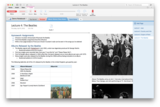
Even better, any notes you type while recording will be synchronized to the audio. Reviewing your class notes and can’t remember exactly what your instructor said about the early music of the Beatles? Move your mouse over the notes you typed when the instructor was talking about that topic, then Control-Click to open the context menu and select Play Audio From Here. OneNote will play the audio that was recorded precisely when you typed that portion of your notes. Pretty handy!
Don’t want to type a bunch of notes during your audio recording? Click the Add Bookmark button on the Audio tab to quickly flag an important point for later reference. Just like with text you’ve typed, you can Control-Click and select the Play Audio From Here command to play the audio recording from the point where you placed the bookmark.
Here’s one last tip for making the most of audio recording in OneNote for Mac: Sit close to the person you’re recording so the microphone on your Mac will pick up the sounds more clearly. The level indicator on the Audio tab can help you determine whether the audio you’re recording is too faint. This is especially useful when recording in a large, open environment like a lecture hall.
In addition to Record Audio, here are some additional updates we’ve included in this OneNote for Mac release.
View mathematical equations created in OneNote for Windows
First, we’ve addressed another popular customer request by providing the ability to view equations added from OneNote for Windows. Simply open a page that includes equations and you’ll see those mathematical symbols and Greek letters rendered in all their glory.
Recover notes you deleted accidentally
Second, we’ve made it possible to recover deleted content. If you’ve ever accidentally deleted a section or page in OneNote and then wished you could get it back, then this feature is for you. Simply click the View tab and then select Deleted Notes to see everything you’ve deleted in the last 60 days. To restore a deleted section or page, Control-Click on it and then select Restore To.
We hope these updates make OneNote for Mac even more valuable to you. As always, we appreciate your feedback. Please continue to give us input and ideas at the OneNote feedback site.
The post Audio recording comes to OneNote for Mac appeared first on Office Blogs.
Office Blogs
.
Blog
.
<span class='date ' tip=''><i class='icon-time'></i> Aug 23, 2015 09:13pm</span>
|
|
Today’s post was written by Rebecca Lawler and James Peters, program managers on the Outlook Web App team.
Last year, we released the first wave of OneDrive for Business integration within the Outlook Web App for Office 365 customers. That integration allowed users to send OneDrive for Business files and set edit and view permissions using the Insert > Attachment menu, making it easy to share cloud files without having to separately navigate to OneDrive and leave the context of your inbox.
Today, we’re thrilled to introduce improvements to this integration to make saving and sharing files to OneDrive for Business even easier in the Outlook Web App.
Save attachments directly to OneDrive for Business
The Outlook Web App now lets you save attachments you’ve received in email directly to your OneDrive for Business folder. This allows you to access these files from wherever you are and more importantly, gives you the ability to collaborate on these files in Office or Office Online without having to manage and keep track of multiple versions.
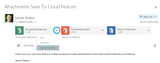
In Outlook Web App, when you click Save to OneDrive or Save all to OneDrive, your files are added to a OneDrive for Business folder called Email attachments. Once they are stored in OneDrive you can move them to another folder, or send them in email as a cloud attachment. Let’s take a detailed look at how it works.
The process begins when you open a message that has attachments.
If you want to save a single attachment to OneDrive for Business, open the drop-down menu on the attachment and click Save to OneDrive.
To save all the attachments to OneDrive click Save all to OneDrive.
Once a file is added to OneDrive for Business you should see confirmation on the attachment.
Guidance when sharing large files
Sharing large files in email is tedious and unreliable. They can take a long time to send and frequently bounce back, never reaching the recipient—especially when emailing outside of your organization. At best, this process ends up wasting valuable time and at worst, it can result in lost business, upset customers or worse.
Improving upon our first wave our OneDrive for Business integration, the Outlook Web App now automatically notifies you if the file you are trying to send is over your organization’s message size limit and then provides a one-click option to upload to OneDrive for Business. In this case, the Send as attachment option will be greyed out.
The Outlook Web App also warns you when you try to attach a file that is fairly large and suggests that you upload and share with OneDrive for Business. In this way, you can keep your message size and mailbox smaller. This also ensures that your recipient will receive it, regardless of the file size.
Currently, Outlook Web App supports uploading files up to 200 MB directly to OneDrive for Business. Over the next 4-8 weeks, this limit will be raised to 2GB.
Frequently asked questions
Q. When can I use these new features?
A. Both of these features are rolling out worldwide to Office 365 customers. Most customers will see these features this week and we expect to roll out worldwide within 1-2 months.
Q. Which Office 365 customers are receiving these benefits?
A. All Office 365 customers with plans that include Exchange Online and OneDrive for Business, including commercial, government and academic plans will receive this benefit.
Q. Does this apply for Outlook.com customers?
A. This update applies to Office 365 commercial, government and academic customers using the Outlook Web App and OneDrive for Business. We have already released this functionality for Outlook.com and OneDrive.com.
Q. Will these features be supported in the Outlook desktop client (e.g. Outlook 2013)?
A. Not at this time, but we are working to bring it to the Outlook desktop client in a future version. You can accomplish the same capability as the Save to OneDrive feature in the Outlook desktop client by saving the attachments to your local OneDrive for Business sync folder on your computer.
Q. Can I change the location where my file is saved?
A. The Save to OneDrive action automatically saves your files to the Email attachments folder. Once they are in OneDrive for Business, you can move them to any other folder.
Q. One or more of my files are failing to save to OneDrive for Business. What is going on?
A. Check the file type of the file; some file types may not be stored in OneDrive for Business. Click here for a list of these file types.
Q. What happens if I save the same file to OneDrive for Business twice?
A. You will have two copies of the file in your Email attachments folder in OneDrive. The second file will automatically add (1) to the end of the filename. e.g. FileName.docx, FileName(1).docx
Q. What if I need to upload and email a file larger than 200MB?
A. We are updating the Outlook Web App over the next 4-8 weeks to support files up to 2GB. In the meantime, for larger files up to 2GB, users will need to navigate to and upload directly to OneDrive for Business.
Q. I increased my company message size limit to 150MB. Why am I forced to upload files larger than 25MB to OneDrive for Business?
A. Each organization has a set message size limit. The default maximum message size for Office 365 mailboxes is 25 MB, but we recently provided Office 365 administrators the ability to increase message size to 150MB.
Currently, the Outlook Web App limits each individual attachment to 25MB or smaller. A user can attach multiple attachments up to the administrator set limit, as long as each is 25MB or smaller. Currently, anything larger must be uploaded to OneDrive for Business. We are working to remove that limit soon.
The post Outlook Web App + OneDrive for Business just got better appeared first on Office Blogs.
Office Blogs
.
Blog
.
<span class='date ' tip=''><i class='icon-time'></i> Aug 23, 2015 09:12pm</span>
|
|
Today’s post was written by Igor Peev and Daniel Witriol, program managers on the Power Map team.
In the May 2015 update of Office 365 we are proud to introduce a new core feature to Power Map: Custom Regions. The Custom Regions feature allows data to be mapped to the regions that matter most to you, even if they are not the traditional zip code, county, state or country regions. Custom regions are useful for scenarios involving sales districts, school districts, congressional districts, land lot development, crop rotation, geological analysis, and anything else using custom-defined polygons.
The Custom Regions feature in Power Map allows you to import KML or SHP files which contain custom polygons. Once imported, you can use custom regions in the same manner as you would use standard regions such as zip codes.
KML files can be created with a variety of free tools which are available on the Internet, you can read more about them here. We also support the import of SHP files, you can read more about the SHP file format here. Note that for SHP files we only support the WGS 84 standard coordinate system projection, more info here.
Let’s walk through a specific example. When we can, we like to work with data that can have a social impact. In this case, we’ll analyze data about the homeless rate among students in Washington state school districts.
We obtained the data from these two websites:
http://www.k12.wa.us/HomelessEd/Data.aspx
data.gov/dataset/tiger-line-shapefile-2013-state-washington-current-unified-school-districts-
At a high level the data looks like this:
There are columns for the school district name, the school year, the county and state the district is located in, and stats breaking down the number of homeless students in the district. Power Map can help visualize this data for authorities trying to reduce homelessness in our communities.
Let’s start exploring the data. By default, Power Map detects the standard geographic fields, which can be used in the visualization. This is what you will see in the UI when you first open this data. The default geocoding level was automatically selected to County level.
But today we are interested in comparing the data between School Districts. To do this, let’s add School District to Geography and Map Level and work with it by mapping it as a Custom Region.
Any time you select Custom Region (.kml, .shp) from the drop-down, Power Map will ask if you want to import custom regions.
Select Yes and browse to the KML or SHP file you want to use. Note you only have to import a region file once per-workbook. Afterwards you can re-use it by simply selecting Custom Region and choosing No to import.
At this point, you can set a friendly name for your custom region. This is helpful when working with more than one set of custom regions. In the case of SHP files, there is also a drop-down allowing you to specify which field in the SHP file contains the names of your region. Power Map tells you how many regions will be imported in the workbook. Select Import and your custom regions are available to use.
To see the highest percentage of the population of homeless students by district, use a shaded regions visualization. In this example, Power Map shows that in some coastal districts over 50 percent of their students have been homeless, and the higher percentages of homelessness occur in rural areas.
To see how the homeless student percentages in the School Districts change over time, add the Year. This provides further insight into changing conditions and patterns which affect the problem.
To manage custom regions after they are imported, select Import Regions on the ribbon.In the dialog, you can import a new region set (aka file), delete an existing set, or replace a set should the boundaries and descriptions change.
For more examples of what you can do with the Custom Regions feature watch our video:
New customization features
In addition to the new custom regions functionality, we’ve added some other great features. You can now customize the formatting of your legends. Simply right-click the legend and choose Edit.
You can also customize the background color of text boxes, date/time boxes, legends, and annotations to create emphasis or have it blend in. For example here we’re using color to emphasize an annotation.
To set the background color as transparent, choose the No Fill option. This is the default now for text and date/time boxes.
Finally, we’ve removed the extra green bar chrome you saw when you hovered over text boxes, date/time boxes, legends, and 2-D charts. Now it’s easier to line these boxes up or position them in corners. Click anywhere on the box to drag it around and then double-click or right-click to edit, or right-click to remove.
We hope you enjoy this update.
You can download all the files used in the Custom Region demo at: Power Map samples.
—Igor Peev and Daniel Witriol on behalf of the Power Map for Excel team
The post Power Map for Excel-May update for Office 365 appeared first on Office Blogs.
Office Blogs
.
Blog
.
<span class='date ' tip=''><i class='icon-time'></i> Aug 23, 2015 09:12pm</span>
|
|
Editor’s Note 5/26/2015:
We have revised the timeline for Clutter to be on by default and have updated the FAQs with the revised dates.
Today’s post was written by Brian Shiers, senior product marketing manager and Kumar Venkateswar, senior program manager on the Exchange team.
Last fall, we introduced Clutter, which moves less important emails out of your inbox and keeps you focused what’s most important to you. Today Clutter is moving over one million emails per day and saves users 82 minutes per month on average. Starting in June, Clutter will be on by default to help more people benefit from Clutter. We’re also introducing new administrative controls for Clutter and improving how Clutter interacts with users.
Editor’s Note 6/8/2015:
We have published an advanced Clutter enablement PowerShell reporting script sample, this new sample is linked in the post in the Administrator controls section.
Administrator controls
Additional controls are being added to help administrators manage Clutter. First we are introducing two PowerShell cmdlets to report on and turn off Clutter for users. These cmdlets are available for use today. Organizations who want to manage use of Clutter should use the cmdlet to turn off Clutter before it is turned on by default in June. The examples below show the most common uses for the cmdlets.
This example turns off Clutter for users who have not already turned it on themselves:PS C:\Scripts> Get-Mailbox | ?{-not (Get-Clutter -Identity $_.Alias).IsEnabled} | %{Set-Clutter -Identity $_.Alias -Enable $false}This example provides administrators an easy way to see the use of Clutter for their users:PS C:\Scripts> $hash=$null;$hash=@{};$mailboxes=get-mailbox;foreach($mailbox in $mailboxes) {$hash.add($mailbox.alias,(get-clutter -identity $mailbox.alias.tostring()).isenabled)};$hash | ftYou can leverage these cmdlets to meet your enablement and reporting needs. This example script in the TechNet Script Center allows you to obtain the Clutter status for given list of users.
The update is extending the personalization controls introduced in March. Administrators can now configure a reply-to address for Clutter notifications, this is in addition to the existing options to change the sender display name and brand the message with a logo of your choice. These controls add to the existing options to allow organizationally critical messages to bypass Clutter and the ability to apply a default retention policy to the Clutter folder.
Improving the user experience
We are also improving how Clutter interacts with users. The existing inbox notifications are being replaced with alerts and summary notifications sent when Clutter is at work. The alerts are sent when new types of emails are moved to Clutter for the first time, you will receive a maximum of one alert per day. The summary notification is sent once per week making it easy to know what Clutter is doing for you.
This example shows the new alert notification delivered to your inbox:
We’re excited to reach this milestone in making Clutter on for everyone and delivering the controls administrators have asked us to deliver. We encourage you try out these new capabilities and please let us know what you think. You can provide us feedback at the Office 365 Network.
—Brian Shiers & Kumar Venkateswar
Frequently asked questions
Q. When will Clutter be turned on by default for my tenant?
A. Tenants in the First Release program will begin being on by default on June 15th. Standard release tenants will begin being on by default on June 30th.
Q. Will new mailboxes created after Clutter is auto-enabled have Clutter on by default?
A. Yes, new mailboxes will have Clutter on by default. Administrators can turn Clutter off using the PowerShell cmdlet after the mailbox is created.
Q. What happens to existing mailboxes after Clutter is on by default?
A. Users who have already turned Clutter on will continue to have Clutter on and will receive the new notifications. Users who have not turned Clutter on will have it turned on automatically. Users who have initially turned on Clutter and later turned it off will continue to have Clutter turned off. And finally, users whose admins have turned Clutter off on their behalf will continue to have Clutter turned off.
Q. Can a user turn off the use of Clutter?
A. Yes. Users remain in control and can elect to disable the Clutter feature when they choose, through the options page in Outlook on the web, Outlook 2016 Preview, or the link at the bottom of each notification.
Q. How frequently will users receive notifications from Clutter?
A. Users will receive one summary notification per week and up to one message per day when new message types are moved to Clutter, i.e. the first time a message from given distribution list is moved.
Q. Why are the notifications delivered to my inbox?
A. The notifications are delivered to your inbox to ensure you can stay informed across the range clients you might use, including Outlook desktop and mobile email clients.
Q. Can a user or administrator opt-out of the Clutter notification messages?
A. These notifications are an important part of the Clutter feature, because they keep users informed about which messages are being moved to Clutter. No option to deactivate them exists at this time.
Q. Why are the Clutter cmdlets not available for some of my users?
A. There’s still a small percentage of servers (about 2 percent) that don’t have the update containing the cmdlets as of May 26th. This means that for a small percentage of users the cmdlet will fail. You can retry at a later date, as the cmdlet is made available to the final portion of mailboxes.
The post De-Cluttering everyone’s inbox appeared first on Office Blogs.
Office Blogs
.
Blog
.
<span class='date ' tip=''><i class='icon-time'></i> Aug 23, 2015 09:12pm</span>
|
|
Today’s post was written by Jared Spataro, general manager for the Office 365 marketing team.
Over the last 12 months, we’ve transformed Office from a suite of desktop applications to a complete, cross-platform, cross-device solution for getting work done. In January, we delivered the Office apps for Android tablets—and we’re really proud of our 4+ rating in the Google Play store! Today I’m pleased to announce the preview for Word, Excel and PowerPoint for Android phones. Join the Microsoft Office for Android community to participate in the Preview program.
The Office for Android phone apps are modern, optimized for touch and designed for work on the go. Here are a few things I think you’ll love about them:
Familiar and consistent Office experience—The Office apps combine the familiar look, feel and quality of Office with a touch-friendly experience designed for Android phones. Documents open and render beautifully, with all formatting and content in the right place. In addition, familiar navigation and menu options in the ribbon are placed at the bottom of the screen within reach of your thumbs so you can easily review and edit documents on your phone.
Word, Excel and PowerPoint apps make documents, spreadsheets and presentations look their best on your Android phone.
Do great work—anywhere, anytime—With these new apps, you can be productive anywhere. Read, review, and make edits on-the-go. Turn numbers into insights with easy insertion of charts, text and tables in Excel. Tell your story on-the-go with PowerPoint—review, make quick edits and even present right from your phone. Reflow documents in Word to make them easier to read and navigate.
Access your documents quickly—Create, open, edit and save files in the cloud from your Android phone so you can access them anywhere and anytime you need them. OneDrive, OneDrive for Business, SharePoint, Dropbox, Google Drive and Box and are all available to you.
Work together—Share ideas, insights and presentations with others right from your phone. It’s easy to track changes, comment and markup documents so everybody knows the thinking behind the edits. Share your documents with others by simply emailing a hyperlink or attachment.
Bringing these apps to Preview first provides you with an early look at the apps, while enabling us to gather critical user feedback helping us shape and improve the app experience on a wide range of Android phones across the world. The feedback we received from the Office for Android tablet Preview in January was critical to ensuring a high quality and consistent Office experience across Android tablet devices. Thank you!
Please note that the existing Office Mobile app for Android phone will still be available in the app store during Preview. We will disclose more about our plans for this app later in the year when we announce general availability of the new Office for Android phone apps.
You can get started with the Office for Android phone Preview in three easy steps:
Join the Office for Android community.
Once you join the community, Become a tester by clicking the links to the Word, Excel and PowerPoint.
Wait for Google Play to replicate permissions (this may take ~up to four hours), click the above mentioned links and then follow the download links to install apps using Google play store.
The post Office for Android phone Preview now available appeared first on Office Blogs.
Office Blogs
.
Blog
.
<span class='date ' tip=''><i class='icon-time'></i> Aug 23, 2015 09:11pm</span>
|
|
Today’s post on Office 365 was written by Rafael Bardales, Shared Services Director at CBC.
The Central American Bottling Company (CBC) has been bottling and distributing beverages since 1885, and in the past 130 years we’ve seen many changes to the business and the world. From our initial roots in Guatemala, we’ve expanded operations to eight countries around Central America, South America, and the Caribbean. We’ve been distributing PepsiCo products since 1942, and we now also deliver drinks from major brands like AmBev and LivSmart to our 455,000 customers, most of which are small independent grocers.
Building and managing an efficient distribution network that can reliably deliver products to so many customers in multiple countries presents many challenges. We need to make sure that everyone in the company—from delivery drivers to executives—always has access to the information they need to keep the business running smoothly and keep our customers happy. Because of our affiliation with PepsiCo, we also need to ensure that we conform with U.S. regulations around data access and security. I manage the company’s Shared Services Center, which runs all of the company’s IT operations out of our Guatemala datacenter. In 2009, we decided to move some of those operations to the cloud so we could better control our IT costs and make it easier to deploy new software quickly when we expand into new markets.
We chose another vendor to provide our first cloud productivity platform, and while many aspects of their solution worked great for us, our employees found that it was missing a lot of the functionality they had come to rely on with Microsoft Office. So even after we migrated our email system, our employees continued using Word, Excel and PowerPoint. Plus, we found we didn’t have the rights-management functionality we needed to meet U.S. regulatory demands and ended up using a workaround in order to comply. It was less than ideal, so we decided it was time to move on.
When we evaluated our options, Office 365 was an obvious contender given our existing relationship with Microsoft and our use of Windows and SQL Server. After a successful pilot, we knew Office 365 was right for us and we signed on to begin the migration. Our IT staff is now on Exchange Online, and during 2015 we will migrate the rest of our 2,000 employees who use email. Grupo Sega will assist us as we roll out additional features like OneDrive for Business, SharePoint Online and Skype for Business.
The choice of Office 365 is streamlining our IT operations, because we can now replace single-function applications that we license for activities like web conferencing. As we consolidate more of our IT infrastructure on Microsoft products, systems administration becomes easier, and we make it simple for employees in different offices to work better together. We’re currently expanding our use of mobile devices, and the commitment Microsoft has made to supporting all major mobile platforms will help our employees be productive anytime and anywhere.
We’re excited about the benefits CBC will realize by strengthening our technology partnership with Microsoft through our Office 365 investment. Not long ago, I attended a forum where Microsoft demonstrated its current offerings and gave insight into future plans, including its emphasis on "cloud first, mobile first" development. I believe that Microsoft is taking the right approach, and I feel very comfortable that our partnership will allow us to fully support our IT and business goals.
For more information, read the full story here at Why Microsoft.
The post Central American Bottling Company (CBC) moves to Office 365 to streamline IT operations and simplify regulatory compliance appeared first on Office Blogs.
Office Blogs
.
Blog
.
<span class='date ' tip=''><i class='icon-time'></i> Aug 23, 2015 09:09pm</span>
|
|
Today’s post on Yammer was written by Sid Arora from iLink Systems.
iLink Systems delivers next-generation technology solutions to help clients solve complex business challenges, improve organizational effectiveness, increase business productivity, realize sustainable enterprise value and transforms businesses inside and out.
Our CEO, Sree, a strong advocate of the eat-your-own-dog-food philosophy, envisioned the iLink enterprise-level social network as one that can achieve internally for iLink what we claimed possible for our customers through our services—help achieve a cultural transformation.
Since we live and breathe SharePoint both internally and externally, integration with Yammer seemed the logical choice to provide the needed social fabric experience, but we wanted to be thoughtful about how to bring a new tool into the organization and how it would create value for us.
Within a short amount of time, Yammer started living up to its potential to foster a more connected and engaged culture. Being a technology services delivery company, we had many excited users from different parts of the organization come onboard within the first month of launch and have also seen a steady increase in that number to a point where most iLink teams and employees have now embraced Yammer.
One of the early success stories that helped the social networking tool gain popularity and mainstream acceptance was its use to announce a big data training to be conducted by an internal expert. Owing to the amount of interest and discussion generated, a Yammer group was created by the participants to store and share relevant content and news. This has grown to become one of the largest and more active groups within Yammer with a lot of knowledge sharing and discussions.
Senior executives were aware and had started considering the need for a tool that was easy to use, social and could help people truly connect across levels and functions. Yammer served as the right platform, not only for unifying employees across geographies and languages, but also helped make employees more collaborative and engaged. Yammer has now started to become the de facto medium for broadcasting and seeking information, be it about latest trends in technology, process excellence, our delivery wins, or any internal/external trainings. It was a pleasant surprise to see the sales force embrace this channel early on, both to share latest customer wins as well as connect and find technical experts and information more easily.
Of course, communication between employees has picked up, with conversations transcending departmental and regional boundaries. We are starting to see seeds of Yammer blooming into a breeding ground for innovation. It has empowered various groups to lead in new ways by bringing people together who share common interests and want to share ideas and collaborate on next-gen technologies.
What next?
Yammer has already improved the flow of information and ideas at all levels, such as between senior management and employees. There is a lot of excitement about the possibilities that Yammer opens up for us, including:
Empowerment—Through enabling employees access to senior management and experts more easily, as well as help new employees get oriented faster on who’s who and what’s what. New employees can onboard faster to projects due to the opportunity to understand relevant context from Yammer conversations, which may have been previously been lost or hidden in individual emails. Employees can also learn about activities happening in other departments and locations.
Listening to the workforce—By the very nature of Yammer being a two-sided network, taking it to the next level where it can help not only to get the word out on any internal initiative, technology or policy, but can also serve as a place to seek valuable feedback. Sree’s vision is to see Yammer help bring about a cultural transformation that breaks down internal barriers and replaces current top-down driven decisions by multiple dialogs and cross-group collaboration.
It’s still early, but Yammer is already starting to prove itself to be the online work environment needed to consolidate internal communications, help employees connect, share and collaborate to meet business objectives.
—Sid Arora
The post iLink Systems—better and faster with Yammer appeared first on Office Blogs.
Office Blogs
.
Blog
.
<span class='date ' tip=''><i class='icon-time'></i> Aug 23, 2015 09:09pm</span>
|