Blogs
|
In this episode, Jeremy Thake talks to Paul Schaeflien, Elio Struyf and Waldek Mastykarz about the MVP Summit.
http://officeblogspodcastswest.blob.core.windows.net/podcasts/EP70_MVP.mp3
Download the podcast.
Weekly updates
Office Dev Show—Episode 17: Grace Hopper Celebration
Office Dev Show—Episode 16: Getting Started with Android Studio
Display Events from an Outlook Calendar in SharePoint using Office 365 API’s
Office Dev PnP webcast—Introduction to Office Dev PnP Provisioning Engine
The new Office—October feature update
Got questions or comments about the show? Join the O365 Dev Podcast on the Office 365 Technical Network.
The podcast RSS is available iTunes or search for it on "Office 365 Developer Podcast" or add directly with the RSS http://feeds.feedburner.com/Office365DeveloperPodcast.
About Paul Schaeflein
Paul has worked with Microsoft’s SharePoint technologies since it was called the Digital Dashboard. This work encompasses substantial custom development, implementations and training. Also, Paul was granted the Microsoft Most Valuable Professional (MVP) award for his community work - primarily presentations at national conferences, regional events and user groups. Check out Paul’s blog www.schaeflein.net/blog and follow him on @paulschaeflein.
About Elio Struyf
Elio is an Office 365 consultant working for Ventigrate and a board member of the Belgian Information Worker User Group, (BIWUG ). He focused on search and branding related topics in SharePoint and Office 365. He shares his ideas and experiences on his blog (www.eliostruyf.com) and through various public speaking engagements.
About Waldek Mastykarz
Waldek is a Microsoft SharePoint Server MVP and works as a SharePoint consultant at Mavention. Waldek shares his enthusiasm about the SharePoint platform through his blog, articles published in both online and offline magazines and on MSDN SharePoint forums. Waldek participates frequently as an "Ask-the-Expert" in community events such as SharePoint Connections, Microsoft TechEd and DevDays. He is also a Virtual Technology Solutions Professional for Microsoft Netherlands. In this role, he helps answer customer questions around SharePoint Web Content Management (WCM). Check out his blog mastykarz.nl and follow him on twitter @waldekm.
About the hosts
Jeremy is a technical product manager at Microsoft responsible for the Visual Studio Developer story for Office 365 development. Previously he worked at AvePoint Inc., a large ISV, as the chief architect shipping two apps to the Office Store. He has been heavily involved in the SharePoint community since 2006 and was awarded the SharePoint MVP award four years in a row before retiring the title to move to Microsoft. You can find Jeremy blogging at www.jeremythake.com and tweeting at @jthake.
Richard is a software engineer in Microsoft’s Developer Experience (DX) group, where he helps developers and software vendors maximize their use of Microsoft cloud services in Office 365 and Azure. Richard has spent a good portion of the last decade architecting Office-centric solutions, many that span Microsoft’s diverse technology portfolio. He is a passionate technology evangelist and frequent speaker are worldwide conferences, trainings and events. Richard is highly active in the Office 365 community, popular blogger at www.richdizz.com and can be found on twitter at @richdizz. Richard is born, raised and based in Dallas, TX, but works on a worldwide team based in Redmond. Richard is an avid builder of things (BoT), musician and lightning-fast runner.
Useful links
Office 365 Developer Center
Blog
Twitter
Facebook
StackOverflow
http://aka.ms/AskSharePointDev
http://aka.ms/AskOfficeDev
http://aka.ms/AskOffice365Dev
Yammer Office 365 Technical Network
O365 Dev Podcast
O365 Dev Apps Model
O365 Dev Tools
O365 Dev APIs
O365 Dev Migration to App Model
O365 Dev Links
UserVoice
The post Episode 070 at the MVP Summit—Office 365 Developer Podcast appeared first on Office Blogs.
Office Blogs
.
Blog
.
<span class='date ' tip=''><i class='icon-time'></i> Dec 05, 2015 11:32am</span>
|
|
The Office 2016 launch in September was followed by a steady stream of improvements in October. The Skype for Business iOS app is here, and the preview of the new Skype for Business voice and meeting capabilities is now more widely available. FastTrack evolved from an onboarding service to a customer success service to help you realize business value faster with the Microsoft Cloud. Compliance updates include enhanced service organization controls (SOC) audit reports and the launch of local datacenters in India. OneNote inking is better than ever, Sway and Office Lens got enhancements and mobile updates, and the new Office was updated as well. For developers, there’s new on-demand video training, updates from the PnP team and more.
Leave us a comment to let us know what your favorite new feature is. If you missed last month’s updates, see What’s new: September 2015.
Office 365 Personal, Office 365 Home and Office 365 University updates
Sway supports OneDrive for Business and adds mobile updates—Now when you sign in to Sway.com or Sway for Windows with Office 365 work and school accounts, you can access your OneDrive for Business account from the Insert tab, making it easy to add content stored in OneDrive for Business to your Sway creations. Updates to Sway for iPhone and iPad—such as faster preview and more grouping and navigation options—help you quickly create and share polished, interactive content on the go.
OneNote inking (digital handwriting) better than ever—OneNote on iPad now supports writing with the Pencil by FiftyThree stylus. You can take the notes, lists or sketches you made in the FiftyThree Paper app and send them to OneNote. OneNote for iPad Pro now supports the Apple Pencil stylus. A new feature, Ink Shape Recognition, is coming in November for iPad, iPad Pro and the OneNote Windows 10 app. For Surface users, a new Surface Pen and Pen Tip kit are now available.
Office Lens adds Office 365 support for iOS and enhanced business card scanning and storage—The pocket scanner app just got even more useful for business professionals, teachers and students. Office Lens for iPhone users can now share enhanced documents more securely using Office 365 work and school accounts. All Office Lens users for Android, iPhone and Windows Phone can use the Business Card mode to convert business card information into digital contacts in mobile address books.
Updates to the new Office—Office 2016 launched just last month and already new features are being delivered. Skype voice and video integration in Office Online and Outlook.com was expanded, so you can now see and speak to your Skype contacts. An Office Online extension for Chrome was introduced to give you a quicker way to access and create Office documents on Chrome. And improvements were made to Office on Android apps and the overall Visual Basic Editor (VBE) in Office 2016 for Mac.
Office 365 for Business and Education updates*
Office Delve adds Praise, Favorites and new ways to create content—With Praise (rolling out now to First Release U.S. customers), you can send publicly viewable praise to colleagues. With the new authoring canvas (rolling out now to eligible commercial customers), you can easily create multimedia-rich pages in SharePoint Online. Favorites, which gives you a new way to save information from across Office 365, is available now in the Delve mobile app for iOS and rolling out in the browser experience to First Release customers.
The new Visio is here—Visio 2016 starter diagrams, hundreds of smart shapes, one-step data linking, Information Rights Management (IRM) for compliance and much more make working visually faster and easier than ever. With Visio 2016 diagrams, everyone can easily define business processes, document best practices and visualize the future of initiatives. Using Office 365, you can share Visio diagrams with everyone and communicate one version of the truth to drive organization-wide alignment.
Top teacher-requested features coming to OneNote Class Notebooks—Based on teacher and staff feedback, OneNote Class Notebooks are getting three new capabilities, enabling you to: easily remove a student’s or co-teacher’s permissions from a OneNote Class Notebook; add groups of students (such as a class list) to a OneNote Class Notebook; and grab updates in group membership from your school directory. These improvements are rolling out to education customers in the coming weeks and will be released for OneNote Staff Notebooks soon.
Preview of new Skype for Business voice and meeting capabilities in Office 365 is expanding—The PSTN Conferencing preview is now available in 14 more countries, and the Cloud PBX preview is available worldwide. For users of the PSTN Calling preview in the U.S., number portability has been enabled, and for Cloud PBX customers worldwide, voicemail has been enabled. Soon several IP phone models will become available for preview with Cloud PBX, and a call quality dashboard will be added.
The evolution of FastTrack from onboarding service to customer success service—FastTrack is changing from a one-time benefit to an ongoing benefit and expanding to offer customized support and resources for envisioning, onboarding and driving business value. FastTrack now consists of best practices, tools, resources and personalized remote assistance available through a new web experience (FastTrack.microsoft.com) and the FastTrack Center.
Office 365 services now delivered in India from local datacenters—With the launch of three new datacenters in India—in Mumbai, Pune and Chennai—Office 365 becomes the first global commercial cloud service to provide productivity and collaboration services from within India. With the new datacenters, businesses in India receive the Office 365 security and compliance capabilities, as well as the added benefit of data residency, which is important to organizations in regulated industries.
The Financial Services Compliance Program is rolling out to all eligible customers in financial services—The Financial Services Compliance Program, which extends the standard Office 365, Azure, Intune and Microsoft Dynamics service contracts, provides an additional level of service to help fulfill regulatory needs. It includes: direct access to Microsoft security and compliance staff; information, data and reports related to meeting your unique regulatory obligations; and the ability to request paid one-on-one time to address key questions.
Skype for Business iOS app now available—The new app is now available in the iTunes Store. iPhone users with Lync 2013 will automatically get updated to the new app. iPad users with Lync 2013 need to download the app from the iTunes Store. With the new app, you can join a meeting in one touch, use full-screen video for a more immersive meeting experience, set up multi-factor authentication for enhanced security, and more.
Enhanced service organization controls (SOC) audit reports—Office 365 SOC audit reports have been enhanced with two new trust principles, Processing Integrity and Confidentiality. Controls and test results were also added around data transmission and encryption, security development lifecycle, data replication and data backup. These reports are designed to provide transparency into Office 365 security and compliance controls and the results of control tests as noted by independent third-party auditors.
Office 365 Developer updates
Dev Digest for October—This month’s highlights include code samples that show off the new Office.js APIs, an update to the Office 365 Unified API preview for how you access users’ OneDrive for Business, lots of exciting news from the Office 365 Developer PnP team, on-demand video training for setting up the ASP.NET MVC web application and building the iOS or Android mobile apps from scratch, upcoming hackathons and more. As always, get the list of new and updated dev documentation, code samples, add-ins, Office Dev podcasts, patterns and practices, blog posts, Office Store news and upcoming events.
Please note that some of the updates may take time to show up in your Office 365 account, because they’re being rolled out to customers worldwide.
—Andy O’Donald @andyodonald
——————————————————————————-
*Not all updates apply to every Office 365 plan; please check the individual post for specifics.
The post What’s new: October 2015 appeared first on Office Blogs.
Office Blogs
.
Blog
.
<span class='date ' tip=''><i class='icon-time'></i> Dec 05, 2015 11:31am</span>
|
|
In March 2015, we announced that Microsoft Lync has been rebranded as Skype for Business, bringing the familiar and well-loved Skype experience to the workplace, combined with the trusted enterprise-grade Lync platform.
We are happy to announce that Lync Rooms Systems will be updated with the Skype for Business experience. On November 10, we are rolling out a Cumulative Update to all existing Crestron, Polycom and SMART Lync Room Systems, updating the user interface (UI) and branding to Skype for Business. The Cumulative Update will either be applied automatically, or manually, depending on the policy set by the IT admin. The update does not change the functionality, but users will see a sleeker, darker design theme, attuned to large-screen viewing.
Let’s take a look at the new user interface.
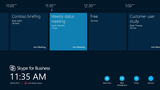
The image below shows the pre-meeting calendar UI on the console. The console, positioned at the center of the meeting room table, is used to control the meeting room experience. The design changes include a dark background theme, round icons and a round presence indicator, as well as the Skype for Business logo.
Pre-meeting calendar UI on the console.
The in-meeting UI of the console now also closely resembles the Skype for Business look and feel and includes buttons like Pause Video, Mute Room and New Whiteboard, specific for meetings.
In-meeting UI on the console.
The video gallery UI on the displays in front of the meeting room also has been updated to the Skype for Business design.
Dual displays in front of room with the video gallery.
The UI of presenting a PowerPoint on the display in the front of the room will not change, though also, here the video gallery on the second display gets a slightly darker background color, as shown below.
Dual displays in front of room, presenting PowerPoint.
The end-user education, basic meeting room use scenarios go unchanged. Meeting room organizers will continue to be able to start meetings, share content and change display modalities the same way they did before the Cumulative Update.
System administrators should note that the Admin UI under Options > Settings has undergone minimal design theme change—largely restricted to "Lync" text being changed to "Skype for Business."
New Private settings
Ever walked past a meeting room and noticed that the Lync Room System calendar is visible through a glass barrier or door? Meeting organizers have always had the option of marking a meeting as Private in an Outlook invite, but this prevents executive administrators from being able to see the subject line. To improve this experience, we’ve added a feature in this Cumulative Update that allows the room admin to turn the room calendar subject line visibility on or off. This feature is accessed on the console in Admin mode, under Options > Settings.
Going forward
Previous Cumulative Updates added quite a number of new features, such as the ability to directly project from a PC in the room into the meeting, a redesign of the dial pad on the console, steps to add a Skype Meeting and the ability for IT admins to install anti-virus software on the Room System. In the next update, we will continue our mission to span a wider range of meeting room sizes and enable additional cameras and sound systems.
Stay tuned for the next update!
—David Groom, senior program manager for the Skype for Business team
The post A new Skype for Business look for Lync Room Systems! appeared first on Office Blogs.
Office Blogs
.
Blog
.
<span class='date ' tip=''><i class='icon-time'></i> Dec 05, 2015 11:31am</span>
|
|
Tired of digging around for the file you want to attach when you were just working on it earlier? Tired of later trying to sift through emails to find links shared with you? With the Windows release of Outlook 2016, attachments just got a whole lot better. You can now skip the hassles associated with finding and sharing files, regardless of whether you were working on them on your computer, phone or tablet.
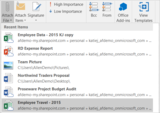
The next time you go to attach a file to your email, the first thing you’ll notice is a list of recently accessed documents under the Recent Items. The Recent Items list is comprised of documents on your local hard drive as well as OneDrive, OneDrive for Business and SharePoint—making it simple to pick files you have accessed across any of your devices.
If you can’t find what you were looking for in the Recent Items list, we make it easy to navigate to your OneDrive, OneDrive for Business and SharePoint locations by selecting Browse Web Locations. To find other files saved on your PC, choose the Browse this PC option to open File Explorer.
If you select a OneDrive, OneDrive for Business or SharePoint file to share, Outlook’s new attachment feature shows you what permissions you’re granting to your recipients at a glance. Of course, you also have the ability to change these permissions or even attach a copy instead—all without having to go to where it’s stored.
When you send your email, Outlook does the work of granting everyone the right set of permissions behind the scenes. Additionally, because the OneDrive, OneDrive for Business or SharePoint links now appear side-by-side with your other attachments, you’ll notice a paperclip associated with them and have the ability to search for them just as you do with attachments today.
This new attachment experience is available today for users of Outlook 2016 on Windows devices, while continuous improvements and new features will be delivered to Office 365 subscribers. The best way to get the latest features with Office is to subscribe to Office 365. If you aren’t already taking advantage of the new experience, give it a try with your next attachment!
—Misbah Uraizee, program manager for the Outlook team
The post Attachments in Outlook 2016—ready for collaboration appeared first on Office Blogs.
Office Blogs
.
Blog
.
<span class='date ' tip=''><i class='icon-time'></i> Dec 05, 2015 11:30am</span>
|
|
Join us for a virtual webcast series live from the Microsoft Technology Center to learn how to empower your employees and organization with tools from Office 365.
With the industry’s most advanced productivity suite—Office 365—Microsoft is focused on creating the modern workplace to help you communicate and collaborate without borders and barriers. We know that connecting with coworkers, customers and partners is critical for your business. With better tools and better connections, your opportunities for business growth are limitless.
This three-part webcast series will help you learn about the industry’s most innovative productivity suite. Today, with Office 2016 and Office 365, there is no one else who takes such a broad view of productivity. We think about productivity across individuals, teams/groups and organizations. Explore how you can take advantage of our solutions to create a more modern workplace.
Join this virtual webcast series to hear insights into Microsoft’s latest productivity solutions and to understand how you can:
Improve meetings with new features in Skype for Business and Office 365.
Collaborate and share files in real time with advanced tools and the cloud.
Enable mobile productivity with Office 365.
Date
Webcast title
Registration link
November 12, 2015 at 10 a.m. PST
5 Ways You Can Modernize Your Meetings
Register here
November 19, 2015 at 10 a.m. PST
Drive Connected Collaboration
Register here
December 4, 2015 at 10 a.m. PST
Fuel Mobile Productivity with Office 2016
Register here
Register now and join us live or on demand and learn how you can empower your employees to be more productive from anywhere on any device or platform.
The post Join us for Create the Modern Workplace webcast series appeared first on Office Blogs.
Office Blogs
.
Blog
.
<span class='date ' tip=''><i class='icon-time'></i> Dec 05, 2015 11:30am</span>
|
|
The November Power Pivot for Excel 2013 update delivers a better experience when using Power Query with Power Pivot as well as support for Key Performance Indicators (KPI).
These fixes are delivered as part of following updates (there are 32- and 64-bit versions of each):
KB3039739—Update for Office 2013, which includes the first part of the Power Pivot and Power Query working better together fix.
KB3039800—Update for Office 2013, which includes the second part of the Power Pivot and Power Query working better together fix; the issue will not be resolved if you install just one of these patches.
KB3085502—MS15-099 security update for Excel 2013, which enables single sign-on (SSO) for ADAL on cloud domain-joined computers, respecting additional icon sets for a KPI in Power Pivot and several other fixes.
Using Power Query with Power Pivot
For data in Power Pivot that has been added through Power Query, the following operations can now only be done through Power Query, which resolves conflicts previously seen in Power Pivot.
Edit Table Properties
Column-level changes: Rename, Data type change, Delete
Table-level changes: Rename, Delete
A detailed KB article on the subject can be found here, and the scenario is outlined below:
Using Power Query, import your data from a data source of your choice.
2. Once your Power Query data manipulations are complete, select Close & Load To…
3. When prompted, select Add this data to the Data Model and then click Load.
4. Next, open the PowerPivot window, select a column on the table you just loaded using Power Query and rename that column. The same will apply to delete column, delete table and edit table as mentioned above.
5. An attempt to rename a column in the model created with Power Query is blocked with a message that data originated in Power Query should be updated in Power Query; doing this prevents conflicts between the two tools.
KPI support
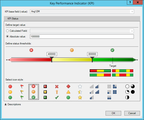
Power Pivot allows customers to define KPIs with various settings such as the target value, icon styles and KPI description.
The Excel 2013 update for KPIs includes:
Additional icon sets for a KPI status, including five levels of icon sets.
Alignment with the absolute KPI target value data type with that of the type of the measure. As a result, both Value and Goal measures now show the same data type on a PivotTable.
We hope these updates will increase your analysis productivity with Excel! If you have suggestions or feedback, visit Excel UserVoice.
The post Power Pivot in Excel 2013—November 2015 customer update appeared first on Office Blogs.
Office Blogs
.
Blog
.
<span class='date ' tip=''><i class='icon-time'></i> Dec 05, 2015 11:29am</span>
|
|
In-Place Archiving for Office 365 offers vast amounts of storage for our customers. Our innovative In-Place approach coupled with a seamless archiving experience has significant adoption in the marketplace with several million archive mailboxes being used actively in Office 365 today.
While our existing archiving solution serves most scenarios, some of our customers are subject to industry-specific regulatory requirements about record keeping. For example, financial institutions such as banks and broker-dealer organizations are subject to Rule 17a-4 issued by the Securities and Exchange Commissions (SEC) regarding electronic data storage. Rule 17a-4 has specific requirements pertaining to length, format, quality, availability, accountability and many other aspects of record retention. Whether the archiving solution can support Rule 17a-4 requirements is often a key consideration for SEC-regulated customers in technology adoption.
To help these customers better understand how the Exchange Online Archiving (EOA) service can be leveraged to meet their regulatory obligations, we are pleased to release our Exchange Online Archiving white paper specifically in relation to Rule 17a-4 requirements.
The white paper provides an in-depth analysis of Exchange Online features and functionalities against each of the requirements under Rule 17a-4 and demonstrates to regulated customers how EOA can enable them to meet these requirements.
You can download the white paper today.
The post Office 365 Exchange Online Archiving now meets SEC Rule 17a-4 requirements appeared first on Office Blogs.
Office Blogs
.
Blog
.
<span class='date ' tip=''><i class='icon-time'></i> Dec 05, 2015 11:29am</span>
|
|
Today’s post was written by Kirk Koenigsbauer, corporate vice president for the Office team.
Today we are taking another step forward in bringing a great Office experience to everyone across a range of devices and platforms. As we announced in September, we have optimized Word, Excel, PowerPoint, Outlook and OneNote apps for the iPad Pro. Starting today, these Office apps are now available and take full advantage of new multitasking features, so you can be productive on your iPad Pro right away.
Here are some highlights of the new Office capabilities that really stand out with multitasking features on the iPad Pro.
Split View
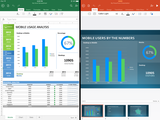
Need to use two apps at once? No problem with Split View. You can now have two active Office apps on the screen at the same time. For example, you can analyze your business results in Excel and update the corresponding chart in PowerPoint, so you can see your data and presentation side by side. Alternatively, you can review an email attachment and make the required changes to a related Word document right away. The changes are automatically updated in the attachment, so you’re ready to send in a single tap.
Slide Over
Need to open a second app? Easy. Keep the first app open and use Slide Over to open a second one. You can easily review your email and add an important list to a OneNote notebook or create a sales presentation and quickly send an email to your team reminding them of the upcoming client pitch meeting.
We’re excited to have these updated apps available when the iPad Pro hits store shelves this week. Stay tuned for more new features coming soon.
Get the Office apps today
If you have an iPad Pro and are looking to complete your on-the-go productivity solution, start by getting Office 365 today! While viewing is free, you will need a qualifying Office 365 subscription to create and edit documents in Word, Excel and PowerPoint on larger devices like the iPad Pro or Surface, consistent with our existing Office business model. With your Office 365 subscription, you can get fully installed Office applications across all of your devices (up to five PCs or Macs), utilize premium features in the Office mobile apps, access your documents from anywhere with 1 TB of OneDrive storage and always have the latest updates. The OneNote and Outlook apps are free to use on the iPad Pro.
Install Word, Excel, PowerPoint, OneNote, Outlook and OneDrive today on your iPad Pro, iPad Air, iPad mini or iPhone.
Microsoft Word
Microsoft Excel
Microsoft PowerPoint
Microsoft OneNote
Microsoft Outlook
Microsoft OneDrive
We hope you enjoy these updated apps for iPad Pro and look forward to hearing your feedback!
—Kirk Koenigsbauer
The post Microsoft Office apps are ready for the iPad Pro appeared first on Office Blogs.
Office Blogs
.
Blog
.
<span class='date ' tip=''><i class='icon-time'></i> Dec 05, 2015 11:28am</span>
|
|
Air Canada has spent billions of dollars modernizing its fleet, upgrading airport lounges and enhancing the customer experience. This includes offering the latest digital services for customers, such as mobile travel apps, online reservations and check-in and flight status verification. The smart use of technology is instrumental in achieving the company’s goals, including giving its 27,000 employees the latest IT tools to create a new culture of employee collaboration.
"Office 365 collaboration tools help our teams work together," says Allen Chang, manager of IT Innovation and Technology at Air Canada. "We can bring together pilots, catering, maintenance, airport teams, flight attendants, management and more. The faster we can communicate, the more efficient we are across our entire worldwide operation. It directly impacts customer satisfaction and helps to improve our on-time performance metrics."
The story of Office 365 at Air Canada reflects the company’s outlook for the 21st century. "Our aim is to be a global champion to connect people around the world," says Sue Kingsley, director, Employee Communications at Air Canada. "We wanted to create an environment for our employees that was more like our vision of Air Canada—innovative, modern, and creative."
So today, there is a team of Air Canada employees using Office 365 to collaborate, to share information and to streamline processes, all with the same goal: deliver the best travel experience for customers worldwide. "Our operational teams take advantage of SharePoint to aggregate information into one view instead of having to access multiple systems," says Chang. "We are also seeing an increase in automation projects that take advantage of SharePoint workflows. We’re in the process of automating our paper-driven forms processes and making them web- and mobile-enabled."
The Maintenance group works hard to reduce aircraft time on the ground. Now it shares documents with vendors and partners through a SharePoint Online site to collaborate and quickly make decisions to achieve that goal. Flight attendants, ground crews, baggage handlers and pilots share best practices, ask questions and problem solve on-the-fly by accessing Yammer on their mobile phones.
Yammer has also turned into a great forum for management and employee dialog. "It brings the worlds of our operations staff and management together," says Chang. "Management gets better insight into the challenges and successes of our staff. Yammer posts can be as varied as sharing excitement about a new aircraft, making restaurant recommendations for cities all over the world or congratulating a team that handled a medical emergency."
Mechanics are using Skype for Business video conferencing from phones and tablets to transmit images of aircraft maintenance back to the office for verification and advice. Pilots will be adding video conferencing to their iPads for use during Wi-Fi connected flights for another mode of ground communications.
This modern, connected and creative workplace environment is the new way of working at Air Canada. It’s a way of working that not only improves productivity but facilitates innovation. "We really value innovation, and we see Office 365 as a way to enable the business to innovate," says Chang. "We can introduce a tool like SharePoint Online and set up the basics, and pretty soon the business is forcing us to go to the next level and really transform their processes. And look at Delve. Adding new tools through Office 365 with so much potential is incredible."
But, like everything the airline does, safety comes first. "We have to encourage innovation, but on the other hand I still need to protect the security and safety of the airline," says Robert Eardley, senior director, Transformation Solutions, IT at Air Canada.
As the only international network carrier in North America to receive a four-star rating from Skytrax, today, Air Canada has yet another tool to maintain its leadership in the industry. "We connect Canada to the world and in order to do that we have to connect with our employees," concludes Kingsley. "And that’s really what Office 365 has done for us."
For more on the connected world of Air Canada, read the full case study.
The post Air Canada—flying high with a connected, global workforce appeared first on Office Blogs.
Office Blogs
.
Blog
.
<span class='date ' tip=''><i class='icon-time'></i> Dec 05, 2015 11:28am</span>
|
|
This week we’re pleased to announce a new set of features for "Get & Transform" in Excel 2016 and the Power Query add-in for Excel 2013/2010. This update is packed with lots of new features that have been requested by many customers. We expect that you will find this update extremely useful.
How can I get this update?
For Excel 2016: Install the latest Click-to-Run update for Excel 2016.
For Excel 2013/2010: Download and install the Power Query add-in for Excel 2013 and Excel 2010.
Data connectivity
Updates to data connectivity include:
Support for SharePoint Lists from non-English sites.
Enhanced support for the Exchange connector.
Automatic column type detection when importing .XLS files via the Excel Workbook connector.
A new "Select Related Tables" option when connecting to database sources.
Enhanced Active Directory connector credentials.
An improved function invocation experience.
A new option to delete all entries in the Data Source Settings dialog.
An option to "Enable Relationship Import during Refresh operations."
You can continue reading below for more details about each feature.
Support for SharePoint Lists from non-English sites
The SharePoint Lists connector (under "Other Sources") allows users to import data from lists in their SharePoint sites. However, there used to be a limitation that only sites where the Site Language was set to English would work with our connector. We improved the connector in this release to remove this restriction, so now users can get data from any SharePoint List in any site (SharePoint 2013 or newer) regardless of the site language. Note that SharePoint 2010 sites continue to work but still expose the same language limitation, as this is a change available only in newer versions of the SharePoint API.
Enhanced support for the Exchange connector
We have improved the Exchange connector to allow connections to multiple mailboxes. Users can provide the email address to connect to as part of the Source dialog and then specify credentials for that source (which may or may not match the email address to connect to). This way, users can easily combine data from multiple Exchange mailboxes into a single report.
Automatic column type detection when importing .XLS files via the Excel Workbook connector
The Excel Workbook connector now performs automatic column type detection when importing .XLS files. Before, this type detection was done only when importing .XLSX files.
Select Related Tables option when connecting to database sources
Users often will import multiple tables when connecting to a database. Before this update, users had to manually select all tables that they wanted to import, which often required an understanding of the underlying database schema so they would pick all tables that are related. With this update, we’re adding a new button called Select Related Tables to the Navigator dialog. When users click this button, all tables that have a direct relationship to one or more of the already selected tables are automatically selected.
Enhanced Active Directory connector credentials
The Credentials dialog for Active Directory now allows users to select alternate Windows credentials.
Improved function invocation experience
The experience for invoking functions loaded from a data source has been improved in this update. For instance, users are now prompted for parameters when loading one or more functions from a data source (such as a database), when they click the Load or Edit button in the Navigator dialog.
New option to delete all entries in the Data Source Settings dialog
Users can now easily delete all stored Data Source Settings by clicking the new Delete All button.
Option to "Enable Relationship Import during Refresh operations"
Excel automatically creates relationships between tables when loading them—if these relationships exist in the data source (such as a database). In addition to creating the relationships during load, Excel might create or delete relationships between tables while refreshing them if the relationships changed in the source. This used to be the default (and only) behavior before this update. With this update, we added an option under "Current Workbook—Data Load" to control whether to update relationship on refresh or not. The default behavior has been switched to not detect relationships on refresh, but still create them as part of the initial load.
Data Transformations and Query Editor improvements
Improvements for Data Transformations and the Query Editor include the ability to:
Copy to clipboard (available for cells/columns/tables).
Filter date columns by earliest/latest date (dynamic filter).
Extract min/max date/time value from a column.
Replace values with a provision for specifying special characters.
"Detect Column Types" with an option to trigger type detection on demand.
"Refresh All Previews" to refresh all Query Editor previews with a single click.
Several performance improvements have also been included:
Choose Columns dialog—Faster user experience for dealing with wide tables.
Auto-filter and Expand/Aggregate popups—Faster for large number of values/fields.
In addition to these features, this update for "Get & Transform" in Excel 2016 includes all features released in the previous two Power Query updates. You can find more details in the following previous blog posts: Power Query August update and Power Query September update. You can read this blog post for information about "Get & Transform" (Power Query integration) in Excel 2016.
Power Query for Excel is available with Office 2013 or Office 2010 Professional Plus with Software Assurance. Download the add-in and learn more about getting started. You can receive update notifications in Power Query when there is a new version available. These notifications will show up in your PC’s system tray when you launch Excel. You can also check for updates by clicking the Update button on the Power Query ribbon tab.
That’s all for this month. As mentioned previously, we’re making lots of incremental improvements to "Get & Transform" in Excel 2016 and the Power Query add-in for Excel 2013/2010. We hope that you find these features better with every new monthly update. Please continue sending us feedback using our "Send a Smile/Frown" feature or by voting for what you’d like to see next.
___________________________________________________________________________________________
Learn about all the powerful analytics and visualization features in Excel and take your analysis further by sharing and collaborating on business insights with colleagues using Power BI.
Learn more about Power Query
See all analytics and visualization features in Excel
Get your Office 365 subscription
Try Power BI
Follow us on Facebook and Twitter
The post 30 feature updates to "Get & Transform" in Excel 2016 and Power Query add-in appeared first on Office Blogs.
Office Blogs
.
Blog
.
<span class='date ' tip=''><i class='icon-time'></i> Dec 05, 2015 11:27am</span>
|