Blogs
|
It’s been a big month for OneNote with updates across our web app to mobile devices to desktop. We’re excited to announce that we added a lot of great capabilities including some of our top education and OneNote Online requests—the ability to add audio and file attachments to your notes!
Audio recording
Listen up. Whether you’re preserving a lecture for posterity or practicing your accent, a recording is the natural way to capture it. With the addition of audio recording to the web, iPhone and iPad, you’ll always have the right tool for the job at hand.
To start recording on the web, click Insert and then Record Audio. Once you’re finished recording, click Stop. You can play the file by selecting it and then clicking the Play icon that appears.
Audio recording on iOS is great for teachers and students alike. Students can easily practice pronunciations for a foreign language class or capture their latest guitar solo in music class. Teachers can give quick audio feedback to students—directly in their Class Notebook. We’re excited about our first version of audio recording for iOS, but have plenty of additional features we plan to add. Please share your feedback to help shape the next version.
*Note: Audio recording in OneNote Online is currently supported in Edge, Chrome and Firefox.
Insert file attachments into OneNote Online
Now imagine this: you’re a student using OneNote Online in class to take notes. Once the lesson is done, the teacher sends out the PowerPoint slides for that day. Wouldn’t it be great if you could store those slides directly alongside your class notes? Or if you’re a teacher, have you ever wanted to build lesson plans and insert files directly onto the page? Well, wait no longer.
You can now add any file to a page using file attachment. Students, simply click Insert, File Attachment and then select the file you wish to attach to the page. Now when it’s time to study for the quiz, you have all the materials in one place or if you’re the teacher you can write the quiz!
We’re continuing to add and improve features in OneNote Online, so stay tuned for more updates like this one in the months to come.
As always, we encourage you to provide feedback by voting and adding ideas on the OneNote Online feedback site.
Embedded Video in OneNote 2016 for Windows desktop
OneNote’s canvas has always been a great tool to share thoughts or express an idea. Today we’re excited to announce a brand new capability to the OneNote 2016 desktop canvas, embedded Online Video! This has been a top request from our customers.
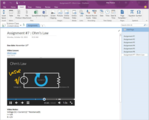
With the new Online Video button, you can now insert your favorite YouTube, Vimeo and Office Mix content directly on the OneNote canvas and take your notes right next to it.
To insert a video, from OneNote 2016, click Insert, then click the new Online Video button.
Inside the dialog, paste the address to your YouTube, Vimeo or Office Mix video and then click OK. The video will then be inserted onto the canvas—it’s that easy!
Embedded YouTube video.
Embedded Office Mix video.
We’re working to add more video sources soon, so stay tuned! Also, tell us on the OneNote feedback site what types of video you’d like to be able to embed.
Embedded video will be available for Office 365 Home and Personal subscribers or from www.onenote.com in the coming weeks. We will bring embedded video to OneNote Online, Windows 10, Mac, iOS and Android over the coming months.
OneNote badge for Android
Need to get your thoughts down even faster? Big multi-tasker? There’s a badge for that: introducing OneNote badge for Android.
The new badge can float anywhere on your screen, even above other apps. Now you can easily browse the web and write down your quick thoughts or copy/paste without having to move between apps, helping you to stay focused.
Launch the badge by pulling down the notification tray and tapping the OneNote badge notification. Then, when you’re done, simply pull the badge to the bottom of your screen to dismiss it. Notes are saved to your Quick Notes section by default, but if you prefer to stay fully organized, don’t worry, you can also choose the notebook and section that you want your notes to go into.
In addition, you’ll be able to select the notebook and section of your choice when you share content with OneNote using Add to OneNote. As soon as you share content with OneNote, the badge will have a small lightning icon.
We are rolling out OneNote badge in phases on Android and it may take up to two-three weeks for all of you to get badge.
OneNote for iOS
Touch the OneNote app. Now touch it again, but with Force. OneNote for iPhone 6S/6S+ now supports Force Touch (a feature that senses the level of force exerted) to let you quickly create a new note or pop into Recent Notes. In addition, OneNote is now optimized for the iPad Pro to take advantage of the new screen resolution and other major capabilities.
Phew, that was a lot of stuff. We always want to hear your feedback so make comments below or follow these links.
Get OneNote: iOS | Android | Windows
Suggestions: OneNote UserVoice
Help: Answers.Microsoft.com
—Ryan McMinn, product manager for the OneNote team
The post OneNote in November—Embed video, record audio, insert files and more appeared first on Office Blogs.
Office Blogs
.
Blog
.
<span class='date ' tip=''><i class='icon-time'></i> Dec 05, 2015 11:26am</span>
|
|
In this episode, Jeremy Thake talks to Paolo Pialorsi on the new Office 365 developer PNP Partner Pack.
http://officeblogspodcastswest.blob.core.windows.net/podcasts/EP71_PNPPartnerPack.mp3
Download the podcast.
Weekly updates
Social Share makes it easy to distribute slides and decks to more people through social networks
Getting started with yo office for web dev n00bs
Simplifying Office 365 Unified API calls with Postman and OAuth 2
Update 4 on Office 365 unified API
Office 365 Developer Patterns and Practices—November 2015 release
Show notes
github.com/OfficeDev/PnP-Partner-Pack
Introduction to the PNP Partner Pack blog post
Introduction to the PNP Partner Pack slide deck
Introduction to the PNP Partner Pack video
Got questions or comments about the show? Join the O365 Dev Podcast on the Office 365 Technical Network.
The podcast RSS is available iTunes or search for it on "Office 365 Developer Podcast" or add directly with the RSS http://feeds.feedburner.com/Office365DeveloperPodcast.
About Paolo Pialorsi
Paolo is the founder of PiaSys (www.pialorsi.com), a company focused on Microsoft SharePoint and .NET development. He’s a consultant, trainer, book author and speaker at the best international conferences about Microsoft technologies. He writes articles for IT magazines, authored several books for Microsoft Press (the latest is "Microsoft SharePoint 2013 Developer Reference") and posts regularly on his technical blog (www.sharepoint-reference.com/Blog/). You can follow Paolo on Twitter (@PaoloPia).
Paolo passed more than 40 Microsoft certification exams and achieved the following certifications: Microsoft Certified Solutions Master on SharePoint, MCP, MCT, MCSD.NET, MCSE, MCSA, MCAD, MCTS on several Microsoft technologies and IBM Certified Developer on XML technologies.
About the hosts
Jeremy is a technical product manager at Microsoft responsible for the Visual Studio Developer story for Office 365 development. Previously he worked at AvePoint Inc., a large ISV, as the chief architect shipping two apps to the Office Store. He has been heavily involved in the SharePoint community since 2006 and was awarded the SharePoint MVP award four years in a row before retiring the title to move to Microsoft. You can find Jeremy blogging at www.jeremythake.com and tweeting at @jthake.
Richard is a software engineer in Microsoft’s Developer Experience (DX) group, where he helps developers and software vendors maximize their use of Microsoft cloud services in Office 365 and Azure. Richard has spent a good portion of the last decade architecting Office-centric solutions, many that span Microsoft’s diverse technology portfolio. He is a passionate technology evangelist and frequent speaker are worldwide conferences, trainings and events. Richard is highly active in the Office 365 community, popular blogger at www.richdizz.com and can be found on Twitter at @richdizz. Richard is born, raised and based in Dallas, TX, but works on a worldwide team based in Redmond. Richard is an avid builder of things (BoT), musician and lightning-fast runner.
Useful links
Office 365 Developer Center
Blog
Twitter
Facebook
StackOverflow
http://aka.ms/AskSharePointDev
http://aka.ms/AskOfficeDev
http://aka.ms/AskOffice365Dev
Yammer Office 365 Technical Network
O365 Dev Podcast
O365 Dev Apps Model
O365 Dev Tools
O365 Dev APIs
O365 Dev Migration to App Model
O365 Dev Links
UserVoice
The post Episode 071 on the PNP Partner Pack with Paolo Pialorsi—Office 365 Developer Podcast appeared first on Office Blogs.
Office Blogs
.
Blog
.
<span class='date ' tip=''><i class='icon-time'></i> Dec 05, 2015 11:26am</span>
|
|
No matter what industry you’re in, you’ve probably experienced at least a few video conference calls. While these calls require slightly more equipment than audio conferencing, they fill a need for face-to-face time that can’t quite be met without in-person gatherings. In fact, the popularity of video conferencing has exploded in recent years and that is for a number of reasons.
First, video conferencing saves time and money. According to a study by PGi, companies that regularly use video conferencing find a 30 percent dip in the cost of travel overall, which includes hotel, airfare, gas, taxi, car rentals and food stipends. In addition, video conferencing can lead to higher efficiency and productivity—it holds attention longer than a regular call (35 minutes compared with 23 minutes, according to PGi). Another perk of video conferencing is that it brings a sense of oneness among scattered employees who telecommute or work in different cities. Sometimes, you just need a face-to-face meeting.
But video conferencing comes with its challenges too. Have you ever participated in a call that was so poorly organized, or had so many technology flubs, that it felt like a waste of time? Most people probably have. That’s why it’s important to do all you can to avoid the following video conferencing nightmares—whether you’re the host or a participant.
Background noise. A great benefit of video conferencing is that it allows you to work from anywhere—even your home. But remember, your goal is still to be as professional as possible. That means you should eliminate any extraneous noises, including dog barks and kid cries. Close yourself in a quiet room with no distractions. If you know you’ll have an important call, send the kids to grandma’s and crate the dogs in another room.
Unmuted distractions. Don’t be "that person" who forgets to mute himself or herself when talking to others in the room, answering another phone call or—gulp—ordering a cup of coffee. If you need to step away from the call, mute yourself no matter the reason.
Muted conversations. On the other hand, don’t forget to unmute yourself when it’s your turn to speak. Who knows how many countless minutes and hours have been lost in our lives thanks to accidental muting!
Spotty connection. There’s nothing more annoying than being kicked off a video call. Not only do you miss parts of the meeting, but you waste time and energy trying to get back on. Be sure to have a solid Internet connection from wherever you’re working, and know how to restart it should it go out. Also, have a backup source for connecting if possible; for example, if there’s an app for your video conferencing program, install it on your smart phone and know how to use it if need be.
Static or interference. It’s not cool when someone misses every other word you say (or vice versa). Sometimes technology is just a beast and there’s no way to prevent it. But one way to lessen the likelihood of static or interference is for all participants to mute their phones unless they’re speaking.
Unknown speaker. When there are multiple people on the line, it can be difficult to remember who is who. Even if the program you are using identifies you, state your name and department before saying anything important. This will help those you don’t know well get oriented before you say a word.
Echo central. Sometimes there’s an unexplainable echo on a video call. If this occurs, try to narrow it down to a specific person or ask everyone to redial in. If that does not solve the issue, be prepared with another bridge or line for people to join.
In addition to these video conferencing nightmares, here are a few tips for best practices when preparing for a video call:
If you’re organizing a meeting, be sure it’s actually necessary. Almost all of us have hung up from a call and thought, "Well, that could have been accomplished with an email!" Help participants stay on task with a clear and detailed agenda. Be sure to leave time at the end for questions.
Be comfortable with the video conferencing technology before the meeting begins. Don’t wait until five minutes before a call starts to try signing in for the first time. If you’re the meeting host, run a test beforehand. Ask another employee to join your practice meeting so you can get the hang of granting screen sharing access, muting and unmuting participants, and more.
Use plenty of lighting. It doesn’t matter where you’re at during the meeting—the office, your home, etc.—be sure there’s adequate lighting so others can see your face. Don’t allow yourself to be backlit or your face could appear dark. Instead, be sure the light is coming from in front of you or from the side.
Make sure the background is not distracting. It’s not very professional to have a pile of laundry or your kids’ toys scattered behind you. Instead, go for simple and plain.
Dress appropriately. You’re still a professional, so unless it’s an audio conference, pay attention to your hair, makeup and clothing. Specifically, wear muted, neutral or pastel colors—no stripes, polka dots, plaids or anything else that could be distracting on screen.
Keep your webcam at eye level or a bit higher. Weird angles are also distracting.
Consider purchasing (or asking your company to purchase) a good microphone, especially if you make a lot of video calls. An external USB microphone is a great pick.
Stay focused on the call. Remember, people can see you—so don’t try to multitask during your video conference.
Look into the camera. Too many people stare at their own image on the screen instead, but that makes it appear (to everyone else) as if you’re looking downward. You won’t come across as professional and forthright as you want to be.
Remember, video conferencing is just like any technology in that there are many benefits as well as challenges. Fortunately, many of these challenges can be avoided with a little knowledge, troubleshooting and patience. So get ready and dive in to your next online video conference with ease. Lights, camera, action!
—The Office team
The post Video conferencing nightmares and how to avoid them appeared first on Office Blogs.
Office Blogs
.
Blog
.
<span class='date ' tip=''><i class='icon-time'></i> Dec 05, 2015 11:25am</span>
|
|
Today’s post was written by Kirk Koenigsbauer, corporate vice president for the Office team.
Office 2016 hit the market just two months ago and over the coming weeks we’re rolling out the next wave of monthly innovations for Office 365 subscribers. This month, PowerPoint leads the way with game changing tools that make it simple to build designer grade layouts and transitions. With this month’s feature update, we’re also introducing Office Insider, an ongoing preview program available to Office 365 subscribers.
Taking presentations to the next level
PowerPoint Designer and Morph are new intelligent tools that work for you by automating the creation of slides and presentations, helping everyone get more out of Office. With a cloud-powered recommendation engine and smart animation technology, these new PowerPoint capabilities help anyone create polished slides and captivating motion effects with just a few quick steps.
Introducing PowerPoint Designer
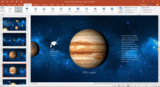
PowerPoint Designer allows anyone to create high quality professional slides within seconds. Just drop an image into your presentation and Designer provides you with several design ideas. Select your favorite and you’re done! This allows you to spend less time figuring out how to produce high quality designs and more time preparing for that key moment—your presentation.
This all works thanks to a powerful combination of automated design and smart image analysis. PowerPoint Designer was built in collaboration with professional graphic designers, who helped develop over 12,000 creative blueprints. Designer applies cloud intelligence to analyze and identify the most compelling portion of your images to determine which blueprints work best with your content. For example, if the visual contains a natural scene, Designer can zoom, crop and frame it. But if the image contains a chart, it focuses in on the relevant region to ensure the important data is highlighted. Designer then selects from the 12,000+ blueprints to provide multiple layout options to help you make the most of your image. The end result is a high quality and customized presentation—in seconds.
This first release of Designer will do amazing things, but it’s going to get even better with time. In the coming months, we will expand Designer to work with additional slide types.
Create cinematic motion with Morph
Morph creates cinematic motion by seamlessly animating between your slides. Morph doesn’t just animate regular text or images, it can animate 3-D shapes or be applied at a word or even character level, including text wrapping. Simply duplicate slides you want morphed together, move the objects based on how you want them to animate and click the Morph button under Transitions. You’ll be amazed with the quality of animations you create with just one click.
Exclusively available to Office 365 subscribers, PowerPoint Designer and Morph are premium authoring and editing features. PowerPoint Designer and Morph are available first in PowerPoint 2016 for Windows desktop and Windows Mobile, but expect to see these same features rolling out to other platforms in the coming months.
Join the new Office Insider community
Today, we’re also launching Office Insider, a new program that allows Office 365 Home, Office 365 Personal and Office 365 University subscribers to opt in to pre-release builds of Office 2016 for Windows. As an Insider, you get first-hand access to the latest innovations, putting you on the inside track for all things Office. And when you become an Office Insider, you are joining a community of like-minded power users. With your partnership, we can ensure a high quality Office experience for millions of Office users worldwide.
Sign up and learn more by visiting the Office Insider page. If you are a commercial Office 365 subscriber and would like to get early access to new features, you can opt in to Office 365 First Release. Mac customers, stay tuned for more shortly on Office Insider for Mac.
Get started
These PowerPoint innovations are just the highlights of new Office 365 exclusive value we are delivering this month. You’ll see new capabilities and improved usability across Office 2016 for Windows, including personal finance templates in Excel, new sharing options across Word, PowerPoint and Excel, and online video embedding in OneNote. Learn more about the November update here.
This month’s updates will be available to Office Insider participants in the coming week. Then, over the following weeks, the update will roll out to consumer and commercial Office 365 subscribers.
To get started:
Buy Office 365 to get the 2016 apps and these exciting new enhancements.
Already an Office 365 Home, Personal or University subscriber? Opt in to Office Insider and get access to Designer, Morph and updates across Office 2016 when they become available. Visit office.com/insider to learn more.
Thanks for your continued feedback and support.
—Kirk Koenigsbauer
The post The evolution of PowerPoint—introducing Designer and Morph appeared first on Office Blogs.
Office Blogs
.
Blog
.
<span class='date ' tip=''><i class='icon-time'></i> Dec 05, 2015 11:24am</span>
|
|
Providing our customers with world-class productivity tools sometimes requires both innovation and acquisition, a combination of all the features and capabilities our best minds can develop and those we choose to add through the strategic purchase of technology that others have created.
Microsoft recently announced two new business deals that demonstrate the value of using thoughtfully acquired technology to help build, improve or enhance superior products.
The first is the announcement last week that Microsoft has acquired Mobile Data Labs, an innovator of intelligent productivity solutions for mobile professionals, including the MileIQ app that automatically calculates business miles and makes it easier for users to file accurate tax deductions. With the new insights available from Office 365 and the Office Graph, the Mobile Data Labs team will continue to build outstanding mobile productivity solutions as part of the Microsoft family.
The second is the announcement, made just a few days ago, that Microsoft has signed an agreement to acquire Secure Islands, an Israeli company that is an innovator in advanced information protection solutions. The Secure Islands acquisition accelerates our ability to help customers secure their business data no matter where it is stored—across on-premises systems, Microsoft cloud services like Azure and Office 365, third-party services and any Windows, iOS or Android device.
In addition to these advances, Microsoft made three announcements this week that are especially important to our European customers and partners. First, in late 2016, Microsoft will begin delivering commercial cloud services from UK-based data centers and will offer our UK customers local data residency. Second, Microsoft announced completion of the latest expansion of its data centers in Ireland and the Netherlands, which serve as cloud-computing hubs for European customers. And third Microsoft announced a first of its kind innovation from a global hyper-scale cloud provider, in that access to customer data stored in these new datacenters will be under the control of T-Systems, a subsidiary of Deutsche Telekom, an independent German company acting as a data trustee. Microsoft will not be able to access this data without the permission of customers or the data trustee, and if permission is granted by the data trustee, will only do so under its supervision.
These new cloud offerings and expanded facilities will provide customers with more choice and increased opportunities to innovate more quickly, enabling new growth for local economies. Meanwhile, we will continue to work on new ways to improve and enhance Office 365 and our other cloud services.
Below is a round-up of some key news items from the last couple of weeks. Enjoy!
Microsoft’s Satya Nadella: 6 tips for better productivity using Office 365 and Windows 10—Speaking at the Future Decoded conference in London, Microsoft CEO Satya Nadella share six of his favorite Office 365 and Windows 10 productivity tips.
10 Microsoft Office 2016 features you’ll love—Get the lowdown on some of the best features of Microsoft Office 2016, from real-time co-authoring to simplified document sharing.
University getting ready to adopt new email system—Learn why Western Michigan University chose Office 365 for its students, faculty and alumni.
As far as pre-Black Friday deals go, Microsoft nailed this one—Find out more about Microsoft’s latest Work & Play holiday bundle, which includes Office 365, Xbox Live Gold, Skype Wi-Fi + Unlimited World, Microsoft Assure and a $60 gift card—all for $150.
How to Successfully Migrate to Office 365—Discover how small and medium-sized businesses can improve productivity and efficiency by migrating to Office 365.
The post Office 365 news roundup appeared first on Office Blogs.
Office Blogs
.
Blog
.
<span class='date ' tip=''><i class='icon-time'></i> Dec 05, 2015 11:24am</span>
|
|
The role of IT has never been more critical, nor more challenging. IT is tasked with enabling workers to be productive on any device from any location while securing devices and data amidst a landscape of increasingly targeted and sophisticated threats to enterprise security.
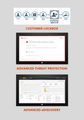
Over the last year, we’ve introduced several new security and compliance capabilities to Office 365, including Advanced Threat Protection, Customer Lockbox and Advanced eDiscovery, which integrates Equivio. Together, these new security and compliance capabilities expand upon the market-leading, built-in security capabilities in Office 365. Today we’re pleased to announce that Customer Lockbox and Advanced eDiscovery will be available for customers to purchase starting December 1, 2015.
Intelligent security and compliance
Just as we have engineered Office 365 as an intelligent platform that can deliver valuable insights through experiences like Delve, we are also taking an intelligence-oriented approach to enhancing security, privacy and transparency for customers around their data in Office 365. The threat landscape is rapidly evolving, with new, more sophisticated attacks being launched every day. Meanwhile, the volume of data organizations need to manage is growing exponentially. By engineering Office 365 security capabilities as intelligent systems that apply machine learning and data analytics to get smarter and stronger, we’re helping customers stay one step ahead.
For example, Advanced Threat Protection extends the built-in security capabilities of Office 365, protecting against unknown malware and viruses by applying behavioral analysis to identify attachments and links in email that have a higher probability of being compromised. In addition, the learnings we derive from running a global commercial cloud email service at scale, and the insights Advanced Threat Protection surfaces regarding zero day attacks, help us improve the built-in security capabilities we deliver to all Office 365 commercial customers.
In addition to fending off attacks from outside the organization, companies must also address the challenges of storing and organizing vast and increasing quantities of data so they can be responsive to a litigation, investigation or regulatory eDiscovery requests. This can be a daunting and expensive endeavor. Legal costs for the biggest U.S. banks alone totaled $30 billion in 2014.
That’s why we’re pleased to bring Advanced eDiscovery to Office 365. Office 365 Advanced eDiscovery integrates Equivio machine learning, predictive coding and text analytics capabilities, to reduce the costs and challenges that come along with sorting through large quantities of data for eDiscovery purposes. In today’s data environment, the eDiscovery process for any given case could involve sorting through millions of emails, text messages, instant messages and documents to find the small number of files that are most relevant. Office 365 Advanced eDiscovery reduces the volume of data by eliminating duplicate files, reconstructing email threads and identifying key themes and data relationships. Finally, it enables users to train the system to intelligently explore and analyze large, unstructured data sets and quickly zero in on what is relevant.
Raising the bar on data transparency in the cloud
Providing industry-leading security and compliance capabilities in Office 365 is a top priority for us. We know customers want also want visibility into what is happening with their data in the cloud, and we believe you deserve such transparency. That’s why we’re launching Customer Lockbox, which offers customers full control over access to their data in Office 365 by giving them ultimate approval rights in the very rare instances when a Microsoft engineer must request access to the service, such as when troubleshooting a customer issue with mailbox or document contents. Today, all access control activities in the Office 365 service are logged and audited, and use of Customer Lockbox ensures that a Microsoft engineer cannot access a customer’s content to conduct a service operation without the customer’s explicit approval.
Protecting your data and keeping people productive
In building and delivering Office 365 as a global service, we are committed to earning your trust by delivering the highest level of data security, privacy and compliance assurances, while ensuring people can be productive and collaborate with each other across their devices, from any location. You shouldn’t have to choose between top notch security and great productivity experiences.
Starting December 1, Customer Lockbox and Advanced eDiscovery will be available for purchase as add-on services to all Office 365 enterprise plans. Advanced Threat Protection is already available as an add-on. In addition, these three capabilities will be included in the new Office 365 E5 plan, also generally available starting December 1.
For more information about our trust principles and how we manage security, privacy and compliance, please visit the Office 365 Trust Center at trust.office365.com and watch the demonstrations below.
The post Office 365 innovations in enterprise security and compliance appeared first on Office Blogs.
Office Blogs
.
Blog
.
<span class='date ' tip=''><i class='icon-time'></i> Dec 05, 2015 11:23am</span>
|
|
As a company, we are focused on reimagining the way the world should work. In an age of information abundance, we understand that people are seeking integrated experiences that help them break out of knowledge silos, "work like a network" and connect information from multiple touchpoints in meaningful ways. Office extensibility has always been about ubiquitous connectivity, enabling new experiences on mobile devices, and empowering developers to create powerful and personalized cloud services that can transform the productivity landscape. Today, at the Connect() conference in New York, the Office Extensibility and Azure Active Directory teams took a major step forward with the general availability of the Microsoft Graph (formerly "Office 365 Unified API" as previewed at //build earlier this year).
The Microsoft Graph
Keeping the end user experience at the center, the Microsoft Graph unlocks new productivity scenarios by:
Enabling corporate IT to rapidly build solutions for employees.
Enabling developers to build inline social experiences.
Empowering partners to customize their Office experience and extend their apps with Office 365 data.
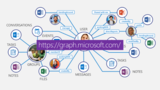
The Microsoft Graph, located at graph.microsoft.com, allows applications to access digital work and digital life data across the intelligent Microsoft cloud.
This represents three big advantages for developers not available before:
Unified Microsoft API endpoint for accessing the capabilities of the Microsoft cloud.
Unified access to data living in the Microsoft cloud.
Unified access to intelligence and insights coming from the Microsoft cloud.
In other words, the Microsoft Graph surfaces intelligent insights by bringing together smart machine learning algorithms with a wealth of data and user behavior—all with just a single authorization token.
Unified Microsoft API endpoint for accessing the capabilities of the Microsoft cloud
The Microsoft Graph today exposes APIs, data and intelligence across Office 365 and Azure AD. We are building toward a near future where multiple graphs and all APIs throughout Microsoft contribute to, and are accessible through, a single unified gateway to the power of the Microsoft cloud.
Any developer capable of making an HTTP request can call the API, from any platform, and once-siloed Office 365 services can now be directly navigated via Microsoft Graph. For developers, what used to be 50+ lines of code are now cut to five.
We’re also releasing SDKs to make the Microsoft Graph as useful to developers as possible. We’re starting with .Net, iOS and Android and then expanding to other platforms like Node.js, Python, Java and Ruby. Code samples for a variety of platforms are available on GitHub.
Unified access to rich data living in the Microsoft cloud
You can also think of the Microsoft Graph as the gateway for developers to access the rich data living in the Microsoft cloud.
The opportunities for developers to shape the way the world works are endless. Within the Office 365 surface area alone, consider the amount of data we have with:
More than 18 million consumer Office 365 subscribers.
60 million commercial Office 365 monthly active users.
More than half a billion people managing their documents and photos in OneDrive.
Over 200 million downloads of Office mobile (WXP, Outlook, OneNote on iOS and Android mobile devices).
Unified access to intelligence and insight coming from the Microsoft cloud
The Microsoft Graph is the consistent endpoint for developers to access intelligent insights that Microsoft builds in the cloud.
And because the Microsoft Graph has access to your activities (e.g. documents, calendars, meetings), it can be used to address a ton of critical work and productivity questions, such as:
Who does the user work closely with?
What documents and topics are important to my colleagues right now?
What matters the most to my boss?
With the Microsoft Graph, developers are empowered to build smart, people-centric applications that can easily interact with data from all touchpoints of modern work.
Our innovative partners, such as Do.com, Skyhigh networks, officeatwork, Smartsheet, TechnologyOne and CloudLock have already started using the Microsoft Graph to transform their respective industries. You can read their interesting use cases here.
Microsoft Graph—what’s available today?
Below are details of what’s generally available and what’s on preview, via the Microsoft Graph at graph.microsoft.com:
General availability (ready for production)—Users, Files, Messages, Groups, Events, Contacts (personal), Mail, Calendar, Devices and other directory objects and docs.
Preview (available to explore)—Notifications, SDKs, People, Organizational contacts, Office Graph, Planner, OneNote, Converged Auth. flow support, OneDrive Files and Outlook.
Developers can get started immediately and build Microsoft Graph-based solutions for free using an Office 365 developer tenant. Access to the Office 365 APIs and data through the Microsoft Graph is included in the customer’s Office 365 license. This includes all the APIs that are available with the general release today. Access to intelligence is paid—with some intelligence features explicitly included in the Office 365 license and some licensed separately. Over time, we plan on adding additional capabilities to the Microsoft Graph that may be licensed separately.
Get started today
Right now is an incredibly exciting time with a huge opportunity for developers to reach the 1.2 billion Office users worldwide, while helping shape the future of work. Our goal is to make it possible for developers to tap into the power and data across Office and Microsoft to build transformative experiences that enhance productivity and deliver greater impact for users.
As part of the announcements and release today, we have many more Office extensibility features. Go check them out here.
Start coding—Visit graph.microsoft.com to get all the documentation, code samples, SDKs, graph explorer and much more.
Sign up—Visit office.com and click the Sign Up button to join a vibrant and growing community of developers building solutions for Office 365.
More on Office Dev—Visit office.com/getting-started to get started with Office development.
Looking ahead
We are working hard with groups across Microsoft to bring more services into the Microsoft Graph and deepen the functionality available there so that you can access all of the data your applications and services need from a single, connected API. Expect to see a bunch more progress over the next several months, and keep an eye on dev.office.com/blogs for updates.
—Rob Lefferts, general manager of the Office Extensibility team
The post Today at Connect()—introducing the Microsoft Graph appeared first on Office Blogs.
Office Blogs
.
Blog
.
<span class='date ' tip=''><i class='icon-time'></i> Dec 05, 2015 11:23am</span>
|
|
"Software innovation, like almost every other kind of innovation, requires the ability to collaborate and share ideas with other people, and to sit down and talk with customers and get their feedback and understand their needs." —Bill Gates
SharePoint Server 2016 has been developed applying these principles—listening to our customers’ feedback and understanding their needs.
Today marks an important milestone in the development of SharePoint Server 2016 Beta 2. In conjunction with today’s SharePoint release, we’re also making available Project Server 2016 Beta 2.
In this post, I’ll summarize the updates we’ve made in SharePoint Server 2016 Beta 2 since the IT Preview. Given where we are in the product cycle, these updates are primarily final touches on existing features, responses to IT Preview customer feedback and improvements to performance and hybrid scenarios. As we continue to drive toward the release of SharePoint Server 2016, we’ll continue to add new capabilities and features.
What’s new in Beta 2 since IT Preview?
SharePoint Server 2016 Beta 2 builds upon the infrastructure strengths delivered in IT Preview and introduces new hybrid experiences that enable our customers to take advantage of the possibilities of the cloud.
Profile synchronization with Microsoft Identity Manager
SharePoint Server 2016 Beta 2 adds new support and solutions for using Microsoft Identity Manager 2016 to enable rich, bi-directional synchronization and common identity scenarios. Microsoft Identity Manager 2016 simplifies the identity lifecycle management with automated workflows, business rules and easy integration with heterogeneous platforms across the datacenter and cloud to include SharePoint Server 2016.
Data Loss Prevention
Enhanced support for new Data Loss Prevention capabilities is included in SharePoint Server 2016 Beta 2.
Extensible Hybrid App Launcher
SharePoint Server 2016 Beta 2 adds support to extend the App Launcher to deliver a common access experience across applications and solutions in Office 365 and SharePoint Server 2016. Learn about the Extensible App Launcher and more at the new hybrid resource center.
Profile Redirection
SharePoint Server 2016 Beta 2 builds on the strength of next generation hybrid investments enabling the mastering of profiles on-premises or in the cloud. Profile Redirection enables the extension of profiles to Delve About Me and additional Office 365 experiences for select users within an organization.
In addition to these changes, since the IT Preview, Project Server 2016 Beta 2 has introduced CSOM improvements for scale and performance and reduced the gap between object model and the PSI.
Learn more about what’s new in SharePoint Server 2016 Beta 2 here. For more information on deploying SharePoint Server 2016 Beta 2 and additional product resources see our deployment guide.
Try it out and share your feedback
You can download SharePoint Server 2016 Beta 2 today via the Microsoft Download Center and share feedback directly with our engineering teams through the SharePoint Server 2016 IT Preview Forum. We also welcome feature requests and feedback via the SharePoint Server Suggestion Box on UserVoice, @SharePoint on Twitter and in the comments below. We’re eager to hear your feedback and use it as we continue to drive towards our final release in 2016.
—Bill Baer, senior technical product manager for the SharePoint team @williambaer
Frequently asked questions
Q. Can I install SharePoint Server 2016 Beta 2 in production environments?
A. It is not recommended to install SharePoint Server 2016 Beta 2 in production environments.
Q. Can I upgrade SharePoint Server 2016 Beta 2 to RTM when released?
A. SharePoint Server 2016 Beta 2 cannot be upgraded to RTM.
Q. Can I upgrade from SharePoint Server 2016 IT Preview to Beta 2?
A. You will not be able from SharePoint Server 2016 IT Preview to Beta 2.
The post Announcing SharePoint Server 2016 Beta 2 and Project Server 2016 Beta 2 appeared first on Office Blogs.
Office Blogs
.
Blog
.
<span class='date ' tip=''><i class='icon-time'></i> Dec 05, 2015 11:22am</span>
|
|
Today’s post was written by Angus Florance, senior product marketing manager for the Yammer team.
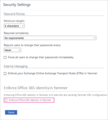
A year ago, we announced that you could use your Office 365 credentials to sign in to Yammer. Today we’re excited to share with you a new feature that supports enforcing Office 365 identity in Yammer. By enforcing Office 365 identity in Yammer and configuring federated identity in Office 365, admins can achieve single sign-on (SSO) capabilities for all services in Office 365, which includes Yammer. This further enables administrators to seamlessly manage Yammer from Office 365.
The Enforce Office 365 identity in Yammer checkbox on the Security Settings page.
Important changes to Yammer SSO and directory synchronization
As Yammer becomes more tightly integrated within Office 365, we are eliminating the need for administrators to learn and maintain separate tools for Yammer. As part of this effort, we are removing the Yammer SSO and directory synchronization (DSync) tools, starting December 1, 2016. These legacy tools were created when Yammer was a standalone service. Now, customers can use the familiar Office 365 tools to set up SSO (Office 365 sign-in with federated identity) and directory synchronization (Azure AD Connect). Note that administrators can configure the Office 365 tool for sign-in themselves, rather than having to contact the Yammer support team, as with Yammer SSO.
We encourage all Yammer customers using the Yammer SSO and DSync legacy tools to enforce Office 365 identity, set up Office 365 federated identity, and configure Azure AD Connect going forward. You have 12 months to make these changes. For more information on how to make these changes, please review this article.
Resources
Enforce Office 365 identity in Yammer
Deprecating Yammer DSync and SSO
Join Our YamJam
If you’d like to learn more about Yammer’s latest integrations with Office 365, join our YamJam. On December 9, 2015, the Office 365 Network will host a YamJam from 9:00-10:00 a.m. PST to discuss Yammer’s new product direction. Members of the product engineering team will be on hand to answer your questions. For those unfamiliar with a YamJam, it is similar to a "TweetJam" on Twitter or an "Ask Me Anything" (AMA) on Reddit, except it takes place on Yammer. It provides the opportunity for the community to ask questions and have a discussion with a panel of internal Microsoft experts on a particular topic.
Here’s how to participate:
Request access to the Office 365 Network. All requests will be approved as quickly as possible.
Join the Enterprise Social Service Update group. You can find it by using the Browse Groups function or through the search bar.
Sign in at 9:00 a.m. PST on December 9, 2015 to ask questions, follow the discussions and connect with Microsoft team members.
The post Enforcing Office 365 identity in Yammer now available appeared first on Office Blogs.
Office Blogs
.
Blog
.
<span class='date ' tip=''><i class='icon-time'></i> Dec 05, 2015 11:22am</span>
|
|
It’s a snap to share presentations with your social network using Social Share—a Microsoft Garage project. Share snapshots of slides or even the entire presentation as a photo album or video.
Check out the demo:
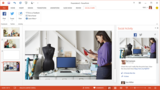
This add-in for PowerPoint makes it easy to connect with Facebook and Twitter right from your Office pane. People in your social network can comment, and the comments are pulled back into the document. Social Share also enables your friends and colleagues who may not have Office subscriptions to contribute or review the document.
Read the story behind Social Share here.
Ready to share?
The post Share slides with your social network appeared first on Office Blogs.
Office Blogs
.
Blog
.
<span class='date ' tip=''><i class='icon-time'></i> Dec 05, 2015 11:21am</span>
|