Blogs
|
The Skype for Business team invites you to participate in the Skype for Business—IT Pro video broadcast series powered by Skype Meeting Broadcast! You can join these biweekly video broadcasts and interact with our team directly through the Office 365 IT Pro Yammer community—simply click here to join. Each session will alternate between a.m. and p.m. Pacific Time (PT) to cover viewers in Europe and Asia. The goal behind this series is to provide our IT Pro community an opportunity to engage and get more information on topics that matter the most on a regular and scheduled basis. This will give IT Pros an opportunity to understand and manage Skype for Business capabilities by bringing timely information on the topics that matter most. Topics will range from "Software Defined Networking (SDN)" to "How PSTN connectivity works with Cloud PBX." We will also use the Yammer community to crowdsource your hottest topics.
This series of video broadcasts, streamed live using Skype Meeting Broadcast, was started last September as a trial, and we to date have covered Skype for Business Preview and iOS updates.
We are continuing the series with our next two sessions:
Skype for Business Meetings and Skype Meeting Broadcast—Friday, October 23 at 9:00 a.m. PT
Skype for Business Cloud PBX—Thursday, November 5 at 5:00 p.m. PT
Additionally, all sessions are available for on-demand consumption on the Skype for Business Yammer community.
Skype Meeting Broadcast is a great way to get the word out to the community and your questions answered. Using this innovative technology, we can showcase the flexibility, resiliency and ease of use that Skype Meeting Broadcast brings to thousands of people. Skype Meeting Broadcast enables organizations to broadcast a Skype for Business meeting on the Internet to up to 10,000 people—who can attend from a browser on nearly any device—making it easy to host large virtual meetings. We will use integration with Bing Pulse, for real-time polling and sentiment tracking, and Yammer to enable attendee dialogue during the broadcast.
We look forward to seeing you at the "Skype for Business Meetings and Skype Meeting Broadcast" session Friday, October 23 at 9:00 a.m. PT. Go join the Yammer community to get all the updates and the coordinates of each broadcast.
The post Skype for Business—IT Pro video broadcast series goes live appeared first on Office Blogs.
Office Blogs
.
Blog
.
<span class='date ' tip=''><i class='icon-time'></i> Dec 05, 2015 11:44am</span>
|
|
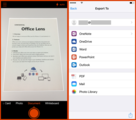
Two of the top requests from our Office Lens users are support for Office 365 accounts, at work and school, and enhanced business card scanning and storage. Today we’re excited to deliver both of these features, making our pocket scanner app even more useful for business professionals, teachers and students.
All Office Lens users for Android, iPhone and Windows Phone can now use Business Card mode to quickly convert business card information into digital contacts in mobile address books.
Office Lens for iPhone users can now share enhanced documents more securely using Office 365 work and school accounts.
Office Lens for iPhone enables users to protect their data in OneDrive for Business, ensuring the same high level of security and compliance provided for all enterprise data in Office 365.
Office Lens for iPhone now includes Office 365 support
Since launching Office Lens for iPhone in April and the Android version in May, we’ve been hard at work to exceed your expectations, especially since you’ve given our free scanner app a 4.7 out of 5 rating and positive reviews, including:
"Never (have) come across a better scan application in years of application use."
"Exceeded my expectations! Super useful and functional pocket scanner with images of excellent quality and sharpness …"
"The best app of the year; super useful for classes."
Learn more about Office Lens on the iPhone in the following video:
Today’s release of version 1.2 for iPhone builds upon the positive response to Office Lens, which turns your smartphone into a scanner by cropping, straightening and enhancing photos of whiteboards and documents. In addition to saving Office Lens-enhanced scans to your personal OneNote or OneDrive account, you can now sign in with your Office 365 work or school account and save documents to OneNote, Word and PowerPoint or as an image or PDF file on OneDrive for Business. You can then easily share your documents with colleagues or students in the secure and reliable Office 365 environment.
IT pros and admins will appreciate that Office Lens for iPhone enables users to protect their data in OneDrive for Business, ensuring the same high level of security and compliance provided for all enterprise data in Office 365.
Office Lens in Office 365 scenarios for business professionals include:
Save and share whiteboard meeting notes.
Scan receipts and simplify expense reports.
Circulate contracts or documents requiring signatures and store for easy retrieval by multiple coworkers from any device.
Scan and save business cards of customers or prospects that everyone can access.
Use Business Card mode to convert card information into contacts in your tablet or phone address book.
For K-12 and university teachers, Office Lens for Office 365 Education can be used to:
Grade and annotate paper reports and share them with individual students or the entire class.
Share lesson plans, lecture or meeting notes and other documents in a central faculty site.
Capture classroom brainstorm sessions from a whiteboard or chalkboard into OneNote and then search by keyword with the Office Lens optical character recognition (OCR) so that you can edit or copy text into other documents or email.
Students benefit from Office Lens by being able to:
Take pictures of presentations or whiteboards, eliminating the need to take notes during lectures.
Capture and share class projects, lab experiments, math equations and physical documents and securely store them as digital content in one place for easy retrieval.
You’ll find more Office Lens user examples at our Docs.com page.
Office Lens Business Card mode
When using Business Card mode in Office Lens, converting business cards into digital contacts has never been easier. This feature, now available on all three phone platforms, lets you save a scanned business card as a virtual contact file (VCF) directly to your tablet or phone contacts. You can also extract business card content into the "Contacts" section of OneNote for easy storage and sharing. Currently, Business Card mode works best with English, German and Spanish business cards, with more languages coming soon.
Office Lens users on all phone platforms now have Business Card mode, which allows business card information to be added directly as digital contacts to mobile address books or the "Contacts" section of OneNote.
OneNote Clipper adds Office 365 support
In addition to our Office Lens updates, we’re excited to announce that you can now use the OneNote Clipper with school or work Office 365 accounts. The OneNote Clipper lets you quickly capture any webpage to OneNote, where you can easily edit, annotate or share it. You can save the full page or a selection of the webpage to OneNote as an image, or you can clean up the webpage and send only the relevant text and images to your notebook. Download the OneNote Clipper for free at www.onenote.com/clipper and try it out!
Download the new versions of Office Lens for iPhone or Office Lens for Android today and please continue providing feedback for Office Lens at UserVoice and for OneNote Clipper here or in the comments section below. We welcome your input!
The post Office Lens now includes Office 365 support for iOS and more features for business professionals, teachers and students appeared first on Office Blogs.
Office Blogs
.
Blog
.
<span class='date ' tip=''><i class='icon-time'></i> Dec 05, 2015 11:44am</span>
|
|
Today, OneNote and Office Mix team up to talk about the work we are doing to integrate with all major Learning Management Systems (LMS) and the benefits this brings educators.
We have three key announcements:
OneNote and Office Mix are both officially certified to the IMS Global Learning Tools Interoperability (LTI) standard.
OneNote Class Notebook LTI is now in General Availability release.
OneNote now automatically adds all students enrolled in the LMS course to the course’s OneNote Class Notebook.
LMS integration with LTI
In June, both Office Mix and OneNote Class Notebook announced LTI support. This means that both apps are easily integrated with all major LMS—including Canvas, Engrade, Blackboard, Haiku, Moodle, Brightspace, EDUonGo, edX, EdCast and Schoology.
OneNote Class Notebook allows teachers to launch the OneNote Class Notebook app from their LMS course page, walk through the notebook creation process, and add the created notebook to their course—all without leaving their learning environment. We’ve seen OneNote Class Notebooks created with many LMS systems, including Canvas, Schoology, Blackboard, Desire2Learn, Haiku and Moodle. Our customers have also been excited about the new integration.
Setting up OneNote Class Notebook with Canvas
Setting up OneNote Class Notebook with Schoology
Setting up OneNote Class Notebook with Blackboard
Setting up OneNote Class Notebook with Brightspace
Setting up OneNote Class Notebook with Haiku Learning
Setting up OneNote Class Notebook with Moodle instructions coming soon!
Here’s what a customer who has been using Canvas with OneNote Class Notebooks had to say:
"OneNote Class Notebooks are one of the few tools that have had a substantial impact on the way we teach. One of the others was Canvas. To have these working seamlessly together is outstanding. It is an order of magnitude easier to build a OneNote Class Notebook through Canvas than it was a year ago. We have teachers spinning up a canvas course and building notebooks for clubs, advisory, athletic teams and a variety of scenarios we didn’t anticipate."
—Jonathan Briggs, director of technology at the Eastside Preparatory School.
Office Mix adds functionality to PowerPoint that enables educators and students to record audio or video of themselves presenting, ink on their slides as they present them, insert quizzes, polls, online videos and more. Office Mix also enables users to do full screen capture and record anything on their PCs. Via the LTI connection, educators can embed interactive mixes created by themselves or by the community within their LMS as content or assignments. Office Mix seamlessly authenticates students, and their grades are automatically passed back to the LMS grade book.
IMS certification
We are also delighted to announce that both apps are officially IMS Global Certified. OneNote Class Notebook is compliant to version 1.0 of the standard, and Office Mix complies to version 1.1. Microsoft is a member of IMS Global Learning Consortium and we are committed to supporting open standards and interoperability.
OneNote Class Notebook LTI now in General Availability release
The OneNote team would also like to share that the OneNote Class Notebook LTI app is now in General Availability release. All of our existing Preview customers will be able to continue using OneNote Class Notebook LTI as normal. All app configurations will remain in place, and course notebooks will be linked as before.
Enrolled students are automatically added to the OneNote Class Notebook
Along with our general release, OneNote is now able to provide a new feature that will save teachers valuable time and effort. LMS integration allows students who are enrolled in a course to add themselves to the OneNote Class Notebook simply by clicking the LTI link. Teachers no longer have to type the names of all of their students during notebook creation. By simply leaving the default option to "Automatically add my students when they access this notebook from the LMS link," they can be confident that all enrolled students (and only enrolled students) are able to access the notebook. As well as saving time and hassle, this gives teachers much more flexibility—if a student is added to the LMS course roster later in the semester, the teacher does not have to add them separately to the notebook too.
"Our teachers were hoping to be able to create Class Notebooks without typing in student names and keep the Notebooks tightly integrated with our LMS. By combining the power of Class Notebooks with the robust LMS features they are accustomed to using, our students are given one access point for all of their work. This is exactly the integration we have been hoping to achieve!"
—Rebecca Keene, One-to-One program specialist for the Kent school district
To learn more about OneNote Class Notebook and Office Mix LTI, please visit www.onenote.com/lti and mix.office.com/lti.
—The OneNote and Office Mix teams
The post OneNote Class Notebook and Office Mix announce new LMS integration features appeared first on Office Blogs.
Office Blogs
.
Blog
.
<span class='date ' tip=''><i class='icon-time'></i> Dec 05, 2015 11:43am</span>
|
|
Today’s Office 365 post was written by Bryan Ackermann, senior vice president and chief information officer at Korn Ferry, a global leadership recruitment and organizational advisory firm.
Korn Ferry is in the people business. Our job is not only to make sure that our clients have the right talent in place, but to cultivate that talent at every stage by helping clients attract qualified executives, providing expert consulting services to develop skills from within, or delivering outsourcing services on a global scale.
Our work demands close collaboration, both internally and with our clients and job candidates. With 85 offices around the world and employees continuously on the go, we need to stay productive from anywhere. This environment requires balancing flexible and mobile access to colleagues and data with the protection of confidential information of millions of the world’s most influential people. With multiple clients who operate in regulated industries, our firm also places a high priority on maintaining their levels of compliance.
Yet there’s long been a conflict in the business world between productivity and security, especially for multinational organizations with mobile employees. Strict security constraints might protect information but could hamper the productivity of a workforce. And readily available access to data can promote employee productivity while simultaneously exposing the data to greater risk. Additional security measures could be put in place, but often at the risk of hindering collaboration.
Fortunately, our firm has found a way to address that disconnect. We’re making a huge leap forward in our ability to support global teamwork, without sacrificing security and data privacy, by adopting the Microsoft Office 365 suite of cloud productivity services. Office 365 meets both our mobility needs and our security standards. We’re also excited about the Microsoft Enterprise Mobility Suite, particularly Intune for mobile device management. By gaining these capabilities, we’re no longer choosing between mobility and security—now we have both. We’re helping employees worldwide make daily process improvements, work more efficiently and effectively from anywhere at any time, and dramatically improve their accessibility to each other and to clients, all without compromising on our security standards.
Our partner, CloudScale International, is providing valuable guidance as we implement Office 365 components, such as Microsoft OneDrive for Business and SharePoint Online. These will replace our file server infrastructure and make it easier for colleagues to essentially reach across oceans to access the documents and data that they need. We’re utilizing Office 365 to work more closely with our clients as well. We offer tailored learning solutions to help clients develop strong internal leaders. As part of that offering, we’ve created a platform that makes it easy for leadership-development participants to do their coursework, submit quizzes and interact with Korn Ferry instructors, all using SharePoint Online. We also plan to use it to centralize and streamline the onboarding process for our outsourcing business area, which scales up and down considerably with each client engagement. And we’ll use the flexibility of SharePoint Online to automatically set up a site that’s tied to a client engagement. This single collaboration point means stakeholders can find relevant information throughout an engagement, and the information will automatically be retired once the engagement has ended.
One of the main drivers for adopting Office 365 was our rapid growth and the need for technology solutions that could ease the acquisition process and reduce maintenance burdens. We’re using a combination of Click-to-Run and Microsoft System Center to automatically deploy Office 365 and we’re expanding our use of Microsoft Office 365 ProPlus to ensure that employees always have the latest software. I can’t tell you how excited it makes my team to know that we’ll automatically have access to the latest Office tools and features.
When you’re in the people business as we are, the ability to meet growth, security and mobility demands—without compromising any of them—is critical for your company’s health and well-being. We’re striking that perfect balance with Office 365.
—Bryan Ackermann
The post Promoting growth, mobility and close collaboration without compromise appeared first on Office Blogs.
Office Blogs
.
Blog
.
<span class='date ' tip=''><i class='icon-time'></i> Dec 05, 2015 11:42am</span>
|
|
In collaboration with Microsoft and HarperCollins, Roads & Kingdoms—an independent media company backed by Anthony Bourdain—has reimagined the travel guide by inviting you to go beyond the pages of their new book, "Rice, Noodle, Fish: Deep Travels through Japan’s Food Culture," with an immersive web experience built with the Microsoft Office apps: Sway and OneNote.
Get inspired with all seven robust digital travel collections, built using Sway, and get going with the OneNote city guides to customize and capture your story while on the ground in Japan—all available today, free at RoadsandKingdoms.com/Japan. We even included a Sway Collection titled "R&K Japan Guide: How to Use & the Basics" to help you fully appreciate these digital travel guides here.
First, experience the story of Japan with the inspiring Sway Collections that include beautiful photography and maps. Next, with the mobile OneNote app, import the collection of must-do sightseeing lists from Bourdain and other experts in Japan for the seven most important culinary regions of the country: Tokyo, Kyoto, Osaka, Hokkaido, Fukuoka, Hiroshima and Kanazawa/Noto Peninsula. While food and drink is the focus of the Sway guidebooks, we also deliver indispensable travel information that make this digital guide the only one you need if you’re traveling to Japan. Once you’re on the ground in Japan, document your own experiences while following our paths with the mobile OneNote app.
The Sway Collections and OneNote travel guides are all available for download today at RoadsandKingdoms.com/Japan.
How it started
The idea for the project began when HarperCollins and Bourdain sat down with Roads & Kingdoms co-founders Matt Goulding and Nathan Thornburgh to figure out how to reinvent one of the dustiest shelves of any bookstore—the travel guide section. Read their recounting of the birth of the idea here.
"The guidebook genre has long been in need of a reboot," says Goulding. "We see the way forward as a two-part experience: a deep, narrative-driven book to give readers the inspiration they need to travel to Japan, plus a detail-rich digital guide to arm them with the information they need once they get there. Microsoft, with its variety of excellent digital platforms that fit perfectly into the food and travel space, is the perfect partner to bring that second part to life."
The result is a transformation of the inspiration provided in the hardcover book to concrete information in the seven digital guides created using Sway and OneNote. "Rice, Noodle, Fish" is a literary narrative adventure through Japan, and the digital guides give travelers the chance to continue the story themselves. Even those who haven’t read "Rice, Noodle, Fish" will be inspired to create the trip of a lifetime using the more than 200 detailed reviews of restaurants, bars and hotels in each of the guides’ seven destinations: Tokyo, Osaka, Kyoto, Hiroshima, Kanazawa, Fukuoka and Hokkaido. All of the tools that travelers need—maps, pricing, reviews, photos, hotel options—have been written by Goulding and Roads & Kingdoms researchers on the ground in Japan and are included in the digital guides.
Bourdain even offered up his top picks for traveling and eating in Japan, along with his cinephile recommendations for the best movies to watch to get you prepared for the trip. There are additional original primers on the finer points of Japanese cuisine and etiquette from Bourdain and Roads & Kingdoms. Japan is a notably complex culture and destination. With the new digital guides, the traveler can not only eat where the locals know to eat, but can also navigate each meal with the ease and confidence of the locals themselves.
"At Roads & Kingdoms, we believe that when it comes to travel, people want a deeper, more fully fleshed out experience," says Bourdain. "Ideally we’d like to provide the ability to hold a book in one’s hand, read at length about the places you’re thinking of going, the people you might encounter there, and the lesser known but fascinating aspects of the culture. We also want to add a digital guide: the hard information you’ll need to reproduce those carefully curated, personal experiences. Not just information but context. Not just what you need to know but a heartfelt argument for why you should know it. People are traveling differently, in ever-changing ways, and for very different reasons. We hope to be at the forefront of those changes."
Take ramen as an example of the depth and breadth of the Sway guidebooks. There’s an entire digital guide to the iconic noodle soup in Fukuoka—the spiritual home of ramen, where more than 2,000 ramen shops ply their trade. Not only are there a series of recommendations for the best bowls in Fukuoka, the Sway travel guide includes a specialty map outlining the ultimate ramen crawl, an infographic on Japan’s regional ramen styles and a video clip from "Tampopo," Japan’s most famous ramen film. This is the ultimate ramen digital guide in the palm of your hand, making it not just a vital collection of expert recommendations, but also an educational and entertainment tool. To set the bar as high as possible, Matt Goulding and his team in Japan and the U.S. wrote and edited the digital Japan guide from scratch. Interact with the example Fukuoka Sway guidebook below:
Swipe, tap, scroll and click to interact with the map, infographic, video and more in this ultimate Sway digital travel guide on ramen in Fukuoka. Experience the rest of these digital travel guides here.
Continue your travel story with OneNote
Install the OneNote app on any device you’ll be using to plan your trip, so that when you download all seven city guides in OneNote, you have the best local in-app experience at OneNote.com (desktop and mobile). All seven OneNote travel notebooks are free to download and fully functional on all platforms, even offline. Once you have the OneNote travel notebooks, you can edit across devices or with friends simultaneously while connected to Wi-Fi. You can even allow friends to follow your journey from home by providing access to your OneNote notebook, so they can see your notes, photos and videos from your travels.
Once you have the OneNote mobile app installed on your device, download each guide:
Tokyo
Osaka
Kyoto
Hiroshima
Kanazawa
Fukuoka
Hokkaido
Combine travel guides in OneNote
You can also combine all seven notebooks into one Japan travel notebook with sections from each guide. You can then open sections of the notebooks and then move or copy sections from one city’s notebook to another. On your desktop, just right-click in the notebook and then select Move or Copy. On your mobile device, select the Export icon on the top right of the screen to send or move the page to another notebook. Click anywhere within your OneNote travel notebook to add photos, sketch or draw or write notes to make the guide most useful for you.
Create your sightseeing to-do list for your trip
To create a sightseeing to-do list for your trip, click the To-Do tags at the top right of the Home section in the app’s navigation pane when using OneNote on your PC or Mac. We even added some examples at the bottom of the reviews in the Where to Eat, Where to Drink and Where to Sleep tabs. Check out our lists—including Anthony Bourdain’s top picks and his pre-trip movie recommendation list for inspiration—while planning your trip.
Use custom tags in your itinerary
Use the information in your OneNote guides to find hotels and then add custom tags to itinerary details in your notebook to easily search and find all your flight, hotel and reservation details within OneNote.
Being offline is not a worry
If you’re editing or adding to OneNote on your phone while offline, it will sync up next time you connect to Wi-Fi back at your hotel. You never have to worry about losing precious content.
Share your story
Easily create a Sway of your own at Sway.com. You can even export content from your OneNote notebook directly into Sway within the site. Post your Sways, pictures and videos with the tag #TravelJapan, so the Microsoft, Roads & Kingdoms and travel community can check out your story.
Get inspired and customize your own travel guide for Japan today, free at docs.com/Roads-and-Kingdoms-Japan.
The post Introducing the first travel guide that invites you to continue the story appeared first on Office Blogs.
Office Blogs
.
Blog
.
<span class='date ' tip=''><i class='icon-time'></i> Dec 05, 2015 11:42am</span>
|
|
Even with offices in five states, California-based firm McClone Construction had always managed to maintain an atmosphere of companywide teamwork, without a formal mobility infrastructure. But a recent shift in its business model—from a company composed of relatively autonomous divisions to an integrated whole—highlighted the need for a more effective collaboration and communications platform. "In the past, we didn’t have a lot of need for mobility," says Rick Owens, project/IT manager at McClone Construction. "But now that we’re pulling everybody together, that has changed."
McClone Construction knew it needed to upgrade to a cloud solution that could unify the varying business processes of its former divisions, and it found that Microsoft Office 365 best met its needs. The decision was perfectly timed to support its transition to a more agile, collaborative company that needed to share information in real time, from anywhere. Employees now use Office 365 to create and manage a wide range of documents: schedules, contracts, drawings and customized Microsoft Excel spreadsheets—and share them in the cloud among offices. "We also use Office 365 for pricing, time sheets and daily reports, things that every superintendent is using on every job," says Owens.
The company uses Microsoft SharePoint Online to address its need for a better way to share and manage files among offices. "We used to have a ton of back and forth with email and attachments. We had a lot of file duplication and it wasn’t a very effective way to communicate," says Owens. Now employees can keep all crucial documentation in one place that everyone can access.
Previously, McClone Construction did not have the tools to hold an effective virtual meeting with multiple participants at once. With Skype for Business Online for videoconferencing and screen sharing, employees can conduct more efficient meetings in less time because they all have access to the same materials running off of the same platform. Owens also notes that there is a distinct benefit to being able to see colleagues during meetings, because it creates a more personal connection and fosters more precise communication among employees. "I prefer to have some kind of face-to-face communication versus just voice—being able to see facial expressions and gestures helps me understand what they’re trying to say," says Owens.
McClone Construction is transitioning rapidly into a more agile, mobile organization. Owens says, "Office 365 has made it much easier to communicate and collaborate with team members from other offices, which is the direction that we’re heading."
Key links
Download the full case study
Get the Forrester The Total Economic Impact™ of Microsoft Office 365: Small and Midsized Businesses report
See how others are realizing incredible business benefits with Office 365
The post McClone Construction creates personal connections, unites mobile workforce appeared first on Office Blogs.
Office Blogs
.
Blog
.
<span class='date ' tip=''><i class='icon-time'></i> Dec 05, 2015 11:41am</span>
|
|
Today’s Office 365 post was written by Colin Day, global head of marketing operations at SunGard.
When it’s done right, selling is really a team sport, with marketing as a close partner. You can’t effectively do one without the other, and it takes tight-knit collaboration to do better, smarter business. At SunGard, we’ve changed our whole approach to selling, streamlining our processes to take our sales efficiency from average to outstanding, while increasing our sales force headcount by 20 percent in 2014 alone and improving our levels of service and support for customers.
SunGard works closely with financial services customers in nearly every segment, offering one of the broadest and deepest ranges of solutions and services in the industry—from analyzing and automating critical business processes associated with trading and investment portfolio management to customizing software and running QA testing to ensure compliance and accuracy. To deliver the precise solutions and services they need, we have to make sure that our sales and marketing teams stay current and have the right mindsets, skill sets, and tool sets. First, we need knowledgeable professionals on board, and we need to know how to motivate them to do their jobs well. Second, we need to ensure that they have the right disciplines to effect change. And supporting it all, we need to give those employees best-in-class sales enablement and marketing tools, the ability to stay productive from anywhere, and the technology to foster a powerful sense of teamwork.
We’ve recently launched pilot programs to explore the best way to handle that third piece of the puzzle. We gave a cross-section of our sales and marketing employees Microsoft Surface Pro 3 devices equipped with Microsoft Office 365 cloud services, and we’re seeing terrific results. They’re using that combination of hardware and software to get more accomplished together, regardless of their locations. For most of these employees, being away from the office used to mean a certain amount of downtime. Maybe they were on a plane to travel to a prospect’s site or sitting in a café between meetings. They could get some work done, but inevitably their laptops didn’t have the files they needed or were just too large and cumbersome to allow them to work comfortably, so they waited. Now, with Office 365, employees access presentations that they started back in the office on their Surface Pro 3s, collaborate with colleagues in real time on those presentations, and use iPhones to quickly review them prior to a meeting—it’s a seamless process. Without waiting to get back to the office, sales reps prepare all the information that their prospects and customers might need during an upcoming meeting, synchronize on who asks which questions to frame the conversation, move a stalled deal forward, and send information to colleagues immediately following customer interactions. It’s easy now to get instant answers and offer instant support, which is what teamwork is all about.
And, most important, they do all of that securely. Because we work with so many financial services companies, we are extremely risk-averse and are always concerned about data leakage. We can’t expose ourselves to any breaches—our reputation and the reputations of our customers are paramount. So we have to approach everything we do with a security-first mindset, but we don’t want that to impede our employees’ natural ways of working. With the security controls in Office 365, we are confident that we’re boosting productivity without compromising data privacy or security. We’re able to manage the full security life cycle in-house because of the tight integration among Office 365 components and their interoperability with our Active Directory controls.
Our pilot users take advantage of Office 365 to conduct video meetings with colleagues around the world using Skype for Business Online, forging more human connections and providing a better sense of collaboration than email alone. You can tell so much when you can see hand gestures and facial expressions. We’re also working with Microsoft on a proof-of-concept project to connect Microsoft Power BI for Office 365 with our Salesforce.com system to give sales reps in the field better insights through customer data and analysis.
Our target market consists of more than 500,000 different companies all over the world. We want our salespeople to be close to those prospects, but we can’t always have a SunGard office nearby. That’s why mobility is key to our sales force in particular, and Office 365 supports our mobile reps’ efforts by being always on, always there. The more we equip our sales reps with relevant, up-to-date information, the better they’ll be at answering customer needs and communicating a specific offering’s benefits to prospective customers, which increases our overall value and reach.
We continue to invest in our sales transformation initiative. And it’s working! For the last three consecutive years, SunGard has been named the best company to sell for by Selling Power magazine, and we’re finding that it’s easier to attract and retain the best people when we give them the training and support that they need. As we move forward, Office 365 will be a critical part of that support.
—Colin Day
SunGard provides mission-critical software and IT services to the financial services industry. In August, SunGard announced its agreement to be purchased by FIS, with an expected close in the fourth quarter of 2015.
The post SunGard—transforming the sales journey with Office 365 appeared first on Office Blogs.
Office Blogs
.
Blog
.
<span class='date ' tip=''><i class='icon-time'></i> Dec 05, 2015 11:41am</span>
|
|
Today’s post was written by Javier Soltero, corporate vice president for the Outlook team.
It has been an exciting journey for all of us on the Microsoft Outlook team since launching Outlook apps for iOS and Android in January. As I said then, our goal is to bring a true Outlook email experience to every mobile platform. Today we’re thrilled and humbled to share that almost 30 million people are active users of Outlook on their smartphones and tablets. Roughly one in five of those are connecting more than one account, and we hear time and again from customers that they’re using Outlook regularly—both in and out of the office—to the tune of 1.2 billion sessions per month. These numbers show what we’ve known for some time—despite reports to the contrary—email is a key communications channel across all parts of our life, and there is growing demand for a mobile email experience that helps to effectively manage those conversations. We made terrific progress over the last nine months, but we are just getting started.
To help us continue to accelerate this momentum, we asked our new friends from Sunrise for some help. Over the past few months, we put their design expertise and fresh thinking to work on helping us deliver a more beautiful and improved experience. For Outlook users on iOS, this will be rolling out beginning today. Users on Android can expect to see updates beginning in early November. Of course, Outlook comes pre-installed in Windows 10 Mobile. Stay tuned to learn more about Outlook when Windows 10 Mobile arrives on devices.
A fresh new look for Outlook for iOS
Outlook for iOS receives a clean, refined new look that puts your email, calendar, people and files front and center. Throughout the app, we focused on improving the small but important details that add up to making Outlook the best designed, most powerful mobile email app available. We tweaked UI elements by adding visual cues to help you see and process information more quickly at a glance. We also improved navigation around the app and made key features more prominent—so you can do more with fewer taps. When getting work done on the go, it’s these little time savers that count.
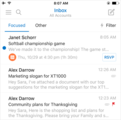
For example, the message list on Outlook now clearly calls out event invitations. The "event" icon makes it easy to identify events at a glance, by showing the details of the proposed event with a clear action to RSVP right from your inbox. In addition, the "flag" and "attachment" icons are more prominently displayed on the right side of the message list, mirroring what Outlook users are used to on Windows. And when you’re scrolling down on your message list while triaging email, pressing the "Mail" navigation button pops you back to the top of your inbox.
When composing a new message, the attachment options are simplified and easier to access. Both File and Photo attachments are now available in one click.
The "Calendar" navigation icon now shows today’s date, while the "Today" button moves dynamically as you scroll through your calendar to help you visualize how far away from today you are. The day picker grays out days in the past, making it quick and easy to find the current day of the week or month. Drag down the day picker to show a full month view.
When viewing event details, Outlook provides a cleaner, clearer representation of information. All the core details (date, duration, location) are grouped at the top, while attendees now have green, gray and red icons that represent their responses to your invitation.
Outlook for Android gets a makeover
We want Outlook to feel like a natural part of Android. By deeply leveraging Material design and its common interface elements, we are making it easy to get started and become familiar with Outlook.
With this consistent design, Outlook for Android feels more cohesive. You’ll see right away as you open the app, with our redesigned header, message list and compose experiences. Contact images appear to the left of your emails, making it easy to see who emailed you. Clearer and more prominent icons help you identify read versus unread emails, pick out event invitations and quickly see emails that include attachments.
The Calendar Agenda view is overhauled with a beautiful new UI, showing more information about your events at a glance.
Event details, the People list and contact details all get a fresh new Material look.
Bringing the best of Sunrise to Outlook
The Sunrise team is now officially a part of the broader Outlook product team, bringing a fresh approach to calendaring and combining it with Microsoft’s deep expertise in both email and calendar. Better Outlook calendaring gives you more ability to manage your personal and professional life from a single, powerful app. Over the coming months, you’ll see richer calendar experiences come to Outlook from Sunrise—including Interesting Calendars and connections to your favorite apps and services. You will also see improvements to Outlook’s ability to create meetings while on the go and handle meetings across time zones. All of this means Outlook will eventually replace the current Sunrise app. We will leave Sunrise in market until its features are fully integrated into Outlook, the exact timing of which we will communicate in advance.
We continue to work to deliver amazing improvements in Outlook every single week. We need your feedback to help continue to make Outlook even better! Let us know what you think of our new designs in a comment below and suggest and vote on future feature ideas right within Outlook by going to Settings > Suggest a Feature.
—Javier Soltero
The post Outlook for iOS and Android gains momentum, gets new look appeared first on Office Blogs.
Office Blogs
.
Blog
.
<span class='date ' tip=''><i class='icon-time'></i> Dec 05, 2015 11:40am</span>
|
|
Today’s post was written by Bryan Goode, senior director of Modern Collaboration.
Yammer has long recognized that social networking has the ability to revolutionize information-sharing in the workplace, which is why we first launched an enterprise social network in 2008. Since then, more than 500,000 companies—including 85 percent of the Fortune 500—have realized the value of working with greater transparency and inclusiveness using Yammer.
As a core component of Office 365, Yammer has also played an instrumental role in shaping how Microsoft approaches collaboration. Much of the innovation in Office 365—such as Office 365 Groups, Office Graph and the Office 365 Reporting Dashboard—are concepts drawn directly from Yammer. By bringing these key constructs to Office 365, Yammer helps make the productivity apps used by millions every day inherently more social and intelligent. At the same time, integrating with Office 365 gives Yammer a platform to innovate on an even greater scale.
Microsoft named a Leader in the 2015 Gartner Magic Quadrant for Social Software in the Workplace.
Industry analysts have taken note of our efforts, and we are excited to share that Gartner recognized Microsoft as a Leader in the 2015 Magic Quadrant for Social Software in the Workplace for the seventh year in a row. Microsoft is positioned furthest to the right for Completeness of Vision and highest on Ability to Execute in the 2015 report. Gartner writes, "Leaders are well-established vendors with widely used social software and collaboration offerings. They have established their leadership through early recognition of users’ needs, continuous innovation, significant market presence and success in delivering user-friendly and solution-focused suites with broad capabilities."
Office 365 vision for collaboration—a powerful suite of apps built on an intelligent platform comprised of Office Graph and Office 365 Groups.
The recognition we’ve received reflects Office 365’s vision for collaboration, which aims to give teams a frictionless way to work together using the tools of their choice, while discovering and building upon the existing body of knowledge in their organization. To achieve our vision, we’re delivering a powerful suite of apps—such as Yammer, Skype, OneDrive, Delve and Outlook—which lets teams do their best work together, all built on an intelligent platform to harness the power of the network through personalized insights. Our goal is to transform collaboration by making it more seamless and transparent. We know that keeping corporate data secure remains a top priority, so we’ll continue to invest in capabilities that give organizations the right level of control, compliance, privacy and security.
The number of companies using Office 365 and Yammer to work in a more open, connected way grows by the day. Ask British Airways, which uses Yammer to spark innovative ideas that help it operate more efficiently and improve customer service. Or AON, one of the world’s leading providers of risk management and human resources solutions, which uses Yammer and SharePoint Online to create a knowledge sharing culture.
With this, I’d like to leave you with a final parting thought from Neeru Arora, chief knowledge officer at AON: "It is remarkable how much Office 365 and Yammer have helped us unlock productivity in our organization, and I think we have only scratched the surface."
We’re taking our modern collaboration vision on the road and invite you to attend a Microsoft Cloud Roadshow near you to learn more about what Office 365 and Yammer can do to bring the power of social collaboration to your company.
—Bryan Goode
The post Gartner recognizes Microsoft as a Leader in the 2015 Magic Quadrant for Social Software in the Workplace for seven years running! appeared first on Office Blogs.
Office Blogs
.
Blog
.
<span class='date ' tip=''><i class='icon-time'></i> Dec 05, 2015 11:39am</span>
|
|
Last week, the Visual Studio team announced Microsoft’s primary fall developer event, Connect (); // 2015, on November 18 and 19 in New York City. As part of this event, the Office Extensibility team will host some very informative sessions for developers and IT decision makers, where we will make a series of exciting announcements. Mark your calendars for November 18 and 19 and join us virtually.
The Office sessions will cover our announcements for new capabilities, both generally available and in preview, as well as roadmap items to look out for in the near future. Our key announcement will also be spotlighted within Scott Guthrie’s keynote, so be sure to watch the live webcast November 18 at 10 a.m. EST.
Additionally, our team will host an hour-long virtual session on Thursday to discuss our vision of the Office platform and speak to how developers of all backgrounds and skillsets can build on Office. We promise it will be fun.
There will also be more than 30 on-demand videos, with many of them touching on Office extensibility, showcasing our new capabilities and features across myriad products and technologies.
We hope you can join us! Tune in on November 18 and 19. Additional details can be found by visiting www.visualstudio.com/connect2015.
The post Join Connect (); // 2015—virtual event for developers appeared first on Office Blogs.
Office Blogs
.
Blog
.
<span class='date ' tip=''><i class='icon-time'></i> Dec 05, 2015 11:39am</span>
|