Blogs
|
Just a couple of weeks ago, Microsoft released Office 2016 worldwide. The new Office delivers new value for Office 365 subscribers with a focus on collaboration, apps that work for you, and a perfect pairing with Windows 10. Sway was built from the ground up for seamless co-authoring and it provides powerful design assistance hosted in the cloud. The powerful Sway app for Windows 10 combines the full richness of Sway on the web with additional capabilities on your PC or tablet.
Sway became generally available in August, and we’re continuing to release updates and address customer feedback just like we did during Sway Preview. We’re excited to announce that OneDrive for Business integration is available for customers signing in to Sway with Office 365 work and school accounts, as well as updates to Sway for iPhone and iPad.
Sway now supports OneDrive for Business
Sway makes it easy to pull your variety of media together, from built-in sources within the app. That way you can save time and avoid switching between different browser tabs and apps to drag and drop your content right into your Sway creations. Now when you sign in to Sway.com or Sway for Windows with Office 365 work and school accounts, you can access your OneDrive for Business account from the Insert tab. Drag and drop to add your images right into your Sways, or import PDF, Word and PowerPoint files to reuse their content in combination with additional multimedia in Sway. Support for adding video from OneDrive for Business (and via upload) is in the works—stay tuned for more!
Now you can add your content from OneDrive for Business when you’re signed in to Sway with Office 365 work and school accounts.
Sway for iPhone and iPad updates
We’ve continued to update Sway for iPhone and iPad with capabilities focused on helping you quickly create and share polished, interactive content on the go from your mobile devices. Another updated version is now available for download in the App Store, which includes the following improvements:
More grouping and navigation options—Make your Sways more interactive and dynamic on the go! Now you can use the Comparison, Slideshow and Grid Group options to transform your multimedia, as well as change your Sway’s overall layout to the recently added option that is optimized for presentations.
Preview is faster now—It’s faster to switch between Edit and Preview, as well as refresh Preview. This makes it easy to see the polished and cohesive design continuously taking shape as you add and modify your content.
Image insert problems fixed—We’ve fixed a problem some users experienced, where Sway stopped working in some instances when several images were added at once.
Make your Sways more dynamic and interactive with an additional layout (left) and additional visualization options (right), including the Comparison option for two images (shown center).
It’s been an important couple of months for Sway and Office, and we’ll continue to keep the updates coming! Keep following Sway and dropping us notes on UserVoice with your thoughts on Sway, how you use it, and what you’d like to see us do to improve the experience for you!
—Sway team, @Sway
Get Sway | Follow Sway
The post Sway adds OneDrive for Business integration, Sway for iPhone and iPad updates appeared first on Office Blogs.
Office Blogs
.
Blog
.
<span class='date ' tip=''><i class='icon-time'></i> Dec 05, 2015 11:55am</span>
|
|
Today’s post was written by Sandi Adams, technology project specialist for Cherokee County District.
Fall is my favorite time of year to get outdoors and spend some time hiking and backpacking. No matter if it is a day trip or overnight, I always pack my little Swiss Army Knife—my one tool with so many uses.
This time of year also involves my favorite education tool—OneNote. Like my Swiss Army Knife, OneNote is the one tool with many uses. A virtual notebook reminiscent of my old Trapper Keeper, OneNote organizes by sections or group sections with unlimited pages packed with documents, photos, emails, spreadsheets, recordings, inking and so much more. It gives me the ability to collaborate with colleagues and students, and best of all, I can access the most current version of my notebooks from my phone, iPad, Microsoft Surface, desktop or laptop.
Photo credit: theshoppingmama.com
Take a look at how OneNote is organizing the Cherokee County School District.
Personal school notebook
I start each year with a personal school notebook. This includes group sections for each school I service, with sections for logistics, schedules, training materials and communication. I have sections for conferences, special projects, staff meetings, instructions and MIEE. My notebook is synced to my iPad, phone, desktop and laptop, giving me quick access to everything related to my job.
Staff services notebook
Each member of the technology department has access to everything we need in our staff services notebook, including school floor plans, project workflows, organizational charts, resolutions to issues, personnel forms, project management and evaluation information. In addition, all changes occur in real time.
Grade level notebooks
Our lead teachers create a notebook for their team, allowing for collaboration of lesson plans, storing parent communications and organizing events that take place throughout the year. Having the ability to access all of this information in one place has proved to be an invaluable tool for the teams.
Leader Keys Effectiveness System notebooks
The Leader Keys Effectiveness System (LKES) is an evaluation system that allows the state to ensure consistency and comparability across districts, based on a common definition of leader effectiveness. Our leadership evaluation documentation has gone from spiral-bound paper copies to OneNote.
Our principals share their notebooks with the superintendent’s office, providing a record with meaningful feedback supporting the continuous growth and development of each school leader by monitoring, analyzing and applying pertinent data from multiple sources toward attainment of established performance goals.
LKES offers clear and precise indicators and resources to leaders throughout the process. OneNote provides data and information that is always current.
School handbooks
Every school has a handbook with all of the information for the school year, from discipline to leave information and everything in between. The OneNote Staff Notebook proved to be the perfect match for this task. The principals created notebooks sharing admin rights with the assistant principals, including all school data in the content section. Being able to update in real time to all staff members makes it the perfect tool.
The Collaboration section is used for various meetings, leadership, technology, hospitality and staff meetings, which gives attendees the ability to contribute to the recording. This section is also a great way for principals to quickly gather information from the staff.
Each staff member also has their own private notebook, which has a section for each of the Teacher Keys Evaluation standards, including:
Professional knowledge
Instructional planning
Instructional strategies
Differentiated strategies
Communication
Assessment strategies
Positive learning environment
Teachers upload their lesson plans, communication tools and professional development records. This process keeps all of the information in one spot, making it a professional and easy medium for the evaluation, with administration always having access.
OneNote Class Notebooks
Many of our teachers create notebooks using the OneNote Class Notebook for our students from 4th to 12th grade. The Content area provides the perfect place for subject textbook information, assignments and resources.
Collaboration content can include a yearbook space for each student, essential question of the day or a discussion space for a class topic. Each student has a private space to turn in assignments and homework and journal. Grading papers from one location makes this seamless for class management.
Introducing our students to OneNote has been incredibly rewarding and exciting. They moved to this environment easily and have been respectful of the Collaboration space, a great introduction to appropriate use of digital citizenship. Turning in their homework, maintaining their journal and having access to all of their content make this the perfect classroom tool.
Additional uses for OneNote include notebooks for our Professional Development classes, Innovation Zones, EdCamp, the Office 365 Swat Team and lesson plans. For more information on OneNote, check out OneNote for Teachers and OneNote.
—Sandi Adams
The post OneNote—the Swiss Army Knife of education appeared first on Office Blogs.
Office Blogs
.
Blog
.
<span class='date ' tip=''><i class='icon-time'></i> Dec 05, 2015 11:54am</span>
|
|
In this episode, Jeremy Thake and Richard DiZerega talk about TechCrunch Disrupt San Francisco 2015.
http://officeblogspodcastswest.blob.core.windows.net/podcasts/EP66_TechCrunch.mp3
Download the podcast.
Weekly updates
Office Dev Show - Episode 13 - Getting Started with NodeJS by Sonya & Richard
msdn.microsoft.com/EN-US/library/mt616496.aspx —Word
msdn.microsoft.com/EN-US/library/mt616485.aspx —Excel
Office 365 Developer Patterns and Practices - October 2015 release
External sharing API for SharePoint and OneDrive for Business
Building an Excel 2016 Add-In with Angular and Enhanced office.js by Scot Hillier
Office Add-ins: Launch in Office Online by Simon Jager
Office Add-ins: Launch in Excel Online from Visual Studio by Simon Jager
http://blog.mastykarz.nl/office-365-unified-api-mail by Waldek Mastykarz
O365 Dev Challenges - Part 1 - Introduction to creating a multi-tenant Office 365 add-in using VS2015 by Mikael Svenson
Introduction to Office UI Fabric by Mark Rackley
OfficeUIFabric.com v1.0.0 - Full Sample Coverage of Office UI Fabric v1.0.0 by Andrew Connell
Show notes
Daylist
Daylist integrates to-do lists into individual calendars. Within each calendar event on Daylist, users are able to plan the sequence of tasks for that event and access the resources (such as files, URLs or emails) required to perform each of these tasks.
Zombie Club PowerPoint asset builder
This Office Add-in pairs a Task pane with a Content viewer to allow for a dynamic selection and creation of video assets that can be done directly in PowerPoint. Data is housed with newly created domains of AllNightAtThe.Club and ZombieApocalypsePreparation.Club.
Yes-Reply
Sometimes, people prefer to just respond to an email and say: "unsubscribe," "I have some questions," "I’d like a group discount" or "I am having a problem." With Yes-Reply we can classify the action and create entries in the CRM turning auto-response into actionable data!
MetroMail
MetroMail extracts out all the attachments from the email inbox and creates a nice gallery of it (for images and any multimedia). MetroMail sorts all the documents and layouts it with nice preview for easy access, it identifies important documents like bills / invoices and lets you make the payments from within the inbox! It just makes the life easy!
Got questions or comments about the show? Join the O365 Dev Podcast on the Office 365 Technical Network.
The podcast RSS is available iTunes or search for it on "Office 365 Developer Podcast" or add directly with the RSS http://feeds.feedburner.com/Office365DeveloperPodcast.
About the hosts
Jeremy is a technical product manager at Microsoft responsible for the Visual Studio Developer story for Office 365 development. Previously he worked at AvePoint Inc., a large ISV, as the chief architect shipping two apps to the Office Store. He has been heavily involved in the SharePoint community since 2006 and was awarded the SharePoint MVP award four years in a row before retiring the title to move to Microsoft. You can find Jeremy blogging at www.jeremythake.com and tweeting at @jthake.
Richard is a software engineer in Microsoft’s Developer Experience (DX) group, where he helps developers and software vendors maximize their use of Microsoft cloud services in Office 365 and Azure. Richard has spent a good portion of the last decade architecting Office-centric solutions, many that span Microsoft’s diverse technology portfolio. He is a passionate technology evangelist and frequent speaker are worldwide conferences, trainings and events. Richard is highly active in the Office 365 community, popular blogger at www.richdizz.com, and can be found on twitter at @richdizz. Richard is born, raised and based in Dallas, TX but works on a worldwide team based in Redmond. In his spare time, Richard is an avid builder of things (BoT), musician, and lightning fast runner.
Useful links
Office 365 Developer Center
Blog
Twitter
Facebook
StackOverflow
http://aka.ms/AskSharePointDev
http://aka.ms/AskOfficeDev
http://aka.ms/AskOffice365Dev
Yammer Office 365 Technical Network
O365 Dev Podcast
O365 Dev Apps Model
O365 Dev Tools
O365 Dev APIs
O365 Dev Migration to App Model
O365 Dev Links
UserVoice
The post Episode 066 on TechCrunch Disrupt SF 2015—Office 365 Developer Podcast appeared first on Office Blogs.
Office Blogs
.
Blog
.
<span class='date ' tip=''><i class='icon-time'></i> Dec 05, 2015 11:53am</span>
|
|
Today’s post was written by Rajesh Jha, corporate vice president for the Office 365 team.
As part of our commitment to making Office 365 the most trusted cloud service for productivity and delivering security, compliance and control to Office 365 customers around the globe, I am pleased to announce that Office 365 services will now be delivered in India from the local datacenters in Mumbai, Pune and Chennai.
With the launch of Office 365 datacenters in India, we are strengthening our support to the government’s Digital India vision. Following the launch of Microsoft Azure in India datacenters, our investment in Office 365 in the local datacenters reaffirms our commitment to the Indian market and is intended to accelerate the Indian government’s digital transformation initiative.
Today businesses of all sizes in India are already using Office 365 to make their employees more productive, accelerate decision-making with real-time collaboration and secure their business-critical data. With the launch of our three new datacenters in India, Office 365 becomes the first global commercial cloud service to provide productivity and collaboration services from within India. Businesses in India will benefit from all the innovation, security and compliance capabilities that customers around the world have come to expect from Office 365. With the new datacenters they will also get the added benefit of data residency, which is particularly important to organizations in regulated industries, such as banking, government and healthcare.
Office 365 takes a comprehensive approach to compliance, achieving industry standards such as ISO 27001, ISO 27018, SOC 1 and SOC 2 reports, which provides the gold standard in security to government agencies, education and other commercial enterprises. To learn more about security and compliance in Office 365, please visit the Office 365 Trust Center.
We’re thrilled to provide these technologies locally to help Indian businesses and organizations innovate and compete globally.
The post Announcing the availability of Office 365 from local datacenters in India appeared first on Office Blogs.
Office Blogs
.
Blog
.
<span class='date ' tip=''><i class='icon-time'></i> Dec 05, 2015 11:53am</span>
|
|
Editor’s Note 10/14/2015:
This post was updated to provide more clarification on the audience for the Compliance Program.
Is your financial services organization subject to strict regulatory oversight? Do you need deeper insights into your cloud provider’s capabilities related to meeting regulatory obligations? If so, the Office 365 Financial Services Compliance Program might be for you.
We understand that some of our customers might need deeper insights into our cloud service’s capabilities, risks and performance, as well as contractual commitments related to meeting their unique regulatory obligations.
With that need and our commitment to openness and transparency, we offer customers the ability to extend the standard Office 365, Azure, Intune and Dynamics service contracts. We’ve offered this special program under NDA to financial services companies and are now rolling it out to all eligible customers in the financial services industry. The Financial Services Compliance Program provides customers with an additional level of service fulfilling their regulatory needs to influence and examine our service. Elements of the program include:
Direct access to Microsoft’s security and compliance staff.
Information, data and reports related to meeting their unique regulatory obligations.
Ability to request paid one-on-one time to address key questions.
The Compliance Program is tailored to the requirements of the financial services customer. Through working closely with these customers over the last three years, insights, capabilities and improvements have been delivered to benefit all of Microsoft’s cloud service customers. For example, the Service Trust Portal was created to provide easy access to key compliance documentation and white papers, many of which have been developed as part of this program.
If this program is of interest to you, please contact your Microsoft account representative to learn more.
—Alym Rayani, GPM on the Office 365 Information Protection and Compliance Product Management team
The post Compliance Program now publicly available for financial services customers appeared first on Office Blogs.
Office Blogs
.
Blog
.
<span class='date ' tip=''><i class='icon-time'></i> Dec 05, 2015 11:53am</span>
|
|
Today’s post was written by Sonia S. Kalwaney, Science and ESL teacher.
This picture might conjure feelings of stress combined with mild hysteria. Maybe the mild hysteria is just me. Yet, this was the former scene I faced when I received word of another interview. As a Long Term Occasional (LTO) teacher vying for a coveted contract position, an interview is always a blessing when the call arrives. The excitement of another job, school, group of colleagues and teachers/students to meet is soon overshadowed by the competition I face.
As I sit with my tea and my pile of teaching examples, resources, awards, professional learning examples, qualifications, student work, thank you letters, resumes, Ministry documentation and even multimedia projects, I know these documents are all important in an interview. But how am I to "fit" them all into a folio case, let alone a 30-minute interview? Furthermore, I know I should be organizing this according to the Ontario College of Teachers (OCT) standards of practice (SOP) so that when questions undoubtedly arise, I am not flustered as I rifle though pages of work looking for the right document to showcase.
Last year, I got tired of this constant battle of "updating" my teaching portfolio only to find it bulging at the seams. The legal sized documents and oversized student work needed to be folded, shrunk or even dismissed to allow me to carry the mammoth binder. This is when I decided to put my passion for technology and education to good use and created my digital portfolio using OneNote. I tried a few different formats—for example, a Wikispace (that did not allow me the user control I needed), a website (that seemed daunting and expensive), Google Share technology (that seemed okay at first but did not provide the organization and collaboration aspect I needed). This was frustrating and often led me back into the safety of my paper portfolio.
Then my vice principal asked me to complete a teacher performance assessment (TPA). This was a perfect opportunity to expand my use of OneNote, which I was already using in my classroom to create my teaching portfolio.
The image below is the first page of my OneNote Teaching Portfolio, which is organized into subfolders that represent the OCT SOPs. Within each SOP, I included great examples from my portfolio and even my digital collection. I was able to create the entire portfolio over one very motivated weekend.
One of my favorite examples of how this format helped me connect my theory to practice was with my 9th grade Applied Science class. The students were building an electronic game board for a summative project. They used their knowledge from an Electricity unit to build a circuit board and then taught other students about it in the Astronomy unit using the board game. Although I often integrate units, this was the first time I can say it wasn’t as stressful as it was in the past.
I am now able to showcase my understanding and practice of the requirements of the Ministry’s Growing Success document for assessment and evaluation. This document states that we are to find a triangulation of data though the use of student products, conversations and observations to create a valid and reliable assessment of the student. This is what I am sure we have all come to know of as the assessment for learning.
I am also able to record observations as students work on creating final products. In this example, students were in the research and building phase of the Astronomy unit. One student indicated that she was tired of "just reading" and wanted to paint her board game. I interviewed her at this phase as she described her progress so far, which I was able to document in OneNote.
I was also able to create a video recording that allowed the student to reflect on what she had learned from the experience and how she worked collaboratively. Taking this metacognitive approach, she seemed to really enjoy the process and expressed a feeling of confidence and sense of resilience I had not seen in her before.
Finally, I was able to take a picture of the final project, which allowed students to take their projects home to enjoy, instead of me asking to keep an example that would not fit into my portfolio!
OneNote has also allowed me to take this idea of getting "a glimpse of my classroom" a step further, allowing a holistic view of my classroom. I include pictures of my lessons and resources (my Jenga blocks would break my portfolio) along with a reflection to allow a potential employer a glimpse into my classroom without having to be there. A video can also be included, which is something I am working on now.
Finally, OneNote makes it very easy to share the hyperlink to my employers. I can allow them to edit this document and leave feedback for me or just have the viewing option to ensure my work stays unedited. I have received a great deal of favorable feedback about this format. There have been no problems with access to my board in the Peel District School Board (PDSB), which has OneNote in its suite of student and teacher application options. Even without this access, the online version of OneNote allows viewing and editing access to anyone with the link.
During my last interview, I brought in my computer instead of my mammoth portfolio. After the interview, I sent the link to potential employers. I received some accolades for this format and I secured a position. As I move forward, I am hoping this technology can continue to help me gain meaningful, exciting and enjoyable experiences in my teaching career.
—Sonia S. Kalwaney
The post Bringing the teaching portfolio to the 21st century with OneNote appeared first on Office Blogs.
Office Blogs
.
Blog
.
<span class='date ' tip=''><i class='icon-time'></i> Dec 05, 2015 11:52am</span>
|
|
Excel 2016 introduces new features and improvements that help you streamline your data analysis. Today we will walk through the new options for building PivotTables with a Date/Time column and show how to surface time-based insights in your data. Additionally, we will help you take advantage of the ability to navigate your PivotCharts using drill-down buttons.
Automatic time grouping
Automatic time grouping, a new feature in Excel 2016, helps use time-related fields in a PivotTable by auto-detecting and grouping them on your behalf. The automatic grouping creates new Date/Time columns and automatically populates the PivotTable in one action. This allows users to quickly start analyzing their data across different levels of time with drill-down capabilities.
PivotTable grouping is used frequently by customers in many business scenarios. Implementing grouping for Data Model PivotTables allows for grouping to be used in conjunction with the power of the xVelocity engine and is a key feature for making Data Model PivotTables a replacement for native ones in the future. When used in a data model PivotTable, Time grouping adds relevant Date/Time columns such as Date (Year), Date (Quarter) and Date (Month) to the grouped table in the model; these columns could then be reused with other user endpoints of the data model, such as PowerView and Power BI.
Time grouping columns in the model.
The Date/Time columns are automatically added according to the Data column date/time granularity. For example, if the date data is in days and is for more than a year’s duration, then the added grouping columns would be for months, quarters and years.
Once the Date/Time columns are added to the model, not only can you analyze your data over the different time granularities it entitles, but you may also find additional insights. For example, to get a monthly year-over-year comparison of your data, drag the Date (Year) column over from the ROWS drop zone to the COLUMNS drop zone while keeping only the Date (Months) column in the ROWS drop zone.
Auto-grouping for a data model PivotTable also means that for the first time in Excel you are able to aggregate data larger than one million rows.
Right-click Group and Group dialog.
Changing the Group columns is always possible through the usual user interface. In the PivotTable, right-click the Date column and select Group.
The Group dialog is where you can define other columns to be added or removed from the time group. You may have noticed that "Starting at/Ending at" and "Number of days" are greyed out; this is because we do not support these settings for data model PivotTables.
Don’t like automatic grouping? Undo it just like you would any other applied change. The first undo (Ctrl+Z) removes the auto-added columns from the ROWS drop zone. The second undo removes the newly added columns from the model, so you are back at square one. In case these columns are already used in another PivotTable, then they will not be deleted from the model. Right-click Ungroup… is also supported and will act as if you have done the two undo operations, removing the group fields from the drop zones and the model. You can also turn off automatic time grouping.
When the model already contains a "Date Table," we do not want to do time grouping, since the "Date Table" includes all required date columns already. So when building a PivotTable and dragging a Date column from a "Date Table" from the data model, automatic grouping would not apply.
PivotChart drill-down buttons
PivotCharts have always supported a double-click on a chart element to do a drill-down to the next level of the selected element. This is the same as clicking the plus sign on the PivotTable collapsed level. A tougher job is when you want to expand all objects in the PivotTable to the next level. This is where the newly added PivotChart drill-down buttons come in handy, as clicking the + (plus) or - (minus) buttons allow you to drill down to the next level of all elements in the charts with a single click.
This functionality applies to any hierarchy or any set of columns in the ROWS drop zone of the PivotChart.
When you open a PivotTable created on a previous version of Excel, you will not see the new drill-down buttons until you enable them on the Analyze ribbon. It is also possible to remove these buttons from a chart created in Excel 2016.
Toggle viewing of PivotChart field buttons.
Reuse of time group fields in Power BI
The new Date columns really come in handy in Power BI. One noticeable value to users is that the Month column added to the data model through the Automatic Grouping in Excel is calendar ordered (Jan, Feb, Mar…).
The new Date columns put to use in PowerBI.com.
What do you think?
We just went through the new time grouping functionality in Excel 2016. Try it out for yourself and feel free to add suggestions or vote for them if they already exist in the Excel UserVoice.
The post Time grouping enhancements in Excel 2016 appeared first on Office Blogs.
Office Blogs
.
Blog
.
<span class='date ' tip=''><i class='icon-time'></i> Dec 05, 2015 11:51am</span>
|
|
It’s never been more important to be able to get work done and collaborate with others from anywhere—be it participating in an important meeting while traveling or sending a quick message during a coffee run. We’ve been working hard to ensure Skype for Business can make you productive on any device. Since we announced the Skype for Business for iOS preview, we’ve received great response, and today we are excited to announce that the new Skype for Business app for iOS devices is now publicly available.
Along with the following features, the new app also resolves the sign-in issues that some of you experienced with Lync 2013 on iOS 9.
Join a meeting in one touch
An updated dashboard brings the contact search bar, your upcoming meetings and most-recent conversations to one place. The contact search bar allows you to search your Global Address List by first name, last name, email alias or phone number. Your recent conversations are at your fingertips, no matter which device you had the conversation on. You can also easily glance at your upcoming appointments—simply tap on the left for the meeting details or on the icon on the right to join immediately.
Enhanced in-meeting experience
Full-screen video makes for a more immersive meeting experience. Larger buttons to mute and the ability to add participants and manage your call make it a lot easier to meet while you are on the move. Simultaneous viewing of the content being shared and speaker’s video means that you never miss a moment.
Watch for the ability to view PowerPoint slides in a meeting in a future update. In the meantime, you can view a PowerPoint presentation via desktop sharing.
Additional authentication and security options
Office 365 customers can now take advantage of Active Directory Authentication Library (ADAL)-based authentication. This enables your IT admin to configure multi-factor authentication for the Skype for Business iOS app, increasing the security beyond just a user name and password. With multi-factor authentication, users are required to acknowledge a phone call, text message or an app notification on their device after correctly entering their user name and password. Other Office applications also support ADAL-based authentication, which allows for consistent authentication across your organization. Learn more about setting up multi-factor authentication using ADAL.
How you can upgrade to the new app
The new Skype for Business iOS app is now available as a Universal app in the iTunes Store. iPhone users with Lync 2013 will automatically get updated to the Skype for Business app. iPad users with Lync 2013 need to download the new Universal app from the iTunes Store. If you are an IT admin, use the Skype for Business iOS productivity guide to learn more and prepare your users.
What’s next?
We are iterating rapidly to enrich the feature set on iOS and bring them to you as quickly as we can. Later this year, we will also make Skype for Business app for Android publicly available. Join the Skype for Business IT Pro Yammer community to subscribe to the upcoming product updates, interactive Skype broadcast sessions with the product team, and learn from the community. We look forward to hearing what’s on the top of your mind.
Start using the new app today to stay connected and productive while on the go!
—Praveen Maloo, product marketing manager for the Skype for Business team
The post Skype for Business iOS app now available appeared first on Office Blogs.
Office Blogs
.
Blog
.
<span class='date ' tip=''><i class='icon-time'></i> Dec 05, 2015 11:51am</span>
|
|
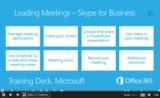
Playing with Office Mix? We are too. As part of our Skype for Business training, the Office Training team created courses using Office Mix. We tested them with our customers and then released three Mixes covering Joining, Scheduling and Leading Meetings.
When making your Mixes, consider some of the things we learned:
Folks don’t know Mixes are interactive. In Mix intros, we recommend telling users they can click links or advance a slide to get to a more relevant part of the Mix.
Have a few "rest stops" along the way. If you don’t narrate a slide, the viewer has to click or tap the Click next to continue button. This provides you an opportunity to have the customers pause so you can show off dense slides, like an annotated picture, controls or instructions.
Use animation for more effective slides. As you talk over a slide, you can have parts appear as you talk about them. Yes, it takes a little practice to get the timing down, but it can be effective.
Office Mix allows an easier way for others to customize. With Office Mix, you don’t need video editing software to change the video, just PowerPoint skills. You can download the Mix (the creator controls permissions) to change the text or add or delete a slide.
Use video where you want to. We didn’t want to put the face of the trainer at the beginning of our Mix, but you may want to do that to make your Mix more personal. You can add videos in Mix and they just play. So on the previous slide, tell your audience a video is coming, as we did in the Leading Meetings Mix.
Watch our video and then try Office Mix for free at mix.office.com.
—Doug Thomas, senior content producer on the Office Learning and Video team
The post What we learned using Office Mix appeared first on Office Blogs.
Office Blogs
.
Blog
.
<span class='date ' tip=''><i class='icon-time'></i> Dec 05, 2015 11:50am</span>
|
|
Lotus F1 Team generates terabytes of data—from operations to the track. Huge amounts of data can make it difficult to discover trends and efficiencies without data visualization. The team started their Power BI journey with operational data. The primary goal was to gain new insights and enable self-service Power BI without having to continually ask IT for custom views and reports.
This week, Office Mechanics returns to Enstone to follow Lotus F1 Team’s implementation of Power BI. The IT crew discusses the shift from SQL Server and SSRS to self-service Power BI while providing a step-by-step demonstration of what they did to get Power BI running.
If you follow Power BI, you’ll often see the finished results with new dashboards, charts and Q&A working, but not usually what it takes to get there. That’s not the case here, as we go hands-on with Kerrie Sparling and Carolyn Yarnold from Lotus F1 Team. They demonstrate how to pull data in from multiple data sources and build relationships using the new Power BI Desktop, grouping the data using DAX queries along with building and sharing dashboards. They also provide tips along the way to ensure Q&A can parse your data model.
How did it turn out? We catch up with the team’s operations and manufacturing leads, Thomas Mayer and Ian Pearce, to get their take on Power BI and the capabilities. And we meet with Mark Everest, who manages the cars’ telemetry data, to explore a few possibilities using Excel, Power BI and Azure Data Lake to gain insights from the track.
Of course, to learn a few tips and see how everything works, you’ll want to watch the show. Next time, we’ll see what the team is doing to manage race crew logistics using Office Add-ins, APIs and Office 365 extensibility.
See you then,
Jeremy Chapman
The post Hands-on with Lotus F1 Team’s Power BI implementation appeared first on Office Blogs.
Office Blogs
.
Blog
.
<span class='date ' tip=''><i class='icon-time'></i> Dec 05, 2015 11:50am</span>
|