Blogs
|
Over the last several years, social networks have changed the way we communicate. In our personal lives, we show our approval by "Liking" a friend’s status update on Facebook and we "@Mention" others in a Twitter post to call attention to it. In our workplace, these same social concepts became popular through enterprise social tools such as Yammer. Today we’re taking the next step and introducing Like and @Mention to workplace email in Outlook on the web.
Likes—bubbles up the best ideas
Email is a great way to share and collaborate on ideas, make plans and drive consensus with friends and coworkers. Email threads often grow in length with any number of suggestions, thoughts and counter-points added through the course of a discussion. The new Like feature in Outlook on the web provides an easy way to visibly endorse a specific email and call it out as something worth attention—perhaps a statement or idea you support.
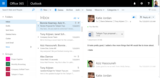
To Like a message, simply click the thumbs-up icon in the reading pane. This turns the icon from gray to blue, notes within the email that you liked the message and adds a thumbs-up icon in the email list view. Anyone on the thread can Like a message, and their Likes are identified and captured within the message as well. If someone likes your email, you’ll receive a notification letting you know.
Likes allow you to easily highlight individual messages.
Mentions—highlights the individual
While the focus of Likes is on specific emails, the focus of Mentions is on specific individuals. When collaborating on email, it is common to call out a specific person for an action or request. Another scenario is adding a person to an existing thread for their attention—perhaps you are on a thread and know that the person who can answer a question was not initially included. Using the Mentions feature ensures that the person is not only aware of the request but is also included in the thread.
To use Mentions, simply add the @ symbol in the body of an email. This will bring up your frequent contacts as well as access to your directory. Select the person you want to highlight, and they will automatically be added to the To: line if they were not already included. In addition, their name will be highlighted in the message in blue and they will receive an @ flag in their inbox view next to the message. Furthermore, they can sort by their @ messages to ensure they respond to all messages in which they were mentioned.
The Mention compose experience—highlight a person for action with the @ symbol.
When you’ve been mentioned, you will have an @ flag next to the message and can sort by Mentions.
Rollout of these changes
The Like feature in Outlook on the web will begin to roll out today to Office 365 First Release customers whose Office 365 plan includes Exchange Online. We expect the feature to roll out broadly to eligible Office 365 commercial customers starting in late October. The Mention feature will begin rolling out to First Release customers in mid-October and broadly to all eligible Office 365 commercial customers in mid-November.
In addition, our Outlook.com users who have been migrated to the new version of the service will start seeing Mentions in the December time frame as well.
Frequently asked questions
Q. When will other versions of Outlook support Likes and Mentions?
A. We expect to roll out the Mention feature to the Office 2016 clients for Windows and Mac, as well as Outlook for iOS and Android, in the first half of 2016. We will provide updates in the expected availability of the Like feature at a later date.
Q. Which Office 365 plans will have access to the Like and Mention features in Outlook on the web?
A. The Like and Mention features will be available to all Office 365 commercial subscriptions that include Outlook on the web, including Business, Enterprise, EDU and Government plans.
The post Likes and @Mentions coming to Outlook on the web appeared first on Office Blogs.
Office Blogs
.
Blog
.
<span class='date ' tip=''><i class='icon-time'></i> Dec 05, 2015 12:09pm</span>
|
|
Last month, we started a community project to help IT pros with Office client deployments using PowerShell to streamline the process. For more details, see Office Deployment Scripts for IT Pros. A month later, it’s time to check in on some of the new developments with this project. As a reminder, all of the scripts are available on our GitHub repository and released under the MIT license.
Reorganized scripts
For starters, we’ve added a folder structure to help IT pros to find useful scripts quickly and easily. We’ve divided all scripts into different categories including:
Preparation
Information
Deployment
Management
Updates
By grouping similar scripts together, it’s easier than ever for you to find the one you need.
More documentation
We’ve also added a wiki to the repository that contains useful information designed to provide context for using these scripts in real-world situations. The wiki is your go-to source for all information related to Office IT pro deployment scripts. It holds information explaining completed scripts, upcoming scripts and general information around contributing to the project. So if you are interested in learning about the scripts that are available or learning how to run different scripts, you will now find all of that information in the wiki.
But it’s not all housekeeping; here are some of the new additions to the project.
Office 365 ProPlus Configuration XML Editor
The Notepad is either your tool of choice or a last resort for editing XML files, but without the red squiggly lines we have come to love in Office. If you have ever accidentally typed </congifuration> then the web editor for the Office ProPlus Click-to-Run Configuration.xml file is for you. This web page provides a graphical method to generate and edit the Office Click-to-Run Configuration.xml file.
The Click-to-Run for Office 365 Configuration.xml file is used to specify Click-to-Run installation and update options. The Office Deployment Tool includes a sample Configuration.xml file that can be downloaded. Administrators can modify the Configuration.xml file to configure installation options for Click-to-Run for Office 365 products.
The Click-to-Run Configuration.xml file is a necessary component of the Office Deployment Tool. Click-to-Run customizations are performed primarily by starting the Office Deployment Tool and providing a custom Configuration.xml file. The Office Deployment Tool performs the tasks that are specified by using the optional properties in the configuration file. For the Office 2016 release of the product, administrators can download the Office Deployment Tool from the Microsoft Download Center. We also took advantage of the awesome new Office UI Fabric project to hide our IT professional design sensibilities.
Reverse engineer your configuration
The Generate-ODTConfigurationXML PowerShell script queries the existing configuration of the target computer and generates the Configuration.xml file for Click-to-Run for Office 365 products. This XML is used with the Office Deployment Tool (ODT) to deploy Office Click-to-Run products. This script dynamically generates a Configuration.xml file to either install new or modify existing Office Click-to-Run deployments. This script is particularly useful when trying to deploy Office 365 ProPlus in environments where different languages are required. It allows you to dynamically configure Office based on the languages that are currently in use on the computer. More information can be found in the README.
Putting it all together
The Deploy-OfficeClicktoRun solution uses several scripts from the GitHub repository to create a complete solution to deploying Office Click-to-Run. The solution uses the Generate-ODTConfigurationXML function to generate the Configuration XML based on the current configuration of the user’s computer. It then uses the Edit-OfficeConfigurationFile functions to modify the Configuration XML to the desired state. Finally, it will utilize the Install-OfficeClicktoRun to install or modify Office Click-to-Run.
There are several examples in the folder that show different approaches:
Example Script 1: ExampleDeployGeneric.ps1—Provides an example on how to use the deployment scripts in one script to provide a solution for deploying Office Click-to-Run.
Example Script 2: ExampleDeployWithOfficeFilter.ps1—Provides an example on how to use the deployment scripts in one script to provide a solution for deploying Office Click-to-Run, which includes an example on providing custom configuration based on the location of the workstation in Active Directory.
More information can be found in the README.
Fallback to the CDN for updating mobile PCs
The Update-Office365Anywhere function is designed to provide a way for Office Click-to-Run clients to have the ability to update themselves from a managed network source or from the Internet, depending on availability of the primary update source. Setting the Office Click-to-Run update source to a local network source reduces the Internet traffic. However, mobile workers, who may not be in the office, may not get their PC updated. This script detects if the configured update source is available, and if it isn’t, it will update from the Internet. The script also has the ability to monitor the progress of the update and block the script from exiting until the update has completed. More information can be found in the README.
Get involved!
We strongly recommend that you check back often, as the existing scripts continue to evolve and new scripts are added on a regular basis. We would also like to hear from you on some of the current challenges you face with deployment and how we might be able to help by automating steps. Feel free to post your feedback and ideas on the Office 365 Network.
As a reminder, anyone is welcome to contribute to the Office IT Pro deployment scripts GitHub project, but we ask that you clone the Development branch to create a feature branch where you can make changes to existing scripts or create new ones. Information on contributing to the project can be found in this README.
Thanks for taking the time to catch up on the latest with this project. We hope that you will take advantage of these scripts and help us continue to improve on what is out there.
—Alistair Speirs, senior operations program manager for the Office Deployment team
The post Deployment scripts for Office 2016 appeared first on Office Blogs.
Office Blogs
.
Blog
.
<span class='date ' tip=''><i class='icon-time'></i> Dec 05, 2015 12:08pm</span>
|
|
In this episode, Jeremy Thake and Richard DiZerega talk to Tristan Davis on the Office Extensibility team.
http://officeblogspodcastswest.blob.core.windows.net/podcasts/EP65_OfficeExt.mp3
Download the podcast.
Weekly updates
What’s new in Office 2016 for developers
Increase the productivity of users’ with enhanced Office.js APIs in Office 2016Office Developer Swag Boxes for your user groups
Using OAuth from PowerShell by Stephen Owen
The Dev Intersection Countdown Show
Got questions or comments about the show? Join the O365 Dev Podcast on the Office 365 Technical Network.
The podcast RSS is available iTunes or search for it on "Office 365 Developer Podcast" or add directly with the RSS http://feeds.feedburner.com/Office365DeveloperPodcast.
About Tristan Davis
Tristan Davis is the group program manager of the APIs & Extensions team within Office Extensibility. His team is responsible for improvements to the Office 365 APIs, the new Apps for Office client extensibility model, as well as all existing flavors of Office programmability. Prior to joining the team, he was a member of the Word program management team from Office 2003 through office 2013.
About the hosts
Jeremy is a technical product manager at Microsoft responsible for the Visual Studio Developer story for Office 365 development. Previously he worked at AvePoint Inc., a large ISV, as the chief architect shipping two apps to the Office Store. He has been heavily involved in the SharePoint community since 2006 and was awarded the SharePoint MVP award four years in a row before retiring the title to move to Microsoft. You can find Jeremy blogging at www.jeremythake.com and tweeting at @jthake.
Richard is a software engineer in Microsoft’s Developer Experience (DX) group, where he helps developers and software vendors maximize their use of Microsoft cloud services in Office 365 and Azure. Richard has spent a good portion of the last decade architecting Office-centric solutions, many that span Microsoft’s diverse technology portfolio. He is a passionate technology evangelist and frequent speaker are worldwide conferences, trainings and events. Richard is highly active in the Office 365 community, popular blogger at www.richdizz.com, and can be found on twitter at @richdizz. Richard is born, raised and based in Dallas, TX but works on a worldwide team based in Redmond. In his spare time, Richard is an avid builder of things (BoT), musician, and lightning fast runner.
Useful links
Office 365 Developer Center
Blog
Twitter
Facebook
StackOverflow
http://aka.ms/AskSharePointDev
http://aka.ms/AskOfficeDev
http://aka.ms/AskOffice365Dev
Yammer Office 365 Technical Network
O365 Dev Podcast
O365 Dev Apps Model
O365 Dev Tools
O365 Dev APIs
O365 Dev Migration to App Model
O365 Dev Links
UserVoice
The post Episode 065 on the Office Extensibility team with Tristan Davis—Office 365 Developer Podcast appeared first on Office Blogs.
Office Blogs
.
Blog
.
<span class='date ' tip=''><i class='icon-time'></i> Dec 05, 2015 12:07pm</span>
|
|
Today’s Microsoft Office post was written by Saeed Al-Shahrani, systems and operations director at King Saud University.
At King Saud University, we are proud of our technological leadership and we strive to provide our students, faculty and staff with the most advanced solutions available. Because email is the primary method of communication for our 35,000 faculty and staff, we recently upgraded to Microsoft Exchange Server 2016 to help maximize their productivity. Exchange Server also serves as a repository for documents and conversations, preserving critical organizational knowledge and helping faculty and staff manage their appointments.
We found Exchange Server 2016 now makes it easy and inexpensive to provide 20GB mailboxes to all our faculty, but tracking down details within those mailboxes could be a challenge. Luckily, Exchange Server 2016 offers many improvements that help faculty and staff work more effectively, such as search. Search is a critical component of working efficiently with so much information. Our staff and faculty report that searches are fast and consistent across devices. Even if they type a word incorrectly, Exchange finds the messages they need almost instantly.
Sending attachments with Exchange and the Outlook client has also never been easier. When I want to send an attachment, Exchange opens up the list of Recently Used Documents within the Outlook client, and I select the one I want. Ninety percent of the time I want to send a document that I have been editing so it will be in the list, and this type of built-in intelligence is a real time saver.
Even more impressive: for documents stored on Microsoft OneDrive for Business, Outlook provides the option to send a link instead of an attachment. Exchange Server 2016 also sets the OneDrive for Business permissions automatically so that all recipients can access the document. This enables our organization to take advantage of the benefits of online document sharing, rather than sending attachments.
In addition, our employees can now edit Microsoft Office files sent as links and attachments directly in Microsoft Outlook. Just click a link and the file opens in a side-by-side view with Outlook. Staff can make quick changes based on the content of the email, save the file and send it right back from the Recently Used Documents list. Exchange Server 2016 pulls everything together for us. We no longer have to spend a lot of time moving files and opening documents.
Exchange offers a consistent user experience across the web, PCs, Mac computers and other devices when combined with the latest Outlook clients. Our employees use every kind of device you can imagine, and now everyone has the same Outlook experience across all of them. Our employees are more productive, and our IT support staff have an easier time answering questions and re-creating user issues.
The IT benefits go beyond support. Deployment was very easy because of the complete interoperation with Exchange 2013. We followed the recommended architecture with the single server role, so all the hardware is consistent, and we need only two eight-server DAGs for the entire organization. Now we can survive two server failures with no service interruption, and we have much greater redundancy for the CAS server role. With improved redundancy, database failovers happen 300 percent faster than they did on Exchange Server 2013. With this level of protection, we no longer worry about email outages.
—Saeed Al-Shahrani
Read the full story to better understand how King Saud University is finding new efficiencies by moving to Exchange Server 2016.
The post King Saud University gains speed and reduces redundancy with upgrade to Exchange Server 2016 appeared first on Office Blogs.
Office Blogs
.
Blog
.
<span class='date ' tip=''><i class='icon-time'></i> Dec 05, 2015 12:07pm</span>
|
|
Last week, we launched the new Office, a set of integrated apps and services that empowers teams to do and achieve more. Today we announced the release of Exchange Server 2016, which brings key innovations in email, collaboration and calendaring in this Office release to on-premises customers.
There’s a lot to like in the new Exchange for both users and IT admins. It integrates with Outlook, SharePoint and OneDrive for Business to enable new collaboration capabilities related to sharing, editing and receiving documents without ever having to leave Outlook. Inbox enhancements in Outlook 2016 and Outlook on the web, such as inline previews for URLs and video, help you stay focused and productive. Enhanced search capabilities deliver faster performance and more accurate results.
IT admins will benefit from a simplified architecture that reflects the way we deploy Exchange in Office 365 and brings a new level of reliability with automated repair and faster recovery. Expanded Data Loss Prevention (DLP) and faster, more reliable eDiscovery help your organization comply with legal requirements. Exchange 2016 gives on-premises customers a future-ready messaging foundation, with built-in hybrid capabilities and options for tapping into cloud services.
You can learn all about these and the many other capabilities in Exchange Server 2016 over on the Exchange team blog.
—The Office team
The post Exchange Server 2016 for on-premises customers now available appeared first on Office Blogs.
Office Blogs
.
Blog
.
<span class='date ' tip=''><i class='icon-time'></i> Dec 05, 2015 12:07pm</span>
|
|
"Recognition is the greatest motivator." —Gerard C. Eakedale
Organizational productivity and morale improve when individuals and teams are recognized for their work. The best productivity tools help people to easily share their knowledge and ideas, make their work discoverable inside their organization, and enable colleagues to show their appreciation and recognize each other’s work. As the modern workplace evolves, Office 365 is also evolving to help people collaborate, share and discover information more easily.
Today we are excited to announce new "people experiences" in Office Delve, which include the new Praise feature, the ability to create modern pages in SharePoint Online and add Favorites from across Office 365.
Let’s dive into the details.
Recognize your peers by giving Praise
With the new Praise feature in Delve, you are now able to send publicly viewable praise to your colleagues. In addition, an email is sent to their manager to make them aware of the individual’s efforts. The praise appears in Delve on the recipient’s profile, and colleagues can click Like to increase the recognition. We know users will appreciate its ease of use and companies will benefit from the power of it being used.
Giving Praise is easy and powerful, as illustrated below:
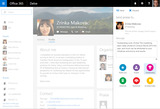
First, click + Praise. Write your message and click Send. The recipient and their manager will receive an email notification, and your Praise shows up on their Profile page.
Praise is rolling out into Office 365 First Release customers in the U.S. starting today and is expected to roll out to all Office 365 commercial customers in the near future.
Learn more on how to recognize your colleagues with Praise.
Create new pages in SharePoint Online to express yourself
Creating new, beautiful, multimedia-rich pages in SharePoint Online has never been easier. The new authoring canvas is rolling out to all eligible Office 365 commercial customers starting today. Accessed from the Delve Profile tab, the authoring canvas allows you to edit and view pages and auto-save as you work. And because it’s integrated across Office 365, it’s easy to embed documents inline from OneDrive for Business or SharePoint Online Document Libraries, videos from the Office 365 Video portal—now with inline playback—and even images from your C:\ drive. Once published, new pages appear as new, discoverable content in other people’s Delve activity feeds. And to the consumer of the new page, it will be viewable across devices with beautiful, responsive design—keeping everything inline and in context without opening a bunch of tabs and windows.
Today the authoring canvas supports blogging within the enterprise, with plans to enable creation of new pages throughout Office 365 in the future. Get your typing fingers fired up—the intranet is your oyster awaiting your pearls of wisdom.
Watch this two-minute video showing how easy it is to write, embed and publish a blog post within your intranet:
Collect content by adding to Favorites
"Now that’ll be useful," you say to yourself. "I’ll want to save that for later." In comes Favorites, a new way within Delve to easily save information you want to come back to later. When you see something in your activity feed that piques your interest, you can hover over the card and click the star in the upper-right corner. When you want to get back to your favorites, you can visit the new Favorites tab in your ME view in the left-hand navigation. Once you’ve read or shared it, it’s just as easy to remove the item from your Favorites tab.
Favorites are only visible to you and can be quickly accessed through your ME view in Delve.
The Favorites feature has been available in the Delve mobile app for iOS, and starting today, Favorites is rolling out in the Delve browser experience to Office 365 First Release customers.
Learn more on how to add to Favorites.
What’s coming next…
We’re really excited to bring you these new people experiences in Delve and Office 365 and we plan to continue innovating in this area, which will roll out to the service automatically when the new features are ready. Currently, we are looking at methods for people to customize their profile page and continuing to improve the overall Delve user interface.
If you have an idea for a future Office 365 People Experience feature, please visit our Delve UserVoice page and submit your feedback using the People Experiences category tag. And vote items up! You will see us continue to iterate and build more and more of what you tell us you need.
—Mark Kashman, senior product manager on the Office 365 team
Frequently asked questions
Q. When will I see these new features in my tenant?
A. As of the publish date of this blog post, Praise is rolling out to First Release customers in the U.S. and Favorites is rolling out to First Release customers worldwide. The authoring canvas is rolling out to Office 365 commercial customers worldwide starting today and will take a few weeks to show up for all eligible customers.
Q. Will my blog posts, originally created within SharePoint Online My Sites, continue to exist once the new Blog platform rolls out?
A. Previous blog posts created within SharePoint Online My Sites will become accessible from the new Blog home page in your personal profile. Once it ships, the new Blog home page and authoring canvas platform will replace the My Site blog technology, and all new blog posts will be created using the authoring canvas.
Q. Can I turn off Praise?
A. During the First Release phase of rollout, it will not be possible to opt out. However, as we prepare to move beyond First Release, we are planning to enable a method for admins to control whether or not users have access to give and receive Praise.
The post Office Delve adds Praise, Favorites and enhances content creation appeared first on Office Blogs.
Office Blogs
.
Blog
.
<span class='date ' tip=''><i class='icon-time'></i> Dec 05, 2015 12:06pm</span>
|
|
Visio is the industry-leading diagramming solution used by over 12 million users, and today we’re thrilled to share our latest innovations with you.
Visio 2016 makes it easier for everyone to define business processes, document best practices, visualize the future state of transformative initiatives and stay on top of operational insights. Using Office 365, you can share these Visio diagrams with everyone and communicate one version of the truth to drive organization-wide alignment.
Visio 2016 offers starter diagrams, hundreds of smart shapes, one-step data linking, Information Rights Management (IRM) for compliance and so much more. Working visually is now faster and easier than ever.
Get started quickly
When starting out, the new Visio offers a set of pre-crafted starter diagrams and contextual tips and tricks to help you easily create, edit and complete your diagram.
These quickly executable diagrams are available in 15 of the most popular domains (flowcharts, timelines, workflows, etc.) and will inspire and guide you from start to finish.
The new built-in Tell Me support helps you navigate more than 800 commands in Visio. Just ask Visio how to do something and the relevant commands are displayed in a simple drop-down list. You can execute the command just by clicking one of the options listed. Now even new users can leverage the full capabilities of Visio.
Be productive and compliant
Visio offers thousands of shapes that meet industry standards, including BPMN 2.0, UML 2.4 and IEEE (new). Whether you want to map out an IT network, build an org chart, document a business process, draw a modern floor plan or capture a flowchart from a whiteboard, the new Visio can help you work visually and stay compliant.
Here are some examples:
One-stop process modeling.
Updated office layout template with modern style.
IEEE-compliant electrical diagram.
Easily connect data to diagrams
With Visio, you can link diagrams to popular data sources such as Excel, Active Directory, SharePoint and SQL Server to display data on top of real-world visuals. For example, you could depict an assembly line in Visio and connect different components of that diagram to real-time operational data. Data-linked diagrams can update automatically and will display different icons, symbols and colors to reflect changes in the underlying data.
The Visio 2016 Quick Import capability now makes it easy for anyone to link data to real-world diagrams, plans and processes. With a single click, the new Visio can automatically identify the data source, import the data, link that data to shapes and apply data graphics. With one-step data linking, you can easily turn diagrams into dashboards and monitor progress or performance in real time.
Visio 2016 also makes it easy to swap out the graphics to your preference with a single click and make your data easily digestible.
Collaborate with confidence
More than ever before, our day-to-day work involves collaborating with others. This means sensitive information within diagrams requires new levels of protection. Visio 2016 now supports Information Rights Management (IRM) and lets you control document rights at the individual user level.
With Visio 2016 you can work visually, leverage data and protect sensitive information like never before. Experience the new Visio for yourself by starting your trial of Visio Pro for Office 365 now!
Want to learn more? Test drive the new Visio.
—Stella Lin, senior product marketing manager for the Visio team
The post The new Visio is here—work visually appeared first on Office Blogs.
Office Blogs
.
Blog
.
<span class='date ' tip=''><i class='icon-time'></i> Dec 05, 2015 12:05pm</span>
|
|
Today’s post was written by Kirk Koenigsbauer, corporate vice president for the Office Client Applications and Services team.
Editor’s note 11/19/2015:
This post was updated to clarify the system requirements.
Editor’s note 10/15/2015:
This post was updated with information regarding how to upgrade to Office 2016.
We are thrilled to see the positive response for the launch of Office 2016 last week. We’ve received a ton of great feedback and wanted to address some of your top questions:
How do I get Office 2016 for Windows if I’m an Office 365 customer?
As an existing Office 365 subscriber, Office 2016 is immediately available to you, and based upon your plan, you can choose to manually update or wait for the scheduled automatic update. Below are links to instructions to manually update to Office 2016:
Office 365 Home, Personal or University customers will receive automatic update notifications in the coming weeks. For manual update instructions, please see How to update to Office 2016 using Office 365.
Office 365 Business and Business Premium customers will receive automatic update notifications later this calendar year. For manual update instructions, please see How to update to Office 2016 using Office 365 for Business.
Office 365 ProPlus (including E3/E4) customers are typically managed by an IT department and they determine when to deploy Office 2016. Please contact your IT department for your company’s specific timeline. Manual updates are available for download by Office 365 administrators. Please see Prepare to update Office 365 ProPlus to the Office 2016 version for more information.
How do I get Office 2016 for Mac?
Office 365 Home, Personal and University customers can browse to your MyAccount page on their Mac, sign in and follow the installation instructions.
If you have Office 365 through your organization, go to portal.office.com/OLS/MySoftware.aspx.
New customers can get Office 2016 for Mac with an Office 365 subscription or as a one-time purchase option at office.com/mac or through your software retailer.
Can I get Office 2016 without an Office 365 subscription?
Yes, one-time purchase options are available for both the Windows and Mac versions of Office 2016 from your software retailer and the Microsoft Store.
When will Volume Licensing customers be able to get Office 2016?
Volume Licensing customers will be able to download Office 2016 from the Volume Licensing Service Center beginning today, and Home Use Program (HUP) customers can install Office 2016 beginning on October 7, 2015. MSDN Subscriptions customers can download Office 2016 now.
5. I just bought Office 2013 or Office for Mac 2011. How do I upgrade to Office 2016?
If you recently activated a qualifying Office 2013 or Office for Mac 2011 product, you’re eligible for the equivalent Office 2016 edition for a $40 USD upgrade fee. Please refer to the Special offer for customers wanting to upgrade from Office 2013 or Office for Mac 2011 to Office 2016 or Office 2016 for Mac support article.
6. Are there system requirements I should be aware of when installing Office 2016?
Yes, Outlook 2016 requires Exchange Server 2010 or later.
Additionally, Office 2013 Click-to-Run standalone applications, including Project and Visio, cannot run on the same device as Office 2016 Click-to-Run applications. We do have a workaround with a generous offer. Please refer to the Special offer for customers with Office 2016 and Office 2013 standalone applications support article.
7. Can I install a subset of the Office 2016 applications?
No, the ability to selectively install individual applications is not available with Office 2016. The vast majority of customers prefer the full installation of all of the Office apps so they are assured that they have the ability to open, view and edit any document they may need. We will continue to evaluate feedback on this topic.
8. What features are only available with Office 365?
Some of the features in Outlook 2016 such as Clutter and Office 365 Groups require Office 365 email and calendaring support. GigJam, Planner and Delve are only available to business customers through the Office 365 portal. Some qualifying Office 365 subscriptions also include support for unlimited online meetings, 1TB of cloud storage per user, and team websites. We will also be providing additional updates and new features to Office 365 customers on a monthly basis going forward that will not be available to those who buy Office 2016 as a one-time purchase option.
9. I have a technical problem. How do I get help?
The best place to start is support.office.com, where you’ll find information about known issues, top solutions, and how to contact support.
10. How can I request a new feature?
You can submit your feature request on the new suggestion box service for each application: uservoice.com, excel.uservoice.com, powerpoint.uservoice.com, outlook.uservoice.com, sway.uservoice.com and onenote.uservoice.com.
Thank you again for the incredible response to Office 2016. The team is already hard at work on the first update for Office 365 customers, and we’ll share more information on this blog soon. Please keep sending us your questions, feedback and suggestions—it’s very helpful as we prioritize what you want, so that we can create the best Office experience for you.
The post Your top questions about Office 2016 answered appeared first on Office Blogs.
Office Blogs
.
Blog
.
<span class='date ' tip=''><i class='icon-time'></i> Dec 05, 2015 12:05pm</span>
|
|
In a world where more than 30 million people work from home at least one day a week, the virtual workforce is rapidly becoming the rule, rather than the exception. And whether you work from your home office, your favorite coffee shop or your kitchen table, chances are good that online collaboration is critical to just about everything you do.
Of course, working with people who may be a city, state, time zone or country away can be tricky, but with a few simple tips, a little patience and a steaming mug of caffeinated goodness, you can probably get more done at home than at the office. In fact, according to a study by the Telework Research Network, more than two-thirds of employers report increased productivity among their teleworkers.
So let’s take a look at seven of the best ways to make seamless online collaboration a reality:
Identify roles and responsibilities—Whether you’re working virtually or in the same office, if your team doesn’t know who’s responsible for what—and when—chaos ensues. Before starting any group project, make sure that everyone knows who’s managing the project, who’s doing what and when it’s due.
Instant messaging—Find an instant messaging service that works across devices, including laptops, desktops, tablets and mobiles. This way, you can have quick conversations with your colleagues—no matter where they are or what type of device they’re using. You can also use IM to connect with colleagues socially. It’s amazing how a few minutes of banter from time to time can help you build a personal relationship with a colleague who is hundreds of miles away. Just a little effort like this can go a long way when it’s time to ask someone for help, information or advice.
Collaborative software—This may be an obvious suggestion, but it’s surprising how many organizations lack software that makes real-time collaboration on documents possible. By finding software that allows team members to co-author or work simultaneously on the same document, you can ensure that everyone has access to the latest version, and can knock out deliverables in less time.
Virtual meetings—When you need to get the team together and bring everyone up to speed on a project, idea or development, use a meeting service that allows for screen sharing. This way, you can keep people engaged (and away from their mountain of laundry that they need to fold) and share your point precisely.
Check your ego—Collaboration is about bringing people together to support a common goal. You naturally have experience in areas that others do not, and vice versa. Allow your team members the same courtesy you’d expect and give everyone the chance to shine.
Be accountable—Whether you are running the project or just have a role in completing it, when you’re collaborating online it’s important for your team to know what you’re working on and that you’re on track for an on-time delivery. By communicating this type of information and living up to your commitments, you can not only build trust, but help team members prepare for the next phase of the project.
Be yourself, but reconsider sarcasm—Behaving like a task master or corporate drone will only get you so far before your colleagues start avoiding your emails and IMs. So don’t let your personality fall by the wayside just because you’re communicating in writing. After all, when your coworkers like you (and realize that they can count on you to get the job done on time), they’ll actually WANT to work with you. That said, if sarcasm is your basic M.O., you might want to reconsider using it in writing. Some things just don’t translate well in email and IM, and sarcasm is one of them.
The right online collaboration tools, the right attitude and a killer collection of comfy clothes make working remotely a dream. However, with the wrong technology and teams you can’t communicate with (or trust), it can be a living nightmare. So before you start working remotely or managing remote teams, make sure that you have the tools you need to work together and run projects as you would if you were in the office. But most importantly, muster the discipline necessary to do the work properly and on time—no matter where you are.
Learn how the new Office enables teams to collaborate better than ever.
The post 7 secrets to successful online collaboration appeared first on Office Blogs.
Office Blogs
.
Blog
.
<span class='date ' tip=''><i class='icon-time'></i> Dec 05, 2015 12:04pm</span>
|
|
The worldwide release of Office 2016 for Windows on September 22 was another milestone in pursuit of Microsoft’s company ambition to reinvent productivity and business processes.
To help making upgrading to Office 2016 a seamless experience for Office 365 customers, we also delivered resources to assist users, developers and IT pros, including a set of Quick Start Guides to introduce users to the newest versions of Microsoft Word, Excel, PowerPoint, Outlook and OneNote. We also provided guidance for businesses and introduced a new model to help administrators manage and deploy regular updates. And we gave developers detailed information about the new capabilities in Office 2016.
In conjunction with the release of Office 2016, we introduced the collaboration tool Groups in Outlook 2016 and a new mobile app called Outlook Groups. We also announced that Office 2016 supports Data Loss Prevention (DLP) in Excel, Word, PowerPoint and Outlook, scanning documents for defined sensitive information, and we started rolling out DLP for OneDrive for Business and SharePoint Online.
Office 2016 wasn’t the only big news during the past two weeks, however, because we also continued to add other new features and improvements to Office 365. We introduced Office 365 Planner, which makes it easy for your team to create new plans, organize and assign tasks, share files, chat about what you’re working on, and get updates on progress. We also introduced Invite, a new smartphone app that makes it easy to organize meetings on the go, and we took a page from social networking by adding Like and @Mention to workplace email in Outlook on the web. In addition, we announced the acquisition of several apps and add-ins for Project Online from our partners, to enable mobile project and portfolio management.
And just this week, we announced that Azure ExpressRoute for Office 365 is now available from several network operators, enabling organizations to establish a private, managed network connection to Office 365 as an alternative to connecting over the Internet. This direct connection offers customers more predictable network performance, an SLA for guaranteed availability and additional data privacy.
The more you learn about Office 365 and Office 2016, the more reasons you have to make these premier productivity tools an integral part of your life and your business.
Below is a roundup of some key news items from the last couple of weeks. Enjoy!
Office 2016 review: Microsoft makes mobile-first, cloud-first a reality—Learn how Office 2016 and Office 365 are making Microsoft’s mobile-first, cloud-first vision real.
For Office 2016, teamwork is everything—Find out how Office 2016 enables teamwork and collaboration.
Office 2016 takes the work out of working together—Discover how Office 2016 improves teamwork and collaboration.
Pandora opens up pathways to teamwork and productivity using the new Office—Learn how a global jewelry company uses Office 365 and Office 2016 to improve teamwork, boost productivity and support its growing business.
Preparing tomorrow’s workforce in the classrooms of today—Find out how Georgia State University is using Office 365 to deliver 21st century education.
At AON, collaboration is key—Discover how AON, one of the world’s leading providers of risk management and human resources solutions, is using Microsoft Office 365 to help its global workforce connect and collaborate.
The post Office 365 news roundup appeared first on Office Blogs.
Office Blogs
.
Blog
.
<span class='date ' tip=''><i class='icon-time'></i> Dec 05, 2015 12:04pm</span>
|