Blogs
|
In July, we announced Send for iPhone for Office 365 business and education customers. Since then, we’ve seen a great response and have been busy adding new features based on your feedback. Users were eager for Send to be available more broadly, so today we’d like to introduce the Send for Android preview. In addition to U.S. and Canada, we’ve also brought Send for iPhone and Android to app stores in the UK, Brazil and Denmark. With today’s updates, even more people can take advantage of Send’s simple, quick text message-like experience when connecting with coworkers, customers and classmates on the go.
It has been a busy month for Send—the app that feels like texting and works like email. Since the launch, we have been listening closely to your feedback and opinions, and have responded by making the app even more useful for you. We added the ability to delete conversations, add people to conversations, send direct messages to people from a group conversation, share your location, make a phone call and more. We have also added support for GIF sharing! Sometimes a simple GIF can express more than words ever could.
Send has been welcomed by universities, organizations with office workers and organizations with a mobile workforce. We’ve heard the app is improving communication flow around offices, campuses and other workplaces, because it’s based on a universal platform that everyone has access to—email. You told us that Send is a much-needed alternative to the consumer chat applications that can find their way into an organization.
As well as new features, our customers have been asking us to increase the availability of Send. Specifically, there are requests for Send to be on more platforms and available in more countries. With this in mind, we have this to share:
First, we are releasing a preview version of Send for Android phones with 4.2 and up. The app is available now and will stay in preview status while we bring it up to speed with its iPhone counterpart. Many of you are also requesting a Windows Phone version, which we are currently working on.
Second, in addition to U.S. and Canada, we also brought Send for iPhone and Android to app stores in the UK, Brazil and Denmark. If you’re in one of these countries, we’d love for you to download and try Send today.
We want to take this opportunity to say "Thank you" to all of the early adopters of Send and "Welcome aboard" to those of you who are just joining. As always, feel free to tell us your thoughts, opinions and feature requests through UserVoice. We’ll continue to listen and improve the app based on your feedback.
The post Expanding the availability of Send appeared first on Office Blogs.
Office Blogs
.
Blog
.
<span class='date ' tip=''><i class='icon-time'></i> Dec 05, 2015 12:27pm</span>
|
|
Today’s post was written by Dianne Krause, instructional technology specialist and coach in Wissahickon School District. Dianne is also a Microsoft Innovative Educator expert and master trainer and a professional learning specialist for the Northwest Council for Computing in Education (NCCE).
The school year is off and running! Along with the preparation of bulletin boards, seating charts, classroom procedures and syllabi, it is also important for teachers to consider the go-to digital tools and resources they will rely upon throughout the school year. The five tools and resources outlined below can be utilized by teachers and students in many different classroom settings, grade levels and subject areas for creation, communication, collaboration and so much more.
Tool #1—OneNote and OneNote Class Notebook
As an instructional technology specialist in support of a 21st-century teaching and learning one-to-one laptop initiative, OneNote is part of my daily life, both in and out of school. Teachers, students and administrators in my district view OneNote as the backbone of our initiative and our digital educational lives. OneNote is the primary organizational tool in my school when it comes to the "business" of school through faculty manuals, collaborative project and lesson planning, data collection and team meeting notes.
WMS faculty manual OneNote Notebook
For teaching and learning, OneNote serves as a digital binder that pulls together all curricular materials and student work. But that is just the tip of the iceberg to what OneNote and OneNote Class Notebook can do in your classroom. Teachers can deliver engaging and interactive content easily and efficiently to their students using the built-in Content Library. Students can then pull the teacher-created pages into their own section of the notebook to complete work, annotate text, insert images, link notes and draw with digital ink. A great feature of the Class Notebook is that the teacher has immediate access to all student work in their individual sections and can provide on-going, detailed and specific feedback to each student privately, through text, ink, audio or video recording. Class Notebooks also have a Collaboration Space through which all students and teachers with access to that notebook can collaborate, communicate and create together. OneNote really is the ultimate classroom tool!
Example of a Class Notebook
OneNote Collaboration Space
Be sure to check out onenoteforteachers.com to learn about OneNote and its use in school—and don’t forget—OneNote is free on all devices!
Tool #2—Office Mix
Whether you teach kindergarten or AP Calculus, or anything in between, Office Mix is for you. Office Mix is a free add-in to PowerPoint through which teachers and students can enhance and amplify their presentations to add interactivity and engagement. Office Mix offers voice and screen recording, digital ink annotation, video embedding, polling capabilities and content creation. Delivery is not only easy and efficient, but highly motivating to the end users—the students! In addition to the polling and questioning apps, there is a large variety of third-party apps, including Khan Academy, CK-12 and PhET, which can be searched and easily embedded into the Mix. That’s just the beginning though! Once the students go through the Mix and complete the embedded activities, teachers can view the analytics and data tied to the Mixes at a variety of levels. Teachers have the ability to view data by slides, visitors or exercises and drill down to the student level. At the student level, they can view how long each student remained on each slide and their responses to the questions posed. Talk about data-driven instruction! Although Office Mix is an excellent tool for any classroom, many educators believe it is THE ANSWER for the flipped or blended learning environment. Also remember, it’s not just for teachers! Students too can get "in the mix" to demonstrate their learning or teach a new concept to their classmates and ask questions of them to see if they were listening!
To get Office Mix visit mix.office.com, and to learn more about using it in your classroom, visit mixforteachers.com.
Office Mix ribbon
Tool #3—Sway
As the newest member of the Office suite, Sway has swept me away with its ease of use and beautiful end result. In just minutes, teachers and students can create stunning visual presentations with a unique web URL that can be easily shared for viewing or collaboration. By adding interactive content such as photos, videos, audio files, Twitter feeds, charts, documents and maps, students can easily demonstrate their learning and present their thoughts and ideas without having to spend a lot of time on the presentation itself. Don’t let the ease fool you though; there are many choices to choose from for different colors, fonts, layouts and navigation. In fact, Sway will suggest colors based on the images you have chosen, and there is a handy "Remix" button that randomizes the layout, colors and fonts for you. As it is web-based, Sway embraces the power of the Internet and automatically provides suggested search results to help you find relevant images, videos and other content. There is no need to leave Sway to find the content you want and need. Since Sways can be easily shared and are designed to look great on any device, they are a great way to share student learning with parents and faculty.
Don’t miss the new Sway tutorial videos and start Swaying today!
Tool #4—Skype
How have you connected your classroom with the world? With Skype and Skype in the Classroom, it is easier than ever to connect your students with other teachers, classrooms, experts and projects to help break down the walls of your classroom to bring the world in. Not sure where to start? Play Mystery Skype with another classroom from somewhere around the world. It is a fun and easy way to get started with Skype and provide global opportunities for your students.
Tool #5—Microsoft Educator Network
Learning and using tools and resources from tutorials and websites is an awesome way to be a lifelong learner, but learning from and with others is the true hallmark of a 21st-century educator. The Microsoft Educator Network provides today’s educators access to a plethora of resources, including hot topics blogs, discussion communities, professional development courses, quick tip videos, tutorials, learning activities and opportunities for educators. In addition, the Microsoft Educator Network provides access to a host of free Microsoft tools and resources and the Bing in the Classroom daily lesson plans based on the Bing image of the day. Join the Microsoft Educator Network today!
Microsoft Educator Network provides free tools for teachers.
You can follow me on Twitter, read my blog or visit my website and Sway. I would love to hear how you are using these and other Microsoft tools to impact creation, collaboration and communication this school year!
—Dianne Krause
The post Top 5 back-to-school tools for creation, collaboration and communication appeared first on Office Blogs.
Office Blogs
.
Blog
.
<span class='date ' tip=''><i class='icon-time'></i> Dec 05, 2015 12:26pm</span>
|
|
We’re excited to release our newest OneNote for iOS update, which adds support for several new features of iOS 9, spiffs things up for the upcoming iPad Pro and Apple Pencil and—as always—has numerous improvements in response to customer feedback.
If you thought our August update was big on small improvements, it’s because we were laboring behind the scenes to get everything prepped for this release.
Twice as nice with iOS 9
With Split View, you can have OneNote open side-by-side with another app, making it easier than ever to take notes while watching a lecture, reviewing slides or reading a paper for class.
Slide Over enables you to open OneNote atop another app and jot down whatever strikes your fancy without interrupting your current task.
Search your notes with Spotlight
We’ve added support for Spotlight to OneNote on iOS 9. Pop open search and start typing to jump directly to your notes. We’ll even search through images, PDFs and handwriting.
Pencil it out on iPad Pro
Prepare your sharpener for November—we’ll have Apple Pencil and iPad Pro support ready, waiting for you.
Better UI support for Arabic and Hebrew in iOS 9
Support for Arabic and Hebrew has been greatly improved with the addition of mirrored UI; your text is no longer the only thing that’s right to left.
Pick a side…any side (for the page list)
Previously, we moved the page list to the left side of the screen to improve handwriting for right-handed users. You can now choose to have it on the right or the left side. Twice as many choices, 100 percent more satisfied lefties!
Bugs zapped
In the last release, our typographically inclined users let us know we hadn’t lived up to our excellent reputation for font rendering. We dug out our linoleum blocks and resolved the issue (a fix for Mac is in the pipeline).
Additionally, we were a bit too fond of trips down memory lane, prompting you to sign in…repeatedly. Like your notes, your sign-in information will be fastidiously remembered.
Last month today
We added Page Previews to Landscape mode, and many customers rightly noted that we didn’t add a setting to turn them off and on. Now you can; we added a switch in settings.
Excited about all the changes? Don’t already have OneNote? Get it here.
As always, we appreciate your feedback. Please continue to give us input and ideas at the OneNote feedback site, onenote.uservoice.com.
—Ryan McMinn, product manager for the OneNote team
The post OneNote adds support for iOS 9 and iPad Pro with multitasking, Spotlight search and Apple Pencil appeared first on Office Blogs.
Office Blogs
.
Blog
.
<span class='date ' tip=''><i class='icon-time'></i> Dec 05, 2015 12:26pm</span>
|
|
Traditional content migrations to SharePoint Online and OneDrive for Business can sometimes require lengthy data uploads over the network. The Office 365 Import Service enhances the document migration experience to SharePoint Online and OneDrive for Business by making it:
Fast—Save time in migrating data to Office 365 by copying it to hard drives and shipping them rather than using the network to upload large amounts of data. However, if you prefer to use the network, especially for uploading smaller data sets, our new migration pipeline is faster than traditional migration methods by an order of magnitude.
Simple—A free tool is available to package up your on-premises SharePoint or file share content and prepare it to be imported into Office 365.
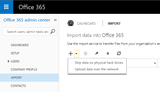
To take advantage of the Office 365 Import Service, first prepare the content and manifest packages based on content from an on-premises file system or SharePoint using the preparation tool. Once that is complete, simply navigate to the Import tab in the Office 365 admin center and create a new drive shipping or network upload job.
From there, load the data onto drives and ship it to us using the address listed in the Office 365 admin center or upload the data to the specified location. Once your data is received, it is automatically imported into your tenant in SharePoint Online and OneDrive for Business. You’ll be able to monitor the process in the Office 365 admin center.
Visit the TechNet article for more details and start using the service today.
Frequently asked questions
Q. What happens to my data?
A. Behind the scenes, the Office 365 Import Service uses the Azure Import/Export service. Azure provides secure datacenters located throughout the world to enable you to ship or upload your data to the location closest to you. When you upload your data or ship your drives, the data is temporarily staged within Microsoft Azure until it is imported into SharePoint Online and OneDrive for Business. All hard drives are encrypted with BitLocker protection, and the BitLocker key is sent separately from the drives. This protects them in the event they are lost or stolen in transit. If you choose to physically ship hard drives to Microsoft datacenters, they will be returned to you once the data has been imported.
Q. How do I enable the O365 Import Service for my tenant?
A. You don’t have to; the service is already turned on and available. We are working on enabling the service for both Office 365 Dedicated customers and SharePoint Online hosted in the Brazil, China, Japan or Australia datacenters.
Q. How much will the service cost?
A. There is no cost to participate in the preview, which is available now. After preview, Office 365 customers will be able to purchase the service through a separate Office 365 offer.
Q. Where can I get more details?
A. You can find all the details about the Office 365 Import Service in this TechNet article.
The post Office 365 Import Service—migration to SharePoint Online and OneDrive for Business just became easier appeared first on Office Blogs.
Office Blogs
.
Blog
.
<span class='date ' tip=''><i class='icon-time'></i> Dec 05, 2015 12:25pm</span>
|
|
In this episode, Richard DiZerega talks to Venkat Ayyadevara about the new unified APIs for mail/contact/calendar and the converged consumer/commercial app registration and authentication offered in Azure AD’s "v2" application model.
http://officeblogspodcastswest.blob.core.windows.net/podcasts/EP63_OutlookConverged.mp3
Download the podcast.
Weekly updates
Office 2016 Launch on September 22 by Julia White
Add-in samples moved to GitHub
Office Dev Show Episode 10—File Handlers and Smartsheet with Sonya Koptyev, Dorrene Brown, Joe Adamson
Office Dev Show Episode 11—Getting Started AngularJS with Sonya Koptyev, Richard diZerega
Sending WebHooks with ASP.NET WebHooks Preview by Henrik F Nielsen
Multi-Tenant Followup: Azure AD in Django with Python Social Auth by Elliott Miller
Connecting Office Add-ins created using the Yeoman Office Generator to Office 365 by Waldek Mastykarz
Show notes
Getting Started with Mail, Calendar, and Contacts REST APIs
Unified Outlook.com/Exchange Online APIs
The Converged Azure AD v2 App Model
Got questions or comments about the show? Join the O365 Dev Podcast on the Office 365 Technical Network.
The podcast RSS is available iTunes or search for it on "Office 365 Developer Podcast" or add directly with the RSS†http://feeds.feedburner.com/Office365DeveloperPodcast.
About Venkat Ayyadevara
Venkat is a program manager at Microsoft on the Outlook team and owns the mail, calendar, and contact APIs for Office 365, Exchange, Outlook.com. He has been at Microsoft for over seven years and has worked on the developer platform, server-to-server OAuth framework, an Exchange protocol-aware request-routing frontend, Outlook Web App, and a recent transport for Outlook/Exchange connectivity called MAPI over HTTP. Prior to Microsoft, Venkat worked at Amazon Web Services, Evoxis (a startup in Pittsburgh, PA), and Trilogy Software in Austin, TX. He lives in the Seattle metro area and enjoys reading about current affairs, watching murder mysteries and music of all varieties.
About the hosts
Jeremy is a technical product manager at Microsoft responsible for the Visual Studio Developer story for Office 365 development. Previously he worked at AvePoint Inc., a large ISV, as the chief architect shipping two apps to the Office Store. He has been heavily involved in the SharePoint community since 2006 and was awarded the SharePoint MVP award four years in a row before retiring the title to move to Microsoft. You can find Jeremy blogging at www.jeremythake.com and tweeting at @jthake.
Richard is a software engineer in Microsoft’s Developer Experience (DX) group, where he helps developers and software vendors maximize their use of Microsoft cloud services in Office 365 and Azure. Richard has spent a good portion of the last decade architecting Office-centric solutions, many that span Microsoft’s diverse technology portfolio. He is a passionate technology evangelist and frequent speaker are worldwide conferences, trainings and events. Richard is highly active in the Office 365 community, popular blogger at†www.richdizz.com, and can be found on twitter at @richdizz. Richard is born, raised and based in Dallas,TX but works on a worldwide team based in Redmond. In his spare time, Richard is an avid builder of things (BoT), musician, and lightning fast runner.
Useful links
Office 365 Developer Center
Blog
Twitter
Facebook
StackOverflow
http://aka.ms/AskSharePointDev
http://aka.ms/AskOfficeDev
http://aka.ms/AskOffice365Dev
Yammer Office 365 Technical Network
O365 Dev Podcast
O365 Dev Apps Model
O365 Dev Tools
O365 Dev APIs
O365 Dev Migration to App Model
O365 Dev Links
UserVoice
The post Episode 063 on unified authentication and Outlook APIs—Office 365 Developer Podcast appeared first on Office Blogs.
Office Blogs
.
Blog
.
<span class='date ' tip=''><i class='icon-time'></i> Dec 05, 2015 12:25pm</span>
|
|
Editor’s note 9/18/2015:
The FAQs were updated to provide additional information about the Office 365 Admin Center Preview.
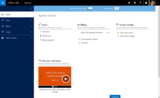
Our mission is to empower you to achieve more. For Office 365 IT administrators, this means improving the experience of the Office 365 Admin Center so that it is more delightful to use, by making it more intuitive, informative, scalable and insightful.
Introducing the new Office 365 Admin Center Preview
We started with a clean sheet and looked at how we could truly modernize the experience. We focused on simplifying the dashboard and how you access the tools. We targeted on making it easier to complete common tasks without having to leave the dashboard—whether it’s adding a new user, resetting a password or even simply checking your monthly bill. By focusing on making the experience more intuitive, you will achieve more by quickly getting through your needed administrative tasks—no more searching.
We realize that technology can be complex, and you may not be familiar with all the terminology and tools that are available. We are here to help by providing more informative ways of accomplishing your administrative tasks. We will introduce you to new features as they become available and provide detailed guidance so that you can easily follow the latest changes.
There’s still more to come
Since we are still early in our journey, not all the features are available yet. This is an early peek and there is much more to come. We are continuing to invest in providing you with tools to help you drive your organization to achieve more. Even though we are simplifying the experience, we are by no means removing capability. You will have the ability to customize your dashboard to surface the tools that are the most relevant for your organization. The left navigation menu lets you dive deeper into the advanced tools and controls and continue to give you access to specialized portals, such as the Exchange Admin Center. For Office 365 admins that require more advanced functions, your features will still be there.
In addition, we are also investing in helping your organization become more productive. Office 365 can only help your organization achieve more if your users are using the tools. To help you ensure that your users are maximizing your ROI in Office 365, we will begin surfacing reporting usage dashboards that will help you get a better view of how your organization is using Office 365. If you need additional information, you will have the ability to drill down to get details so that action plans can be devised. We will continue to invest in providing more tools to inform you of how your organization is using Office 365.
Try it out and send us feedback
Today we are embarking on a journey to improve your administrative experience. The rollout will start with a set of small business and First Release customers. It’s an early peek and not all of the features are available yet. We are looking for your feedback so that we can continue to shape the product into something that will truly help you achieve more. Things will change and there will be updates as we learn from your feedback and get further down the road. Join us on the journey of helping you do more in Office 365.
Stay tuned to Office Blogs and the Office 365 Roadmap for more information.
Frequently asked questions
Q. When will I see the new Office 365 Admin Center Preview?
A. The Office 365 Admin Center Preview will start rolling out today to customers who have opted into First Release as well as some of our small business customers.
Q. How do I access the new Office 365 Admin Center Preview?
A. If your Office 365 subscription has the new Office 365 Admin Center enabled, you would need to sign in to the Office 365 Admin Center with your Office 365 administrator credentials. The preview to the new Office 365 Admin Center can be accessed in the banner at the top of the Office 365 Admin Center dashboard.
Q. How do I provide feedback?
A. There is a feedback widget on the bottom right corner of every screen. Please feel free to continually send us your comments.
Q. Where can I find support in the new Office 365 Admin Center Preview?
A. Support can be found in the classic view of the Office 365 Admin Center. Simply click the link at the top of Admin home in the new Office 365 Admin Center Preview.
Q. I can’t find all the features I need, such as Message Center, in the new Office 365 Admin Center Preview?
A. Since we are still very early into the journey of the new Office 365 Admin Center Preview, not all the features are available yet. To access features that are not yet available in the preview, simply go back to the classic view of the Office 365 Admin Center by selecting the link at the top of Admin home in the new Office 365 Admin Center Preview.
Q. Where do I go for help?
A. Help for the new Office 365 Admin Center Preview is available at aka.ms/new365admin.
The post The new Office 365 Admin Center Preview appeared first on Office Blogs.
Office Blogs
.
Blog
.
<span class='date ' tip=''><i class='icon-time'></i> Dec 05, 2015 12:24pm</span>
|
|
Ted Vu and his business partner, Scott Nguyen, were still in college in 2001 when they launched Tastea as a drink delivery business based in Vu’s garage. They soon started selling their drinks at festivals, where they proved extremely popular with young Southern Californians. Before long they decided it was time to open their first brick-and-mortar location.
The big challenge was money—they didn’t have any. The bank laughed when they asked about a business loan, so Vu and Nguyen maxed out their credit cards, borrowed against their cars and took personal loans from family members who believed in what they were doing.
"And that’s when the hard work began," Vu says. "We hired a contractor to help build our location and bootstrapped wherever we could to conserve costs.
We’ve heard that the less money you have, the more creative you need to be, and that was certainly the case for us." Their vision, tenacity and hard work paid off. Today Vu and Nguyen have three Tastea locations and recently started selling franchises.
Vu writes about the value of creating a strong bond with employees, paying attention to the numbers and sticking to a realistic budget:
"The most important thing we did right was to value our employees from the very beginning. Even though we had little money to start, we treated our employees as family. This created an immediate and loyal bond with our team, which fostered passion, creativity and dedication. As a result, they were our strongest advocates. They spread the word to our target market and played a crucial role in our early success. Remember, this was before lots of social media sites were available to help get the word out—we were entirely dependent on word of mouth, and our employees provided the loudest voices.
Treating all our employees as respected team members translated into our signature customer experience, the consistently positive way our team members serve our customers. Of course, not all our early decisions worked out so well. I wish we’d put greater emphasis on the importance of the numbers: our target sales per hour, the cost of goods sold, labor costs and other key indicators. In the beginning, we had strong sales but not equally strong profits, because we overstaffed and prepped too many perishable ingredients that later went to waste. We finally figured out the right balance, but it took a lot of trial and error, much of which we could have avoided by spending more time analyzing our data."
To read the rest of Ted’s story and the stories of other small business owners like Ted, download our eBook, "What I wish I knew."
The post Tastea’s small business story—east meets west for business success appeared first on Office Blogs.
Office Blogs
.
Blog
.
<span class='date ' tip=''><i class='icon-time'></i> Dec 05, 2015 12:24pm</span>
|
|
This month’s Office 365 Dev Digest was written by Jeremy Thake, technical product manager for the Office 365 Dev team.
Welcome to the seventh edition of Dev Digest, designed to help you—the Office 365 developer—keep up-to-date with what’s new in Office 365 development.
This has been an exciting month of announcements for Office 365 developers. We launched a new Yeoman generator for building Office Add-ins. This is a powerful tool for developers who do not use Visual Studio but are interested in building Office add-ins. You can use it to generate a raw add-in manifest or a full add-in project using either plain HTML/JavaScript/CSS or AngularJS. The Yeoman generator supports all of the add-in types across Outlook mail, task pane and content add-ins.
We also introduced the Office UI Fabric, a responsive, mobile-first, front-end framework for developers, designed to make it simple to quickly create web experiences using the Office Design Language. The Office UI Fabric makes it easy for developers to build add-ins and applications that look like Office. In fact, the framework is used internally on several products within Office 365. The Office UI Fabric is available through GitHub at github.com/OfficeDev/Office-UI-Fabric.
We also announced the general availability of the custom file handler add-ins. This add-in type allows developers to create their own custom viewers and editors for non-Microsoft file types in SharePoint Online, OneDrive for Business and Outlook Web App. Engineering has provided a nice reference sample on GitHub, and full documentation is available on MSDN.
Also, check out the Upcoming Events below to see our full schedule of onsite conferences and training events for the next six months.
I encourage you all to engage with us on the Office 365 Technical Network with your questions.
Dev documentation
The Microsoft Content Publishing team works hard to produce documentation that help developers learn our platform. Here are the key new and updated articles for this month:
Office 365 APIs
Updated File Handler content for general availability:
Overview of Office 365 file handlers
Configure and update file handlers in Office 365
Create file handlers in Office 365
Updated: Office 365 Javascript controls
New: Create pages in the default OneNote notebook in Office 365
SharePoint Add-ins
New Office UI Fabric with SharePoint Add-ins FAQ
All content is updated to reflect the name change from Apps for SharePoint to SharePoint Add-ins
Office Add-ins
Updated design guidelines that are compatible with Office Fabric UI
New Theming API for Office 2016
All content updated to reflect the name change from Apps for Office to Office Add-ins
For more documentation, check out Office developer documentation.
Code samples
Our team is continually on the lookout for new code samples to help you jump-start your own projects. Here is a list of the most recent new and updated samples from Microsoft as well as the dev community.
Seven SharePoint Add-in code samples migrated to GitHub. Examples:
Localize the add-in web, host web, and remote components of a SharePoint Add-in
Access SharePoint data with the Cross Domain JavaScript Library
32 Office Add-in code samples migrated and added to GitHub. Examples:
Outlook Add-in—A mail add-in for a read scenario that checks whether the user is mentioned on the To line, cc line or body of an email
Outlook Add-in—Mail add-in for a read scenario that finds and parses all links in the body of an email
Outlook Add-in—View YouTube videos
Word Add-in—Loading data into custom XML parts bound to content controls in a Word document
Office Add-in—Use Bing Translator and ASP.NET in an add-in
Check out dev.office.com/code-samples to see more.
Most recent Office 365 Dev Podcasts
Since joining Microsoft last year, I have been running around campus interviewing people about various dev topics. If you would like to hear me interview someone on a particular topic, please submit your suggestions in the Yammer group and I’ll go hunt down the relevant people to interview.
Here are the most recent Dev Podcasts:
Episode 063 on Unified Authentication and Outlook APIs
Episode 062 on the Office UI Fabric
Episode 061 on the Office 365 File Handlers
Episode 060 on the new Office Add-in Yeoman Generator
For more podcasts check out dev.office.com/podcasts.
Office Dev Show
The Office Dev Show is our dedicated Channel 9 show focusing on all things Office 365 development-related. The show previews capabilities and features of the Office extensibility platform, as well as facilitating developers getting started building on Office 365 with a variety of technologies. Here are the episodes we have published to date:
Episode 7—Getting Started with Python
Episode 8—Office for iPad Extensibility
Episode 9— Getting Started with Cross-platform Apps
Episode 10—File Handlers and Smartsheet
Episode 11—Getting Started with AngularJS
Stay tuned to the show, publishing new episodes every Wednesday morning.
Patterns and Practices
The Microsoft Patterns and Practices (PnP) team is working hard to release samples to show the power of SharePoint Add-ins. Don’t forget to join the monthly community calls to hear the updates from them directly on monthly releases and future concentration areas. Thanks to everyone who contributed in the previous release of the PnP from the community side. Your input is highly appreciated.
Here are the latest updates from the PnP team:
Updated Transform page on office.com/transform
First year of Office 365 Dev Patterns and Practices (PnP) program blog post
Office 365 Developer PnP—September 2015 release details
PnP September 2015 monthly community call recording at Channel 9
Numerous new videos in the PnP Channel 9 check at Office Dev PnP Videos
Numerous updates and new articles to PnP section in MSDN at Office Dev PnP MSDN
For more on PnP check out dev.office.com/patterns-and-practices. All questions related to released materials and guidance can be asked on our Yammer group at Office Dev PnP Yammer.
Dev Community blog posts
The Office 365 dev community has been busy this month. It is exciting to see the effort people put into their posts in their spare time to share with the community.
Check out these articles from the Microsoft field, MVPs and more:
Graph Organization Explorer Angular by Richard DiZerega
Graph Organization Explorer Windows 10 (UWP) by Richard DiZerega
Announcing availability of SharePoint Server 2016 IT Preview and cloud hybrid search
Connecting and extending Office with Microsoft Office developer tools for Visual Studio
Getting all boards to which a document belongs using the Office Graph by Stephane Cordonnier
The future of client-side development in SharePoint and Office 365 by Eric Shupps
Office UI Fabric—Creating Office Add-ins with Yeoman by Andrew Connell
Matter Center
OData Excel Office Add-in
Mail add-in for Outlook using Office 365 APIs (ADAL.JS, ANGULARJS, WEBAPI, AZURE AD) by Matej Vodopivc
Developers: SharePoint isn’t a platform, SharePoint is a service by Andrew Connell
Episode 092 - Identity Convergence, App Registration Portal and AppModel v2 with Microsoft’s Stuart Kwan
Eight characteristics of an ideal SharePoint customization by Doug Ware
Web add-ins—using Office Open XML to extend the JavaScript APIs by Cindy Meister
Setting properties via EWS on a Draft message is a compose Mail App by Glen Scales
OWA Voting Button Compose App for Office365/Exchange 2016 by Glen Scales
Using Azure Machine Learning with SharePoint by Matthias Einig
LESS SharePoint Add-ins with Mixins by Sonya Madsen
Index web property bag using JavaScript object model-AngularJS in SharePoint online by Vipul Kelkar
Microsoft Cloud Show Episodes 093 Developers SharePoint is not a platform SharePoint is a service by Andrew Connell and Chris Johnson
Architects: SharePoint is a platform, treating it as only a service is a mistake by Doug Ware
IQParts Cloud app compatible web parts using AngularJS and Bootstrap by Doug Ware
Using the SharePoint Client Object Model in AngularJS apps by Doug Ware
Working with the converged Azure AD v2 app model by Richard DiZerega
Building Office 365 apps with Node.js and the Azure AD v2 app model by Richard DiZerega
Using Office UI Fabric in SharePoint Add-ins by Chaks
Open XML SDK Intro by Ryan McIntyre
Microsoft Cloud Roadshow
SPLive360 Nov 16-20
Office 2016 Launch on September 22 by Julia White
Add-in samples moved to GitHub
Sending WebHooks with ASP.NET WebHooks Preview by Henrik F Nielsen
Multi-Tenant Follow up—Azure AD in Django with Python Social Auth by Elliott Miller
Connecting Office Add-ins created using the Yeoman Office Generator to Office 365 by Waldek Mastykarz
Office Store
The Outlook team has stepped up efforts to integrate with leading solutions and to increase the prominence of the Store in Outlook products as well. August saw the addition of four well-known brands to our Mail add-in library: the Uber ride-sharing service, the PayPal electronic-payment service, the popular note-taking service Evernote, and Boomerang. Integrations are in the works with Yelp, Wunderlist and IFTTT (If This, Then That).
Full details are available here, but Boomerang offers a great example of one such Outlook integration.
Boomerang‘s free Outlook integration lets you schedule emails for sending at the optimal time, reminds you to follow up on important messages that don’t get a response, and lets you schedule meetings with a single message by embedding a dynamically updated Free/Busy calendar right within the body of the email that’s visible even to recipients on other mail platforms! Like the other integrations mentioned above, Boomerang works on Outlook 2013, Outlook on the web, and is gradually rolling out to the 400+ million users of the Outlook.com consumer service. Outlook 2016 also features the Store button on the Home ribbon, making discoverability of Store solutions much easier.
Developer marketing
In mid-September, we released our sixth customer-evidence video touting partner solutions, on betterwith.office.com. This newest video shows how a Seattle cloud-integration company, Azuqua, uses the D&B Business Solutions Excel add-in to more quickly qualify their customer leads and close deals, all within the Excel experience. We’ll soon start marketing this video site broadly, and worldwide, to tell the developer value proposition, and we aim to scale this program to include many of our recruited partners in the DX (Developer Evangelism Experience) program.
Upcoming events
There are plenty of events on the horizon. Don’t miss out on these great events with Office 365 content. Our team looks forward to meeting you all at these!
October 12
Unity Connect—Amsterdam
October 14
Dev Intersection—Amsterdam
October 26
Dev Intersection—Las Vegas
November 2-3
Microsoft Cloud Roadshow—Dallas
November 5-6
Microsoft Cloud Roadshow—New York
November 9-12
European SharePoint Conference
November 9-10
Microsoft Cloud Roadshow—Toronto
December 7-8
Microsoft Cloud Roadshow—Singapore
January 26-27
Microsoft Cloud Roadshow—Los Angeles
February 2-3
Microsoft Cloud Roadshow—Mexico City
February 22-23
Microsoft Cloud Roadshow— Dubai
February 25-26
Microsoft Cloud Roadshow—Bangalore
February 29-March 1
Microsoft Cloud Roadshow—London
March 3-4
Microsoft Cloud Roadshow—Copenhagen
March 10-11
Microsoft Cloud Roadshow—Hong Kong
For more events check out dev.office.com/events.
Until next month, please join our community discussions at www.yammer.com/itpronetwork and follow us on @OfficeDev on Twitter and on Facebook.
Also, be sure to follow along with us on our daily developer mission: Jeremy Thake (@jthake), Sonya Koptyev (@SonyaKoptyev), Dave Pae (@davidpae) and Jim Epes (@j_epes).
—Jeremy Thake
The post Office 365—monthly Dev Digest for September appeared first on Office Blogs.
Office Blogs
.
Blog
.
<span class='date ' tip=''><i class='icon-time'></i> Dec 05, 2015 12:22pm</span>
|
|
More than a decade ago, Steve Johanns became fascinated with the idea of figuring out how the energy industry would look if it worked like the Internet, with people everywhere contributing to it. With his cofounder, Dr. Chirinjeev Kathuria, he launched a company to pursue that idea. Veriown, a distributed energy company, is working to extend energy to billions of people who have never had a reliable energy source.
"I believe that the next 20 years will be the most transformative in all of human history," says Johanns, who serves as president and CEO of Veriown. "That’s saying something, considering all that the past 20 years have delivered. But right now companies everywhere are building on advancements in technology and communications, resulting in a convergence like we’ve never seen."
Johanns advises entrepreneurs to take the long view of their business, build a core team that can help the company grow, and learn from their mistakes:
"You may have an idea that works right now, but how will it fare in one, five or ten years? Before getting started, you have to test your idea to make sure it makes sense in the long term and at scale. In other words, don’t just capitalize on the moment—make sure your business concept is sustainable. Once you’ve got a viable concept, the next critical factor is your team. I believe that the core group you start with has a huge impact on your long-term success. Most business owners don’t pay enough attention to that element. Your ‘dirty dozen’—the first 12 people you bring on board—sets the tone for your corporate culture and can affect your next thousand employees. And hiring those initial team members is not just about each person’s résumé or past performance; it’s about having the right blend of heart, passion, dedication, skills and ability to execute."
To read the rest of Steve’s story and the stories of other small business owners like Steve, download our eBook, "What I wish I knew."
The post Veriown’s small business story—harness the power of entrepreneurship appeared first on Office Blogs.
Office Blogs
.
Blog
.
<span class='date ' tip=''><i class='icon-time'></i> Dec 05, 2015 12:21pm</span>
|
|
Recently, we told you about the exciting new features and improvements in Excel 2016 that expand the business analytics capabilities available to you and your company. Today we will tell you about the changes we have made to help you get access to the features that fit your unique needs, including more Office plans that offer advanced analytics functionality.
Giving analytics power to all Excel users
No matter what Office plan you decide to purchase, you can leverage Excel’s powerful data analysis tools to help you discover, organize and analyze the data around you and find the business insights that matter. Rich chart types and easy formatting, a library of powerful functions and fast and flexible PivotTable capabilities are just a few of the core capabilities in every box of Excel 2016. The following are a few of the new features made available in Excel 2016:
Rich charts and visualizations—The powerful new charts, like Treemap and Histogram, enable you to visualize your data in more compelling ways. Power Map, the popular 3D geospatial visualization tool, is now available to all Excel 2016 users and comes with a more intuitive name, "3D Maps."
Easy access to data, using the Power Query functionality—We have integrated the Power Query add-in to be out-of-the-box for all Excel 2016 users. This feature, which used to be reserved for premium plans only, is now available in all Excel 2016 plans, on the Data ribbon under the Get & Transform section. Excel 2016 users can now benefit from the core functionality, connect to data from other CSV and Excel files, import data from public websites, access databases, OData feeds and more. In addition, Excel 2016 users can also now use the powerful Power Query capabilities to transform data in a variety of ways.
New data analysis capabilities in Power Pivot—Since Excel 2013, all users have been able to take advantage of the data model in each Excel workbook to stay connected to large sets of data from different data sources to perform basic data modeling. Several new features have been added to make analysis on these models faster and more flexible. Some key additions include automatic relationship detection, automatic time grouping and inline creation of DAX calculated measures. These new capabilities are now available in all plans of Excel.
Providing more advanced analytics functionality
Excel 2016 provides capabilities that allow you to further enhance your data analysis experiences and share your data and analysis more effectively across your company. These features, usually suitable for professional business analysts, come with all premium plans of Office 2016, including Office 365 ProPlus, Office Professional Plus, Excel 2016 Standalone, and now also in Office 2016 Professional! Here is the list of the advanced analytics features:
Advanced analytics and modeling capabilities with Power Pivot—With the full Power Pivot management UX, you can benefit from advanced modeling capabilities like Diagram View, KPIs, Hierarchies and DAX Calculated Columns.
Advanced connectivity options with Power Query—For corporate users who require advanced connectivity and importing features, we have added the option to connect to corporate, big data and cloud data sources, such as Oracle, DB2 or MySQL database, a variety of Azure data sources, such as Azure SQL Database, Salesforce, Hadoop files and many more.
Advanced collaboration—With an addition of Power BI license, you will also benefit from a corporate data search and will be able to share your import and transformation queries with other analysts within your organization through the means of a Corporate Data Catalog.
New ways to get Excel premium features
With the release of Excel 2016, we have provided two key improvements to our Office plans that make it easier to get these advanced analytics features:
Office 2016 Professional feature updates—Office 2016 Professional includes all of Excel’s business analytics capabilities, making it much easier for you to take advantage of the complete suite as part of a one-time purchase of the Office desktop apps. And if you want to always be at the cutting edge of Excel innovation, you can also purchase the Office 365 ProPlus subscription, which comes with Excel 2016, and receive ongoing updates and new features in the future.
Small business users—Office 365 small business users who are using one of the Office 365 Business plans for most of their organization can now purchase Office 365 ProPlus for users who need the premium features and leave the rest unchanged.
Summary of the Excel 2016 business analytics features
For the sake of clarity, the diagrams below provide a holistic view of business analytics features offered in Excel 2016:
We hope that you’ll find this information useful and as always are glad to hear your feedback.
The post New ways to get the Excel business analytics features you need appeared first on Office Blogs.
Office Blogs
.
Blog
.
<span class='date ' tip=''><i class='icon-time'></i> Dec 05, 2015 12:21pm</span>
|