Blogs
|
Excel is the world’s most widely used and familiar data analysis tool and for good reason! It provides flexibility at each stage of your analytic journey, with tools that support both quick ad hoc calculations and exploration across large data sets. Last month, Microsoft expanded its BI offerings by releasing the latest version of Power BI, a groundbreaking cloud-based business analytics service, which has gained over 500,000 unique users, from 45,000 companies and across 185 countries during the public preview. One question we are asked a lot is, "How does Excel work with Power BI?" Here is an overview of how these tools work together to solve your analytics needs.
Excel 2016 and Power BI are a portfolio of tools that is unique in the industry. Together, they provide a broad set of capabilities that allow business analysts to more easily gather, shape, analyze and visually explore their data. The new Power BI service is a business analytics collaboration and delivery environment where anyone in your organization can bring together data from a wide range of sources—such as Excel workbooks, on-premises corporate data, Azure services and other popular cloud-based offerings like Salesforce.com or Marketo—to view and share it with live dashboards and interactive reports.
Along with this new service, we released Power BI Desktop (previously named Power BI Designer), a visual data exploration and interactive reporting tool that allows business analysts to navigate data quickly across a free-form canvas and easily design dashboards and reports for the Power BI service. And of course, Excel is best for flexible, powerful data analysis—providing a collection of integrated features that enables analysts to shape, model and analyze millions of rows of data within its familiar grid environment.
If you are one of the hundreds of millions of people who use Excel as their analysis and reporting tool today, you should find it easy to begin using the Power BI service and Power BI Desktop to expand the capabilities of your analytic toolset. Excel 2016 and Power BI Desktop are deliberately compatible, using the same underlying technologies—like sharing the same data access capabilities and publishing directly to the Power BI service. Additionally, you can import your Excel workbooks into Power BI Desktop and take advantage of the queries, data models and reports you have already created in Excel. This makes it easy to move between these powerful desktop tools as your business needs change. Power BI enables users to use Excel workbook data to build Power BI dashboards and reports, as well as view and interact directly with rich Excel-built reports through Excel Online.
The design of the new Power BI offerings was based on an incredible amount of customer and partner feedback, ensuring that the experiences worked well for all users. You have also given feedback about the business analytics features within Excel, which has driven us to make several improvements. In addition to providing a set of new charting and analysis capabilities, expect to see the following changes in Excel 2016:
All Excel 2016 users can take advantage of Power Query, our powerful data gathering add-in. We have fully integrated this set of capabilities into Excel—no add-in required—and removed the "power" name. Simply find the Power Query features as part of the data access and management experiences under the "Get and Transform" section of the Data tab.
Similarly, Power Map, our popular 3-D geospatial visualization add-in, will also be integrated fully into Excel. Now with a more descriptive name, "3-D Maps," you can find this functionality alongside other visualization features on the Insert tab.
We heard from you that Power View, our premium free-form interactive reporting add-in, provides a compelling new way to report. You also made it clear that you value the consistent look and feel of the familiar charting experience already in Excel. This feedback helped lead us to develop Power BI Desktop, which is built with the same technology as Power View and provides a dedicated environment for visual data exploration and reporting. New investments in this space will be done in Power BI Desktop, and we encourage users of Power View to take full advantage of the new tool.
With the newest releases of Excel 2016 and Power BI, we are providing a complete, flexible and robust business analytics toolset that works great together. Use these tools to discover the deeper business insights with more speed and power, and spend less time trying to find the right way to share with peers and workgroups. Try our new offerings out, leave your comments below, and share your ideas for improvements and new features.
Preview Excel 2016 now!
Download Power BI Desktop
Sign up to try the Power BI service
The post Helping business analysts take full advantage of Excel 2016 and the new Power BI appeared first on Office Blogs.
Office Blogs
.
Blog
.
<span class='date ' tip=''><i class='icon-time'></i> Dec 05, 2015 12:46pm</span>
|
|
Earlier this week we explained how Excel—the world’s most widely used and familiar data analysis tool—works with the new Power BI and Power BI Desktop to provide business analysts with a powerful portfolio of analytic tools unique in the industry. Today we unbox Excel 2016’s new and improved business analytics features, so you can take full advantage of each capability as it applies to your unique business needs. Excel 2016 improvements have been designed with the analyst’s journey in mind, from gathering to consuming data:
Faster and easier ways to get data
Before analysis can begin, you must be able to bring in the data relevant to the business question you are trying to answer. Excel 2016 now comes with built-in functionality that brings ease and speed to getting and transforming your data—allowing you to find and bring all the data you need into one place. These new capabilities, previously only available as a separate add-in called Power Query, can be found natively within Excel 2016. Access them from the "Get & Transform" section on the Data tab.
Use these capabilities to connect to data from a wide range of sources—like tables in public websites, corporate data in databases and cubes, cloud-based sources like Azure, unstructured data like Hadoop and services like Salesforce—then bring the data into your workbook’s data model or display them as tables within a worksheet.
The Query Editor, which opens when creating a new query or opening an existing one under Get & Transform, provides intuitive data shaping and transformation options, enabling you to prepare a data set with only the information you want to see and in the way you want to see it. Each step you take to transform the data can be repeated and rearranged to help you work faster and more efficiently. When you refresh the data connections, every step you took to transform the data is preserved. And once you have the information prepared, you can share your queries easily with others.
Additional features available under the Get & Transform section include accessing recent sources you’ve used in previous queries and options to combine queries together. With a premium version* of Excel 2016 and a Power BI license, you can also use search to discover corporate data available to you across your company that is shared in a corporate catalog or even share your own queries with others.
Integrating the Power Query technology also provides benefits for programmability. With these features integrated into native Excel, you can use VBA and the Object Model to program a related query and transform actions. And if you need more than the predefined actions provided, you can use the powerful query language (M) to create additional actions and capabilities.
Streamlined data analysis
Excel is known for its flexible and powerful analysis experiences, through the familiar PivotTable authoring environment. With Excel 2010 and Excel 2013, this experience was significantly enhanced with the introduction of Power Pivot and the Data Model, bringing the ability to easily build sophisticated models across your data, augment them with measures and KPIs, and then calculate over millions of rows with high speed. In Excel 2016, we focused on making these experiences more discoverable, consistent and streamlined, so that you can focus less on managing your data and more on uncovering the insights that matter:
Automatic relationship detection discovers and creates relationships among the tables used for your workbook’s data model, so you don’t have to. Excel 2016 knows when your analysis requires two or more tables to be linked together and notifies you. With one click, it does the work to build the relationships, so you can take advantage of them immediately.
Creating, editing and deleting custom measures can now be done directly from the PivotTable fields list, saving you a lot of time when you need to add additional calculations for your analysis.
Automatic time grouping helps you to use your time-related fields in your PivotTable more powerfully, by auto-detecting and grouping them on your behalf. Once grouped together, simply drag the group to your PivotTable in one action and immediately begin your analysis across the different levels of time with drill-down capabilities.
PivotChart drill-down buttons allow you to drill in and out across groupings of time and other hierarchical structures within your data.
Search in the PivotTable field list helps you get to the fields that are important to you across your entire data set.
Smart rename gives you the ability to rename tables and columns in your workbook’s data model. With each change, Excel 2016 automatically updates any related tables and calculations across your workbook, including all worksheets and DAX formulas.
Multiple usability improvements have also been made. For example, delayed updating allows you to perform multiple changes in Power Pivot without the need to wait until each is propagated across the workbook. The changes will be propagated at one time, once the Power Pivot window is closed.
New forecasting capabilities
We also revamped the forecasting capabilities provided in Excel 2016. In previous versions, only linear forecasting had been available. In Excel 2016, the FORECAST function has been extended to allow forecasting based on Exponential Smoothing (i.e. FORECAST.ETS() …). This functionality is also available as a new one-click forecasting button. On the Data tab, click the Forecast Sheet button to quickly create a forecast visualization of your data series. From the wizard, you can also find options to adjust common forecast parameters, like seasonality, which is automatically detected by default and confidence intervals.
New and modern charts
Effective visualizations are critical to effective analysis as well as compelling storytelling. In Excel 2016, we have provided a new set of modern charts with the consistent look and feel of the familiar charting experience that Excel provides natively, to expand the ways to visualize your data.
These new charts—with the same rich formatting options that you are familiar with—help you cut through the tedious work it used to take to create some of the most commonly used business data visualizations, like the Sunburst and Waterfall charts below:
As part of an ongoing effort to provide more value in Excel’s visual offerings, you can expect ongoing updates through Office 365 to deliver even more new charts and visualization improvements.
We have also made our popular 3-D geospatial visualization tool, Power Map, accessible to all Excel 2016 users by delivering its features right out of the box. This innovative set of storytelling capabilities has been renamed to 3-D Maps and can be found along with other visualization tools on the Insert tab.
With the new Power BI Desktop offering, which is built with the same free-form reporting experience of Power View, you can have a dedicated environment for visual data exploration and report authoring. You can expect more investments in this type of reporting experience through this new tool, like new interactive visualizations. If you have Power View reports in Excel and want to continue working on them in Power BI Desktop, simply import your Excel workbook. For those who elect to continue to use Power View in Excel, the feature is fully supported in Excel 2016, and the insert Power View button can be enabled with a few steps.
Publishing and sharing in Power BI
A report is not complete without being able to share it with the right people. Once you’re finished preparing your data analysis, you can share it with your workgroup or clients through Power BI with just one button. Once published to Power BI, use your data models to quickly construct interactive reports and dashboards. With Excel Online support built into Power BI service, you can also display your fully formatted Excel worksheets as well.
Taking advantage of Excel Online
With rich features in Excel Online, your peers and clients are able to view and interact with your Excel data analysis and reports from anywhere. All you need to do is share your workbook through Power BI, SharePoint or OneDrive. Recently, we’ve included new features to make it even easier to consume and interact with your workbook from the web, including Search in Filters and the ability to change the settings of a value field in a PivotTable. With Office 365, we are providing more features and improvements to Excel Online on a regular basis.
Try the new features out for yourself!
With Excel 2016, we have provided enhancements at every phase of your analytic journey. Try each new feature and improvement out now by downloading the Office 2016 Preview for Windows and then share your ideas for improvements in Excel 2016.
* Premium features for Excel 2016 (like corporate data sources and query sharing) can be found in Office 365 ProPlus and other business plans, as well as Office 2016 Professional and Excel 2016 Standalone—more details coming up.
The post What’s new for business analytics in Excel 2016 appeared first on Office Blogs.
Office Blogs
.
Blog
.
<span class='date ' tip=''><i class='icon-time'></i> Dec 05, 2015 12:45pm</span>
|
|
In this episode, Jeremy Thake and Richard DiZerega talk to Andrew Connnell about the new Office Add-in Yeoman Generator.
http://officeblogspodcastswest.blob.core.windows.net/podcasts/EP60_Yeoman.mp3
Download the podcast.
Weekly updates
Office Dev Show Episode 7—Getting Started with Python with Sonya Koptyev and Richard DiZerega
Graph Organization Explorer Angular by Richard DiZerega
Graph Organization Explorer Windows 10 (UWP) by Richard DiZerega
Announcing availability of SharePoint Server 2016 IT Preview and cloud hybrid search
Connecting and extending Office with Microsoft Office developer tools for Visual Studio
Getting all boards to which a document belongs using the Office Graph by Stephane Cordonnier
The future of client-side development in SharePoint and Office 365 by Eric Shupps
Show notes
Generator-office
GitHub source
nodejs.org/download
www.npmjs.com
yeoman.io/generators
How to use npm global without sudo on OSX
bower.io
gulpjs.com
Deep Dive into Office 365 Development on non-Microsoft Stack
Publishing Office Add-ins
Azure CLI
Got questions or comments about the show? Join the O365 Dev Podcast on the Office 365 Technical Network.
The podcast RSS is available iTunes or search for it on "Office 365 Developer Podcast" or add directly with the RSS http://feeds.feedburner.com/Office365DeveloperPodcast.
About Andrew Connell
Andrew is an entrepreneur and developer with an emphasis in Microsoft SharePoint and content management systems (CMS). In April of 2005, he was recognized by Microsoft for his community contributions by being awarded Most Valuable Professional (MVP) for Microsoft Content Management Server and has received the award annually for SharePoint Server every year since. Most of his work these days involves working with the Microsoft SharePoint, Office 365 and web development technologies. Read more at about Andrew Connell and follow him on @andrewconnell.
About the hosts
Jeremy is a technical product manager at Microsoft responsible for the Visual Studio Developer story for Office 365 development. Previously he worked at AvePoint Inc., a large ISV, as the chief architect shipping two apps to the Office Store. He has been heavily involved in the SharePoint community since 2006 and was awarded the SharePoint MVP award four years in a row before retiring the title to move to Microsoft. You can find Jeremy blogging at www.jeremythake.com and tweeting at @jthake.
Richard is a software engineer in Microsoft’s Developer Experience (DX) group, where he helps developers and software vendors maximize their use of Microsoft cloud services in Office 365 and Azure. Richard has spent a good portion of the last decade architecting Office-centric solutions, many that span Microsoft’s diverse technology portfolio. He is a passionate technology evangelist and frequent speaker are worldwide conferences, trainings and events. Richard is highly active in the Office 365 community, popular blogger at www.richdizz.com, and can be found on twitter at @richdizz. Richard is born, raised and based in Dallas, TX but works on a worldwide team based in Redmond. In his spare time, Richard is an avid builder of things (BoT), musician, and lightning fast runner.
Useful links
Office 365 Developer Center
Blog
Twitter
Facebook
StackOverflow
aka.ms/AskSharePointDev
aka.ms/AskOfficeDev
aka.ms/AskOffice365Dev
Yammer Office 365 Technical Network
O365 Dev Podcast
O365 Dev Apps Model
O365 Dev Tools
O365 Dev APIs
O365 Dev Migration to App Model
O365 Dev Links
UserVoice
The post Episode 060 on the new Office Add-in Yeoman Generator—Office 365 Developer Podcast appeared first on Office Blogs.
Office Blogs
.
Blog
.
<span class='date ' tip=''><i class='icon-time'></i> Dec 05, 2015 12:44pm</span>
|
|
Today we are announcing the general availability of Office UI Fabric on GitHub. Office UI Fabric is a responsive, mobile-first, front-end framework for developers, designed to make it simple to quickly create web experiences using the Office Design Language. It’s simple and familiar to get up and running with Office UI Fabric—whether you’re creating a new app from scratch or adding new features to an existing one.
With Office UI Fabric you can apply simple CSS styles to make your web applications look and feel like the rest of Office. The styling takes into account typography, color, icons, animations, responsive grid layouts and localization.
Along with styling, there are reusable components such as input, layout, navigation and content (persona card, list item and table views).
The framework is used internally on products within Office 365—such as our suite branding, OneDrive.com, Outlook.com, Delve and the Video Portal.
Not only has the framework been tested with internal engineering teams on production products, it was also shared with our partners in our Preview Program. You will start to see the add-ins in the Office Store updated to use Office UI Fabric, which will increase the consistency of add-ins you use to increase your productivity day-to-day.
It is very straight forward to integrate Office UI Fabric into a web application. Simply add some JavaScript into your web application and reference the CSS file from the CDN in your HTML file. The following starter template represents the minimum recommended HTML structure for an add-in that uses Office UI Fabric.<!doctype html>
<html>
<head>
<meta charset="utf-8">
<meta http-equiv="X-UA-Compatible" content="IE=edge">
<title>Application Name</title>
<meta name="viewport" content="width=device-width, initial-scale=1">
<!-- Fabric core -->
<link rel="stylesheet" href="css/fabric.min.css">
<link rel="stylesheet" href="css/fabric.components.min.css"> <!-- Application-specific CSS -->
<link rel="stylesheet" href="/css/[your application].css">
</head>
<body>
<!-- Application content goes here -->
<h1 class="ms-font-su">Why, hello, world.</h1> <!-- jQuery - Needed for Fabric Components JS -->
<script type="text/javascript" src="js/jquery.js"></script>
</body>
</html>It is designed to work across Office Clients where Office Add-ins are supported. Right now that is the Windows desktop, web browser, Mac desktop and iOS on iPad. The images below illustrate the use of typography, the font icons (search icon), the search box styling, the pivot navigation, the drop-down styling and the list item component on various platforms.
Windows desktop
Browser
iPad
Office UI Fabric can be used with SharePoint add-ins and standalone websites launched from the App Launcher. One thing to note is that it hasn’t been optimized for these scenarios just yet. This is something that the team is working on for future releases.
Documentation
The documentation is written as part of the GitHub repo in sync with the releases. This is a new initiative for engineering, and the results so far have really shown the value in this collaborative approach between our internal teams (program managers, developers and technical writers) and our external communities. There are great visuals in the documentation that help developers understand what is available in Office UI Fabric.
In addition to the Office UI Fabric documentation in the GitHub repository, there are new Office Add-in UX Design Guidelines that discuss at a higher level considerations when designing your add-ins.
Controls
We have also been busy shipping our first controls that leverage the Office UI Fabric. These controls can be used in Office Add-ins, SharePoint Add-ins and standalone websites with a few lines of code.
Below is a screenshot showing the People Picker Control using the styling elements of Office UI Fabric:
Another widely used control is the Detailed Persona Card, which takes the Persona Card component in Office UI Fabric and makes it a bindable control that can be used in a few lines of code.
There are more controls in the pipeline, including the Office 365 Web App Chrome Control for use with standalone web applications launched from the App Launcher and a File Picker control for use with OneDrive for Business and SharePoint files in the user interface. For more information on these controls please check out the Office 365 JavaScript Controls documentation.
So what are you waiting for? Head over to github.com/OfficeDev/Office-UI-Fabric and get started!
—Jeremy Thake, technical product manager for the Office 365 team
The post Introducing Office UI Fabric—your key to designing add-ins for Office appeared first on Office Blogs.
Office Blogs
.
Blog
.
<span class='date ' tip=''><i class='icon-time'></i> Dec 05, 2015 12:43pm</span>
|
|
Over the past two years, Microsoft’s legal department set out to create an internal tool that didn’t exist—a way to organize its legal matters and collaborate on documents within the familiar Office 365 tools attorneys use most. So last year our Legal & Corporate Affairs Group (LCA) shared its vision for an Office 365 Add-in that would do just that. Since then, LCA has worked to turn this concept into Matter Center for Office 365, an Office 365 Add-in currently in use internally at Microsoft, and is becoming available to legal professionals at law firms and in-house departments of all sizes.
In fact, we have already shipped Matter Center to IT solutions providers who specialize in serving the legal community. These Microsoft partners are now offering Matter Center on a limited basis, and will begin offering it broadly in the coming weeks. These partners include Epona, Handshake Software, LawPoint365, Perficient, Ubiquity Wave, Project Leadership Associates and the PayneGroup. Microsoft Services will also offer for-fee consulting and support services for Matter Center beginning in September. And finally, we’ll be making Matter Center available broadly through GitHub this calendar year.
Once installed, Matter Center allows people to create or view legal matters right from Outlook; tie Word, Excel, OneNote and other files to those matters; and securely collaborate with other legal professionals inside or outside their organizations. There are a few benefits that make Matter Center stand out:
Access anytime, anywhere—Like Office 365, Matter Center is available across PCs, tablets and phones, across Windows, Apple and Android devices, and allows you to access matters and documents either online or offline using OneDrive for Business.
Real-time collaboration—Using the automatic version control feature of Office 365, you can simultaneously edit documents with multiple people inside or outside your organization.
Intuitive search and data visualization—You can easily search, preview and find matters and related documents across all cases directly within Outlook and Word. Power BI can be configured to visualize your matter data.
Pinning and tagging—You can track or pin frequently used matters and documents and connect to Delve to provide personalized experiences about who on your team is working on them.
Compliance with security standards—Matter Center allows you to control who can access, review or edit a document and provides all the same enterprise-grade security, management and administrative controls as Office 365.
Better flexibility and control—By offering Matter Center through an open GitHub repository, customers and partners can build or extend the solution to meet specific customer needs faster.
As part of developing Matter Center, LCA conducted a preview program with nearly 200 law firms, partners and others in the legal industry, as well as our in-house counsel. As a result of the feedback we received during the preview, we have improved the solution over the last year. And LCA currently has early pilot customers including Olswang; Orrick, Herrington & Sutcliffe; Ragen Swan; and Shook, Hardy & Bacon.
LCA is committed to continued investments in this modern, world-class collaboration solution. And as we make Matter Center available to our customers and partners, we are also rolling out the latest version to more than 1,200 Microsoft legal professionals globally. This is only the beginning. You can expect additional capabilities and features to be delivered over time.
Visit the Matter Center website for more information on the solution and how you or your organization can start using Matter Center.
Running Matter Center in the cloud will require Office 365 and Azure subscriptions. Matter Center has been designed to support multiple deployment configurations as well, whether on-premises or hybrid cloud. You can find additional information on Matter Center capabilities, case studies from partner law firms, and a complete list of partners making Matter Center available here.
—Nishan DeSilva, senior director for Technology Solutions and Evangelism, Legal & Corporate Affairs (LCA) at Microsoft
The post We’re making our in-house legal software—Matter Center for Office 365—available broadly appeared first on Office Blogs.
Office Blogs
.
Blog
.
<span class='date ' tip=''><i class='icon-time'></i> Dec 05, 2015 12:43pm</span>
|
|
Join us for a virtual event series live from a Microsoft Technology Center to learn how to empower your employees and organization with tools from Office 365.
With the industry’s most advanced productivity suite—Office 365—Microsoft is focused on reinventing productivity to help you become more productive, mobile, collaborative and intelligent without sacrificing trust or security. We are making weekly, monthly and quarterly updates to all parts of the cloud service, ensuring your users have "the right tool" at "the right time." As a result of the continued enhancement of our productivity suite, we’ve built a four-part webcast series delivered from Microsoft Subject Experts live from a Microsoft Technology Center to keep you informed on the latest capabilities you can bring your organization.
Register now and join us live or on demand to learn how you can empower your employees to be more productive from anywhere on any device while maintaining compliance and security controls.
Embrace the ease to live life and work the way that’s best for you. Join us for our first 45-minute webcast featuring Bring Your Office to the Cloud on Thursday, September 3rd at 10 a.m. PDT.
Register for the Virtual Event Series and get the latest information on how Office 365 can help your organization and employees be more productive every day. We hope to see you there!
The post Reinvent Productivity webcast series appeared first on Office Blogs.
Office Blogs
.
Blog
.
<span class='date ' tip=''><i class='icon-time'></i> Dec 05, 2015 12:42pm</span>
|
|
Dakine, maker of accessories and apparel for action sports, needed new business technology that matched the expectations of its mobile workforce—and chose Microsoft Office 365. Today Dakine employees use the cloud-based communication and collaboration services to stay connected with the business, driving productivity while minimizing IT infrastructure costs.
Here’s what Nic Richards, IT manager at Dakine, had to say:
"As the global IT Manager, I need to be able to react quickly from wherever I am, be it on the slopes, the trails or the beach. Microsoft Office 365 cloud-based services give me that flexibility. We have reduced the average time to answer a customer query by 30 percent. Before Office 365, it could take one or two days to equip a new employee with email—now I’m done in just five minutes."
Watch this video to learn more about how Dakine uses Office 365:
It’s a crisp, clear day on the slopes of Mt. Hood Meadows and Nic Richards is "shredding pow." Snowboarding on powder may not sound like work, but in a way it is. For the IT Manager and many of his colleagues at Dakine, using the company’s gear and participating in the "Dakine lifestyle" is actively encouraged. The more that employees use the products that Dakine designs, manufactures and markets, the better.
According to Richards, the company is getting back to its roots after it was sold by Billabong to Altamont Capital Partners in 2013. Moving from the bustling Hood River downtown area to a beautiful polished pine, glass and steel headquarters helped augment that transition. With panoramic views of the Columbia River and Mt. Hood’s iconic volcanic cone, it’s easy to see why Dakine staffers never really stop building brand allegiance: at work and at play.
The last couple of years also provided an opportunity for Richards to redefine the company’s approach to business technology.
"I wanted to find business productivity solutions that reflect our corporate culture: people are laid back here, but dedicated," says Richards. "We expect to work when and where we need to—on the slopes, the trails or the beach. We use Microsoft Office 365 cloud-based services to reinforce those values, underlying what makes Dakine’s culture unique."
Mobile productivity
Office 365 offers interoperable communication and collaboration services—email, file sharing, online collaboration, 1 terabyte of cloud storage, instant messaging (IM) and video conferencing.
Enhanced mobility is good news for the one-third of Dakine’s employees who spend a lot of time out of the office. On any day, Dakine staffers can be found visiting any one of thousands of retailers around the world, filming a surf video on the beaches of Oahu, or reviewing production at a manufacturing plant in China—and they are all using Office 365 to stay in touch with colleagues, get work done and communicate with the head office.
"We leverage the video and audio conferencing tools of Skype for Business to better collaborate and stay in real-time contact with our teams around the world. And virtual teams with members at headquarters and our office in Annecy-le-Vieux, France, use videoconferences to review SKUs and product ideas," says Richards. I like the anywhere access I get from OneDrive for Business too. If I get an email about a document that needs editing, I can download it from the online storage, make the edits, and send a link back to my colleague to check out the updated version, wherever I happen to be working."
"In finance, we frequently IM with the various teams, especially sales. It’s a vital communication tool while working remotely and an integral part of daily life inside the offices as well," adds Lauren Simpson, vice president of Special Projects.
As more employees take advantage of being able to download the latest, full versions of Office applications on up to five computing devices, mobile workplace scenarios will increase. Office 365 ProPlus includes a version for Macs and iPads, so even the folks who design on their Macs are covered.
"I know finance staffers are installing Office at home to work in the evenings," says Richards. "It’s easy to save your work in the cloud and pick it up again when you get to the office the next morning."
Simple IT
As one of the only two members of the IT department at Dakine, Richards was keen to find a solution that would simplify his life managing the company’s technology. Working with KAMIND IT, a Microsoft Partner Network member, Richards planned the Office 365 deployment as a scalable, flexible and quick "exit strategy" from the Billabong on-premises Microsoft Exchange Server mail solution. And from the outset, he’s been happy with the cost-effective, time-saving benefits of a cloud-based solution.
"We saved approximately (US) $100,000 by not having to purchase software and hardware for our own on-premises Exchange solution," Richards says. "And with the expert assistance of KAMIND IT, we achieved a pretty smooth inbox migration from Billabong’s servers to Exchange Online."
For IT staff, the solution’s ease of use is a great time saver, especially as the company is growing quickly and adding new staff.
"I love that the ongoing management of Office 365 and signing up users is super easy," says Richards. "Before Office 365, it could take one or two days to equip a new employee with email—now I’m done in just five minutes."
Fast customer service
Customer service staff are also experiencing timesaving benefits that translate into more responsive service. Today they no longer have to put callers on hold while they look for answers to product queries. That’s because they are using the presence and IM capabilities that come with Office 365 to quickly find a colleague who can help. "We have reduced the average time to answer a customer query by 30 percent," says Richards.
Looking ahead, Dakine intends to use Microsoft SharePoint Online to build stronger relationships with its retailers.
"We have a lot of products and a lot of marketing media available. It would be great to allow approved e-commerce vendors to visit a Dakine intranet site where they could search for product pictures and videos for their websites," says Richards. "I can already think of a few other areas Office 365 could help out too. The opportunities seem endless."
Download the full case study
The post Sports apparel designer gears up for mobile productivity with Office 365 appeared first on Office Blogs.
Office Blogs
.
Blog
.
<span class='date ' tip=''><i class='icon-time'></i> Dec 05, 2015 12:42pm</span>
|
|
August brought new Outlook partner add-ins, new wearable productivity apps, Sway for Windows 10, a new community GitHub project for Office IT Pro Deployment Scripts and a new Snack video showcase for developers. Plus, you can now preview the Skype for Business apps for iOS and Android and real-time coauthoring in OneDrive. There were lots of updates too, including: improvements in Excel 2016 for Mac that make working with external data easier, deeper integration between Office documents and Outlook for iOS, and easier access to OneNote Staff Notebooks for school administrators. Several posts this month give you a close look at the new business analytics features in Excel 2016 and show you what you can do with six new Excel 2016 charts. Leave us a comment to let us know what your favorite new feature is. If you missed last month’s updates, see What’s new: July 2015.
Office 365 Personal, Office 365 Home and Office 365 University updates
Learn how to use the new Waterfall chart in Excel 2016—The Waterfall chart is one of the most popular visualization tools used by businesses. When you use this new Excel chart, with just a few clicks you can show how you arrived at a net value by breaking down the cumulative effect of positive and negative contributions. This post shows you how to use a Waterfall chart to visualize a financial statement, use subtotals as a visual checkpoint in the chart, customize charts, and use the chart beyond financial analysis, for example, for navigating data about population, births and deaths.
Sway now available worldwide and Sway for Windows 10 is here—Sway, the digital storytelling app, is moving from preview to general availability and is rolling out to eligible Office 365 for business and education customers worldwide. That means any individual with a free Microsoft account can now use Sway, and more businesses, schools and other organizations can use Sway to create and share interactive reports, presentations, assignments, lessons, projects and more. Sway for Windows 10 has arrived too, along with a new layout option and new publishing capabilities like using Docs.com to share your Sways.
New apps to wear to help you stay productive—Wearables are hot and so are our new apps for them. Check out the new and updated wearable productivity apps. The all-new Outlook for Apple Watch lets you reply, schedule and archive right from your wrist, and the all-new Microsoft Translator for Apple Watch and Android Wear provides instant translation into 50 languages. Wunderlist for Apple Watch now has Quick Add magic, OneDrive for Android Wear got several improvements, and OneNote for Android Wear was redesigned to let you say, see and do more. Plus, Yammer for Apple Watch is coming soon.
Break down hierarchical data with the new Treemap and Sunburst charts—In Excel 2016, regardless of the format of your hierarchical data, you can create a Treemap or Sunburst hierarchy chart to reveal insights into your data. This post describes what hierarchical data is and what it looks like, explains how to choose between a Treemap or Sunburst chart for your data, and gives you tips for creating beautiful, intuitive hierarchical charts. Try out both new chart types and create a look for your data unlike any other chart you’ve previously used in Office.
New Outlook partner add-ins and expanded rollout of Outlook.com preview—New partnerships with Evernote, Yelp, IFTTT and Wunderlist and new add-ins are enhancing the Outlook experience for consumer and commercial users. The new add-ins—Uber, PayPal, Evernote and Boomerang—are rolling out now to help you get more done right from your inbox. The IFTTT, Yelp and Wunderlist add-ins are coming soon. Also, the preview of the new Outlook.com is being expanded to a broader audience. Read about the new add-ins and start using them now.
Preview real-time coauthoring on OneDrive—Now when two or more users running the latest Office 2016 Preview release open the same Word document from OneDrive, they can coauthor with others in real time. Each sees the cursor location and text edits made by the others automatically appear as they happen. Try real-time coauthoring on OneDrive today.
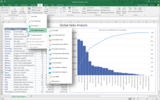
Visualize statistics with Histogram, Pareto and Box and Whisker charts—Take a close look at the new statistical chart types in Excel 2016 and find out how these new charts can help represent your statistical data in a way that works best for your needs. A Histogram chart shows the distribution of data, a Pareto chart automatically groups items and sorts columns from most common to least common, and a Box and Whisker chart characterizes the distribution of data and can be used to compare characteristics between different data sets. Read the post to find out more about how you can use these charts for your data.
Working with external data in Excel 2016 for Mac—Working with external data across platforms is now easier than ever thanks to two improvements in Excel 2016 for Mac. Excel 2016 for Mac comes with a preinstalled and integrated SQL Server ODBC driver, which was developed hand-in-hand with Simba Technologies. And it has a brand new Microsoft Query (MSQuery) and Connection Manager to make creating and managing all of your data connections easier and more consistent with Windows. Read the blog post to get the details.
Office 365 for Business & Education updates*
New features coming to Outlook on the web—A host of updates are on the way for the web version of Outlook in Office 365. Formerly known as the Outlook Web App (OWA), from now on the browser-based Outlook experience will be referred to as "Outlook on the web." The updates include a simplified UI to help you be more efficient, new tools to help you stay on top of your inbox, new features so you can craft more visually engaging emails, new features to help you better manage your calendar, and a better mobile experience.
Sway now available worldwide and Sway for Windows 10 is here—Sway, the digital storytelling app, is moving from preview to general availability and is rolling out to eligible Office 365 for business and education customers worldwide. That means any individual with a free Microsoft account can now use Sway, and more businesses, schools and other organizations can use Sway to create and share interactive reports, presentations, assignments, lessons, projects and more. Sway for Windows 10 has arrived too, along with a new layout option and new publishing capabilities, like using Docs.com to share your Sways.
New wearable apps to help you stay productive—Check out the new and updated productivity apps for your wearable devices. The all-new Outlook for Apple Watch lets you reply, schedule and archive right from your wrist, and the all-new Microsoft Translator for Apple Watch and Android Wear provides instant translation into 50 languages. Wunderlist for Apple Watch now has Quick Add magic, OneDrive for Android Wear got several improvements, and OneNote for Android Wear was redesigned to let you say, see and do more. Plus, Yammer for Apple Watch is coming soon.
School administrators can now get a Staff Notebook at My Apps or OneNote.com/staffnotebookedu—School administrators can use OneNote Staff Notebook to cultivate and manage educator collaboration. Now Office 365 Education customers with E1 or E3 plans can easily access the OneNote Staff Notebook app on their My Apps page in the App Launcher or through a simple link with additional resources at onenote.com/staffnotebookedu. The app is also now available globally in 35 languages across 51 markets. Support for right-to-left languages such as Arabic and Hebrew is coming soon.
Preview of Skype for Business apps for iOS and Android is here—Find out what’s new in the Skype for Business apps for iOS and Android. Skype simplicity is now present throughout the apps. The In-Call and In-Meeting experience was updated to make it easier to navigate calls and meetings on your mobile phone or tablet. There’s also a new dashboard for easy navigation of your contacts, calls and meetings. Learn more about the preview and sign up for it today!
Optimizing Yammer for teams—Yammer groups empower team members to collaborate within the right context and with the right set of people. To encourage teams to make Yammer groups their go-to destination, the UI is being enhanced and the experience inside groups is being improved. The changes delivered on the web include the Discovery feed to surface group conversations, real-time group activity, immersive group experience and Next Group notification. Over the next months, the Yammer mobile apps are being reoriented around groups, too—including a Group Updates feed and much more—to meet the needs of fast-moving teams.
Updates to Power Query for Excel—This month’s Power Query update includes four new or improved features, including the option to specify Join Type in the Merge Queries dialog. You can now extract the first, the last, or a range of characters from a Text column. You can also customize the Quote Style in Split Column by Delimiter dialog, and support was added for UPN credentials in the Exchange connector.
Introducing the Office IT Pro Deployment Script project—Looking for advanced PowerShell scripts or thinking about how to streamline your Office client deployment process? Check out the new community GitHub project for Office IT Pro Deployment Scripts. Office 365 experts from around the world are contributing to a collection of PowerShell scripts designed to automate various procedures that would normally require manual intervention from an IT pro. Read this post to see some of the scripts already available, like Copy-OfficeGPOSettings, Check-DiskSpace and more.
Deeper integration between Office documents and Outlook for iOS—It’s easier than ever to collaborate on and share Office documents on the go. Outlook for iOS now opens Office documents sent as attachments directly in Word, Excel or PowerPoint. The steps required to collaborate on files sent as attachments have also been streamlined. In addition, Word, Excel and PowerPoint now include a Send with Outlook option on the Share menu. These updates, combined with the Focused Inbox, calendar integration, customizable swipe gestures and predictive search in Outlook, help you get more done, even on the smallest screen.
What’s new for business analytics in Excel 2016—Read about the new and improved business analytics features in Excel 2016, designed with the analyst’s journey in mind, from gathering to consuming data. The new capabilities you can take advantage of for your business include: faster and easier ways to get data, streamlined data analysis, new forecasting capabilities based on Exponential Smoothing (that is, FORECAST.ETS()…), new charts, and publishing and sharing your data analysis with your workgroup or clients through Power BI with just one button. You can try out the new features for yourself in the Office 2016 Preview for Windows.
Matter Center for Office 365—Matter Center allows people to create or view legal matters right from Outlook; tie Word, Excel, OneNote and other files to those matters; and securely collaborate with other legal professionals inside or outside their organizations.
Office 365 Developer updates
Dev Digest for August—Read this month’s Dev Digest to keep up with all things new in Office 365 development. Find out about the recent strides made to get new developers started with Office 365 APIs and add-ins, the code samples added for the newly released Windows UWP projects, along with version 2 of the hero demo called "The Property Manager" and the new Snack showcase of short videos showing what you can do with the platform. As always, get the documentation for new and updated APIs and code samples, plus a list of podcasts, Office Dev Show episodes, patterns and practices samples, blogs posts and upcoming events.
Office UI Fabric—Office UI Fabric is a responsive, mobile-first, front-end framework for developers, designed to make it simple to quickly create web experiences using the Office Design Language. With Office UI Fabric you can apply simple CSS styles to make your web applications look and feel like the rest of Office. The styling takes into account typography, color, icons, animations, responsive grid layouts and localization.
Please note that some of the updates may take time to show up in your Office 365 account, because they’re being rolled out to customers worldwide.
—Andy O’Donald @andyodonald
——————————————————————————-
*Not all updates apply to every Office 365 plan; please check the individual post for specifics.
The post What’s new: August 2015 appeared first on Office Blogs.
Office Blogs
.
Blog
.
<span class='date ' tip=''><i class='icon-time'></i> Dec 05, 2015 12:41pm</span>
|
|
Tastea—an innovative beverage retailer based in Orange County, California—wanted to prepare for expansion while maintaining high levels of quality and service. The company decided that a key to creating a repeatable customer experience across stores was to standardize operations while opening up clearer lines of communication. The company now relies on Office 365 for everything from inventory management to customer service. Tastea believes that it will open more stores and have greater business success with Office 365.
Here’s what Tastea co-founder, Ted Vu, had to say:
"Our ability to quickly expand and open new franchises would not be possible without the turnkey capabilities enabled by Office 365. I keep learning more and more about what I can do with Office 365—it’s been like a shopping spree for me. I just wish I’d switched to Office 365 sooner!"
Watch this video to learn more about how Tastea uses Office 365:
A budding idea
Ted Vu dreams in flavors, aromas and textures. As one of the founders of Tastea, he has brought to Orange County, California, a west-meets-east vision of what a tea bar ought to be. Established in 2001 after a successful trial run with a beverage delivery service, Tastea currently has three locations and is rapidly expanding to include more company-owned stores and open the doors to franchisees across the United States and beyond.
Vu and his business partner, Scott Nguyen, have been meticulous in cultivating the right atmosphere, creative tea recipes and a high level of customer service. Combined, these deliver on the Tastea promise: a fun place where people can gather together to enjoy innovative new beverages. But ensuring that this carefully crafted customer experience is repeatable is no small feat. "There are only two of us running things, and we can’t be everywhere at once, especially as we grow," explains Vu. "We looked ahead and predicted some serious growing pains if we didn’t formalize our processes and create systems to help us with every facet of the business."
Identifying the missing ingredients
From the start, Tastea equipped its team members with recipe cards, photos of properly made drinks, training programs, and written operating procedures, but it was clear that it would need to do more as the business grew. "We wanted to help our store managers and team members be more self-reliant and give them insight into the company’s direction, including our research and development efforts, sales promotions and store updates," recalls Vu. "We also needed the infrastructure to be able to do things like track and manage our inventory more effectively."
Technology to support expansion
Tastea relied on technologies such as Dropbox and Google Docs to share information with its team members, but Vu recognized that Tastea needed to become more sophisticated and move beyond using such disparate tools to run the business. "Our brand matters to us—it’s important to have our own domain name. But we couldn’t open any document sent using Google Docs unless we also used Gmail. It was counterproductive to have to switch between email addresses, and also we had no control over who could download and print proprietary information," says Vu. "We wanted to streamline our processes, achieve a higher level of professionalism, enhance security and manage document access more tightly."
Vu investigated other technology options and quickly settled on Microsoft Office 365. "The calendaring functionality in Microsoft Exchange Online grabbed my interest first, because using it would make it so much easier to keep team members in sync across store locations," says Vu. "Then after seeing the parade of tools that come with it, all integrated and centralized in a single service, I knew Office 365 would be perfect for our business."
Everyone at Tastea is taking advantage of Office 365. For example, Vu, Nguyen and all the store managers use Skype for Business to hold monthly virtual meetings, saving them the hassles and hours of driving time that their former in-person meetings required. "Being able to meet online will become even more important as we expand geographically," says Vu. "We can hold effective meetings without our managers spending time commuting back and forth."
The company also uses Microsoft SharePoint Online to securely share everything from recipes to human resources forms, and it also includes centralized calendar information about news, product launches and sales promotions.
An ecosystem at the ready
Tastea benefits from the rich variety of applications available in the Office 365 Marketplace. For instance, the company adopted SideKick 365 DCM from SkyLite Systems, a case-management application that Tastea uses to track and resolve equipment malfunctions, customer-service issues and team member questions. In addition, Vu is developing an inventory tracking and management workflow solution in SharePoint Online that automates many of the steps associated with placing weekly orders to the company’s 20 vendors. He is also creating a discussion forum within SharePoint Online so that managers can share best practices, exchange new recipes and discuss challenges privately. "Between its native functionality, the third-party apps from the marketplace, and the ability to develop integrated custom solutions, we have the ultimate in flexibility with Office 365," says Vu.
The freedom to focus
By switching to Office 365, Tastea and its founders are poised for successful growth. "In Office 365, we’ve got a suite of apps that bring it all together so that we can focus on the bigger business picture," says Vu. "Before, I had to spend so much time and effort ‘putting out fires’ that it felt like I was just surviving. But now I have the hours and energy to tackle our growth goals—adopting Office 365 freed me up to create, which is what I truly love to do." Since first moving to Office 365, Vu has turned his attention not only to adding apps and online ordering but also to creating a loyalty program, conducting additional research and development, and building a new Tastea store.
Creating a turnkey business
With an eye toward franchising, Tastea now has more pieces of the puzzle in place to create a business model that will be attractive to prospective franchisees. "We need everything to be working cohesively so that franchisees can be confident that they’re putting their investments in the right place," says Vu. "By offering them familiar technologies from a trusted provider like Microsoft, we make it more comfortable to get started because everything is easy and right at their fingertips. Our ability to quickly expand and open new franchises would not be possible without the turnkey capabilities enabled by Office 365."
Happier, more efficient team members
One of the unexpected benefits of the move to Office 365 has been the uptick in morale at Tastea. "Before, when we didn’t have so many ways to both reach out and to respond, things could be chaotic and team members often felt like they were left in the dark," says Vu. "Today, they’re more engaged and truly feel part of our success because we’re able to give them the tools and information they need using Office 365. We’re getting twice as much work done."
Cost-effective tools for increased business value
By choosing Office 365, Vu believes that he is giving Tastea enterprise tools at a small-business price. "The costs are astronomically low; I honestly can’t believe that Office 365 is so affordable," says Vu. "We are getting an exceptional return on our investment, and we’ll be able to pass along that value to our franchisees."
And Vu isn’t finished. He plans to tap into Office 365 to follow through on more dreams for the business. First on the list is to empower team member and manager self-service by expanding the company’s use of SharePoint Online to add wiki functionality. "I keep learning about more and more that I can do with Office 365—it’s been like a shopping spree for me," says Vu. "I just wish I’d switched to Office 365 sooner!"
Key links
Download the full case study
Tastea: drinking in the success with Office 365
The post Office 365 gives Tastea the freedom to focus appeared first on Office Blogs.
Office Blogs
.
Blog
.
<span class='date ' tip=''><i class='icon-time'></i> Dec 05, 2015 12:40pm</span>
|
|
Today, in an effort to help globally launch and inspire "Genius Hour" in classrooms all over the world, Angela Maiers and Choose2Matter, Inc. in collaboration with Microsoft are providing teachers with the free, customizable and interactive eBook: "Liberating Genius: The First 20 Days." This free eBook, authored by Angela Maiers and Mark Moran, guides teachers through the introduction of Genius Hour.
"Since classrooms began adopting Genius Hour five years ago, I’ve had thousands of educators ask me for advice on the best way to do so. This book contains lesson plans for the first 20 days and also curates the best advice from the vibrant community of passionate educators at the forefront of this movement."
—Angela Maiers, founder of Choose2Matter
Sign up for the Choose2Matter newsletter today to download the free eBook in OneNote here: Choose2Matter.org/liberatinggenius.
What is Genius Hour?
Imagine a classroom where passion-driven genius work is not extracurricular, but is a part of the routine. Students would be invited and expected to collaborate to support each another’s genius; to experiment with ideas, discover new possibilities and make epic things happen. Genius Hour is more than a "program" where students do fun projects together. Genius Hour is a nearly unprecedented opportunity for teachers to guide students in how to be effective learners and citizens, by helping them connect what they do in school to the broader community.
OneNote was chosen to launch "Liberating Genius: The First 20 Days," because it’s free and available on every device that matters to you. OneNote is perfect for organizing class curriculum, lesson plans, class notes, managing student work and collaboration with students.
Teachers can easily bring all this into their own custom collaborative notebook with students with the power of the OneNote Class Notebook.
If you already have a OneNote Class Notebook, consider your new "Liberating Genius" notebook as just another "book on your bookshelf" in OneNote—just like your Class Notebook. You can easily drag and drop content from one book to another—just follow these easy steps:
Download the "Liberating Genius" eBook and then open it on the OneNote desktop (PC or Mac), iOS device or Android device.
Move the desired pages or sections into the Class Notebook that you have open in OneNote already. Most teachers will prefer to put these in the Content Library so that students can only read or copy it into their personal section, not edit it though.
Use the Genius Hour lesson plans with your students who all have access to the OneNote Class Notebook!
The book also features instructions and examples of how students can share their own Genius Hour project utilizing the best of both OneNote and Sway. And later this fall, we’ll be launching a OneNote notebook just for students to begin their own "Genius Notebooks."
The eBook can be downloaded for free by signing up at: Choose2Matter.org/liberatinggenius.
Angela Maiers helped launch Genius Hour in schools in 2010. Since then, tens of thousands of teachers around the world have set aside some time in the school day for students to work on "passion projects." Liberating Genius in the Classroom is a day-by-day guide to the first 20 days of implementing the Genius Hour, guiding teachers through the essential habits and attitudes that students must develop to be active and informed citizens, and instructing them how to help students find and explore their passion.
Microsoft is also proud to sponsor at Choose2Matter LIVE events this 2015-16 school year. Choose2Matter is creating a social innovation curriculum and intends to host eight to ten live events per year in venues throughout the world. Schools will also be invited to participate virtually via Skype. More details about Choose2Matter LIVE, including how schools can participate, will be announced soon.
The post Get the free eBook for teachers: "Liberating Genius: The First 20 Days" by Angela Maiers appeared first on Office Blogs.
Office Blogs
.
Blog
.
<span class='date ' tip=''><i class='icon-time'></i> Dec 05, 2015 12:39pm</span>
|