Blogs
|
Today Apple announced the iPad Pro, iOS 9 and WatchOS 2. We’ve developed a number of new features for Word, Excel, PowerPoint, OneNote, Outlook and Translator to take advantage of these enhancements. This post provides an overview of some of the most useful new features, including multitasking, inking, intelligent search, wireless keyboard support and updates to Outlook and Translator on Apple Watch.
Multitasking on the iPad
Slide Over and Split View on iOS 9 will help you get things done faster by allowing you to quickly switch between the Office apps. Here are a few examples:
1. Quickly use a second app. Slide Over lets you open a second app without leaving the one you’re in. Jot down a reminder in OneNote while you’re catching up on email. Or reference your notes while you’re working on a PowerPoint presentation.
2. Use two apps simultaneously. With Split View, you can have two apps open and active at the same time. Copy numbers from Excel into PowerPoint or rehearse a PowerPoint presentation while reviewing background information in Word.
3. Run Outlook side-by-side with Word, Excel and PowerPoint. Tap on a Word, Excel or PowerPoint file attached to an email message and Outlook will automatically launch the corresponding app with the file ready for editing, right next to Outlook. While you edit the Word document, you can still view the email message. After your edits are made, tap the back button in Word and the document will be attached to a new email message in Outlook, ready to be sent.
4. Use OneNote and PowerPoint to present with confidence. While you’re projecting a PowerPoint presentation to an external display, Presenter View provides tools like a laser pointer, pens, highlighters and slide thumbnails. Use Split View and OneNote to scroll through your talking points while the audience sees only your slides on the big screen.
Inking
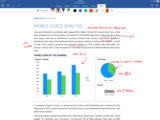
With the new iPad Pro, we’re adding inking to the Office apps and making it easier than ever to create documents and collaborate with others. The new tools include pens, highlighters, an easy-to-use thickness control and a new color wheel. Using Apple Pencil, you can mark up documents just like you would with pencil and paper—making the collaboration process natural and intuitive. And with inking-specific features like shape recognition in PowerPoint, the apps turn the pencil into a first-class content creation tool.
Intelligent search
When you search for something on your iPad or iPhone, the search results will now also include OneNote notes and Outlook email messages. The OneNote content can be typed, handwritten or scanned—and even Outlook messages with Rights Management protection appear in search results.
Wireless keyboard support
If you use a wireless keyboard with your iPad, keyboard shortcuts are often a big time-saver. But it’s not always easy to remember all shortcuts. Now, just tap the Command key to get an overview of all of them. In Outlook for example, you can start a new email with ⌘n. And move between Email, Calendar, Files, People and Settings with ⌘1, ⌘2, ⌘3, ⌘4 and ⌘5 respectively.
Enhancements to Microsoft Outlook and Translator on the Apple Watch
Complications are important pieces of information you can see right on the face of an Apple Watch. With the new WatchOS 2, data from apps can be Complications, too. Now, Outlook will show you essential information about your next appointment and incoming email. With Time Travel, you can turn the Digital Crown of the watch to check your Outlook calendar appointments for later today and tomorrow.
Microsoft Translator for iPhone and Apple Watch was introduced a month ago and is getting rave reviews in the App Store. With the upcoming update, a recent or pinned translation can be played back later through the watch speaker. When you’re abroad, the watch face will automatically show you common phrases like "good morning" and "goodbye" in the local language based on your location and the time of day. Using Time Travel, you can see phrases for a later time, like "good night." This makes it easier to communicate when traveling.
Available when the new iPad Pro, iOS 9 and WatchOS 2 arrive
We’re looking forward to releasing our updated apps when the new iPad Pro, iOS 9 and WatchOS 2 are available. Install Word, Excel, PowerPoint, OneNote, Outlook and Translator today and you’ll get these great new features when we publish the updates to the App Store.
Microsoft Word for iPad and iPhone
Microsoft Excel for iPad and iPhone
Microsoft PowerPoint for iPad and iPhone
Microsoft OneNote for iPad and iPhone
Microsoft Outlook for iPad and iPhone
Microsoft Translator for iPhone
The post Office updates for the iPad Pro, iOS 9 and WatchOS 2 appeared first on Office Blogs.
Office Blogs
.
Blog
.
<span class='date ' tip=''><i class='icon-time'></i> Dec 05, 2015 12:32pm</span>
|
|
Today’s post was written by Julia White, general manager of Office 365 Technical Product Management.
In March, we announced the Office 2016 IT Pro and Developer Preview. Since then, we’ve been listening to your feedback and continuing to build, refine and improve Office 2016 for Windows. This is a seminal release for Office and one you won’t want to wait to deploy to your users, and thanks to the many new IT management enhancements, you don’t need to wait!
You may have heard the rumors, but today I’m happy to confirm that Office 2016 will be broadly available starting on September 22nd. If you have a volume licensing agreement in place, you can download Office 2016 from the Volume Licensing Service Center starting October 1st.
This post is your one-stop shop for the tools, guidance and resources needed to get ready for Office 2016. We’ve enhanced the upgrade and installation experience, and for Office 365 subscribers, we’ve made changes to how the 2016 apps are updated moving forward. We’re also delivering new tools and resources to help you prepare, deploy and manage Office.
Improvements to the Office update model
For customers who currently use Office 365 ProPlus, (the subscription version of Office apps for companies and organizations), you can continue to receive monthly feature and security updates just as you have been over the past few years. Moving forward, this always up-to-date approach is called Current Branch and means that you always have the most current Office apps and capabilities deployed. The next Current Branch will release on September 22nd and will have all of the new Office 2016 app updates included.
Based on feedback from many organizations running Office 365 ProPlus, I am excited to announce that we are adding a new option for updating Office called Current Branch for Business. If your organization typically waits a few months prior to rolling out a new version of Office or needs more time to test Office 2016 and your customizations between feature updates, this will be welcomed news.
Consistent with Windows 10 approach, the new Current Branch for Business update model delivers three cumulative feature updates per year, while continuing to offer monthly security updates. You’ll see the first Current Branch for Business build in February 2016—which is effectively the same feature set as the September 22nd release, but with four additional months of security updates also included. This tri-annual update model offers an additional way for Office 365 ProPlus to stay current moving forward. You can find out about the new servicing options on TechNet.
Current Branch (CB) and Current Branch for Business (CBB) update model in Office 365 ProPlus.
Note: For Office 365 Personal and Office 365 Home users, you can start installing 2016 apps on September 22nd from office.com, and automatic updates will begin rolling out in October—so this new tri-annual update model is purely for our organizational subscribers to Office 365 ProPlus.
More IT capabilities in the new Office
We’ve also addressed a number of the other top IT requests in Office 365 ProPlus, including deployment support for Background Intelligent Transfer Service (BITS) to help control network traffic when deploying updates and new reports on Office activation and usage available in the Office 365 admin portal.
Beyond the new deployment and management options, the new Office also adds support for Data Loss Prevention across the Office 2016 apps, Multi-factor Authentication and other mission critical control capabilities.
Also, back in March we pledged our commitment to compatibility with your existing Office customization by not making changes to the extensibility model for macros or add-ins. If you’ve been evaluating the preview, you would have seen that most of the tools and processes for managing and deploying Office 365 ProPlus (15.x) versions are very consistent with Office 2016. In August, we published guidance for updating Office 365 ProPlus to the Office 2016 version and kicked off the Office IT Pro Deployment Script project.
If you haven’t checked out the new Office capabilities, it’s time! Speaking of which, let’s talk about all of the ways to get ready for Office 2016…
New events, tools and resources for admins
In November, we’re kicking off a new IT and developer-focused event series—the Microsoft Cloud Roadshow—where we’ll provide free, two-day technical trainings in 12 cities around the world for topics spanning Office, Azure and Windows. These are free to attend, and we’ll be bringing top engineers from Microsoft to lead the training sessions. Registration is now open for the in-person events, and coming soon, we’ll publish the presentations for on-demand viewing along with hands-on labs and additional training resources.
The Office 365 Community is also a great place to go if you have questions about Office 2016; the experts from Microsoft, our MVPs, and the broader community are all there to help. We’ll be promoting Office 2016 on the network in the coming weeks and will have a YamJam with the Office engineering team on September 24th to answer your questions following the September 22nd release.
We’ll continue highlighting new capabilities in Office 2016 for tech enthusiasts via Office Mechanics shows and short demos from our engineers in the coming weeks. You can see highlights of what’s coming in Office 2016 for Windows on Office Mechanics now.
Check back on September 22nd
This captures a few of the highlights of what we’re working on to support admins with the upcoming Office 2016 release. You’ll see a lot more coming on September 22nd and beyond. Of course, you can still download the Office 2016 Preview now to experience what’s coming, and don’t forget to register for a Microsoft Cloud Roadshow near you to learn more.
—Julia White
The post Admins—get ready for Office 2016, rollout begins September 22! appeared first on Office Blogs.
Office Blogs
.
Blog
.
<span class='date ' tip=''><i class='icon-time'></i> Dec 05, 2015 12:32pm</span>
|
|
Steve Doonan was working for an HVAC (heating, ventilation, air conditioning) company when the owners asked him to open a branch office in DeKalb, Illinois—a location where they could foresee a lot of growth.
"The idea was for me to generate business in that area and eventually buy the branch from the owners, establishing my own company," Doonan says. That’s exactly what happened. Today Doonan is sole owner of the successful business he built, but he hasn’t stopped dreaming.
"Ultimately, I’m working toward a company that I could run from a beach if I wanted to," Doonan says. "The key is to hire employees who are good at their jobs and who you have confidence in. I want employees who will make smart decisions for the business and support smooth operations without needing me to be there."
Over time, Doonan has assembled a team of highly capable employees. As a result, he’s been able to delegate many day-to-day decisions and focus on the company’s future. "I read somewhere that if you’re working in your business, you don’t have time to work on your business," he says. "I believe that’s true—now that I don’t have to worry about daily decisions, I’m free to explore new avenues for opportunity."
Doonan explains the importance of building strong relationships and taking a cautious approach to growth:
"A critical part of my role is to constantly focus on building relationships. Having positive relationships with my team is critical and goes without saying, but cultivating close bonds with both suppliers and prospective customers pays huge dividends. We work hard to make ourselves indispensable, and our customers look to us to solve their problems. We’ve developed a sense of trust that’s not easy to come by."
To read the rest of Steve’s story and the stories of other small business owners like Steve, download our eBook, "What I wish I knew."
The post DeKalb Mechanical’s small business story—building business using the "golden rule" appeared first on Office Blogs.
Office Blogs
.
Blog
.
<span class='date ' tip=''><i class='icon-time'></i> Dec 05, 2015 12:31pm</span>
|
|
Do you often import data into Excel? Do you ever need to shape your data before you analyze it and build your reports? We are excited to let you know that your get-data experience in Excel is about to change forever. In Excel 2016 we have integrated Power Query technology into the Data ribbon under the Get & Transform section. Power Query technology enhances the self-service business analytics experience in Excel by simplifying data discovery, access and collaboration.
Prior to the release of Excel 2016, Microsoft Power Query for Excel functioned as an Excel add-in that was downloaded and installed on Excel 2010 and 2013. In Excel 2016 we integrated the Power Query technology and experience into Excel. Power Query is no longer an add-in but is a native Excel feature from the Data tab, under the Get & Transform section.
In addition, most of the features in the Get & Transform section are now available for all users on all Office plans.
If you are not familiar with Power Query, here is a short summary of what you can now achieve in Excel 2016 with this new technology.
Data connectivity—Connect to many new data sources, such as Facebook and Salesforce, to import the data into Excel 2016.
Data shaping—Extract a preview of the data and load it to the Query Editor to define transformation steps that will allow you to transform the data to the format that meets your needs, such as remove, group, pivot or unpivot columns, and filter rows.
Data catalog—You can find the data you need by searching the Power BI Enterprise catalog (a Power BI license is required).
Repeatable refresh—Simply click the Refresh All button on the Data ribbon to repeat the import and transformation of the data to your workbook.
You can learn more about the new capabilities and how to use them here.
If you are familiar with the Power Query add-in in Excel 2010 and 2013, you know there are several advantages of having the Power Query technology native in Excel 2016, including:
It’s always there—No longer a separate downloadable add-in. The Power Query technology is now available as part of Excel 2016, so you can rely on everyone using Excel 2016 to have it and be able to consume your workbooks.
No complex activation—The Get & Transform group is visible and active by default on the Data tab.
Undo support—Refresh and Edit Query operations on queries can be undone. You can refresh your query and keep all your previous actions in the Undo stack as well.
(In the image above we highlighted the Refresh Data and Edit Query Properties operations completed in the Workbook Queries task pane. Excel 2016 kept these operations in its Undo/Redo stack. In earlier versions, any Power Query operation deleted the Undo/Redo stack.)
Object Model support—You can automate your queries with Object Model and develop your dream, an automated ETL Self-Service solution. With Macro Recording you can capture your query operations and generate VBA code that automates the query creation along with your report generation and customization on Excel. To learn more on Object Model support you can download this demo. More details on the Object Model interface is coming soon.
You can learn more about Power Query technology, which is available in the Get & Transform group in the Data tab, here.
Try the new capabilities out for yourself!
Try these new capabilities now by downloading the Office 2016 Preview for Windows and then share your ideas for features and improvements in Excel.
The post Integrating Power Query technology in Excel 2016 appeared first on Office Blogs.
Office Blogs
.
Blog
.
<span class='date ' tip=''><i class='icon-time'></i> Dec 05, 2015 12:31pm</span>
|
|
In this episode, Jeremy Thake and Richard DiZerega talk to Humberto about Office UI Fabric.
http://officeblogspodcastswest.blob.core.windows.net/podcasts/EP62_OfficeUIFabric.mp3
Download the podcast.
Weekly updates
LESS SharePoint Add-ins with Mixins by Sonya Madsen
Index web property bag using JavaScript object model-AngularJS in SharePoint online by Vipul Kelkar
Microsoft Cloud Show Episodes 093 Developers SharePoint is not a platform SharePoint is a service by Andrew Connell and Chris Johnson
Architects: SharePoint is a Platform, Treating it as only a Service is a Mistake by Doug Ware
IQParts Cloud App Compatible Web Parts using AngularJS and Bootstrap by Doug Ware
Using the SharePoint Client Object Model in AngularJS apps by Doug Ware
Working with the converged Azure AD v2 app model by Richard DiZerega
Building Office 365 Applications with Node.js and the Azure AD v2 app model by Richard DiZerega
Office Dev Show Episode 9—Getting Started with Cross-platform apps by Richard diZerega
Using Office UI Fabric in SharePoint Add-ins by Chaks
Open XML SDK Intro by Ryan McIntyre
Microsoft Cloud Road show
SPLive360 Nov 16-20
Show notes
Office UI Fabric blog post announcement
UserVoice Entry
Got questions or comments about the show? Join the O365 Dev Podcast on the Office 365 Technical Network.
The podcast RSS is available iTunes or search for it on "Office 365 Developer Podcast" or add directly with the RSS http://feeds.feedburner.com/Office365DeveloperPodcast.
About Humberto Lezama Guadarrama
Humberto is a senior program manager at Microsoft on the Office extensibility team where he oversees user experiences and security of Office Add-ins. Before Office, Humberto worked on Dynamics CRM and SharePoint developer experiences and before Microsoft he worked on a variety of IT stints ranging from designer, programmer, project manager and everything in between.
On his personal time, Humberto enjoys hiking, building gadgets, watching lots of movies, traveling and doing all sorts of silly things with his wonderful kids and awesome wife.
About the hosts
Jeremy is a technical product manager at Microsoft responsible for the Visual Studio Developer story for Office 365 development. Previously he worked at AvePoint Inc., a large ISV, as the chief architect shipping two apps to the Office Store. He has been heavily involved in the SharePoint community since 2006 and was awarded the SharePoint MVP award four years in a row before retiring the title to move to Microsoft. You can find Jeremy blogging at www.jeremythake.com and tweeting at @jthake.
Richard is a software engineer in Microsoft’s Developer Experience (DX) group, where he helps developers and software vendors maximize their use of Microsoft cloud services in Office 365 and Azure. Richard has spent a good portion of the last decade architecting Office-centric solutions, many that span Microsoft’s diverse technology portfolio. He is a passionate technology evangelist and frequent speaker are worldwide conferences, trainings and events. Richard is highly active in the Office 365 community, popular blogger at www.richdizz.com, and can be found on twitter at @richdizz. Richard is born, raised and based in Dallas, TX but works on a worldwide team based in Redmond. In his spare time, Richard is an avid builder of things (BoT), musician, and lightning fast runner.
Useful links
Office 365 Developer Center
Blog
Twitter
Facebook
StackOverflow
http://aka.ms/AskSharePointDev
http://aka.ms/AskOfficeDev
http://aka.ms/AskOffice365Dev
Yammer Office 365 Technical Network
O365 Dev Podcast
O365 Dev Apps Model
O365 Dev Tools
O365 Dev APIs
O365 Dev Migration to App Model
O365 Dev Links
UserVoice
The post Episode 062 on Office UI Fabric—Office 365 Developer Podcast appeared first on Office Blogs.
Office Blogs
.
Blog
.
<span class='date ' tip=''><i class='icon-time'></i> Dec 05, 2015 12:30pm</span>
|
|
Natalie Loeb conceived the idea for her business after her children were born. Wanting to put her family first, she left a job she loved in human resources at a global law firm to work part-time closer to home. "But when my previous employer offered to bring me on in a more flexible consulting role to focus on training and development, I knew I’d found the right balance," she says.
She started Loeb Consulting Group to take advantage of the new opportunity, but soon found that running her own business was much different than working in-house. She learned some hard lessons about being disciplined in how she uses her time, knowing when to say no, and the importance of setting reasonable boundaries and communicating them clearly. "If the scope of a client’s request puts me in a position of compromising my firm’s standards, I now know to walk away," Loeb says. "It’s not easy for an entrepreneur to turn away work, but sometimes it’s necessary."
Loeb stresses the importance of effective time management, staying true to core values, and nurturing one’s passion for the business:
"Gauging what is and isn’t a good fit for your business has to do with always keeping an eye on your values and what you stand for. Staying true to those values can help guide you, particularly during challenging times. For example, during the economic downturn, our business slowed considerably. Rather than giving up and returning to work as a full-time employee elsewhere, I used the time to invest in the business by earning an executive coaching certification, which opened up a whole world of business opportunity in the form of leadership coaching. Over the years, I’ve discovered that one of the most important parts of running a business is finding the time to take a step back to ensure you’re spending your hours in the most effective ways. It’s easy to want to follow all your great ideas, but you have to prioritize. The ability to delegate is also critical. You’ve got to let go and trust others to do their jobs—after all, why would you hire employees if you do all the work yourself?"
To read the rest of Natalie’s story and the stories of other small business owners like Natalie, download our eBook, "What I wish I knew."
The post Loeb Consulting Group’s small business story—believe in what you do appeared first on Office Blogs.
Office Blogs
.
Blog
.
<span class='date ' tip=''><i class='icon-time'></i> Dec 05, 2015 12:29pm</span>
|
|
In September 2012, we announced availability of the Office Web Apps Server as a standalone on-premises server, which provided browser-based versions of Word, PowerPoint, Excel and OneNote. In our journey to enable rich viewing and editing experiences through Office in the browser, we’re making available Office Online Server Preview (OOS)—the evolution of Office Web Apps.
OOS brings the features and improvements you experience with cloud-based Office Online to your on-premises solutions. SharePoint 2016 and Exchange 2016 are both designed to work with OOS. Here is an overview of the updates and improvements:
Improved co-authoring support
Significant additions to authoring features
Heavy investments in performance and stability
But one thing that hasn’t changed is the setup and management story for OOS. We have worked hard to make the transition from Office Web Apps Server 2013 to OOS as simple as possible. Also, while you’ll need OOS for SharePoint 2016 and Exchange 2016, OOS is completely backwards compatible with SharePoint 2013.
Get started with the OOS Preview
Get started with OOS Preview today by downloading the .ISO from the Microsoft Download Center. The OOS Preview works with products and services that support WOPI, such as SharePoint Server 2016, Skype for Business and Exchange Server 2016. An OOS farm can provide services to multiple on-premises hosts, and you can scale out the farm as your organization’s needs grow.
SharePoint Server 2016 IT Preview Management Pack
In addition, we understand with new technology you need to be able to rationalize issues and respond quickly—to that end we’re also making available a new System Center Management Pack for SharePoint Server 2016 IT Preview.
The SharePoint Server 2016 IT Preview Management Pack is designed to be used for monitoring events, collecting SharePoint component-specific performance counters in a centralized location, and for raising alerts for operator intervention as necessary.
By detecting, sending alerts and automatically correlating critical events, the Management Pack helps indicate, correct and prevent possible service outages or configuration problems—allowing you to proactively manage SharePoint servers and identify issues before they become critical.
The Management Pack monitors and provides alerts for automatic notification of events indicating service outages, performance degradation and health monitoring.
The System Center Management Pack for SharePoint Server 2016 monitors:
SharePoint 2016-related services (Timer, Tracing and Search)
SharePoint 2016-related events
Internet Information Services-related events (only events emitted from SharePoint Application, not from IIS)
Microsoft SQL Server database-related events (only events emitted from SharePoint Application, not from SQL Server)
SharePoint 2016 server performance
To run the Management Pack, you need the System Center Operation Manager 2012 and Windows Server 2008 R2 Service Pack 1 with Full-Text Search feature.
Try it out and share your feedback
You can download the SharePoint Server 2016 IT Preview Management Pack via the Microsoft Download Center and share feedback directly with our engineering teams through the new SharePoint Server 2016 IT Preview forum. We also welcome feature requests and feedback via the Systems Center Operations Manager suggestion box on UserVoice, @System_Center on Twitter and in the comments below.
—Bill Baer, senior technical product manager for the SharePoint team
The post Announcing availability of Office Online Server Preview and the new SCOM Management Pack for SharePoint Server 2016 IT Preview appeared first on Office Blogs.
Office Blogs
.
Blog
.
<span class='date ' tip=''><i class='icon-time'></i> Dec 05, 2015 12:29pm</span>
|
|
Today we are excited to announce the availability of Project Server 2016 IT Preview. We have worked very hard over the past three years to bring you the latest and greatest innovations to Project Online and incorporate feedback from customers into Project Server 2016. Project Server 2016 IT Preview provides an initial view of what is to come.
Evolution of resource management
Based on your feedback we have invested heavily in Resource Engagements that facilitate coordination and commitments between project managers and resources managers. Resource Engagements help align project managers and resource managers on the amount of work and the time period associated with a project. More information can be found at this blog post.
IT setup and infrastructure improvements
While running Project Online, we have made many infrastructure improvements, which we have included in Project Server 2016 IT Preview. These changes include the removal of the Project database, with all of the data being migrated into the content database. All the performance and scale improvements that we have made to Project Online are now yours to deploy. More information can be found here.
Project Server 2016 IT Preview installer is fully integrated into SharePoint 2016; there is no longer a separate installer that needs to be run on each server in the farm.
Try it out and share your feedback
You can download Project Server 2016 IT Preview (built into SharePoint 2016 IT Preview) today via the Microsoft Download Center and share feedback directly with our engineering teams through the new SharePoint Server 2016 IT Preview forum.
We would love to hear your feedback and will incorporate it to make the best Project Server 2016 ever!
The post Project Server 2016 IT Preview is now available appeared first on Office Blogs.
Office Blogs
.
Blog
.
<span class='date ' tip=''><i class='icon-time'></i> Dec 05, 2015 12:28pm</span>
|
|
The regulatory compliance and business risk landscape is continuously evolving. At Microsoft, we appreciate our customers’ need to understand the Office 365 architecture and compliance with regulations to help them evaluate moving to Office 365. We also know you need to understand how we keep your data secure on the service on an ongoing basis.
To help with your assessment needs, we are announcing Office 365 Service Trust Portal (STP). STP is a service feature in Office 365 designed to provide deeper information on how Microsoft manages security, compliance and privacy.
Insights from this portal help you evaluate how Office 365 maintains compliance with your regulatory requirements and how you can mitigate the risks with moving to Office 365.
To continue as a leader in cloud service delivery, we know that transparency is key to gaining your trust. We believe that by being transparent with you on how we protect your data, how we ensure that it is always available, how we maintain compliance with various global standards, and how we adhere to strict privacy commitments, we will continue to have a trust-based partnership with you.
Through the STP you can get direct access to a wide variety of compliance reports and trust resources, including:
Office 365 SOC 1 / SSAE 16 / ISAE 3402 Independent Audit Reports
Office 365 SOC 2 / AT 101 Independent Audit Report
Office 365 ISO 27001 (including 27018 controls) Independent Audit Report
Various compliance reports, such as Office 365 Information Security Management System (ISMS)
Various GRC and Trust resources, such as white papers, FAQs, security assessment, risk assessment and other reports that will help you perform your own risk assessment
Whether you are an existing Office 365 customer or evaluating Office 365, we hope that you will find the information on the STP valuable to your organization. To access STP, ask your Office 365 company administrator to log in at the Service Trust Portal. After an administrator has logged in, they can provide STP access to any other users in your organization, allowing you to directly access STP when you authenticate using your Office 365 credentials. If you are evaluating Office 365, you can use your Office 365 trial credentials to access STP.
For a detailed onboarding guide to STP, please visit Office 365 Service Trust. If you have a comment or question on this post or have any feedback on STP, email us at asko365stp@microsoft.com. We look forward to seeing you soon!
—Om Vaiti, senior program manager for the Office 365 Customer Trust and Advocacy Program, and Vikas Malhotra, senior solution architect for the Office 365 Customer Experience Program
The post Announcing the Office 365 Service Trust Portal appeared first on Office Blogs.
Office Blogs
.
Blog
.
<span class='date ' tip=''><i class='icon-time'></i> Dec 05, 2015 12:28pm</span>
|
|
In this post, we are announcing new updates to the Power Query add-in for Excel 2010 and Excel 2013. Read this blog for information about Power Query integration in Excel 2016.
This month’s update includes the following new or improved features:
Support for custom MDX/DAX queries when importing data from SSAS
Navigator dialog improvements
Query Editor improvements
You can continue reading below for more details about each feature.
Support for custom MDX/DAX queries when importing data from SSAS
In this update, we have added the ability to provide a custom query in MDX or DAX when importing data from Analysis Services. This allows users to leverage their existing MDX or DAX queries from other tools, instead of having to build them from scratch in Power Query.
Navigator dialog improvements
We made a couple of improvements to the Navigator dialog in this update, including:
Resizable Navigator dialog—Users can now resize the Navigator dialog, so that they can easily preview tables with lots of columns.
Multi-select items in Navigator—Users can now use keyboard shortcuts to select multiple items more easily in the Navigator dialog, such as Ctrl+Click or Shift+Click.
Query Editor improvements
Query Group creation/deletion—The first set of Query Editor improvements is around making many of the Query Group operations easier. All these options are available in the Queries pane, via context menus for queries and query groups, including:
Create New Group option, without having to send some queries to this new group
Multi-select groups
Delete a group
Extract previous Query steps—Another improvement to the Query Editor is the ability to extract steps from a query. Users can now easily extract steps from a query into a "base" query. This is useful when you want to have multiple queries that have a common base set of steps.
This option can be found as a right-click menu entry for any given step in a query.
When clicked, users are asked to provide a name for the new "base" query.
The result is a new query containing all steps prior to the one that was selected, with the original query containing a reference to the newly created one. Users can then create new queries that reference the "base" query.
Query icons to reflect type of query—The last improvement this month is that the Workbook Queries pane and the Queries navigator, in the left side of the Query Editor dialog, have been improved to capture the type of each query. This is represented with different icons for each query in these two panes.
That’s all for this month. We’re making lots of incremental improvements to Power Query, and we hope that you find it better with every new monthly update. Please continue sending us feedback using our "Send a Smile/Frown" feature or by voting for what you’d like to see next.
—Miguel Llopis (@mllopis), program manager for the Power Query team
——————————————————————————-
Power Query for Excel is available with an Office 365 ProPlus subscription, Office 2010 Professional Plus with Software Assurance, Office 2013 Professional Plus or Excel 2013 Standalone. Power Query for Excel is also available in all other Excel 2013 Desktop SKUs with reduced functionality. Check out the System Requirements section on this page for more details.
Download the add-in and learn more about getting started.
Learn about all the powerful analytics and visualization features in Excel and take your analysis further by sharing and collaborating on business insights with colleagues using Power BI.
Learn more about Power Query
See all analytics and visualization features in Excel
Get your Office 365 subscription
Try Power BI
Follow us on Facebook and Twitter
——————————————————————————-
*Not all updates apply to every Office 365 plan; please check the individual post for specifics.
The post Power Query for Excel September 2015 update appeared first on Office Blogs.
Office Blogs
.
Blog
.
<span class='date ' tip=''><i class='icon-time'></i> Dec 05, 2015 12:28pm</span>
|