Blogs
|
Today’s post was written by Naomi Gebremeskel Haile, a student at Renton Prep, with an introduction from one of her teachers, Dr. Michelle Zimmerman.
This is the story of a girl with a strong identity in two worlds: Ethiopia and the United States. I have had the opportunity to loop with a cohort of students for four years and have been able to watch Naomi grow, just as she and her classmates have helped me grow as an educator and researcher. I’ve learned how essential it is to train students to understand learning design (see 21 CLD and Teaching Kids Learning Design and Assessment), standards and content progression so they can now help design and articulate reasons for the direction of their learning.
One of my goals is to help students learn to think on their own, use tools, resources and alternate perspectives to push that thinking, and create original works that can challenge the thinking of their peers and adults. I want them to be able to transfer their learning and help others learn from their own experiences. That goal is what led to a redesign of the structure of our school so that middle and high school students intentionally merge content in meaningful ways and demonstrate their understanding through projects and in teaching others, including younger students.
Although our middle school and up has been 1:1 with laptops since 2009, this is our first year with Surface’s for grades 3-10. Naomi’s work gives a glimpse into real-time co-authoring and collaboration across Office 365, Word, OneNote, Sway, Office Mix, Docs.com, Movie Maker, Community Clips, Skype and Snip working together to complete Project Based Learning. It shows what is possible with the personal and global connections to experiential and blended learning at our school.
As educators, we all have goals for our students. We have goals for our own teaching career. Sometimes it’s easy to get caught up in teaching and assessing and worrying about keeping up with the latest technology. When we take the time to listen to the individual stories of the kids in our classes, we have the chance to help them create a powerful story. With access to technology, we can help them amplify that story and let their voice be heard. The rest of this post was written by Naomi. When asked how she felt about authoring this blog, she said, "It made me feel important."
—Dr. Michelle Zimmerman
Hello educators of the world! I’m Naomi, a 14-year-old 9th-grade student living in Seattle, Washington, USA. My mother and father are both Ethiopian immigrants who have had struggles with their education. My mother never had a chance to learn anything past the 5th grade. And although my father was able to attain his bachelor degree, he had to stop going to school after 6th grade because of the war going on around him. He then resumed his schooling in Ethiopia many years later, as a 21-year-old. Education is equally important to both of them, as they want me to have access to more opportunities than they did at my age.
For me personally, knowing where I’m from helps give me guidance towards what path to take. Something that my uncle recently told me that really stuck with me is that "culture is everything" and that it defines who you are, but not in a negative way. Identifying and embracing your culture builds community, a place for you to thrive with the support and counsel of people who want the best for you.
In a traditional classroom, there may not be room to investigate, create and explore culture, and express that part of me back to my classmates, or anyone else in this lonely, lonely world. That’s where OneNote comes in.
OneNote is a computer program that serves as a notebook, but also as a platform for creativity, collaboration and communication between students, teachers, and parents.
My class recently went on a field trip to see Seattle Art Museum’s "Disguise: Masks and Global African Art" exhibit. We are now working on a project where we connect things from the museum that relate to all of our in-school subjects. Also, we picked themes to focus on and relate to things we saw at the exhibit.
Click here to see my Sway and my collaborator Tre’Shawn’s Sway.
Our team’s Office Mix is embedded within each Sway. If you’re wondering what it looks like for us to collaborate while we’re using these tools, watch the Office Mix. I used the screen recording feature to show glimpses into real-time co-authoring:
These tools allow me to express and create while still meeting the school’s requirements, as well as covering core content like math, science, history and my fourth language. See an example of what inking in OneNote looks like while I’m learning Spanish.
OneNote is accessible through a variety of devices, including non-Windows products (iPhones, Android tablets, etc.). It differs from a notebook or a textbook because it allows for teachers to access their students’ work, as well as provide direct feedback and insert homework assignments, important documents and notes for the whole class to see immediately.
A OneNote page displaying in class notes, formatted by the teacher and completed by the student.
It is also a platform for students to work on projects collaboratively while the teacher has complete access to everything in their students’ notebooks. This is also one of the factors that makes OneNote more effective than not using technology—you have access to whatever, whenever, so it gives you more control over your students’ work. For collaborative work, our teachers can see when we made additions or edits and can see our initials next to the work we contributed. In the screenshot below, you can see an example of this with "JF," "TT" and "AB," my classmates’ initials. Below the text there’s a hyperlink. When we copied and pasted text from the article in ABC-Clio’s Ancient History Database, OneNote automatically cited our source.
A project completed collaboratively between students in OneNote’s Collaboration Space. This history project focused on great ancient civilizations of Africa, as background research for our projects focusing on the Seattle Art Museum exhibit that we went to.
The Performance of Understanding (POU) Japan was a project that I did back in 7th grade, and it was inspired by our class’s field trip to the Seattle Art Museum to see the "Future Beauty: 30 Years of Japanese Fashion" exhibit. OneNote allowed us to create a portfolio filled with multiple connections to Japanese culture, history, literature, as well as the field trip. After researching all the topics that were Core Knowledge criteria, we entered our information in each of the given sections and created artifacts that showed everything we learned. I came up with the idea of writing haikus for each of the subjects, a type of poetry that originated in Japan. Watch the video that I made using Community Clips and Movie Maker.
OneNote gives us the flexibility to build content in class from different perspectives. It gives us a place to communicate our ideas with others and to work collaboratively with fellow classmates. My parents wanted me to get the best education possible, which now translates into an education where I’m able to design how I learn and communicate from a global perspective—Africa, Japan and Latin America are all represented within this blog post—made possible by technology! The blessings of liberty to ourselves and posterity, a dream that my parents had for me.
—Naomi Gebremeskel Haile
The post OneNote—a platform for creativity, collaboration and communication appeared first on Office Blogs.
Office Blogs
.
Blog
.
<span class='date ' tip=''><i class='icon-time'></i> Dec 05, 2015 12:14pm</span>
|
|
In this episode, Richard diZerega talks to Rob Howard about the Office.js API updates in Office 2016 for Excel and Word add-ins.
http://officeblogspodcastswest.blob.core.windows.net/podcasts/EP64_Office2016APIs.mp3
Download the podcast.
Weekly updates
The new Office is here by Kirk Koenigsbauer
Cloud Roadshow Cities
Office Dev Show Episode 12—Office UI Fabric with Sonya Koptyev and Humberto Lezama Guadarrama
Introducing ng-OfficeUIFabric: Angular Directives for Office UI Fabric by Andrew Connell
Introducing OfficeUIFabric.com—Demos and Reference Samples for Office UI Fabric by Andrew Connell
Using Azure Deployment Slots to implement dev/test/production ALM for Office 365 apps and SharePoint Add-ins by Chris O’Brien
Two things that are not super obvious when working with the new Office 365 Groups API by Waldek Mastykarz
Building File Handler Add-ins for Office 365 by Richard diZerega
Show notes
Office.js Docs GitHub repo
Office.js Snippets Explorer GitHub repo
Got questions or comments about the show? Join the O365 Dev Podcast on the Office 365 Technical Network.
The podcast RSS is available iTunes or search for it on "Office 365 Developer Podcast" or add directly with the RSS†http://feeds.feedburner.com/Office365DeveloperPodcast.
About Rob Howard
Rob Howard joined Microsoft in August of 2005 and currently works as a program manager on the Office Developer Platform team, where he works on the app models for Office clients, servers and services. His goal is to enable developers to build collaborative productivity applications more efficiently and effectively by leveraging the capabilities of Office, SharePoint, Exchange and a variety of other Office applications and services. In previous releases Rob worked on areas like the SharePoint app model, csom, sandboxed solutions, SharePoint solution deployment, the fab 40 and SharePoint Designer. Rob has a passion for collaborative applications because they can enhance individual and organizational productivity by ensuring that the people and information vital to completing a task are connected and readily available in the appropriate contexts.
About the hosts
Jeremy is a technical product manager at Microsoft responsible for the Visual Studio Developer story for Office 365 development. Previously he worked at AvePoint Inc., a large ISV, as the chief architect shipping two apps to the Office Store. He has been heavily involved in the SharePoint community since 2006 and was awarded the SharePoint MVP award four years in a row before retiring the title to move to Microsoft. You can find Jeremy blogging at www.jeremythake.com and tweeting at @jthake.
Richard is a software engineer in Microsoft’s Developer Experience (DX) group, where he helps developers and software vendors maximize their use of Microsoft cloud services in Office 365 and Azure. Richard has spent a good portion of the last decade architecting Office-centric solutions, many that span Microsoft’s diverse technology portfolio. He is a passionate technology evangelist and frequent speaker are worldwide conferences, trainings and events. Richard is highly active in the Office 365 community, popular blogger at†www.richdizz.com, and can be found on twitter at @richdizz. Richard is born, raised and based in Dallas,TX but works on a worldwide team based in Redmond. In his spare time, Richard is an avid builder of things (BoT), musician, and lightning fast runner.
Useful links
Office 365 Developer Center
Blog
Twitter
Facebook
StackOverflow
http://aka.ms/AskSharePointDev
http://aka.ms/AskOfficeDev
http://aka.ms/AskOffice365Dev
Yammer Office 365 Technical Network
O365 Dev Podcast
O365 Dev Apps Model
O365 Dev Tools
O365 Dev APIs
O365 Dev Migration to App Model
O365 Dev Links
UserVoice
The post Episode 064 on Office.js API updates in Office 2016—Office 365 Developer Podcast appeared first on Office Blogs.
Office Blogs
.
Blog
.
<span class='date ' tip=''><i class='icon-time'></i> Dec 05, 2015 12:13pm</span>
|
|
As you’ve read, the new Office is here and for developers, this is an exciting time! The ability to insert add-ins into your documents, call new Office.js APIS, launch task panes inside your Office clients and run commands directly from the ribbon increases the productivity of your entire team! Add-ins now work across Office 2016 running on Windows, Office Online in your browser, Office 2016 on the Mac (Outlook currently) and Office on the iPad.
Office 2016 on Windows introduces some new extensibility features that will roll out over the other Office clients over time.
Add-in commands
Add-in commands provide ways to initiate specific add-in actions from the ribbon. This lets users access add-ins in a simple, intuitive and unobtrusive way. Because they offer increased functionality in a seamless manner, add-in commands allow developers to create more engaging scenarios and add-ins.
Add-in commands are declared in the add-in manifest in a new node called VersionOverrides. This node ensures backward compatibility because, in an environment that doesn’t support VersionOverrides, existing add-ins will continue to function as they did without add-in commands.
Check out Overview of add-in commands for mail and Create a manifest for add-in commands for details.
The screenshot below shows add-in commands on the ribbon at the right.
There is support for ribbon groups too as shown in this screenshot:
Run JavaScript using add-in commands
Add-in commands can also run JavaScript functions without further user input. In Outlook add-ins, you can perform actions such as track, remind me, print or for receiving more in-depth information from a service.
Launch task pane commands
You can use an add-in command button to launch a task pane to get more information from users. For example, the add-in may require changes to settings, or the completion of certain fields.
For details, check out "What UX shapes exist for add-in commands?"
Theming capabilities for add-ins
You can use the new Theming APIs in your mail and task pane Office Add-ins to integrate your add-in with the Office theme. This widely requested feature allows your add-in to look and feel like the rest of the Office experience—regardless of the user’s preferences. To learn more, see Context.office Theme property. The recently announced Office UI Fabric takes advantage of this new API.
Excel and Word Office.js functionality
The new Excel and Word Office.js APIs provide a variety of Excel and Word specific functionality related to the documents being collaborated on. Examples include populating content controls in Word or inserting formatted charts in Excel and are a result of UserVoice feedback from Partners and developers worldwide submitted. We’ve been working on a Snippet Explorer for both Word and Excel to let you browse through code snippets for common scenarios and learn how the new Excel and Word APIs work.
The example below highlights the Diet Tracker code sample that inserts rich charts using the Office.js APIs in Excel:
This screenshot highlights a Statement of Work Builder code sample that inserts rich formatted content into a document using Office.js in Word:
For more information on the new Word and Excel Office.js capabilities, read "Increase the productivity of users with enhanced Office.js APIs in Office 2016."
My apps now are My add-ins
Office 2016 has been updated to reflect the platform name change from "apps for Office" to "Office Add-ins." For details about the name change, see "New name for apps for Office and SharePoint: Office and SharePoint Add-ins."
Our partners
We continue to acquire more incredible partners in our Store. As mentioned in a previous blog post: Uber, PayPal, Evernote and Boomerang all have released add-ins that take advantage of these new development features.
PayPal task pane add-in paying a person directly within Outlook.
Boomerang task pane add-in inserting availability into the body of a mail.
Evernote task pane add-in inserting content into the body of a mail.
Uber task pane add-in setting a reminder for an Uber at a particular location and time in the appointment directly from Outlook.
So what are you waiting for? Jump over to dev.office.com/getting-started/addins and try it out.
—Jeremy Thake, technical product manager for the Office 365 team
The post What’s new in Office 2016 for developers appeared first on Office Blogs.
Office Blogs
.
Blog
.
<span class='date ' tip=''><i class='icon-time'></i> Dec 05, 2015 12:12pm</span>
|
|
Four months ago, we announced the acquisition of Wunderlist, the highly acclaimed to-do list app. Last week, we announced the preview of Office 365 Planner for lightweight project management, and today, we are thrilled to announce that we are acquiring several apps and add-ins for Project Online from our partners—Sensei Project Solutions, Inc. and Projectum ApS. Between Wunderlist, Office 365 Planner and Project Online, you now have tailored, cloud-based solutions to help you manage everything from simple tasks to the most advanced projects, programs and portfolios, anytime, anywhere, on any device. Our partners have been innovating for the mobile-first, cloud-first world and have created multiple solutions on top of Office 365. Like many of our other project and portfolio management (PPM) partners, Sensei Project Solutions, Inc. and Projectum ApS have fully embraced the Office and SharePoint Add-in model and have built cloud solutions that helped them win the Microsoft Project and Portfolio Management (PPM) Partner of the Year awards for years 2014 and 2015 respectively. We are so excited to see the innovations coming from our partner community and are thrilled to bring some of these solutions directly into the Project Online service.
Taking Project Online mobile for the first time are the following app acquisitions:
The Sensei Task Master™ app with versions for the iPhone, Android and Windows Phone platforms. You can use it to enter timesheets and update tasks statuses on the go.
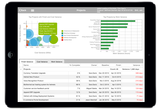
The Sensei Project Dashboard™ app for iPad. As a project manager, it helps you stay updated on all your projects.
The Sensei Portfolio Dashboard app for both iPad and Project Online. These provide multiple PPM reports based on industry best practices, giving you visibility and insight into your portfolio of projects and resources.
We have also acquired the Project Financials add-in and Project Snapshot add-in from Projectum ApS. The Project Financials add-in allows you to work with time-phased cost data and can be used to manage project costs, benefits and forecasts. The Project Snapshot add-in allows project managers to create snapshots of all project level information such as budget, actual cost, KPIs, and more.
We look forward to bringing these capabilities to our customers with Project Online.
—Brett Brewer, general manager of the Project engineering team
___________________________________________________
Sensei Project Solutions, Inc., winner of the "2014 Microsoft Project and Portfolio Management (PPM) Partner of the Year," specializes in PPM deployments with Microsoft Project Online, Microsoft Project Server and Microsoft Project.
Projectum ApS, winner of the "2015 Microsoft Project and Portfolio Management (PPM) Partner of the Year," specializes in PPM deployments with Microsoft Project Online, Microsoft Project Server and Microsoft Project.
The post Office 365—project and portfolio management (PPM) for the mobile-first, cloud-first world appeared first on Office Blogs.
Office Blogs
.
Blog
.
<span class='date ' tip=''><i class='icon-time'></i> Dec 05, 2015 12:12pm</span>
|
|
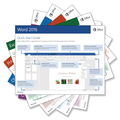
To coincide with last week’s release of Office 2016, we put together a set of handy Quick Start Guides that introduce you to the newest versions of Microsoft Word, Excel, PowerPoint, Outlook and OneNote.
Whether you’re coming from previous versions of your favorite apps and want a quick orientation about where to find familiar basics or you’re entirely new to Office and want an overview of how to get to some of the most important things, each of our Quick Start Guides provides helpful information that you can read, print out and share.
Guides are now available for all three of our recent Office releases. Download just the ones you want or get the entire set for your preferred operating systems.
Office 2016 for Windows
Visit Office 2016 Quick Start Guides to download guides for the desktop versions of Word 2016, Excel 2016, PowerPoint 2016, Outlook 2016 or OneNote 2016 on any recent version of Windows.
Office Mobile for Windows 10
Visit Office Mobile Quick Start Guides to download guides for the modern versions of Word Mobile, Excel Mobile, PowerPoint Mobile, or OneNote on Windows 10.
Office 2016 for Mac
Visit Office 2016 Quick Start Guides for Mac to download guides for the Mac versions of Word 2016, Excel 2016, PowerPoint 2016, Outlook 2016 or OneNote 2016 on Mac OS X Yosemite or El Capitan.
While viewing any guide, you can save a copy of it to your computer, zoom in to get a closer look at a screenshot, or search for feature names or keywords to quickly find something in the text.
Please let us know if you find these types of guides useful and what sort of introductory content you’d like to see in the future. You can leave comments here on this blog post or at the bottom of each of the Quick Start Guide download pages.
—The Office Team
The post Download our free Office 2016 Quick Start Guides appeared first on Office Blogs.
Office Blogs
.
Blog
.
<span class='date ' tip=''><i class='icon-time'></i> Dec 05, 2015 12:11pm</span>
|
|
Azure ExpressRoute for Office 365 enables organizations to establish a private, managed network connection to Office 365 as an alternative to connecting over the Internet. This direct connection offers customers more predictable network performance, an SLA for guaranteed availability and additional data privacy. As more organizations depend on Office 365 for document collaboration and communications, they will come to depend more and more on the network connectivity they have between their users and Office 365.
Today we’re pleased to announce that Azure ExpressRoute for Office 365 is now generally available from these network operators:
British Telecom
Equinix
Tata Communications
TeleCity Group
Verizon
You can read about how Microsoft is using ExpressRoute for Office 365 in the Microsoft IT white paper, "Optimizing network performance for Microsoft Office 365."
Connecting your network to Office 365 using Azure ExpressRoute
Depending on your network configuration, here’s how you can work with network operators offering ExpressRoute for Office 365 to establish a connection between your network and Office 365:
If your organization already uses Azure ExpressRoute, your network operator can simply turn on the connectivity for you. Since use of Office 365 generates additional network traffic, you should discuss the requirements for additional bandwidth with your network operator.
Organizations using IP VPN technology for a WAN provided by a network operator can ask the network operator to add Office 365 as a node on your WAN. Once Office 365 connectivity is added, Office 365 services appear as if they are on your WAN—like an offsite datacenter.
ExpressRoute can also support large or point-to-point network connections. If you have a large broad network, then you may already have a network connection in a co-location facility where Azure ExpressRoute is available. You should work with your network provider to identify the best way to connect to Azure ExpressRoute.
For more information, read about ExpressRoute for Office 365 here and watch this episode of Office Mechanics:
Frequently asked questions
Q. Where in the world is ExpressRoute for Office 365 available?
A. Your users can connect from anywhere in the world that your network operator provides access. Each network operator connects to the Microsoft network at specific locations. They can provide networking from the user location to the Microsoft network connection. You should discuss the options with your network operator. The locations where they will connect to Microsoft’s network are listed here.
Q. How do organizations purchase ExpressRoute for Office 365?
A. Organizations interested in purchasing ExpressRoute for Office 365 should have an Azure subscription and should discuss details of the connectivity with an Azure ExpressRoute partner.
Q. Are there any Office 365 services that Azure ExpressRoute cannot provide a connection to?
A. Today connectivity is available for Exchange Online, SharePoint Online, OneDrive for Business, Skype for Business Online, Azure Active Directory, Office 365 Video, Power BI, Delve and Project Online. Services that ExpressRoute does not provide connectivity to include download of Office 365 ProPlus installation files, Yammer, Domain Name Service and Content Delivery Network servers.
Q. Is QoS supported on Azure ExpressRoute?
A. Yes. QoS is supported for Skype for Business Online over Azure ExpressRoute for Office 365.
Q. Does Microsoft provide tools to test for network performance issues?
A. Yes. We have the Office Client Performance Analyzer (OCPA), which was recently updated to add a number of new performance test metrics. Azure ExpressRoute for Office 365 may be a solution to network performance problems experienced by users. OCPA can be downloaded from the Office 365 admin console here.
For customers with Premier support contracts, Microsoft has a service offering for Office 365 Network Performance Assessment. Please contact your Technical Account Manager for details.
Q. Can Office 365 for U.S. Government (GCC) use ExpressRoute for Office 365?
A. Yes. ExpressRoute is compatible with Office 365 G SKUs. If a GCC customer chooses ExpressRoute, they should be aware that this will be the commercial Azure ExpressRoute service rather than the Azure Government ExpressRoute service. Currently Office 365 cannot be connected to via Azure Government ExpressRoute as announced here.
The post Announcing general availability of ExpressRoute for Office 365 appeared first on Office Blogs.
Office Blogs
.
Blog
.
<span class='date ' tip=''><i class='icon-time'></i> Dec 05, 2015 12:11pm</span>
|
|
Data Loss Prevention (DLP) capabilities protect your data where it is stored, when it is moved, and when it is shared. We first announced last year our plans to bring DLP to SharePoint Online and OneDrive for Business, and today we are pleased to announce DLP will begin rolling out to OneDrive for Business and SharePoint Online starting this week. By extending DLP to OneDrive for Business and SharePoint Online, we are expanding upon the same protection you already have in Exchange, Outlook and Outlook on the web, offering broader protection of your data wherever it lives. In addition, Office 2016 also supports DLP in Excel, Word, PowerPoint and Outlook, scanning documents for defined sensitive information.
DLP in OneDrive for Business and SharePoint Online
During the private preview of DLP for OneDrive for Business and SharePoint Online, we listened and incorporated feedback. DLP will now be available in premier enterprise SKUs, making these critical Office 365 compliance/protection capabilities available for both end users and IT admins. This is another important milestone in our efforts to deliver information protection controls to IT, to protect sensitive information and prevent it from being inadvertently disclosed. At the same time, we’ve built in policy tips and end-user education to help employees make the right choices when working with sensitive data.
IT admins will see new controls in your Office 365 Compliance Center, allowing you to easily set up DLP policies for SharePoint Online and OneDrive for Business. As a further protection, we recently announced even more protection controls with policy tips integrated throughout Office desktop apps—from Outlook and now to Word, PowerPoint and Excel—providing consistent notification across all of their productivity applications. IT admins also can configure their policy tips so that users can interact with the pertinent policy, for example, providing a business justification to override the policy or reporting a false positive.
In the coming weeks and months, we will continue adding new features. Below is a brief overview of what’s available now and what’s coming next.
Currently rolling out
Coming next
Create automated policies with any of the
available built-in sensitive information types
Exceptions for locations and conditions in your policies
Detect external sharing and apply appropriate actions
Ability to encrypt content as an action
Scope DLP policies to specific SharePoint or OneDrive sites
Support for custom classifications and document fingerprinting
Policies based on document properties (metadata)
Shared by/by member of conditions
Block or restrict access to the sensitive content
Customizable Policy tips and user notifications via policy tip and email
Admin-facing Incident reports and reporting
A comprehensive overview of information protection
To learn more about DLP in SharePoint and OneDrive for Business, watch today’s Office Mechanics show, in which Asaf Kashi, principal group program manager for Information Protection, provides a comprehensive overview of how DLP helps protect against data loss. Asaf explains how an enterprise IT infrastructure and the Microsoft cloud work holistically, enabling security and compliance without impacting end-user productivity. Microsoft then utilizes DLP to scan files in transit and at rest. Asaf also reviews how easy it is for IT admins to manage and audit their company policies through the Office 365 Compliance Center.
As sharing and collaboration evolve across applications and devices, our vision is to deliver DLP to all the places where you want to protect your data, with the goal of protecting information from when documents are initially created to when they are stored or shared. As DLP rolls out to your Office 365 Compliance Center in the coming weeks, we encourage you to try it out.
The post Data Loss Prevention in OneDrive for Business, SharePoint Online and Office 2016 is rolling out appeared first on Office Blogs.
Office Blogs
.
Blog
.
<span class='date ' tip=''><i class='icon-time'></i> Dec 05, 2015 12:10pm</span>
|
|
Today marks a huge step forward with OneDrive for Business. It’s the most significant set of updates we’ve ever released. First and foremost, we’re delivering a rock-solid new sync experience. Beyond this, we have a new browser experience, mobile app improvements, critical new IT controls and extended developer experiences to enable people to do and achieve more with OneDrive for Business.
Our team has set up a site for you to reserve a spot for your organization to start testing out the limited preview of the new sync client. When the preview is ready, we’ll send you an email with instructions on how to download it and set it up. Updates across browser experiences, mobile apps, IT controls and developer experiences have already begun rolling out to Office 365.
If that isn’t enough OneDrive news for you, we’ve also published how Lotus F1 Team’s IT crew implemented OneDrive for Business with recently updated IT controls on today’s Office Mechanics show. And we’ve begun rolling out Data Loss Prevention (DLP) in OneDrive for Business and SharePoint Online to work with the new Office 2016 apps. It’s a big day for OneDrive for Business, and you can find out more on today’s OneDrive Blog post.
The post OneDrive for Business sync client preview and new browser, mobile, IT control and developer experiences appeared first on Office Blogs.
Office Blogs
.
Blog
.
<span class='date ' tip=''><i class='icon-time'></i> Dec 05, 2015 12:10pm</span>
|
|
To coincide with today’s news about the most significant set of OneDrive for Business updates since the service was first released, we continue our series on Lotus F1 Team’s real-world implementation of Office 365. We take an in-depth look at how Lotus F1 Team’s IT crew implemented OneDrive for Business to protect its intellectual property in one of the most highly competitive environments while enabling secure file sharing and access to key information by a team that’s on the go, traveling from race to race around the globe.
Following our first episode in the Lotus F1 Team series, we see how OneDrive for Business, activity auditing, Data Loss Prevention (DLP) and mobile device management (MDM) are put to work by an organization that takes protecting its intellectual property—from design to track—extremely seriously.
David Cadywould, from Lotus F1 Team’s IT crew, explains the great progress they’ve made in the last month with OneDrive for Business helping to control how the team stores and shares files—especially on mobile devices—and educate their users on organizational policies through the DLP feature.
David also demonstrates how the Lotus F1 Team blocks offline file synchronization to unmanaged devices and limits permission-sharing options in the People Picker Control using simple PowerShell commands. Other demos cover modern attachments, activity auditing, mobile device/Intune management and DLP.
Get started today with all of the new OneDrive for Business capabilities and stay tuned for the next chapter of Lotus F1 Team’s journey to Office 365, where we’ll show how they’re moving from pre-defined reporting using SQL Server to user-driven, self-service, interactive analytics with Power BI.
—Jeremy Chapman
The post How Lotus F1 Team races the globe with Office 365 and OneDrive for Business appeared first on Office Blogs.
Office Blogs
.
Blog
.
<span class='date ' tip=''><i class='icon-time'></i> Dec 05, 2015 12:10pm</span>
|
|
We are excited to announce availability of Project 2016. This release includes significant updates to Project Professional, Project Pro for Office 365 and Project Online. Project 2016 delivers on some of the most requested capabilities: Resource Management and Resource Capacity Planning. Supporting these key capabilities are enhancements such as new Resource Engagements, a brand new experience for resource managers, and Capacity heat maps. Project 2016 now provides an end-to-end experience for managing and optimizing your resource utilization.
In addition to resource management, there are a host of improvements and new features to help you be more productive with Project, such as improved timelines, Tell Me integration and full support for Office Add-ins.
Resource Engagements
For project managers, securing resources to ensure your project is properly staffed has always been a challenge. With Project 2016, it’s now possible to systematically request a resource, and once approved, lock that resource to guarantee it’s available.
Creating an engagement and submitting it for approval sets off a simple workflow that enables the resource manager to approve or reject the request.
The project manager will always have an up-to-date view of the status of their requests from within Project Professional 2016 or Project Pro for Office 365. Once a locked resource is assigned to a project for a duration of time, managers of other projects will get notified if they try to overbook a resource.
The resource manager experience
The resource manager (or line manager) is a people manager who may not want to use the full Project client. To allow the resource manager to collaborate with the project manager, Project Online now has an area for the resource manager to view and approve or reject all proposed resource contracts. In addition, the new resource views allow the manager to understand the capacity utilization of their resources at a quick glance.
Resource Capacity heat maps
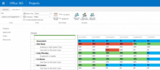
Ensuring that the resources are well utilized and productive is a key strategic need for any company. Project 2016 introduces the Capacity heat maps and a brand new set of intuitive reports to enable at-a-glance visualization of resource utilization. Both under- and over-utilization of resources can be problematic, and both can be seen quickly with the new heat map.
Timelines
Communicating the project schedule is a critical part of any project manager’s job. But for many audiences, a Gantt chart isn’t the best way to visualize the schedule. More than ever, a timeline is the best way to communicate how a project’s lifecycle lays out. With this in mind, we have overhauled the Timeline feature to include multiple timelines, each with different start and end dates, representing a user-defined set of tasks and milestones.
There are several rich features in the new Timeline visualization, including:
Independent start and end dates for each timeline.
Drag and drop between different timelines.
Save to PowerPoint with editable objects.
Tell Me
With so many features in Project 2016, wouldn’t it be great if you could just ask where a certain feature was, instead of having to hunt for it? With Tell Me, you can do just that. Better yet, the answer that Tell Me provides is a live button, so you just have to click the answer and it will do as you ask. It’s a huge time saver.
Read/Write Office Add-ins
Office Add-ins are extensions that you can download from the Office store that add functionality to Project. This means that Microsoft and its partners can continuously and easily deliver new features so you can customize Project to your tastes. With Project 2016 release, Office Add-ins now have full Read/Write access to the project you are working on, providing richer extensions than have ever been possible.
Availability
Project 2016 is immediately available online as part of Office 365. The new service side features, such as Capacity heat maps, are being rolled out into Project Pro for Office 365 and Project Online right now. When you choose to activate these features, we will automatically upgrade all of your existing Resource Plans to Engagements. The new resource management features will be available to on-premises customers in the spring of 2016 when Project Server 2016 is released.
Enjoy the new Project!
—Howard Crow, principal group program manager in the Project engineering team
The post What’s new in Project 2016 appeared first on Office Blogs.
Office Blogs
.
Blog
.
<span class='date ' tip=''><i class='icon-time'></i> Dec 05, 2015 12:09pm</span>
|