Blogs
|
School has started in most parts of the world, and the OneNote team has some exciting announcements to share! As we mentioned on the Microsoft Education blog earlier this month, OneNote Class Notebooks and OneNote Staff Notebooks are now available for Office 365 customers (teachers and faculty) around the world. We’ve seen OneNote Class Notebooks created in 95 countries, and Staff Notebooks created in 45 countries. More OneNote Class and Staff Notebooks are being created by teachers and staff every day!
We are listening to feedback from teachers and staff and improving Class Notebooks based suggestions from educators. Today we are happy to announce the upcoming release of two new capabilities, which are a direct result of talking to teachers and were also announced in our blog post back in May. We will gradually roll out these features to education customers over the coming weeks. We will also release these updates to Staff Notebooks in the near future.
Remove students or co-teacher permissions from a Class Notebook
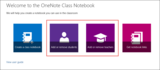
The top request we’ve heard is to be able to easily remove a student’s permissions from a Class Notebook. When a student leaves the class, you can now quickly go into the Class Notebook app and remove that student from your class by clicking the Add or remove students tile. Removed students will not have access to the Class Notebook anymore. However, their work will still remain in your notebook, so that you can choose to archive it or delete it permanently.
You can also now remove co-teachers by clicking the Add or remove teachers tile. This will remove permissions of any co-teacher who had access to the Class Notebook.
Add student groups to a class notebook
Teachers are now able to add groups (i.e. class lists) of students to a Class Notebook. This allows a teacher to add an entire class by just typing one name into the Add students dialog—e.g. "Mrs. Smith’s Math class Period 1." Previously, each student needed to be entered manually, so we hope this feature will save teachers a lot of time. We hope this will also help simplify the process of adding students to a class while leveraging work already done by IT staff for preparing class lists in Office 365.
We also support Active Directory Security Groups and Office 365 Groups when adding students.
Update group membership changes to your class notebook
Did a bunch of students join or leave your class this year? Not to worry! The Class Notebook app can now grab updates in group membership from your school directory. Simply click the Add or Remove Students tile and proceed through the steps. You will be able to preview the latest list of students in your class, and we will set up or remove their student notebooks once you confirm.
New languages supported
In addition to these two top features, we also want to announce that OneNote Class Notebooks now supports Right-to-Left (RTL) languages, including Arabic, Hebrew and Persian.
As always, reach us on Twitter @OneNoteEDU with feedback or email us directly at OneNoteEdu@microsoft.com. You can find answers to common questions here.
The post Top teacher-requested features added to OneNote Class Notebooks appeared first on Office Blogs.
Office Blogs
.
Blog
.
<span class='date ' tip=''><i class='icon-time'></i> Dec 05, 2015 12:03pm</span>
|
|
Join us for a live webcast series titled "Tips & Tricks for the Modern Workplace" and learn how to take your Office 365 skills to the next level.
With the industry’s most advanced productivity suite—Office 365—Microsoft is focused on helping you be more productive, mobile and collaborative, making your day-to-day tasks easier. We are making updates weekly, monthly and quarterly to all parts of the cloud service, ensuring your users have "the right tool" at "the right time." As a result of the continued enhancement of our productivity suite, we’ve built this four-part webcast series to cover topics on PowerPoint, Excel, OneNote and Skype. These are delivered from Microsoft subject experts with top industry knowledge to keep you informed on the latest capabilities you can bring to your organization.
Register now and join us live or on demand to learn how you can empower your employees to be more productive, manage more effectively, stay connected and organized, and share their ideas through the power of Office 365.
Join our upcoming session to take your PowerPoint usage to the next level. Build a story, present with clarity and conviction—and move forward, faster. Our first 45-minute webcast features Pump Up Your Presentations with PowerPoint on Wednesday, October 7th at 10 a.m. PDT.
Register for the virtual event series and get the latest information on how Office 365 can help your organization and employees be more productive every day. We hope to see you there!
Date
Webcast title
Registration link
October 7-November 4
Tips & Tricks for the Modern Workplace series
Series page
October 7
Pump Up Your Presentations with PowerPoint
Register here
October 14
Organize Your Data in a Flash with Excel
Register here
October 21
Never lose your notes again, OneNote to rule them all!
Register here
October 28
Take Your Meeting Beyond the Boardroom with Skype
Register here
November 4
Organize and Discover your Documents on OneDrive and SharePoint
Register here
The post Tips & Tricks for the Modern Workplace webcast series appeared first on Office Blogs.
Office Blogs
.
Blog
.
<span class='date ' tip=''><i class='icon-time'></i> Dec 05, 2015 12:03pm</span>
|
|
Welcome to the Collaboration in Office blog!
With the recent release of Office 2016 and a renewed focus on making it easier for our users to collaborate within Office, we’ve created a new blog series focusing on and highlighting new and existing collaboration features within Office. In the coming months, we’ll cover a wide variety of topics related to collaboration and how to get tasks related to collaboration done in Office. We’ll also talk about Office collaboration in different contexts—like in the office, the classroom and at home. So we hope you find these topics interesting and worth sharing. We’ll start the series off with a post about Sharing from Jade Kessler, program manager for the Office Core team.
—The Collaboration Experiences team
Last week, we introduced Office 2016 for Windows, which takes the work out of working together. Using Word, PowerPoint and Excel 2016, you can now easily share your documents with friends and colleagues and work with others on the same document simultaneously while using the rich formatting options you know and love. Collaborating in Office has never been easier!
Tired of sending attachments back and forth and ensuring that everyone stays up-to-date? Tired of manually merging everyone’s edits into the final copy? Using Office 2016, your content stays in one place and no one has to miss out on other people’s edits ever again. Collaborate without the hassle of passing around different versions of your documents. Seamless collaboration is at your fingertips.
Here are four ways the new Share feature in Office 2016 will change the way you work with others:
Ready to collaborate? Invite your friends and colleagues!
If you’ve already saved your document to OneDrive, OneDrive for Business or SharePoint, all you need to do to invite others is to click the Share button in the upper right of the screen and type in their names or email addresses in the Invite people text box. Next, you can give your collaborators different levels of permission, allowing them to make edits or restrict their access to View-only. If you choose View-only, then only you will be able to make changes to the document. Before you’re done, don’t forget to include a personal message with your invite. Click the Share button and you’re all set! It’s as easy as that, and now you can see who the document is shared with in the pane. You will get a notification in the upper right-hand corner as soon as others join the document. In Word 2016, you will be able to co-author with others simultaneously and see their changes as they type. Otherwise, press Save to refresh the document and see other people’s contributions.
If you’ve just created a new document or have saved it to your local drive, you need to save it to your OneDrive, OneDrive for Business or SharePoint first before you can share. To do this, click the Share button in the upper right corner and then click Save to Cloud. In the Save As dialog, select a cloud folder and save your document. Once the save completes, you are automatically returned to Share so you can invite others.
Share a link with a group
If you want to share your document with a wider audience and don’t feel like typing a long list of email addresses, you can get a sharing link from the Share pane. Simply, click the Share button and then click Get a sharing link at the bottom of the pane. Note, this option is not available if your IT admin has disabled anonymous link sharing. You can choose to create an Edit or View-only link. If you choose View-only, then you are the only one who can make edits to the document. Once you’ve created a sharing link, you can copy it and paste it in OneNote, Facebook, Slack, Skype, email—anywhere you want! No need to sign in, and everyone works on the same version of the document. You will see a notification in the upper right-hand corner when people open the link you sent and join the document.
Keep track of who is working with you
You can keep track of the number of co-authors present in the document at any time by checking the number on the Share button. If you want to find out who’s there, take a look at the co-author list in the Share pane. In Word 2016, you’ll see who’s using the real-time co-authoring feature and whose edits you’ll see as they type (marked as Editing in real time) and who is not using the feature (marked as Editing). You’ll also see who has the document opened multiple times (e.g. Editing from three devices).
Lastly, with in-app Skype for Business integration, you can start a chat, call or video with people you’ve shared your document with by simply hovering over their name in the people list.
Change permissions on the fly
To manage the permissions to your document, go to the Share pane and right-click on someone in the list of collaborators. You can remove them from the document completely or change their level of access (i.e. give them View-only or Edit permissions). If you’ve created a sharing link, right-clicking on it in the collaborators list will give you the option to remove it. After you do that, people with the link to the document will no longer have access to it.
Now you know how to start collaborating in Office 2016. To work better together, start sharing today! Your colleagues and friends are only a few clicks away.
We have more exciting updates in store for you and will keep rolling out features to help you be more productive together. Stay tuned and send us your feedback!
—Jade Kessler, program manager for the Office Core team
The post Share with the click of a button in Office 2016 appeared first on Office Blogs.
Office Blogs
.
Blog
.
<span class='date ' tip=''><i class='icon-time'></i> Dec 05, 2015 12:02pm</span>
|
|
If you already know what you want to say to an audience, PowerPoint makes it easy to say it in a visually stunning presentation. With Office Mix, you can even make that presentation interactive, host it on the web and share it with the world. But what if you don’t know what to say—or how to say it?
James Whittaker to the rescue! Or @docjamesw if you’re a fan of Twitter. In "The Art of Stage Presence," the man who left Microsoft to join Google and came back to Microsoft teaches the world five basic laws of delivering a great presentation. In fact, rather than just tell you the laws, he demonstrates them. In a talk-within-a-talk, Whittaker gives a sample presentation on "The Magic of Software" and then deconstructs what he did and how he did it. "An idea is a terrible thing to waste," says Whittaker. "The quality of the idea matters less than the quality of the presentation of the idea. We need to get better at presenting our ideas."
Brought to you by Office Mix, this distinguished engineer shares the wealth of his experience at how to avoid glassy-eyed stares from an audience, how to save them from "death by a thousand slides," and how to get your idea across in a way that gets people talking about it. There’s no requirement to use PowerPoint, Windows or even a computer. Stage presence is a life skill that you can tap into whenever you need to communicate an idea.
Want more inspiration? Check out the other inspiring speakers in the Office Mix Gallery. Then download Office Mix for free and put James’s advice to work for you.
The post Master "The Art of Stage Presence" with James Whittaker appeared first on Office Blogs.
Office Blogs
.
Blog
.
<span class='date ' tip=''><i class='icon-time'></i> Dec 05, 2015 12:02pm</span>
|
|
Today’s post was written by Brent Thrasher, 8th grade Math teacher at Rickman Elementary School.
This past spring our school district started tossing around the idea of moving to open educational resources (OER). I was actually glad to hear this idea because I knew what opportunities it could offer our students. At the same time, I knew the challenges it would pose to us teachers. If you don’t know much about OER, this article is a good place to start learning.
Basically, the idea of OER is a community of educators creating "free-to-use" content. This content is open to anyone who wants to consume it or modify it to make it their own. It can distributed to students and updated as many times as the teacher wants, without any fee.
Of course, we tend to focus on the free aspect of OER, but I think that is only a small benefit of OER. I think the biggest and most powerful aspect of OER is the community. As I mentioned before, OER is content developed by a community of educators.
With thousands of educators out there creating content, there is what seems like too much content to comb through. When I started my adventure in the OER world, gathering almost everything I found, I realized two things. One: I could never sort through all of this content by myself before the start of school. Two: I needed a way to organize all the content and insert new lessons as I come across them.
Well, it didn’t take long to realize OneNote was really the answer to both of my problems. The first problem was the manpower. When you get started reviewing and gathering OER you will soon find out it seems endless. I needed some help, so I contacted a fellow math teacher in my district and we decided to work on the project together. OneNote made this easy. I simply started a Notebook and shared it with my colleague by sending her an email. Right away we started dragging and dropping the lessons we had found out on sites like Engage New York and cK-12. Also, thanks to OneNote, we were able to work asynchronously. I could work on the project when I had time, and she could do the same. We did not have to set up times to meet. With OneNote, my edits instantly synced to her version.
As I mentioned before, an important aspect of OER is that you can edit it and make it your own. OneNote again made things really easy for us. In OneNote, you get a great open workspace so that you can easily make annotations and comment on the content. This allowed us to collaborate and throw ideas back and forth.
OneNote also helped us organize our content. As I mentioned earlier, with OER it is easy to pile up the content and lose track of what you have. To remedy this problem we built an index page with a table that contained links to the pages for each lesson.
We are still working on our OER project and we are making a lot of progress. Since we began, we have invited several other teachers in our district to participate and add feedback. It is pretty awesome to see what we are accomplishing thanks to the communication OneNote provides.
If you aren’t familiar with OneNote, you should check it out. You can get it here for free, even if you don’t have an Office 365 subscription.
—Brent Thrasher
The post Using open educational resources to make your own textbook? You need OneNote! appeared first on Office Blogs.
Office Blogs
.
Blog
.
<span class='date ' tip=''><i class='icon-time'></i> Dec 05, 2015 12:01pm</span>
|
|
Office 2016 is here! That’s the big news, but a host of new apps, tools, features, integrations, services and previews arrived in September too. Check out Snip, an exciting new tool for screen captures. For Office 365 for business, there’s a new Office 365 Admin Center Preview and the next-generation sync client for the updated OneDrive for Business is now in preview. There’s also a new Office 365 Import Service, a new experience called Office 365 Planner, and a new service feature, the Office 365 Service Trust Portal. Invite, which helps you easily organize meetings on the go, and Outlook Groups are the new mobile apps. Several posts this month highlight what’s new for Excel 2016 and Project 2016. Others focus on helping admins prepare for, manage and deploy the new Office. For education users, security features were added to Office 365 Education, and the developer community saw the launch of a new Yeoman generator for building Office add-ins. Leave us a comment to let us know what your favorite new feature is. If you missed last month’s updates, see What’s new: August 2015.
Office 365 Personal, Office 365 Home and Office 365 University updates
Introducing Snip, a new tool to help you get more done in Office—Why just show when you can show and tell in three easy steps? Snip is a new way to perform the familiar task of snipping—capturing material to paste in email, documents or notebooks. With Snip you can capture anything on your screen, add audio narration or inked notes, and then paste the annotated snip, send it as a URL, or save it as an MP4 video. Teachers and students have already caught on to how useful Snip is. Try it yourself and see how much more productive you can be. Download Snip today.
Office updates for the iPad Pro, iOS 9 and WatchOS 2—New features for Word, Excel, PowerPoint, OneNote, Outlook and Translator have been developed to take advantage of these recently announced Apple enhancements. The new features include multitasking on iPad, inking on iPad, intelligent search on iPad and iPhone, wireless keyboard support for iPad and updates to Outlook and Translator on Apple Watch. The updated apps will be available when the new iPad Pro, iOS 9 and WatchOS 2 are released. If you install the apps now, you’ll get the new features when the updates are published to the App Store.
OneNote adds support for iOS 9 and iPad Pro with multitasking, Spotlight search and Apple Pencil—Support was added for several new features of iOS 9. With Split View you can have OneNote open side-by-side with another app, with Slide Over you can open OneNote atop another app, and Spotlight makes searching your notes much faster. Improvements were added, too, including better UI support for Arabic and Hebrew in iOS 9 and the option to have your page list on the right or left side of the page. And in November, Apple Pencil and iPad Pro support will arrive.
The new Office is here!—The worldwide release of Office 2016 for Windows on September 22 marks a milestone in delivering new value for Office 365 subscribers with a focus on collaboration, apps that work for you, a perfect pairing with Windows 10 and security features businesses will love. It also marks a new model for delivery, which delivers more frequent updates with new features and improvements. Office 2016 for Mac as a one-time purchase option was also released, along with several new and enhanced Office 365 services. Find out how the new Office takes the work out of working together and read highlights of the new apps, Windows 10, Mac users and enterprise.
Office 365 for Business & Education updates*
New security features for Office 365 Education—New features were added to Office 365 Education to help schools meet their security and compliance requirements in the age of collaborative, cloud-connected teaching and learning. In addition to the basic services—Office Online, 1TB of OneDrive storage, Exchange email and Skype—Office 365 Education now includes advanced features such as Legal hold and eDiscovery to help you find and analyze content, Rights Management Services for access control, and Data Loss Prevention (DLP) to help you identify, monitor and protect sensitive information in your organization. Office 365 Education is free to all academic institutions.
Power Query integrated into Excel 2016—If you often import data into Excel or you need to shape your data before you analyze it and build reports, your get-data experience in Excel is now a lot easier. With Excel 2016, Power Query is no longer an add-in. Power Query technology is integrated into Excel 2016 as part of the Data ribbon, under the Get & Transform section. Power Query enhances the self-service business analytics experience in Excel by simplifying data discovery, access and collaboration. Learn about the new capabilities and try them out for yourself.
Announcing the Office 365 Service Trust Portal—The Office 365 Service Trust Portal (STP) is a new service feature in Office 365 designed to provide deeper information on how Microsoft manages security, compliance and privacy. Insights from this portal help you evaluate how Office 365 maintains compliance with your regulatory requirements and how you can mitigate the risks with moving to Office 365. Through STP you can get direct access to a variety of compliance reports and trust resources, such as Office 365 SOC 1 / SSAE 16 / ISAE 3402, Office 365 SOC 2 / AT 101, and Office 365 ISO 27001 independent audit reports. Find out how to access STP and what it can do for your organization.
Updates to Power Query add-in for Excel 2010 and Excel 2013—The ability to provide a custom query in MDX or DAX when importing data from Analysis Services was added. This allows users to leverage their existing MDX or DAX queries from other tools, instead of having to build them from scratch in Power Query. Improvements to the Navigator dialog include the ability to resize and to multi-select items. Query Editor improvements include easier query group creation and deletion, the ability to extract steps from a query, and updated query icons so they now reflect the type of query.
Send now more widely available—Send is the app that feels like texting and works like email. Send for iPhone became available for Office 365 business and education customers last July, and now Send for Android is available in preview. Also, Send for iPhone and Send for Android are now available in app stores in the UK, Brazil and Denmark as well as the U.S. and Canada. With these updates, even more people can take advantage of Send’s simple, quick text message-like experience when connecting with coworkers, customers and classmates on the go.
Office 365 Import Service—migration to SharePoint Online and OneDrive for Business just became easier—Office 365 Import Service makes migrating documents to SharePoint Online and OneDrive for Business faster and simpler. You save time when migrating your data to Office 365 by having the option to copy it to hard drives and ship them instead of using the network to upload large amounts of data. And to simplify the process, a free tool is available to package up your on-premises SharePoint or file share content and prepare it to be imported into Office 365.
New Office 365 Admin Center Preview—To empower administrators to achieve more, the Office 365 Admin Center has been updated to be more intuitive, informative, scalable and insightful. The dashboard and the way you access the tools were simplified, so it’s easier to complete common tasks like adding users or resetting passwords without leaving the dashboard. Not all features are available yet, but you can get a sneak peek in the Office 365 Admin Center Preview, which is rolling out to First Release customers now.
New ways to get the Excel business analytics features you need—The analytics power of Excel 2016—including rich charts and visualization and new data analysis capabilities in Power Pivot—is now available to all Excel 2016 users, no matter which Office plan you purchase. More advanced analytics functionality comes with the premium plans of Office 2016, features such as advanced analytics and modeling capabilities with Power Pivot, connectivity options with Power Query, and collaboration. Plus, there are new ways to get the premium Excel features for Office Professional 2016 users and small business users using one of the Office 365 Business plans.
Seamless real-time communication on the web with Skype, Skype for Business and Microsoft Edge—The Object Real-Time Communications Community (ORTC) API preview for Microsoft Edge is now available in the latest Windows Insider Preview release. The ORTC API preview for Edge is the latest result of a close, ongoing collaboration between the Windows and Skype teams. What does this mean? For developers, it means new ways to build innovative real-time communications into your web-based experiences. For people using Skype and Skype for Business at work or at home, it means calls and meetings on the web will soon get even easier and more seamless.
Admin tools, guidance and resources for Office 2016—This post is a one-stop shop for the tools, guidance and resources admins need to prepare, deploy and manage Office. Find out about improvements to the upgrade and installation experience, the new deployment and management options, and the newly added support for DLP across the Office 2016 apps, multi-factor authentication and other mission-critical control capabilities. New events, tools and resources are coming in November with the kickoff of a new IT- and developer-focused event series, the Microsoft Cloud Roadshow, which will offer free 2-day technical trainings in 12 cities around the world for topics spanning Office, Azure and Windows.
Admins for small and midsized businesses—get ready for Office 2016—Find out what to expect now that Office 2016 has been released and what you need to do. The Office 2016 release for Office 365 introduces a new model for managing and deploying updates, a model primarily for larger enterprise customers that reduces updates to every four months. Small businesses running Office 365 Business will continue to receive regular monthly updates. When Office 2016 is released for Office 365, you’ll receive an email offering you two choices for updating to Office 2016, at your convenience or with automatic upgrades rolling out over several weeks.
The new Office is here!—The worldwide release of Office 2016 for Windows on September 22 marks a milestone in delivering new value for Office 365 subscribers with a focus on collaboration, apps that work for you, a perfect pairing with Windows 10 and security features businesses will love. It also marks a new model for delivery, which delivers more frequent updates with new features and improvements. Office 2016 for Mac as a one-time purchase option was also released, along with several new and enhanced Office 365 services. Find out how the new Office takes the work out of working together and read highlights of the new apps, Windows 10, Mac users and enterprise.
Introducing Office 365 Groups in Outlook 2016 and the Outlook Groups mobile app—Office 365 Groups, the new cross-suite service that enables people to create public or private groups, launched last year. With the Office 2016 launch, two new capabilities are being introduced—Groups in Outlook 2016 and a new mobile app called "Outlook Groups"—that offer a better way to get work done with others and a number of benefits compared to traditional distribution lists. Creating a group is easy and new colleagues can also join existing groups and quickly get up to speed. Find out more about Outlook Groups and the app and how easy they make it to create and join groups, even on the go.
Introducing Office 365 Planner—Office 365 Planner, a new Office 365 experience, gives you a simple and highly visual way to organize teamwork. It makes it easy for your team to create new plans, organize and assign tasks, share files, chat about what you’re working on, and get updates on progress. You can use Planner to manage a marketing event, brainstorm new product ideas, track a school project or organize coursework, prepare for a customer visit or just organize your team more effectively. Office 365 Planner will be available in preview to Office 365 First Release customers starting in the fourth quarter of this year. Find out more, including which Office 365 plans are eligible for Planner.
New app to organize meetings on the go—Invite—Organizing group meetings can be tricky—especially when you’re on the move, trying to coordinate several different schedules on a small screen. A new app, Invite, greatly simplifies this process: you suggest times that work for you and invite attendees; they select all the times they can attend; and you pick the time that works best after everyone has responded. Invite is available for iPhones in the U.S. and Canada, and is coming soon to Windows Phone and Android phones. The app works best with Office 365 business and school subscriptions, but it also works great with any email—Outlook.com, Gmail and Yahoo Mail included.
Office 365—project and portfolio management (PPM) for the mobile-first, cloud-first world—Several apps and add-ins are being acquired for Project Online from Sensei Project Solutions, Inc. and Projectum ApS, winners of the 2014 and 2015 Microsoft Project and Portfolio Management (PPM) Partner of the Year awards respectively. The mobile apps are Sensei Task Master™, Sensei Project Dashboard™, and Sensei Portfolio Dashboard, and the add-ins are Project Financials and Project Snapshot. These additions to Project Online, plus Wunderlist and Office 365 Planner, give you cloud-based solutions to manage everything from simple tasks to the most advanced projects, programs and portfolios, anywhere, on any device.
ExpressRoute for Office 365 now generally available—Azure ExpressRoute for Office 365 enables organizations to establish a private, managed network connection to Office 365 as an alternative to connecting over the Internet. This direct connection offers more predictable network performance, an SLA for guaranteed availability and additional data privacy, all of which are important as more organizations depend on Office 365 for document collaboration and communications. ExpressRoute for Office 365 is now generally available from these network operators: British Telecom, Equinix, Tata Communications, TeleCity Group and Verizon.
What’s new in Project 2016—Read about the significant updates to Project Professional, Project Pro for Office 365 and Project Online in this release. Project 2016 delivers some of the most requested capabilities: resource management and resource capacity planning. The enhancements supporting these key capabilities are new resource engagements, a brand new experience for resource managers, and capacity heat maps. Other improvements and new features include improved timelines, Tell Me integration and full support for Office Add-ins. Project 2016 is immediately available online as part of Office 365.
Deployment scripts for Office 2016—The Office Deployment Scripts for IT Pros community project that began last month helps IT pros with Office client deployments using PowerShell to streamline the process. All of the scripts are available on the GitHub repository. This month’s updates include the addition of a folder structure to help find useful scripts quickly and easily, a wiki to the repository with information designed to provide context for using these scripts in real-world situations, Office 365 ProPlus Configuration XML Editor, the Generate-ODTConfigurationXML PowerShell script, the Update-Office365Anywhere function and more.
Likes and @Mentions coming to Outlook on the web—Soon you’ll be able to use Likes and @Mentions in your workplace email. The new Like feature in Outlook on the web gives you an easy way to visibly endorse a specific email and call it out as worthy of attention. When you’re collaborating in email, Mention makes it easy to call out a specific person for an action or request, or to add a person to an existing thread. Like is rolling out now to Office 365 eligible First Release customers and is expected to start rolling out broadly to eligible Office 365 commercial customers in late October. Mention will begin rolling out to First Release customers in mid-October and broadly to eligible Office 365 commercial customers in mid-November.
Meet the new OneDrive for Business—This is the most significant set of OneDrive for Business updates ever released. First and foremost is the new rock-solid sync client, now in preview. The new client offers improved reliability, selective sync, a new deployment option and more. The preview is rolling it out in stages to make sure the setup experience is smooth and reliable. The next-generation sync client is just one of the many enhancements in this release, which also include a new, simplified browser experience, new sharing options, new mobile app features, critical new IT controls and extended developer options. See how much more you can do and achieve with OneDrive for Business.
Office 365 Developer updates
Dev Digest for September—Read this month’s exciting news, which includes the launch of a new Yeoman generator for building Office Add-ins, the general availability of the custom file handler add-ins, and the arrival of Office UI Fabric, a responsive, mobile-first, front-end framework for developers, designed to make it simple to quickly create web experiences using the Office design language. And check out the schedule of onsite conferences and training events for the next six months, so you can prepare for upcoming events. And, as always, get the list of new and updated dev documentation, code samples, Office Dev Show episodes, patterns and practices, blog posts, Office Store news, plus the latest in developer marketing—the newest customer-evidence video touting partner solutions, showing how a Seattle cloud-integration company uses the D&B Business Solutions Excel add-in to more quickly qualify their customer leads and close deals.
Please note that some of the updates may take time to show up in your Office 365 account, because they’re being rolled out to customers worldwide.
—Andy O’Donald @andyodonald
——————————————————————————-
*Not all updates apply to every Office 365 plan; please check the individual post for specifics.
The post What’s new: September 2015 appeared first on Office Blogs.
Office Blogs
.
Blog
.
<span class='date ' tip=''><i class='icon-time'></i> Dec 05, 2015 11:58am</span>
|
|
"It is difficult to make predictions, especially about the future," said Danish physicist, Niels Bohr. Well, it just got a lot easier with Excel’s one-click forecasting.
Often we use Excel to analyze time-based series data—like sales, server utilization or inventory data—to find recurring seasonality patterns and trends. In Excel 2016, new forecasting sheet functions and one-click forecasting helps you to explain the data and understand future trends.
Let’s take a closer look at some of the capabilities that come with these new features, including how to detect seasonality, understand the level of confidence in the prediction, and create the forecast in one-click.
Using Exponential Smoothing for forecasting
There are many ways to generate a forecast for your historical data. Before Excel 2016, many used the FORECAST() sheet function, which performs a linear forecast or extended trendlines in chart properties to extrapolate forward.
The new functionality in Excel 2016 utilizes another algorithm, called Exponential Smoothing or ETS. Exponential Smoothing methods are a popular way to forecast and are among the leading methods that have become industry standards.
The main advantages of using the ETS method are the ability to detect seasonality patterns and confidence intervals.
Seasonality patterns
In many business scenarios there is a seasonality pattern that we would like to take into account in the forecast. An example of this could be ice cream sales presented in monthly data. We would expect to have a yearly cycle in this case, which would repeat itself every 12 points (months). Another example is hourly traffic data, where a seasonality of 24 points (hours) makes sense.
In the example below you can see how a yearly seasonality was detected and applied in the forecast. Since the data is monthly and repeats every 12 points, the detected seasonality was 12.
In some cases we know what the seasonality length is, but in other cases we do not. This forecasting method looks for seasonality patterns in the historical data and tries to determine the pattern that best matches the data. For this to work properly, the more repeating cycles the historical data contains the better. It is recommended to have at least 2-3 full seasonal cycles in the historical data. The automatically detected value in the Seasonality section can be found in the Create Forecast dialog under Options. In case the seasonal data was not significant enough to be detected, or you know which seasonality you expect, you can manually override the automatically detected value by selecting Set Manually.
Confidence intervals
Apart from predicting future values for the input time series, the ETS forecast can also return a confidence interval.
The confidence interval is the range surrounding each predicted value in which 95 percent of future points are expected to fall based on the forecast (with normal distribution). The confidence interval helps you figure out the accuracy of the prediction. A smaller interval implies more confidence in the prediction for the specific point. The default level of 95 percent confidence can be changed using the up or down arrows and can be used in two ways:
You can deduct from the width of the confidence interval to understand the accuracy of the prediction.
You can experiment with several of the advanced options (such as how to account for missing points, seasonality, etc.) and observe if the previewed confidence interval got thinner or wider. This provides an indication of how well the underlying model fits the historical data.
How do I create a forecast?
To create a forecast sheet, first make sure you have your time-based series data set ready (it should have a time series and values series). Next, under the Data tab, click the Forecast sheet button. This launches the forecast dialog that walks you through the process. For detailed instructions on how to create a forecast, visit Create a forecast in Excel 2016 for Windows. Alternatively, if you are comfortable with using sheet functions, you can do exactly the same using the new FORECAST.ETS* sheet functions, which are described here: Forecasting Functions Help. Using the functions allows you to use the exact same functionality.
How do I know whether my data is forecasted accurately? Can trust it?
As with many statistical tools, the accuracy of the forecast would depend on this input data. As data is rarely perfect, it’s important to investigate the forecast and understand the applicability of it in the case of your specific data. There are several things you can do in order to understand how accurately your data is being forecasted:
Look at the width of the confidence interval that was described above.
Experiment with the Forecast From control by setting it to a date earlier than your last historical point. This allows you to see how your prediction would have looked had it been calculated only over the earlier subset. In this case, you can look at the overlap between the forecast series and the actual series and see how close it was.
This is marked in red in the example below, and we can see that the prediction was very close to the actuals.
In this case the same can be achieved using the sheet functions by providing as input only part of the historical series and then comparing the forecast with the actuals.
If you happen to know your way around statistics, check the Include forecast statistics checkbox to display a summary of several accuracy metrics.
Select Include forecast statistics to display a table of statistical values in the forecast.
All of the statistics are computed using the FORECAST.ETS.STAT() function and described here.
What do you think?
We just went through the basics of the new forecasting features available in Excel 2016. Try it out for yourself and then share your ideas for other features and improvements in Excel.
The post One-click forecasting in Excel 2016 appeared first on Office Blogs.
Office Blogs
.
Blog
.
<span class='date ' tip=''><i class='icon-time'></i> Dec 05, 2015 11:57am</span>
|
|
Today’s post was written by Ali Rohani, principal program manager lead and Jamie Stark, senior product manager on the Skype for Business team.
In July, we announced a preview of new Skype for Business voice and meetings capabilities in Office 365, including PSTN Conferencing and Calling, Cloud PBX and Skype Meeting Broadcast. More than 4,000 companies are currently previewing the new services, with usage growing at an average of 20 percent every week.
Today we’re excited to announce that we are expanding the preview to provide support for additional countries, as well as adding several new features.
PSTN Conferencing preview now available in 14 additional countries
Initially available only in the U.S., the PSTN Conferencing preview will now be available to customers in Belgium, Canada, Denmark, France, Germany, Italy, Netherlands, Spain, Sweden, Switzerland and the United Kingdom starting this month, with Finland, Norway and South Africa coming in November. The new PSTN Conferencing services enable customers to add dial-in and dial-out capabilities to existing audio, video and web meetings in Skype for Business Online, all provided by Microsoft. The preview will be localized for these countries to include their native languages and local phone numbers for meetings.
Cloud PBX Preview now available to customers worldwide
Skype for Business Server customers around the world will now be able to preview Cloud PBX in Office 365 using their existing phone lines for inbound and outbound calling. Using this on-premises PSTN connectivity, customers worldwide can use Cloud PBX to eliminate separate PBX systems for users but still take advantage of their existing carrier contracts and circuits. In this hybrid configuration, Office 365 customers use on-premises Skype for Business Server software and their own existing IP-PBX or carrier connection to make and receive calls to landlines and mobile phones. Initially, this hybrid option requires an on-premises Skype for Business Server installation, but we plan to provide additional options over time.
Number portability and voicemail
In addition, we are enabling number portability for users of the PSTN Calling preview in the U.S., which allows customers to use their existing phone numbers with our new PSTN calling service, ultimately simplifying adoption. We are also enabling voicemail for Cloud PBX customers worldwide, providing a simple way to leave a message for someone when they are unavailable.
IP Phones with Cloud PBX
In the coming weeks, several IP phone models will also become available for preview with Cloud PBX. Existing Skype for Business customers can use Polycom CX600 and CX3000, HP 4120, and Mitel Mivoice 6725 (previously sold as Aastra 6725 IP) devices running the latest firmware. New customers can purchase Polycom VVX series devices pre-loaded with the necessary software to connect directly to Office 365—more information can be found on Polycom’s website here. Over the next several months, the list of supported devices will expand to include additional models and manufacturers.
Call Quality Dashboard
Finally, later this month, we will add the Skype for Business Call Quality Dashboard (CQD) to the preview. This dashboard offers IT admins quick and easy access to aggregated quality information for both meetings and calls. It will include daily and monthly views of call volumes along with the ability for customers to assess call quality as a function of IP network type and user location.
Sign up to try the new features today!
We really appreciate all of our preview users and the time customers have taken to test and help us improve our service prior to launch. Now, with the new countries supported with PSTN conferencing and the worldwide preview of Cloud PBX, even more enterprise customers can preview the new capabilities. Go to www.skypepreview.com in order to learn more and get signed up.
—Ali Rohani and Jamie Stark
Frequently asked questions
Q. What are the eligibility requirements to participate in the preview?
A. The Skype Meeting Broadcast and Cloud PBX previews are now available worldwide to customers with an Office 365 enterprise plan or Skype for Business Plan 2. The preview of PSTN Conferencing is available to customers in the U.S., Belgium, Canada, Denmark, Finland, France, Germany, Italy, Netherlands, Norway, South Africa, Spain, Sweden, Switzerland and the United Kingdom, with an Office 365 enterprise plan or Skype for Business Plan 2. Cloud PBX with PSTN Calling is available in the U.S. to customers with an Office 365 enterprise plan or Skype for Business Plan 2. EDU and Nonprofit tenants are not eligible for the preview at this time.
Q. Can end users sign up for the trial?
A. No, the trial must be provisioned for the customer tenant by an Office 365 administrator. End users interested in trying the new services should contact their Office 365 administrator.
Q. Are interested Office 365 customers required to trial all of the services currently in preview, or can they choose to preview only a subset?
A. Eligible Office 365 enterprise customers may choose to trial any or all of the services now in preview according to the geographies where each preview is available.
Q. When will these services be generally available, and how will they be priced?
A. We expect to make Cloud PBX generally available worldwide before the end of this year. PSTN Calling and PSTN Conferencing we expect to make available in the pre-release markets before the end of this year. We will share pricing and licensing details when we are closer to general availability.
The post Expanding the preview of Skype for Business services in Office 365 appeared first on Office Blogs.
Office Blogs
.
Blog
.
<span class='date ' tip=''><i class='icon-time'></i> Dec 05, 2015 11:57am</span>
|
|
Over the last year, we’ve helped thousands of customers with varying degrees of IT complexity onboard to Office 365 while reducing their implementation costs, accelerating their time to value and delivering a great customer experience.
With our commitment to delivering the best customer experience, and based on feedback from our customers, we’re excited to announce the evolution of FastTrack from an onboarding service to our customer success service designed to help you realize business value faster with the Microsoft Cloud.
First, we’re changing FastTrack from a one-time benefit to an ongoing benefit. This enables you to request support in onboarding new users and capabilities at any time, and as many times as needed, for the life of your subscription.
In addition, we are expanding FastTrack to now offer customized support and resources across envisioning, onboarding and driving business value. This builds on our announcement earlier this year around the addition of new products to the FastTrack onboarding services, including the Enterprise Mobility Suite (EMS), Azure Active Directory Premium, Intune and Azure Rights Management.
FastTrack’s approach to customer success.
Delivering the next level of service
FastTrack now consists of best practices, tools, resources and personalized remote assistance available through a new web experience (FastTrack.microsoft.com) and through the FastTrack Center. The FastTrack Center is a team of hundreds of engineers who have been focused to date on providing IT professionals and partners all over the world with remote onboarding and migration assistance. Going forward, the expanded focus areas for the web and FastTrack Center experiences are:
Envisioning—Through FastTrack.microsoft.com, we now offer resources and tools to help you build tailored success plans that include both technical implementation and user adoption strategies across Office 365, EMS, Azure and other services.
Onboarding—Once you’re ready, request onboarding to get remote and personalized assistance from our FastTrack engineers who help you assess your technical environment and work with your IT staff or partner to ensure a smooth onboarding and migration experience.
Driving business value—Our goal is to help you get the most out of your IT investments. To do that, we will provide you with best practices, guidance and resources on Office 365 user adoption to help you get started, and will connect you as needed with qualified partners who can help you do more. Meanwhile, you’ll benefit from tools and guidance to help you transform your existing IT practices and effectively manage change.
Get started
We hope you’re as excited as we are about the new FastTrack! Whether you are new to Office 365 or well on your way, we recommend checking out the following resources to learn more about FastTrack:
Visit FastTrack.microsoft.com to get started today.
Follow our Office 365 Roadmap to learn more about upcoming changes.
Join our YamJam on Tuesday, October 13 from 9-10 a.m. PDT on the Office 365 Network to talk more about what FastTrack has to offer and ask your questions live!
—Arpan Shah, senior director for the Office 365 team
Frequently asked questions
Q. Which customers are eligible to take advantage of FastTrack?
A. All customers can benefit from resources and best practices publicly available at FastTrack.microsoft.com. In addition, Office 365 for customers with at least 150 licenses of Office 365 Enterprise SKUs, paid Government and Education SKUs, Kiosk SKUs and Nonprofit SKUs are eligible to take advantage of the FastTrack Center.
Q. When will the new FastTrack be available?
A. Eligible customers can receive Adoption Planning assistance, Onboarding and Migration services from the FastTrack Center today.
Q. How do I learn about new updates?
A. FastTrack is a service that is constantly evolving. We will publish upcoming changes as part of the Office 365 Roadmap. Visit roadmap.office.com to get the full list of future updates.
Q. What onboarding and migration services does the FastTrack Center provide?
A. For more details, please review the service description.
Q. What languages and markets is FastTrack available in?
A. FastTrack is available in all markets. The FastTrack Center provides remote assistance in the following languages: English, Brazilian Portuguese, French, German, Italian, Japanese, Spanish and Traditional Chinese. In addition, FastTrack.microsoft.com will be available in English only at release (October 7, 2015). The content will be released in the languages above in November.
Q. Where can customers and partners find more information about Microsoft FastTrack for Office 365?
A. Visit FastTrack.microsoft.com to become familiar with what our customer success service has to offer, as well as Microsoft FastTrack for Office 365 service descriptions. In addition, partners can go here to learn more about the partner opportunity with FastTrack.
The post The evolution of Microsoft FastTrack—the customer success service appeared first on Office Blogs.
Office Blogs
.
Blog
.
<span class='date ' tip=''><i class='icon-time'></i> Dec 05, 2015 11:56am</span>
|
|
Being a project manager is a tough job. There are constant demands on your time, people to keep on track, pressure to do a certain amount of work in what often seems like an impossibly short amount of time and much more.
But it’s also a necessary role that can bring extraordinary value to your company. In fact, according to a study by PricewaterhouseCoopers, more than 60 percent of project failures are linked to internal issues such as insufficient resources or missed deadlines—i.e., situations a project manager can help avoid. In addition, it’s a growing industry, as more and more companies realize the importance of solid project management.
Being a project manager is like being a juggler who spins several plates in the air at once—not easy. There are constant demands on your time, people to keep on track, pressure to do a certain amount of work in what often seems like an impossibly short amount of time and much more.
In addition, it’s a growing industry, as more and more companies realize the importance of solid project management. Specifically, a separate Project Management Institute study estimated nearly 16 million new project management positions will be created around the world between 2010 and 2020, and the industry will grow by $6.61 trillion.
All that said, managing projects is a huge responsibility, no matter who your employer is. Whether you’re an official project manager or simply leading a project, the following seven tips should help you get your bearings and set your project up for success.
Tip 1: Establish clear goals for the project
Take a look at the big picture and determine what you want to accomplish with this project. If a client or outside stakeholder is involved in the project, external sources will obviously help determine your goals. Overarching goals you should consider include:
Preventing scope creep, which means keeping the scope of the project from growing.
Staying within a given budget.
Completing all aspects of the project.
Providing quality work.
Completing work on time.
Securing the right resources in advance.
Tip 2: Set expectations up front
Everyone should be on the same page in order to guarantee a successful project. Clearly sharing your expectations as the project lead and asking others to communicate their own is an important step in setting up any project. These expectations should include specific ways your team can achieve the goals you’ve already established. In addition, you’ll want to include the following:
List of deliverables and due date.
Statement of scope.
Roles and responsibilities defined.
Q&A process.
Communication plan, including how often you plan to communicate with stakeholders/client.
Tip 3: Outline potential risks and how you’ll manage them if hazards arise
Let’s face it—even if you’ve planned everything to the minutest detail, the unexpected can still occur. So what’s a good project manager to do? Make a plan for the unexpected, of course! Obviously, you may not be able to predict the exact hazard that might befall your project—everything from bad weather to political unrest to technology flubs can occur - but it is still possible to lessen the potential impact of hazards through risk management.
Tip 4: Minimize the number of meetings
A study by Verizon Conferencing found that only 22 percent of meetings are considered "extremely productive" and 44 percent "very productive." That leaves 34 percent of meetings as only somewhat or not at all productive. Obviously, meetings are a necessary part of project planning, but really consider whether a meeting is a best use of your time or if email or some other form of communication—like project planning software, which allows you to share files, assign tasks and exchange ideas without having to meet—can do the trick just as well. The more time spent in meetings means less time spent on actual deliverables. Consider that before sending yet another meeting invite.
Tip 5: Plan the perfect kickoff meeting
Speaking of meetings, the kickoff meeting sets the tone for the entire project. When planning this meeting, be sure to adhere to the following standards:
Invite the right people and ensure the key players can be in attendance.
Create a detailed agenda stating what the meeting will cover. This will help everyone stay on task and understand the meeting objective.
Determine if this can be an online meeting or if it needs to be held in person. This will be different depending on how large the project is, whether you’re working with a new client, the budget for the project, etc. Keep in mind that in-person meetings are usually more complicated to plan—and more expensive too, especially if they involve travel.
Reschedule if the key players can’t be there—there’s no point in holding a meeting without them. You’ll often have to hold another meeting to update them or get their input.
Before forming the agenda, be sure to understand the point of the meeting and what information people should walk away from the meeting knowing.
Tip 6: Pull reports throughout the project
The only way to know if your project is on track is to pull consistent reports. This can often be accomplished through your project management software program. Reports help you measure the efficiency of your resource allocation and make sure you’re on track to reach your budget goals and deadlines.
Tip 7: Get the right tools
While there are many project management tools on the market, not all are created equal. Decide what you really need and compare the products that interest you. At the very least, be sure to choose a tool that allows you to do the following:
Organize and link tasks to create timelines and plans.
Share insights that help you better communicate progress.
Quickly understand how to use the interface.
Customize your plan to fit your team’s needs.
Even though being an amazing project manager is difficult, it’s still doable. You simply need the skills, know-how and appropriate tools to get the job done and achieve the right results.
The post The project manager’s guide to planning a perfect project appeared first on Office Blogs.
Office Blogs
.
Blog
.
<span class='date ' tip=''><i class='icon-time'></i> Dec 05, 2015 11:55am</span>
|