Blogs
|
By Holly ClarkTake your students places a school bus can’t go!Nestled at the bottom of South Australia sits a town known for it’s amazing wine and beautiful beaches - Adelaide. This week, however, Adelaide took on a new distinction, it became the home of the world premiere of Expeditions, Google’s new virtual reality learning tool.(Think of it as Google Classroom, meets Google Cardboard, meets Google Streetview )Luckily, I happened to be in Adelaide at the same time, so I attended a session. I entered the Expedition classroom with a healthy dose of curiosity and skepticism - but with one look at the table of "cardboards,’ all I could feel was pure anticipation - and I could sense the collective excitement from the other teachers. It was as if we all instinctively knew that this could become one of those educational tools that might just change the way students see themselves and the world. What are Expeditions?Simply put, they are field trips from your desk. Using Google Cardboard as a catalyst, Google has put together these Expeditions so students can explore the world. These "Expeditions" are made with 360 degree cameras by a host of Google partners who have created amazing imagery of international landmarks such as the Great Barrier Reef, El Capitan in Yosemite, and the ice-covered land masses of Antarctica. Google hopes to open up a world of knowledge to students - allowing them to visit different locations, experience underwater geographical features and learn about lands far, far away. Someday, it might give young learners the ability to virtually experience a day in the life of an unknown cultures Hopefully, this will allow students to develop an empathetic view of the world and a healthy respect for the cultural differences that makes our world great.To help teachers guide students through the Expeditions - a "script" is provided from the Expedition content (if the teacher needs it), and he or she can begin reading about the important events in the expedition and point students to important details using the touch of a screen. This touch will deploy embedded arrow markers on the screens of the students. These markers help students find the spot being highlighted.I got a chance to run my own expedition - and saw first hand the power of this evolving virtual learning tool.How can we use them in the classroom?Learning about coral reefs? Why not visit the Great Barrier Reef in Australia? Students can look around as the teacher explains the importance of the reef and how it is supported by the fish and animals (that you can see) that live there.The future of Cardboard in the classroom? Version one depends on photos from partners - but later versions might include the ability to generate user content. Imagine this use in the classroom. Students could take 360 degree photos of their own town and make an Expedition of the area - which would include that town’s own unique geographical features and landmarks.Teachers could assign students to storyboard, collaborate and plan a complete town visit. To help develop writing skills, students could create a script for others to use when visiitng your town via the Expedition site. To foster the application of math skills, students could add information about distances between locations in both miles and kilometers - or gather and then compare/contrast statistics about the area. Forget about learning California History from a textbook, why not have students make their own Expedition to an actual mission where they can narrate a tour of the area - both past and present.Where I hope Expeditions will take students in the future?"Visit My City" - A student created content center. Students would create the content - and people who visit would know the quality might not be as high because they were generated by younger learners. This would give students a place to share and publish their work.For more information about Expeditions visit this website, or watch video produced by Google. Better yet, you can come and learn more at a Gafesummit near you.Special thanks to Suan Yeo - from Google for Education Sydney - for the opportunity to be one of the first to try this tool out!
EdTechTeam
.
Blog
.
<span class='date ' tip=''><i class='icon-time'></i> Dec 05, 2015 01:10pm</span>
|
|
Earlier in the school year I introduced the idea of using Google MyMaps in the classroom. Over the last week and a half, I began using it in a couple of my classes. The result of the students using MyMaps was stunning. While these maps are imperfect (missing details periodically due to student error), they demonstrate so many possibilities for student creation.European History - European Explorers (Freshmen through Seniors)European History - Absolutism ResearchWorld Geography - Distribution of Natural Resources (Sophomores)World Geography - North American Research So how do you start designing your My Maps Lesson?First, determine what your goal/objective is for the lesson.For both World Geography and European History, it was an easy and natural fit to use MyMaps. In European History, I have always had students do some type of presentation (Powerpoint, Keynote, Slides) to detail the trips and explorations of various explorers. But as I prepared for that annual lesson, I decided to give MyMaps a go around in order to have a completely student created product.For World Geography, I have always wanted them to get a greater understand of the world's natural resources and the disparity of their use/production throughout the world.Second, provide the guiding questions and objectives for students to quickly access and research. New this year, I have been using Google Classroom for my classes. To get students the questions and topics, I posted an "assignment" on Google Classroom with the following:Topics/QuestionsTypes of resources to useHow to cite sourcesLink to MyMap (Created by me, but will explain how later)Initial Due Date (To help critique student work)Pro Tip: When creating the MyMap link as a teacher, go to mymaps.google.com. Then click share and change access to "Anyone at *School Domain* with the link" and "Can Edit." Next, copy the URL and post it on the Classroom Assignment.Third, students begin researching and posting their information to the linked MyMap.I had each student (or in my case pairs) create a "layer" on their MyMap for a couple different reasons. First, I wanted to be able to easily assess the students without having to search throughout the map for each students work. Second, it prevented students from accidentally deleting or changing other students work.Pro Tip: There is a limit to the number of layers (10 Total) you can create, so be cognizant of the amount.Fourth, review student work and provide immediate feedback on their design and information.As students begin posting their information to the map, give them insight on how best to improve their layer. For example, having students use different colors/symbols in order to differentiate their work from other students (Ex. Christopher Columbus being the yellow line and markers). Some other ways to improve their map would be to include the following: Pictures/videos on markers, journal writings or data information for each marker, proper structure/organization on the side information bar.Pro Tip: Unlike the other Google Apps tools, Google MyMaps does not automatically update as students work on it. However, if you reload the map, all the other work will be updated to your map.Fifth, share the student work with the rest of the world!After students have completed the assignment, change the share settings to "On - Public Web" and "Can View." Then copy the URL and share it out to the rest of the world! What other ideas do you have for student created maps? Ways to make the process even better?"Austin Houp is a graduate of Westminster College in Fulton, Missouri. He has been a teacher for 9 years and currently teaches and coaches at Ash Grove High School in the Ozarks and is the Instructional Technology Director for Ash Grove School District. He is married to his wife Amanda Houp and is the proud father of son Eli with another on the way.
EdTechTeam
.
Blog
.
<span class='date ' tip=''><i class='icon-time'></i> Dec 05, 2015 01:09pm</span>
|
|
Applications to become a Google Education Trainer open up on Wednesday, October 7th! If you train other educators in Google for Education, you definitely might be interested in this program and community. Check out Monica Martinez, EdTechTeam's Director of Professional Development, as she shares her 411 on the application.
EdTechTeam
.
Blog
.
<span class='date ' tip=''><i class='icon-time'></i> Dec 05, 2015 01:09pm</span>
|
|
Using Google Docs in the Classroom? Check out these 10 Tips on maximizing your Google Docs experience. Great tools for metacognition development, writing reflections, verbal feedback, and more. 1. Use Tables 2. Utilize Comments3. Revision History4. Install Draftback5. Install Grammarly6. Use Read&Write for Google7. Suggested Edits8. Use Kaizena Voice Comments9. Voice Typing10. Build a Story
EdTechTeam
.
Blog
.
<span class='date ' tip=''><i class='icon-time'></i> Dec 05, 2015 01:09pm</span>
|
|
From Common Sense Media:Is flipped learning only about having students watch educational videos at home? Watch Molly Schroeder, Director of Summits for EdTechTeam, cover:What flipped learning isDifferent ways to flip, including in-class and at-home viewingCommon questions about flipped learningHow to get startedWatch Molly's Video Here!Flipped learning is changing teaching and learning because we are really personalizing the learning for the Students.To me, flipped learning means anytime anywhere learning. Where you are cloning yourself or some of the lessons that the students are needing to have. All of my students came into my classroom at a different point of their learning. Yet when I was up in front of the classroom teaching everybody was learning the exact same thing on the exact same day. So with Flipped Learning I could put my students in smaller groups and instead of being the teacher up in the very front of the classroom and having everybody learn the same thing at the same time, what you're doing is you're taking the direct instruction moments and you're putting it into individual moments. What my teammates and I did was we decided to do 3-4-minute videos on some of our power standards, or the things that we knew the students needed to know in that unit, so for example in my class, since teaching fifth grade writing my students struggled with there, their, and they're. If I was correcting that paper and I had 27 papers to correct or look over, I would just correct it for the students and hand it back and they would change it. And there really wasn't any guarantee that the next time that they did that they would use the correct version. I started thinking that there could be a lesson that was videoed, a 3-5-minute lesson that the students watched and then if they had some sort of activity afterward I would have an idea that maybe there was some learning that happened. So I took a lesson that might have been for the whole class and put it into an individual moment where the student was doing it just when they needed it. When you're working in a flipped environment, when you're using video to clone the teacher, they can pause me, they can rewind me, and they can really kind of take that at their own pace to review the learning that was happening in the classroom. Getting Started with Flipped Learning:I think the best way to start with flipping your classroom is to just get going. Find a video that matches some sort of curriculum or standard that you have, and have those kids review that video and talk about it afterwards. And you can use it for pre-teaching. Pre-teaching allows the students to come in with a little information for what you want them to know in class. You can create videos or even use videos that are already out there that other people are publishing. there's a lot of educational content out there that we don't have to be the creators of videos. So if you find something that helps you teach the lesson or the content that you need to, you can just use that and start building some links or resources on your website. One of the things that we did in my school district is, we made an entire collection of all of these little screencasts that our teachers were making and it was accessible to the parents and it was accessible to the students 24 hours a day. Questions about Flipped Learning:A big question that a lot of teachers will ask is if they are going to start flipping their classroom is, how do I know that the students watched the video? And so providing some sort of activity or feedback allows the teach to then see if they've learned what some of the students thinking is about after they've listened to that video. Sometimes the students didn't have access to the internet at home so I had to make my classroom available for them to be able to stay late or come in early or use other parts of the class day. What we did is if there was ever any sort of digital assignment whether it be on the computer or involving a screen or a flip or watching a video, I would never have it due the next day. Making sure that your videos are accessible on mobile devices is really important when you're working with different student populations to because a lot of the students or their families do have digital that can connect even if they don't have internet access at home.How do I make engaging videos?The most boring thing in a classroom is watching someone read bullet point off of a presentation. And a lot of the times when teachers get to videoing themselves they sort of turn into robots and there's absolutely no interaction. So when we were creating these videos for narrating and screencasts, we just ask the teachers to have a little interaction. To be themselves, be friendly, introduce themselves so that the video isn't like a robot. And reading some instructions that anybody can read on their own. The Benefits of Flipped Learning:When you're teaching the same lesson to the kids every day you might not know each of the students as personally or as individualized as you would know in a flipped classroom. Know what they need specifically and know what they need to be re-taught or where they can move ahead and they can really enhance and advance their learning. When you are doing flipped learning you're creating the individual experience with direct instruction, but now you have all of this opportunity for the community experience. You have this opportunity for one-on-one teacher experience. Smaller groups, people doing different things at the exact same time, it might look to the outsider a little bit more messy. But what it is is more individualized and personalized for the student in meeting them where they are at. you just have to try it once and get that into your classroom and you'll be surprised in a really great way about the students and how they are able to learn.
EdTechTeam
.
Blog
.
<span class='date ' tip=''><i class='icon-time'></i> Dec 05, 2015 01:08pm</span>
|
|
Google Drive is changing today's classrooms for the better, but how does it work exactly? Come learn the basic ins-and-outs of this incredibly powerful (and ridiculously easy to use) free app! Looking for classroom applications, too? Donnie will be sharing how you can use this app to promote creativity, collaboration, and learning from your students on a daily basis. Office is officially on upset alert: Google Drive is here to stay! Donnie Piercey joined us live from the Kamloops, British Columbia Summit this week to deep-dive into the basics of Google Drive. Check out his live session and resources! Donnie also will be leading a special EdTechTeam Online Coaching cohort on Google Apps in the Elementary Classroom. Space is extremely limited: register here!
EdTechTeam
.
Blog
.
<span class='date ' tip=''><i class='icon-time'></i> Dec 05, 2015 01:07pm</span>
|
|
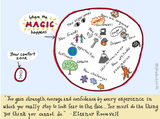
My heart is racing, my breaths are quick, my palms are sweaty, and I feel like I’m about to faint. "You can do it, Syl" I say to myself over and over again, as I await my turn. "And now….. Sylvia Duckworth!" the announcer says, and I force myself up to the podium, placing one shaky foot ahead of the other. I am filled with dread but walk purposefully to the front of the stage, and start my Demo Slam.The Demo Slam is one of the highlights of an EdTechTeam GAFESummit that takes place at the end of a full day conference. This is a quick-paced, high-energy session where presenters have three minutes each to demonstrate something Googly in front of the crowd, who will vote for a winner at the end.After watching and participating in many Demo Slams over the past three years, I have become a keen and curious observer of the sport, mentally taking notes about what works and what doesn’t work. What became clear to me from the beginning is that winning the competition has very little to do with technical expertise and everything to do with delivery and maximizing entertainment value. Here are my top 10 tips for a winning Demo Slam.Choose something fairly easy to demonstrate. Nerves can trip you up if there are too many steps.Everyone loves a good story. Try to tell one during your Slam. String a few ideas together in a cohesive way.Be original. If you use a Demo Slam that people may have seen before, put a unique twist to it.Perform your Slam beforehand in front of your friends and ask for honest feedback and suggestions. Time your Slam while performing it out loud and make sure that it does not go over 3 minutes. Practice is key. Practice your Slam over and over again until you can do it without thinking.Trash talk the competition: they love it and the audience loves it, too.Play up the home court advantage if you have one. Remind the audience that you are from their home town and that they should vote for you.Play up the foreigner advantage if you have one. Throw in flattering comments about their city. Bonus: attempt to speak in their language if different from yours. It’s all about attitude. Try to exude confidence even if you are not feeling it.After my turn at the microphone, the audience is applauding, and I stumble back to my seat, the other competitors high-fiving me as I pass. Regardless of the outcome, I am proud of myself for stepping out of my comfort zone for three excruciating minutes. After all, how can I ask my students to take risks in my class if I don’t take risks myself from time to time? It’s the only way to learn and grow, and to discover your true potential."The greatest failure is the failure to try" (William Ward).NOTE: For inspiration, check out Google Demo Slam: Live on Air.Sylvia Duckworth is a Google Certified Innovator from Toronto, Canada. She recently won the Demo Slam crowns in the Ottawa and Toronto GAFESummits.G+ Twitter
EdTechTeam
.
Blog
.
<span class='date ' tip=''><i class='icon-time'></i> Dec 05, 2015 01:07pm</span>
|
|
One of Google Drive's most versatile and powerful tools, Slides, has so much potential for the classroom. Read on for templates, hacks, and project ideas to start using today!1. Use Custom Page Size> The magic is in being able to change the page size to whatever you want. A custom page size of 8.5" x 11" looks just like a Doc, but formatting is so much easier!2. Collaborative Poetry Anthology> Create a blank slide for every student in your class.> Assign each student a slide number and share the file3. Large Format Signs> Page size 28 x 22> Export the file as a PDF> Send to a print shop!4. Promotional Poster> Change font styles, size and colors> Insert graphics in multiple formats: .jpg, png, tiff or svg5. Award Certificates> Create 2 certificates per page> Include multiple awards and designs6. Resume with Hyperlinks> Compose the resume on an 8.5 x 11 Slide> Publish your slides to simplify linking7. Concert Tickets> Use tables to split your page into 8 sections> Design one ticket, then copy and paste it into the other cells8. Grad Banquet Menus> Access hundreds of fonts to enhance your design9. Athletic Tournament Posters> Round Robin Draws> Playoff Brackets10. Templates> Go to www.slidescarnival.com for a library of free and fee-based Google Slide templates
EdTechTeam
.
Blog
.
<span class='date ' tip=''><i class='icon-time'></i> Dec 05, 2015 01:06pm</span>
|
|
Angela Gadke is a kindergarten teacher in Minnesota. With 14 years of experience working with kindergartners, she’s always looking for ways to meaningfully integrate technology to help students communicate, create, and explore. She has presented at ISTE 2015, iPadPaloozaMN, MN iOS Summit, and many local conferences. In 2014, Angela was named a TIES Exceptional Teacher. Angela is a Seesaw Ambassador. You can follow Angela on Twitter @MrsGadtke.Kindergarten classrooms are bustling with movement, creating, sharing, building,and problem solving. This is a place where emerging readers, writers, scientists, and engineers are eager to share their stories. In this magical world, I am picky when it comes to the apps that my students use. I focus on integrating apps that …Encourage creativity, choice, and independence Make student thinking visibleRemove barriers to allow students to do things that would otherwise would not be possible without technologyProvide ways for students to share their learningHere are three versatile apps that work brilliantly with kindergartners. No matter your tech prowess, they are simple to implement across all content areas.SeesawSeesaw is the one app I need in my kindergarten classroom. Teachers, students, and parents love it and here’s why. With Seesaw students create a digital learning journal or portfolio. Throughout the day, students independently capture their learning with photos, videos, voice, and drawings. Everything is uploaded, organized, approved by the teacher, and instantly shared with that child’s parents. Whoa, this sounds too complex for kindergarten, right? Seesaw is intuitive even for our youngest learners. During the fifth week of school this year, all of my kindergartners could log in, take a picture, add voice, and upload that item to their journal - all without my help! That is empowering for students and a game changer for teachers. Many teachers also view Seesaw as a great option for student blogs and flipping instruction. Once you start playing around with this app you too will get a little giddy with the possibilities.What does it look like in a real classroom?My kindergartners grab an iPad, scan our class QR code, and they’re ready to create. Older students can sign in with e-mail or Google accounts.Once in, students have the following options within the app.In the beginning, my students take photos of their physical creations or work, then touch a button and record a voice explanation. If students create work digitally in other apps, those creations can be saved directly into Seesaw and parents are notified when content is added. This eliminates the need to e-mail separate links and everything is saved and shared in one place. Seesaw also makes app smashing a breeze! Check out this Popplet into Seesaw app smash.Ready to get rolling with Seesaw?Start simple - Have students take photos of their work and add it to their Seesaw journal. Start with math. If students are building patterns have them capture their work. Encourage young authors - During writer’s workshop, have students take a photo of their writing and use the microphone button to tell their story. This supports oral language and captures their story so that when they return to their writing, both the student and teacher know what their story says - priceless for emergent writers!Hear a kindergarten example.Explain a concept or extend learning - Goodbye worksheets! After a lesson, have students take a photo, write on the photo, and explain their learning. Here’s a kindergartner showing what they know about rhyming or a third grader explaining rounding a number. You can also open a blank drawing and let your students create.Rethink assessments - Gone are the days of sitting one on one with a kindergartener and listening to oral counting. I have five students at a time grab an iPad and count. Their skills are documented, shared with parents, and I save instructional time. Try it with sight words, shape vocabulary, fluency checks, science concepts, and during Daily 5.Connect with all parents - Visual updates with Seesaw cross language barriers and parents love that it comes from their child. I love that I know when parents have "seen" items. I can share field trip photos or class projects, by simply touching the "everyone" button. Inviting parents is easy!Make sure to check out @Seesaw and #seesawchat on Twitter for more ideas from a variety of grade levels and platforms.Shadow Puppet EDUMy second "go to" app is Shadow Puppet. This app allows students to combine photos and video to create digital movies, books, or slideshows. Students add voice narration, text, and background music to convey a story and share information - the sky’s the limit. There’s also a built-in search which allows students to select filtered images or maps from the web. The possibilities with this app are endless from screencasts, to science reports, and how to videos. Starting off with Shadow Puppet EDUIn my classroom, kindergartners take photos using the iPad camera. Students open the Shadow Puppet app and press the green add button to begin a new puppet. As they tap the images from the camera roll, they are put into sequence. Students then press a button and begin recording audio, adding text, or music. Their project can be shared in multiple ways or even saved directly into their Seesaw journals for quick sharing with parents. Easy. Powerful. Create Class Books - We love creating class books with Shadow Puppet. Last month during writer’s workshop my students wrote about what they wanted to do when they got bigger. I took a picture of each child’s writing, we opened Shadow Puppet, selected those images, and students narrated their page.Summarize a unit of study After a unit on earthworms, my students worked in teams to create a digital book to teach about worms. They grabbed a paper and pencil and listed the photo shots they would need.They ventured outside with iPads to capture their photos. They put their shots in sequence and narrated their books. Create How to Videos or Screencasts - Here’s an example from two students using Shadow Puppet to explain how to make a movie. I use Shadow Puppet to make screencasts that introduce station activities or as a way to share directions with parents about how to play a game. Vocabulary Support for ELL - Shadow Puppet is an awesome tool to support English language learners. I have used Shadow Puppet to create visual schedules and vocabulary lessons. Last year I collaborated with a student’s dad to create digital stories narrated in the student’s first language and English to support his English vocabulary development. Here’s a short clip of an example.Chatterpix KidsMy final favorite app is ChatterPix Kids. This is an app that can make any photo talk. It’s as easy as snapping a photo, drawing a line to make a mouth, and recording your voice. Again, the possibilities are endless.Here are some ideas to get your ideas flowing!Science recap - A kindergartner makes a leaf talk to share what they know.Practice math concepts - We had some fun making money talk while we learned the values of each coin.Book Talks - Why not use Chatterpix Kid to make books come alive? Have students take a photo of a book’s cover and give a "book talk" or "retell" the story.
EdTechTeam
.
Blog
.
<span class='date ' tip=''><i class='icon-time'></i> Dec 05, 2015 01:05pm</span>
|
|
Part 1: An Introduction into InspiringDavid JakesEdTechTeam's Director of Learning SpacesDavid Jakes is the Director of Learning Spaces for EdTechTeam and leads the Learning Space Design Studio. The Studio, created to support schools in developing compelling and engaging learning environments, is the most recent addition to the comprehensive services offered by EdTechTeam.How do you inspire your students? That’s an important question for every educator to contemplate and answer. What invitation into learning do you offer, and how can learning spaces be a part of that invitation?Does your classroom invite learners into an inspiring experience? As they cross the threshold into the classroom, what does the classroom itself say about learning? How does it cue the learner to the expectations for learning and the student experience about to occur? Inspiring spaces can look different to different people, but such a space can take kids somewhere new, somewhere magical even, where it is possible to be immersed in the wonder and curiosity associated with meaningful and joyful learning.Inspiring spaces empower, engage and create the conditions for learning. Simply stated, inspiring spaces can help make kids better learners.For teachers, spaces that inspire can be part of a palette that they use to design experiences for learners. Imagine what teachers could create for learners if they had a space that was agile, flexible and could be reshaped on demand? How would that shift what school would look like? How would that reshape the experience for students?We've compiled 10 tips for creating inspiring spaces for your students today.Have you used any of these tips and tricks in your classroom? Stay tuned for a special call-to-action for a chance to win sweet prizes next week... and check back here for parts 2 and 3 of our Inspiring Spaces series on the blog.
EdTechTeam
.
Blog
.
<span class='date ' tip=''><i class='icon-time'></i> Dec 05, 2015 01:04pm</span>
|