Blogs
|
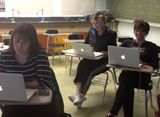
By Second Grade Teacher Julie StewartAnytime a class set of items enters a classroom, there needs to be an organized method to monitor them. I realized that our new tablets could be managed just as easily as anything else in my classroom. I would just use the classroom student identification numbers I assigned the students on the first day of school. This would ensure that each student would always get their own tablet. (I will let you know why this is so important to me in a later post.) I made labels with their last names and ID numbers. I took a photo of each box with their last name and number. I then attached the labels to the back of the Nexus 7 tablets. After attaching the label to the tablet, I took a simple colored dot with the ID number written on it and attached that to the box. (This was cheaper than using label tape!) This allowed me to store the boxes and remember which tablet belonged with which box and have a file stored with this information. Beth and I also opted to leave the clear plastic film on the tablets to help protect the screens for as long as possible. We figured that this was better than nothing for the time being. We shall see how long this packaging film lasts as our cheap screen protector!After getting the tablets marked with ID numbers and handed out to their new owners, we were finally ready to get started! I gave the students a brief overview of the Nexus 7, how to turn it on, and basic care and handling. Since the students had already set-up their Google accounts the week before the tablets arrived, it was so simple to have them enter their information after turning them on. Oh, there were a few who had to try it a couple of times, but it really was easier than I thought it was going to be. The only minor glitch was when it came to the step where the wireless security code needed to be entered into the tablets to allow for an internet connection. I realized that I had to put that information into each tablet myself! It happened to be our lunch and recess time, so I was able to get it all done by the time the students got back to class. Needless to say, they were pretty happy that I had every tablet ready to go. Their excitement was pretty high at this point.After all of the start-up steps were completed, they were ready to take their tablets for a test drive. The first thing they wanted to do was visit was Google Earth! It was a simple and easy first task. Their first couple of stops on their virtual trip was their house and our school. Then one of the students suggested that we visit different countries. It was not long before most of them were gathered around the world map in our classroom and found the places they wanted to see. By the end of the class period, I believe that every continent had been visited by my classroom travelers. This proved to be a very exciting virtual field trip. I think the most exciting moment that I captured in a photo was when two students found out that they could visit Paris! It was a great teacher and student moment! We definitely had a great first lesson with our new tablets. Our test drive was a huge success!
EdTechTeam
.
Blog
.
<span class='date ' tip=''><i class='icon-time'></i> Dec 05, 2015 01:26pm</span>
|
|
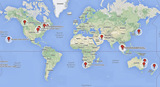
By Molly Schroeder, cross-posted on followmolly.blogspot.comOver the past three years, I've had the opportunity to travel around the world and connect with teachers that are implementing Google Apps into their classrooms. I've had the privilege of planning the speaker schedule at the Google in Education Summits Produced by the Ed Tech Team and it’s taken me to may different corners of the earth to meet some of the most amazing, talented and creative teachers.I’d love to share some of the amazing ways that teachers are implementing Google Apps all around the world. I recently sent a Google Form to my network and asked them about a project that they have recently done with students. Take some time to learn from this Global group of teachers.View the Interactive Map HereAdd your own Google Project HereMeet Jane MacKenzie-Hoskyn from Cape Town, South Africa!School: Parklands CollegeGoogle Apps ProjectZoom to the d'OrsayDescription of the ProjectIn addition to a demonstration, students are given both verbal and digital instructions, together with a rubric, on how to access and 'walk' through the virtual Musee d'Orsay to enter the Impressionism Gallery. The instructions are made available through a Virtual Learning Environment. To develop VISUAL LITERACY, in pairs, they EXPLORE, COLLABORATE and IDENTIFY Impressionist works, discuss the characteristics and the techniques, SHARE their ideas and observations, before answering some questions and doing a VISUAL ANALYSIS in a Google form. The form is shared to all the students so that they can see each other's answers. The teacher then discusses their responses before the formal lessons on Impressionism commence. This is an engaging activity that serves as an introduction to Impressionism before the commencement of formal lessons.If you want to learn more about Jane MacKenzie-Hoskyn’s project, visit these links.http://one2onejourney.blogspot.com/2013/05/zoom-to-orsay-visit-to-virtual-art.htmlApps used in this projectGmail, Drive - Forms, Google Art ProjectMeet Matt Wells from Sydney , Australia!School: All Saints Catholic Boys College, LiverpoolGoogle Apps ProjectUsing Forms and Scripts to Automate My DayDescription of the ProjectIn my daily work I am making use of scripts such as Autocrat, Formmule, Doctopus and Flubaroo to automate my own work and the work of others. I am also actively promoting the use of these tools to others. I recently presented to our school support staff of a method of delivering telephone messages to staff using a From and Formmule.When I implemented the Google Ninja program at All Saints Catholic Boys College, I redesigned the quizzes to be powered by Formmule so that students would receive instant feedback when they completed the quiz.If you want to learn more about Matt Wells’s project, visit these links.Presentations:https://sites.google.com/site/mbw761/flubaroohttps://sites.google.com/site/mbw761/formmulehttps://sites.google.com/site/mbw761/doctopusASCBC Ninjashttps://sites.google.com/a/syd.catholic.edu.au/ascbc-ninjas/Apps used in this projectGmail, Drive - Docs, Drive - Forms, Drive - Spreadsheet, Google SitesMeet Wes Warner from Brisbane, Queensland, Australia!School: Genesis Christian CollegeGoogle Apps ProjectAwards data collectionDescription of the ProjectWe are going paperless to collect student data eg: What events have they participated in, what church and community events have they been involved in. We are using forms now to collect and publish this data term by term.I am wanting to use a script like autocrat that will automate the entire process.If you want to learn more about Wes Warner’s project, visit these links.https://docs.google.com/forms/d/1991uPS7UPet7NZ1zyYaIz1_jVhBA-kdLpF9KV9jant8/viewformApps used in this project Gmail, Drive - FormsMeet Shaun Kirkwood from Singapore , Singapore!School: Singapore American SchoolGoogle Apps ProjectParent Teacher Conference SchedulingDescription of the ProjectWe use the Autocrat Script and Google sites in combination to create hyperlinked documents for parents and teachers to use to sign up for conferences. This is in place of a wiki which used to cost us $6000 a year, and didn't allow simultaneous editing, editing without an account, and required hours and hours of back end work. Now that we have our website set up, we simply run the script, then documents are created, and since the spreadsheet is already published on the site, the parents always have the most current link. It's a thing of beauty!Apps used in this project Drive - Docs, Drive - Spreadsheet, Google SitesMeet Kern Kelley from Newport, Maine , United States!School: Regional School Unit #19Google Apps ProjectDigital PortfoliosDescription of the ProjectWe use Google Apps to collect, manage and publish digital portfolios from Pre K to graduating seniors. It's help students not only see how learning does not happen in 9 month chunks, but as a continuum throughout their academic career and beyond.If you want to learn more about Kern Kelley’s project, visit this link.http://thetechcurve.blogspot.com/2013/01/digital-portfolio-system.htmlApps used in this project Gmail, Drive - Docs, Drive- Presentations, Drive - Forms, Drive - Spreadsheet, Drive - Drawings, Google Sites, YouTube, Blogger, Google Voice, Calendar, Google+, Google Search, Google Maps, Picasa, Google Books, Bookmarks, HangoutsMeet Dorothy Burt from Auckland , New Zealand!School: Pt England SchoolGoogle Apps ProjectWhy do we pay Taxes?Description of the ProjectI was invited to take a group of ten year old children to speak to the senior managers of the Inland Revenue Department about how they learn in the digital age. This meant flying children to our capital city, Wellington - some of whom had never been on a plane before. This cohort of children represent two groups who the government traditionally struggles to connect with in terms of the taxation system; young people and Maori/Pacifika people.How do you prepare young children for this? Especially when I am not their class teacher and they would need to conduct this Inquiry independently. I set up an Inquiry with them "Why do we need to pay taxes". We found a shared Google Doc and email and chat VERY helpful during the learning process. The children used Google tools and explored online, interviewed family and teachers, and other resources. They published their findings on their blogs and we used a Google Site to collate their independent findings. We sent this URL to the IRD in advance of our visit.https://sites.google.com/a/ptengland.school.nz/ird/PS. The experience on the day in Wellington went amazingly from both perspectives - the children and the IRD folk.If you want to learn more about Dorothy Burt’s project, visit these links.https://sites.google.com/a/ptengland.school.nz/ird/https://picasaweb.google.com/115739482497647806762/2013AmbassadorKidsInAction?authkey=Gv1sRgCMfew97OzoGM_gEThis photo shows the kids with the bosses of NZ's tax systemApps used in this projectGmail, Drive - Docs, Drive - Forms, Drive - Spreadsheet, Google Sites, YouTube, Blogger, Google Search, Google Maps, Picasa, HyperstudioMeet Rab Paterson from Saitama, Japan!School: International Christian UniversityGoogle Apps ProjectEducational Multimedia ProjectsDescription of the ProjectI have the students chose a research topic and group them according to topics chosen. Then they research their topics using Google Search, Books and Scholar, collect data using Google Forms, write their papers and peer review them using Google Docs, make presentation slideshows using Google Presentations, narrate them using Quicktime X and / or iMovie and upload these video presentations to Youtube and at the end the groups design and build a Google Site that stylistically matches their group theme and this site hosts all the papers, slideshows, narrated video presentations and all the other digital bits and pieces the students created in their projects. Finally they write up their reactions to this project on their blogs at Blogger.com including what they feel they learned from this.If you want to learn more about Rab Paterson’s project, visit this link.https://sites.google.com/site/hiptomusic/ - for an example of a final group project website hosting papers, slideshows, presentations, narrated screencast presentation and intro video.Apps used in this projectGmail, Drive - Docs, Drive- Presentations, Drive - Forms, Google Sites, YouTube, Blogger, Google Search, Scholar and Books from Google, QuicktimeX and iMovie from AppleMeet Lise Galuga from Ottawa, Ontario , Canada!School: Ministry of Education, OntarioGoogle Apps ProjectConnecting KidsDescription of the ProjectOntario is Canada’s most populated province spanning an area of nearly one million square kilometers. Although our country is officially bilingual, only 4% of Ontario’s population speak French as their mother tongue. This reality means that our French-language schools, especially those in outlying areas, have few students and, by extension, few teachers. Some schools may only have three or four students in the same grade. When working in such isolated environments, teamwork is key and requires the support of online collaborative platforms. Google Apps are becoming the universal standard toolkit for connecting our classrooms. To maximize the effectiveness of these tools, I leverage the collective expertise of the GCT community which allows me to optimize cooperation among our teachers and students, allowing them to cultivate success in their communities.If you want to learn more about Lise Galuga’s project, visit these links.www.galuga.caApps used in this projectGmail, Drive - Docs, Drive- Presentations, Drive - Forms, Drive - Spreadsheet, Drive - Drawings, Google Sites, YouTube, Google Voice, Calendar, Google+Meet Jason Jurotich from St. Louis , Mexico!School: EBCGoogle Apps ProjectExamsDescription of the ProjectI use Google Spreadsheets/Forms for the monthly exams of the students and Google Docs for their writing assignments. The real time collaboration to correct their work and functions within Spreadsheets to automatically grade their exams has been wonderful.If you want to learn more about Jason Jurotich’s project, visit this link.http://www.youtube.com/playlist?list=PLfCL9tw4dakOuZR2qVS60jGriTZ_FH5R_Apps used in this projectGmail, Drive - Docs, Drive - Forms, Drive - Spreadsheet, YouTubeMeet Abena Bailey from Putrajaya, Malaysia!School: NISPGoogle Apps ProjectCultural CrossoversDescription of the ProjectWe use GAFE to connect with classrooms. One example comprises of our learners making requests for media from our partner school in a Google spreadsheet on a given topic e.g. cultural events. Our partners respond by putting their names beside the requests and then fulfilling them by recording media in their local context. We reciprocate in the same way. Once we have received the media, it is incorporated into a presentation which compares us to our partner school and all findings are collated on a website which we browse and feed back on. This is a great handshake project for learners to get to know about each other before we continue with more ambitious collaboration through the year.If you want to learn more about Abena Bailey’s project, visit these links.http://goo.gl/GKtcu9Apps used in this projectGmail, Drive - Spreadsheet, Google Sites, YouTubeMeet Dianna Pratt from Singapore , Singapore!School: Singapore American SchoolGoogle Apps ProjectMigrant Workers Outreach Program Computer ClassesDescription of the ProjectMigrant Workers Outreach Program, known as MWOP, is a HS service club. The mission of the club is to help the Migrant Worker Adult population in Singapore to enhance their computer and english skills. The workers come from all over the region from India to the Philippians. The club has been in place for over 10 years and recently changed the curriculum to include Google Apps. The curriculum is about Productivity and Communications. For example, students make resume's with Docs, set up a budget with Spreadsheets, use advanced search techniques to find useful resources in their own languages, and learn about creating a site for a business to name a few of the learning. HS students have created the curriculum and they teach the classes and they are amazing. I am just their sponsor and do what they say.If you want to learn more about Dianna Pratt’s project, visit this link.Here is the FB page the students have made: https://www.facebook.com/pages/SAS-Migrant-Workers-Outreach-Program/205588786122886Apps used in this projectGmail, Drive - Docs, Drive- Presentations, Drive - Forms, Drive - Spreadsheet, Google Sites, YouTube, Blogger, Google Search, Google MapsMeet Tracy Poelzer from Kamloops, BC, Canada!School: School District #73 Kamloops/ThompsonGoogle Apps ProjectFour Shot Video ProjectDescription of the ProjectInspired by Jim Sill's YouTube workshops and his description of 4 shot videos, I put together this project for use with both staff and students. Everyone I have done the project with loves it! Participants work in teams to create short, 4 shot videos that tell a story and have a "surprise" at the end. Participants draft a storyboard on paper and have it approved by the instructor prior to getting a device/camera to use to do their recording. Using YouTube video editor, they edit their video clips and add a music track, making it into a polished finished product. All videos are marked "unlisted" in YouTube privacy settings. Participants share the link to their finished video through a Google form embedded onto a page of the project site, and the finished playlist is embedded into the final page of the project site.If you want to learn more about Tracy Poelzer’s project, visit these links.https://sites.google.com/site/4shotvideos/ (Template that anyone can copy and modify/adapt)http://fourshot.weebly.com (original project site with student playlist)Apps used in this projectDrive - Forms, Google Sites, YouTubeMeet Jessica Hale from Kuala Lumpur , Malaysia!School: Oasis International SchoolsGoogle Apps ProjectDiversity and Web ConnectionsDescription of the ProjectAs part of the High School 'tech bootcamp' for our 1 to 1 laptop program, we facilitated a session entitled 'Diversity and Web Connections' to help the students visually understand how small the world can get when they are connected digitally. First, we provided a link to a document with explanations, instructions, etc. On the document, there was a link to one google map for entire high school (250+ students). Each student linked to the map and placed a pin on someone in another country. We were then able to facilitate a discussion on how these connections affect them socially and educationally.If you want to learn more about Hale, Jessica’s project, visit these links.Link to Session Document: https://docs.google.com/document/d/11oYwIrYUm9ArYKbHS8s1MwfgSLsSjoSnDhmpUPBwz0w/edit?usp=sharingLink to Google Map: https://maps.google.com/maps/ms?msid=209322096228454097568.0004aa255cfec21aa6551&msa=0&ll=39.095963,128.320313&spn=143.350882,310.078125Apps used in this projectDrive - Docs, Google MapsMeet Linda Lindsay from Makawao, HI , USA!School: Seabury HallGoogle Apps ProjectStudent International HangoutDescription of the ProjectWe joined Jennifer Scheffer's first Student International Hangout http://jennscheffer.wordpress.com/2013/08/08/a-student-run-international-google-hangout/ Though there were technical problems, our students liked the idea of an open forum. They came away with ideas for hosting their own international hangout.If you want to learn more about Linda Lindsay’s project, visit these links.Our School's First Student International Google+ Hangout!http://www.mauilibrarian2.com/2013/11/our-schools-first-student-international.html andThe Hubbub about Goldiblox -- Our 2nd Student Hangouthttp://www.mauilibrarian2.com/2013/12/the-hubbub-about-goldiblox-our-2nd.htmlApps used in this projectGoogle+Meet Holly Hoskins from Dubai , UAE!School: American School of DubaiGoogle Apps ProjectWeb DesignDescription of the ProjectStudents in Web Design host their websites using Google Drive. This has allowed them to publish websites they create using both HTML and CSS from scratch and Dreamweaver without having to pay for or register a domain.If you want to learn more about Holly Hoskins’s project, visit these links.https://googledrive.com/host/0Bzq-o_PGWQY4NV9RYXk1NUVvM2M/https://googledrive.com/host/0BxQcupleclllbTRFMU82Q2pKZkk/index.htmlhttps://googledrive.com/host/0BwE6vvn3IZQwZGlBT191SHNWTk0/Apps used in this projectGmail, Drive - Docs, Drive - Forms, Google SearchMeet Jennie Magiera from Chicago, IL United States!School: Chicago Public Schools / Academy for Urban School LeadershipGoogle Apps ProjectLayering Google Apps for Student SuccessDescription of the ProjectOur students are leveraging Chromebooks and Google Apps on the iPad to become authors, artists, curators and community leaders. They are creating original content through YouTube, collaborating through Google Drive and curating their world through Google Art Project and other powerful Google Tools. Students are rocking performance tasks by creating interactive Google Maps or developing media-rich Google Presentations. All the while, student achievement is measured daily through formative Google Forms assessments, which are graded and analyzed through a suite of Google Scripts.Apps used in this projectDrive - Docs, Drive- Presentations, Drive - Forms, Drive - Spreadsheet, Drive - Drawings, Google Sites, YouTube, Blogger, Calendar, Google+, Google Search, Google Maps, Google Earth, Google ScriptsIt is so amazing to see this global network of teachers working to transform how students create and collaborate for learning. To hear more about how teachers are using Google Apps all around the world follow the hashtag #gafesummit.Don't miss the Google in Education Summit coming to a region near you in 2014!Illinois Google in Education Summit - March 1-2, 2014Hawaii Google in Education Summit, March 23-24, 2014Minnesota Google in Education Summit - May 10, 2014Additional US and Global Summits at www.gafesummit.com
EdTechTeam
.
Blog
.
<span class='date ' tip=''><i class='icon-time'></i> Dec 05, 2015 01:25pm</span>
|
|
Guest Summit Blogger: Rita Zeinstejer Google Certified Teacher 2008 Presented at the EdTechTeam Mexico Summit ft. Google for Education Looking for a summit near you to attend or present at? Click here.Traveling to England with Google Apps for EducationAs an EFL teacher in Rosario, Argentina, for over 30 years, my aim has always been help my students speak and feel English to communicate meaningfully and naturally. Colleagues, parents and students themselves, however, have had a different goal in mind when approaching a new language: that of sitting for an exam, and if an international one, all the more honourable! With the advent of the Internet, my personal goals became attainable. Before, only those who had the willingness to make the effort to study printed textbooks lessons or else the skill to imitate the only model they had in front of their class --only those privileged students of English could achieve a good command of their target language, not to speak about the fortunate ones who had the economic means to travel and get the necessary direct practice to mingle with native and non-native speakers and hence gain more exposure and a more accurate use of the language. After many years, and making the most of these times when traveling has become a more popular and more doable objective for all, I decided to launch an accompanied trip to England here in my area, taking upper intermediate students of English with me, to allow them to feel the importance of learning English, to realize how the language they’ve been investing time in learning now becomes the main tool that will let them interact with people in other countries in the world. This was my ultimate goal, but I had another aim in mind: that of helping my students appreciate the value of getting introduced to the English culture prior to their trip, thanks to the power of the web and Google and all of its Apps. Convincing teenagers that the Internet is the wealthiest source of information as well as the most valuable means of communication --other than a chatting or gaming tool-- was quite a job. I took my students to the Multimedia Centre in the Institution where I worked for +30 years, and gave them the chance to browse different blogs. We had a talk, a discussion, and we analysed objectives. I opened our first class blog with Google's Blogger at http://travellingtoengland2011.blogspot.com/ and enticed them to share on this new site, our main channel to post queries, news, answers and information.They would have the chance to virtually explore those cities we would be visiting during our real trip and the way for the integration of Google tools was paved. They chose which city in England to explore and process information on. They got together in groups of twos and threes and they were responsible for the final outcome, copyright considered. They selected different Google Apps and made good use of them. The students in the project were from 16 to 25, and while Blogger and Google Sites were our core tools where they housed all other their content, they also integrated Google Maps, Google Earth, Google Search, Google Street View, and I added Google Forms for a quiz I put up once all pages had been completed. Aims of the Project • familiarize learners with Google Apps for Education • appreciate the value of Google Apps for Education • allow them to practise English in authentic, meaningful situations • allow them to get in contact with English culture • raise awareness of the importance of going global • help students hone the four skills • expand learners' cultural understanding and horizons I’ve been repeating this successful experience every January, when I gather new groups of teenagers avid of visiting England. And Google has always been my hub, the virtual space where to get to know prospective travelers to the United Kingdom, the information centre I open up for them to explore, to do research on, and to investigate. And, most importantly, to collaborate and share with the world.
EdTechTeam
.
Blog
.
<span class='date ' tip=''><i class='icon-time'></i> Dec 05, 2015 01:24pm</span>
|
|
Guest Blogger Geri Feiock Attendee at the EdTechTeam Minnesota SummitFt. Google for EducationThe 2nd annual Minnesota Summit Google for Education put an extra special spin on "getting going, gearing up, and getting geeky" by providing a gamification-style experience for all! Excitement was in the air, as we collected physical stickers and digital badges throughout the day. Twitter was on fire during Mark Garrison’s amazing keynote as he seamlessly tied his canoe trip adventure into his message (with bonus marital advice to boot!) I tweeted a couple of standout quotes from Mark: "We need to bring everyone along on this journey before the gap gets any wider!" and "Technology and exploration not only complement each other; they are one in the same!" Just some of the badges attendees earned this weekend! As I ventured into my first session, David Malone lead me to a few of my new favorite Chrome extensions: 1-Click Timer, OneTab, and Tab Scissors. I will definitely be sharing his suggested extensions with our district teachers during my GAFE training sessions. In my next session, Naomi Harm did an outstanding job of clarifying the differences between Chrome and Google Drive add-ons, extensions, and apps with guidelines on when to use each type. Naomi demonstrated how add-ons are an effective way to access many tools directly within documents and spreadsheets. I will be using Twitter Curator to make a collection of relevant tweets to pass along to staff while automatically including appropriate citations. Lunch time was the perfect chance for us to network with other Google enthusiasts and pose for pictures in the photo booth. After lunch, Sean Beaverson helped us "Doctor that Workflow" using EasyBib, Lucidchart, Kaizena, autoCrat, Flubaroo, and Doctopus. Digging deeper into AutoCrat and Doctopus with our classroom teachers is now on the top of my list! During the last session, I enjoyed Molly Schroeder’s "Best Practices in a Paperless Classroom." Molly did a crowd-pleasing demo of FormEmailer and clarified the differences between old and new sheets. I posted one of my favorite quotes from Molly’s session on Twitter: "When building a Google Form, think like a spreadsheet!" Doctopus and Goobric help teachers overcome the challenges associated with sharing documents with students via "File > Make a Copy" and using Google Forms to collect assignments. Other take-aways include using digital snapshots to turn in work, collecting notes/annotations in Read&Write for Google, and creating three folders for students using gClass Folders. Along these same lines, the global EdTech community is looking forward to finding out how Google Classrooms may streamline these tasks even more! Our day at the Summit concluded with a "high octane" Demo Slam including incognito selfies using CamMe, free/powerful photo editing using pixlr.com, photo collages using Loupe Collage, a Gmail snooze script, Google Maps Engine Light and more! I look forward to passing along all of the gems I gathered throughout the day. As I eagerly await the news to hear if my Google Teacher Academy and Google Education Trainer applications have been approved, I will follow one of the best tips of the day from Naomi Harm to try out the new things I’ve learned within the next 72 hours. Attending the Minnesota Summit featuring Google for Education was a Saturday well spent!Interested in going to a summit of your own? Check the schedule here!
EdTechTeam
.
Blog
.
<span class='date ' tip=''><i class='icon-time'></i> Dec 05, 2015 01:23pm</span>
|
|
At this time, ChromeOS does not allow users to adjust the volume up and down when running a kiosk application, including the AIRSecureTest mobile secure browser that is used for Smart Balanced Assessments.AIR and Google have identified a workaround key sequence that allows students to adjust the volume during testing without having to logout of the Chromebook and the testing session. This is incredibly useful if your school site has not purchased headsets or ear buds with inline volume control or if you're employing a BYOE (Bring Your Own Earbuds) tactic for SBAC testing.Adjusting the Volume on Chromebooks While in a Kiosk ApplicationPress and hold the search key then press the volume up or volume down key. The search key is on the left side of the keyboard, above the Shift key. The volume keys are in the upper right corner of the keyboard, next to the power button. Note: The volume up and volume down images may vary by Chromebook device so your mileage may vary, but the basic concept is the same.
EdTechTeam
.
Blog
.
<span class='date ' tip=''><i class='icon-time'></i> Dec 05, 2015 01:22pm</span>
|
|
Guest Blogger Kasey Bell, Shake Up LearningAttendee of EdTechTeam New England SummitCross-Posted from the Shake Up Learning Blog I spent the latter part of my spring break attending the New England Google Summit in Burlington, Massachusetts. The very talented Ed Tech Team produce these dynamic learning experiences for educators all over the world. If you are a Google Apps for Education district, I highly recommend attending a Google Summit near you. For my Texas friends, the EdTechTeam Texas Google Summit will take place June 10-11 at Richardson West Arts & Technology Magnet. It will be worth your time and money! Oh, and watch the #gafesummit hashtag to learn from other summits that are going on throughout the year.I have so many great tips to share that I decided to make this a series. Below are a few ideas and resources to get you started with the new feature in Google Docs and Sheets: Google Add-Ons.Add-Ons for Google Docs and SheetsRecently, Google launched a new feature in Docs and Sheets: Add-Ons. Add-Ons allow you to use third-party apps to make Google Docs and Sheets even better. For instance, Avery has an Add-On that makes it a snap to create labels in Google Docs. The new store of Add-Ons has something for everybody. Add-Ons will appear in the toolbar when you create a new document or sheet. Since this feature was so new, it was a hot topic at the #gafesummit. (Note: You must be running the new version of Docs and Sheets to use this new feature. If you are using a GAFE district domain, you may not see this right away--depending on your administration settings.)If you have used scripts in Google Sheets, those have now been replaced with Add-Ons. You will find a lot of your favorite scripts are now converted to Add-Ons. For instance, I love Doctopus. The basic concept behind Doctopus is that it enables teachers to quickly share documents with all of the students on a roster, monitor usage of shared documents, and give students feedback within that roster spreadsheet. It is now an Add-On, and has been combined with G-Class Folders. So Doctopus, Goobric, and G-Class Folders are all tied up in one neat, little bundle.Special thanks to Molly Schroeder for a fantastic presentation on Add-Ons and Scripts. Her resources can be found here. If I am speaking a foreign language to you, check out the tutorials from Jay Atwood that explain it all! Doctopus can make a teacher's life so much easier! Below is a tutorial to get you started with Doctopus and the Add-Ons Gallery.Ready for More Add-Ons?Google Guru has a great post on 7 of the Best New Add-Ons For Google Docs and Sheets One of my favorite sessions from the New England Google Summit was "Gone Google, Got iPad," by Dee Lanier. There are many of us that do love both worlds, but getting Google Apps to play nicely with iPad can be challenging. Dee reminded me of many apps that deserve a second look, and introduced a few new features that I love. Below are my highlights from his session. Google Search App with Google Voice Search - Better Than Siri I have the Google Search app installed on my iOS devices, but I never use it. I didn’t see the point when the omnibox gave me what I needed in Chrome or Safari. I have since learned of some great new features.You probably know you can search in Chrome using your voice just by clicking on the little microphone icon. What you may not know is that you can now use Google Voice Search hands free using the Google Search app! This is a fairly new feature to app on iOS devices, but I think has been working for Android devices a bit longer. Instead of having to click on the microphone, you can enable "Okay Google," and search hands free. Just by starting your search with, "Okay Google," the app will pick up your voice and conduct your search. AND it will read the results back to you! This would be great for younger students, struggling readers and writers, the list goes on and on. This is also something you can also enable in your Chrome browser on the desktop.Google seems to interpret my East Texas accent better than Siri, and what is read back is a much better quality voice than what Siri has to offer. Try it in the Google Search app or in Chrome on the desktop. No really, try it now. I’ll wait...Okay, on to the next app!Below is a video example of how the "Okay Google," voice command works: Classroom Application Idea: Have students use the Google Search App to guide inquiry-based research, especially great for younger students. Google’s Gmail App This is another app that is worth a second look. Here are top 3 reasons to switch from the iOS Mail App to the Gmail App:Web-based and will not take up space on your iPadSearch for old emails (I’ve tried this in the mail app many times. It leaves a lot to be desired.) Links from Gmail will open in other related Google Apps: Chrome, G+, etc.Google+ AppIf you aren’t using Google+, you should be. It is the fastest growing social network. It also seems that Google is making G+ the hub for all of the other Google Apps. The Google+ App also offers a few additional features you may have not discovered. You can use the G+ app to auto-backup your camera roll. This can save you precious storage space on your iPad. Don’t worry! These are private until you tell G+ otherwise. Dee suggested setting up a dummy account for shared school iPads to collect all your images and files in one lovely, cloud - based location. Other Google Apps for the iPadGoogle ChromeGoogle Translate Google Play for iPad (Yes, Google’s music will play on the iPad.)Google Hangouts YouTube YouTube Capture (also mentioned in my TCEA Top Ten List) Google Drive Quick Office Google KeepGoogle MapsGoogle Earth Google Play Books Blogger Snapseed Goo.gl (iPhone) Google Admin (Account management at your fingertips for your GAFE domain.) Chromecast The Official List of All the Google Mobile Apps for iOSDee also shared a great project for vetting and promoting device agnostic apps--great for BYOD. Check out: Quixey.com and THINK OPEN.Special thanks to Dee Lanier and the EdTechTeam! No Google Summit would be complete without a few sessions dedicated to the beauty we call the Google Chrome browser. I am a self-proclaimed Google Chrome addict (I even have a session on this coming up at TxGoo in May), and I'm always looking for new apps and extensions that can improve productivity and student learning. So I had to partake in a Chrome session at the New England Google Summit! Chrome has made my life easier, more creative, and fun!Before we dive in, let's take a moment to clarify some vocabulary for the newbies, or for the forbidden Internet Explorer Users (IE is EVIL):Google Chrome: For the purposes of this post, I am referring to the Google Chrome web browser.Google Chrome Extensions: Extensions are installed in the browser and give you added features and abilities to customize your browser.Google Chrome Apps: Apps are most often enhanced shortcuts that optimize the website or app within the browser. The wonderful Molly Schroeder did not disappoint with her session, "Chrome Ninja Tips and Tricks." I picked up some great tips to share. Below are just a few highlights, check out the links to the session for more.Chrome Speak (app): This text-to-speech app is so easy to use. Select the text in your browser, right-click, and click "read selection text." This is great for new and struggling readers, and learning new vocabulary!Lucidpress (app): This one is for those of you that miss Microsoft Publisher and want some more advanced formatting options in Google Docs. Lucidpress will allow you to create stunning flyers, brochures, newsletters, photo books and more.Google Dictionary (extension): This one is great for students! With this extension, you and your students can:Double-click any word to view its definition in a small pop-up bubble.View the complete definition of any word or phrase using the toolbar dictionary, and Store a history of words you've looked up, so you can practice them later.Snagit (extension and app): You will need both the extension and the app to take full advantage of this great screen capture tool. Snagit will allow you to take screenshots right from your toolbar, AND save all your images to your Google Drive! But what you may not know is that if you enable experimental features in your settings, you can now do screencasting too! So easy!I could talk all day about Chrome Apps and Extensions but I’m going to be brief. However, I must include this hilarious video for your viewing pleasure. (Thanks again to Molly!) Everybody Chromercize!!! Additional ResourcesIf you are thirsty for more check out these resources:GAFE Summit Session Resources (Click on the title of session to find links and resources for each session.)I’ve bookmarked all of my resources in Diigo.I’ve also storified all my tweets for my own reference, and they are loaded with links and resources as well. Need some Texan spirit like Kasey? Register now for the Texas Summit this June!
EdTechTeam
.
Blog
.
<span class='date ' tip=''><i class='icon-time'></i> Dec 05, 2015 01:22pm</span>
|
|
Guest Blogger Anne Schaefer-SalinasNapa 1:1 Institute Summit AttendeeBy presenting at EdTechTeam's Napa 1:1 Institute, it gave me more confidence to work with both my teachers and the teachers and Tech Director at our neighboring elementary school. We did a Saturday 3 hour Google intensive workshop that gave our teachers the power to streamline their mail, organize their Drive, and implement Forms and Google Hang-Outs. We also spent time showing them how to set-up Blogger and Sites and talked about some great uses for them in the classroom. In addition, the elementary school attendees left really pumped-up to begin implementing Google Apps for Education (GAFE) on their campus. However, what I am most proud of as a take-away from the summit was that I am now in the process of collaborating with my son's teacher (he's in 2nd grade) to help compile a map for his class using Map Engine Lite (saw it demo-d during the Slam session). My son's class just finished completing family history projects that they spent several months working on. I am building a map for them based on where they were born along with one parent and one grand-parent. The teacher and I are really excited to see the kids' faces when we put the map up on the board for all of them to see visually just how diverse their class is and how they each ended up where they are now. I NEVER would have been able to do this without going to GAFE. My motto: Learn, Share, Repeat. Want more 1:1 action? Hang out in New Jersey this July at our 1:1 Summit!
EdTechTeam
.
Blog
.
<span class='date ' tip=''><i class='icon-time'></i> Dec 05, 2015 01:21pm</span>
|
|
Guest Blogger Molly Schroeder, Director of Professional Development and Summit Program Chair, EdTechTeamMany of you are heading back to school this year with more devices in the classroom that you’ve ever had access to! Chromebooks have spread like wildfire into schools all over the world and now students have the world’s information at their fingertips! Let’s make sure that we use those devices for engaging, real world learning in the digital age.Here are a few things to think about as you head back to your Chromebook Classroom.1. Make sure to review Chromebook vocabulary together in the first week so that you are all on the same page when you talk about the OmniBox, Tabs and Extensions. We’ve even had fun calling the navigation array - the Waffle and the Chrome menu bar the three hotdogs. The refresh button above the number 4 key on your Chromebook - we call it the Google Magic Button - because REFRESH usually solves most of our Google hiccups. Create a common language of vocabulary with your students and establish those terms early.2. Customize your Chrome Browser with these extensions and teach the students how to use them. It’s probably a good idea to also have a conversation with your students about when it is appropriate for them to download something from the Chrome Web Store. We like to create some rules about searching and downloading extensions. Have a conversation and set expectations clearly.Chrome ExtensionsRead & Write for Google - Accessibility extension for emerging or struggling readers and writers.FREE for teachers - click hereGoogle Dictionary - View definitions and hear pronunciations easily as you browse the web.Awesome Screenshot - Capture a web page or any portion, annotate the image and save to drive.Clearly - Clearly makes blog posts, articles and webpages clean and easy to read.Shorten Me - Instantly shorten links with goo.gl, copy them to your clipboard and generate a QR code.SpeakIt - Tired of reading? Select text you want to read and listen to it. SpeakIt converts text into speech so you no longer need to read.TechSmith SnagIt - Take a screenshot, screen capture, or screen video recording. Collaborate and show what you know.3. Make sure to talk about Chromebook Care the first time you take the Chromebooks out of the cart. James Sanders created this fun Chromebook Care video that you can share with your students to encourage proper care of your precious devices.4. Be proactive with talking about Digital Citizenship! We don’t expect our students to go throughout the year with out issues out on the playground or at recess so we can’t expect that students are going to get through the year without a "digital citizenship" situation. Start the year by enrolling the students in Common Sense Media’s Digital Passport (good for grades 3-5) or by committing to teaching the Interactive Scope and Sequence with your students. Each unit has student assessments built in as well so you can make sure the students understand what they are learning.5. Digital Age Learning is using devices to ACCESS CONTENT, COLLABORATE and CREATE.Here are a few great websites and tools for Digital Age Learning in these specific areas..CONTENTCOLLABORATECREATEEcademyKhan AcademySophiaLearnZillionGleanTime for KidsScholastic NewsTweenTribuneFact Monster IXL MathTumblebooksRaz KidsQuiaQuizletNewselaReadWorksGoogle Apps for EducationPreziWeVideoVoiceThreadPadletBlendSpacePollEverywhere.comSocrativeKahootToday's MeetGoogle+ Connected ClassroomThe Monster ExchangeFlat Stanley ProjectStory JumperLittle Bird TalesVoiceThreadVokiGlogsterStupeflexGo AnimateBlabberizePowToonPreziBlendspacePicMonkeyAnimoto6. Finally, remember that we are all LIVING IN BETA. Launch things early in your classroom and work with the students to make them better. Have a bias towards action with Digital Learning in your classroom and use all of the hiccups, mistakes, and failures as a way to create a community of problem solves in your classroom. The world’s information is at the fingertips of your students - make sure that we are asking questions that the students don’t just have to Google to find an answer to! Ask questions where the kids are CREATING the answer!Have a GREAT start to the school year! More Chromebook info coming soon!-Catch Molly's "Living in Beta" Keynote at an EdTechTeam Summit near you this fall, www.gafesummit.com!
EdTechTeam
.
Blog
.
<span class='date ' tip=''><i class='icon-time'></i> Dec 05, 2015 01:20pm</span>
|
|
Guest Blogger Rolland ChidiacG+TwitterBloggerWith a new school year about to start I am filled with excitement about what is to come. As my students and I embarked on blending our learning and using Google Apps for Education to create content and collaborate, we discovered new and exciting ways to meet our learning goals and have fun at the same time.My students were introduced to Google Apps for Education (GAFE) late in 2013 but that didn't stop them from learning the tools and using them innovatively.They used Google Docs to write friendly letters (mostly to Santa). I was able to provide them with "real time" feedback and we were able to share their work with their parents instantly. It was a great way to get our feet wet with GAFE while working on components of the writing curriculum. They used Google Presentations to show their learning in Social Studies - each student got their own slide to invent their own holiday. Then we put the work into a single presentation and shared it with other students and teachers. You can see the entire presentation by clicking on the picture below.We used Google Docs to work together on challenges in real time. We were able to collaborate and learn from each other by working in the same document to create 3D Geometry riddles. It allowed the opportunity to provide feedback to the students by leaving comments in the Doc that would assist them and that they could refer to at their leisure.In Mathematics they created surveys and bar graphs as they applied what they were learning around Data Management. It was a great way for them to start learning how to use Forms and Spreadsheets to show their learning.At the start of of exploration we were learning how to use the tools to benefit our learning in a linear fashion. After we had time and experience with a variety of apps we started to become more dynamic in our use of the technology. I blogged about this and called it Blended Learning via GAFE 2.0. We used our LMS site to incorporate a YouTube video, Google Form, and a link to a shared Google Doc where students would share their work so that their classmates could see what they were doing and provide them with helpful feedback. When I think back to that time I am pleased with how far my students and I had come - a nice indication of our advancement with respect to Blended Learning, the use of GAFE, and the use of our Chromebooks.Aside from the great learning that was happening in the classroom, many of the students were supplementing their learning on their time at home. My students were so interested that they had empowered themselves to use GAFE at home because of its creative and collaborative nature. They would share their work with me and sometimes ask for feedback.There are many more examples of the positive change that GAFE and blended learning has contributed to over the last school year. I have blogged about many of our experiences so please feel free to check the site out and let me know what you think.The sky is the limit when students have tools to help them become more creative and innovative and I look forward to being part of the new learning journey my students and I will be on with the start of the new school year.
EdTechTeam
.
Blog
.
<span class='date ' tip=''><i class='icon-time'></i> Dec 05, 2015 01:19pm</span>
|
|
Guest Blogger: Ben FriesenDirector of iOS Professional Development | EdTechTeamThe EdTechTeam is excited to be launching new PD opportunities for iPad teachers with the same high-energy, fast-paced, and fun style of other EdTechTeam events. You can check out more of the information at www.iossummits.com and see the growing list of iOS events. We have events set in Texas, Minnesota and New Zealand but will be adding more soon. As you go back to your iPad classrooms there are some important things to consider when working in a digital environment. It is important to establish routines, especially with how to turn in digital assignments. Check out this handy workflow guide that was created in the Hopkins Public Schools to support the 1:1 iPad initiative. Students don't do well with long sets of wordy instructions and teachers are sometime overwhelmed with all the options. Establishing standard workflows and posting them in classrooms can help the teachers focus on the content and require the students to take ownership of the process. Giving choice with how a student demonstrates their understanding is important and this guide will provide choice while scaffolding the experience and ensuring the teacher gets the assignments. Your examples, apps and workflows might look different based on your system but they will go a long way to support teachers and students working in digital classrooms. This is a simple Google Presentation linking out to other presentations. The links are published and they can be updated behind the scenes as the app interfaces change. These living workflow guides change as apps are updates, processes are revised or better systems are found.
EdTechTeam
.
Blog
.
<span class='date ' tip=''><i class='icon-time'></i> Dec 05, 2015 01:18pm</span>
|