Blogs
|
Download the webinar slides. View the webinar recording. Try out BizLibrary's Online Library! BizLibrary provides 10,000+ training videos and eLearning courses in various business training topics, with new courses added every day. Succession Planning and the Development of Your High Potentials In this eBook, we will provide some practical suggestions for selecting the right participants and the development of your high potential employees.
Chris Osborn
.
Blog
.
<span class='date ' tip=''><i class='icon-time'></i> Jul 14, 2015 01:16pm</span>
|
|
by Sally Cox
I create all my graphics for my eLearning courses in Adobe Illustrator. I try to draw everything myself but also refine stock vector art when I am in a rush. My Illustrator files have a lot of artboards and they can get out of order easily. Let me show you how to rearrange your Artboards to help keep you sane and organized.
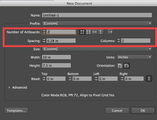
When you create a New Document in Illustrator, there is an option to add more than one Artboard. Two or more Artboards gives you more options.
Next to the number of Artboards are four icons and an arrow. The four icons give you options to arrange your Artboards. I usually leave it on the first option, which will arrange them from left to right and add rows going down. I also recommend adding to the Spacing (area between Artboards).
Artboard Tool
When you want to edit or add new Artboards, use the Artboard Tool (Shift O).
Here's an example of what one of my files looks like. Okay, I admit I haphazardly add Artboards and they do get out of order.
When you choose the Artboard Tool, the current Artboard gets a bold dashed line around it.
The Artboard I currently have selected with the Artboard Tool is highlighted with a bold dashed border.
Drag the handles to resize the Artboard, select the Trash Can on the options (at the top of your screen) to delete an Artboard. There are icons to add new or rename Artboards, change x and y positioning, and adjust width and height, among others. Hover over the icon to learn its function.
One final step with Artboards is the Artboard Panel (which provides an easy way to reorder and rename Artboards). You will find the Artboards Panel in the Windows menu.
In the image above I am renaming my Artboards to make it easier to navigate through them.
Icon Logic Blogs
.
Blog
.
<span class='date ' tip=''><i class='icon-time'></i> Jul 14, 2015 01:15pm</span>
|
|
The Business of Learning (see Free Online Conference - Future of Learning with Recordings Here) event went really well. One of the really interesting ideas came from Allessandria Polizzi who is Group Manager for Accountant Training & Relations at Intuit. Her role is to make sure that accountants are trained on the Quickbook products. You can see Allessandria at 21:30 of the following video: If you have problem seeing the video you can view them here as well.Intuit used to produce the content themselves, but they have transitioned to hiring their Accountants (their customers) to produce the training content for them. This includes a varied mix of solutions - webinars, seminars, self-paced eLearning. One of the examples of how they did this was to give the Accountants camcorders and software (along with training) so that they could produce small training pieces. One example that she mentions is a video piece on mobile access showing how they can access client information from the beach via a mobile device.There are 100 accountants who produce training for them as compared to 12 in her organization. These accountants are experts in using their software. They add legitimacy to the content. Many of these accountants already provided training to their end customers, so providing training to other accountants was an easy extension. It's an interesting idea and something that can be applied in many other domains. While this is similar to having SMEs produce the content - I think that Intuit takes it a bit further with how they are engaging and paying them. They also audition/test their customers. They spread the work pretty wide. eLearning Technology
Subscribe to the Best of eLearning Learning for updates from this blog and other eLearning blogs.
Tony Karrer
.
Blog
.
<span class='date ' tip=''><i class='icon-time'></i> Jul 14, 2015 01:15pm</span>
|
|
View and download the webinar slides. Try out BizLibrary's Online Library! BizLibrary provides 10,000+ training videos and eLearning courses in various business training topics, with new courses added every day. How to Measure the Impact of Employee Soft Skills Training We know great "people skills" when we see them or experience them. However, soft skills don’t always lend themselves to easy measurement for excellence. Measure the business impact . . . Well, that’s just not something the ROI and traditional approaches to training investment don’t really help us do very effectively unless we dig deeper. Start measuring your soft skills training and download this eBook today.
Chris Osborn
.
Blog
.
<span class='date ' tip=''><i class='icon-time'></i> Jul 14, 2015 01:15pm</span>
|
|
by Jennie Ruby
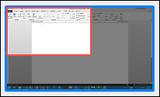
If you've tried Adobe Presenter with Video Express, you are probably aware that you can create a video of yourself as you present your PowerPoint slides, and then display either yourself, your slides, or both in the published project. However, a well-kept secret is that Video Express actually enables you to take a simultaneous video of yourself and anything you have on your computer screen--it doesn't have to be PowerPoint slides.Here's an example: I needed to show a few different functions in Word 2013. I'm creating an update lesson, not a full how-to video. I want to be able to list the changes in 2013 from the 2010 version of the software, and show just a quick mini-vid of things that have been changed.First, I turn on Video Express independently of PowerPoint and Presenter. (On my Windows 8 touch-screen machine, I went to the Start screen and tapped the Video Express icon. You can start your copy of Video Express just as you would start any application.)Next I created a script (you can't do anything without a step-by-step script, and possibly a voiceover script to go with it), and opened my target application, Word 2013, in maximized view. Video Express is automatically set to capture the entire screen.From the task bar, I retrieve Video Express, and hit the Create New Project button. I ignore the fact that my video camera is now showing my face--I'm not going to display that aspect of the video in my end product. No need for lighting, makeup, etc. on this one!I click the Record button. Video Express disappears, a count-down from 5 to 1 rolls, and consulting my script, I take a live video of some screen actions, narrating as I go. When I've finished the steps, I hit the stop recording short-cut key combo, Shift-End.
My video opens in Editing view.At the bottom of the screen, I click the Presentation Only tool. Now the published output will display only the screen actions, and not my face, but my audio narration will play throughout.Since the video was shot with Word maximized, I click the Pan & Zoom tool at a crucial point along the timeline. Then I adjust the Pan and Zoom to focus on the part of the screen that is of interest. Later along the timeline, I could choose to zoom back out, but that is not needed for my project.Finished with editing, I go to the lower right corner of the Editing screen, and click Publish. From the options displayed, I choose Export to PowerPoint. I've decided to create a slide show of the Microsoft Word updates, with a mini-video of each change. After some processing, PowerPoint opens with my inserted video ready to go on a new slide. I'll add an intro slide and explanatory slides along with additional slides showing my other mini-videos.
Now I can save my project, then use Adobe Presenter to publish it as one continuous movie, with my embedded videos playing automatically in between explanatory slides. Sweet!So okay, I did end up using PowerPoint and Adobe Presenter along with Video Express after all, but that combo was just what I needed for this hybrid project.Want more on Video Express? Sign up for my Video Express mini course for just $79, and you'll be ready to make expert videos after just one afternoon session!
Icon Logic Blogs
.
Blog
.
<span class='date ' tip=''><i class='icon-time'></i> Jul 14, 2015 01:15pm</span>
|
|
by Kevin Siegel
Over the years I've had more than a few eLearning development clients ask us to create links to web resources on a slide. There's more than one way to accomplish the task. Over the next couple of weeks I'll discuss some of my favorite techniques. Up first, text hyperlinks.
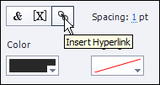
To create a text hyperlink, select some text (the text can be contained within a text caption or a smart shape). Then, on the Properties Inspector, select the Style tab. From the Character area, click the Insert Hyperlink tool.
From the Link To drop-down menu, choose Web Page. Next, type a web address into the field.
Prior to clicking the OK button, visit the drop-down menu to the right of the web address. I think it's a good idea to select New from the list of options. (This will ensure that the page that appears after the learner clicks is a new page or tab, rather than a page that replaces the current lesson.)
When previewed in a web browser, the text hyperlink will look similar to the image below. If clicked, the learner will be taken to the web address you specified in the Link To area.
Should you change your mind about the text hyperlink, removing the link is as simple as selecting the text and, back on the Properties Inspector, clicking the Remove Hyperlink tool.
***
If you'd like to learn more about eLearning, come hang out in my next eLearning basics mini course. And if you'd like to learn more Captivate, Presenter, or Storyline, we've got a great collection of live, online classes for you.
See also: Object Hyperlinks
Icon Logic Blogs
.
Blog
.
<span class='date ' tip=''><i class='icon-time'></i> Jul 14, 2015 01:14pm</span>
|
|
I've received very positive feedback and lots of good ideas on the concept of having a combined calendar of Free Webinars. The really nice thing about the way Jon Udell has set up his elmcity project (the system we are using) is that it acts a lot like social curation on RSS sources as provided by Browse My Stuff, but brings together designated calendars instead of blogs or other RSS sources.In English, that means that we can have many different people each own their separate calendar and we can bring it together.The initial list of calendar entries, we added ourselves. But I'm pleased to announce that we've just signed up our second calendar curator - Coaching Ourselves. Their events are now appearing in the listings:Free eLearning WebinarsFor now you won't be able to necessarily distinguish the source, but we will work on exposing that in the future. One of the recommendations we've already received.It is exactly because we can distribute the load of keeping this list current that makes me think this will work really well in the long run.If you are doing webinars that would be of interest to workplace learning professionals, please contact me: akarrer@techempower.com. eLearning Technology
Subscribe to the Best of eLearning Learning for updates from this blog and other eLearning blogs.
Tony Karrer
.
Blog
.
<span class='date ' tip=''><i class='icon-time'></i> Jul 14, 2015 01:14pm</span>
|
|
View and download the webinar slides. View the webinar recording at HR.com. Try out BizLibrary's Online Library! BizLibrary provides 10,000+ training videos and eLearning courses in various business training topics, with new courses added every day. How to Measure the Impact of Employee Soft Skills Training We know great "people skills" when we see them or experience them. However, soft skills don’t always lend themselves to easy measurement for excellence. Measure the business impact . . . Well, that’s just not something the ROI and traditional approaches to training investment don’t really help us do very effectively unless we dig deeper. Start measuring your soft skills training and download this eBook today.
Chris Osborn
.
Blog
.
<span class='date ' tip=''><i class='icon-time'></i> Jul 14, 2015 01:14pm</span>
|
|
by Jennie Ruby
If you've taken any of our Adobe Captivate, Adobe Presenter, or Articulate Storyline classes, you are probably aware that these programs provide a selection of screen characters--cut-out pictures of professional actors in business, medical, or business-casual clothing posed as if they are talking to you. They are intended for use as a kind of avatar of the trainer.
There is research that shows that using a screen character as a pedagogical agent or learning coach, who speaks informally and appears to be giving the lesson, increases learning. (My reference for this is Ruth Colvin Clark and Richard E. Mayer, eLearning and the Science of Instruction.)Over the past few weeks, I've had multiple students ask how hard it would be to use themselves as the learning coach. Believe it or not, becoming a pedagogical agent is easier than you think.
Put Your Picture into the Lesson. Place a professional head shot of yourself, your trainer, or expert on the introductory slide (including job title, credentials, etc.), and then have that individual record the audio narration for the project.
Create your own screen characters. Photograph your expert on a green screen background for a full set of screen characters in various poses. The IconLogic Blog has a whole series of articles on how to do this:
Green Screen Part I
Green Screen Part II
Green Screen Part III
Green Screen Part IV
Create cartoons of yourself or your in-house experts. You can use the images over and over in on-going training videos. Here is one article to get you started: Using Bitstrips Characters.
If you don't have specific, known individuals in your company to act as your learning coaches, you are not stuck with the same four or five actors that come with your software. You can purchase additional screen characters from The eLearning Brothers. Or you can just make good use of some inexpensive clip art. By trimming out the background in ordinary office photographs, you can get some nice effects.
Whether you use generic actors or your own home-grown experts, screen characters are an excellent way to add the personalization, engagement, and local feel that will bring your eLearning to the next level.
Once you have your screen characters, how do you know what to make them say? Join me for an afternoon mini course on writing voiceovers to find out.
Icon Logic Blogs
.
Blog
.
<span class='date ' tip=''><i class='icon-time'></i> Jul 14, 2015 01:14pm</span>
|
|
Did you ever do something and know right away that what you’re doing is a mistake? Then did you do it again later? If you’re normal (and being honest with yourself) the answer is almost certainly, "Yes." New manager and new supervisor development and training is usually like this. We know that promoting our top performers to manager roles is usually a mistake. Admit it - go ahead. You know it’s true! The skills and competencies, traits and behaviors that come together in great individual contributors don’t always match what we need in great managers. So why do organizations insist, over and over and over again in following this pattern of career advancement for our top performers? I don’t have a good answer. If I did, I’d write a book about it! However, I think I have an answer - but truthfully, it’s not a "good" one. And the answer is: Most organizations promote top performers to manager or supervisory roles because that’s what we’ve always done. Really - I don’t believe the reason is any more complex than that. I don’t think organizations deliberately put their best employees in very difficult situations, but approaching this important stage of career advancement without providing the training and education these employees need isn’t really fair. We’re just lucky so many of these great employees end up doing well on their own! We don’t have to keep promoting people into roles for which we didn’t prepare them. But there is a solution. First, we have to promote the right people for the right reasons. Second, we have to train our newly promoted managers on the skills and competencies they need AS managers. Finally, we have to prepare the people to whom these newly promoted managers report to support their ongoing professional and personal development. This moment in these valued employees’ career should be a time of excitement and a time when we set them up for success. Let’s not just assume they will find a way on their own to be successful. Let’s set these employees up for success by planning for it! SELECTION The skills needed to successfully manage others are rarely the same skills people need to be high performers as individual contributors. That’s why well-designed succession planning and high potential development programs are so important. Find people in your organization with the traits, motivation and potential to succeed in more complex roles. Nurture those skills and find ways to tap into their potential. The key is to look for people with the ability to manage others. Generally, this means you need people who are motivated by the success of others, who possess good listening skills, who know how to communicate and build trust and who understand the basics of employee engagement and motivation. TRAINING AND DEVELOPMENT The transition from individual contributor to manager or supervisor is really more of a transformation along a person’s professional career. Sadly, it’s a transformation many managers fail to make, and it’s not always the fault of the manager. We just don’t do a good enough job preparing them for the job of managing others before we promote them, and we frequently don’t do enough training after we’ve promoted them, either. Some suggested competency areas to carefully consider for training and development include: Delegation Problem solving Active listening Communication And the biggest single area of development ought to be emotional intelligence . This single competency can be the difference between a high performing manager and failure. But don’t neglect the foundational management and supervisory skills either. In the end, a manager’s job is a complex blend of leadership and management. Newly promoted managers need training and development to navigate the demands of their new roles. MANAGER SUPPORT One of the main reasons any training or development initiative stalls or fails is the lack of manager support. In other words, for the training of newly promoted managers and supervisors to succeed, we have to make sure we prepare the managers’ manager to fully support the development plans we have for these important high potential employees. Some specific examples include teaching all of our managers how to incorporate learning opportunities into the day-to-day routines and conversations around the workplace. We all learn best when we apply what we are learning to actual job challenges, and we need to ensure that each and every manager knows how to fully support this aspect of our development efforts. LAST WORD If you want to learn a little more, let we recommend this 12 part New Supervisor series. Here is a preview: To try this New Supervisor Series and more, start a free 30-day trial!
Chris Osborn
.
Blog
.
<span class='date ' tip=''><i class='icon-time'></i> Jul 14, 2015 01:14pm</span>
|