Blogs
|
45 Fantasic Chrome Apps and Extensions My absolute FAVORITE Google Chrome Apps and Extensions! As many of you may know, I am a confessed Chrome addict! I even have a presentation to prove it: Confessions of a Chrome Addict. I have added 20 more Chrome extensions to my list for a total of 45 Chrome apps and extensions. There a something for everyone! These are my favorites, and my most frequently used apps and extensions. I will continue to update and add to this resource as I discover more apps and extensions. CLICK HERE TO SEE MY LIST OF 45 CHROME APPS AND EXTENSIONS. Are you a Chrome addict? Please share your favorite apps and extensions in the comments below! Kasey Bell will be presenting at the following upcoming events: FETC, Jan. 20-23 (Orlando, FL) TCEA, Feb. 2-6 (Austin, TX) Subscribe to this blog to get all the latest posts: Subscribe to the Shake Up Learning mailing list!!! Follow My Blog with Bloglovin Follow My Blog with Feedly RSS
Shake Up Learning Blog
.
Blog
.
<span class='date ' tip=''><i class='icon-time'></i> Jul 15, 2015 11:24am</span>
|
|
The Best #EdTech Posts of 2014 The Top 20 Shake Up Learning Blog Posts of 2014! As Shake Up Learning approaches it's one year anniversary, I thought it would be great to look back at the most popular posts of 2014. No surprise that the Google Cheat Sheets were particularly popular. For a full list of all the Google Cheat Sheets and Guides, click here. (Look for more cheat sheets in January!) Check out the list below to see what you may have missed. I can't wait to see what 2015 will bring to the world of educational technology! The Top 20 Blogs Posts of 2014: A NEW Google Drive Cheat Sheet 35 Educators You Should Follow on Pinterest Shut the Front Door! Digital Differentiation with Google Forms The Guide to Google Drive Sharing The Guide to Keeping Up with Google 10 Ways to Use Google Drawings in the Classroom Google Chrome Cheat Sheet My Favorite Google Chrome Apps and Extensions (an ever-growing resource list) Google Tricks and Tips: Image Search Tricks Every Teacher Must Know Choose Your Own Adventure with Google Drive The Guide to Google Apps for the iPad [infographic] Google Drive for the iPad Cheat Sheet Google Apps Smashing with Gapps Dice (Be sure to check out the follow-up Google Classroom Edition) Top Ten Tech Tips for Teachers Collaborative Note-Taking with Google Docs 5 Reasons Educators Should Use Google+ Google DOCS Cheat Sheet! 5 Tips for Using Google Drive on the iPad Gone Apps Fishing! finding the Best Apps for Your Classroom 5 Awesome Resources for Badges in the Classroom What are your favorite blog posts and resources of 2014? Please feel free to share other blog posts below. Kasey Bell will be presenting at the following upcoming events: FETC, Jan. 20-23 (Orlando, FL) TCEA, Feb. 2-6 (Austin, TX) Subscribe to this blog to get all the latest posts: Subscribe to the Shake Up Learning mailing list!!! Follow My Blog with Bloglovin Follow My Blog with Feedly
Shake Up Learning Blog
.
Blog
.
<span class='date ' tip=''><i class='icon-time'></i> Jul 15, 2015 11:24am</span>
|
|
The H&R Block Budget ChallengeH&R Block Budget Challenge Teachers, Take the H&R Block Budget Challenge and get free lessons plans, posters, games and WIN BIG! The H&R Block Budget Challenge is a fantastic program for high school teachers and students. Personal finance is so important for our students. Give your students the skills they need to manage their own financial future by taking the challenge! What teacher doesn't love FREE resources for their classroom? Get your FREE lesson plans, games and posters now! The challenge encourages students to learn personal finance in a fun, engaging way while competing against other classrooms and students! THAT'S GAMIFICATION! It's FREE. It's EASY. OH!...AND DID I MENTION THERE ARE PRIZES??? There is $3 MILLION up for grabs for teachers and students! What is it? The H&R Block Budget Challenge is a free financial literacy program for teens that are 14 years of age or older. Students work through a real-world simulation game to learn personal finance skills: paying bills, saving money, investing in retirement, paying taxes and more. The game is competitive and puts classroom against classroom, and students against student to compete for $3 Million in classroom grants and scholarships! How much does it cost? IT'S FREE!!!! Who's eligible? Budget Challenge is open to students 14 years of age or older, enrolled full-time in grades nine through 12. Teachers must register classrooms to play the Budget Challenge. How to Register: Teachers simply visit hrbds.org to begin the classroom registration process. Registration closes one week before the simulation start date, so be sure to sign up before it's too late. The next simulation start date is January 16, so register by January 9 to get into the next simulation round! (Simulations will run through April, but sign up early!) REGISTER NOW! How are you teaching financial literacy and preparing students for their future? Please share in the comments below. And keep me posted on how you and your students are doing in the H&R Block Budget Challenge! Kasey Bell will be presenting at the following upcoming events: FETC, Jan. 20-23 (Orlando, FL) TCEA, Feb. 2-6 (Austin, TX) Subscribe to this blog to get all the latest posts: Subscribe to the Shake Up Learning mailing list!!! Follow My Blog with Bloglovin Follow My Blog with Feedly
Shake Up Learning Blog
.
Blog
.
<span class='date ' tip=''><i class='icon-time'></i> Jul 15, 2015 11:24am</span>
|
|
Enter to Win a Swivl Robot for YOUR Classroom! ENTER to Win a Swivl Robot for your Classroom!!! The folks over at Swivl have been VERY generous! Not only did they give me a Swivl to use and reflect on my own teaching and learning, but they also gave me one to give away to my loyal readers! It’s been a big year for Shake Up Learning! This blog is nearing it’s first anniversary, and I’d like to offer something special to my loyal readers: a Swivl! Don’t know what a Swivl is? Did you sleep through 2014, because Swivl became a very hot topic in edtech this year. So for those of you who missed it, here’s Swivl: What is Swivl? Swivl is a robotic mobile accessory that works with your mobile device or camera to record videos. The Swivl tilts and rotates to follow the presenter as he or she moves around the classroom, recording wireless video and audio with its Cloud and Capture app. Swivl then automatically uploads these recordings to its highly secure network, Swivl Cloud. Swivl is particularly great for teachers and students. This of what this fantastic device can do for the flipped classroom, for reflection, for presentations, and more! Don’t believe me? Check out this awesome video post from Tech Crunch on the impact the Swivl is having in the world of education! Below is a video to give you a better idea of what the Swivl can do: Introducing Swivl from Swivl on Vimeo. For more details on how this fantastic device can be used in the classroom, check out my previous post: Sweeten the Learning Experience with Swivl. Here's what people are saying about Swivl: "a powerful suite of tools ideal for flipping the classroom, lesson capture, and professional development." - Tech & Learning "Teachers use Swivl like pro athletes use game film. " - Tech Crunch Now...who wants one? These little beauties retail for around $400. How would you like to win one for your classroom? Here are the details... The Swivl Sweepstakes Giveaway! The Prize: Swivl Robot with Free Cloud Includes: Base, marker (wireless microphone), charger, lanyard, grip adapters plus 200 minutes free. (Please note that this does NOT include the camera. The device is designed to work with your mobile device’s camera, DSLR or video camera.) Who Can Enter: Anyone who is currently 18 years or older and a resident of the United States. (Sorry, the laws and shipping costs make it difficult to do giveaways outside of the U.S.) How to Enter: Subscribe to the Shake Up Learning email list by filling out the form below. Already subscribed? Please complete this special form to be entered in the Swivl Sweepstakes Giveaway. YOU MUST USE THIS FORM TO ENTER! ---> Bonus Entries! Check the form for details on bonus entries for sharing on social media and more! (Options will appear after initial entry is completed.) Deadline is January, 31st at 11:30 PM CST. The winner will be chosen at random, and contacted via email using the email address provided in the form. Winner will be announced and contacted by February 2nd. Good Luck!!! and I wish you all a Happy New Year! Let's make 2015 the Best Year Ever!
Shake Up Learning Blog
.
Blog
.
<span class='date ' tip=''><i class='icon-time'></i> Jul 15, 2015 11:23am</span>
|
|
Editing Microsoft Office Files in Google Drive Yes! You can edit your Microsoft Office files in Google Drive! This feature is no longer new, but has been on my list to share for a while. When first made available, some people struggled to get this feature to work on the desktop. Others may not even know this is an option. But I love the fact that you can now edit Microsoft Office files in Docs, Sheets and Slides! I rarely use Microsoft Office these days, but occasionally I am sent Office files to view or edit. (My eyes usually roll when I see a giant .pptx file attached to an email.) Anyway, I realize some users still need to edit Office files for various reasons. So below I have detailed How to Edit Microsoft Office Files in Google Drive on a desktop. How to Edit Microsoft Office Files in Google Drive 1 - Use Google Chrome! I’ve said it before, and will say it many times again, Google works best with Google. If you use any of the Google Apps, you should understand they work better together. Using Chrome is a no-brainer. Chrome will give you additional functionality with almost all of your Google Apps, AND it’s the only browser that will allow you to edit Office files in Google Drive. If you have ever seen one of my presentations, or been in my training, you know how I feel about Chrome. You probably also know how I feel about Internet Explorer (IE is Evil). In case you don’t, explore this post: Confessions of a Chrome Addict. Download Google Chrome 2 - Upgrade to the New Google Drive! Insure you have upgraded to the New Google Drive. Take a look at your Google Drive. If your the red button still says, "Create," then you are using the old Drive. If your red button says, "New," you are using the New Google Drive. To switch to the New Google Drive, click on your settings wheel in the top-right and choose, "Experience the New Drive." The New Google Drive is still optional at this point, but I’m sure it won’t be for much longer. And if you are looking for some tips to help get your started with the New Google Drive, look no further! I have a New Google Drive Cheat Sheet available here as a FREE download. 3 - Install the Chrome Extension: Office Editing for Docs, Sheets and Slides. This Google Chrome extension must be installed in order to edit Office files in Google Docs, Sheets and Slides. Install it now…I’ll wait. Oh, and if you are looking for more great Chrome extensions, check out my list here: 45 Fantastic Chrome Apps and Extensions. Get the Office Editing Extension Editing Office Files in Google Drive Once you have the completed the above steps, you can then move on to opening and editing Office files in Google Docs, Sheets and Slides. The Chrome extension will allow you to do this from several different places: From your New Google Drive: Locate the Office file (remember to look for the Office icons) and double-click to open and begin editing. From Gmail: When viewing a preview of an Office attachment, click Open in Docs (or Sheets/Slides) to start editing. From your local storage: Open any locally stored Office files and begin editing: On a Mac or PC, open the file by clicking File > Open file in the menu of your Chrome browser or simply drag and drop a file from your desktop into a Chrome browser window. On a Chromebook, open Files.app and double-click the file you’d like to edit. From a Docs, Sheets & Slides home screen: Simply click on any Office file to begin editing in OCM. From third-party websites: With the Chrome extension installed, clicking to open a Office file on any webpage will open the file in a new tab for editing. Do you have other questions about Google or technology integration? Please share in the comments below! Kasey Bell will be presenting at the following upcoming events: FETC, Jan. 20-23 (Orlando, FL) TCEA, Feb. 2-6 (Austin, TX) WEMTA, March 22-24 (Wisconsin Dells, WI)
Shake Up Learning Blog
.
Blog
.
<span class='date ' tip=''><i class='icon-time'></i> Jul 15, 2015 11:22am</span>
|
|
Google Sheets CHEAT SHEET You asked, and here it is: a Google Sheets CHEAT Sheet for teachers and students! Google Sheets is a wonderful spreadsheet tool for teachers and students. It is loaded with functionality and features! This Google Sheets Cheat Sheet will help new and experienced users learn how to use and understand Google Sheets. This cheat sheet includes an overview of the NEW Sheets Home Screen, menu highlights, a toolbar explanation and more! Use it, share it, and increase your knowledge and skills of Google Apps!!! (Now, for fun, say, "Google Sheets Cheat Sheet," three times fast!) Save to your Google Drive using the button below, or use the download button below the embedded document. Google Sheets Cheat Sheet Google Sheets Cheat Sheet.pdf File Size: 519 kb File Type: pdf Download File Want more? Get all the Google Cheat Sheets and Guides: Google Drive Cheat Sheet Google Docs Cheat Sheet Google Slides Cheat Sheet Google Forms Cheat Sheet Google Chrome Cheat Sheet Google Drive for iOS Cheat Sheet Kasey Bell will be presenting at the following upcoming events: FETC, Jan. 20-23 (Orlando, FL) TCEA, Feb. 2-6 (Austin, TX) WEMTA, March 22-24 (Wisconsin Dells, WI)
Shake Up Learning Blog
.
Blog
.
<span class='date ' tip=''><i class='icon-time'></i> Jul 15, 2015 11:21am</span>
|
|
Force Users to Make a Copy of Google Drive Files Here's an easy way to help users make a copy of Google Docs, Sheets, Slides or Drawings! Ever share something and instruct your students to go to file>make a copy, and instead they all start typing on the document like it's their own? There are lots of ways to make a copy and distribute to students, like using Google Classroom or Doctopus, but this little trick is super simple! (Thanks to the FABULOUS Alice Keeler for sharing this!) Here's how it works! Grab the link of the doc, sheet, slide or drawing--the one you see when you are editing. (Hint: this link has the word "edit" at the end.) Then simply replace the word EDIT with the word COPY! The user will then be prompted to make a copy of the file. Once they click the "Make a Copy," button, it will make a copy of the file and add it to their Google Drive. AWESOME! Remember, your sharing settings will still apply so users/students will still have to have viewing rights to the file in order for this work. See how it works in the animation below: This tip is similar to another tip I posted a few months ago: Amazing Shortcut for Sharing Google Docs. This allows you to use the word "Preview" in place of edit to see a preview of the file. So there are three keywords that can go here: edit = editable file preview = view only copy = prompt to make a copy of the file Check out all the Google Tricks and Tips here! What are your favorite Google Tricks? Please share in the comments below. Kasey Bell will be presenting at the following upcoming events: FETC, Jan. 20-23 (Orlando, FL) TCEA, Feb. 2-6 (Austin, TX) WEMTA, March 22-24 (Wisconsin Dells, WI)
Shake Up Learning Blog
.
Blog
.
<span class='date ' tip=''><i class='icon-time'></i> Jul 15, 2015 11:20am</span>
|
|
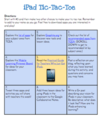
iPad Tic-Tac-Toe for Teachers Differentiate with Learning Menus Using Google Docs! I love learning menus, and it is one of my favorite ways to incorporate choice and differentiate learning. What are Learning Menus?Learning menus or choice boards are a form of differentiated learning that give students a menu or choice of learning activities. One easy way to dip your toes into the learning menu water is a Tic-Tac-Toe menu. A Tic-Tac-Toe can be used for anything from short activities, to bigger, unit projects. Below is an example of an iPad Tic-Tac-Toe menu that I created for teacher who are learning to integrate iPads in the classroom. It was created in Google Docs, and then "Published to the Web," which is an amazing and under-utilized feature of Google Docs! I typically have very mixed groups in my training sessions (multiple grade levels, subject ares, and tech savviness). I usually address concepts, ideas and apps that are applicable across all grade levels and subject areas. Then I move into an activity like the iPad Tic-Tac-Toe learning menu to allow teachers to dig deeper into their own subject areas and grade levels, AND move at a pace that is comfortable for their level and learning style. If it's not showing up correctly above, click here to see the web version. The Tic-Tac-Toe model is very low-prep, and can easily be adapted for short activities, or used in longer unit projects. The middle space can be used in one of three ways: (1) create a free space with no activity assigned, (2) allow students to propose their own learning activity or project, or (3) it can be the one required activity (which is how it was used in the example above). Design the other squares to insure that all of your skills and content are covered no matter which direction they go, but get creative and give them flexible learning paths to reach the same learning outcomes! Make it Interactive and Paperless with Google Docs. I love to use the, "publish to the web," feature of Google Docs. I prefer this over view only because it cleans up the page and just makes it look like a very plain website instead of a document (and you get embed code!). Oh! and you don't have to worry about sharing settings, it's public on the web and anyone can view without logging in. Learn how to Turn Your Google Doc into a Web Page here. Of course making it interactive is sooooo easy! Just add links! These links could be to other Google Docs with further directions and links, web quests (does anyone still do these?), interactive games and websites, you could even link to an app and use these on your tablets. The limits are endless! Also see my previous post on learning menus and differentiation: Giving Teachers Ownership of Their Learning. Shut the Front Door! Digital Differentiation with Google Forms More differentiation strategies with Google Apps coming to #FETC and #TCEA15! Look for my presentations to be shared on this site.
Shake Up Learning Blog
.
Blog
.
<span class='date ' tip=''><i class='icon-time'></i> Jul 15, 2015 11:19am</span>
|
|
Happy Birthday Shake Up Learning! Shake Up Learning is 1 Year Old! I don’t normally post on Sunday, but today is a special day. Today is the one year anniversary of my blog Shake Up Learning. So much has happened in the last year, and I am so grateful for the people this blog has brought into my life. There have been so many surprises and blessings from entering the blogosphere. So today I wanted to share some reflections on my first year as a blogger, and offer some tips for educators who want to start a blog. Tip #1: It’s Worth the Risk! Here is a link to my first blog post: A Perfectionist with Paralysis: Why I’m Finally Blogging. It was not a long post, and didn’t include any tips or tricks, but just me putting myself out there. I took a risk, just like I encourage teachers to do in my workshops. I had to model the skills or risk becoming a fraud. So I did it, and just like the graphic in my first post, it was a F.A.I.L., or First Attempt in Learning. (I know that has made the rounds, but I still love that acronym!) I wasn’t sure where this was going, but I was all in! First Attempt in Learning Tip #2: Perfect is the Enemy of Done! In a lot of ways, I am still that same perfectionist with paralysis. There are times when I have to make myself publish, even though I am not happy with my images, layout or copy. Mistakes happen, typos are a given, but you have to let things go or you will never finish! Remember, "Perfect is the Enemy of Done!" Draft your copy in a word processor (I use Google Docs), use spell check, read and re-read, but don’t let yourself get caught in the revision web. Share your content! Educators are forgiving and supportive! Tip #2: Educational Bloggers are Friendly and Supportive To be honest, I was very nervous when I hit publish for the first time. I really didn’t want anyone to look at it until I had more content. (Terrible, I know!) But I had set up Twitter to automatically share my posts. I had my first comment the same day, which was also a little terrifying. The comment was encouragement from a friend. I’d like to send a special thank you to my friend and colleague, Dr. Brian Brown (Doc Brown), for leaving my very first comment and encouraging me to keep going. This is the first thing you should know about becoming an educational blogger: We are a pretty nice crew! Now don’t get me wrong, I’ve had my share of naysayers and trolls, but for the most part I have felt fully supported and encouraged by my own PLN and beyond. Be a teacher is tough...We all know that! So I think we all appreciate those that are willing to share their tips and ideas. Sharing is caring people!--SERIOUSLY! Tip #3: Set Realistic Goals that Work for You I started out with a goal to post once a week. For the most part, I was able to stick with that and then some. I published 60 blog posts in my first year of blogging! While I wasn’t able to post every single week, I was able to make up for it by posting 2-3 times during the other weeks. Life gets busy, and if you let it, a blog can become a second job. I have really enjoyed blogging and there are some days that I wish it was a full time gig. Tip #4: Let Passion Be Your Driver I am very much an edtech geek, and enjoy learning and sharing with teachers. My number one goal is always to improve teaching and learning. I want to be a difference-maker, and reach as many classrooms as I can...Oh! And I want to have lots of fun along the way! Carefully consider the reasons you want to blog, and what topics you will blog about. Make sure it is something you can talk/write about for days on end. The moment blogging becomes a chore, take a step back and remember why you started it. Your blog should be about something you are passionate about, or you will never stick with it. Be honest with yourself, and set-reminders for drafting and posting so you don’t forget your goals! Tip #5: Encourage Reader Interactions, Be Social and Grow Your PLN (So maybe this is three tips in one, but they are all connected.) Always remember, blogging IS a social media platform. Many people may not know this about me, but I am very much an introvert. Some days it can be a struggle for me to put myself out there, and to network face-to-face. It’s definitely easier to do this online. So be sure that you ALLOW comments on your blog, and give readers a question or call to action to encourage them to leave a comment. This is something I am working to improve upon. So PLEASE feel free to leave comments! I try very hard to respond to all of the comments I receive. In addition to being social on your own blog, If you want to start a successful blog that people actually read, you really must be active on at least a couple social media platforms besides the blog itself. So get rid of your Twitter egg, and stop lurking. Join the conversation, join twitter chats, and share on other platforms that you like. You don’t have to do them all, but do what works for you and share great content, not just your own. (I am a HUGE fan of Google+! Check it out, and connect with some AMAZING educators and communities.) My goals for 2015 included getting back on Facebook, something I am still struggling with, but I know that is a platform that teachers use and will allow me to further my reach. Feel free to check out my new Shake Up Learning Facebook page. I am also more active on Instagram these days, and I’m looking for great educators to follow: Shake Up Learning on Instagram. I think one of the biggest surprises of the last year, was the people the blog brought into my life. I have met some of THE most AWESOME educators, both on and offline. Some of these are educators that I have admired from afar, my academic crushes, and some are just #awesomesauce that I have found along the way. I am now learning with these members of my PLN everyday. I wish I could give shout outs to each and every one of these great people, but (1) it would make this post way too long, and (2) I’m afraid I would forget someone! So this is my shout out and love song to all of those I have connected and learned from along the way! THANK YOU!!!!!!! This blog is a long way from where I want it to be, so I have set a lot of new goals for the blog and myself. Thank you to my readers and subscribers! I appreciate all the support, ideas, and learning that you have offered. Please continue to connect and share and let me know if there is ever anything that I can do to help you and your students. We are better together! Thanks for a great first year! Kasey Bell My Favorite Moments in My First Year of Blogging and Beyond This has been an unbelievable year for me, and I’d like to share some highlights! I’m very proud of these accomplishments! June 5, 2014 - authorized Google Education Trainer Becoming an authorized Google Education Trainer really upped my game, opened new doors for me, and gave me some great ideas for blog posts! June 26, 2014 - EdTech Magazine 50 Must Read K12 IT Blogs I really couldn’t believe I made this list after just five months of blogging. It was such an exciting honor! July 11, 2014 - Co-leader of the North Texas Google Educator Group (GEG-NORTX) This community, and the community of GEG Leaders has deepened my own learning and expanded my PLN in ways I never expected. Join your local GEG! November 3-4, 2014 - Re-MAKE Learning: Research Behind Building and Creating at Bright Bytes in San Francisco This deep dive into maker spaces and playful learning was a great learning experience, and an honor! I was so grateful to be selected for the very first Bright Bytes Institute with one of my educational heroes, Kristen Swanson! Look for the resulting white paper to be shared on this blog very soon! December 2-3, 2014 - Google Teacher Academy, Austin (#GTAATX) This was an honor and a privilege, and I can’t’ say enough good things about the experience, the lead learners and my cohort. See my blog post to hear more about the GTA experience: So You Want to Be a Google Certified Teacher? 8 Tips to Get You There. December 6, 2014 - Edublog Award Finalist (in two categories) So in less than a year, Shake Up Learning made the list in two categories! I couldn’t believe it. This was such an honor! Best New Blog 2014 Best EdTech / Resource Sharing Blog 2014 Kasey Bell will be presenting at the following upcoming events: TCEA, Feb. 2-6 (Austin, TX) WEMTA, March 22-24 (Wisconsin Dells, WI)
Shake Up Learning Blog
.
Blog
.
<span class='date ' tip=''><i class='icon-time'></i> Jul 15, 2015 11:19am</span>
|
|
We have a WINNER!I am proud to announce that we finally have a winner of the Swivl Robot! Michelle Sparks from Little Elm ISD in Little Elm, Texas is the lucky winner!A few words from Michelle: I've been teaching fourth grade in Little Elm, Texas for the past 22 years. I truly love to work with fourth grade students by helping them to push and challenge themselves farther than they ever thought possible and love to use technology to help make that it all possible. It is always my goal to make learning fun and easy. I am originally from the Lansing, Michigan area. I graduated from Western Michigan University in Kalamazoo, Michigan, and moved to Texas so that I could begin teaching in Little Elm. My husband, David, and I live in Little Elm. He is even a Little Elm alumni! My daughter, Hannah, is a freshman and our son, Benjamin, is a fast-moving preschooler who keeps us very busy! Please congratulate Michelle and follow her on Twitter: @benjabc123. I can't wait to hear how she uses the Swivl in her classroom!
Shake Up Learning Blog
.
Blog
.
<span class='date ' tip=''><i class='icon-time'></i> Jul 15, 2015 11:19am</span>
|