Blogs
|
Google Drawings Cheat Sheet As Requested, Here is a Cheat Sheet for Google Drawings! Google Drawings is very powerful, yet under-utilized tool! This Google Drawings Cheat Sheet will help new and experienced users learn how to use Google Drawings, including menu highlights and special, contextual menus. This one was a challenge to create, and turned out much longer than intended. But I felt there were some tools and features that had to be included. Take a look and explore this very versatile tool for teachers and students! Use it, share it, and increase your knowledge and skills of Google Apps!!! Save to your Google Drive using the button below, or use the download button below the embedded document. Google Drawings Cheat Sheet by kbell6 Google Drawings Cheat Sheet.pdf File Size: 1156 kb File Type: pdf Download File Check out this infographic: 10 Ways to Use Google Drawings in the Classroom! How do you use Google Drawings? Please share in the comments below. Want more? Get all the Google Cheat Sheets and Guides here. Did you know Shake Up Learning now has its very own Google Chrome extension? Install the extension to stay up-to-date with the latest posts and resources from ShakeUpLearning.com. Kasey Bell will be presenting at the following upcoming events: WEMTA, March 22-24 (Wisconsin Dells, WI)
Shake Up Learning Blog
.
Blog
.
<span class='date ' tip=''><i class='icon-time'></i> Jul 15, 2015 11:18am</span>
|
|
Fantastic Chrome Apps & Extensions Here are EVEN MORE Chrome Apps and Extensions! (More than 60 total!) I'm a crazy Chrome Addict! My list keeps growing! Chrome is such a powerful browser, and can offer so much to enhance learning and productivity. My original list is now broken into two, separate lists: one for Chrome apps and one for Chrome extensions. The extension list is still, by far, the longest, but look for that to change soon. There is a little something for everybody. These lists will continue to grow and evolve, and that is why I keep them on their own resource pages on this site (much easier to maintain). Explore these lists and try something new today! Favorite Chrome Apps Favorite Chrome Extensions Also check out my latest Confessions of a Chrome Addict presentation from TCEA! I do this preso often and try to keep it fresh, and offer new apps and extensions each time. This one is loaded 40 Chrome Apps, Extensions, and tips and tricks a long the way! Enjoy! What are you favorite Chrome apps and extensions? Please share in the comments below! Kasey Bell will be presenting at the following upcoming events: Virginia Summit Featuring Google for Education, March 7-8 (Charlottesville, VA) WEMTA, March 22-24 (Wisconsin Dells, WI)
Shake Up Learning Blog
.
Blog
.
<span class='date ' tip=''><i class='icon-time'></i> Jul 15, 2015 11:18am</span>
|
|
Google Cheat Sheets for Teachers and Students in one, convenient, PDF eBook! More than 32 pages of cheat sheets, tips and more! 8 Cheat Sheets in one eBook! Google Cheat Sheets eBook This ebook includes 8 Google Cheat Sheets for Teachers and Students! Each cheat sheet is filled with tips, tricks, and how-to information to take your Google Apps skills to the next level. Learn more about what Google Apps has to offer you and your students and become a more productive user. Includes: NEW Google Drive Cheat Sheet Google Docs Cheat Sheet Google Forms Cheat Sheet Google Slides Cheat Sheet Google Sheets Cheat Sheet Google Drawings Cheat Sheet Google Drive for iOS Cheat Sheet Google Chrome Cheat Sheet AND...Tips, Tricks and links along the way! Get the FREE eBook when you Subscribe to Shake Up Learning! (details below) Kasey Bell will be presenting at the following upcoming events: Virginia Summit Featuring Google for Education, March 7-8 (Charlottesville, VA) WEMTA, March 22-24 (Wisconsin Dells, WI)
Shake Up Learning Blog
.
Blog
.
<span class='date ' tip=''><i class='icon-time'></i> Jul 15, 2015 11:18am</span>
|
|
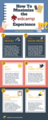
How to Maximize the EdCamp Experience (Click to view full size image) 6 Tips to Maximize the EdCamp Experience There are so many wonderful reasons that I love EdCamps! I enjoy both attending EdCamps as a participant, and organizing EdCamps to help other educators discover the power of the unconference! After another successful year of EdCamp Awesome, I thought it would be useful to share some tips to help educators maximize the EdCamp Experience. Below are some tips for new and experienced EdCampers! What is EdCamp? (Click here to see learn more about the EdCamp Movement.) Prepare for EdCamp the day before (or earlier)!The day or night before, prepare for the event so you are ready to maximize your learning and your experience! 1. CHARGE YOUR DEVICES I recommend you bring at least two devices so you have a backup when your battery runs low. Sometimes power outlets can be inconvenient, and you don't want to be tethered to a wall and miss something awesome! I prefer to bring my smart phone and my tablet. This way I can travel light, but still be prepared to take notes, share on social media, take lots of pictures and learn new tricks! Laptops or Chromebooks are also great choices, and may come in handy if you facilitate a session, but are more burdensome to carry. 2. PREPARE YOUR SOCIAL MEDIA ACCOUNTS Every EdCamp will have its own official hashtag (i.e. #EdCampAwesome). If you are already on social media, especially Twitter, go ahead and save the hashtag in the Twitter application of your choice. Add a new column in Tweet Deck or Hootsuite, or your favorite app to follow the hashtag and start the collaboration early! Check out who is already tweeting with the hashtag, who will be there, and share your own post to let others know you are coming. The Day of EdCamp Prepare for your day of learning and collaboration! 3. ARRIVE EARLY! Be sure to arrive early to make the most of the networking time! Meet and collaborate with as many educators as you can. Look for Twitter handles on attendee name badges so you can expand your PLN and follow them on Twitter. You also want to have plenty of time to suggest topics for sessions. If you have never used Twitter, be sure to suggest it and ask for it to be in the first block. That way Twitter newbies can learn and practice their new Twitter skills all day! Be brave and put your name on a topic to facilitate! Any teacher can facilitate a discussion. You do not have to be the expert. 4. TWEET OFTEN! Twitter can really enrich the EdCamp experience! Be sure to share what you learn on Twitter. Favorite the tweets of others you want to come back to, and let Twitter serve as some of your note-taking. EdCampers across the globe follow the hashtags to learn along with you. Who knows, you might inspire the next EdCamp! 5. TAKE COLLABORATIVE NOTES I'm a huge fan of collaborative note-taking. (See my previous post on Collaborative Note-Taking with Google Docs.) But I also picked up a new strategy at FETC using Google Slides. This is a great way to take collaborative notes for conferences and EdCamps. One person will create and share publicly a Google Slides presentation. Then participants create a new slide and add notes for each session they attend. At the end of the event you have everything in one share presentation! 6. STAY LATE Not only to I recommend coming early, but I also encourage you to stay for the entire event--even stay late! Most EdCamps have lots of fun door prizes that are given away throughout the day, or at the end of the day. You don't want to miss out on a free iPad or Chromebook! Not to mention, you will want to stay late to continue the collaboration and networking. Keep learning, expanding your PLN, make the most of the EdCamp experience! What are your tips for maximizing the EdCamp experience? Please share in the comments below. Kasey Bell will be presenting at the following upcoming events: Virginia Summit Featuring Google for Education, March 7-8 (Charlottesville, VA) WEMTA, March 22-24 (Wisconsin Dells, WI)
Shake Up Learning Blog
.
Blog
.
<span class='date ' tip=''><i class='icon-time'></i> Jul 15, 2015 11:18am</span>
|
|
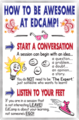
How to Be Awesome at #EdCamp Poster | www.ShakeUpLearning.com | #edchat #hackpd #teaching The #EdCamp Revolution is here to stay! Have you attended an EdCamp yet? Well, you should! In case you haven't been paying attention, the EdCamp movement is changing the way educators connect and learn. Every educator, teacher, administrator, consultant--anyone in the field of education should experience an Edcamp. Here is a poster that I have shared through social media many times before. This poster is meant to guide the EdCamp experience, and help EdCampers remain in the spirit of the unconference, which is participant-driven! EdCamp sessions are not planned, and definitely not prepared PowerPoint presentations. Let discussion and participants guide the learning! [Full disclosure: I did NOT create this. The graphics were created by Tom Nielsen, a colleague of mine. The original content was passed on to me through social media, and I am not sure who wrote the words. (Please let me know so that I can give credit.)] Below the poster is a link to a folder with multiple versions (.png and .pdf) of the poster to be used by other EdCampers and EdCamp organizers. Feel free to share and use. -----> Click here to access the How to Be Awesome at EdCamp Posters. What do you love about EdCamp? Please share in the comments below! Related Posts: How to Maximize the EdCamp Experience: 6 Tips [infographic] EdCamp Resources Kasey Bell will be presenting at the following upcoming events: WEMTA, March 22-24 (Wisconsin Dells, WI) #GAFETalk Event with TextHelp, April 8-9 (Denver and Colorado Springs
Shake Up Learning Blog
.
Blog
.
<span class='date ' tip=''><i class='icon-time'></i> Jul 15, 2015 11:18am</span>
|
|
The Golden Treasures of Google! - Part 1Most of us know of the Googley Goodness of Google Drive and related apps for education, but did you know there is much, much more that Google offers for FREE! There are so many hidden gems for teachers and students. This blog series will explore the lesser-known Google tools. (It wouldn't all fit in one post, and I find something new and interesting all the time!) Some of theses tools are made by Google, Inc., and some are made possible with Google tools. Either way, fasten your seatbelt and get ready to get your Google on! This post will focus on tools that utilize Google Maps, Street View and Google Earth.(I am also working on a new Thinglink with all of the Golden Treasures of Google! Look for that soon!)Create and share custom Google Maps!My Maps (formerly Maps Engine Lite)In the Classroom:Create interactive lesson journeysVisit historical landmarksTravel through a Novel or StoryCreate an Amazing Race adventure!My Maps Cheat Sheet (by Jennifer Judkins)Smarty PinsSmarty PinsGoogle Maps based geography and trivia game.Google generates a random trivia question about a specific city or country, and you must drop a pin on the correct location on the map. Players can choose from six trivia categories: Featured Topics, Arts & Culture, Science & Geography, Sports & Games, Entertainment, History & Current Events.Although you cannot choose the location for your students, this is still a fun way to introduce some geography to your students.Geo GuesserGame using Google Maps StreetView that drops the player in a random location and challenges them to find out where they are. You cannot choose an exact location, you can choose from collections of cities, countries and continents. Perfect for a little social studies virtual excursion!Google Lit TripsFrom the Google Lit Trips website, "Google Lit Trips are free downloadable files that mark the journeys of characters from famous literature on the surface of Google Earth. At each location along the journey there are placemarks with pop-up windows containing a variety of resources including relevant media, thought provoking discussion starters, and links to supplementary information about "real world" references made in that particular portion of the story."As a former ELAR teacher, I LOVE this! What a fun way to explore and integrate Google Earth in the classroom!Tour BuilderCreate and Tell Stories through Google Earth!View Gallery of StoriesCreate Your Own ToursGreat for Student ProjectsNote: Only works in 32-bit browsers (use Firefox or Safari)-- I know! Hard to believe!Must have the Google Earth plug-inWhat are your favorite Google tools? Please share in the comments below.Kasey Bell will be presenting at the following upcoming events:WEMTA, March 22-24 (Wisconsin Dells, WI)#GAFETalk Event with TextHelp, April 8-9 (Denver and Colorado Springs)#GoogleEduOnAir (May 8-9)#TXGoo15, May 16: Texas Summit feature Google for Education (New Caney, TX)iPadpalooza, June 23-25 (Austin, TX)
Shake Up Learning Blog
.
Blog
.
<span class='date ' tip=''><i class='icon-time'></i> Jul 15, 2015 11:17am</span>
|
|
The Golden Treasures of Google! Part 2Google offer us so many fabulous projects and tools! Are You Ready for More?Welcome to Part 2 in this series: The Golden Treasures of Google! The Fabulous Tools You Don't Know About!Part 2 will focus on some fabulous data tools! Check out what data-driven Googliness lies below!--->Did you miss Part 1 in this series: Google Maps, Street View and Earth?Google TrendsExplore Google trending search topics with Google Trends. See what's trending, what's popular, and much more data!Also, check out these special treasures:Hot TrendsA Year in Search 2014In the Classroom: Google Trends is a great discussion starter. Ask students to analyze the data, make predictions, and talk about how the world is changing.Google CorrelateGoogle CorrelateGoogle Correlate is actually a part of Google Trends. It finds search patterns which correspond with real-world trends. Check out this great Comic Book explanation of Google Correlate!Flu TrendsTutorialSearch by DrawingIn the Classroom: Google Correlate is a great tool for finding correlations with current events like the Ebola outbreak. It is also a great way to explain the difference between correlation and causation to students!Ngram ViewerNgram ViewerNgram Viewer is a part of Google Books. Five MILLION books have been archived covering a span of the last 500 years, and Google has made the data from those books searchable. Visualise the rise and fall of particular keywords across 5 million books and 500 years! In the Classroom: This tool would be great for having students research keywords around a historical event like World War II and do a comparison with published works and popular authors of the time in Ngram Viewer.Google Public Data ExplorerThe Google Public Data Explorer makes large datasets that are made publically available by the government and other agencies easy to explore, visualize and communicate. Here you can find everything from unemployment and population to Ebola and weather.Four types of visualizations : line chartbar chartmapscatter plotBonus: You can now upload your own data sets.In the classroom: There are so many ways that this data and the visualizations could be used in the classroom. These statistics would be great for research projects, geography, authentic math problems, and more!Did you miss Part 1 in this series: Google Maps, Street View and Earth?What are your favorite Google tools? Please share in the comments below.Kasey Bell will be presenting at the following upcoming events:#GAFETalk Event with TextHelp, April 8-9 (Denver and Colorado Springs)#GoogleEduOnAir (May 8-9)#TXGoo15, May 16: Texas Summit feature Google for Education (New Caney, TX)iPadpalooza, June 23-25 (Austin, TX)
Shake Up Learning Blog
.
Blog
.
<span class='date ' tip=''><i class='icon-time'></i> Jul 15, 2015 11:17am</span>
|
|
So, have you heard the news about the fabulous new event that Texthelp is hosting for educators in Denver? It’s called GAFE Talk, and it features Google Apps for Education! Need I say more??? The folks at Texthelp have been working hard to make this a valuable learning experience for educators. If that’s not enough to pique your interest, then keep reading to learn more. Below are five reasons to attend GAFE Talk:1 - FREE EventDid I mention the GAFE Talk seminar is completely FREE? Awesome, right?! The event on April 8th is already sold out. The Denver location was so popular that they added an extra day. Register here to attend on April 9th.2 - Authorized Google Education TrainersThe featured speakers at this seminar are authorized Google Education Trainers, so you know you will be getting information from those in the know. Jason Carroll and I will be leading presentations throughout the day to help educators learn how to support ALL learners with Google Apps for Education. That’s right! I will be in Colorado, shaking things up. Are you ready?3 - Learn How to Support Learners of All Abilities with GAFESupporting learners of ALL abilities in the classroom is a challenge for teachers everywhere. Using Google Apps for Education can empower teachers and students. The GAFE Talk seminar will focus on easy-to-use tools and strategies that teachers and students will love. Below are just some of the topics I will cover at GAFE Talk:Discover a Better Way of Learning: Less "Teching," More Teaching with Google Apps for EducationUsing Google Chrome to Support Struggling Readers and English Language LearnersImproving Writing and Research with Google Apps and Add-OnsMobile Learning with Google Apps for Education4 - Guest Speaker from Google!We have a very special guest speaker from Google that will be talking about the Google Play for Education store, your one stop shop for class content! Get an inside look at the valuable content in the store, including apps, books, videos and more!5 - FREE Texthelp Tools for Participants!You heard me. Participants will receive FREE tools from Texthelp, including Read & Write for Google, Fluency Tutor, and Teach for Google---all at no cost! Texthelp has some wonderful tools to help you support ALL learners in your classroom. Not only will you learn about these tools during the event, but you get to take them home for free!Join me next week in Colorado at GAFE Talk, and if you can’t be there in person, be sure to follow the hashtag: #GAFETalk. I’m so excited to be a part of this event, and I hope to see you there! Want a #GAFETalk event in your area? Let them know and tweet with the hashtag. Look for more resources from this event to be posted soon! What are your favorite Texthelp tools? Please share in the comments below!Kasey Bell will be presenting at the following upcoming events:#GAFETalk Event with TextHelp, April 8-9 (Denver, CO)#GoogleEduOnAir (May 8-9)#TXGoo15, May 16: Texas Summit feature Google for Education (New Caney, TX)TCEA Area 16 Conference, June 4 (Amarillo, TX)Prosper ISD Tech Conference, June 10 (Prosper, TX)Speed 21 Conference, June 11 (Wylie, TX)iPadpalooza, June 23-25 (Austin, TX)ISTE, June 28-July 1 (Philedelphia, PA)
Shake Up Learning Blog
.
Blog
.
<span class='date ' tip=''><i class='icon-time'></i> Jul 15, 2015 11:17am</span>
|
|
The Golden Treasures of Google - Part 3The Golden Treasures of Google! The Fabulous Tools You Don't Know About! Part 3 - SEARCH!Here we go again! I'm not sure how many parts will be in this series because there are just so MANY hidden treasures with Google! (Actually, I think I could blog for a couple years with this topic!) We are not even scratching the surface my friends! So here is Part 3...Are you ready to learn about some new ways to search with Google?Below are some Google search engines, tips and tricks to help you sharpen your search skills. Check out The Golden Treasures of Google - Part 3 (SEARCH)!--->Did you miss Part 1 and 2 in this series? The Golden Treasures of Google - Part 1: Google Maps, Street View and Google Earth The Golden Treasures of Google - Part 2: DATAReverse Image SearchYou have probably searched Google Images many times, but did you know you can actually reverse the process and start your search with an image?!! Yes, you can! Watch the video below to learn more.In the classroom: It's as easy and drag-and-drop, and this is a great way to drive student inquiry in the classroom. What if inquiry and research could begin with an image, a portrait, a historical place, and you let students discover the content on their own?Custom Search EngineCreate your own custom search engine to search only the sites you add to the engine. The video below was designed for the business world, but will help you grasp the idea.In the Classroom: Use the Custom Search Engine to create customized searches for student research projects or to search your classroom or campus website. You could also have students create them--after they find valid and reliable sources of course!Google AlertsGoogle Alerts allows you to set up alerts for certain information online. You will receive an email when something new is found online. This is a way to monitor the web for things that are posted about you, your school, or other things that interest you.Keep an eye on your digital footprint.Find out the latest on ISTE 2015 (or other events).Follow companies, events, movie stars, athletes...whatever you want!In the Classroom: First of all, you should Google yourself on a regular basis, and you should teach your students to do the same. I use Google Alerts to keep an eye on my digital footprint. You could have students set up alerts to monitor topics they are interested in, researching or studying, follow current events, politics, elections. The limits are endless.What Do You Love? (wdyl)This is a fun search engine that encourages you to search for things you love, and the engine works its magic searching across multiple Google products. Below is a screenshot of my search for puppies. (I guess there weren't any trends for puppies.)In the Classroom: I think this WDYL would be a great way to kick off a passion project for Genius Hour! You could also use this to get to know your students, drive discussions and research.Let Me Google That For You (lmgtfy)My sarcastic side can't help but love this! This tool is for those people who bug you with tons of questions instead of just Googling it for themselves! What this witty little tool will do is actually take a screencast of you typing in the keywords and show the results! Go try it now...I'll wait.If you are like me, when someone asks me a question that I don't know the answer to, I Google it! So hold on, let me Google that for you!In the Classroom: Use this tool to let students show you how they found their results. (Thanks to a participant at #WEMTA15 for that suggestion!) I also think this is a great tool for students to teach teachers (and other students) how to improve their search skills.What are your favorite Google tools? Please share in the comments below.Kasey Bell will be presenting at the following upcoming events:#GAFETalk Event with TextHelp, April 8-9 (Denver, CO)#GoogleEduOnAir (May 8-9)#TXGoo15, May 16: Texas Summit feature Google for Education (New Caney, TX)TCEA Area 16 Conference Jamboree, June 4 (Amarillo, TX)Prosper ISD Tech Conference, June 10 (Prosper, TX)Speed 21 Conference, June 11 (Wylie, TX)iPadpalooza, June 23-25 (Austin, TX)ISTE, June 28-July 1 (Philedelphia, PA)
Shake Up Learning Blog
.
Blog
.
<span class='date ' tip=''><i class='icon-time'></i> Jul 15, 2015 11:17am</span>
|
|
Google Chrome Apps for Leveled ReadingChrome Apps for Leveled ReadingIf you have followed this blog for very long, then you know that I am a self-professed Chrome Addict. I love it! I love the fact that I can customize it to fit my needs, but I love it even more because we can customize it to fit the needs of learners! Below are just a few Google Chrome Apps to support readers in the classroom. These apps offer various ways find leveled reading material (by Lexile and grade level), as well as many other robust features!Newsela (Freemium: Grades 3-12)Newsela publishes and adapts daily news articles at 5 reading levels from grades 3-12, and aligned quizzes. This is a great resource for non-fiction text! Students and teachers can login with their Google accounts. Teachers can assign articles and monitor progress. Below is a video to help you get started with Newsela.Fluency Tutor for Google (Freemium: Age 6 and up)Fluency Tutor for Google is much more than just an app for leveled reading passages. This is a very robust tool that allows teachers to assign leveled reading passages, add your own reading passages, and more. Students can also practice and record their reading to improve fluency, and teachers can listen to the recordings when convenient. There is so much to this tool! It could have been the subject of this entire post! Watch the video below to learn more.Fluency Tutor for Google (Teacher App)Fluency Tutor for Google (Student App)Books That Grow (Free: Grades 2-12)Books That Grow is a leveled reading application with over 100 eBooks. Teachers can assign reading to their classroom, and monitor student reading student progress. Books That Grow also allows the students to signup on their own to find reading at their own level. (See levels here.) Watch the video below to learn more.What are your favorite Google tools to support reading? Please share in the comments below.Kasey Bell will be presenting at the following upcoming events:#GoogleEduOnAir (May 8-9)#TXGoo15, May 16: Texas Summit feature Google for Education (New Caney, TX)TCEA Area 16 Conference Jamboree, June 4 (Amarillo, TX)Prosper ISD Tech Conference, June 10 (Prosper, TX)Speed 21 Conference, June 11 (Wylie, TX)Texas ASCD Ignite, June 15-17 (Irving, TX)iPadpalooza, June 23-25 (Austin, TX)ISTE, June 28-July 1 (Philadelphia, PA)
Shake Up Learning Blog
.
Blog
.
<span class='date ' tip=''><i class='icon-time'></i> Jul 15, 2015 11:16am</span>
|