Blogs
|
In 2012, California passed a law requiring companies with five or more employees to offer retirement plans. The California Secure Choice Retirement Savings Trust Act is expected to be implemented by...
Visit site for full story...
TriNet
.
Blog
.
<span class='date ' tip=''><i class='icon-time'></i> Jul 27, 2015 12:46pm</span>
|
|
Overview
You have SharePoint 2010/2013 Farm deployed. In the same SharePoint Farm, you are trying to back up a site collection and restore on to either a different site URL or managed path or different web application. You are doing this using following PowerShell commands:
Backup-SPSite
Restore-SPSite
Meanwhile in the process, your Backup-SPSite will work successfully, but while executing the Restore-SPSite you might get following errors:
Restore—SPSite : The operation that you are attempting to perform cannot be completed successfully. No content databases in the web application were available to store your site collection. The existing content databases may have reached the maximum number of site collections, or be set to read—only, or be offline, or may already contain a copy of this site collection. Create another content database for the web application and then try the operation
Restore-SPSite : Access is denied. (Exception from HBESULT: 0×80070005 ( E_ACCESSDENIED))
Cause
Condition for Site Restore
When you back up a site collection and restore within the same Web Application, you will need a separate Content Database to restore to. Refer this MSDN Article. Same site collection (will have same SiteID GUID)
If a site collection is backed up and restored to a different URL location within the same Web application, an additional content database must be available to hold the restored copy of the site collection.
Condition for Site Delete
Now if you are backing and restoring to be served from different URL, then you are looking at deleting the site collection before you are restoring the site collection. Starting in SharePoint 2010, the Site Collection deletion process has been changed. Refer to Bill Baer’s blog here.
Condition for Site Restore
When you are set with above conditions and trying to restore site collection now you are greeted with the Access Denied warning.
This happens when the user login you are using to login to the SharePoint Server (RDP), this is usually the Farm Admin, is not one of the restoring site collection primary or secondary administrator.
Resolution
You are going to be performing this operation on the SharePoint Server, using the Farm Administrator account.
Your current site collection owner is not the farm admin.
In this case, set your farm admin as Primary/Secondary administrator (This will be temporary until your restore operation is complete)
If you did not do this and went ahead and already deleted the site collection and you have no back up, still no worries, follow further steps.
But at least know who is the Primary or Secondary site collection administrator.
Backup your site collection using the Backup-SPSite.
If you need to delete the site collection because you are trying to move the site collection, then you will need to delete the backed up site collection from SharePoint.
So before you go ahead and delete, ensure you have backed up the Content Database that contains this site collection.
If you delete site collection using Remove-SPSite, the site collection will be deleted permanently.
If you delete site collection from the Central Administration or using Remove-SPSite with -GradualDelete option the site collection will be marked for deletion, and will be deleted based on the timer job "Gradual Site Delete".
You could list the sites marked for deletion by running Get-SPDeletedSite and follow with Remove-SPSite
You could force the timer job Run Now to delete pending the site collection that are marked for deletion
At this stage your site is removed successfully.
Now you are trying to restore your site collection
Use Restore-SPSite PowerShell command to restore.
If you are coming across the Access Denied error, that means your Site Collection Primary or Secondary owner is not one of the Farm Admin.
In that case, ( If you did not rest the site collection Primary or secondary admin to the Farm admin before the backup), follow below option:
Find out who was the primary/secondary site collection administrator
Temporarily, make the above site collection administrator a farm admin, provide rights (I gave full rights until Restore was successful) to the restoring Content Database.
Have the site collection administrator Login to the SharePoint Server farm (This is the only way, because you did not reset the site collection owner to farm admin before the backup)
Then run the Restore-SPSite
Now remove the user from farm admin and remove the SQL Full rights on the content database
If you had the Site collection administrator reset to Farm admin prior to back up, then set the appropriate business users to the site collection administrators
Netwoven
.
Blog
.
<span class='date ' tip=''><i class='icon-time'></i> Jul 27, 2015 12:46pm</span>
|
|
This post is part of TriNet’s ongoing series about the Affordable Care Act and its effects on small business. The Affordable Care Act (ACA) is here to stay and any business owner with at least one...
Visit site for full story...
TriNet
.
Blog
.
<span class='date ' tip=''><i class='icon-time'></i> Jul 27, 2015 12:45pm</span>
|
|
We’re now in the home stretch of my tips for harassment policies and complaint procedures. (It’s not exactly like America Pharoah’s "home stretch" run for the Triple Crown - but close!) "Pregnancy" as a Protected Characteristic My first tip creates a very cathartic experience because it forces me to admit that nobody’s perfect, including me. In my case, the "no-harm/no-foul" rule saved me. But, there was once a client who wasn’t as lucky. The client had an EEOC pregnancy discrimination charge and, lo and behold, the long list of protected characteristics in the company’s harassment policy did not include...
SHRM
.
Blog
.
<span class='date ' tip=''><i class='icon-time'></i> Jul 27, 2015 12:45pm</span>
|
|
Overview
While building Public site in other terms we call Customer Facing site, you will need better Web Content Management capabilities. Generally you will have Authors who are responsible for producing the content while the produced content will go through an approval process before the content becomes visible on the Public Site.
Generally the Public Sites are also Graphics heavy where you also want to better manage the graphics or digital assets.
SharePoint 2013 provides a new feature called Cross Site Publishing capabilities. Utilizing this new feature, you can design more efficient Public Site. In this blog I will discuss about Cross Site Publishing and with an example of the publishing site implementation.
Cross-Site Publishing
Cross-Site Publishing is very simple publishing is a feature driven method that lets you create and maintain content in one or more authoring site collections or web application and publish or display this content in one or more publishing site collections by using content Search Web Parts. Cross-site publishing complements the already existing publishing method, author-in-place, where you use a single site collection to author content and make it available to readers of your site. In a simple manner you write content in one place and have it published somewhere else.
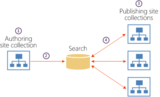
This is the visual presentation by Microsoft:
How the cross-site publishing works?
Cross-site publishing uses search technology to retrieve content.
On a site collection where the Cross-Site Collection Publishing feature is enabled, libraries and lists have to be enabled as catalogs before the content can be reused in other site collections.
The content of the library or list catalogs must be crawled and added to the search index.
The content can then be displayed in a publishing site collection by using one or more Search Web Parts.
When we are changing the content in an authoring site collection, those changes are displayed on all site collections that reuse this content, as we are using continuous crawl.
Why you use the cross-site publishing for your website?
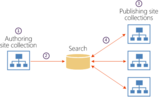
In the scenario, where content authors can add content in a controlled environment, meaning they can add the content in authoring site which is AD authenticated. Let us name it http://NWAuthor.
This content is shared or displayed in Published sites web application which is configured to allow anonymous access for external users. Let us name it http://NWPublish.
At the same time you create another web application where you can store your site assets like images and videos. Now this web application allows read access to anonymous user while it requires authentication for modifying/adding contents. Let us name it http://NWAssets.
Let me share the high level Architecture below:
Now we will go through step by step process.
The first thing we have to do is to create three site collections.
Step#1
Create Authoring Site
Firstly, we will create a new web application with windows Authentication
Now we will create an authoring site collection.
To create the Site Collection, we need these details
A title for the website, which is "NWAuthor", or any name as you like.
The website’s URL.
Select 2013 for the experience version.
From the Publishing tab, select the Team Site template.
In the field, Primary Site Collection Site Administrator, enter the site admin’s user name.
We’ll create a Site Collection based on Team site template.
The ideal Situation is choosing "Product Catalog" template. By choosing "Product Catalog" template, SharePoint will create following artifact for site collection:
Activate Cross Site Publishing Feature
Create Product List associated with content type Product with Image
Create two content types, Product and Product with Image
Create following Site Columns
Group Number
Item Category [Managed Meta data column linked to Product Hierarchy term set
Item Number
Language Tag
Create Site Collection Term Set "Product Hierarchy"
As we only require "Cross Site Publishing Feature", we are choosing "Team Site" template and then we are going to activate this feature.
Step#2
Create the publishing site
Create another web application with "Anonymous access" and name it "NWPublish"
Select the "Entire web site "option from Anonymous access
Next we create the root site collection based on "Publishing Portal"
Step#3
Create the Asset library
Setup an Asset Library. This can exist anywhere as a container to store site blobs (Pictures, videos, pdfs, etc.) in this case Asset library exists in its own web collection with URL (http://NWAssets). Again this web application has "Anonymous access" for lists and libraries only.
Let’s create a picture library with name "NWassets" and upload the images here. Coming to the specific list we are going to store the blobs, in this case "NWassets", we’ll check the "View only" option.
So as of now we have created our 3 web application
Step#4
Create content type & list
Authoring site is ready. Let’s create the list which holds the contents of the site. Create a list with name "websitecontent".
Now go to the list setting, then catalog setting.
Under catalog setting, check "Enable this library as catalog".
It will be good to keep the number of list in your author site minimum as this will help you to maintain the site. Otherwise you have to make all the list as catalog then make all the catalog connection from the publishing site.
Now what is Catalogs?
A catalog is a list or library that is shared out to search for consumption on publishing sites. Catalogs enable content to be published across site collections—the cross-site publishing features depend on catalogs.
Any List/Library can be marked as catalog by going to Catalog Settings page and selecting "Share the list as a catalog for other sites and collections".
After you connect a publishing site to this catalog, the fields that you specified as catalog item URL fields appear as part of the friendly URL, but we do not require this.
Step#5
Adding Images in Asset library
Before adding list items, we will add relevant images in the asset library. Open the asset URL i.e. http://NWAssets and add images there.
So we see the image first uploaded to asset library, and then that URL refer to the author list.
Next we will go to the Publishing Site, and "Manage the Catalog connection" there.
Step#6
Start adding content
You have already created the list in your author site, now it’s time to add content there.
Step#7
Manage Catalog Connection
Once we enter content in the Author site and make the list as catalog, our next task is to run a full crawl.
After the full crawl is successfully completed, from the site setting of the publishing site, click on Manage Catalog Connection.
Create the catalog connection. Once you click on "Manage catalog connections", below screen pops up. Click on the connect link.
While creating the connection choose "Connect, but do not integrate the catalog".
Step#8
Start creating pages
Once the content is ready for display in pages, start creating pages in the publishing site. Create a custom page in the publishing site and add a content search web part. Now CSWP is ready to use catalogs!
Edit the CSWP and click on "Change Query". Go to Advance mode and under "select query" option, select the "Author - Website content result". Close the web part and Check in the page.
Now your page is ready with content and image.
Here I have created a custom display template to show the content & image. You can create a new display template and whatever look & feel you want for your content you can work here.
Conclusion
This is a simple presentation of using cross-site publishing to create public site. Main advantage of cross site publishing is to create content one time and publish in many places and with anonymous access any one can view the publishing site! Another advantage is with the help of display template you can display the same content in different way in different places.
In the next article I will discuss about display template and managed navigation that we can use in cross site.
Netwoven
.
Blog
.
<span class='date ' tip=''><i class='icon-time'></i> Jul 27, 2015 12:45pm</span>
|
|
5 reasons CFOs are interested in workforce analytics & automation
Identifying empty labor
On average US employees waste 2 hours a day beyond breaks and lunch hour. However, most companies only have self-reporting methods to track the amount of work and time spent on various tasks. WorkiQ provides real-time collection and reporting thus revealing instant performance measurement of both in-house and remote employees.
Identify areas for reduction of overtime
According to a recent survey, average Americans work an hour of overtime each week. Sometimes the business may need overtime to get through peak periods but how do you truly know without accurate data? WorkiQ provides real-time data showing if empty labor is a potential symptom for excess overtime. The solution can identify the amount of time spent on productive and non-productive activities and categorize the type of work that consumes the most labor hours.
Workforce analysis
Do you have the right amount of people assigned to the appropriate inventory of work? How many people do you need to handle open enrollment this year? Take the guessing out of staffing; WorkiQ provides data on actual activity and work productivity, giving you true FTE analysis to insure you have the team for the workload.
Real-time and accurate performance data
Identifying top performing teams and individuals is critical to building a culture of accountability and high employee engagement. Real-time workforce analytics provides the operational intelligence necessary to evaluate true staffing needs, reduce outsourcing, and lower the overall costs of operations. By providing real-time dashboards with insights into the actual performance at any given moment your managers will be empowered to make "in the moment" coaching and guidance for optimal performance.
Spotting process deficiencies
Organizations can’t always see the different steps it takes to process a transaction within their operations. By employing analytics to visualize the work path, you can identify the critical details needed to reduce bottlenecks. Then these processes can be eliminated or automated through WorkiQ Robotic Process Automation.
The post Workforce Analytics for the CFO appeared first on WorkiQ Blog.
WORKIQ
.
Blog
.
<span class='date ' tip=''><i class='icon-time'></i> Jul 27, 2015 12:44pm</span>
|
|
Overview
Beginning with SharePoint 2013 workflows are fully declarative irrespective of whether they are designed using SharePoint Designer or Visual Studio. Declarative indicates that no longer the workflows are authored in code and then compiled into managed assemblies. Instead workflows are described in Extensible Application Markup Language (XAML) and interpreted at the execution time for activities and sequences. Being the native building blocks, XAML representation of workflows comes real handy for developers in situations like below:
Advanced debugging of workflow
Copy of workflow between sites with some modification
Integrating workflow in SharePoint app where workflow is not necessarily attached to any list within the app.
However while working with SharePoint Designer 2013 there is no direct method to export the workflow XAML and it is not intuitive. In this article we will explore one undocumented method to export a workflow in its XAML form.
The Process
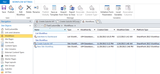
Launch the SharePoint Designer 2013 and connect to a SharePoint 2013 site. The site can belong to On Premise SharePoint 2013 installation or to Office 365. Once connected select an already existing workflow or create a new workflow.
Figure 1: Select a Workflow
Next save the workflow as template by clicking on the "Save as Template" button in the ribbon. This will save the workflow as WSP package and save in the Site Assets library under the current site. The file will be saved by the same name as that of the workflow.
Figure 2: Save as template
Open the site in the browser and select "Site contents" from under Settings icon. Then select Site Assets from the app list. You should be able to find the WSP file in there.
Figure 3: Workflow WSP file in Site Assets
Download a copy of the file to your local desktop. Then change the extension of the file from WSP to CAB. This will change the file icon to that of a zip file. Extract the file using Winzip or WinRAR. Navigate within the extracted folder and you will find a folder structure similar to as shown below:
Figure 4: Workflow.xaml location
You will find the workflow.xaml file in the location as shown in the picture Figure 4. You can open up the XAML file in any regular XML editor for review and update.
Figure 5: Workflow.XAML
Happy coding!!
Netwoven
.
Blog
.
<span class='date ' tip=''><i class='icon-time'></i> Jul 27, 2015 12:44pm</span>
|
|
Hi, I’m Janet Usinger, another of the co-leaders of the Qualitative Methods TIG, and a co-editor with Leslie Goodyear, Jennifer Jewiss, and Eric Barela of a new book about qualitative evaluation called Qualitative Inquiry in Evaluation: From Theory to Practice (2014, Jossey-Bass).
The process of interviewing participants in an evaluation shares a few characteristics with counseling sessions. Establishing rapport between the interviewer and interviewee is essential to gather meaningful data. Evaluators generally enter the interview session with confidence that a constructive conversation can be launched quickly. There are times, however, when the evaluator finds him or herself at odds with what the interviewer is saying. Sometimes the tension is because there is a philosophical difference of opinion; other times, it is just that the two individuals do not particularly like each other. I have had several experiences interviewing adolescents (and adults) who simply pushed my buttons. Yet removing the individual from the study was inappropriate and counterproductive to the goals of the evaluation.
Hot Tip: Put on your interviewer hat. Your responsibility is to understand the situation from the interviewee’s perspective, not get caught up in your feelings about their statements.
Hot Tip: Be intensely curious about why the person holds the particular view. This can shift the focus in a constructive direction and deepen your understanding of the interviewee’s underlying experiences and perspectives of the issue at hand.
Hot Tip: Leave your ego at the door. Remember, it is their story, not yours.
Lesson Learned: Once I took my feelings out of the equation, interviews with people with whom I do not click have become some of the most meaningful interviews I’ve conducted. This is not necessarily easy, and I generally need to have a little private conversation with myself before the interview. However, once I do, I am able to dig deeper in trying to understand their perspectives, frustrations, and worldviews.
Rad Resource: More stories about being in the trenches of qualitative inquiry in evaluation can be found in the final chapter of our new book, Qualitative Inquiry in Evaluation: From Theory to Practice (2014, Jossey-Bass).
The American Evaluation Association is celebrating Qualitative Evaluation Week. The contributions all this week to aea365 come from evaluators who do qualitative evaluation. Do you have questions, concerns, kudos, or content to extend this aea365 contribution? Please add them in the comments section for this post on the aea365 webpage so that we may enrich our community of practice. Would you like to submit an aea365 Tip? Please send a note of interest to aea365@eval.org. aea365 is sponsored by the American Evaluation Association and provides a Tip-a-Day by and for evaluators.
Related posts:
Stefanie Leite on Interview Tips for Job Seekers in Evaluation
Dreolin Fleischer on Organizing Quantitative and Qualitative Data
Stefanie Leite on Building Rapport during Telephone Interviews
AEA365
.
Blog
.
<span class='date ' tip=''><i class='icon-time'></i> Jul 27, 2015 12:44pm</span>
|
|
Q: My wife interviewed for a job recently and I was amazed that one of the questions she was asked by the interviewer was "Do you have any children?" We do, but what does that have to do with her qualifications for the job? Plus, I thought it was illegal to ask those questions. A: Actually, it is not technically illegal to merely ask the question. What’s illegal is to base a hiring decision on the answer to the question. So let’s say your wife...
SHRM
.
Blog
.
<span class='date ' tip=''><i class='icon-time'></i> Jul 27, 2015 12:43pm</span>
|
|
HR Managers can increase their strategic business relevance by providing analytics that are meaningful, comparable, and actionable in a timely manner. This requires evidence-based thinking, reliable data science, and meaningful analytics that directly address real business value.
In this presentation delivered at Workforce & HR Analytics Summit West 2015, Edward M.L. Peters, CEO at OpenConnect, illustrates how HR Managers can provide strategic analytics to their business partners.
HR Analytics Expert Panel Q&A : Getting company buy-in for HR analytics
Recorded at The Workforce & HR Analytics Summit West 2015, this expert panel discusses how to get company buy-in for HR analytics. During this Q&A session, the audience has a chance to engage the speakers directly. The HR analytics panel includes:
Annette Blount Senior Manager, Workforce Analytics and Global Reporting, Wyndham Worldwide
Suzanne Bell Director, HR Strategy, Talent Planning & Change Management, Toyota Financial Services
Edward M.L. Peters, Ph.D, Chief Executive Officer, OpenConnect
Request WorkiQ Demo
The post CEO Talk : Increasing Your Strategic Relevance Through HR Analytics appeared first on WorkiQ Blog.
WORKIQ
.
Blog
.
<span class='date ' tip=''><i class='icon-time'></i> Jul 27, 2015 12:43pm</span>
|