Blogs
|
I have three daughters, and I love them all! But sometimes being their dad exposes me to the oddest things. This last month the greatest oddity has been the myriad theories offered behind Taylor Swift’s song "Bad Blood." If you ask my 21-year-old, she will scoff at the fact that you don’t know everything there is to know about pop culture and say you are too old to get it. If you ask my 12-year-old, she will give you a well-reasoned theory about the strife between Swift and Katy Perry and then shift her attention back to Instagram with...
SHRM
.
Blog
.
<span class='date ' tip=''><i class='icon-time'></i> Jul 27, 2015 12:53pm</span>
|
|
Overview
We know to provide infrastructure support for SharePoint Apps we have to do a number of configuration steps. I have worked for a number of business where the App infrastructure for their on-premises SharePoint farm has not been set up but there are some important business requirement to be implemented without trusted solution and managed code as a practice. In this article I will show you a structured way of developing custom SharePoint functionalities using jQuery and SharePoint JavaScript CSOM which is very compatible with SharePoint hosted Apps.
Solution:
The main components that are required to develop client side functionality are HTML, CSS, and JavaScript along with SharePoint list/libraries which holds related data. You can just use SharePoint designer as the only tool to develop these components or any of your favorite editor is good. I will demonstrate the structure and separation of code using SharePoint designer:
1. Open you site using SharePoint Designer and on the navigation click on "Site Assets".
2. Now because you can have multiple custom functionalities, for a good structure and code management you can create following folder structure:
Each separate functionalities could be a subfolder under "Utilities folder.
3. Say you are developing a functionality for showing announcements, so you can create following three files under "AnnouncementTicker" folder:
Do your required coding for the components. Refer to the ".css" and ".js" files from the ."html" files.
4. Now as your custom coded components are ready, open the page in browser where you need to add the functionality. Edit the page and add a Content Editor Web Part in the required zone and link the ".html" file. In the Content Editor Tool Pane, under Content Link, type the link of the ".html" file, for example "SiteAssets/Resources/Utilities/AnnouncementTicker/AnnouncementTicker.html".
5. Save the page and you can see the results. For updating the functionality you do not need any deployment. Just edit the code from the corresponding files using SharePoint Designer and save to see the update in browser. Pretty fast and efficient development process compared to SharePoint Hosted App Development!
A real life example will be good and for this I am demonstrating the "Announcement Ticker" functionality to be added on a say dashboard page:
1. Create a SharePoint List "Announcements" which will host all announcement/notification/news details.
2. Only the active announcements (current date within publishing start and end date time) will display on dashboard page. This way you can set up future announcements and will automatically display on dashboard when start date time appears and will expire from dashboard after the specified publishing end date time. If an announcement contains an external link, clicking on "More" button will open the link in a new window else the announcement details will appear in a modal window.
3. You can configure multiple active announcements and those active announcements will scroll one by one on dashboard page.
I have used JQuery, Bootstrap and SharePoint JavaScript Client Object Model as the main technologies for the solution. Use SharePoint designer to open your site and create following folder structure inside "SiteAssets" library - "/SiteAssets/Resources/Utilities/AnnouncementTicker" and create following three files inside the "AnnouncementTicker" folder:
AnnouncementTicker.html
AnnouncementTicker.js
AnnouncementTicker.css
The code of the files are given below on this article. Please note that you have to download Bootstrap and JQuery plugin file(s) and add to the "Resources" folder as shown in the code. Once you have the files ready add a "Content Editor WebPart" in the appropriate place and add reference to the "AnnouncementTicker.html" file in the content editor web part and you get the ticker functionality like below:
Clicking on the "More…" button will display the announcement details in a bootstrap modal like below:
AnnouncementTicker.html
<html><head><scripttype="text/javascript"src="/_layouts/15/sp.runtime.js"></script><scripttype="text/javascript"src="/_layouts/15/sp.js"></script><linkrel="stylesheet"href="/SiteAssets/Resources/bootstrap/css/bootstrap.min.css"><linkrel="stylesheet"href="/SiteAssets/Resources/bootstrap/css/bootstrap-theme.min.css"><scriptsrc="/SiteAssets/Resources/Plugins/jquery-1.11.1.min.js"type="text/javascript"></script>
<scriptsrc="/SiteAssets/Resources/bootstrap/js/bootstrap.min.js"type="text/javascript"></script>
<linkrel="stylesheet"href="/SiteAssets/Resources/Utilities/AnnouncementTicker/AnnouncementTicker.css"/>
<scriptsrc="/SiteAssets/Resources/Utilities/AnnouncementTicker/AnnouncementTicker.js"type="text/javascript"></script>
</head>
<body>
<divclass="container-fluid">
<divclass="alert alert-info alert-dismissible announcementAlerts"role="alert">
<table>
<tr>
<td>
<spanclass="badge badge-info bAnnouncement"><iclass="glyphicon glyphicon-volume-up"></i></span><strong>Announcements!</strong>
</td>
<tdstyle="vertical-align:top;">
<ulid="AnnouncementTicker"class="AnnouncementLabel"></ul>
</td>
</tr>
</table>
<buttontype="button"class="close"data-dismiss="alert"style="top:-55px; vertical-align:top;text-align:right;">
<spanaria-hidden="true">×</span><spanclass="sr-only">Close</span>
</button>
</div>
<divclass="modal fade"id="announcementDetail"tabindex="-1″role="dialog"aria-hidden="true">
<divclass="modal-dialog">
<divclass="modal-content">
<divclass="modal-header">
<buttontype="button"class="close hidden"data-dismiss="modal"aria-label="Close"><spanaria-hidden="true">×</span></button>
<h3class="modal-title"id="announcementDetailDialogTitle"></h3>
</div>
<divclass="modal-body"id="announcementDetailDialogBody"></div>
<divclass="modal-footer">
<buttontype="button"class="btn btn-warning"data-dismiss="modal"><iclass="glyphicon glyphicon-remove-circle"></i> Close</button>
</div>
</div>
</div>
</div>
</div>
</body>
</html>
AnnouncementTicker.js
$(document).ready(function () {LoadAnnouncements();});function LoadAnnouncements() {var clientContext = new SP.ClientContext.get_current();var oList = clientContext.get_web().get_lists().getByTitle(‘Announcements’);var camlQuery = new SP.CamlQuery();
var camlQueryText = "<View>" +
"<Query>" +
"<Where>" +
"<And>" +
"<Leq>" +
"<FieldRef Name=’PublishingStartDateTime’ />" +
"<Value IncludeTimeValue=’TRUE’ Type=’DateTime’><Today /></Value>" +
"</Leq>" +
"<Geq>" +
"<FieldRef Name=’Expires’ />" +
"<Value IncludeTimeValue=’TRUE’ Type=’DateTime’><Today /></Value>" +
"</Geq>" +
"</And>" +
"</Where>" +
"<OrderBy>" +
"<FieldRef Name=’Modified’ Ascending=’False’ />" +
"</OrderBy>" +
"</Query>" +
"</View>";
camlQuery.set_viewXml(camlQueryText);
this.collAnnouncementListItems = oList.getItems(camlQuery);
clientContext.load(collAnnouncementListItems);
clientContext.executeQueryAsync(
Function.createDelegate(this, this.onAnnouncementQuerySucceeded),
Function.createDelegate(this, this.onQueryFailed)
);
}
function onAnnouncementQuerySucceeded(sender, args) {
var announcementCount = collAnnouncementListItems.get_count();
if (announcementCount > 0) {
var listItemInfo = ";
var listItemEnumerator = collAnnouncementListItems.getEnumerator();
var announcementHTML = "";
var annDlgTitle = "";
var annDlgBody = "";
while (listItemEnumerator.moveNext()) {
var oListItem = listItemEnumerator.get_current();
var announcementID = oListItem.get_item(‘ID’);
var announcementTitle = oListItem.get_item(‘Title’);
var announcementBody = oListItem.get_item(‘Body’);
var announcementExternalLink = "";
if (oListItem.get_item(‘ExternalLink’) != null) {
announcementExternalLink = oListItem.get_item(‘ExternalLink’).get_url();
}
var pubSDT = $.date(oListItem.get_item(‘PublishingStartDateTime’));
annDlgTitle += ‘<span id="annDlgTitle’ + announcementID + ‘"><h3 class="annDlgTitle"><span class="label label-info"><i class="glyphicon glyphicon-calendar"></i> ‘ + pubSDT + ‘</span> - ‘ + announcementTitle + ‘</h3></span>’;
annDlgBody += ‘<div id="annDlgBody’ + announcementID + ‘">’ + announcementBody + ‘</div>’;
announcementHTML += ‘<li><span class="label label-info"><i class="glyphicon glyphicon-calendar"></i> ‘ + pubSDT + ‘</span> - <span class="AnnTitle">’ + announcementTitle + ‘ <button data-externallink="‘ + announcementExternalLink + ‘" onclick="javascript:OpenAnnouncementDetails(‘ + announcementID + ‘, this);" type="button" class="btn btn-xs btn-primary"><i class="glyphicon glyphicon-fullscreen"></i> More…</button></span></li>’;
}
$("#AnnouncementTicker").html(announcementHTML);
$("#announcementDetailDialogTitle").html(annDlgTitle);
$("#announcementDetailDialogBody").html(annDlgBody);
setInterval(function () { RotateAnnouncement() }, 5000);
}
}
function RotateAnnouncement() {
$(‘#AnnouncementTicker li:first’).slideUp(function () { $(this).appendTo($(‘#AnnouncementTicker’)).slideDown(); });
}
function onQueryFailed(sender, args) {
alert(‘Request failed. ‘ + args.get_message() +
‘\n’ + args.get_stackTrace());
}
function OpenAnnouncementDetails(itemID, moreBtn) {
$("[id*=annDlgTitle]").each(function (i) {
$(this).css(‘display’, ‘none’);
});
$("[id*=annDlgBody]").each(function (i) {
$(this).css(‘display’, ‘none’);
});
$("#annDlgTitle" + itemID).css(‘display’, ");
$("#annDlgBody" + itemID).css(‘display’, ");
$(‘#announcementDetail’).modal({
keyboard: false
});
if ($(moreBtn).attr(‘data-externallink’) != "") {
setTimeout(function () { window.open($(moreBtn).attr(‘data-externallink’), ‘AnnouncemwntWindow’, ‘status=1,toolbar=0,resizable=1,scrollbars=1′); }, 500);
}
returnfalse;
}
$.date = function (dateObject) {
var m_names = new Array("January", "February", "March", "April", "May", "June", "July", "August", "September", "October", "November", "December");
var d = new Date(dateObject);
var day = d.getDate();
var month = m_names[d.getMonth()];
var year = d.getFullYear();
if (day < 10) {
day = "0″ + day;
}
var date = month + " " + day + ", " + year;
return date;
};
AnnouncementTicker.css
.AnnouncementAlerts {height: 60px;}#AnnouncementTicker {height: 60px;overflow: hidden;list-style: none!important;
padding: 0px;
margin: 0px!important;
padding-left: 10px;
vertical-align: top;
}
#AnnouncementTickerli {
height: 60px;
list-style: none!important;
padding: 0px!important;
margin: 0px!important;
vertical-align: top;
}
.AnnouncementLabel {
list-style: none!important;
padding: 0px!important;
margin: 0px!important;
vertical-align: top;
}
.AnnDate {
font-style: italic;
font-size: 13px;
}
.AnnTitle {
padding-left: 0px;
font-size: 14px;
color: black;
}
.bAnnouncement {
font-size: inherit!important;
}
.badge-info {
background-color: #3a87ad;
}
.annDlgTitle {
margin-top: 0px!important;
margin-bottom: 0px!important;
}
.AnnTitleLink {
font-weight: bold;
}
Netwoven
.
Blog
.
<span class='date ' tip=''><i class='icon-time'></i> Jul 27, 2015 12:53pm</span>
|
|
Overview
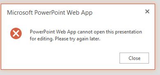
You have deployed SharePoint 2013 and Office Web Apps 2013 and integrated both platforms. End users are trying to open OWA supported Office Documents (Word, Excel, PowerPoint) for Editing in the Browser or trying to Co-author. You may receive an error message such as below-
"PowerPoint Web App cannot open this presentation for editing. Please try again later."
Cause & Solution
Based on the error message it is very obvious that someone has checked out the document for editing. From the Document Library check if any other user has tried to edit the document by looking at the document check out status.
Conversely if you are trying to coauthor the document, ensure that the document is NOT checked out. Another feature that you will need to be aware at the Document Library Settings is that Enforce-Check out is not enabled. With Enforce-Check out enabled, you will never get to perform the Co-authoring.
Hope this helps! Look forward to your queries and comments below.
Netwoven
.
Blog
.
<span class='date ' tip=''><i class='icon-time'></i> Jul 27, 2015 12:53pm</span>
|
|
Overview
You have deployed SharePoint 2013 with Reporting Services in the SharePoint Integrated mode. From the Central Administration, System Settings>Manage Services on Server, you try to start the SQL Server Reporting Services service. You receive the following error message-
"Reporting Services scale-out deployment is not supported in this edition of Reporting Services. This edition only supports one instance of the SQL Server Reporting Services Service in the farm. The SQL Server Reporting Services service cannot be started on this server unless it is stopped on all other servers in the farm."
Cause & Solution
You are using the SQL Server Standard Edition. SQL Server Reporting Services Scale-out mode is supported by following SQL Server editions: Enterprise, Business Intelligence. (Refer MSDN: Features Supported by the Editions of SQL Server 2012)
With your SQL Server 2012 Enterprise or Business Intelligence editions, under your SharePoint 2013 (2010) you could always scale out to more than one SharePoint server. (Refer MSDN Add an Additional Report Server to a Farm (SSRS Scale-out) )
While you have SQL Server 2012 Standard edition, under the SharePoint 2013 Farm, you can have only one instance of SQL Server Reporting Services in the SharePoint Integrated mode. While you try to start another instance of Reporting Service in the farm on different server within the Farm, you will receive the above message.
If you intend to start the SQL Server Reporting Services on a different server than the service is currently running, you should first stop the service on the current running service and then start on your desired server. But also be aware other installation and configuration requirements for hosting the SSRS Service on the Server before you try to start the SSRS Service on a new server
Hope this helps!
Netwoven
.
Blog
.
<span class='date ' tip=''><i class='icon-time'></i> Jul 27, 2015 12:52pm</span>
|
|
Introduction
This is SharePoint 2013 in built bug. We need to apply this solution after load balancing. We observed load balancing of multiple web fronts environment for 2007, 2010 and 2013. In MOSS 2007 and 2010, Incoming email service is perfectly load balanced. When more than one front-end server is set up to process incoming email messages on a MOSS 2007 and SharePoint 2010 farm, all of the WFE servers can process email messages and can fail over to any other server. Where as in SharePoint 2013 environment, we use shared/network drop folder when incoming email service runs in multiple WFE.
This article will describe the following points -
Impact of the Issue
Investigation on this issue
Root cause of this Issue
Solution for this Issue
Impact of the Issue
When multiple WFEs will be connected through load balancer in SharePoint 2013, we will not be able to do load balance for incoming email service as still we can run incoming email service in multiple WFE. It means that if one server in which incoming email service timer job is running will be down then incoming email will be stopped working for whole farm.
In SharePoint 2013, Incoming email timer job is running in only one WFE server, never run on multiple WFE if still the incoming email service is configured to run on all WFE.
Another point is - if this service will run in multiple load balanced WFE server in SharePoint 2013, few email will be delivered correctly (server in which timer job is running) and few will be stuck in drop folder (server in which timer job is not running)
Preliminary investigation for Incoming Email service
From the above impact of the issue we can understand that timer job is mainly guilty for this type of issue. Incoming email service timer job is responsible to deliver email from drop folder to SharePoint library.
In 2007, we found that Incoming email service timer job is running in all WFE servers at same time when it is scheduled.
In SharePoint 2013, Incoming email timer job is running in only one WFE server, never run on multiple WFE if still the incoming email service is configured to run on all WFE.
Root Cause of this Issue
In Moss 2007 and SharePoint 2010, the Incoming Email service timer job had a SPJobLockType of None, which means that the job ran on all servers in the farm, given the Incoming Email service was provisioned
We can also find out which Jobs have a lock of type none run once on each server in the farm. Because each server in the farm has one timer service instance, a job intended to run on every server does not need to take any locks - each server simply knows it can run the job without further concern. We need to use this power shell command -
Get-SPTimerJob | ? {$_.LockType -eq "None"}
In SharePoint 2013, that SPJobLockType has changed to Job, which means it only runs on a single member in the farm. This is a problem for those who wish to use round-robin MX records. While in SharePoint 2010, you could have multiple SharePoint servers, using equally weighted MX records servicing Incoming Email requests, in 2013, you can only have a single server servicing Incoming Email requests.
For this case we can use -
Get-SPTimerJob | ? {$_.LockType -eq "Job"}
There are 3 Locks available.
SPJobLockType.None — if you set it none, the instance will run in all the available servers in the Farm (e.g. Application Server Timer Job)
SPJobLockType.ContentDatabase - this will cause 3 instances to be running in each of the Web-Frontends.
SPJobLockType.Job - this will cause only one instance of the job to run on any of the front-end servers. (Note: it is possible to see multiple instances listed in the Job Status .. but if you look at the time it was last run.. only one would have run lately)
This is a Microsoft SharePoint 2013 in-built issue
Solution for this Issue
Microsoft has already released a Hotfix for this issue in December 10, 2013.
Please click on this URL for reference - http://support.microsoft.com/kb/2837677/en-us
But the December 2013 CU didn’t help?
In some cases when an administrator applied the December 2013 CU they did not see the expected change in the SPJobLockType. In these cases the problem occurred because the Internal E-mail service was already in place prior to the application of the December 2013 CU. So the SPJobLockType remained the same (in Job state). What the administrators in this case needed to do was to remove the existing Internal E-mail service feature and its timer job and then add them back again after the December 2013 CU was applied. When these steps were followed the problem went away.
Delete the Job: $job = Get-Sptimerjob | ? {$_.Name -eq "job-email-delivery"} $job.Delete()
Re-enable the "Incoming E-mail", this will recreate the job - Central Admin->System Settings - Configure incoming e-mail settings - Configure all option as necessary
Confirm the Locktype : None for job-email-delivery get-sptimerjob job-email-delivery | fl
Restart the timer job across all servers.
After implementing all the steps now, everything is working fine in the environment.
Netwoven
.
Blog
.
<span class='date ' tip=''><i class='icon-time'></i> Jul 27, 2015 12:52pm</span>
|
|
I admit - I love Vegas. While I’m at this year’s SHRM Annual Conference, I do plan on checking out the latest restaurants and maybe even taking in a show. But the most fun I have during the SHRM conference is spending time networking. It’s really fun to meet people I’ve only traded tweets with or connect with longtime friends from my days as a volunteer leader. Yes, going to sessions is important - especially that 7:00 a.m. one about the new overtime regulations. (I will be looking for some serious caffeine that morning!) And, I...
SHRM
.
Blog
.
<span class='date ' tip=''><i class='icon-time'></i> Jul 27, 2015 12:52pm</span>
|
|
Overview
By digitally signing an email message, you apply your unique digital mark to the message. The digital signature includes your certificate and public key, which originate from your digital ID. A digitally signed message proves to the recipient that you, not an imposter, signed the contents of the message, and that the contents haven’t been altered in transit. For additional privacy, you can also encrypt email messages.
A digital ID is issued by an independent certification authority.
Your organization may have policies that require a different procedure. See the network administrator for more information.
You can also look here to find other sources of digital certificates.
Caution:
While obtaining the personal Digital ID, you must ensure that the email address used in the certificate registration matches the email id used by outlook.
Steps:
Obtain a free email certificate from any certificate authority
Download the certificate and install in your PC local certificate store
Confirm installation of the certificate in your machine’s local certificate store:
Export the certificate from your certificate store into a FPX file
Import the certificate in outlook
Activate encryption for mails in Outlook
Send Email from Outlook and choose Encrypt or Put a Digital Signature
1. Obtain a free email certificate from comodo
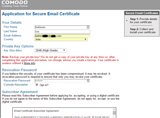
For Demonstration, I have chosen Coomodo for my CA. Visit this page
Fill out your personal details for certificate issuance
Accept Subscriber Agreement
2. Download the certificate and install in your PC local certificate store
Confirmation about the certificate registration will be send to the email id provided
Check for confirmation mail to download the certificate in the mail id provided by you.
Login to their site and provide the information sent in email
Successful login will automatically install the certificate in your local certificate store
You can view the certificate by clicking on View button.
3. Confirm installation of the certificate in your machine’s local certificate store:
Open MMC by typic MMC in search window of Windows Start Menu
Add certificate snapin from MMC File Menu
Choose Certificate Snapin from the list and click Add
Select my user account and then confirm by clicking Finish, and then OK.
View the certificate from the store reflecting your personal emal ID.
4. Export the certificate from your certificate store into a FPX file
From the above store, select the certificate, right click and choose ALL Task -> Export
Follow the onscreen Certificate Export Wizard and go to next window
Export Private Key
Select the default FPX option
Select a password for your private key
Select a folder location to store your certificate and provide a certificate name
Select Finish from export wizard confirmation window
5. Import the certificate in outlook
Open Outlook
Click the File tab
Click Options
Click Trust Center
Under Microsoft Outlook Trust Center, click Trust Center Settings
On the E-mail Security tab, under Digital ID, select Import/Export
Browse to the location where the certificate was exported and select the PFX file
Provide the password for your private key as set earlier and click OK
Click OK
6. Activate encryption for mails in Outlook
Once you are done importing the certificate in outlook, its time to actually activate the additional email security features in Outlook before a mail can be encrypted.
On the E-mail Security tab, under Encrypted Mail, select the Add digital signature to outgoing messages check box
Select Setting for your Encrypted e-mail
You can choose different certificates for Signing certificate and encryption certificate or same certificate. Click on "Choose" button
If available, you can select one of the following options:
If you want recipients who don’t have S/MIME security to be able to read the message, select the Send clear text signed message when sending signed messages check box. By default, this check box is selected.
To verify that your digitally signed message was received unaltered by the intended recipients, select the Request S/MIME receipt for all S/MIME signed messages check box. You can request notification telling you who opened the message and when it was opened, When you send a message that uses an S/MIME return receipt request, this verification information is returned as a message sent to your Inbox.
Provide a name to current Security settings and click OK
To change additional settings, such as choosing between multiple certificates to use, click Settings.
Click OK on each open dialog box.
7. Send Email from Outlook and choose Encrypt or Enforce a Digital Signature
Conclusion:
By obtaining and using a personal email certificate to digitally sign your messages you can help to stem the tide of spam and malware being distributed in your name. If your friends and family are conditioned to know that messages from you will contain your digital signature, when they receive an unsigned message with your email address spoofed as the source they will realize that its not really from you and delete it. And its free to obtain a personal certificate that you can always use to make sure your confidential communications reach their intended targets and vice-versa.
Netwoven
.
Blog
.
<span class='date ' tip=''><i class='icon-time'></i> Jul 27, 2015 12:51pm</span>
|
|
Overview
You have deployed SharePoint 2013 with Reporting Services in the SharePoint Integrated mode. From the Central Administration, System Settings>Manage Services on Server, you try to start the SQL Server Reporting Services service. You receive the following error message:
"SQL Server Reporting Services, Registry key access denied "
Cause & Solution
You are missing the necessary pre-requisites for SQL Server Reporting Services in the SharePoint Integrated mode to be installed and configured. Be aware installation and configuration requirements for hosting the SSRS Service on the Server before you try to start the SSRS Service on a SharePoint server.
Looking forward to your comments!
Netwoven
.
Blog
.
<span class='date ' tip=''><i class='icon-time'></i> Jul 27, 2015 12:51pm</span>
|
|
Professional development is not exclusively for CPAs, attorneys, physicians, engineers and others who must satisfy the requirements for renewing a professional license. It can help businesses be more competitive by fostering an environment in which employees are more productive, loyal and content. Professional development, also called continuing education, was once the domain of those who were required to show proof when renewing a professional license that they had kept their skills current. Today, however, employers should actively support professional development for all of their employees. Some employers claim...
SHRM
.
Blog
.
<span class='date ' tip=''><i class='icon-time'></i> Jul 27, 2015 12:50pm</span>
|
|
I had a great time attending the WPC 2015 in Orlando last week. The time went by networking, sharing, learning and celebrating with our Partners. Meeting our partners and learning the new development inside Microsoft were some of the most exciting things apart from the celebrations at the Walt Disney World Resort
Here’s some excerpts from my trip:
Microsoft’s new mission statement is to "empower every person and every organization on the planet to achieve more". They plan to do this with the focus on 3 tenants of business transformation:
Create more personal computing
Reinvent productivity and business processes
Build the intelligent cloud platform
We as a consulting organization in Microsoft technology look forward to our continued dedication and alignment with Microsoft by focusing / contributing in the following ways:
Build solutions on Dynamics CRM / Online which will add strong value over other competitive solutions in the market.
Deliver cross workload cloud solutions that increase usage of all Office 365 and Dynamics CRM Online workloads
Build next generation productivity solutions with using the new capabilities of Delve, Office 365 Organization Analytics and GigJam
Increase Azure consumption through both the release of a Time Entry and Reporting SaaS Solution built on Azure using LightSwitch and through Cloud Infrastructure and Development Projects for our clients
Pursue involvement in the CityNext Program and expand our value-add and impact in the public sector
Continue the evolution of our IP across many industry verticals into products and managed services built on Microsoft’s Cloud Solutions and Platform
Look out for more posts on these topics in the near future.
Follow more conversations @WPC and #WPC15.
Netwoven
.
Blog
.
<span class='date ' tip=''><i class='icon-time'></i> Jul 27, 2015 12:50pm</span>
|