Blogs
|
Manufacturers are facing big problems when it comes to recruiting enough top-tier factory workers, but there’s a fix few employers think about — #workflex. Those employers who implement more flexibility on their factory floors are finding workflex is helping them attract and retain top talent. This topic will be front and center during an upcoming session at the Society for Human Resource Management’s (SHRM) annual conference next month in Las Vegas. (SPECIAL CONFERENCE OFFER BELOW) Manufacturers are facing big problems when it comes to recruiting enough top-tier factory workers, but there’s a fix few employers think about — #workflex....
SHRM
.
Blog
.
<span class='date ' tip=''><i class='icon-time'></i> Jul 27, 2015 12:56pm</span>
|
|
Overview
You have SharePoint 2010 deployed. You want to display your search results in a data grid format. Data Grid display would then give you opportunity to sort, filter and page.
Solution
The OOTB SharePoint 2010 CoreResultsWebpart provides the placeholder to display the search results, but by extending this webpart by adding the DataGrid control and custom loading the search result, we can get the grid visualization.
Coding Example
Let’s fire-up the Visual Studio in your SharePoint Development Server and create a visual webpart project.
This can be done with the following steps:
1. Add reference to Microsoft.Office.Server.Search.dll from
\Program Files\Common Files\Microsoft Shared\Web Server Extensions\14\ISAPI
2. In webpart.cs file Inherit the webpart class from CoreResultsWebPart instead of default webpart. Then add the namespace Microsoft.Office.Server.Search.WebControls. The webpart is now inherited from CoreResultsWebPart.
3. Now, go to the usercontrol page (.ascx) of the visual webpart and add a gridview by dragging it from the Visual Studio toolbox.
4. In codebehind of the usercontrol (.ascx.cs) add a method named LoadSearchGrid and add the following namespaces:
using Microsoft.Office.Server.Search;
using Microsoft.Office.Server.Search.Query;
using Microsoft.Office.Server.Search.WebControls;
QueryManager object is used to get the xml returned by SharePoint Search and added as a datasource (xml Data Source) to the gridview. To achieve this, add the following codes to LoadSearchGrid method:
// gets the instance of the querymanager
QueryManager queryManager = SharedQueryManager.GetInstance(this.Page).QueryManager;
Thereafter, define a DataSet and DataTable object.
DataSet dtSet = null;
DataTable dtTable = null;
To get the Xml returned by Search add the following codes:
if (queryManager != null && queryManager.Count > 0)
{
XmlDocument xdoc = new XmlDocument(); //We are using XmlDocument
xdoc = queryManager.GetResults(queryManager[0])//xml returned by search
// Get blended results
if (xdoc != null)
{
XmlReader xmlReader = new XmlNodeReader(xdoc);
dtSet = new DataSet();
dtSet.ReadXml(xmlReader);
if (dtSet.Tables.Count > 1)
{
dtTable = dtSet.Tables["Result"];
//Add the DataTable object as a dataSource to GridView added in ascx page by the following codes:
gridView.DataSource = dtTable;
gridView.DataBind();
}
}
}
Finally, Call the LoadSearchGrid function from Page_Load method by adding the following block of codes:
if (!Page.IsPostBack)
{
LoadSearchGrid();
}
5. Handle the exception using proper try catch blog in code.
6. Build the solution and deploy. The search will be shown in gridview now.
The query, fetched properties and every configurable properties of the CoreResultsWebpart in the custom CoreResultsWebpart can be manipulated.
For sorting search result in gridview, a custom method is added which shall be discussed in my next article.
Hope you will find this blog helpful and look forward to your comments!
Netwoven
.
Blog
.
<span class='date ' tip=''><i class='icon-time'></i> Jul 27, 2015 12:56pm</span>
|
|
In the context of SP Online or SP 2013, we visualize them to be omnipotent, or if not for this, then atleast have much more vigour than their predecessors. What also bestows to the pool of features is also the availability of the SharePoint Designer (SPD) 2013 workflow. However, a little use of workflows using SPD 2010 also can extend the OOTB capabilities.
Workflows need not just be visualized as a process to flow items or streamlines tasks among users, rather in the simplest form, a workflow can also update data in field.
This article sheds lights on exploiting the capability of SP Online in conjunction with a SPD 2010 workflow to dynamically create documents in a document library.
A SharePoint document library not only acts as a repository for documents, but it can also be used to dynamically generate documents as mentioned before. The process requires coupling the document library with a custom list with the same field definitions as the document library using a workflow and editing the document template to format it using Quick Parts to place fields of the document library.
Though the process is worthwhile to generate documented format of a list containing simple text, there are still some limitations to this way of creation, in the use of embedding pictures or styling text.
The following section details the entire process.
Creating a Custom List for feed
The process is verified to work well only with data of single or multiline text (selected as Plain Text).
For the purpose of demonstration, a simple document library is created with columns of type single and multiline text.
N.B.: In the document library, the Title column of the document library is renamed Member Name.
To feed to this document library, a list is created, with columns mapped to that of the document library.
N.B.: In this list, the Title column of the document library is renamed Member Name.
As mentioned earlier, the only restriction with using multiline text is the use of Plain Text as illustrated below.
Customizing the Document Library
In the document library, go to Settings -> Advanced Settings and in the Document Template section, Edit Template.
The template is opened in the default word application. To format the document to use data from the columns of the document library, position the cursor in the document and from the menu, go to Insert -> Quick Parts -> Document Property and select the column.
Having formatted this template to place data as desired, save the template in the same location of the document library, but in docx format.
Upon exiting from the word application, modify the extension of the document template in the document library to point to the modified template (docx instead of dotx).
The document template is now ready to display details corresponding to each row of the document library as data gets filled in.
The last task now remains to populate the document library.
Dynamically populating the Document Library
Having already created the custom list with columns mapped to that of the document library, create a workflow for the list, to copy list data to the document library. A single action SPD SP 2010 workflow suffices, by triggering it when items are created or modified in the list.
In the given example, the document library is named Biographies, while the list is named Biography Details.
In the list workflow, add an action to create item in the document library.
Click on the document library name to set each field from the corresponding field in the list for all the relevant columns.
Having done this, the final mapping will appear as in the below image.
While all other fields can be edited or removed as desired, the only catch in the mapping process is to set the Path and name (*) field that is a non-removable field. This field essentially points to the file path, and it is required that this be set as illustrated below.
N.B.: Here Member Name is nothing but the Title column (primary column) of the document library or the list.
The workflow is now ready to be saved and published.
As details begin being entered or modified in the list, the workflow will make corresponding changes in the data of the document library and create corresponding documents.
Netwoven
.
Blog
.
<span class='date ' tip=''><i class='icon-time'></i> Jul 27, 2015 12:56pm</span>
|
|
Overview You are browsing SharePoint site, and under the document library you try to open office document to edit from the client programs such as Word/Excel/PowerPoint. Issue If you face one of the below issues while trying to open an office document (Word, Excel, PowerPoint) Error Message 1: "there’s a configuration problem preventing us from […]
Netwoven
.
Blog
.
<span class='date ' tip=''><i class='icon-time'></i> Jul 27, 2015 12:55pm</span>
|
|
Overview
You can upload your app for SharePoint to either the public SharePoint app store or to an organization’s private app catalog. A private app catalog is a dedicated site collection in a SharePoint 2013 web application (or a SharePoint Online tenancy) that hosts document libraries for apps for SharePoint and apps for Office. Putting the catalog into its own site collection makes it easier for the web application administrator or tenant administrator to limit permissions to the catalog.
If the app is uploaded to the public app store, Microsoft runs some validation checks on it. For example, it checks whether the app manifest markup is valid and complete and verifies that any SharePoint solution packages (.wsp files) that are included do not include disallowed elements or Features with a scope broader than Web. The content of the package is also inspected for objectionable content. If the app passes all tests, the app package is wrapped into a file and signed by Microsoft. For more information about the validation process, see the SharePoint developer center.
Uploading an app for SharePoint to an organization’s app catalog is as easy as uploading any file to a SharePoint Foundation document library. You fill out a pop-up form in which you supply the local URL of the app package and other information, such as the name of the app. When the app is uploaded to an organization’s app catalog, similar checks take place and apps that do not pass are marked as invalid or disabled in the catalog.
Steps
1. Before you begin, you must have your custom app developed available as .app files with the codes put together in a single folder. Also your SharePoint online must have an app catalog site for which you should be office 365 Global administrator.
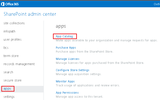
2. Open SharePoint admin center for Office 365 and click on apps in the navigation bar and open the office 365 app catalog.
3. Click on distribute apps for SharePoint to deploy your custom developed apps. You can manage any app request from users for existing apps here or also deploy office apps from here.
4. Click on new to add the custom add to the existing catalog and browse to your location where the .app files are stored locally.
5. Once deployed, please provide permission to at least one user who can use this app by clicking on Share with menu.
Your app is now deployed and ready to be consumed.
Conclusion
Further reference of building and deploying apps can be found at https://msdn.microsoft.com/en-us/library/office/jj163230(v=office.15).aspx
Netwoven
.
Blog
.
<span class='date ' tip=''><i class='icon-time'></i> Jul 27, 2015 12:54pm</span>
|
|
The first five Society of Human Resource Management Annual Conferences that I attended found me at a booth in the Exhibitor Hall. It is a labor of love. You stand on your feet for 12 hours conducting conversations with people who may or may not be your ideal customer. The Exhibitor Hall is talked about in jest as swagville; the hard working...
SHRM
.
Blog
.
<span class='date ' tip=''><i class='icon-time'></i> Jul 27, 2015 12:54pm</span>
|
|
Exchange Cut-Over Migration to Office 365
Overview:
An organization can migrate a maximum of 1,000 Exchange 2003, Exchange 2007, or Exchange 2010 mailboxes to the cloud using a cutover Exchange migration. To migrate more than 1,000 Exchange 2003 or Exchange 2007 mailboxes, you can perform a staged Exchange migration. You can’t migrate Exchange 2010 mailboxes using a staged Exchange migration. Therefore, to migrate more than 1,000 Exchange 2010 mailboxes, you must implement a hybrid deployment. For more information, see Exchange Hybrid Deployment and Migration with Office 365.
Caution:
Assuming that you have a valid office 365 subscription and Directory Sync is not enabled. Cutover migration provisions users into office 365 and hence directory sync should be disabled prior to migration.
Steps:
A Cutover migration to office 365 involves in a set of steps that the Microsoft team has well documented to move on on-premise exchange (2003,2007 & 2010) mailboxes into a different service. We will look into how to move on-exchange 2010 to office 365 tenant. Following steps can outline the entire process.
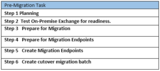
Step 1. Planning
Microsoft has provided a solution for all three types of exchange migration
On-Premise
Hybrid
Cloud only
Goto Exchange Deployment Assistant site to perform an assessment of your present exchange deployment. Follow the on screen steps to perform the tests.
Step 2. Test On-Premise Exchange for readiness
Setup Assistant app gathers the following discovery information:
On-premises infrastructure servers and components
Network architecture and Domain Name System (DNS) settings
Authentication solutions
Directory design
Bandwidth
Mail routing, mail and other client applications, mail archiving and compliance
Certificates
Hardware and software
Current Office 365 configuration, including:
Any custom domains you may have set up
DNS settings already configured
Current service settings
After deployment recommendations are accepted, Setup Assistant runs automated readiness checks to identify potential blocking issues for the selected options and make sure you’re ready to deploy:
Office Setup - We’ll check your PC’s Outlook configuration as well as several other Office settings.
Computer Settings - We’ll check to see you have the latest updates on your PC, Internet browsers, and other configuration settings.
Domains - We’ll check your Office 365 domains and DNS settings to verify that you’re good to go with the updates you need to complete your domain registration.
Users and Groups - We’ll check if your organization uses Active Directory, and we’ll evaluate if you’re ready for directory synchronization and single sign-on.
Steps
Log on to a computer in your organization by using administrator credentials. If your organization uses a domain, make sure this is a domain-joined computer.
On the same computer, log onto your Office 365 tenant by using administrator credentials.
If your Office 365 tenant is on its first 30 days, on Welcome, Office 365 is ready to go page, choose Configure Office 365.
Or, in the Office 365 admin center, choose the setup tab.
On Setup Assistant page, make sure your computer meets the software requirements listed. If not, you can choose any of the provided links to install the missing items.
Choose next to install the Setup Assistant app.
If you choose continue without installing app, you will be directed to a list of feature selections that give you options to manually setup your Office 365 experience.
After the app has installed it will first collect discovery information about your current setup and make recommendations for how to best move forward to setting up Office 365.
After you accept deployment recommendations, the app will run automated readiness checks to make sure your environment is ready to move to Office 365. Readiness checks will alert you to potential issues that can block deployment and help you fix them.
Setup assistant dashboard will list overview topics that help you review the next steps, and it will also list procedures that you will need to step through to complete your setup.
Step 3. Prepare for Migration
Configure Outlook Anywhere on your on-premises Exchange server - The e-mail migration service uses RPC over HTTP, or Outlook Anywhere, to connect to your on-premises Exchange server. For information about how to set up Outlook Anywhere for Exchange 2010, Exchange 2007, and Exchange 2003, see the following:
Exchange 2010: Enable Outlook Anywhere
Exchange 2007: How to Enable Outlook Anywhere
Exchange 2003: Deployment Scenarios for RPC over HTTP
How to Configure Outlook Anywhere with Exchange 2003
Important: Your Outlook Anywhere configuration must be configured with a certificated trusted by a certificate authority (CA). It can’t be configured with a self-signed certificate. For more information, see How to Configure SSL for Outlook Anywhere.
Assign the migration administrator permissions to access mailboxes in your Exchange organization The on-premises account that you use to run a migration batch must have the necessary permissions to access all user mailboxes. You can assign the Full Access permission for individual mailboxes or assign the Receive As permission for a mailbox database. For more information, see the following:
Cutover Exchange migration
For a cutover migration, the migration administrator account must be:
A member of the Domain Admins group in Active Directory in the on-premises organization or
Assigned the FullAccess permission for each on-premises mailbox 0r
Assigned the Receive As permission on the on-premises mailbox database that stores the user mailboxes.
Staged Exchange migration: For a staged migration, the migration administrator account must be
A member of the Domain Admins group in Active Directory in the on-premises organization or
Assigned the FullAccess permission for each on-premises mailbox AND the WriteProperty permission to modify the TargetAddress property on the on-premises user account or
Assigned the Receive As permission on the on-premises mailbox database that stores the user mailboxes AND the WriteProperty permission to modify theTargetAddress property on the on-premises user account.
IMAP migration: For an IMAP migration, the CSV file for the migration batch must contain-
The user name and password for each mailbox that you want to migrate or
The user name and password for an account in your IMAP messaging system that has the necessary administrative privileges to access all user mailboxes. To learn whether your IMAP server supports this approach and how to enable it, see the documentation for your IMAP server.
Remote move migration in Exchange hybrid deployments: For remote move migrations, the migration administrator account must be-
A member of the Domain Admins group in Active Directory in the on-premises organization or
A member of the Exchange Recipients Administrators group in Active Directory in the on-premises organization or
A member of the Organization Management or Recipient Management group in Exchange 2010 and Exchange 2013
Use the EAC to assign the Full Access permission
Use the Shell to assign the Full Access permissionThe following examples show different ways to use the Add-MailboxPermission cmdlet to assign the Full Access permission to the migration administrator account for mailboxes in your on-premises organization.This example assigns the migration administrator account (for example, migadmin) the Full Access permission to the mailbox of Terry Adams.
Add-ADPermission -Identity "Mailbox Database 1763498182″ -User migadmin -ExtendedRights receive-as
Use the Shell to assign the WriteProperty permission
Add-ADPermission -Identity "Mailbox Database 1763498182″ -User o365 -ExtendedRights receive-as
Use the Shell to assign the WriteProperty permission
Get-User -ResultSize unlimited -Filter {(RecipientTypeDetails -eq ‘UserMailbox’)} | Add-ADPermission -User migadmin -AccessRights WriteProperty -Properties TargetAddress
Step 4. Prepare for Migration Endpoints
Before you start creating migration endpoint, ensure that MRSProxy is enabled in your on-premise exchange server
Use the EAC to enable the MRS Proxy endpoint on Exchange Server 2010
In the EAC, navigate to Recipients > Servers > Virtual Directories.
In the Select server drop-down list, select the name of the Client Access server on which you want to enable the MRS Proxy endpoint. Or select All servers to display the virtual directories on all Client Access servers in your organization.
In the Select type drop-down list, select EWS to display the Exchange Web Service (EWS) virtual directory for the selected server.
In the list of virtual directories, click EWS (Default Web Site) for the Client Access server that you want to configure, and then click Edit .
On the EWS (Default Web Site) properties page, select the Enable MRS Proxy endpoint check box, and then click Save.
Step 5. Create Migration Endpoints
Open up the Office 365 Exchange Administration Console and go to Recipients > Migration > More > Migration endpoints and click on the plus sign to add a new endpoint.
Select the outlook anywhere type for migration endpoints.
Enter the mail box and on-premise domain admin credential
Step 6. Create cutover migration batch
In the EAC, navigate to Recipients > Migration.
Click New + and then click Migrate to Exchange Online.
Select the migration Type - Cutover batch
The new batch creation automatically detects the servers from the previously created endpoints.
Configure the connection settings
Name the migration batch
Select manually start the batch which can give you control to start at a convenient time if any other Migration preparation is left pending. Also provide a list of recipient to get notified on completion of the Batch and click new to finish creation.
Start the migration batch
Once the batch is started, it may take considerable amount of time depending on the mail box volume. The migration dashboard will show status (syncing.)
Automatically detect connection settings with Autodiscover
Manually specify connection settings
Once the Migration Batch has executed, look for any error for which sync is not successful. These needs to be resolved so that all user’s mail boxes are migrated successfully.
In Blogs to follow, we will look into how to get the final migration steps completed:
Errors in Cut-Over Batch execution
Configure your MX record to point to Office 365
Post Cutover Migration Task and exchange decommissioning
Netwoven
.
Blog
.
<span class='date ' tip=''><i class='icon-time'></i> Jul 27, 2015 12:54pm</span>
|
|
Overview
You have deployed SharePoint 2013 and the MySite functionality has been deployed. When you visit your mysite and switch to the My Tasks screen you will see the below error message.
"Sorry, we’re having trouble refreshing your tasks. Contact your administrator if you continue to have problems"
Cause
You will need to enable the Work Management Service App.
Solution
From your SharePoint Central Administration, under the Applications and Manage Service Applications, create a new Service Application for Work Management Service Application.
Hope you find this blog helpful. Do let me know your thoughts below!
Netwoven
.
Blog
.
<span class='date ' tip=''><i class='icon-time'></i> Jul 27, 2015 12:54pm</span>
|
|
In the simplest form of data filtration, we set up Views on lists or libraries to skim data of interest. Views work on individual lists or libraries and can also be referenced in web parts added to pages. But, while working in a larger context, a Content Query Web Part is a useful tool to filter aggregated data sources in a site collection. The configuration capabilities of the CQWP web part are large, however, in the given content, I’ve extended the limit of filtration for document libraries.
The preference of a Content Query Web Part over Content Search Web Part is purely on choice. However, this article specifically deals in context of SP Online or SP 2013.
It is known that in the same site collection, document libraries using the same site columns can be easily filtered using the CQWP. However, by default only 3 basic filter mechanisms are available. To cascade the filter criteria is an effort that requires customizing this web part.
By cascading I mean implementing the following set of requirement, which will be used as an example in this article.
Example:
The given example surely appears very simple, but the limitations of an OOTB CQWP curb its implementation. The following sections simplify the translation of a business requirement in context of its implementation.
How to customize filter of an OOTB CQWP
The process is a sequence of steps beginning with the basic configuration of the web part on the page to trickle down to the selection of the desired data sources. Having done this, the web part should be exported from the flyout menu option.
The main task for building the filtration logic and editing the exported web part file is explained in the following sections.
How to translate a business requirement
In the context of the aforementioned example, the logic is built as elaborated below.
Identify the number of first level sub-queries.
In the given example, the query can be split into 3 sub-queries that are ANDed
Split each sub-query into further simplified evaluation criteria. This step is iterative until the query can further be simplified.
In the given example, each sub-query equates the respective site columns to a set of values that are ORed
Having performed the above breakdown process, each sub-query now needs to be implemented to gradually aggregate to the complete requirement set.
How to build the query
Constructing queries require a minimum of following details:
Names of site columns
Entourage of values to be evaluated
Logical operators to match the value criteria
Using logical filters on site columns requires that the columns be addressed by their internal names and not their display names that appear visually. Internal column name can be found in either of the following 2 ways:
Checking the properties of the column in the list or document library. Right-click the column, and then click Properties. The internal name of a column appears in the Address (URL) property after ‘Field=’
Using a CAML query tool like the CAMLDesginer2013. Upon selecting display names of selected lists/libraries, the tool displays internal names in the query building section.
My personal preference would be using the query tool, for the reason that the tool addresses the other two requirements of query construction - the list of allowed values for the type of column definition and the match criteria to be applied on them.
e.g.: A multiple choice column ‘ABC’ evaluates its value as ‘multichoice’, while a single choice column ‘DEF’ evaluates the values simply as ‘choice’.
N.B.: All other evaluation types are not listed in this article as they can be discovered from the tool.
Now, having discovered column internal names and the manner in which values can be evaluated, building the logic section is not much of a brainer, though it does require inspecting pair of eyes. The cue here is to disintegrate the required logic into groups of two, starting from the innermost logic and start building upon the aggregation
The aforementioned example, can be targeted from the top most sub-query. Construct a logic for matching the site column for one from the given set of values and couple it with another set of value.
Step# 1
The construct of the build is to create evaluation logics for site columns and values and then proceed with coupling groups of two such matches with logical operators.
Here, the column ‘Artefact Type’ (internal name ‘Artefact_x0020_Type’) is of the type Choice, allowing only single values. In the given context, this column has to be evaluated to be equal at least one from the given 3 values - ‘Assessment’, ‘Case Study’, ‘Solution Description’ or ‘White Paper’, hence the use of the logical operator ‘<Or>’ for the given match criteria ‘<Eq>’.
Having done this, consider this group to generate one logical result ready to be coupled with another match. Hence, the construct is analogous with the text is green an indicator of already accomplished evaluation in the above step.
Step# 2
This gives us enough platform to proceed to the final evaluation of the first sub-query.
Step# 3
Now that the first sub-query is built, consider the entire construct to yield a single logical result. Upon inspecting the business requirement, this result is Anded with that of the another sub-query, which can be built on similar understanding.
Step# 4
The sub-queries at Step# 3 & Step# 4 can now be logically paired as in the given requirement.
Step# 5
Similarly, we proceed further simplifying the third sub-query as below:
Step# 6
And then coupling Step# 5 & Step# 6 in the final stage.
This query can either be tested for execution in the CAML query builder application before or iteratively by editing the downloaded web part and uploading it.
How to customize the web part
In the downloaded web part file (.dwp), search for the property ‘QueryOverride’ and extend it with the constructed logical query as below:
The web part is not ready to be finally uploaded to the page. Follow the successive screen shots as instructions to upload the custom web part.
This web part can now be added to the page like any other OOTB web part. However, it’s worth mentioning that its visibility or presence is limited to the page and not the site. Hence import it to multiple pages across the same site if you need to reuse it.
Netwoven
.
Blog
.
<span class='date ' tip=''><i class='icon-time'></i> Jul 27, 2015 12:54pm</span>
|
|
Overview
You have deployed SharePoint 2013 and the MySite functionality has been deployed. When you visit your Mysite and switch to the My Tasks screen, you find the following error message:
"We weren’t able to start syncing your tasks because one or more pre-requisites for connecting to Exchange server could not be found. Please contact your administrator to resolve this issue."
Cause & Solution
You will need to have Exchange 2013 in your environment.
You will also need to install Exchange 2013 Web Services Managed API 2.0
http://technet.microsoft.com/en-us/library/jj554516.aspx
Hope this helps. Look forward to your questions and comments!
Netwoven
.
Blog
.
<span class='date ' tip=''><i class='icon-time'></i> Jul 27, 2015 12:54pm</span>
|