Blogs
|
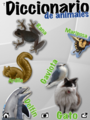
Pic Collage (free), is one of my favorite apps to use on my iPad. It creates great looking Scrapbook pages of multiple images in no time.
Today, as I was planning with our first grade Hebrew teacher, how to upgrade a traditionally taught vocabulary project (creating a dictionary of their weekly vocabulary words in Hebrew), we saw the opportunity to use PicCollage with students in the classroom.
(My apologies in advance for the example below is in Spanish and not in Hebrew)
Reminder: The idea of a visual dictionary should/is not be confined to the World Language classroom. Think math terms, science vocabulary, library term glossary, Language Arts vocabulary lists, etc.
The ideas was for the students to take photos, email photos from home or find photos online to represent their weekly Hebrew vocabulary words. Once the images are on the iPad, tap on the blank canvas and choose "Photos From Library" to import photos into PicCollage.
Double tapping on the image, will bring the Photo editing menu, choose "Clip Photo" to clip the object out of the background.
Just use your finger to draw around the outer edges of your object.
Tapping again on the canvas, students can choose a background or search for a background that will contrast the images, the text and their colors.
Tapping again on a blank area of the canvas, students can now enter text and choose text options, such as font, color, outline and alignment of the text.
Once the text is placed on the canvas, simply drag and drop the text into its location. Pinching horizontally with two fingers will adjust the size of the text entered. Using two fingers will rotate the image in any direction you choose.
After students have created their page/poster of the given vocabulary words, they will save the new image to the iPad’s Photo Album. We are planning to add a New Album, named for example "Elad’s Dictionary". Each week "Elad" will be saving his vocabulary image and moving it into his dictionary folder.
We are also contemplating creating an ebook with all the individual pages created throughout the year. Possibilities are Little Story Maker or TinyTap, both capable to add voice recordings to specific areas of the page, making it possible for students to record the pronunciation of the vocabulary words.
We are looking for tips to even dig deeper with this "Visual Dictionary". Do you have any ideas? Tips? Experiences in doing something similar with your students? Please share…
Silvia Rosenthal Tolisano
.
Blog
.
<span class='date ' tip=''><i class='icon-time'></i> Jul 16, 2015 07:57am</span>
|
|
Here is a terrific website for kids to explore stories. It is StorylineOnline.
You can view the videos of some famous actors and actresses reading out the books for children. The stories are read expressively and clearly. As you watch the videos, you can also view the animated pictures from the books and the text so that you can read as you listen to the stories. If you are already reading the books that are listed on the website, you or your students may want to give a try. The best part of the stories is that you can download activities and exercises for children or do some of them online to support using the stories in the classroom.
You can play the stories as a whole class or you can assign the students to read them at home. This is also a great website to suggest to parents to use at home.
This is a website that worth checking out definitely.
Ozge Karaoglu
.
Blog
.
<span class='date ' tip=''><i class='icon-time'></i> Jul 16, 2015 07:57am</span>
|
|
Wes Fryer, a blogger I have been following for many years, has created a wonderful resource page called "Mapping Media to the Curriculum" page.
He starts with the simple question:
What do you want to create today?
Take a look… there are MANY examples from the classroom. See what inspires you? See how you can upgrade a traditionally taught lesson or project?
It is not just about the fun and tech "wow" such upgrades can bring, but about the valuable and necessary skills we are exposing our students to (at their developmentally appropriate stage). Skills they will need for THEIR future. Remember what Heidi Hayes Jacobs always says:
"What year are YOU preparing your students for?"
These skills, these kind of media ARE their world. Traditional skills and literacies (reading, writing, etc) are embedded as you are upgrading.
Silvia Rosenthal Tolisano
.
Blog
.
<span class='date ' tip=''><i class='icon-time'></i> Jul 16, 2015 07:56am</span>
|
|
If you are already integrating songs into your lessons, here is a cool tool that you may want to use. It is BatLyrics.
With this tool, you can search for song lyrics with its video. But the best part of this tool is that you can search songs for words or sentences. If you click on the ‘Lyrics Words’ at the top, you can search for any words, sentences or specific terms in a video. When the search is over, it gives you many choices and you can choose the best one that is suitable to use in the classroom. If you want, you can embed the song with lyrics and the video of the song in your blog as well. You don’t need to register to use this web tool and this is cool!
To use in the classroom, you can print the lyrics and use them with your students as gap filling or multiple choice activities. You can also ask your students to create their own gap filling activities for each other.
Ozge Karaoglu
.
Blog
.
<span class='date ' tip=''><i class='icon-time'></i> Jul 16, 2015 07:56am</span>
|
|
"Tutorial Designer" is one of the six roles, Alan November lists in his Digital Learning Farm that empower student learners and describes in his book ‘Who owns the Learning?.
Take a look at the examples below of students:
sharing what they have learned in class
sharing beyond their classroom and their parents
sharing with a global audience in mind.
As you are watching these samples…
Where does your imagination take you?
What ideas come to your mind?
What comes to mind for YOUR STUDENTS TO SHARE?
What lesson or unit, could you "upgrade" to include the creation of a video, audio or screencast?
I believe strongly, that teaching and upgrading to include emerging literacies and amplified skills for the 21st century learner rely HEAVILY on imagination, willingness and ability to experiment, fail, tweak and try again.
Please share samples of you and your students’ imagination and tutorials, guides or step by step instructions.
Silvia Rosenthal Tolisano
.
Blog
.
<span class='date ' tip=''><i class='icon-time'></i> Jul 16, 2015 07:56am</span>
|
|
It’s not a secret that TED talks are inspirational and thought-provoking. The videos can motivate you and positively change your perspective on life and how you educate your students!
And now TED-Ed is bringing TED into your classrooms with TED-Ed Clubs. If you are a teacher and want your students to improve their critical thinking and collaboration skills; stimulate creative and innovative ideas put forth by them; to connect groups of students and educators of all different backgrounds around the world, you can start a TED- Ed club in your school!
TED-Ed Clubs is a platform for students to stimulate and celebrate ideas. It aims to introduce a school-friendly framework which supports students in meeting regularly to discuss, pursue and present their big ideas in the form of short TED-style Talks.
If you are a teacher teaching students aged between 8-18 years old, here you go! You can watch the video below to get more inspiration:
Ozge Karaoglu
.
Blog
.
<span class='date ' tip=''><i class='icon-time'></i> Jul 16, 2015 07:56am</span>
|
|
The faculty at my school has a problem!
Their heads are spinning because they have several different social media platforms available for them.
I have to admit, I am a little proud of this problem
For clarification: At our school,
all teachers are required to maintain a classroom blog (there are at varying stages of the blogging step ladder)
all teachers are members of a private Professional Development Ning for our faculty and are required to blog reflectively at least once a week (in lieu of turning in lesson plans).
our teachers are encouraged to start and grow their own professional learning blog (not under our school domain) in order to share and connect globally. They are encouraged to cross-post from the Ning.
On a voluntary basis (for now), I am working with several grade levels to tweet as a classroom. Step one was for teachers to get their own professional Twitter account in addition to a classroom account. It is a step for them to experience writing in 140 characters or less, build their own learning network and to become aware of "tweetable moments" during their school day or reflective moments at the end of their day.
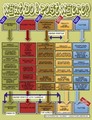
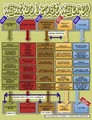
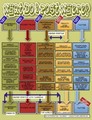
In order to minimize confusion for our faculty of What to Post Where?, I created the following chart (cheat sheet) below to compare the differences, similarities and highlight possibilities (to cross-post for example).
Click to see a larger image or you can also download the flyer as a pdf file
Silvia Rosenthal Tolisano
.
Blog
.
<span class='date ' tip=''><i class='icon-time'></i> Jul 16, 2015 07:55am</span>
|
|
Like many of us all over the world, I’ve always enjoyed reading Roald Dahl stories. He is actually my favorite author!
And, if you are already working on his stories in your lesson, here is a great website that you can find more activities and lesson plans to bring his stories to life with your students.
On the website, you can read about the stories or Roald Dahl himself, learn writing tips from him, find ready lesson plans and online quizzes to explore the stories. The website also suggests things that can be done at home too.
Also, 13th September is the Roald Dahl Day, and here are a few ideas to celebrate it.
Enjoy!
Ozge Karaoglu
.
Blog
.
<span class='date ' tip=''><i class='icon-time'></i> Jul 16, 2015 07:55am</span>
|
|
In the spirit of my previous post Tutorial Designers, Guides, Step-by-Step Instructions: Amplification & Imagination, we are getting into the habit of "creating" by
articulating our learning
create documentation of learning in various media
learn to take the extra step to share that learning online for others to learn from us
What About Avatars? from langwitches on Vimeo.
Note:
I decided what section I wanted to address in this video clip
I filmed this video on my iPad
I edited the video with iMovie
Now, that we have this example… students are excited to see themselves in the movie, it is IMPERATIVE for students to take over the idea… storyboarding.. .filming…. editing… reflecting… presenting…
Related posts:
Putting Your Best Face Forward
Silvia Rosenthal Tolisano
.
Blog
.
<span class='date ' tip=''><i class='icon-time'></i> Jul 16, 2015 07:55am</span>
|
|
If you are working with young learners, and if you are looking for an option to create stories online, you can try Seussville Story Maker.
It’s a cool story maker that is featuring the characters from Horton. You don’t need to sign up or download anything to use this tool.
Simply go to the website, write your name and title, then choose your scene, music, characters and write your dialogues for each scene. When you are done, you can watch your customized story.
The only problem with this tool is that, unfortunately you can’t get a link to share or download it! So what I suggest is that you can use this tool for teacher produced materials. Or you can work together in the classroom and make a whole class story. And then, maybe we can record the screen using Jing or Camtasia.
A nice tool with a missing sharing button.
Ozge Karaoglu
.
Blog
.
<span class='date ' tip=''><i class='icon-time'></i> Jul 16, 2015 07:54am</span>
|