Blogs
|
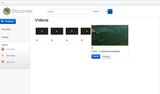
Finally we have ClickView (our digital video library) in Discover (FrogLearn’s search tool). This enables us to add any videos we have in ClickView (and we do have thousands of free to air TV programmes) into a Frog Site. The process of adding videos is very quick - you simply search and then press use to embed it in the site.
To see a video of this in action click here.
Andrew Caffrey
.
Blog
.
<span class='date ' tip=''><i class='icon-time'></i> Jul 20, 2015 07:09am</span>
|
|
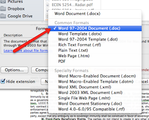
I'm taking a break from my #inbox0 series to talk about a great Docs tip I heard earlier this week. If you already know it, read this instead: http://xkcd.com/1053/Easing Formatting Whiplash when Converting a Word document to Google DocsAmongst the work I'm supposed to be doing recently, I've found myself brainstorming ideas for a workshop I've titled, "Google Docs for the Recovering Microsoft Word Addict." Actually, I haven't made it much past the title, but I really like the title, and I've been motivated to do more by less.While I don't know how far I'm going to make it on this workshop before the next shiny thing spins by my watering hole, I do have at least one tip to add right now:Word 97/2000 .doc as the Methadone for the recovering Word AddictUse a copy of Word to convert .docx files to .doc before importing for improved formatting conversations!Remember when Microsoft decided to make every previous version of Word obsolete by introducing the .docx file? For those of you that occasionally move between the MS/Word and Docs platforms (probably all of us) You may also know that .docx files don't always convert well into Google Docs. However, if you let Word do the conversion from .docx to .doc with a simple "Save As" You can expect to keep almost all of your formatting!In that troublesome .docx file go Save As, and then change the format from Word to Word 97-2004. Try to hum some REM while doing this. I'm not sure if it helps, but I'm hoping a little "What's the Frequency Kenneth?" will help your document get into character.Upload the new .doc file, and you are back on track!I will have more #inbox0 tips in the coming weeks, but sign up for the Rocky Mountain Google Apps for Education Summit and attend my series of Gmail management workshops!To learn more about Gmail and all the Google Apps for Education, join us at a Google Apps for Education Summit!Register now for the CA Google Apps for Education Summit July 12-13th in Santa Clara CA and the Rocky Mountain Google Apps for Education Summit August 2-3 in Boulder CO.
EdTechTeam
.
Blog
.
<span class='date ' tip=''><i class='icon-time'></i> Jul 20, 2015 07:09am</span>
|
|
We have had quite a few questions about our 1:1 Chromebook Rollout. We currently have Chromebooks in Year 10 and Year 12 and plan to issue to these two year groups again next September to give us total coverage of all students in Key Stage 4 and 5 (around 750 machines). Here are some the common questions:
Why did you pick Chromebooks?
The key reasons for selecting these were:
Cost - the price was significantly below other devices (iPad etc..) - we as a school met the whole cost and did not pass this on to students. Those who want to take their Chromebook home have paid a £40 deposit, but this is returnable when the student leaves. Ever6 / FSM students do not have to pay the deposit.
Compatibility - Documents created in Google Drive could be opened on any other device, so this would be compatible with our existing staff laptops and desktops.
Existing ICT - We already had very high use of Frog (our VLE) and Googgle Apps had been in use for around a year before the first Chromebooks were issued.
Ease of Set Up - the initial set up is very easy (open box, log in) - so we could issue a lot very quickly - the first 130 were issued in an hour by one person to the whole of Year 12. We can also switch Chromebooks very quickly.
Quick Boot Time - teachers can ask a class to turn them on and off as required - quick boot time means you are not waiting around in lessons. Our previous 1:1 Laptop programme in Sixth Form had huge issues with this - some machines were 10 minutes+ to log in.
What issues did you encounter?
Year 12 were issued with minimal training and although the students did pick up their use very quickly - we decided to do 2 hours of training with Year 10 students on the same day they were issued and stagger this rollout to two classes a day (so it took us five days to complete).
Screen Breakages - early on we had some screen damage (mostly caused by students lifting the Chromebook by the screen). We can replace screen in house and some training with students is reducing this issue.
Use in lesson - use in lesson still varies between subject and staff and we continue to monitor this and encourage use through staff training and sharing of good practice. For details on their use see the full Chromebook Survey.
Compatibility Issues - we occasionally get issues when staff issue MS Word Documents / PowerPoints - which don’t always format the same in Google Drive.
What machines did you issue?
So far Year 12 and Year 10 have the original Samsung Chromebook.
We have recently taken delivery of 60 Samsung Chromebook 2 (which seems to be a more sturdy machine) to be used by students in cover lessons when staff are absent. It is likely that we will use this machine in future.
Our machines are supplied by C-Learning.
Are you worried that students are not writing?
So far we have not seen any evidence that this has happened. We have not removed exercise books in any subjects - in lesson the Chromebook is more a replacement for a textbook (as a source of information) than an exercise book.
What about Printing?
We have deliberately not installed a cloud print server in school - so the Chromebooks cannot print. We want to encourage electronic sharing of work rather than printing. If a student needs to print they can go along to a computer room or the libary and print off their work - this additional effort has reduced student printing.
Andrew Caffrey
.
Blog
.
<span class='date ' tip=''><i class='icon-time'></i> Jul 20, 2015 07:09am</span>
|
|
Woohoo! Graduate is credit is now available for the Google Apps for Education Summits. One hour can be obtained from Adams State College for $55. Certificates of Attendance will also be made available to attendees. Join us in Colorado on August 2&3 for the Rocky Mountain Summit.
EdTechTeam
.
Blog
.
<span class='date ' tip=''><i class='icon-time'></i> Jul 20, 2015 07:09am</span>
|
|
Google Voice is a free service that works on Android, iPhone, and Blackberry devices. Some of the features that are offered by Google Voice are:One number. Make calls and send text messages from your Google Voice number.Voicemail transcription. Voicemails are automatically transcribed to text so you can read them like email.Free text messages. Send and receive text messages to numbers in the US and Canada for free.Cheap international calls Make low-priced international calls directly from your mobile device.Integration. Google Voice integrates with your device's native address book or Google Contacts.Custom greetings. Set up different greetings for different callers.Teachers can use a Google Voice number for parents without giving away their primary phone number. You can also easily create custom voicemail greetings for parents and a different greeting for students. Educators can even put a call widget for a Google Voice number on their website!Recently Google Voice added another feature: two new groups for sorting callers into people in your address book and anonymous callers. This lets you further fine tune how you sort your calls. Ready for more with Google Voice? Point your phone to m.google.com/voice Then come to the Google Voice Session at the California Google Apps Summit!
EdTechTeam
.
Blog
.
<span class='date ' tip=''><i class='icon-time'></i> Jul 20, 2015 07:08am</span>
|
|
With the HTML Widget now out for Frog Learn - I have been looking at what can easily be embedded into sites. Note - Only administrators can use this widget - so if your not an administrator you will need to get one to add the content for you. Some HTML embeds seem to not play nicely with others - so I would go for only one on a page..
Here are some which seem to work in our platform:
1. Google Calendar - Great if like us you use Google Calendar across the school. To get the embed code, open Calendar Settings in Google and copy and paste the code to FrogLearn.
2. AudioBoo - This is great for recording short notes from lessons - You can embed a playlist straight into Frog - the embed code is available in the playlist title - this has a clear background so works best on sites with a white background - otherwise some text may not appear.
3. Issuu - Our prospectus and some of our media looks better using a digital publishing site like Issuu. After you have uploaded the file to Issuu the embed code is under the document.
4. Spotify - If you need music in your site - then Spotify can give embed codes for individual songs or playlists. Users will need a Spotify Account (can be a free account) to listen to the music. Right click the song or playlist in the full Spotify app for the embed code.
5. Rebelmouse - Puts Tweets or Facebook posts into Frog (and in our case gets around a social media block on the school site).
6. Google Photos / Picasa Slideshows - works well when you get a lot of images back from a school event - we upload the images to Google Photos / Picassa - then embed a slideshow of all the images.
Getting the embed code can be a little tricky, you need to go back to Picasa (for some reason this option is not in Google Photos -so go to https://picasaweb.google.com/lh/myphotos or if you get the option press Go Back to Picasa) - where you can get an embed code for the slideshow (right hand side).
Phil Timmins has posted two list of sites to embed:
1. http://bytemeict.co.uk/5-things-you-can-embed-with-html/
2. http://bytemeict.co.uk/5-media-sites-to-embed-in-froglearn/
Andrew Caffrey
.
Blog
.
<span class='date ' tip=''><i class='icon-time'></i> Jul 20, 2015 07:08am</span>
|
|
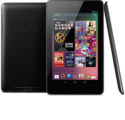
During our initial planning discussions in preparation for the Google Apps for Education California Summit, our team committed to donating a percentage of the net income from the event directly to classrooms - specifically to put internet connected devices into the hands of students. We debated for some time whether these should be iPod Touches (because the $199 price point allows us to reach more students - and because their size means students will use them more) or perhaps Chromebooks (since these were the focus of the event). Happily, Google has since released the Nexus 7, the next generation Android tablet in a student-friendly 7 inch form factor - for only $199. We've now committed to donating 12 Nexus 7 tablets to a classroom. We're working with our sponsors and others to make this a full class set of 30 or more devices in the coming weeks.Google is only positioning these devices as consumer products at this point, but the EdTechTeam believes they have great potential for student use and would love to see how an innovative teacher facilitates this - and we'd love to learn more about what challenges this might present. We'd most like to see these placed in a 1:1 pilot program (either at the elementary level, or for a single class at the secondary level) that allows students to take the devices home with them on a daily basis.So... what would you do with a class set of Nexus 7 Tablets? Write up your proposal on DonorsChoose.org, and send us the URL of your proposal via the form below. Be sure to describe how students might use the devices in your class, and what you'll do to facilitate student use of the devices for inquiry and creation. On August 21, 2012 we'll select the winner of the first class set. And bonus... if you're not selected for funding by us, you'll already be setup on DonorsChoose.org, where anyone else can fund your proposal! We see this as a way to empower teachers to seek funding for far more classes than we could ever fund ourselves. Here are a few simple steps to get you started:*Step 1. Create a DonorsChoose.org account here: http://www.donorschoose.org/teachers/Step 2. Setup a project on DonorsChoose.org describing how you would use a class set of Nexus 7 tablets. Be specific about how students might use the device in your class. Also, be sure to price out the tablets (and any cases or other accessories you might need). You can learn more about the Nexus 7 here: http://www.google.com/nexus/#/7Step 3. Send us the URL of your project by filling out this form here: https://docs.google.com/spreadsheet/viewform?formkey=dEdhdEVnTHZNeXlWWmRqb1BvWjZxU2c6MQStep 4. Start promoting your project elsewhere! Anyone can fund it, not just us!Please let us know if you have any questions about this project. We look forward to seeing your proposals on DonorsChoose, helping to fund them, and hearing about the impact these devices make in your classes.On behalf of the Google Apps for Education California Summit Planning Team (Chris Bell, Wendy Gorton, Jim Sill, Molly Schroeder, Lisa Thumann, Sean Williams, and myself), thank you to everyone who attended the summit and make this possible.-MarkUPDATE - iBallz has generously offered to provide iBallz Minis for every Nexus 7 we give away! So, there is no need to include the price of a case with your grant proposal on DonorsChoose.org!*UPDATE - It's come to our attention that the Nexus 7 is not in any of the DonorsChoose catalogs and that it may not work for new members of DonorsChoose to apply for grants outside the pre-approved catalogs. So, we have modified the form in step 3 above to allow you to describe your project directly on your form. If you are new to DonorsChoose (or do not yet have an account), this is probably the best option for you: proceed directly to step three and fill out the form. We can fund a request directly and we don't want DonorsChoose to hold anyone back. (That being said, we still believe it's a great tool for connecting donors and teachers, and we encourage you to join on your own to request other donations!)
EdTechTeam
.
Blog
.
<span class='date ' tip=''><i class='icon-time'></i> Jul 20, 2015 07:08am</span>
|
|
So we currently have Pear Deck on Beta Test across the school - to go alongside our 1:1 Chromebook Rollout - which has now reached Year 10.
Pear Deck is an "interactive lesson" system built in Google Drive. It enables you to screen broadcast your presentation to the students, and add to this questions, text boxes and other activities. I can upload a presentation and then at appropriate points add questions or activities for students to complete. Pear Deck tracks the results and enables me to save them in Google Drive.
However the real genius of Pear Deck is the ability to do this unplanned. I can open a blank presentation and then invite the students to join me. Then, using the toolbar at the bottom of the teacher screen I can simply launch activities based on a verbal question or instruction.
With Chromebooks in the classroom I can dip in and out of questions and activities as required. Here are some possibilities:
- Asking students to read some extended text and summarise in a sentence (or two). Keep the responses hidden and then reveal.
- Starting with a simple sentence and asking students to expand it, adding their own knowledge - to see who can come up with the most in a set time.
- Agree / Disagree statements, where students place a dot on the line between one end and the other.
- Locating countries / places on a map (this one needs an upload of a World Map) - students place the dot where they think the place is.
- Similar activity with any photo - asking students to find something or simply identify what they consider to be the most important part of the image. You can put a topical image in quite quickly.
Example Pear Decks:
Example Pear Deck
Europe and UK
Andrew Caffrey
.
Blog
.
<span class='date ' tip=''><i class='icon-time'></i> Jul 20, 2015 07:08am</span>
|
|
If you are like me, than you know that Google Forms are the best thing since sliced bread. A check for understanding from students, a parent survey, a workshop evaluation, a classroom walk-through...well, the list is endless for what you can do with a form. What is even better is that the end user does not need a Google account to actually fill out the form. Isn't that great?! You simply provide a link to your form and you can begin collecting data. You can send the link via email, you can embed the form on a site, or you can even use social media such as Google+ or twitter to share the link. As long as your form is accepting responses, just about anyone with an internet connection can complete the form. Google Forms Rock!You can find out even more about Google Forms at the Google Apps for Education Rocky Mountain Summit on August 2 & 3 in colorful Colorado. Join us!
EdTechTeam
.
Blog
.
<span class='date ' tip=''><i class='icon-time'></i> Jul 20, 2015 07:08am</span>
|
|
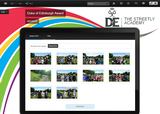
One of the new features in the FrogLearn Brunel Release is site backgrounds. This simply allows you to upload an image to become the background for a site, rather than having to create a theme - which was a bit more complex (see my previous posts on themes).
While themes were great, we were never going to get lots of staff designing new themes for every site, however Backgrounds enables a much more custom feel to each site. Some examples so far:
Andrew Caffrey
.
Blog
.
<span class='date ' tip=''><i class='icon-time'></i> Jul 20, 2015 07:08am</span>
|