Blogs
|
Post from Canadian Education Association: Propelling a New Education Paradigm Forward to Reduce Dropouts
Deborah McCallum
.
Blog
.
<span class='date ' tip=''><i class='icon-time'></i> Jul 20, 2015 07:12am</span>
|
|
There was a time when you had to convince teachers that Youtube had any classroom value. Don't get me wrong, there has always been a way to incorporate a video or two into a lesson. Today, it is a whole lot easier with Youtube.com/teachers. The channel was released months ago, but continues to be updated with the latest playlists for all your subjects. Head over to the site and you will land on a page that features some of the hottest videos for the classroom today. Tap through the list of featured videos that are hand picked each week from channels like TEDEducation to jump start your week of teaching. Scroll down a little further and find playlists for all the testable* classes from elementary to high school. Working with CUE and teachers like the amazing, James Sanders, Youtube searches their huge vault of videos for videos relevant to subjects like High School: Statistics & Probability. The channel doesn't stop at great subject matter playlists, but it also goes into detail on how to get started using Youtube in your classroom. Check out the Getting Started tab for a tutorial on how to create and customize your own Channel. If you still need inspiration on how to use Youtube, just click on the Top 10 Ways to Use Youtube. This list is not only helpful to you, but also to your administration that needs a little more convincing. Working with Teacher and FlipTeaching expert Ramsey Musallam and yours truly, the Types of Videos and Video Production Tips page will help you get a better handle on "feeding the beast". The tips are there for you to begin uploading your own resource videos for your students and teachers around the world.In the tools tab, you will find great examples on Screencasting Hardware and Software and video editors so you can start flipping your classroom in no time. Are you creating awesome playlists for your own classroom or school? Click on the Suggest Videos tab and let them know. Perhaps your playlist will end up on the site and start helping countless teachers from around the world. I can help guide you through the process at some of the Google Apps Summits popping up around the world. Looking to get started sooner than later, join me at the CA Google Apps for Education Summit July 12-13th in Santa Clara CA.* As a video production teacher, I always feel a little left out of the standardized tests. :(To learn more about YouTube in Education, don't miss the Google Apps for Education Summit produced by EdTechTeam in partnership with Google, coming to a region near you in 2012-2013: http://www.gafesummit.com
EdTechTeam
.
Blog
.
<span class='date ' tip=''><i class='icon-time'></i> Jul 20, 2015 07:11am</span>
|
|
via Propelling a New Education Paradigm Forward to Reduce Dropouts | Canadian Education Association (CEA).
Deborah McCallum
.
Blog
.
<span class='date ' tip=''><i class='icon-time'></i> Jul 20, 2015 07:11am</span>
|
|
The opportunities for eLearning are growing immensely. It really is amazing to have eLearning opportunities that we can choose from to benefit student learning. In my experience, different learning situations require different levels and types of online learning opportunities. The level of eLearning really depends on the learning environment, and the people that you are instructing. […]
Deborah McCallum
.
Blog
.
<span class='date ' tip=''><i class='icon-time'></i> Jul 20, 2015 07:10am</span>
|
|
As I continue to watch the evolution of working in the cloud, I get really excited by both the possibilities for educators and students. The idea of the paperless classroom, while not a new concept, is certainly more appealing when you have an integrated creation and storage solution ala Google Drive. When everything is baked in, you no longer have to come up with workarounds to suit the needs of your students and/or colleagues. As of this writing, there are two mathematics applications as add ons for Google Drive--Geogebra and Graphing Calculator by Desmos that allow students (and teachers) to both create and store their work online. The former has long been available as a desktop application and is used extensively in online courses and classrooms worldwide. Desmos is a more recent entry into the space having developed web applications and Chrome Apps over the past couple of years. Both are simply awesome when used through Google Drive.GEOGEBRAGeogebra is dynamic mathematics software for all levels of education that combines geometry, algebra, graphing, and calculus. The software is free and open source and has only recently been ported over to Chrome and Drive. While the Drive app doesn’t yet offer all of the functionality available in the desktop application, that’s no reason to ignore this diamond in the rough. The authoring tool also allows users to create and share interactive online learning materials through the GeogebraTube repository. Having students develop their own learning materials and contributing to the repository would certainly be a great way to develop higher order thinking skills.GRAPHING CALCULATOR BY DESMOSThe Graphing Calculator Drive App is a boon for both students and teachers. While also not entirely new, this application started out as a website, then became a Chrome App, and is now a full fledged Drive App. This HTML5 app is slick, fast, and powerful--just what the students need to replace their expensive TI graphing calculators. Creating, graphing, and sharing student work with this app is incredibly quick and easy. Want to save it Google Drive? Check. Want to also post it to Twitter or Facebook? Check. Care to save the graph as an image for your Google Presentation? Check. If you're interested in learning more about this application, I’d recommend Audrey Watters’ review of it over at Hack Education or the blog post over at Desmos. I think they're doing great things over at Desmos and I hope they are around for a long time to come. BONUS MATH APP!Bonus app for use with geometry students: Floor PlannerTo learn more about Drive Apps, start here or join us for a Google Apps in Education Summit in your region. I'll be leading a Google Drive workshop at each event and hope to see you there!
EdTechTeam
.
Blog
.
<span class='date ' tip=''><i class='icon-time'></i> Jul 20, 2015 07:10am</span>
|
|
As educators we are very clear about WHAT we would like to do in terms of innovation. However, are we clear on HOW we are going to do it? Very often in our PLN’s, we are sharing great ideas about ‘WHAT‘ to do. The WHAT is often shared in the form of a new technology […]
Deborah McCallum
.
Blog
.
<span class='date ' tip=''><i class='icon-time'></i> Jul 20, 2015 07:09am</span>
|
|
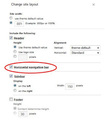
Did you know that there is a semi-hidden feature in Google Sites that will allow you to change the page navigation from vertical to horizontal? While we love the ease with which you can put a site together and have all the pages linked automatically, there are those of us who like the flexibility of changing the navigation up a bit.To access this feature in sites you need to do the following...You can start by either editing your Sidebar or selecting the More button on the top right side of your site and choosing Manage Site Select Site Layout text on the left and then the Change Site Layout buttonIn the middle of the window, you will need to check the box for Horizontal Navigation Bar and click OKYour next step will be to delete Navigation that is found under sidebar unless you would like both vertical and horizontal navigationManually adding the pages you want in the navigation bar is the next step and you do that by selecting the Edit Horizontal Nav ContentSelect the Add Page text and choose the page you would like to have visible. Repeat for all pages. You can also Add URL to insert a link into the navigation barThe final step is to choose either Boxes, Tabs or Links found under Style in the same window and then click on OKYou can select the Preview button to view your new look and then Save to accept the changes All in all this gives you a little more flexibility with the navigation on your site.To learn more of these tips and tricks, attend one of the many Google Apps for Education Summits coming to a city near you.
EdTechTeam
.
Blog
.
<span class='date ' tip=''><i class='icon-time'></i> Jul 20, 2015 07:09am</span>
|
|
When I think about constructivism, I still have to remind myself that it is philosophy and not a pedagogy. The students build their own knowledge for themselves. However, not without help and limitations posed by us as educators. We still provide the limitations, but also allow for spontaneous learning - these conditions are perhaps the […]
Deborah McCallum
.
Blog
.
<span class='date ' tip=''><i class='icon-time'></i> Jul 20, 2015 07:09am</span>
|
|
Google Presentations is a tool I use in my small corner of education for pretty much everything BUT creating presentations. That said, I've seen some folks do some really GREAT things using presentation. My daughter's first grade teacher uses presentation for "Kid Quotes," and to share "Themes and Units" with the parents. A few years ago (3+) Tom Barrett and his 80+ interesting ways to... showed how a collaborative slide deck could be pretty cool even if the tool editor was lacking in cool.I can also remember the first time I saw the way that Chris Atkinson (#GCT) used it to deliver and share the nightly homework or project updates with parents a few years back; what a really great way to use this tool I thought. Then there are the teachers that have leveraged the "backchannel" aspect of the older version of the tool. A bit wonky at times, but still an early use of a backchannel tool and a great way to "view a presentation together"Now though, you can actually use Google Presentation for, ahem, Presenting. :)With updated themes and the new animation feature, it can allow for a much more aesthetically pleasing experience for the designer and for the participant.There are a bunch of new and really useful updated features available in Presentations like presentation view with speaker notes, an updated commenting feature, new themes, ability to upload .pptx files, easier collaboration UI, and a cleaner revision history. I wanted to share quickly the animation feature, as I believe this could unlock some creative-ness in learners looking to share or "animate" their slides. (Stop motion videos anyone?)mo.morsi.org (source)Quick Tips: The three ways to open the Animations pane:Select a slide. Then, go to the View menu and select Animations. The Animations pane will appear on the right side of your screen. Select a shape. Then, go to the Insert menu and select Animations. The Animations pane will appear on the right side of your screen. Right click on a selected shape and select Animate.Animation display order is the same order that they will appear, disappear, etc. You can slide them up and down to change the orderYou can delete them by clicking "delete" next to the entry.Keep in mind that there is no limit to the number of animations you can include in a slide, although I would adhere to some semblance of an enjoyable viewing experience for your audience. :)To learn even more about Google Docs features, tools, and latest nuances; join us at an upcoming Google Apps for Education Summit! Register now for the CA Google Apps for Education Summit July 12-13th in Santa Clara CA and the Rocky Mountain Google Apps for Education Summit August 2-3 in Boulder CO. Rocky Mountain Google Apps for Education Summit August 2-3 in Boulder CO.
EdTechTeam
.
Blog
.
<span class='date ' tip=''><i class='icon-time'></i> Jul 20, 2015 07:09am</span>
|
|
In September we started a 1:1 Rollout of Chromebooks, initially to Year 12. This survey looks at their use in the first term as we plan for a 1:1 rollout into Year 10 at Easter.
Andrew Caffrey
.
Blog
.
<span class='date ' tip=''><i class='icon-time'></i> Jul 20, 2015 07:09am</span>
|