Blogs
|
So I’ve been blogging, just not here:
For ASTD, I wrote about why we aren’t in the information delivery business anymore (and what we can learn from Museums and Libraries):
http://www.astd.org/Publications/Blogs/Learning-Technologies-Blog/2013/11/The-Future-of-LD-Is-Not-the-Information-Business
For Allen Interactions, I wrote a guest blog about hyperbolic discounting, and why creating a feeling of immediacy is a necessary instructional design skill:
http://info.alleninteractions.com/bid/99811/An-e-Learning-Challenge-Why-Should-You-Care-Right-Now
For Inside Learning Technologies, I wrote about our responsibilities for motivating learners (and why it’s not just about carrot-like rewards):
http://viewer.zmags.co.uk/publication/e49b92f9#/e49b92f9/20
(The last one is based pretty heavily on a blog post that was posted here a while back)
And, as a bonus link, I was reminded of Cathy Moore’s L&D manifesto the other day, and I think I should just link to it weekly because it’s that great. I can take no credit for this one, other than to say "Yeah! That!! YEAH!":
http://blog.cathy-moore.com/2013/06/learning-development-people-unite/
Julie Dirksen
.
Blog
.
<span class='date ' tip=''><i class='icon-time'></i> Jul 23, 2015 07:38am</span>
|
|
Apple's Featured Category: Make a Film with iPadI Happened across this featured category while perusing the App Store on my iPad today. It features an assortment of apps to help you create your own "film" on the iPad from planning and pre-production to the end. Here is a closer look at what's available.Although this featured category isn't necessarily focused on education, I think it's particularly useful for student projects that involve producing a movie or film. If your students have access to iPads at school (or maybe they bring their own from home), having the right tools can make a huge difference in quality!As of 2/25/15, Make a Film with iPad is a featured category in the App Store app on the iPad. You can find it in the scrolling categories across the top of the Featured screen. You can also find a web version here.With every featured category, Apple likes to include a list of related apps. What's nice about this category is that the list is organized into topics relating to the production process: Drafting a Script, Capturing Every Detail, Recording Each Sound, and Creating a Signature Look. Here are some screenshots of the apps that are included in these lists. (Most of them are paid apps)Apps for Drafting a ScriptApps for Capturing Every DetailApps for Recording Each SoundApps for Creating a Signature LookWhat apps would you suggest for video production on the iPad? Share them in the comments!
Michael Fricano II
.
Blog
.
<span class='date ' tip=''><i class='icon-time'></i> Jul 23, 2015 07:38am</span>
|
|
Hey folks,
So a couple of quick things. A few of us launched this today: http://elearningmanifesto.org/ — would love to know if it seems useful
And second, I was collecting some resources on writing good multiple choice questions (which is really hard), and thought they might be useful to post here
Will Thalheimer has some things on his site - mostly shorter job aids:
http://www.work-learning.com/catalog.html
He also wrote three articles on scenario-based questions that are here:
http://www.immersivelearninguniversity.com/articlethalheimersep13
Cathy Moore also has some good blog posts:
http://blog.cathy-moore.com/2007/08/can-you-answer-these-6-questions-about-multiple-choice-questions/
http://blog.cathy-moore.com/2008/03/how-to-fit-the-entire-world-in-a-multiple-choice-question/
A number of universities have guidelines for their faculty — you can probably find several by googling. For example:
http://cft.vanderbilt.edu/guides-sub-pages/writing-good-multiple-choice-test-questions/
Julie Dirksen
.
Blog
.
<span class='date ' tip=''><i class='icon-time'></i> Jul 23, 2015 07:38am</span>
|
|
I've been presenting a lot lately on Google Apps for the iPad, and at every workshop and session, I've asked the participants to share their favorite classroom app. Here's what I've gathered so far.Some of my favorite recommendations are:Jorge shared that he's excited to use Youtube Creator Studio to create a mathematics channel for his students.Roselyn said she's excited to use Google Translate with her ESL students.Tina suggested Lego Movie Maker because her students can create awesome stop motion animations. Would you mind adding to the list by recommending your favorite classroom app?Click here to fill out the form. Thank you for your participation!
Michael Fricano II
.
Blog
.
<span class='date ' tip=''><i class='icon-time'></i> Jul 23, 2015 07:38am</span>
|
|
We often just don't have enough class time for those deep and thought-provoking conversations with our students. Online tools like a Google+ Community and a Google Group Web Forum allow you to extend the conversation beyond the walls of the classroom. But how do you use these tools in conjunction with Google Classroom? Let me show you 3 ways you can have online discussions with Google Classroom!Use the Comment Thread in a Google Classroom AssignmentEvery Google Classroom Assignment (and Announcement) has a built in public comment thread. Any comments made in this thread can be seen by everyone in the Classroom. The comment thread can be the most convenient way to have an online discussion with students. When students are finished with their required portion of the discussion, they can click the "Mark as Done" button to receive a grade from the teacher. If you simply want an online discussion, you don't have to attach anything to the assignment. However, a video or resource link could definitely enhance the quality of the discussion.Some other benefits to using the Comment Thread are:The teacher receives an email notification every time a student posts a comment.The teacher and students can mention each other in a comment. If you are mentioned, you will receive an email notification.After students click the "Mark as Done" button, the teacher can assign a grade.Sample of a discussion in a Google Classroom Assignment comment thread.Link to a Google Group Web Forum PostAnother great option for having an online discussion is to use a Google Group. One of the choices for a Google Group is a web forum, which can serve as a private, online discussion board. Sometimes, using the comment thread within Google Classroom can clutter the Stream. So a space like a Google Group web forum, can minimize the clutter and keep your discussions organized.To set up an online discussion with a Google Group web forum, start by creating a new post in the Group. Every post has it's own unique URL. Copy the URL of the post and paste it as a link into a new Google Classroom Assignment. Student can then click on the link from the Assignment to participate in the conversation.A few more reasons for using a Google Group web forum are:The Google Group can be kept private, so only the teacher and students have access.The teacher can directly add members to the Group, rather than using invitations. This is the quickest and easiest way to get students into the Group.The teacher and students can subscribe to a post, which will send them an email notification every time there is a new comment on a post.The teacher and students can receive a daily digest of all new activity in the Group via an email notification.Sample of an online discussion with a Google Group web forum.Link to a Google+ Community PostIf your students are over the age of 13, they are allowed to use Google+, a social network created by Google. As the teacher, you can create a private Google+ Community for you and your students to have online discussions and share resources. The community can be used in the same way as a Google Group web forum. You can pose a topic or question for discussion in a new post in the community, and the students can add comments to participate in the discussion.Click on the down arrow in the top right cornerof a post and choose Link to post and copy the post URL.Every Google+ post in the community comes with it's own unique URL. To access that URL, click on the down arrow in the top right corner of the post to access the menu, then choose Link to post. You can then copy the URL of the post, and paste it as a link into a new Google Classroom Assignment. Students can click on the link to easily access the post.Some more reasons for using a Google+ Community are:Download the Google+ app (iOS & Android) to access the community on the go.The teacher and the students can mention each other in posts and comments. A mention will create a Google+ notification.When students are finished, they can return to the Google Classroom Assignment to click the "Mark as Done" button. The teacher can then assign a grade.Sample online discussion using a Google+ Community post.Which ever option you choose, consider the benefits of providing your students a venue for online discussions. You're promoting and helping students hone their communication and collaboration skills and encouraging positive digital citizenship. You're allowing them an extra space to express their opinions, ask their questions, and extend their learning. We often miss out on opportunities for deeper conversations in class because of a lack of time. But using an online space to continue these conversations can be powerful and beneficial to student learning.Also, consider the added benefits of opening up your online space, (whether it's a Google Group or a Google+ community), to others beyond the class. Invite another class from somewhere else in the world to participate in the discussion, or invite the author or an expert to participate. Connecting your students to the world around them can redefine teaching and learning.
Michael Fricano II
.
Blog
.
<span class='date ' tip=''><i class='icon-time'></i> Jul 23, 2015 07:38am</span>
|
|
I have this great little shelf in the bookshelf app on my ipad. It’s just books by people I know. I feel genuinely privileged to know so many people with so many interesting things to say.
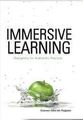
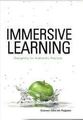
Some of them are drafts for books that are still in progress., but one that’s already out in the world is Koreen Pagano’s Immersive Learning: Designing for Authentic Practice:
It’s great, for a few different reasons:
Reason 1: The subtitle — Designing for Authentic Practice. So immersive learning environments can sometimes be shiny objects. Remember when everything L&D was going to start happening in Second Life? Yep, that didn’t happen.
One of the reason’s it didn’t happen was because there was because the focus was on the technology ("Ooo - we can build a virtual replica of our corporate university!") and not on the really interesting part — the possibility for high-context practice. We remember more if we learn something in the same environment where we will use the information, so virtual worlds were interesting for that reason, but that got lost in the hype cycle. Koreen rightly focuses on the real purpose for immersive learning - high-context practice environments. It’s about the practice, not the technology.
Reason 2: The case studies — So, one of the problems with a lot of L&D books is that they are more about what can be done, rather than examples of what has been done. This naturally happens with new technologies. When they were brand new, both mobile and xAPI have had to start with the possibilities rather than real examples, until some critical mass built, allowing for case examples.
Immersive learning suffered similarly for a long time, but if anybody is able to speak from direct experiences, it’s Koreen. The book is worth it for the case studies alone. Lots of really good examples of use, with the kind of nitty gritty details you need to help inform your own practice.
Reason 3: Underwear Gnomes — how can you not love a book that starts with a really well-played South Park reference? It’s indicative of Koreen’s overall accessible, entertaining style, which makes the book a really pleasurable read.
Julie Dirksen
.
Blog
.
<span class='date ' tip=''><i class='icon-time'></i> Jul 23, 2015 07:38am</span>
|
|
I'm beginning a new blogging series that I'm calling "#EdTechTidBits of the Week" which will consist of EdTech related resource (apps, sites, tips, articles, events, etc.) that I found most interesting from the previous week. As a part of my goal to blog more this year, I hope to post this weekly, and my aim is to publish it every Monday.So here are my #EdTechTidBits for the week of April 13, 2015. Free apps, lesson planning tips, and why you should have more screen time for your child!(These resources are in no particular order.)Article: "10 Questions to Ask When Planning Tech Infused Units+Lucy Gray wrote a great article with 10 perfect questions you should ask yourself while you're planning a lesson or unit that will utilize some form of technology. What appreciate about this article are the lists of resources that Lucy provides for each question. My favorite question has to be #10: How am I connecting my students to others? To experts? To other Classrooms? Learning becomes authentic, meaningful, and more powerful when students are able to connect their learning to the world around them, and experience it and share it with people beyond their classroom. Consider an expert or another class somewhere else in the world, before the textbook.Free Apps! "4 FREE Poetry Apps from the International Reading Association"For National Poetry Month in April, the International Reading Association has made it's 4 poem apps free for the iPad! I learned about this recently from a Google+ post by +G. Lytle on her appydazeblog. She published a post with information and links to the four iPad apps: Diamante Poem, Theme Poem, Haiku Poem, and Acrostic Poem. My favorite of the bunch is the Haiku Poem app! You can customize the design of the print out and it turns out really nice in the end! Here is a link to the original appdazeblog blog post.Article: "No Screen-time Until (free printables)"I happened across this article by YourModernFamily.com on Facebook one day. It contains a free printable poster for parents that suggests 5 activities that a child can do before they are allowed to have screen-time. As I read the items on the list, I couldn't help but think how most of these activities could actually be done on a device with the same (if not more) benefits. A child could enjoyably read a book on a tablet (especially if its interactive), they could type a paragraph about their day in Google Docs or complete some math problems on a digital writing surface like Doodle Buddy, and even play, build, and create something with a myriad of apps (like Minecraft PE, Toontastic, or ScratchJr). Whats wrong with doing these activities on a device? It'd be hard for me to argue with my child if they questioned me. Now, don't get me wrong. I understand the benefits of having your child play outside. And I also enjoy reading a physical book. And it's important to teach responsibility through chores and room cleaning. But let's not shun the "screen-time" so easily. That device resting on the dining room table could be just as beneficial, depending on how you let your child use it.Thank you for reading the first post in my series "#EdTechTidBits of the Week". Follow and use the hashtag on social media and share your own tidbits! Until next week!
Michael Fricano II
.
Blog
.
<span class='date ' tip=''><i class='icon-time'></i> Jul 23, 2015 07:38am</span>
|
|
Sat in on Karl Fast and Stephen Anderson‘s Design for Understanding workshop at the IA Summit last week, and it was double-plus-good.
Here are Stephen’s slides from his IA Summit presentation. Excellent stuff relating to autonomy in learning environments, and multitudes more:
From Paths to Sandboxes from Stephen Anderson
Julie Dirksen
.
Blog
.
<span class='date ' tip=''><i class='icon-time'></i> Jul 23, 2015 07:38am</span>
|
|
You asked for it! You got it! The Google Classroom Team delivers again! Co-teacher support? Check! Create Assignment and Announcement drafts? Check! Enter grades in advance? Check! Oh, and you now get email notifications for private comments, too! Check all the new features just released! Keep reading!Multiple-Teacher Support Has Arrived!This was one of the most frequently requested features since the inception of Google Classroom, and it's finally here! As a teacher, once you create a class you now have the option to add other teachers to your class from the About page. You invite teachers to your class the same way you would invite students. And you can invite more than one teacher! Any teacher you invite can do everything that you can, except delete the class. All accepted teachers in the class will be displayed in the top banner and along the side of the About page.The invited teacher will see this invitation on the Classroom dashboard.A list of teacher's will be displayedalong the side of the About page.A list of teachers will be also be shown in the top banner of the Create draft Assignments & Announcements!The ability to "hold" Assignments and Announcements has also been a popular request. Teachers love to plan in advance, and especially want to be able to release Assignments at the push of a button. This new feature always the teacher(s) in the class to save drafts of Assignments and Announcements. You can create the entire Assignment, along with the due date and attachments, then choose Save Draft from the list in the corner. It will then be listed in a new box on the stream called Draft. You can go back to a draft at a later time, open it and then post it when you are ready. You currently can't schedule it to be posted at a later time.ADDED BONUS: Your Assignment or Announcement will actually save as a draft automatically as your working on it!Next to the blue Assign button is a new drop down menu with the options to Assign or Save draft.Once you save a draft, it will be listed in the Draft menu on the stream.Your Assignment or Announcement will automagically save as a draft as you work on it!You don't even have to click on Save draft.Assign Grades Without Having to Return Assignment!Another great new feature is the ability to assign grades, without be required to Return the assignment to the student. Saved grades are not yet shown to the students. Students will only see their grade when you have Returned the assignment.Email Notifications for Private Comments!Now when the teacher(s) and the students use the private comment thread in an Assignment, both will receive email notifications (if that featured is turned on in the settings). The email will contain the Assignment name, the actual comment, and a link back to the Assignment page.Here is an example of an email notification for a private comment.Submit Your Google Classroom Feedback!The Google Classroom Team values their users. They read every single piece of feedback they receive and respond accordingly. They are listening! If you think of a feature that Google Classroom desperately needs, Send Feedback! Click the "?" in the bottom right corner of Classroom and choose "Send Feedback".
Michael Fricano II
.
Blog
.
<span class='date ' tip=''><i class='icon-time'></i> Jul 23, 2015 07:38am</span>
|
|
Hey folks, a couple of things that have been happening lately:
The fabulous Janet Laane Effron and Sean Putnam are doing a MOOC on learning design for data. This is going to be a big deal in our field, and this is really nice, accessible opportunity to learn more.
It starts today (May 27th), but it’s definitely not to late to join. You’ll also get to see the curatr platform, which is one of the more interesting learning interfaces to be developed in the last few years.
Also, I did a presentation at the ASTD (erm, ATD) ICE Conference on User Experience (UX) for learning. Slides are here:
UX for Learning Design from Julie Dirksen
Julie Dirksen
.
Blog
.
<span class='date ' tip=''><i class='icon-time'></i> Jul 23, 2015 07:37am</span>
|