Blogs
|
Here's your #EdTechTidBits for the week of April 21, 2015. This list is dedicated to #MakerEd. I found two new apps, a Disney article, a robotics competition to the moon, and a repository of maker projects!AutoDesk 123D's TinkerPlay for Mobile DevicesAutoDesk 123D, the maker of other great free apps for 3D design, such as Tinkercad and 123D Design, have released a new free app called TinkerPlay for iOS, Android, and Windows devices. TinkerPlay lets you 3D design your own moveable action figures and then you can download the files and print it on a 3D printer. It's very simple to use by just dragging and dropping a variety of body parts and "snapping" them together to create your figure. You can customize the background and the colors as well.Printing the head of my action figure.If your students have written an imaginative and detailed story, let them 3D design and print the characters to reenact the scenes! With so many body parts and accessories to choose from, your students have endless creative potential! I've begun printing my own, and I had a lot of fun designing it myself!Finished 3D printed head. Now I just have to print the rest!Makerbot Printshop for the iPadThe Makerbot company, sellers of the Makerbot 3D printers, released a free iPad app called Makerbot Printshop. With this app, you can easily create 3D text, bracelets, rings, and it will even transform a drawing into a 3D shape! You can then wirelessly send it to a Makerbot 3D printer. You can explore and print from a gallery of other user generated content, and you can save your own designs to the cloud and access them via the Makerbot Desktop application.Snap a photo of a drawing & transform it intoa 3D object.Example of a my drawing converted to 3D.Create 3D text!Disney Experiments with 3D Printing in FabricThe Disney Research division has been playing around with the idea of 3D printing soft, deformable objects with layers of plain, off-the-shelf fabric. I first got word of this through Make: on this Google+ post and this article. Here is the original publication and a YouTube video from the DisneyResearchHub YouTube channel showing the process in action. The implications of such a process are interesting to consider and create opportunities for a variety of new soft toys & objects.Join the Google Moonbots Lunar XPRIZE Challenge!The Google Lunar XPRIZE Challenge recently announced the Moonbots Challenge for students ages 8 - 17! Students can form teams of 2 to 4 to participate in an online international competition. The task is to design, create, and program a robot that can rove & navigate on the moon's surface. The rules, dates, prizes, FAQ, and more can be found on the website.Share Those #MakerEd Projects with MIT's "Build in Progress"Fellow Hawaii educator, +Justin Lai, recently shared (via our Google+ Community: STEMLink Hawaii, please join!) a great online project repository space by MIT called Build in Progress.What I appreciate the most about Build in Progress is that the purpose is to share the process of the project (not just the final product and the instructions). When you submit your project, you create a tree map of the process. You can include research gathered, prototypes, successes & failures, instructions, and final products. They also have an Android app!An example of the process of a project.From research to final presentation.The next time you assign a project for your students, have them upload their entire process to Build in Progress. They could upload along the way or at the very end of the project. Give them a space and a platform to share what they've learned and created with the world!Thanks for checking out this edition of #EdTechTidBits of the Week! See you next week!Do you have any #MakerEd resources to share? Add them in the comments below!
Michael Fricano II
.
Blog
.
<span class='date ' tip=''><i class='icon-time'></i> Jul 23, 2015 07:37am</span>
|
|
Here are your #EdTechTidBits for the week of April 27, 2015! A new programming app for the iPad, an educational game to teach Digital Citizenship, a Google Glass update, a lesson in reading the fine print, and a new Chrome extension. Read on!Tickle for the iPadTickle for the iPad was officially released back in March and has had a few updates since then. Tickle is an app for the iPad that allows you to create Scratch like programs to control your robotic toys such as drones, Sphero, and your Philips Hue wireless light bulbs. You can also just create fun interactive programs. They have four free courses that you can access through the app to get started. Tickle is FREE for iPad users and would make a great addition to any programming class, makerspace, or any other classroom for that matter.Digital Compass by Common Sense MediaDigital Compass is Common Sense Media's second educational game (it's first was Digital Passport). The goal of Digital Compass is to teach students about the consequences of their online decisions. Players can choose from eight different characters, each with their own "digital dilemma" in a choose-your-own-adventure format. The game includes a total of 9 endings, 23 decisions, and 32 paths which equates to 50 possible combinations. What I appreciate most about this game is that students do have the option to make bad decisions, but they learn the negative consequences of those decisions in the end and then they have access to a fun mini game to reinforce the learning. There is a free web-based version, Edmodo app, and iPad app (with Android coming soon!).New Google Glass PatentLatest Google Glass Patent Shows What The Next Version Of Glass Might Be… http://t.co/GhR4bfOker #Android #Google pic.twitter.com/qP8V10cK1o— Android Headlines (@Androidheadline) April 22, 2015A few weeks ago I happened across Android Headlines tweet and article concerning a new Google Glass patent. Seems that the +Google Glass team might be looking to make some functional improvements to the device. I've been using and sharing a pair of the original Google Glasses for my school since March 2014 and continue to use it with students during events and projects. There is a great community of educators on Google+ that are sharing their efforts with Google Glass. Many thought that Google Glass had died, but its only just begun! The Google Glass Explorers program was merely a beta test.Read the Fine Print for Microsoft's How-Old.net AppWere you recently suckered in to using that really cool new viral app called How-Old.net? So were A LOT of other people and you probably still see their images as you scroll through your Facebook feed. But, this app provides a good lesson in reading the fine print and what motives lay behind the intent of an app. An article surfaced recently about the terms of service for How-Old.net which is owned by Microsoft Azure and there seems to be some contradiction in the site and the terms. If you visit the site, you'll see this clearly displayed on the homepage:So, if you don't keep it then how are you able to copy,distribute, reproduce and edit it for you own business gains?However, if you read the terms of service, it clearly states that although they don't claim ownership of your images, they do have the right to "copy, distribute, transmit, publicly display, publicly perform, reproduce, edit, translate, and reformat your Submission; to publish your name in connection with your Submission; and to sublicense such rights to any supplier of the Website Services." This seems to contradict the message on the site that states "We don't keep the photo."Located in section Materials Posted on this Website, last paragraph.I think this offers a great opportunity to speak with your students about the importance of reading those Terms of Service & Privacy Policies. This also lends itself to a deeper discussion about the hidden reasons and personal gain these apps offer for big businesses like Microsoft.Password Alert, a New Chrome Extension by Google Google recently released a brand new Chrome browser extension called Password Alert. Sometimes it can be very difficult to tell the difference between a phishing scam and a real website, so Google wants to help. This extension will warn you if are about to enter your Google account information into a possible phishing site. The extension is not storing your username and password for itself. Instead it is checking the website to determine if it is valid and legitimate.If it determines that you did indeed enter your information into a bad website, it will give you the option to immediately reset your password. This extension for Chrome provides another great step in protecting your identity and personal information.Thanks for checking out this edition of #EdTechTidBits of the Week! See you next week!Do you have any #EdTechTidBits to share? Add them in the comments below or use the hashtag!
Michael Fricano II
.
Blog
.
<span class='date ' tip=''><i class='icon-time'></i> Jul 23, 2015 07:37am</span>
|
|
Several things have led to me actually writing a blog post. First, I’m home for two whole weeks straight (this alone is a small miracle). I’m also relatively up to date with my inbox and to do list (much larger miracles). I’m also indulging in some productive procrastination (which is probably the real reason).
Anyway, I typically keep a list of resources when I teach the ATD (ASTD) Advanced Instructional Design for Elearning Certificate, and I keep thinking that I should put the list somewhere. So here it is:
Blogs et al:
Cathy Moore — her blog and The Elearning Blueprint
Tom Kuhlmann’s Rapid Elearning Blog and Articulate’s Elearning Heroes Community
Connie Malamed’s Elearning Coach Website
Dan Meyer on Math, Being Less Helpful, and how to teach problem solving
Presentations
Bryan Chapman’s How Long Does It Take To Create Learning presentation?
Stephen Anderson’s presentations Stop Doing What You Are Told and From Paths to Sandboxes
Anything Sebastian Deterding says about Gamification
Usability.gov and Section508.gov (though the 508 folks could use some help from the usability folks)
Software Tools:
Branchtrack and Versal - two interesting new elearning tools — can’t fully endorse them as they are still beta-ish, but interesting to look at.
Quandary Examples - a free (and unsupported) tool for making branched learning games.
Research-based Resources
Ruth Clark’s Elearning and the Science of Instruction
Will Thalheimer’s Research Reports
Art Kohn’s 2+2+2 method in Learning Solutions Magazine
The Research for Practitioners Series at Learning Solutions
Science Daily’s Mind & Brain feed
Behavioral Economics
Nudge
Predictably Irrational
Thinking Fast and Slow
Daniel Kahneman and Nassim Taleb discussing Anti-fragility
Books
John Medina’s Brain Rules
Daniel Pink’s Drive
James Paul Gee’s What Video Games Have to Teach Us About Learning and Literacy
Jesse Schell’s Art of Game Design
Steve Krug’s Don’t Make Me Think
Reuben Tozmans’ Learning On Demand
Chad Udell’s Learning Everywhere
Kristina Halvorson’s Content Strategy for the Web
Roy Baumeister’s Willpower
David Rock’s Your Brain At Work
Alfie Kohn’s Punished By Rewards
Everett Roger’s Diffusion of Innovation
Mihaly Csikszentmihalyi’s Flow
Jane Bozarth’s Show Your Work
Peter Brown et al’s Make It Stick
Jonathan Haidt’s Happiness Hypothesis
Robert Brinkerhoff’s Success Case Model
Anything by Kathy Sierra
Creating Passionate Users Blog
Excellent Podcasts on Motivation, Self-Determination Theory and Behaviorism
Building The Minimum Badass User Presentation
SeriousPony.com
The Head First Formula
The "I can’t believe I forgot…" Add-ons
The Design of Everyday Things by Don Norman
Julie Dirksen
.
Blog
.
<span class='date ' tip=''><i class='icon-time'></i> Jul 23, 2015 07:37am</span>
|
|
Starting May 5, 2015, Google Apps for Education accounts should start to receive the recently announced Google Photos in their Google Drive for iOS, Android, the web. Now teachers and students can easily back up their photos and videos to Drive! Read on for an explanation of this new feature and some practical classroom uses.Back on March 30, 2015 the +Google Drive blog announced Google Photos for Drive. If you use the Google+ mobile app, then you may already be familiar with the option to automatically back up your photos and videos to Google+. With Google Photos, you can now automatically back up your videos and photos to a folder in Google Drive, but until today it was only available for personal Google accounts. Now +Google for Education accounts have access to Google Photos as well!Google Photos will automatically appear in your Drive when its ready. And you'll see it in the Google Drive mobile app for iOS and Android as well, without the need for an app update.Setting Up Google PhotosThere are a few things you need to do in the beginning to really put Google Photos to work.Turn on the Google Photos folder from the Settings menu in Google Drive for the web.Google Photos settings from the iOS app.First, you'll want to turn on the option to have a Google Photos folder. The folder will also contain your backed up photos & videos (same as Google Photos in the side bar), but the folder allows you to further organize your media into sub folders. You can turn on this folder from the Settings on the web or in the mobile app.On your mobile device you can also turn on Auto Backup and Full Size Backups. I recommend sticking to Wi-Fi only so you don't kill your mobile data plan.From my experience, only one Google account will back up media from you mobile device. If you have several accounts connected, you can only choose one primary account for the back up.The Benefits for Teachers & Students1. Students can organize their Google Photos folder into sub folders and those sub folders can be shared with other teachers and peers, depending on the class and the purpose. Students can take photos or screenshots on their mobile device, have it automatically backed up to Google Photos and then they can organize those images into sub folders, based on subject, class, or projects groups. And each folder can have specific share permissions with the teacher and/or other students. This is a quick and easy way to set up ePortfolios.Students can have a shared folder for a project and they can move any backed up project images into that folder for everyone to use.Have your students create a subfolder for your class (named "subject - name", and whenever an image or video related to your class is backed up, they can immediately move it into that folder. You will always have access to student work this way!Have students create sub folders based on subject, class, or project groups.2. If space is becoming an issue with students and their tablets, then the culprit might be their excessive use of selfies. If students have Auto Backup turned on, then they can remove the photos from their device as soon as it is backed up to Google Drive. Those images and videos can be downloaded back on to the device later on if needed for a project or assignment.3. Did you know that all Google Apps for Education accounts have UNLIMITED storage in Google Drive? So it's not going to hurt your student's storage space to have all those photos and videos backed up to Drive.Give Google Photos a try on your device first. Everything that is backed up is kept private until you decide to share it. And if you need any assistance, check out the help center!
Michael Fricano II
.
Blog
.
<span class='date ' tip=''><i class='icon-time'></i> Jul 23, 2015 07:37am</span>
|
|
The best new learning book doesn’t exactly look like a learning book, but trust me on this one, folks.
As I may have mentioned a few times in the past, Kathy Sierra’s stuff is FANTASTIC and this new book is no exception. I realize that nothing on the cover says "Learning & Development" exactly, but the mission of the title goes right to the heart of the whole purpose of L&D.
Specifically, though, this is one of the best accessible books out there that translates the science of expertise and skill development into compulsively readable material:
- images from Badass, used with permission
I read a review copy a few months ago, and have been stupid excited with anticipation of the book actually coming out. You can buy it here (and you should).
Julie Dirksen
.
Blog
.
<span class='date ' tip=''><i class='icon-time'></i> Jul 23, 2015 07:37am</span>
|
|
The Google Classroom mobile app for Android and iOS received 4 desperately needed updates today, all for the teachers! Continue reading for complete details and break downs of the new features and access to my FREE student and teacher guides for the iPad app (updated today!).Information from the iOS Update.Teachers Can Create & Edit AssignmentsNow any teacher that is part of a Classroom has the ability to create and edit Assignments in the mobile app. This feature was missing from the initial release of the app but greatly needed!Teachers can View, Grade, & Return Student WorkSome other much needed features for teachers missing from the mobile app were the options to have complete access to assignments, including the option to view student work files, provide grades, and then return the work. Now you can!Co-Teachers Now Have Mobile App AccessWhen co-teacher support was added on April 21, 2015, it was only available for the web version of Google Classroom. Co-teachers weren't able to access shared Classes via the mobile app. That featured has also been added. Now the primary teacher and any co-teachers can access all of their Classrooms through the app, and co-teachers have full access to those shared Classes as well (accept for the ability to delete and archive).Teachers & Students Can Use the Private Comment ThreadThe private comment thread that the teacher and students have access to within Assignments can be very helpful for communicating, but this was not available within the app as well, until today! Now, included in the update is the ability to view and add comments to the Private Comment thread for individual students.If you and your students use the iPad to access Google Classroom, please check out my FREE Google Classroom iPad App User Guides for both teachers and students! These guides have also just been updated to include to the new features. (Original blog post)Google Classroom iPad App User Guide for TeachersGoogle Classroom iPad App User Guide for Students
Michael Fricano II
.
Blog
.
<span class='date ' tip=''><i class='icon-time'></i> Jul 23, 2015 07:37am</span>
|
|
Hey folks, I’ve got another book to share.
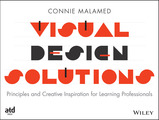
Connie Malamed is a lovely friend and colleague who has done quite a bit on visual design (including Visual Language for Designers), and now she has a new book written specifically for Learning Professionals:
Visual design isn’t the first important skill an instructional designer needs, but it may be the second or third one. Even if you are fortunate enough to work with a graphic designer, having a good visual sense allows you to communicate design needs much more effectively.
Connie’s book does a great job of giving people the basics of a visual vocabulary:
I got particularly excited over the first explanation of the Rule of Thirds that I actually understood:
Visual Design Solutions: Principles and Creative Inspiration for Learning Professionals Paperback - April 13, 2015 by Connie Malamed (available in all the usual places).
Julie Dirksen
.
Blog
.
<span class='date ' tip=''><i class='icon-time'></i> Jul 23, 2015 07:37am</span>
|
|
There was another great week of #EdTechTidBits! Continuing reading for a new Computer Science for grades 4-8, resources on DIY PD, a way to build digital LEGO models, and an inspiring TEDx talk! Start a Google CS First Club at Your School this Summer!Back in April, +Suan Yeo announced a new Computer Science program offered by Google, called CS First.CS First is a free programming club for students in grades 4 - 8. It currently includes 8 different theme based club choices (from Fashion & Design, to Game Design, and even Sports).Teachers can sign up to host a CS First Club at their school or in their community and receive free printed materials. There is a built in dashboard that allows the teacher to track student progress. The set up is very easy and includes scheduling, technology checklists, and a way to inform your volunteers.If you're looking for a fun and engaging summer school or after summer school option, try a Google CS First Club!Start your first CS First Club!DIY Professional Development Roundup by EdutopiaI came across a great Edutopia article that was recently updated in April. It's a roundup of links and resources all about the DIY Professional Development movement. On demand and do-it-yourself PD has been on the rise, and this collection of resources is a great place to get started! Everything from unconferences, to social media, and growing your PLN. DIY PD allows you learn what you want, when you want it, wherever you want it. Who can argue with that?Build Lego Creations Digitally with Lego Digital DesignerMy favorite activity as a child was building with legos. I not only enjoyed building the box models, but I spent hours creating new things from my wild imagination!Now that we are deep into the digital age, what if we could construct lego models digitally? Well, apparently you can, and I had no idea until now! I introduce you to the Lego Digital Designer application.The app is available for FREE from LEGO.com! You can literally build anything you want with practically any lego piece in any color. You can print or export your creations when you're finished! And you can even print a building instruction guide to give to your friends! What I also like about this is you can even build with Lego Mindstorms, so if you use the kits in class or have a lego robotics team, this might be a great starting point before the actual construction phase.Inspire Your Students to be Makers & InventorsHere is an inspiring TEDx talk by 15-year-old inventor, Chase Lewis. He has invented two life-saving devices and wants to convey to everyone young and old that we are ALL inventors. You just have to have an idea and a passion to create.Thanks for checking out this edition of #EdTechTidBits of the Week! See you next week!Do you have any #EdTechTidBits to share? Add them in the comments below or use the hashtag.
Michael Fricano II
.
Blog
.
<span class='date ' tip=''><i class='icon-time'></i> Jul 23, 2015 07:37am</span>
|
|
Have you checked the Google Docs Add-ons lately? New ones get added quite often, but there's no easy way of knowing, other than checking frequently on your own. Well, unless you read my blog! I came across this interesting Add-on just the other day, and it has some great uses for the classroom. Continue reading to learn more about the Keywords Add-on for Google Docs.Keywords was created by Jarope GAS Dev (who also created Pupil Pref). This add-on allows you to create keyword lists and then display those lists in a side panel next to your Google document. The keywords can also contain descriptions or definitions.Add the Keywords add-on to your Google Doc.Watch: How to Use the Keywords Add-onKeywords creates a spreadsheet for you. Set up the list for your students or invite them to edit and collaborate on the spreadsheet together.The keywords & descriptions will displayon the side of your Google Doc.Classroom UsesStart a list of keywords for a research project. Invite the student to add to the list as they continue their research.Create a vocabulary list during a unit. Students can use their Google Doc to define, draw examples, and so on.The teacher doesn't have to be the only one to create a keyword list. Let students create their own during a project. They can share the list with their project partners as well!Create a spelling list at the beginning of the week. Students can add what they learn about the words to their Google Doc throughout the week, and have a detailed study guide for their spelling test in the end.For easy sharing of the keywords spreadsheet, use Google Classroom! Attach the spreadsheet to an Assignment and give the students view or edit access. Or give them each their own copy so they can create their own keyword descriptions.Google Classroom is the easiest way to share your keywords spreadsheet with your students.What ideas do you have for the Keywords Add-on for Google Docs?
Michael Fricano II
.
Blog
.
<span class='date ' tip=''><i class='icon-time'></i> Jul 23, 2015 07:37am</span>
|
|
Chapter One
An Introduction of ‘Pedagogues Pet’
So here we are. Or here I am. After a year of
"wanting" to create and use a Blog for my teaching practice, I’ve finally got around to creating an
account.
Something that (frustratingly) took just a couple
of minutes!
The aim
of this blog: to
develop my practice by using it as a reflective tool. I’ve always
Lloyd Dean
.
Blog
.
<span class='date ' tip=''><i class='icon-time'></i> Jul 23, 2015 07:36am</span>
|