Blogs
|
Today’s question for the Q: Skills for Success authors: How do I manage disruptive behaviour in class?
Charl Norloff responds.
We are no longer taking questions. Thank you to everyone who contacted us!
Look out for more responses by the Q authors in the coming weeks, or check out the answers that we’ve posted already in our Questions for Q authors playlist.
Related articles
#qskills - How can I help students that have a hard time learning the language?
#qskills - How would you answer Krashen’s assertion that teaching EAP is a "waste of time"?
#qskills - What can I do to improve my relationship with difficult students who do not like to study English?
#qskills - Could you recommend useful tips for teaching writing skills?
#qskills - How can I teach a class where there is a huge gap in language proficiency among the students?
#qskills - When should L1 be used in class?
#qskills - Why are the four skills normally divided into listening & speaking and reading & writing?
#qskills - How can I get my students to use smart devices in the classroom?
#qskills - Do you have any advice for teaching technical English?
#qskills - How do I motivate my students to speak English instead of their native language in class?
Filed under: Adults / Young Adults, Skills Tagged: Adult Learners, Behaviour, Charl Norloff, Disruptive behaviour, EAP, English for Academic Purposes, English Language, Language learning, Q Skills for Success, Questions for Q authors
Oxford University Press ELT blog
.
Blog
.
<span class='date ' tip=''><i class='icon-time'></i> Jul 23, 2015 09:29am</span>
|
|
This is a guest post by Christopher Pappas. Christopher is the founder and owner of the Instructional Design and eLearning Professionals’ Group (44K+) (http://www.linkedin.com/groups?mostPopular=&gid=110953), which is the largest online community of professionals involved in the eLearning Industry at LinkedIn. Christopher holds an MBA, and an M.Ed. (Learning Design) from BGSU and currently works as project manager at http://www.learn-e-pedia.gr S.A. (Antenna Group of Companies), which is the largest interactive learning platform from Greek-speaking students and learners across the Globe.
This is not a paid endorsement by Free Technology for Schools and the opinions expressed below are those of Christopher Pappas.
I am great fan of open source educational technologies and in general free educational resources. In case that you are a teacher, school leader, and or administrator, and you are interested in learning how to use or master educational technologies an excellent free solution is Viva eLearning (http://vivaelearning.com)Viva eLearning has more than 1000 free video tutorials in popular educational technologies such as Moodle, eFront, Articulate Storyline, Camtasia, Captivate, Snagit, etc. You can join Viva eLearning for free with your email or Facebook account and upload your favorite free video tutorials with a really simply process. However, you do not need to be a member to watch the free video tutorials for educational technologies.So, the questions is "Do you support free video tutorials for educational technologies?" If yes, help us build the largest collection of free video tutorials. Share the knowledge!
This post originally appeared on Free Technology for Schools www.freetechforschools.com
Jonny Liddell
.
Blog
.
<span class='date ' tip=''><i class='icon-time'></i> Jul 23, 2015 09:29am</span>
|
|
How can you create your own material? What do you need? What would you include? How long would it take? Charl Norloff, co-author of Q: Skills for Success Reading/Writing 4, looks at how to supplement a textbook with your own materials.
Published materials are useful tools for busy teachers as they provide appropriately-leveled lessons and activities carefully crafted to provide optimum practice for students. However, most teachers feel the need to create their own materials for their classes at some time. This is something that you can do with time and some practice, and it doesn’t have to be time-consuming or require a lot of supplies. Whether you make copies of your teacher-made materials for students, use technology to project them, or even simply write them on the board, depends on your situation, but here are some tips to consider when creating your own materials:
Start by asking yourself what the purpose of the activity will be
What is the objective of the lesson and which skills are you teaching? Try to write a student learning outcome, i.e., what do you want your students to be able to do after using the materials? The clearer you are about what you want the outcome to be, the better your chances of creating effective materials for your students.
Keep it simple
Don’t make the exercise or activity too complicated and keep the directions brief and clear. Consider how much time you will spend on the activity for which you are developing the materials. If it takes too much time to set up or is too difficult, it may not be worth the time spent. Ask yourself how to get the maximum engagement from your students and the most practice in the simplest and most time-efficient way.
Personalize your content
The biggest advantage of, and a reason for, creating your own materials is that you can use the context of your students and their personal lives and stories to make the materials memorable and meaningful to your students, so make your materials about your students and your community as much as possible.
Invest more time and thought into content than appearance
Your materials don’t have to look professional. Strive for materials that help the students use the language to communicate with each other.
Try the materials out yourself
Once you’ve created your materials, try them yourself to make sure they are doing what you want them to. If students are reading something, can they answer the questions without reading? If students are supposed to write using a particular grammar structure, does the prompt require the use of the structure? If the materials don’t work for you, they won’t work for your students.
Try the materials with your students
Finally, use your materials with your students. They probably won’t be perfect, but that’s OK. Make notes on what worked and what didn’t so you can adapt them if necessary for the next time. The more you create materials to fit your class and your students, the better you will become at it.
Teacher-created materials can be a great way to supplement your textbooks. Have you created materials to use in class? How successful were they?Filed under: Adults / Young Adults, Professional Development, Skills Tagged: Charl Norloff, Creating your own materials, EAP, English for Academic Purposes, Q Skills for Success, Questions for Q authors, Student learning outcomes, Teacher-created materials
Oxford University Press ELT blog
.
Blog
.
<span class='date ' tip=''><i class='icon-time'></i> Jul 23, 2015 09:29am</span>
|
|
The other day through my network on twitter I stumbled across an interesting post on Will Richardson's blog. For those of you unfamiliar with Will, he wrote the excellent book called Why School. Will has been asked to make a documentary called "Why School?" Will is looking for helpers on this project from production and promotion through to filming editing and marketing. He is really keen to tap in to the power of the educational network. If you are interested in taking part in this project (I know I am!), register your interest on this form.
I think this has the potential to be huge. Imagine if it were to become as big as Super Size Me? It could be a real driver for change and policy makers might just begin to listen if it resonates with the general public. Get involved!
This post originally appeared on Free Technology for Schools www.freetechforschools.com
Jonny Liddell
.
Blog
.
<span class='date ' tip=''><i class='icon-time'></i> Jul 23, 2015 09:29am</span>
|
|
Pete Sharma explores some of the different Virtual Learning Environments suitable for Business English teachers.
A colleague recently asked me: "Which VLE should I use with my Business English students?" This started me thinking that there are, in fact, many ways to support the work that teachers do in the classroom. In this post, I’ll take a look at some of these exciting options.
At one end of the spectrum is using a full-scale Virtual Learning Environment. This is a password-protected area on the internet which is used to store and deliver digital materials such as texts, interactive activities, audio, video and links to websites. A VLE is often called an LMS (Learning Management System) or CMS (Content Management System), and contains communication tools. For example, a teacher can post a message to a forum for students to answer in their own time (asynchronous communication), or use instant messaging (synchronous communication).
Two well-known VLEs used by universities are Moodle and Blackboard. Such platforms have a large number of features, such as ‘quiz-makers’. Creative teachers can make their own digital materials with authoring software such as Hot Potatoes, and upload these to the platform.
On my last course, I used the website Edmodo, which is free and easy to join. It is easy to use and allows you to communicate with your students between classes, and post links to websites and other teaching materials you wish them to look at. This was perfectly adequate for this particular course and group of students.
It is important to remember that a VLE is empty until you add material. Let’s look at a different option. Many course books have an access code at the back, allowing access to publisher-produced materials on a web-based platform. Students can download audio files, or do online interactive exercises. Tracking tools allow teachers (and training managers!) to see which exercises students have worked on, and how much time they have spent on each one.
There are other options. Some of my colleagues use Dropbox to share materials. Teachers running writing courses sometimes start a class wiki. A wiki is a website containing editable pages, so students can collaborate on a piece of writing.
There is a lot of choice, and it is important to support your course with something which works for you. Maybe you want to offer your students 24/7 access to their digital materials, or perhaps you want to create material yourself. Whatever you decide, it is impossible for me to imagine a course which is simply ‘done in the classroom’, without being able to provide autonomous learning opportunities outside class, too. And busy Business English students, who often travel, will appreciate this course enrichment more than most.Filed under: Business & English for Specific Purposes, Multimedia & Digital Tagged: Blackboard, Business English, CMS, Content Management System, Edmodo, EdTech, elearning, Learning Management System, LMS, Moodle, Virtual Learning Environment, VLE
Oxford University Press ELT blog
.
Blog
.
<span class='date ' tip=''><i class='icon-time'></i> Jul 23, 2015 09:28am</span>
|
|
This week I have been playing around with Zondle and I have to say I am very impressed. Once I have had time to create some games, I will definitely be using it in my teaching. First up, any app which describes itself as "free, and always will be" is off to a good start on securing my vote.
Zondle allows teachers to easily create games to support learning. You can also access many games created by other teachers or purchase games and resources from the extras marketplace. It is extremely quick and easy to use. Students can be added in several ways; adding them manually, issuing a course code or emailing an Excel file to Zondle. Creating games is also quick and easy but I think you can get to using it straight away by using some of the games created by others.
Zondle plays extremely well with other services and can be easily embedded into a website or a page on a VLE. There are also apps available for both apple and android which is fantastic for fostering student engagement, not to mention how useable it becomes in a school with a 1:1 or BYOD policy.
I can't wait to have a play around with it but first I have to learn how to use and develop our VLE. Why is the stuff you pay for always more difficult to use?
This post originally appeared on Free Technology for Schools www.freetechforschools.com
Jonny Liddell
.
Blog
.
<span class='date ' tip=''><i class='icon-time'></i> Jul 23, 2015 09:28am</span>
|
|
Today’s question for the Q: Skills for Success authors: Is it better to create your own materials or use existing materials?
Colin Ward responds.
We are no longer taking questions. Thank you to everyone who contacted us!
Look out for more responses by the Q authors in the coming weeks, or check out the answers that we’ve posted already in our Questions for Q authors playlist.
Related articles
#qskills - How do I manage disruptive behaviour in class?
#qskills - How can I help students that have a hard time learning the language?
#qskills - How would you answer Krashen’s assertion that teaching EAP is a "waste of time"?
#qskills - What can I do to improve my relationship with difficult students who do not like to study English?
#qskills - Could you recommend useful tips for teaching writing skills?
#qskills - How can I teach a class where there is a huge gap in language proficiency among the students?
#qskills - When should L1 be used in class?
#qskills - Why are the four skills normally divided into listening & speaking and reading & writing?
#qskills - How can I get my students to use smart devices in the classroom?
#qskills - Do you have any advice for teaching technical English?
#qskills - How do I motivate my students to speak English instead of their native language in class?
Filed under: Adults / Young Adults, Skills Tagged: Adult Learners, Colin Ward, Course materials, Creating your own materials, EAP, English for Academic Purposes, English Language, Language learning, Q Skills for Success, Questions for Q authors, Teacher-created materials
Oxford University Press ELT blog
.
Blog
.
<span class='date ' tip=''><i class='icon-time'></i> Jul 23, 2015 09:28am</span>
|
|
This is a guest post by Stas Ustimenko from Code Lobster. Free Tech for Schools has not received any payment for this post.
Free PHP, HTML, CSS, JavaScript editor (IDE) - Codelobster PHP Edition
For valuable work on creation of sites you need a good comfortable editor necessarily. There are many requiring paid products for this purpose, but Codelobster PHP Edition is free.
Let us consider some important possibilities and advantages of this program:
All code highlights depending on a type so mixed code is supported. The area of HTML will be highlighted as HTML, PHP as PHP, and Javascript as Javascript in the same file. There is also the possibility of choice from colour schemes, including popular IDEs.
Powerful autocompletion for HTML, PHP, CSS and Javascript, including HTML5 and CSS3. For PHP the structure of project is fully recognized, and the complete list of methods falls out in the proper places.
HTML/CSS inspector on the type of Firebug, which allows easily to correlate the selected elements of page with a code and proper style.
Context help on all supported languages. By pressing the F1 key the page with detailed description for current tag, attribute or function will be opened.
PHP debugger. PHP debugger allows you to execute PHP scripts incrementally, watching the values of all variables in every line.
SQL manager allows you to produce all necessary actions with a database - to add, delete, edit a structure and records in tables, to export data, execute SQL queries. Highlighting and autocompletion works for SQL files also.
Support of FTP allows you to work straight with a remote server and to do all necessary changes with files;
The portable option allows you to use editor without the preliminary installation.
Other useful utilities include pair highlighting, possibility of blocks selection, collapsing, tooltips, navigation on descriptions of functions and included files by holding the control key, viewing of structure of files and the project, preview in a browser, book-marks, and all other standard possibilities for work with a code.
Also there are special plugins for work with
CMS: Drupal, Joomla
PHP frameworks: CakePHP, CodeIgniter, Symfony, Yii
JavaScript libraly: JQuery
WordPress blogging engine
Smarty template engine
DeveloperCodelobster Software
Web Sitehttp://www.codelobster.com/
LanguageEnglish, Russian, German, Spanish, French, Portuguese
Supported OSWindows 2000, Windows XP, Windows Vista, Windows 7
Download link:
Free PHP, HTML, CSS, JavaScript editor (IDE) - Codelobster PHP Edition
This post originally appeared on Free Technology for Schools www.freetechforschools.com
Jonny Liddell
.
Blog
.
<span class='date ' tip=''><i class='icon-time'></i> Jul 23, 2015 09:28am</span>
|
|
Image courtesy of Heisenberg Media via Flickr
Mohamed El-Ashiry takes a look at four online tools that have helped him deliver high-quality feedback to his students.
Upon introducing tablets into my classroom, the biggest gains I have received have been in assessment and feedback. In my experience, ICT tools facilitate the process of giving timely, relevant and effective feedback to my students. Brown & Bull (1997) argued that feedback is:
… most effective when it is timely, perceived as relevant, meaningful and encouraging, and offers suggestions for improvement that are within a student’s grasp."
Black & William (1999) wrote that:
… improving learning through assessment depends on five, deceptively simple, key factors:
the provision of effective feedback to pupils;
the active involvement of pupils in their own learning;
adjusting teaching to take account of the results of assessment;
a recognition of the profound influence assessment has on the motivation and self-esteem of pupils, both of which are crucial influences on learning;
the need for pupils to be able to assess themselves and understand how to improve."
I use a variety of ICT tools in my classroom, all of which the students can access from their tablets or mobile devices. I will introduce the four main tools I use and explain ways in which they have facilitated assessment and, more importantly, giving feedback in my classroom.
1. Socrative
Socrative is an immediate student-response system, where students access the teacher’s ‘room’ using the ‘room number’ and the teacher can push out multiple choice questions, true/false questions, or short-answer questions. The teacher can also assign full quizzes and exit tickets. I have found that when using Socrative, projecting my screen to the students makes it even more beneficial, as they can see the statistics and class responses that are shown on my screen. For example, when asking a short answer question, students can see all responses being submitted, which I then use as a basis for an evaluation exercise: students look at all submitted responses and vote on the best ones, whilst giving reasons why.
This is a very useful literacy-building exercise and I use it to show model answers and what makes a well-structured written response. This process enables me to give immediate feedback to the students, and actively involves them in the process.
My favorite feature of Socrative is definitely the ‘Exit Tickets’ though, as that gives me an immediate pulse-check of the class’s learning, which I can then immediately use to adjust my teaching for the next lesson.
2. Edmodo’s ‘Quiz’ feature
Edmodo is a class learning management system (LMS) that is designed for schools but still looks a lot like Facebook (which engages students more due to its familiarity). I have often created quizzes and polls on Edmodo. When using the ‘Quiz’ feature with my students, Edmodo allows you to show them the answer key once they have submitted their responses. Students also immediately get their score on the quiz. This automatically gives the students timely and relevant feedback, as the assessment has only just been concluded and is still fresh in their minds. I also project the statistics Edmodo compiles for me in front of the class, and we discuss those statistics to highlight strengths and areas for improvement.
3. Google forms (& Flubaroo)
I wrote before about how I use Google Forms in my classroom. I often use the "Flubaroo" script whenever I create a quiz or test using Google Forms. Flubaroo automatically grades the quiz once the students submit their responses, and can also email them their score, a copy of their responses, and the answer key. I then project the spreadsheet of the student responses in front of the class and we discuss the most well-constructed answers. This is another example of how an ICT tool such as Google Forms has enabled me to deliver timely and immediate feedback on my students’ assessments.
4. Evernote shared notebooks
I published a blog post before about how I use Evernote in my classroom. As I have a ‘Premium’ account with Evernote, I can create notebooks for my students that we can all edit and contribute to, even if the students only have a ‘Free’ account. I have benefited immensely from this feature, as I created a set of notebooks for my history class where the students would do all their work. I would then be able to add voice notes with my verbal feedback or even annotated rubrics/checklists for the assessments.
I have noticed that most of the talk about eLearning and tablets in classrooms revolves around engaging students more with learning and encouraging them to create multiple things. While these are very valid benefits of introducing ICT tools into the classroom, I personally believe the biggest benefit can come from how these ICT tools can facilitate the process of assessing student learning as well as delivering timely and meaningful feedback to the students on their learning.
References:
Black, P. & Wiliam, D. (1999). Assessment for Learning: Beyond the Black Box, Assessment Reform Group, University of Cambridge, School of Education
Brown, G., Bull, J., & Pendlebury, M. (1997). Assessing student learning in higher education. London: Routledge.Filed under: Exams & Testing, Multimedia & Digital Tagged: Assessment, Edmodo, eFeedback, elearning, Evernote, Feedback, Flubaroo, Google Forms, ICT, Immediate feedback, Learning Management System, Literacy, LMS, mlearning, Socrative
Oxford University Press ELT blog
.
Blog
.
<span class='date ' tip=''><i class='icon-time'></i> Jul 23, 2015 09:28am</span>
|
|
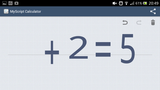
Yes, I just said that in the title. I am very obviously well into my 30s now that I would even consider saying that a calculator is fun but I just can't help it. A few days ago, one of my students, after going through the usual ritual of being told off for not bringing his calculator to a Physics lesson, asked if he could use the calculator on his iphone. Assuming that he would use the iphone for non-learning related means, I lingered nearby. I soon noticed that he appeared to be drawing on the screen and I pounced in, ready to give him a good telling off mid-way through his status update or non-school related use of free tech that us grown ups have yet to discover.
Myscript lets you do calculations by writing the numbers with your hand. It then converts the numbers into print like shown above with remarkable accuracy and speed. So fast in fact that I wasn't able to capture the handwriting aspect with a screen shot on my Sony Xperia P . It also lets you solve simple algebraic expressions. In the photo above, I actually traced with my finger, ? +2 =5. In the photo, the question mark has disappeared soon to be replaced with a 3, solving the equation.
I really need to ask my students what apps they are using more often. This was a great discovery and is available on both apple and android. I hope you enjoy this incredibly fun calculator. I'm off to water my tomato plants and contemplate my 30s whilst listening to some techno and house from my mis-spent 20s.
Note: There is one Amazon affiliate link and 2 non-affiliate links on this page.
This post originally appeared on Free Technology for Schools www.freetechforschools.com
Jonny Liddell
.
Blog
.
<span class='date ' tip=''><i class='icon-time'></i> Jul 23, 2015 09:28am</span>
|