Blogs
|
Wix is a popular DIY website creation tool. They claim to have more than 63 million registered users (source: CrunchBase). To help those 63 million users and anyone else who wants to build a website, last month Wix launched WixEd.
WixEd is a free online course all about building and maintain a website through Wix. The course has three sections, but first section is the only section teachers will need. The other two sections are about ecommerce and business development through websites. Each section of the course is comprised of a series of short videos followed by "homework" assignments.
Applications for Education
WixEd is clearly focused on business customers, but some teachers may find it helpful as they try to create classroom websites.
This post originally appeared on Free Technology for Teachers
if you see it elsewhere, it has been used without permission.
Related StoriesHow to Save Time When Replying to EmailMake Lesson Plans and Storyboards Pop With These New GuidesThe Week in Review - The Most Popular Posts
Richard Byrne
.
Blog
.
<span class='date ' tip=''><i class='icon-time'></i> Aug 05, 2015 10:04am</span>
|
|
A couple of weeks ago Diigo introduced the option to play videos within Diigo groups. Since then I have had a couple of folks ask about creating groups within Diigo. The video embedded below provides an overview of how to create a Diigo group.
Applications for Education
Diigo groups provide a good place to share resources with students and have them share with you and each other. Diigo groups can be private. I ask students to add notes to the links that they share in a group. Those notes should provide the rest of the group with an explanation of why the link is useful.
For more information about Diigo take a look at Beth Holland's post on using the Diigo Outliner tool. Click here for a tutorial on using Diigo in Firefox.
This post originally appeared on Free Technology for Teachers
if you see it elsewhere, it has been used without permission.
Related StoriesTwo Ways to Bookmark Favorite Links from TwitterHow to Save Time When Replying to EmailThe Week in Review - The Most Popular Posts
Richard Byrne
.
Blog
.
<span class='date ' tip=''><i class='icon-time'></i> Aug 05, 2015 10:04am</span>
|
|
The arrival of August always makes me think about the first few weeks of school. Using their blogs more consistently is one of the things that many teachers will be doing as the new school year begins. It can be a challenge to get parents to check classroom blogs consistently. One of the ways that you can get them into the habit is to provide them with information that they will find valuable. Here are five things you can blog about early in the school year to provide value to your students' parents when they visit your classroom blog.
1. How to supervise your child's web use at home.
2. Privacy settings on school-provided laptops/ Chromebooks/ iPads/ tablets. Consider adding a PDF of screenshots illustrating those settings.
3. Tasty and healthy snacks to send to school with your child (Pinterest is a great source for ideas, just make sure you give proper attribution).
4. How to talk to kids about bullying.
5. A glossary of Tween/ teen slang vocabulary.
My upcoming course, Classroom Blog Jumpstart, will cover topics like this one and many more. The course begins on August 17th. Click here to learn more about the course.
This post originally appeared on Free Technology for Teachers
if you see it elsewhere, it has been used without permission.
Related StoriesHow to Schedule Blog Posts on Blogger, Edublogs, and KidblogHow to Turn Your Blogger Blog Into a Book - VideoCreate a Physical Record of Your Blog With BlogBooker
Richard Byrne
.
Blog
.
<span class='date ' tip=''><i class='icon-time'></i> Aug 05, 2015 10:04am</span>
|
|
TEST Teaching With Video: 9 Tips For Teaching With YouTube
by Marlon Gallano
Let’s face it, times have changed.
The way we learned in school by sitting at a desk with a book, notebook and pencil are no longer the norm. Textbooks and notebooks are being replaced with tablets. The pencil is being replaced by the stylus. Touchscreen technology and cloud computing are revolutionizing how, where, and even when students learn and share information.
Although this sounds like doom and gloom, it’s actually a very good thing. Virtual lessons, tests, worksheets and textbooks are much easier and far less expensive to update or replace online. And the implications are grandiose. This type of technology has the potential to bring people closer by providing a clearer understanding of our cultures, history, current affairs and much more.
Enter YouTube. From fixing a flat to creating a gourmet dinner, people have turned to YouTube to solve their everyday problems. But if you look a bit closer, you’ll find that teaching with YouTube offers a variety of learning channels that students can relate to and engage in, making learning interesting and exciting for them. (See also, How To YouTube Your Classroom for context.)
If learning, rather than teaching, is the goal, you’ll need to have the attention of the students-and few things commands their attention better than a compelling video. YouTube enables educators to share their educational lessons from classroom to classroom without walls. Videos can be a helpful addition to books, by helping those who need a bit more help to grasp a complex concept. This frees up teachers to focus on the individual student, and take more time to create more interesting, innovative class lessons.
Students are changing, and education must keep up with those changes. Today’s modern educators need to reach out to students by using the same devices and techniques they’re using. Teachers have a world of information at their fingertips, as long as they have the technology to harvest it first.
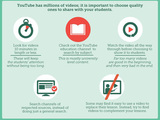
Teaching With Video: 9 Tips For Teaching With YouTube
Ed note: Most of these appear in the graphic below, but we’ve revised and exchanged a few in hopes of having the best list possible.
1. Look for shorter videos
2. Check out the YouTube Education Channel
3. Watch the whole video before showing in class
4. Search channels rather than the entire site
5. Find videos to complement lessons, not the other way around
6. Have a way for students to "engage" the content on paper while watching
7. Assess #6
8. Consider a breadth of video content-music, video game trailers and gameplay, mini-documentaries, even seemingly whimsical content
9. Download the videos if the site is blocked in your district
Teaching With Video: 9 Tips For Teaching With YouTube; image attribution youtubedownload
TESTThe post 9 Tips For Smarter Teaching With YouTube appeared first on TeachThought.
TeachThought Blog
.
Blog
.
<span class='date ' tip=''><i class='icon-time'></i> Aug 05, 2015 10:03am</span>
|
|
TEST How To Connect Schools And Communities Using Technology: A New Approach
by Terry Heick
Fixing Detached Schools Via Tech
It’s possible that there is no time in the history of education that our systems of educating have been so out of touch with the communities. Growing populations, shifting communities, and increasingly inwardly-focused schools all play a role.
In light of the access of modern technology, social media, and new learning models that reconfigure the time and place learning happens, it doesn’t have to be that way. Schools can evolve while simultaneously growing closer to the people they serve.
Technology
First, for the purpose of this post let’s think of technology and social media as distinct.
Technology has many forms, but in education it is most visible in terms of computing hardware and software. The hardware is pretty obvious—personal computers, Macs, tablets, Chromebooks, smartphones, graphing calculators, and the like.
The software is a bit more inconspicuous because it’s embedded in the hardware. Here we have fundamental PC software like Microsoft Windows or Mac OS; we have productivity suites like Microsoft Office; we have web browsers like Google Chrome or Mozilla Firefox; and we have niche programs like reading assessment tools or educational games, which function like what we’d now consider computer-based apps.
There are also less visible forms of technology that make teaching and learning with technology possible, including electricity (you take it for granted until it doesn’t work) WiFi (imagine your classroom looking like it does behind your television—wires everywhere), the cloud (which enables mobile learning, hardware sharing, flipped classrooms, and other advances), and more. Each of these technology tools are critical in their own way, working together to make whatever we’d define as a "modern classroom" work.
But hidden with this list is one bit of seemingly dated software that can be concept-mapped on its own in a million other directions of possibility. No one gets excited by it, but it still makes the internet go: the web browser.
Technology Gift #1: Social Media
Although itself just a program that translates html code to visual information, the modern web browser has become a vessel that everything else attaches itself to. For schools looking to connect with communities, it also actuates social media channels like twitter, facebook, and pinterest, and allows for the blogging or site updates that keep parents informed.
None of this is new, really. The technology has been there for years. Parents have always been "Informed"—but of what? That’s where there is potential. What we’re communicating as educators, when, and why.
So what can social media "do"?
How To Connect Schools And Communities Using Technology: Some Ideas
Solicit mentoring relationships
Whether organized by a district, school, teacher, family, or the student themselves, connecting with potential mentors through social media is compelling because it’s A) Public—transparent and safer than "social media" sounds and B) Because it’s public, it can encourage companies to respond when they may not in private. Connecting students to the artists, architects, engineers, makers, writers, farmers, cooks, and other "roles" for the purpose of mentoring and apprenticeship is one way to begin to repair the disconnect between schools and communities.
Connect with community leaders
This one is closely related to the idea of "mentoring" in the sense that it connects students with people outside of the classroom from their community. But rather than for the purpose of mentoring, it could be less involved—topical but authentic communication between those leading the community, and those living in it, and social media is the perfect way to make it happen.
Anonymously (or non-anonymously) share school work
Want work to leave the classroom? Use social media to publish it with the world. Worried about privacy? Assign students anonymous codes or avatars to publish under. Used closed communities (Google+ communities, for example) that, while not fully open, are still school-wide. There are ways.
Curate cultural artifacts and "local memory"
Today, museums do the work of "curating," but that’s a crude way to preserve the cultural artifacts that matter. Why can’t schools do this? And why can’t technology be used to streamline and crowdsource it?
Technology Gift #2: Learning Models
In addition to connecting with the worlds students live and breathe in, new learning models afforded by technology are also useful in reconnecting with families, neighborhoods, and native places students have affection for.
Flipped Classroom
The flipped classroom is one way to exchange where learning happens—or at least what kind of learning happens where. Here, the roles are reverse: Students are exposed to content at home, and practice it at school.
Mobile learning
Mobile learning is a brilliant way to immerse students in native places and landscapes. The challenge here is that education isn’t quite ready for it, but if you can figure it out—look out. Deep integration of learning, place, and people.
Place-based education
See above—learning that is based on place and not an indexed set of nationalized curriculum. Authentic, familiar, and personal.
Project-based learning
Project-based learning can incorporate all of the above—flipped classrooms, place-based learning, mobile learning, and so on. The idea is that teaching and learning are anchored through the process of authentic projects constructed over time. These "reason" or "need to know" for these projects will ideally both start and finish in communities.
Experiential learning/Scenario-based learning
Treat the school like a think tank. Explore and address local community issues. Use social media to connect with families and neighborhoods and businesses and organizations, then use problem-based or scenario-based learning to address them.
Conclusion
Technology, so far, hasn’t healed the disconnect between schools and communities, but that could be because we’re selling it short for what it can do—which might start with not seeing its potential fully. Today, popular uses are sharing grades, missing work, test dates, snow days, and basic school announcements. This isn’t nearly good enough.
Whether you’re talking about hardware, software, social media, or something in between, more than anything else, technology connects. As educators, we just need to be intentional about what we’re connecting, and why.
This article was written by Terry Heick and first published on edutopia; source: edutopia.org; image attribution flickr user usdepartmentofeducation; how to connect schools and communities;
TESTThe post How To Connect Schools And Communities Using Technology appeared first on TeachThought.
TeachThought Blog
.
Blog
.
<span class='date ' tip=''><i class='icon-time'></i> Aug 05, 2015 10:03am</span>
|
|
TEST
12 Mistakes Schools Make When Introducing The Next Big Thing
by Grant Wiggins
Ed note: This post by Grant focuses on mistakes schools make when introducing Understanding by Design in schools. Certainly for that focus, it makes sense as Grant and Jay McTighe designed the framework and would be considered a credible source on how to mess it up. But it also make sense as an example in the kinds of mistakes schools make when introducing any new "big thing"-classroom management, curriculum, PD, etc., so we’ve revised it a little not only explore how to implement UbD poorly, but any new idea poorly.
Sigh. Despite our cautions, well-meaning local change agents continue to make mistakes in how Understanding by Design (UbD) is implemented. Below, find 12 ways of killing the effort for sure, and some suggestions for how to avoid the all-too-common mistakes. While I wrote this for UbD it applies to any initiative.
1. Fixate on terminology and boxes in the template and provide little or no insight into the issues and purposes that underlie UbD.
INSTEAD:
Start with common sense through an exercise: "You really understand if you can…" and use staff answers as the basis for initial experiments in understanding-focused learning.
Delay showing all the Template boxes with all their names.
Concentrate on making clear that the aim is a better focus on understanding as opposed to superficial coverage
Use whatever language makes sense locally to make the process and design tools transparent
2. Mandate that every teacher must use it (UbD) for ALL of their planning immediately (without sufficient training, on-going support, or structured planning time).
INSTEAD: Think big, but start small and smart -
Work with volunteers at first
Ask all teachers to plan ONE unit in Year One.
Encourage teachers to work w/ a colleague or team, and begin w/ a familiar unit topic.
Provide additional designated planning and peer review time.
Provide online help
3. Introduce it (UbD) immediately as this year’s focus to suggest that UbD can be fully implemented in a year, and that last year’s initiative bears no relation to it. Thus: This, too, shall pass.
INSTEAD: Develop and publish a multi-year plan that links your long-term goals to UbD strengths, and shows how UbD will be slowly implemented as part of a complete strategic plan.
4. Attempt to implement too many initiatives simultaneously (e.g., UbD, Differentiated Instruction, Curriculum Mapping, Marzano’s "Strategies" etc.)
INSTEAD: Develop a multi-stage multi-year plan to improve current initiatives via UbD -
improve mapping categories
differentiate via Essential Questions
unpack Standards to identify transfer goals
develop a 1-page graphic showing how all local initiatives are really a part of the same one effort (e.g. limbs of a tree, pieces of a puzzle, supports of a building, etc.)
5. Assume that staff members understand the need for it (UbD) and/or will naturally welcome it. i.e. hurriedly prescribe UbD before helping staff to understand and appreciate the need for change - ensuring that they do not own the change.
INSTEAD: Establish the need for a change - the diagnosis - before proposing UbD as a prescription. Make sure that staff see UbD as a logical response to a deficit or opportunity that they recognize and own.
6. Provide one introductory presentation on it (UbD) and assume that teachers now have the ability to implement UbD well.
INSTEAD: Design professional development "backward" from your understanding goals, i.e. practice what UbD preaches -
Make staff meetings and walk-throughs devoted to UbD learning and trying out
Help PLCs develop action plans for trying out unit ideas while also reading further on unit design and how people learn.
Use annual personal goals (SLO’s, SGOs, etc.) as the action research ground for the year, based on understanding goals.
7. Provide UbD training for teachers, but not for administrators; give leaders and supervisors the same training as teachers.
INSTEAD:
Establish parallel tracks of training for Principals and Asst. Principals in which they work on how to look for elements of UbD in action. (They do not need training in how to design units, only how to offer feedback)
Develop peer review systems so that teachers and administrators work together in informally and formally giving feedback to units
Develop supervisory teams to develop a UbD approach to curriculum writing
8. Provide minimal UbD training for some willing teachers in a Train-the-Trainers program, then expect immediate and effective turn-key training of all other staff by those few pioneers.
INSTEAD:
Establish a process for carefully soliciting, interviewing, testing, and hiring would-be trainers.
Develop a year-long training program
Support trainers with on-line and in-person troubleshooting
9. Train people in Stage 1 in Year 1, Stage 2 in Year 2, Stage 3 in Year 3 - insuring that no useful results will occur for years, and the big picture is rarely seen.
INSTEAD: Train so that designers have tried out a few unit strands through all 3 Stages (e.g. just a design based on 1 Essential Question) at least twice in year One, then a full-blown unit by year’s end.
10. Announce it is the official way to (insert functions it’s not good for here). For example, for teachers to use UbD to plan all lessons from here on, even though UbD is not a lesson-plan system.
INSTEAD:
Make clear that UbD focuses on unit planning.
Provide differentiated freedom in how people write lessons
Perhaps make elements of Stages 1 & 2 mandatory, but leave Stage 3 open to personal bent and creativity
11. Standardize all implementation and experimentation. Don’t permit options/alternatives/different approaches to learning, trying, and using ubd. Don’t play to any particular interests, talents, and readiness of staff.
INSTEAD: Differentiate the UbD work -
Build in choices of role (trainers/designers/piloters/observers),
Try out simpler as well as full versions of the Template, based on readiness
Build a schedule that permits others to join in with R & D later, on a rolling timeline
12. Be thoughtless with the starting point
INSTEAD: start with units that are not engaging and effective currently. What do you have to lose?
This is an updated version of material that can be found in Schooling by Design and TheUbD Advanced Guide to Unit Design. Both books have many other ideas for how to plan reform to avoid these errors.
TESTThe post 12 Mistakes Schools Make When Introducing The Next Big Thing appeared first on TeachThought.
TeachThought Blog
.
Blog
.
<span class='date ' tip=''><i class='icon-time'></i> Aug 05, 2015 10:03am</span>
|
|
TEST 5 Of The Most Common Problems With Schools Websites
by Matt Harrell, memberhub.com
Your school’s official website is undoubtedly the most valuable piece of online real estate it possesses. As educators, we know this. Why, then, are so many school websites so bad these days?
Part of the problem is that creating and maintaining an effective school website is a big project that is important but not urgent—so it tends to fall through the cracks. Ownership of the project, too, can be an issue.
While we can’t help you out with these specific stumbling blocks, we can give you a shortlist of some of the top mistakes we at MemberHub see schools making over and over, so that you’re not doomed to repeat them.
5 Of The Most Common Problems With School Websites
Mistake #1: Poorly Optimized for Mobile
It’s not just kids who are constantly plugged in and on the go these days. Their parents are, too. This means that your website must be optimized for mobile devices.
Every single page of your website should automatically adapt its layout to the size of the screen that it’s being loaded on—whether it’s a laptop, a desktop, a tablet, a smartphone, or anything in between (like those larger phones that are now being called "phablets").
Not sure if your school website is fully responsive? This is an easy one to check: Just borrow a few different devices—from your colleagues, your kids, the friendly guy you see every morning at the coffee shop, whoever—and browse on over. You may be shocked at what you see (or don’t see).
Mistake #2: Riddled With Mistakes
While it’s never good to have a website up that’s loaded with typos, misspellings, and grammatical mistakes, it’s particularly bad when the perpetrator is a school website. Parents have high standards for the people who educate their kids on such things! Even if you think everything looks A-OK, get a few outside sets of eyes on your website copy to proofread it before the site goes up.
Mistake #3: Too Much Focus on Us, Us, Us
Your school website is about your school, of course. But the secret to a really compelling, effective school website is to present your story (or stories) in such a way that the reader finds himself or herself there, too.
You want folks to be reading your site, nodding along, thinking, "Yes—that is exactly something my kid would say!" or "I would love for our family to be part of this community." And the way you do this is by sharing stories about the real people at your school—your parents, students, teachers, and administrators. Everyone loves a good story.
Mistake #4: Unprofessional Design
Schools can be tremendously fun places run by enthusiastic, creative people. In an effort to convey this spirit online, however, some school websites go overboard with wacky fonts, emoticons, and colors. The very best school websites are streamlined, professional, and easy to read. This means choosing one or two main colors and fonts throughout. Your school’s personality will still shine through, we promise!
Mistake #5: Lack of Social Proof
If you run a good program and have been around for even a little while, you probably have dozens or even hundreds of positive comments and testimonials from happy parents. Yet far too many schools fail to feature these testimonials in a prominent way on their school websites.
This is a huge mistake, as testimonials make for some of the most compelling marketing around for prospective parents—not to mention current parents who appreciate being reminded in subtle ways that they made the right choice.
Matt Harrell is president and co-founder of MemberHub, school software and communications experts. He is also the technology chair of the board of directors of the J.Y. Joyner Elementary PTA (a proud MemberHub school). Matt earned his B.A. in Computer Science from North Carolina State University in 2000. You can connect with him on Twitter @MattHarrell. For more common school website mistakes, download MemberHub’s free website mistakes eBook here; 5 Of The Most Common Problems With Schools Websites
TESTThe post 5 Of The Most Common Problems With School Websites appeared first on TeachThought.
TeachThought Blog
.
Blog
.
<span class='date ' tip=''><i class='icon-time'></i> Aug 05, 2015 10:03am</span>
|
|
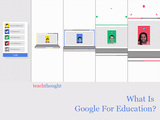
TEST What Is Google For Education?
by TeachThought Staff
Google for Education is an ecology of digital tools from Google designed to host and distribute digital documents, communication, and collaboration through cloud-based technology.
Strengths: Apps designed to work together; cost; security; educational potential of YouTube; general focus on utility; there is really no Apple equivalent
Weaknesses: Sometimes clumsy user interface; lack of general polish; district filtering sometimes still an issue
What Is Google For Education?
Google for Education has Google Drive and its varied distribution tools as its core. Through the use of Google Docs, Drive, mail, calendar, and more, teachers can create virtual classes, track document changes, participate in discussions, and more-what many teachers have been doing for years, but in a formal package that can also serve alignment across classrooms and schools.
Google for Education made news recently when New York announced that it had approved Google’s Chromebooks for use in their schools. It’s nothing revolutionary, but it doesn’t seem like revolution is very much in demand in most schools. In that way, Google apps and Google for Education make a lot of sense for schools and districts trying to unify their digital practice under a single #edtech ecology.
Google for Education also has a reputation for lower-cost, as Chromebooks and Nexus tablets cost less than Apple counterparts, and Microsoft’s education strategy continues to be legacy-based and murky. With lower cost, broader acceptance, and a burgeoning app ecology, Google’s move in education seems both trending up and curiously sluggish, perhaps a product of Google’s own hesitance to embrace the kind of marketing that has made Apple such a recognizable brand.
How that concept of branding and ecology translates to education and its varied system continues to play out in districts nationally.
What Is Google For Education?
TESTThe post What Is Google For Education? appeared first on TeachThought.
TeachThought Blog
.
Blog
.
<span class='date ' tip=''><i class='icon-time'></i> Aug 05, 2015 10:02am</span>
|
|
TEST 25 Simple Examples Of Mobile Teaching
by TeachThought Staff
This is part 2 of a 3-part series on Mobile Teaching. Part 1 was Making The Shift To Mobile-First Teaching.
Mobile teaching is about planning and executing learning through mobile devices.
You might want to be notified when a student accesses a quiz or reading you uploaded, or leaves a comment on another student’s blog, or shares a self-assessment. Or when a certain number of student’s answer a question correctly or incorrectly. Or when a student reaches a goal. This is one approach to mobile teaching.
There’s also the star of mobile technology, social media. With access to real-time social streams like twitter, or even a closed Google+ Community page, teachers can ask other teachers for resources, facilitate school-to-school collaboration, monitor student-led and hashtag-based discussions, and more.
A logical response here might be, "What teacher has time to play on twitter while teaching?" We might respond to that question with, what does it mean to teach? If we’re connected and publishing and promoting self-directed learning, the question might be, "What teacher can afford not to plug students in to functioning digital ecologies, and join them in those spaces?"
25 Simple Examples Of Mobile Teaching
1. Google (or otherwise search) an idea mid-discussion while thinking-aloud to model for students
2. Project a display of Brainfeed for students to pick a relevant a video for a 10 minute mini-lesson tangent to current topic
2. Search YouTube to clarify a process (embrace the mini-lesson!)
3. Share group work excerpts through instagram
4. Socialize a question through reddit, twitter, or quora
5. Monitor student progress completing a lesson using Classkick
5. Host a backchannel conversation on twitter via a hashtag based on a question or comment you overhear as students work.
6. Scan a multiple-choice/scantron exam using WISE
7. Capture artifacts of student work for sharing on closed Google+ community
8. Quickly add a grade using GradeBook Pro
9. Share an idea with a colleague based on student observation and share it on Trello
10. Have students podcast all group work and collaboration
11. Leave feedback on student writing via Google Docs/Drive or Microsoft Word
12. Stream a podcast or YouTube video via Airplay
13. Use the app Capture to upload a video to class YouTube channel
14. Monitor student use of adaptive learning apps
15. Create calendar alerts to share with students based on their individual goals via Google Calendar
16. Share a file based on a personalized student need
17. Ask a student a question via text using Remind101
18. Respond to a student question via text using Remind101
19. Create a poll or quick quiz for the purpose of formative assessment using Socrative Teacher
20. Collect anonymous student feedback using Google
21. Model for students reach outside of the classroom
22. Text an update to parents using One Call Now
23. Have students create their own study materials using Bitsboard
24. Push a quick post to WordPress or tumblr
25. Automatically share data with other teachers/schools/parents
26. Tweet an update to project-based learning stakeholders outside the school-maybe in a school-to-school arrangement
25 Simple Examples Of Mobile Teaching
TESTThe post 25 Examples Of Mobile Teaching appeared first on TeachThought.
TeachThought Blog
.
Blog
.
<span class='date ' tip=''><i class='icon-time'></i> Aug 05, 2015 10:02am</span>
|
|
TEST A Stunningly Simple Way To Explain Pi
by TeachThought Staff
The Digital Media Part
Among the most underappreciated gifts of digital media is animation.
Animation sounds pretty pedestrian until you imagine a world without it. At the opposite end of the spectrum of cartoons, and the more robust, Pixar-born versions of animation that include "motion pictures" (a term we also take for granted), are gif animations.
GIF animations (we pronounce it "jiff", FWIW) are comprised of a short series of images that produce simple animation. They’re useful for a variety of applications, especially where an entire video with sound isn’t necessary. Their small size compared to audio and video makes for quick loading, simpler embedding, and thus broad application.
Along with the emoticon, they’re even being used in communication. The Museum of the Moving Image explains.
"These animated GIFs consist of brief loops of bodies in motion, primarily excerpted from recognizable pop culture moments, and are used to express common ideas and emotions. Understood as gestures, they can communicate more nuance and concision than their verbal translations. While many reaction GIFs are created, deployed, and rarely seen again, some have entered a common lexicon after being regularly reposted in online communities."
GIF animations are nascent little bits of code, only recently given "Word of the Year" recognition in 2012 by Oxford Dictionary. And we love them.
The Math Part
So there’s that-which brings us to the above animation shared by reddit user merelyhere that brilliantly illustrates the significance of "pi." Pi is the often-referenced mathematical concept that students may be able to quote to ten digits or even use to solve formulas, but otherwise simply don’t get.
The Wikipedia definition for pi is the "number π is a mathematical constant, the ratio of a circle‘s circumference to its diameter, approximately equal to 3.14159. It has been represented by the Greek letter "π" since the mid-18th century though it is also sometimes spelled out as "pi" (/paɪ/)."
And now to compliment the words, you have a simple looping moving image to really aggravate students that still, in lieu of your digital media acumen, still won’t get it.
A Stunningly Simple Way To Explain Pi
TESTThe post A Stunningly Simple Way To Explain Pi appeared first on TeachThought.
TeachThought Blog
.
Blog
.
<span class='date ' tip=''><i class='icon-time'></i> Aug 05, 2015 10:02am</span>
|