Blogs
|
EduSync is a new company developing products to help teachers organize daily lesson plans and products to help students keep track of those plans. TeacherCal is the the first product from EduSync.
TeacherCal provides you with a calendar on which they can organize a schedule of lesson plans, quizzes, assignments, and projects. TeacherCal can be synchronized to your Google Account (optional). If you choose to connect your Google Account to TeacherCal, you can create new Google Docs, Forms, and Slides directly from their calendars. You can also attach files from Google Drive or upload attachments from your computer much like you can do in Google Calendar. What makes TeacherCal different from just using a Google Calendar is that you can tag your calendar events with standards, objectives, and additional instructions. Watch the video embedded below to learn more about TeacherCal.
If you decide to try TeacherCal, make sure that you allow pop-ups in your browser. I did not have pop-ups enabled the first time I tried TeacherCal and it was a frustrating experience.
I like TeacherCal's potential to be a good tool for organizing daily activities. Once the promised student/parent feature is added, TeacherCal will become a more powerful classroom tool.
This post originally appeared on Free Technology for Teachers
if you see it elsewhere, it has been used without permission.
Related StoriesNew Content Notifications in Google ClassroomWeb Browsers and Cookies ExplainedHow to Import an RSS Feed Into Google Sites
Richard Byrne
.
Blog
.
<span class='date ' tip=''><i class='icon-time'></i> Aug 05, 2015 10:08am</span>
|
|
Teachers collaborating at the
Practical Ed Tech Summer Camp.
Good evening from Woodstock, Maine where the blue moon is shining brightly. July was a busy month as I ran three webinar courses, hosted the Practical Ed Tech Summer Camp, and visited a couple of schools. And the biggest news of the month is that I became a member of the MindRocket Media Group where I will be developing some content for EdCircuit. Don't worry, nothing will change on FreeTech4Teachers.com as a result of me joining MindRocket.
Here are this month's most popular posts:
1. Great Google Drive Add-ons for Teachers - A PDF Handout
2. Frequently Overlooked Useful YouTube Features - A PDF Handout
3. 50+ Google Tools Tutorial Videos
4. 7 Good Options for Building Digital Portfolios - A PDF Handout
5. Two Chrome Extensions That Can Help You Stay on Task
6. Ten Great Tools for Telling Stories With Pictures - A PDF Handout
7. Six Styles of Classroom Video Projects - A Handout
8. A Nice Tool for Creating Animated Maps
9. A Short Explanation of Google Apps Terminology
10. How to Apply Custom Avatars to ClassDojo Profiles
Please visit the official advertisers that help keep this blog going.Practical Ed Tech is the brand through which I offer PD webinars.BoomWriter provides a fantastic tool for creating writing lessons. Storyboard That is my go-to tool for creating storyboards and cartoon stories.MidWest Teachers Institute offers online graduate courses for teachers.HelloTalk is a mobile community for learning a new language.Discovery Education & Wilkes University offer online courses for earning Master's degrees in Instructional Media.PrepFactory offers a great place for students to prepare for SAT and ACT tests.The University of Maryland Baltimore County offers graduate programs for teachers.Boise State University offers a 100% online program in educational technology.EdTechTeacher is hosting host workshops in six cities in the U.S. in the summer.SeeSaw is a great iPad app for creating digital portfolios.
This post originally appeared on Free Technology for Teachers
if you see it elsewhere, it has been used without permission.
Related StoriesThe Week in Review - The Most Popular PostsThe Month in Review - The Most Popular PostsAn Easy Way to Create Your Own iPad & Android Games
Richard Byrne
.
Blog
.
<span class='date ' tip=''><i class='icon-time'></i> Aug 05, 2015 10:07am</span>
|
|
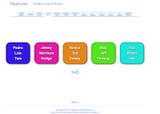
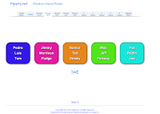
Last year I demonstrated how to create a Jeopardy-style game in Google Sheets. Then in February I published a tutorial on creating flashcards in Google Sheets. In both of those tutorials I utilized templates from Flippity.net. Recently, Flippity.net published a new template that can be used to create a random name picker in Google Sheets.
To create a random name picker from a Google Sheet simply use the template provided by Flippity and modify the spreadsheet to include the names of your students instead of the placeholder names in the template sheet. After modifying the template publish your new spreadsheet to the web, grab the Sheet's URL, and place that URL into the Flippity name picker. Step-by-step directions are available on the Flippity website.
Applications for Education
A random name picker created through Flippity can be used for more than just picking a single name at random. It can also be used to randomly create student groups of two to six members. You can also use the random name picker to generate seating charts.
This post originally appeared on Free Technology for Teachers
if you see it elsewhere, it has been used without permission.
Related StoriesThe Month in Review - The Most Popular PostsAn Easy Way to Create Your Own iPad & Android GamesThree Webinar Recordings - Blogger, Google Drive, and YouTube
Richard Byrne
.
Blog
.
<span class='date ' tip=''><i class='icon-time'></i> Aug 05, 2015 10:07am</span>
|
|
Good morning from Woodstock, Maine where my assistants, Max and Morrison, are patiently waiting to go for a walk in the woods. I'm not sure that there is anything in the world that Max loves more than walking to our favorite pond in the woods to go for a swim and play fetch in the water. Wherever you are in the world today, I hope that you also have fun and relaxing things planned for the weekend.
Here are this week's most popular posts:
1. Great Google Drive Add-ons for Teachers - A PDF Handout
2. Six Styles of Classroom Video Projects - A Handout
3. More Than 500,000 Historical Video Clips
4. Create Short Stories and More on Make Beliefs Comix
5. 7 Good Options for Building Digital Portfolios - A PDF Handout
6. Now Take Notes on Drive Videos with VideoNot.es
7. EduSync's TeacherCal Helps You Plan and Organize Lessons
Please visit the official advertisers that help keep this blog going.Practical Ed Tech is the brand through which I offer PD webinars.BoomWriter provides a fantastic tool for creating writing lessons. Storyboard That is my go-to tool for creating storyboards and cartoon stories.MidWest Teachers Institute offers online graduate courses for teachers.HelloTalk is a mobile community for learning a new language.Discovery Education & Wilkes University offer online courses for earning Master's degrees in Instructional Media.PrepFactory offers a great place for students to prepare for SAT and ACT tests.The University of Maryland Baltimore County offers graduate programs for teachers.Boise State University offers a 100% online program in educational technology.EdTechTeacher is hosting host workshops in six cities in the U.S. in the summer.SeeSaw is a great iPad app for creating digital portfolios.
This post originally appeared on Free Technology for Teachers
if you see it elsewhere, it has been used without permission.
Related StoriesThe Month in Review - The Most Popular PostsThe Week in Review - The Most Popular PostsThe Week in Review - Preparing for Camp
Richard Byrne
.
Blog
.
<span class='date ' tip=''><i class='icon-time'></i> Aug 05, 2015 10:07am</span>
|
|
If you're like me, at the beginning of a new semester or school year you probably find yourself frequently replying to the same type of questions in your email. Try Auto Text Expander for Google Chrome to efficiently reply to those emails. In the video embedded below I provide a short overview of how this helpful Chrome extension works.
This post originally appeared on Free Technology for Teachers
if you see it elsewhere, it has been used without permission.
Related StoriesMake Lesson Plans and Storyboards Pop With These New GuidesVibby - Break YouTube Videos Into Segments With CommentaryGreat Google Drive Add-ons for Teachers - A PDF Handout
Richard Byrne
.
Blog
.
<span class='date ' tip=''><i class='icon-time'></i> Aug 05, 2015 10:07am</span>
|
|
As we head into the new school year and think about all of the new apps and sites we want to use with students, it's a good time to think about teaching digital citizenship. Whether our students are in Kindergarten or high school before we send them out on the web we should be teaching them digital citizenship. The PDF embedded below, click here if you cannot see it, features my favorite digital citizenship resources for elementary, middle, and high school students.
This post originally appeared on Free Technology for Teachers
if you see it elsewhere, it has been used without permission.
Related StoriesGoogle Safety Center - Good Tips for ParentsOnGuard Online - Concise Internet Safety Videos from the FTCHow to Save Time When Replying to Email
Richard Byrne
.
Blog
.
<span class='date ' tip=''><i class='icon-time'></i> Aug 05, 2015 10:06am</span>
|
|
BBC Brit's Biggest Bangs is a series of interactive videos that demonstrate how chemicals react with each other. The videos are YouTube videos that take advantage of YouTube's annotations feature.
BBC Brit's Biggest Bangs series starts with an introductory video in which you can choose one of eight chemicals to see how it reacts with another of the eight on the list. The chemicals featured are hydrogen, sodium, sulfur, nitrogen, chlorine, oxygen, iodine, and aluminum. After making chemical selections students are directed to a video that shows what happens when their chosen chemicals are combined. After each reaction video students have the option to return to the start and choose different chemicals.
Applications for Education
While not nearly as engaging as making these reactions in a school lab, BBC Brit's Biggest Bangs is a heck of a lot safer and cheaper way for students to see how chemicals interact with each other. For more virtual chemistry lessons, take a look at these free apps and sites.
H/T to Danny Nicholson for sharing this last week.
This post originally appeared on Free Technology for Teachers
if you see it elsewhere, it has been used without permission.
Related StoriesMore Physics Lessons About BikesThe Science of FireworksHow X-rays and CT Scans Work
Richard Byrne
.
Blog
.
<span class='date ' tip=''><i class='icon-time'></i> Aug 05, 2015 10:06am</span>
|
|
Last Friday I shared Flippity's template for creating a random name picker in Google Sheets. Over the weekend I received quite a few requests for help in using that template. To, hopefully, answer those questions I created the video that you see embedded below.
Click here if you cannot see the video.
This post originally appeared on Free Technology for Teachers
if you see it elsewhere, it has been used without permission.
Related StoriesCreate a Random Name Selector in Google SheetsHow to Save Time When Replying to EmailMake Lesson Plans and Storyboards Pop With These New Guides
Richard Byrne
.
Blog
.
<span class='date ' tip=''><i class='icon-time'></i> Aug 05, 2015 10:05am</span>
|
|
Last year I featured a school-to-parent communication service called SchoolCircle. Over the summer SchoolCircle changed its name to SimplyCircle and added some helpful new features.
At its core SimplyCircle is a free service that is designed to help elementary school teachers organize communication to the parents of their students. SimplyCircle offers many of the features of Google+ Communities without the need for parents to join Google+.
Through SimplyCircle you can create an online community for parents of students in your classroom. You can use SimplyCircle to send messages, organize tasks for parent-volunteers, and post updates about things happening in your classroom and in your school. Parents don't have to sign into SimplyCircle daily because you can choose to send a daily digest of updates to their email addresses.
Just in time for the new school year SimplyCircle added some new features included an integrated calendar that teachers can use to plan and organize events for multiple groups in one place. SimplyCircle added a one-click volunteer sign-up function. The volunteer function includes the option to send reminders and details about volunteer responsibilities. And you can now send individual messages to parents instead of just group messages.
Learn more about SimplyCircle in the video embedded below.
This post originally appeared on Free Technology for Teachers
if you see it elsewhere, it has been used without permission.
Related StoriesThis Playlist Will Help You Learn How to Use Remind to Send Messages to StudentsHow to Organize Free Conference CallsRemind Opens a New Chat Feature For Teachers
Richard Byrne
.
Blog
.
<span class='date ' tip=''><i class='icon-time'></i> Aug 05, 2015 10:05am</span>
|
|
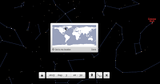
Planetarium by Neave Interactive is a website on which you can specify your current location and it will show you a map of the night sky based upon your location and the date. You can also use Planetarium without specifying your location and instead explore the night sky from any place on Earth. For Google Chrome users, Planetarium offers a Chrome Web App that you can add to your browser.
Applications for Education
Planetarium could be an excellent website and Chrome App to use in lessons about astronomy. Students can compare the constellations they see at home with those of people in other parts of the world at the same time. When students place their cursors over a star in the virtual planetarium they can see the star's name and the name of constellation that it belongs to.
This post originally appeared on Free Technology for Teachers
if you see it elsewhere, it has been used without permission.
Related StoriesMake Lesson Plans and Storyboards Pop With These New GuidesFive Nice NASA Resources for Teachers and StudentsHow to Save Time When Replying to Email
Richard Byrne
.
Blog
.
<span class='date ' tip=''><i class='icon-time'></i> Aug 05, 2015 10:04am</span>
|