Blogs
|
On Tuesday afternoon I met with the instructional technology facilitators in Mooresville, North Carolina. They are a great group of people doing excellent work with teachers and students. One of the things that we talked about during our meeting was how to share our ideas for using educational technology with the people that we serve. And, of course, we talked about how to support those people once we’ve shared our ideas with them.
One of the suggestions that I made to the group was to develop a four part messaging system to support the ideas we share with teachers. The system starts with a post on your blog in which you introduce a tool or strategy. That post should also be sent as an email. Then for the next couple of weeks write follow-up posts that support the implementation of the idea in the first post. These follow-up posts could be along the lines of "five ways to use X," "five teachers who have used X," "five things you might not have thought about regarding X." These follow-up posts can also be sent as emails. The overall purpose of this strategy is to remind and provide reinforcement for your ideas about educational technology.
Here’s how I have implemented this strategy in the past when introducing people to Thinglink.
Introductory post that includes an explanation of what Thinglink does and how it works.A post about five ways to use Thinglink. A reference back to the introductory post is included for the folks who missed it the first time.A post with examples of Thinglink projects completed by students. Again, a link to the introductory post is included for the folks who missed it the first time.A post introducing some less-obvious uses of Thinglink including some examples of app-smashing with Thinglink. For example, I often combine the use of PicMonkey and Thinglink. As with the two previous posts I include a link back to the introductory post that offers instruction on how to use Thinglink.
This post originally appeared on Free Technology for Teachers
if you see it elsewhere, it has been used without permission.
Related Stories7 Good Options for Building Digital Portfolios - A PDF HandoutFrequently Overlooked Useful YouTube Features - A PDF HandoutCreate Short Stories and More on Make Beliefs Comix
Richard Byrne
.
Blog
.
<span class='date ' tip=''><i class='icon-time'></i> Aug 05, 2015 10:12am</span>
|
|
A few years ago when I published my guide to using Blogger in the classroom I included a glossary of terms in it. That same glossary was also published as a stand-alone document that I often distribute when I lead webinars and workshops about blogging.
I created that glossary and others like it because I found that people in my workshops often had questions about the vocabulary that I and others were using. Distributing the glossary provides everyone in the workshop with a common vocabulary to use. Using that common vocabulary gives people a higher level of comfort in asking questions and more precision in articulating what they need from me.
We give students vocabulary lists and glossaries in our classrooms. We should do the same in professional development settings.
This post originally appeared on Free Technology for Teachers
if you see it elsewhere, it has been used without permission.
Related StoriesSupporting Teachers With Four Blog PostsCreate Short Stories and More on Make Beliefs ComixThe Week in Review - The Most Popular Posts
Richard Byrne
.
Blog
.
<span class='date ' tip=''><i class='icon-time'></i> Aug 05, 2015 10:12am</span>
|
|
1. Just ship it. Don’t spend too much time worrying about how the blog looks from a design standpoint because you can always tweak it later. When you’re getting started, any of the standard templates from Blogger, WordPress.com, KidBlog, Edublogs, or Weebly will do. The important thing is to get the blog started. As one of my bosses at FedEx used to say, "don’t let perfect be the enemy of good."
2. Send out a blogging mission and permission notice to parents. Your school may not have a policy about student blogging, but it’s still a good idea to send a notice to parents about why their children are blogging. If you work with students under 13, you will want to explain how their privacy will be protected (no faces posted, no last names, pen names, etc). Jen Deyenberg shared a good blogging permission form here. A quick Google search for "blogging permission slips" will generate a bunch of other samples to evaluate.
3. Review Internet safety and etiquette protocols with your students. Planet Nutshell offers an excellent set of cartoon videos on Internet safety.
4. Create guidelines for how the classroom blog is to be used by students. If you’re planning to use the blog for active discussions with students, talk with them about tone. You might make it a classroom activity to develop online discussion norms. If you’re planning to use the blog as place for students to showcase their work, talk with students about how to offer constructive criticism. If the blog is going to include a widget through which students submit assignments, talk about file types and formatting so that you don’t pull your hair out converting a myriad submitted file types.
5. Expect that something will go wrong. You can plan until the cows come home, but there is always something that doesn’t go according to plan. In the case of classroom blogs that could be a mistake you make in posting a link or an inappropriate comment that a student writes. Treat these mistakes like any other mistake that happens in a classroom and turn them into teaching opportunities. If you made a mistake in posting a link or you posted a video that didn’t play correctly, explain what happened to the students so that you can all learn together. If a student posts an inappropriate comment (you should have comment moderation enabled to grab it before it goes live) use that opportunity to review Internet safety and etiquette with the student.
This post originally appeared on Free Technology for Teachers
if you see it elsewhere, it has been used without permission.
Richard Byrne
.
Blog
.
<span class='date ' tip=''><i class='icon-time'></i> Aug 05, 2015 10:11am</span>
|
|
Last week I presented three webinars on behalf of Simple K12. If you couldn't attend the live sessions, you can now access the recordings through Simple K12.
Click the links below to access the webinar recordings and hand-outs.
Blogging With Blogger. Hand-out.
10 Best Google Drive Add-ons. Hand-out.
The YouTube You Don't Know. Hand-out.
This post originally appeared on Free Technology for Teachers
if you see it elsewhere, it has been used without permission.
Related StoriesGreat Google Drive Add-ons for Teachers - A PDF HandoutJoin Me for a Morning and Afternoon of Free WebinarsThe Week in Review - The Most Popular Posts
Richard Byrne
.
Blog
.
<span class='date ' tip=''><i class='icon-time'></i> Aug 05, 2015 10:09am</span>
|
|
Earlier today one of my former colleagues sent me a Facebook message with questions about using Remind this fall. To help her get started I created the following playlist of tutorial videos. Nine of the videos in the playlist were produced by Remind the others were created by me. The full playlist is embedded below.
Applications for Education
Using text messaging services like Remind is an important part of a larger strategy for delivering your school and classroom announcements to as many people as possible. Email is great for longer messages, but it's hard to beat the efficiency of text messages for short reminder notes. And when you need to say more than can fit in a typical text message, try attaching a file to your Remind messages.
This post originally appeared on Free Technology for Teachers
if you see it elsewhere, it has been used without permission.
Related StoriesRemind Opens a New Chat Feature For TeachersCelly - Create, Send, and Archive Group Text MessagesHow to Adjust the Chat Settings in Remind
Richard Byrne
.
Blog
.
<span class='date ' tip=''><i class='icon-time'></i> Aug 05, 2015 10:09am</span>
|
|
On Wednesday morning in Mooresville, North Carolina I presented an updated version of my popular best of the web slides. Those slides are embedded below. I try to provide something for everyone in the slides.
This post originally appeared on Free Technology for Teachers
if you see it elsewhere, it has been used without permission.
Related StorieseduClipper Updates With New Tagging and Discovery FeaturesA Short Interview With the Founder of Shadow Puppet Edu & SeeSawThis Playlist Will Help You Learn How to Use Remind to Send Messages to Students
Richard Byrne
.
Blog
.
<span class='date ' tip=''><i class='icon-time'></i> Aug 05, 2015 10:09am</span>
|
|
Vibby is a new service for breaking YouTube videos into segments and inserting comments into those segments. To segment a YouTube video on Vibby simply grab the URL for the video and paste into the Vibby editor. Once inserted into Vibby you can highlight a segment on the video timeline. Vibby then play only the sections you've highlighted. Click on a highlighted section to add a comment to it. Videos edited through Vibby can be shared via email, social media, or embedded into a blog or website.
Applications for Education
Vibby could be a good tool to use when you want to share with your students just a few pieces of a larger video. Using the comments in highlighted sections could be a good way to call attention to important parts of a video or to add further explanation to a section.
This post originally appeared on Free Technology for Teachers
if you see it elsewhere, it has been used without permission.
Related StoriesSupporting Teachers With Four Blog PostsGreat Google Drive Add-ons for Teachers - A PDF HandoutBest of the Web - Summer 2015 Update
Richard Byrne
.
Blog
.
<span class='date ' tip=''><i class='icon-time'></i> Aug 05, 2015 10:09am</span>
|
|
Disclosure: Storyboard That is an advertiser on FreeTech4Teachers.com
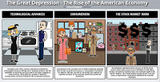
For the last couple of years Storyboard That has offered great guides to using storyboards in the classroom. The latest update to their Teacher Guides section includes new literature guides as well as guides for use in social studies and Spanish. A visit to the Teacher Guides section of Storyboard That reveals three new literature guides. Those guides are for teaching Stuart Little, Charlie and the Chocolate Factory, and Frankenstein. You will also find a guide to teaching The Great Depression with storyboards and guide to teaching Spanish Direct Object Pronouns.
Storyboard That offers thousands of pieces of artwork that you can use in your storyboards. Much of that artwork includes posable characters and other customizable pieces. In a new blog post Storyboard That's Sarah Laroche explains and demonstrates how to take advantage of the artwork and customizations to create a eye-catching scenes in your storyboards.
In February I hosted a webinar all about the features of Storyboard That and ideas for using it in your classroom. The recording of that webinar is embedded below.
This post originally appeared on Free Technology for Teachers
if you see it elsewhere, it has been used without permission.
Related StoriesTeaching The Hunger Games with StoryboardsMay Flowers - A Writing LessonVibby - Break YouTube Videos Into Segments With Commentary
Richard Byrne
.
Blog
.
<span class='date ' tip=''><i class='icon-time'></i> Aug 05, 2015 10:08am</span>
|
|
Tiny Tap is one of the free iPad and Android apps that continues to stay in my Best of the Web presentations. Whenever I show it off there is always a great response to it.
Tiny Tap allows you to create simple games based on pictures that you take. The purpose of the games you build is to help young students (pre-K through grade 4) practice identifying objects and patterns.
To create a game on Tiny Tap you upload pictures or take new pictures and arrange them into a set. Then select each image to create questions about it. To create your question press the record button and start talking. When you have finished talking select a portion of your picture to serve as the answer. I created a small game about objects in my house. I took four pictures of things in my house. Each question asked players to identify the objects in my house. For example, when a player sees a picture of my kitchen he or she has to identify the tea pot by touching it.
Applications for Education
I've been giving demonstrations of Tiny Tap for nearly three years now. Over those years I've heard some great suggestions for using the app. I've seen some great uses of it too. Some of the examples that stand out include making games to help students learn about locations on a map, to help students recognize patterns on a timeline, and to help students learn colors. Check out Tiny Tap's gallery of games for more ideas.
This post originally appeared on Free Technology for Teachers
if you see it elsewhere, it has been used without permission.
Related StoriesBest of the Web - Summer 2015 UpdateThree Webinar Recordings - Blogger, Google Drive, and YouTubeSupporting Teachers With Four Blog Posts
Richard Byrne
.
Blog
.
<span class='date ' tip=''><i class='icon-time'></i> Aug 05, 2015 10:08am</span>
|
|
Economics is one of my favorite subjects to teach to high school students so I was excited when I saw that Crash Course is publishing a new series of videos about economics. The new course is not hosted by Hank or John Green. The new course is hosting by Adriene Hill from Marketplace and high school teacher Jacob Clifford. Their pacing is a bit more relaxed that the Green brothers' style which could be a good thing for many students.
The first video in the series provides an introduction to what the study of economics is and isn't. Opportunity cost is the first big concept covered in the video. The first video is embedded below.
The second video and the rest of the playlist is embedded below.
Click here for five good resources on teaching personal finance lessons.
This post originally appeared on Free Technology for Teachers
if you see it elsewhere, it has been used without permission.
Related StoriesMore Physics Lessons About BikesShort Lessons on the Origins of EnglishAn Interactive Video Series About the Search for the Northwest Passage
Richard Byrne
.
Blog
.
<span class='date ' tip=''><i class='icon-time'></i> Aug 05, 2015 10:08am</span>
|