Blogs
|
My favorite educational video sharing site, Next Vista, is looking for help in choosing the best videos submitted during the last school year (2014-15). There are three Video of the Year categories; student creations, teacher creations, and collaborative creations (teachers and students producing together). One of the things that makes Next Vista outstanding is that all submitted and published videos teach some type of short lesson. All of the finalist videos exemplify that standard. If you are interested in judging the videos, the list of finalists and the judging form is available here.
One finalist video from each category can be seen embedded below.
This post originally appeared on Free Technology for Teachers
if you see it elsewhere, it has been used without permission.
Related StoriesHow to Use a Semicolon - A TED-Ed Lesson for Almost EveryoneThe Black Death In 90 Seconds - Three Years LaterJoin Me for a Morning and Afternoon of Free Webinars
Richard Byrne
.
Blog
.
<span class='date ' tip=''><i class='icon-time'></i> Aug 05, 2015 10:32am</span>
|
|
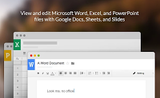
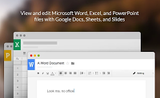
Let's say you're a devoted Google Docs user like me, but some of your colleagues are wedded to Microsoft Office products. To work with the files those colleagues send to you, you can either install Office yourself or try using Google's Office Compatibility Extension.
Google's Office Compatibility Extension enables you to drag Office files into Chrome, open them in Gmail, and open them in Google Drive (provided you are using the latest version of Google Drive). Once the file is opened you can edit it and save it in your Google Drive and or download it as an Office file to send to people who prefer Office files.
Office Compatibility is being rolled out to all Google Apps for Edu domains in the next few days. You can read more about that on the Google Apps Updates blog.
This post originally appeared on Free Technology for Teachers
if you see it elsewhere, it has been used without permission.
Related StoriesMy Maps - Create and Edit Maps in Google DriveReady or Not...The New Google Drive UI is Coming to YouA Quick Tip on Google Docs Formatting
Richard Byrne
.
Blog
.
<span class='date ' tip=''><i class='icon-time'></i> Aug 05, 2015 10:30am</span>
|
|
Last week I shared a small collection of resources related to the Tour de France. Last night I fell asleep watching a replay of the day's stage. This morning I explored the Google Earth file of the 2015 Tour de France route created by Velowire.com. Velowire's Google Earth map of the 2015 Tour de France includes not only the start and end points of each stage but also the intermediate hill climbs and sprints of most of the stages. Elevation profiles for each stage are also included in the file.
To find the Google Earth file about the Tour de France visit Velowire's page then scroll to the bottom and stop just before you reach the comments section.
H/T to The Google Earth Blog.
This post originally appeared on Free Technology for Teachers
if you see it elsewhere, it has been used without permission.
Related StoriesRealtime Board Offers Collaborative Brainstorming Tools on Your Laptop and TabletTry the Office Compatibility Extension to Open & Edit Files in ChromeHelp Next Vista Choose the Best Student and Teacher Videos of the Year
Richard Byrne
.
Blog
.
<span class='date ' tip=''><i class='icon-time'></i> Aug 05, 2015 10:29am</span>
|
|
One of the questions that frequently comes up in my workshops about Google Apps is about importing RSS feeds into Google Sites. Yes, you can import a blog's RSS feed into a page on a Google Site. To do this you will open the "insert menu" while editing a page in your Google Site, select "more gadgets," choose "RSS Feed," then enter the address of the blog that you want displayed in your Google Site. In the video embedded below I demonstrate the process for importing and RSS feed into Google Sites.
This post originally appeared on Free Technology for Teachers
if you see it elsewhere, it has been used without permission.
Related StoriesTry the Office Compatibility Extension to Open & Edit Files in ChromeMy Maps - Create and Edit Maps in Google DriveFotoJet - Another Free Tool for Creating Image Collages
Richard Byrne
.
Blog
.
<span class='date ' tip=''><i class='icon-time'></i> Aug 05, 2015 10:29am</span>
|
|
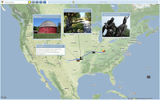
Animaps is a free service built for the purpose of allowing users to create animated Google Maps. The basics of creating maps in Animaps is very similar the process for creating maps in Google Maps. The main benefit of using Animaps over Google Maps is that you can create a tour of your placemarks that plays through according to the timing that you specify. Another benefit is that you can build in colored shapes to expand and contract to demonstrate patterns. You can also import images to your map from Flickr, Picassa, and Facebook.
Applications for Education
Animaps could be a great tool for having students create tours of historic events. You could also have students create fictional stories that they illustrate on Animaps.
This post originally appeared on Free Technology for Teachers
if you see it elsewhere, it has been used without permission.
Related StoriesProjection Wizard - Which Kind of Map is Best for Your Project?Measure Distances Between Places on NatGeo's Mapmaker InteractiveMy Maps - Create and Edit Maps in Google Drive
Richard Byrne
.
Blog
.
<span class='date ' tip=''><i class='icon-time'></i> Aug 05, 2015 10:28am</span>
|
|
Striking.ly is a service that can be used to create one page websites to show off your best digital work or to advertise an event. Striking.ly provides a variety of templates for digital portfolios and digital flyers. Each template can be customized by hovering your mouse on any element of the template and selecting the edit button. Free Striking.ly pages are assigned Striking.ly subdomains. Premium accounts can have custom domains.
Applications for Education
Creating a Striking.ly page could be a good way for students to showcase examples of their best images and videos. Students can also use Striking.ly pages to feature examples of their best writings.
This post originally appeared on Free Technology for Teachers
if you see it elsewhere, it has been used without permission.
Related StoriesMeasure Yourself - Comparing the Feet of AnimalsA Nice Tool for Creating Animated MapsHow to Import an RSS Feed Into Google Sites
Richard Byrne
.
Blog
.
<span class='date ' tip=''><i class='icon-time'></i> Aug 05, 2015 10:28am</span>
|
|
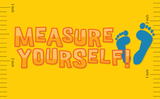
Measure Yourself is a fun, educational activity featured on the Lawrence Hall of Science website. Measure Yourself asks students to measure the size of their ears, feet, and overall height in centimeters. Students then plug those numbers into Measure Yourself and are shown a list of animals that have similar dimensions. I tried it and learned that my ears are almost as big as an armadillo's ears, my feet are longer than a bear's, and I'm taller than a grizzly bear walking on all four feet.
Applications for Education
Measure Yourself could be a fun way to introduce students to measurement using the metric system. The activity give students some familiar animals by which to gauge metric measurements.
This post originally appeared on Free Technology for Teachers
if you see it elsewhere, it has been used without permission.
Related StoriesDozens of Online Games About NatureHabitats - An Educational Game from the Smithsonian10 Resources for Teaching and Learning About Weather
Richard Byrne
.
Blog
.
<span class='date ' tip=''><i class='icon-time'></i> Aug 05, 2015 10:28am</span>
|
|
At the ISTE conference Bob Greenberg recorded dozens of short video segments with teachers talking about their passions. Bob is publishing those videos on his YouTube channel called The Brainwaves Video Anthology. My segment is embedded below (yes, I got sunburned the day before this was recorded).
This post originally appeared on Free Technology for Teachers
if you see it elsewhere, it has been used without permission.
Related StoriesTry Strikingly to Create Beautiful WebpagesMeasure Yourself - Comparing the Feet of AnimalsA Nice Tool for Creating Animated Maps
Richard Byrne
.
Blog
.
<span class='date ' tip=''><i class='icon-time'></i> Aug 05, 2015 10:28am</span>
|
|
This morning I answered an email from a reader who was looking for a little advice on keeping track of more than 150 Google Sites maintained by students as their digital portfolios. Here's the scenario that was described to me,
I have more than 150 students using e.Portfolios and I struggle with finding different students' work. I ask students to name their GoogleSites specifically so I can sort them. I have created a form for student to complete to keep a record of the links. Maybe you have a better way?This was my suggestion for attempting to keep track of all the sites. (I used this method myself with about 100 students a few years ago).
To make it easier to sort submissions I create student groups (not for collaboration, just for sorting) and make a different form for each group. Students have to submit their updates to the form that is assigned to their group. That way instead of having 150 students making submissions to one form I have 25 students making submissions to each of six forms. It's a little easier to sort through 25 students making submissions than 150 students making submissions to one form. I make it the responsibility of the students to enter their submissions on the correct form.
This post originally appeared on Free Technology for Teachers
if you see it elsewhere, it has been used without permission.
Related StoriesHow to Import an RSS Feed Into Google SitesTry the Office Compatibility Extension to Open & Edit Files in ChromeA Short Explanation of Google Apps Terminology
Richard Byrne
.
Blog
.
<span class='date ' tip=''><i class='icon-time'></i> Aug 05, 2015 10:27am</span>
|
|
To get the most out of your Google Drive experience there are some basic settings that you should know how to enable or disable if you don't want to use them. Those settings are using Google Docs offline, file conversion, and photo folder creation. In the video embedded below I demonstrate how to enable and disable those settings.
This post originally appeared on Free Technology for Teachers
if you see it elsewhere, it has been used without permission.
Related StoriesOne Strategy for Keeping Track of Students' Google SitesTry the Office Compatibility Extension to Open & Edit Files in ChromeA Short Explanation of Google Apps Terminology
Richard Byrne
.
Blog
.
<span class='date ' tip=''><i class='icon-time'></i> Aug 05, 2015 10:27am</span>
|