Blogs
|
Good morning from Maine where I am spending the weekend putting together all of the finishing touches for next week's Practical Ed Tech Summer Camp in Portland, Maine (one seat became available at the last minute). This is the third year in a row that I've organized this event and this year's event should be the best one yet.
Here are this week's most popular posts:
1. How to Use a Semicolon - A TED-Ed Lesson for Almost Everyone
2. Habitats - An Educational Game from the Smithsonian
3. EdTech Start-ups - Stop Talking Down to Teachers
4. How to Manage Classroom Digital Portfolios by Using Page-level Permissions in Google Sites
5. How to Create a Moderated Classroom Backchannel
6. A Nice Tool for Creating Animated Maps
7. How to Create a Multimedia Timeline
Summer PD Opportunities With Me.Teaching History With Technology begins on July 16th.
Would you like to have me visit your school? Click here to learn about my PD services.
Please visit the official advertisers that help keep this blog going.Practical Ed Tech is the brand through which I offer PD webinars.BoomWriter provides a fantastic tool for creating writing lessons. Storyboard That is my go-to tool for creating storyboards and cartoon stories.MidWest Teachers Institute offers online graduate courses for teachers.HelloTalk is a mobile community for learning a new language.Discovery Education & Wilkes University offer online courses for earning Master's degrees in Instructional Media.PrepFactory offers a great place for students to prepare for SAT and ACT tests.The University of Maryland Baltimore County offers graduate programs for teachers.Boise State University offers a 100% online program in educational technology.EdTechTeacher is hosting host workshops in six cities in the U.S. in the summer.SeeSaw is a great iPad app for creating digital portfolios.
This post originally appeared on Free Technology for Teachers
if you see it elsewhere, it has been used without permission.
Related StoriesThe Week in Review - The Most Popular PostsThe Month in Review - The Most Popular PostsThe Week in Review - Thank You Guest Bloggers
Richard Byrne
.
Blog
.
<span class='date ' tip=''><i class='icon-time'></i> Aug 05, 2015 10:27am</span>
|
|
On Saturday morning I published a short post explaining the terms Google Apps for Education, Google Drive, and Google Documents. In that post I mentioned that Google Documents can be used offline if you use the Chrome web browser and enable the offline setting for Google Drive (click here for video directions). This morning I awoke to a few emails from folks seeking clarification on the requirement to use the Chrome web browser.
You can use Google Drive and Google Documents in any recently modern web browser including Firefox, Internet Explorer, Safari, and Chrome. You can find out if you are using the most up to date version of a web browser by going to WhatBrowser.org. Simply visit WhatBrowser.org and you will be shown which web browser you're using and if it is the most updated version of that browser. Chrome is the web browser produced by Google. Learn more about web browsers in the video embedded below.
Cookies are small pieces of information that reside in your browser as a result of visiting a website and the activities that you do on that website. They can be helpful in loading a website more quickly in your browser and remembering information for you. They're also used in tracking browsing habits and placing targeted advertising on the websites you visit. In the video embedded below Common Craft provides a good explanation of cookies.
This post originally appeared on Free Technology for Teachers
if you see it elsewhere, it has been used without permission.
Related StoriesA Short Explanation of Google Apps TerminologyHow to Import an RSS Feed Into Google SitesOne Strategy for Keeping Track of Students' Google Sites
Richard Byrne
.
Blog
.
<span class='date ' tip=''><i class='icon-time'></i> Aug 05, 2015 10:26am</span>
|
|
Like a lot of the conferences that I attend, at the ISTE conference I had conversations with a bunch of people who were seeking advice about blogging. At some point almost of those people would say something like, "my blog is small, I only have a few hundred followers." Or they would say, "I'm on Twitter, but I only have one thousand followers." My response to both statements is, "that's awesome!" After that statement I follow up with some context to explain why 1,000 people is a lot of followers.
New bloggers and podcasters often get obsessed with how many followers they have. When you have a few hundred or one thousand followers that can seem like a small amount when you compare it to the more established blogs in a niche. But don't compare your follower/ subscriber count to that of more established bloggers. Instead compare your current subscriber/ follower count against the previous month's. Look to grow month by month not to become the world's most popular blogger in one month.
Let's put 1,000 followers into context. I live in a town of roughly 1,000 people. If I sent a letter to every person in town, I might get positive responses from 20 people. But if I send an email, publish a blog post, or produce a podcast episode for 1,000 people who have in someway said, "yes, I want to get more information from Richard" then I am going to get a far higher rate of response and engagement. Put another way, picture getting all of your followers together in one place and then you'll realize that 1,000 followers is a lot of people.
338,000 people like my Facebook page, but I get more responses from the 6,000 people who subscribe to the PracticalEdTech.com weekly newsletter. Creating a successful blog or podcast isn't about having the most followers, it's about having engaged followers.
This post originally appeared on Free Technology for Teachers
if you see it elsewhere, it has been used without permission.
Related StoriesOnline Course - Blogs & Social Media for Teachers Begins Tomorrow NightWeb Browsers and Cookies ExplainedThe Week in Review - Preparing for Camp
Richard Byrne
.
Blog
.
<span class='date ' tip=''><i class='icon-time'></i> Aug 05, 2015 10:26am</span>
|
|
At one point or another we've all said, "I'm just going to check Facebook/ Twitter/ Pinterest for a minute then I'll get back to work." It's funny how that minute can quickly become ten or twenty minutes. Here are a couple of Chrome extensions that I use when I find myself falling into social media vortex and not being as productive as I should be. These extensions are equally useful to students as they are to adults.
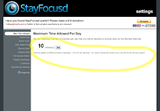
Stay Focusd is a Chrome extension designed to help you stop wasting time on sites like Facebook and get your work done instead. With Stay Focusd installed you can set a time limit for yourself for how much cumulative time in a day that you spend on sites like Facebook, Pinterest, and Twitter. Once you've used up your self-allotted time on those sites you won't be able to revisit them in that browser for 24 hours.
Dayboard is a free Google Chrome extension that opens your daily to-do list every time you open a new tab in Chrome. When you open a new tab for the first time Dayboard will appear and ask you to enter your to-do list for the day. After creating your to-do list for the rest of the day whenever you open a new tab you will see your list. You can place a checkmark next to items as you complete them. Dayboard does not require you to create an account, it works offline, and when I installed it it only asked for permission to view activity on the Dayboard website.
This post originally appeared on Free Technology for Teachers
if you see it elsewhere, it has been used without permission.
Related StoriesAdvice for New Bloggers - Numbers Aren't Always What They SeemWeb Browsers and Cookies ExplainedThe Week in Review - Preparing for Camp
Richard Byrne
.
Blog
.
<span class='date ' tip=''><i class='icon-time'></i> Aug 05, 2015 10:26am</span>
|
|
This is a guest post from Avra Robinson (@AvraRachel) of EdTechTeacher - an advertiser on this site.
Vocaroo is a simple, free voice recorder that allows users to create an audio recording with just a few clicks. Once recorded, the audio file can remain on the Vocaroo servers and be easily transmitted via a link, or it can be downloaded into several different file types including MP3, Ogg, FLAC, or WAV. Additionally, it can be embedded onto a blog or website or shared via several social media buttons.
Since Vocaroo is web-based, it’s an ideal companion for the Chromebook classroom or any web-based environment. Students and teachers can easily record and share their thoughts with each other. The audio recordings become great opportunities for formative assessment and feedback as well as a neat way to have students double-check their writing for errors.
3 Classroom Applications:Formative FeedbackStudents can record 30-60 seconds of audio feedback about a new concept, and teachers can then collect links to the audio recordings in a Google Form or via a Padlet wall. Within 30 minutes, teachers could have a pulse on how well their students are understanding the ideas shared.
Peer FeedbackAs students give peer-to-peer feedback using the comments function in a Google Doc, they can easily insert a Vocaroo link to provide an audio comment. This is especially helpful when they want to share ideas that are too lengthy to type. Teachers can do the same as they provide feedback to students about their work.
Read Aloud to Catch MistakesPrior to submitting a draft of an essay, teachers can require students to read the essay aloud in a Vocaroo recording to catch mistakes and hear their essay. While teachers often encourage students to do this on their own, requiring a link to them reading it aloud would ensure that students see the process through. The link to the recording could be shared in a comment within the Google Doc or even added at the top of the essay. This simple task can help augment students’ oral reading fluency and help them catch potential mistakes that they might not have caught by reading their work quietly to themselves.
To learn more about working with Google Apps, Web Tools, and Chromebooks, EdTechTeacher provides FREE resources on their website.
This post originally appeared on Free Technology for Teachers
if you see it elsewhere, it has been used without permission.
Related StoriesTwo Chrome Extensions That Can Help You Stay on TaskAdvice for New Bloggers - Numbers Aren't Always What They SeemWeb Browsers and Cookies Explained
Richard Byrne
.
Blog
.
<span class='date ' tip=''><i class='icon-time'></i> Aug 05, 2015 10:25am</span>
|
|
Last month I wrote about a new audio publishing network called Spoken. Spoken is designed for sharing audio recordings of four minutes or less. Spoken describes itself as "Instagram for audio." On Spoken you can upload audio recordings that are up to four minutes long then attach cover images to those recordings.
The most significant update to Spoken is the option to recordings into blog posts. I've done just that with the Spoken recording announcing updates to the Spoken platform. Listen to the recording as embedded below.
Applications for Education
Spoken could provide a good way for high school or college students to share audio recordings in which they reflect on learning experiences and or share advice with other students. As a teacher you would have to follow each of your students to hear their recordings.
AudioBoom is a service similar to Spoken that offers a service specifically for students and teachers.
Spoken is currently in beta. You will need to request an invite to use the service. My invitation arrived about 24 hours after my request.
This post originally appeared on Free Technology for Teachers
if you see it elsewhere, it has been used without permission.
Related StoriesSpoken - A Network for Publishing Short Audio RecordingsAdvice for New Bloggers - Numbers Aren't Always What They SeemHow to Privately Share Audio Recordings on SoundCloud
Richard Byrne
.
Blog
.
<span class='date ' tip=''><i class='icon-time'></i> Aug 05, 2015 10:25am</span>
|
|
Yesterday, at that the third annual Practical Ed Tech Summer Camp Jim Wells spent about an hour sharing ideas for using Google Maps and Google Earth in variety of classroom settings. Google Earth offers a vastly more robust set of features than Google Maps offers. However, Google Maps is easier to access and is initially easier to understand. I have a set of Google Maps tutorial videos that I've created over the last year. Those videos are included in the playlist embedded below.
This post originally appeared on Free Technology for Teachers
if you see it elsewhere, it has been used without permission.
Related StoriesProjection Wizard - Which Kind of Map is Best for Your Project?How to Download KML Data from Google MapsA Nice Tool for Creating Animated Maps
Richard Byrne
.
Blog
.
<span class='date ' tip=''><i class='icon-time'></i> Aug 05, 2015 10:24am</span>
|
|
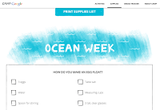
Once again this summer Google is offering an online educational camp for kids. Camp Google is a four week program designed for seven to ten year old children. Each week has its own theme. This week is Ocean Week.
Camp Google features videos, live and recorded, with experts in each week's thematic topic. The videos are designed to inform as well as prompt further inquiry by students. Students can conduct virtual investigations through Camp Google. Students, with the help of an adult, can also participate in hands-on learning activities related to the theme of each week of Camp Google. Materials lists for the hands-on activities are available to download on the Camp Google website.
Applications for Education
Camp Google is designed to be used as a summer learning experience for children to participate in with the help of a parent or other adult. The online activities and the hands-on activities could be used by teachers when students return in the fall. Elementary school teachers should take a look at the hands-on activities materials lists to get ideas for hands-on activities to do in their classrooms.
This post originally appeared on Free Technology for Teachers
if you see it elsewhere, it has been used without permission.
Related StoriesMeasure Yourself - Comparing the Feet of AnimalsDozens of Online Games About Nature10 Resources for Teaching and Learning About Weather
Richard Byrne
.
Blog
.
<span class='date ' tip=''><i class='icon-time'></i> Aug 05, 2015 10:24am</span>
|
|
Auto Text Expander for Google Chrome is a convenient Chrome extension that I've recently started using. The extension enables me to create keyboard shortcuts for words and phrases that I frequently use in emails.
To get started saving time sending emails install Auto Text Expander for Google Chrome. Once the extension is installed you will be sent a page to create your database of shortcuts. A handful of sample shortcuts are provided for you to help you understand how to format your shortcuts. After creating your shortcuts database you're ready to start using them in email and other web applications.
To use your Auto Text Expander for Google Chrome shortcuts in your email just type the shortcut and hit the space bar to see the full text appear. For example, I have a shortcut "tyfr" that I now use when I want to write "thank you for reading my blog" in an email.
Applications for Education
At the beginning of every new semester I find myself answering the same type of question fairly frequently. You probably experience the same. Auto Text Expander for Google Chrome should make replying to those frequently asked questions a bit easier than before.
This post originally appeared on Free Technology for Teachers
if you see it elsewhere, it has been used without permission.
Related StoriesTwo Chrome Extensions That Can Help You Stay on Task5 Google Maps Tutorials for Teachers and Students3 Helpful Google Drive Settings You Should Know
Richard Byrne
.
Blog
.
<span class='date ' tip=''><i class='icon-time'></i> Aug 05, 2015 10:24am</span>
|
|
Earlier this week at the Practical Ed Tech Summer Camp a number of us used Stupeflix to create videos. Stupeflix doesn't require users to register in order to produce a video. In the video embedded below I demonstrate how to use Stupeflix to create a video without registering on the site.
This post originally appeared on Free Technology for Teachers
if you see it elsewhere, it has been used without permission.
Related StoriesWeVideo Makes Updates to Their Online Video EditorStupeflix - Create Audio Slideshow Videos Without RegistrationSpring Timelapse - A Video Project
Richard Byrne
.
Blog
.
<span class='date ' tip=''><i class='icon-time'></i> Aug 05, 2015 10:24am</span>
|