Blogs
|
Projection Wizard is an interesting tool developed by Bojan Šavrič at Oregon State University. The purpose of Projection Wizard is to help cartographers select the best map projections for their projects.
To use the Projection Wizard select a distortion property from a menu appearing to the left of the map. Then use the highlighting tool to select the portion of the map that your project focuses on. After you make your map and menu choices you'll be shown a list of the projections that are appropriate for your project.
Applications for Education
Projection Wizard is a more advanced tool than most high school geography courses would need. That said, I would use the Projection Wizard to have students discuss the flaws of various map projections. We'd also talk about why a particular type of projection is better than another for different types of projects.
H/T to Maps Mania.
This post originally appeared on Free Technology for Teachers
if you see it elsewhere, it has been used without permission.
Related StoriesArcGIS Online - Introduce Students to GIS Beyond What Google Maps OffersKnoword - A Fun and Challenging Vocabulary GameMeasure Distances Between Places on NatGeo's Mapmaker Interactive
Richard Byrne
.
Blog
.
<span class='date ' tip=''><i class='icon-time'></i> Aug 05, 2015 10:43am</span>
|
|
Last summer I reviewed an excellent online learning environment called Otus. The first time that I saw it I was impressed by the functions that it offered. Since then Otus has steadily added more features and this week released a completely revamped web interface for teachers.
In addition to a more intuitive user interface some of the features of the updated Otus platform that jumped out to me include real-time analytics updates, third party app integration, easier seating chart movements, and easier recording of information. The improved analytics menu updates and recalculates as you record information about your students. This is true whether you're recording behavior and attendance information or you're recording scores from assessments.
Admittedly, it had been a while since I tried to update my student roster in Otus. When I went to update it today I found it was easier than before as I simply dragged and dropped student names into place on my seating chart.
Otus now allows you to integrate select third party applications into your account. A couple third party applications of note are Khan Academy and OpenEd. OpenEd offers thousands of math and language arts practice assessments aligned to Common Core standards.
If you're looking for a new online course management system to use in the next school year, give Otus a try. I think you will be impressed by the capabilities it offers.
This post originally appeared on Free Technology for Teachers
if you see it elsewhere, it has been used without permission.
Related StoriesProjection Wizard - Which Kind of Map is Best for Your Project?Three Tools to Help Students Find Books to Read This Summer118 Practical Ed Tech Tips Videos
Richard Byrne
.
Blog
.
<span class='date ' tip=''><i class='icon-time'></i> Aug 05, 2015 10:43am</span>
|
|
The LEGO Liberty Bell in PHL
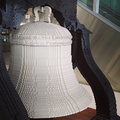
terminal A.Tomorrow morning I am traveling to Philadelphia for the annual ISTE conference. I know that a lot of you would have liked to attend this year too. And while nothing can fully replace being there, I will try my best to share with you my big take-aways from the conference. I'll share on Twitter, Instagram, and here on FreeTech4Teachers.com. If there is something that you have a particular interest in learning about from the ISTE conference please complete the short survey below. I'll do my best to cover the most popular selections on the survey.
If you are going to be at ISTE, I would love to meet you. On Monday afternoon I'll be speaking on a panel discussion about professional development. On Tuesday morning you can find me in the Storyboard That booth in the exhibit hall. The rest of the time I'll be popping into presentations and hanging out in the Blogger's Cafe (open to everyone). Please stop me and say hello. (I look just like I do in my pictures except I won't have my dogs with me).
This post originally appeared on Free Technology for Teachers
if you see it elsewhere, it has been used without permission.
Related StoriesProjection Wizard - Which Kind of Map is Best for Your Project?7 Summer Travel Tips for TeachersOtus Releases an Update Online Learning Environment
Richard Byrne
.
Blog
.
<span class='date ' tip=''><i class='icon-time'></i> Aug 05, 2015 10:42am</span>
|
|
For the fifth year in a row Sikorsky is hosting a helicopter design contest for students. The Helicopter 2050 Challenge asks students between the ages of nine through sixteen, to design unique and environmentally-friendly helicopters.
To enter the challenge students should sketch/ illustrate their helicopter designs, how the helicopter will work, the environmentally-friendly aspects of their designs, and what makes their helicopters from others that currently exist. The winner of the design contest receives a scholarship from Sikorksy and a trip to Sikorsky headquarters.
Sikorsky has put together a nice brainstorming page to help students develop ideas for their helicopter designs. For schools and museums Sikorsky has a digital binder of activities designed around the Helicopter 2050 contest.
This post originally appeared on Free Technology for Teachers
if you see it elsewhere, it has been used without permission.
Related StoriesThe Week in Review - The Most Popular PostsProjection Wizard - Which Kind of Map is Best for Your Project?118 Practical Ed Tech Tips Videos
Richard Byrne
.
Blog
.
<span class='date ' tip=''><i class='icon-time'></i> Aug 05, 2015 10:42am</span>
|
|
Road to Grammar is a free resource featuring quizzes, games, and lessons for English language learners. Visitors to Road to Grammar will find grammar quizzes. Most of the quizzes provide students with instant feedback. Part of the feedback that students receive on the quizzes they take includes explanations why an answer is correct or incorrect. Before taking the quizzes visitors can work through a series of practice activities.
Applications for Education
In addition to the resources that students can use individually, Road to Grammar offers some downloadable resources for teachers. Teachers will find the collection of eight downloads offer discussion starters for English lessons, lesson warm-up activities, and some worksheets.
This post originally appeared on Free Technology for Teachers
if you see it elsewhere, it has been used without permission.
Related StoriesConsumer Education at the MallTeaching American History Through ArtDesign a Green Helicopter for Sikorsky's Helicopter 2050 Challenge
Richard Byrne
.
Blog
.
<span class='date ' tip=''><i class='icon-time'></i> Aug 05, 2015 10:42am</span>
|
|
Picturing America is a project of the National Endowment for the Humanities and the American Library Association. Picturing America is an interactive gallery of artwork related to events, people, and themes in American history. You can browse the gallery chronologically or by theme. Click on any image in the gallery to learn about the artist and the artwork itself. Along with the background information for each image, Picturing America provides links to additional resources for learning about the artwork and artists.
Applications for Education
Picturing America's Educators Resource page contains a resource book that you can download for free. The resource book contains printable background sheets about each piece of art in the Picturing America gallery. The resource book includes questions and activity suggestions for using each piece of art in elementary school, middle school, and high school classrooms. The resource book can be downloaded as one file or you can download chapters individually.
This post originally appeared on Free Technology for Teachers
if you see it elsewhere, it has been used without permission.
Related StoriesDozens of Online Games and Quizzes About GrammarProjection Wizard - Which Kind of Map is Best for Your Project?Using Sumo Paint and PicMonkey in Elementary Art
Richard Byrne
.
Blog
.
<span class='date ' tip=''><i class='icon-time'></i> Aug 05, 2015 10:41am</span>
|
|
This is a guest post from Kate Wilson (@katewilson13) of EdTechTeacher, an advertiser on this site.
Stop Motion was one of the original video creation techniques. By stringing together a series of single images and displaying them quickly in order, film was born. Now on iPad, Stop Motion can be used as a technique for capturing learning as it happens, making drawings, models, science projects, or counting exercises come alive. Consider the power of creating a digital flipbook that could later be viewed as a video.
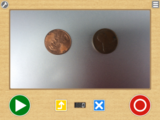
Introduction to KomaKomaKomaKoma is a FREE Stop Motion iPad App that can compile together a series of photos taken in the app and then export them to the Camera Roll as a video. With a simple user interface consisting of only a few buttons, KomaKoma is very intuitive. The app launches the camera automatically (first time app users will have to allow the Camera access). A big red record button captures each image in sequence, and a big green play button plays the images back as a video. The only other 2 editing buttons are a blue "X" to delete the last image taken, and a yellow arrow for saving the video to the app’s Gallery.
A great feature that sets this app aside from a regular video creation app like iMovie, is the Onion Skin. While you move/draw/create each image, the previous image remains on the screen but slightly transparent allowing the creator to line up the old and new images to create a fluid video. Onion Skin and other settings such as playback speed, camera orientation, and a time lapse feature can be turned on and off under the Settings in the upper right corner of the app (a little wrench).
The number of images in a "FlipBook" is logged on a counter at the bottom. To preview the images in the sequence, tap the green Play button to watch your video on a continuous loop. Tapping the play button again will pause and allow for continued editing. Once you are satisfied with the video, tap the yellow up arrow to send the video to the KomaKoma app’s Gallery. If you would like to send the video the Camera Roll to use it somewhere else, or view it in another app, tap on the Gallery icon in the upper right and then select the clip. This automatically pops up an Options menu offering a variety of features including Saving to the Camera Roll.
The biggest challenge for the app is coming up with a device that can hold the iPad steady enough to capture the images seamlessly. The example video using PlayDoh used the PlayDoh containers stacked up on either side of the iPad as a stand.
Ideas for using KomaKoma in the classroom:Demonstrating mathematics understanding with manipulatives and/or hand writingShowing the process carried out of a science experiment step by stepBringing life to a diorama with moving Lego charactersUsing the time lapse feature to study a slow moving process (Note: iPad must be plugged in and iPad sleep settings altered to NOT turn off).Bonus Tip!: Have a Greenscreen App like DoInk’s Green Screen? Manipulate objects in front of green wrapping paper or construction paper, then bring the video into your favorite Green Screen app to place your objects anywhere!
Do you have a story to tell about using iPads in the classroom? Submit a proposal to the EdTechTeacher iPad Summit in Boston, November 17-18, 2015. Proposals due August 31, 2015. Learn more at ettipad.org/cfp
This post originally appeared on Free Technology for Teachers
if you see it elsewhere, it has been used without permission.
Related StoriesDozens of Online Games and Quizzes About GrammarTeaching American History Through ArtDesign a Green Helicopter for Sikorsky's Helicopter 2050 Challenge
Richard Byrne
.
Blog
.
<span class='date ' tip=''><i class='icon-time'></i> Aug 05, 2015 10:40am</span>
|
|
Disclosure: SeeSaw's parent company is an advertiser on FreeTech4Teachers.com
SeeSaw, a powerful and popular iPad app for creating digital portfolios, is now available as a Chrome web app and as an Android app. The new apps allow students to create and add content to digital portfolios.
Through SeeSaw students can add artifacts to their portfolios by taking pictures of their work (in the case of a worksheet or other physical item), by writing about what they've learned, or by uploading a short video about things they have learned. The SeeSaw apps students can add voice comments to their pictures to clarify what their pictures document. Students can create folders withing their accounts to organize content from multiple subject areas.
Applications for Education
To get started with Seesaw create a free classroom account. Students join the classroom by scanning a QR code (you will have to print it or project it) or entering a classcode that grants them access to your Seesaw classroom. As the teacher you can see and sort all of your students' Seesaw submissions. SeeSaw allows parents to create accounts through which they can see the work of their children. As a teacher you can send notifications to parents when their children make a new SeeSaw submission.
This post originally appeared on Free Technology for Teachers
if you see it elsewhere, it has been used without permission.
Related StoriesLeave Audio Comments for Students In Their Digital Portfolios on SeeSawDesign a Green Helicopter for Sikorsky's Helicopter 2050 ChallengeThe Week in Review - The Most Popular Posts
Richard Byrne
.
Blog
.
<span class='date ' tip=''><i class='icon-time'></i> Aug 05, 2015 10:39am</span>
|
|
On Monday afternoon at the ISTE conference I was one of four people on a panel discussion titled Redefining Professional Development for the Curriculum of the Future. Unfortunately, I didn't get as much time to speak as I had hoped for. Throughout the discussion I was taking notes on what the other panelists were saying. These are my big takeaways from those panelists along with two points that I tried to make.
1. Nobody wants more for kids than parents. - Rob Burggraaf was talking about organizing parent night to show parents the benefits of their children using technology.
2. Saying no to technology is saying no to advancing student learning. - Linda Cole talking about getting teachers on board with technology integration programs.
3. Technology centers (in a classroom) aren't just for Kindergarten classrooms. - Ashley Hays talking about using technology throughout the school day.
4. Plan your technology goals to be a positive influence in students' lives beyond the time they are in your school. - Me talking about designing technology integration programs.
5. Celebrate the technology innovators in your school. Encourage them to their good work to with other teachers. - Me talking about getting teachers excited about using technology.
This post originally appeared on Free Technology for Teachers
if you see it elsewhere, it has been used without permission.
Related StoriesSeeSaw - Easily Create Digital Portfolios on iPads, Chromebooks, and Android TabletsCreate Stop Motion Animations with KomaKomaDozens of Online Games and Quizzes About Grammar
Richard Byrne
.
Blog
.
<span class='date ' tip=''><i class='icon-time'></i> Aug 05, 2015 10:39am</span>
|
|
Last summer at ISTE 2014 I learned about 81Dash. One year later 81Dash is still going strong and has launched a revamped user interface. All of the same great features of 81Dash are still there, they're just a bit easier to find and use than before.
At its most basic level 81Dash provides teachers with a place to host a chat or backchannel conversation that is moderated. Teachers can create and manage multiple chatrooms within their 81Dash accounts. In addition to chat teachers can post notes and task lists that are separate from the chat. Students can see those notes and task lists by selecting "notes" or "tasks" within an 81Dash room.
Students join your 81Dash room by going to the URL that is assigned to your room. When they arrive at your room for the first time they will be asked to register. There are two registration options. Registering as a "guest user" does not require students to enter email addresses. Students can also sign into 81Dash with their Google Accounts or Microsoft accounts.
Applications for Education
81Dash resolves the complaint that teachers have about many backchannel tools. That complaint is not having a way to delete messages or delete a room if students write inappropriate things in the backchannel. 81Dash's notes and tasks features could be helpful to students in keeping track of assignments for your class.
This post originally appeared on Free Technology for Teachers
if you see it elsewhere, it has been used without permission.
Related StoriesHow to Embed TodaysMeet Rooms Into Your BlogSeeSaw - Easily Create Digital Portfolios on iPads, Chromebooks, and Android TabletsDesign a Green Helicopter for Sikorsky's Helicopter 2050 Challenge
Richard Byrne
.
Blog
.
<span class='date ' tip=''><i class='icon-time'></i> Aug 05, 2015 10:39am</span>
|