Blogs
|
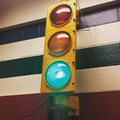
Good morning from sunny Woodstock, Maine where I'm home after a great week in which I spent time with teachers in Nappannee, Indiana. A big thank you to all of Val Anglemyer and Jim Bennett for making that possible. While I was in the school I noticed a set of traffic lights in the cafeteria. I was curious about them and asked what they were for. The lights are connected to a sound meter so that the students can see when they are being too loud during lunch. I thought it was a clever strategy.
Here are this week's most popular posts:
1. 7 Tools for Building Review Games
2. 20 Good Map Creation Tools for Students
3. How to Get Your School Announcements to as Many People as Possible
4. 10+ Resources for Learning About the Math and Science of Sports
5. Use Your Phone to Control Google Slides Remotely
6. Jellybean Writer - An Online Tool for Creating Picture Books
7. 5 Good Online Educational Resources from the Smithsonian Museums
Summer PD Opportunities With Me.Teaching History With Technology begins in July.
Getting Going With GAFE is offered in June and July.
Blogs & Social Media for Teachers and School Leaders is offered in July.
Would you like to have me visit your school? Click here to learn about my PD services.
Please visit the official advertisers that help keep this blog going.Practical Ed Tech is the brand through which I offer PD webinars.BoomWriter provides a fantastic tool for creating writing lessons. Storyboard That is my go-to tool for creating storyboards and cartoon stories.MidWest Teachers Institute offers online graduate courses for teachers.HelloTalk is a mobile community for learning a new language.Discovery Education & Wilkes University offer online courses for earning Master's degrees in Instructional Media.PrepFactory offers a great place for students to prepare for SAT and ACT tests.The University of Maryland Baltimore County offers graduate programs for teachers.Boise State University offers a 100% online program in educational technology.EdTechTeacher is hosting host workshops in six cities in the U.S. in the summer.SeeSaw is a great iPad app for creating digital portfolios.
This post originally appeared on Free Technology for Teachers
if you see it elsewhere, it has been used without permission.
Related StoriesThe Week in Review - The Most Popular PostsThe Week in Review - Thank You Guest BloggersMonth in Review - The Most Popular Posts
Richard Byrne
.
Blog
.
<span class='date ' tip=''><i class='icon-time'></i> Aug 05, 2015 10:49am</span>
|
|
It's a rainy Sunday morning here in Maine. I'm sure the rain put a damper on a few picnics today. It certainly caused a change in my plans for the day. But at least the rain inspired me to look back at some of the many resources for teaching and learning about weather that I have reviewed over the years. Here are ten resources for teaching and learning about weather.
The History of the Barometer. This TED-Ed lesson covers the history, development, and use of barometers in forecasting the weather.
Why Are There Clouds? is a relatively new Minute Earth video that explains how clouds are formed and how they rise or fall in the sky. The nice thing about Minute Earth videos is that a list of references is included in each video's description on YouTube.
Thirstin's Water Cycle takes students on an animated and narrated tour of the water cycle from water, to vapor, to clouds, to rain. Thirstin's Tour of a Water Treatment Plant takes students on a narrated tour through a typical water treatment facility found in the United States.
Waterlife is an interactive story about the water cycle in the Great Lakes. Waterlife is a twenty part story through which students can learn about the role of water in our lives. Through the story students learn about things like fishing, pollution, invasive species, wetlands, and the politics of water conservation. When students select a part of the Waterlife story they will be able to hear narration, see visuals, and read the text of the story. Some parts of the story also contain links to external resources that student can explore.
Scholastic's Interactive Weather Maker is an activity in which students adjust temperatures and humidity levels to create rain and snow storms. Students simply move the temperature and humidity sliders until rain or snow begins to show up in the scene on their screens.
The Smithsonian Science Education Center's Weather Lab is a simple online activity designed to help elementary and middle school students learn about weather patterns. In the Weather Lab students select an ocean current and an air mass then try to predict the weather pattern that will result from their choices. The Weather Lab provides an overview of the characteristics of each air mass and ocean current. Students should use that information in making their weather predictions. After making their predictions the Weather Lab will tell students if they were correct or not. In the feedback given to students they will find links to videos for further learning about each weather pattern featured in the Weather Lab.
The following short explanatory video from Presh Talwalkar explains how windchill is calculated
Wild Weather Kitchen Experiments is a short series of instructional videos produced by The Open University. Each of the four videos in the series features a short lesson followed by directions for an experiment that you can carry out to see the lesson's concepts in action. The four lessons are on avalanches, tornadoes, floods, and dust storms.
Television news reporters like to use the word "extreme" whenever we have a lot of rain or snow in a short amount of time. Is the weather really "extreme" or is that just our impression of it? The following Minute Earth video takes on the topic of how extreme weather affects our thinking about weather patterns in general. I found the video to be interesting from a psychology perspective. The video is embedded below.
The following episode of Bytesize Science embedded below explains how snowflakes are created.
Videos like those in the list above are excellent candidates to be used as parts of flipped lessons. VideoNotes, Vialogues, and EDpuzzle are solid tools for hosting discussions around shared educational videos.
This post originally appeared on Free Technology for Teachers
if you see it elsewhere, it has been used without permission.
Related StoriesSmithsonian Weather Lab - Learn About Weather Patterns and Make Forecasts10+ Resources for Learning About the Math and Science of SportsThe Math of Michael Jordan's Hang Time
Richard Byrne
.
Blog
.
<span class='date ' tip=''><i class='icon-time'></i> Aug 05, 2015 10:49am</span>
|
|
Developing fiction stories comes easily to some students. For others it can be a struggle to come up with ideas for fiction stories. The apps and sites in the PDF embedded below can help students start creative stories. A few of the tools in the document will also help you provide your students with feedback on their stories.
Click here if cannot see the embedded document.
This post originally appeared on Free Technology for Teachers
if you see it elsewhere, it has been used without permission.
Related StoriesJellybean Writer - An Online Tool for Creating Picture BooksHow to Turn Your Blogger Blog Into a Book - VideoMay Flowers - A Writing Lesson
Richard Byrne
.
Blog
.
<span class='date ' tip=''><i class='icon-time'></i> Aug 05, 2015 10:49am</span>
|
|
My recent about Jellybean Writer, an online picture book maker, was one last week's most popular posts. If you missed it, I have a description of it below along with four other good tools for creating picture books.
Using pictures as the basis for a story can be a good way to get students to write a story. The pictures can serve as prompts for writing the story. All five of the tools listed below have that capability.
Picture Book Maker allows students to create six page stories by dragging background scenes into a page, dragging in animals and props, and typing text. All of the elements can be sized an positioned to fit the pages. Text is limited to roughly two lines per page. Completed stories are displayed with simple page turning effects. Stories created on Picture Book Maker can be printed and or saved as PDFs.
MyStorybook is a nice online tool for creating short storybooks. MyStorybook provides blank pages on which you can type, draw, and place clipart. Your storybook pages can also include pictures that you upload. After signing into your MyStorybook account you can start creating your first book. Click on the text fields to edit any existing text in the title and author fields. You can add more text by clicking "text" in the editing menu. To add a picture of your own select "items" in the editing menu. At the bottom of the "items" menu you will find an option to upload your own images. MyStorybook provides lots of stock imagery that you can place on a page or use as the background to a page. If you want to branch-out beyond text and images, use the drawing tools on your pages.
Storybird provides templates and artwork for creating digital stories. To use Storybird you simply select a theme (layout) then drag and drop the drawings you like into your story. Once you've selected drawings for your story, you then write in the text of your story. Using Storybird, anyone can create great-looking digital picture book stories regardless of your drawing skills or lack of drawing skills. Storybird can be used on your iPad. The video embedded below demonstrates how.
Storybird Editor from Storybird on Vimeo.
Alphabet Organizer is a great little tool from Read Write Think that students can use to create alphabet charts and books. The idea behind Alphabet Organizer is to help students make visual connections between letters of the alphabet and the first letter of common words. In the video below I demonstrate how to use this tool.
Jellybean Writer is a free tool for creating picture books. Students can import pictures from their computers then write captions for each image. A variety of layout templates, background colors, and fonts are available to Jellybean Writer users. All stories can be saved online or downloaded and printed. If picture books are too simple for your students, they can skip using pictures and select one of the text only templates for the pages in their books.
This post originally appeared on Free Technology for Teachers
if you see it elsewhere, it has been used without permission.
Related Stories10 Good Apps & Sites for Creative Writing ProjectsJellybean Writer - An Online Tool for Creating Picture BooksRemind Opens a New Chat Feature For Teachers
Richard Byrne
.
Blog
.
<span class='date ' tip=''><i class='icon-time'></i> Aug 05, 2015 10:48am</span>
|
|
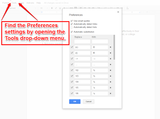
This afternoon I was working on a document in Google Docs that included a list. I did want to use numbers for my list, but I didn't want to use the formatting that Google Documents was trying to force on me. I spent a few minutes of manually adjusting the formatting after Google Documents had inserted. That process worked, but it quickly became tedious. Rather than trying to continue to override the default formatting I just turned it off altogether by using the preferences settings in Google Documents.
Click image to view full size.
You can find the Preferences settings under the Tools drop-down menu in Google Documents. In the Preferences menu you can turn off automatic list detection, set link detection, and specify all kinds of automatic character replacements.
This post originally appeared on Free Technology for Teachers
if you see it elsewhere, it has been used without permission.
Related StoriesInsert Images Into Google Slides and Docs on Your iPad or Android Tablet5 Online Tools for Creating Picture BooksRemind Opens a New Chat Feature For Teachers
Richard Byrne
.
Blog
.
<span class='date ' tip=''><i class='icon-time'></i> Aug 05, 2015 10:48am</span>
|
|
Last summer the folks at Canva were kind enough to create a great infographic for me based on a set of search tips that I sent to them. The infographic makes a great poster to display in your classroom, but it is a little light on the details of how and why to use some of the search strategies. The PDF embedded below provides more detail on the search strategies that I frequently share with teachers and students.
Click here if you cannot see the embedded PDF.
This post originally appeared on Free Technology for Teachers
if you see it elsewhere, it has been used without permission.
Related StoriesTips for Using the Site Operator in Google SearchA Quick Tip on Google Docs Formatting5 Online Tools for Creating Picture Books
Richard Byrne
.
Blog
.
<span class='date ' tip=''><i class='icon-time'></i> Aug 05, 2015 10:48am</span>
|
|
Book Creator has long been a popular iPad and Android app for creating multimedia ebooks. Today, the developers of Book Creator released a Windows version of the app.
Book Creator for Windows (Windows 8.1 or higher required) allows anyone to create his or her own ebooks using images, text, videos, and audio recordings. You can arrange your book in three different formats; portrait, square, or landscape. Each page in your book can include pictures and videos. In addition to the pictures and videos you can include as much as text as you can fit on each page. In fact, if you just want to have text on a page you can do that. If you would like to narrate your book you can tap the record button to add your voice to each page of your book. Every page in your book can have a custom color scheme.
Book Creator for Windows from Book Creator on Vimeo.
Applications for Education
Book Creator can be a fantastic tool for students to use to create short stories or to create longer research papers that include multimedia elements.
This post originally appeared on Free Technology for Teachers
if you see it elsewhere, it has been used without permission.
Related StoriesMyStudyLife a Student Planner for All Platforms - Updated for Better SchedulingMyStudyLife - A Student Planner for All Platforms10 Important Google Search Strategies for Students - A PDF Handout
Richard Byrne
.
Blog
.
<span class='date ' tip=''><i class='icon-time'></i> Aug 05, 2015 10:47am</span>
|
|
Knoword is a fun and challenging game that tests your ability to match definitions to words. Knoword is played like this; you're presented with the first letter of a word, its part of speech, and the definition. You then have to fill in the correct spelling of the word. If you enter the correct word, you earn points. If you don't get it right, you lose points.
You don't have to register to play Knoword, but you can register if you want to. Registering for Knoword gives you the option to keep track of your game statistics. Registered users can also earn badges based on their performances.
Applications for EducationIn the few games that I played I noticed that Knoword is probably best suited to use by students in middle school and high school. I think many of the words would be too difficult for elementary school students and they could end up frustrated with the game. For middle school and high school students though Knoword could be a fun way to refresh their memories of words they already know and add new words to their vocabularies.
This post originally appeared on Free Technology for Teachers
if you see it elsewhere, it has been used without permission.
Related StoriesThe Week in Review - The Traffic LightsSmithsonian Weather Lab - Learn About Weather Patterns and Make Forecasts10 Resources for Teaching and Learning About Weather
Richard Byrne
.
Blog
.
<span class='date ' tip=''><i class='icon-time'></i> Aug 05, 2015 10:47am</span>
|
|
For over a year now Google has been pushing a new user interface on users. You've probably seen it and you might have even reverted back to the old user interface as I did for a while. Soon you won't have a choice between the old and new interface. Last Friday Google announced that beginning on July 7 all Google Apps users will lose the ability to revert to the old Google Drive user interface.
The change from the old Google Drive user interface to the new UI will not impact the files you have saved in your account or how you go about using Docs, Sheets, Slides, and Forms. The change may impact where your files appear in your Google Drive dashboard and could change the way you sort some files. It took me a couple of a days to adjust. Since that initial adjustment period I haven't had any problems using the new Google Drive UI.
This post originally appeared on Free Technology for Teachers
if you see it elsewhere, it has been used without permission.
Related StoriesA Quick Tip on Google Docs FormattingChanging School Districts and Want Offline Copies of Your Google Data? - Use TakeoutInsert Images Into Google Slides and Docs on Your iPad or Android Tablet
Richard Byrne
.
Blog
.
<span class='date ' tip=''><i class='icon-time'></i> Aug 05, 2015 10:47am</span>
|
|
This is a guest post from Beth Holland (@brholland) of EdTechTeacher - an advertiser on this site.
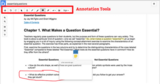
Active reading strategies are just as critical with digital reading as with their paper-based counterpart. However, until recently, it has been a bit cumbersome to highlight, add notes, and draw on documents - particularly in a BYOD environment with Macbooks, Windows laptops, and Chromebooks. However, by using the DocHub Chrome app, this capability is now possible on any device.
Students and teachers can login to the DocHub app (or DocHub.com) using their Google account. From there, it is possible to upload any PDF, text document, or Microsoft Office file from Drive, the web, or even your computer/Chromebook download folder. Once a document had been uploaded, students can highlight, draw, insert text boxes, and even incorporate sticky notes. These annotated PDFs can then be sent to Drive or even shared with a link. Unlike some other web-based annotation tools, all of the annotations remain with the PDF after it has been sent to Drive though the sticky notes only appear when shared with a link.
DocHub also allows multiple people to read and annotate the same document at the same time. It’s important to keep in mind that unlike Google Docs, the changes are not instantaneous and do not appear on the other person's screen until after the page is refreshed. In many ways, this makes for an improved reading experience as individuals are not as easily distracted by changes appearing on the screen while attempting to read. From the perspective of providing feedback, this is also beneficial as students would not necessarily see your annotations until after you ask them to reload their document.
Beyond having students use DocHub for active reading, it could also be useful for assessments. With DocHub, students can fill in PDF forms and teachers can even create templates that would allow multiple people to fill in copies of a single document. Much like many of the PDF annotation apps for iOS and Android, DocHub is an excellent option for the Chrome browser and Chrome OS.
Looking to learn more about Reading, Writing, & Research this summer? Beth will be leading Summer Workshops for EdTechTeacher in Boston, MA in July.
This post originally appeared on Free Technology for Teachers
if you see it elsewhere, it has been used without permission.
Related Stories10 Good Apps & Sites for Creative Writing ProjectsJellybean Writer - An Online Tool for Creating Picture BooksUse the Love Reading Map to Find Good Books
Richard Byrne
.
Blog
.
<span class='date ' tip=''><i class='icon-time'></i> Aug 05, 2015 10:47am</span>
|