Blogs
|
This weekend some friends and I are going on a 75 mile bike ride. In preparation for the ride I created a map on Google's My Maps and shared it with the group. My Maps makes it fairly easy to create shareable maps of biking and hiking routes.
To create a biking or walking route map on My Maps first sign into your Google account then open My Maps. After signing into My Maps select the "draw a line" tool then choose "add biking route." To draw your biking route click on a starting location on the map then drag the line along a road. My Maps tries to predict where you are going to draw your route. The prediction feature can be handy when you're trying to make short biking routes. When you're making longer routes you will have to draw over the predicted lines if you don't want to use the suggested routes.
Applications for Education
The summer is here (in the Northern Hemisphere) and it's a good time to encourage students and their parents to enjoy some healthy outdoor activities. Creating some maps of safe biking routes and walking routes then posting them on a school website could be a good way to encourage participating in outdoor activities.
This post originally appeared on Free Technology for Teachers
if you see it elsewhere, it has been used without permission.
Related StoriesRiddle Adds New Features for Building Image-based QuizzesHow to Schedule Blog Posts on Blogger, Edublogs, and KidblogHow to Download KML Data from Google Maps
Richard Byrne
.
Blog
.
<span class='date ' tip=''><i class='icon-time'></i> Aug 05, 2015 10:57am</span>
|
|
The New York Public Library’s Biblion: World’s Fair app puts the wonder of the 1939-1940 World’s Fair on your iPad. Through the app you can view images, videos, and documents all about the World’s Fair. All of the media in the app is arranged into thematic stories. These stories showcase the innovations that were on display in 1940 as well as the predictions for the future. Plenty of historical context is provided through the stories to help readers understand why the innovations on display were significant.
Applications for Education
One of the fun things that you could do with this app with your students is to have them look at the stories that feature predictions for the future. Then have you students see which of those predictions were accurate, which weren’t, and which became part of our world today.
This post originally appeared on Free Technology for Teachers
if you see it elsewhere, it has been used without permission.
Related StoriesAn Augmented Reality App for Learning About NatureDIY Sun Science - Learn About UV Rays and MoreIdentifying Birds - A Fun Summer Learning Activity
Richard Byrne
.
Blog
.
<span class='date ' tip=''><i class='icon-time'></i> Aug 05, 2015 10:56am</span>
|
|
A couple of months ago when the birds started to return to my neighborhood I wrote a post containing resources for learning about birds. This morning through Lifehacker I learned about another neat app for learning about birds.
Merlin Bird ID is a free iPhone and Android app that helps you identify birds that you see in North America. To help you identify a bird you've see Merlin Bird ID asks you a few questions about the color of the bird, its size, where you saw it, and when you saw it. Merlin Bird ID will suggest which bird you saw based on your answers to the identification questions.The suggestion will come with pictures of the bird and some information about it. In some cases you will be able to listen to a recording of the bird's call.
Applications for Education
A fun summer learning activity could be built around using Merlin Bird ID. You could take students on nature walks to make observations about birds. Challenge them to try to identify as many different birds as possible.
Bird ID can be used without entering an email address. It can also be used without enabling location services. If you don't enable location services you will have to enter the zip code of where you made your bird observation.
This post originally appeared on Free Technology for Teachers
if you see it elsewhere, it has been used without permission.
Related StoriesAn Augmented Reality App for Learning About NatureDIY Sun Science - Learn About UV Rays and MoreEdmodo for Parents - An App Just for Parents
Richard Byrne
.
Blog
.
<span class='date ' tip=''><i class='icon-time'></i> Aug 05, 2015 10:56am</span>
|
|
Last week I received a notice from the Smithsonian Science Education Center about a new series of animated videos that they were planning to release today. The series, titled Good Thinking, is now live on YouTube.
Good Thinking is a set of animated videos featuring a teacher demonstrating and explaining teaching methods. The topics of the videos are Conceptual Change, Learning Styles, and Common Misconceptions About Natural Selection. I watched the videos an I cannot tell who Smithsonian is trying to reach with them. As an adult I didn't find the videos engaging or enlightening. I'm also having a hard time picturing students watching the videos and understanding them. I've embedded the videos below so that you can judge for yourself.
Here's the text of the press release I received about the series. Perhaps you can tell me who Smithsonian is trying to reach with these videos:
"Good Thinking! The Science of Teaching Science" -- a free, engaging and entertaining new web series designed to support science educators and addresses the need for accessible professional development tools that help teachers break down barriers to understanding scientific principles and increase their classroom skills.
A first-of-its-kind series, "Good Thinking!" comprises short, animated videos that explore pedagogical ideas across a range of subject-matter topics like energy, cells, and gravity as well as cognitive research findings on topics like student motivation or the myth of left- and right-brained people. "Good Thinking!" shines a light on the classroom and pedagogical challenges teachers face, and provides solid, science-based ideas that keep their teaching on track. The series enhances K-8 science education and deepens understanding of STEM topics, for teachers and students alike.
This post originally appeared on Free Technology for Teachers
if you see it elsewhere, it has been used without permission.
Related StoriesA Short Lesson on Credit CardsThe Math of Michael Jordan's Hang TimeIntellectual Property Explained by Common Craft
Richard Byrne
.
Blog
.
<span class='date ' tip=''><i class='icon-time'></i> Aug 05, 2015 10:56am</span>
|
|
Last month I started using a new quiz and survey tool called Riddle. The surveys and quizzes that you create in Riddle can be image-based or simply text-based. The developer of Riddle has been responsive to input from teachers and other users. An example of that is found in the most recent update to Riddle. You can now add links to your Riddle quizzes and surveys. Those links could be to sources of information, to videos, or to an online audio recording like those you can find on SoundCloud.
In the video embedded below I provide a demonstration of how to use Riddle to create a quiz.
Applications for Education
Riddle's format of using images as response choices could make it a good option for giving informal quizzes on topics that require a lot of visuals. For example, a quiz on fractions might use pictures which represent various fractions. A quiz on art history might use Riddle to showcase works of art of answer choices.
This post originally appeared on Free Technology for Teachers
if you see it elsewhere, it has been used without permission.
Related StoriesHow to Create Image-based Quizzes and Polls on Riddle.comPlan and Share Biking and Walking Routes on Google's My MapsRiddle - Create Image-based Polls and Quizzes
Richard Byrne
.
Blog
.
<span class='date ' tip=''><i class='icon-time'></i> Aug 05, 2015 10:56am</span>
|
|
Earlier today I wrote a post in which I expressed disappointment with the Smithsonian Science Education Center's new video series. To balance that out, here are five resources from the Smithsonian that I do like and think that you will like too.
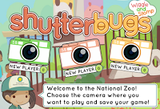
Shutterbugs Wiggle and Stomp is a new educational game produced by the Smithsonian. The purpose of the game is to help children recognize the movements of animals. In the game children move through a virtual zoo with a zoo keeper. As they go through the virtual zoo the zoo keeper will ask students to take pictures of animals who are demonstrating running, jumping, stomping, and other movements. Shutterbugs Wiggle and Stomp can be played online. The game is also available as a free iPad app and as a free Android app.
How Things Fly is a feature from the Smithsonian National Air and Space Museum. How Things Fly contains an interactive module in which students design their own airplanes. The activity starts with a simple and slow airplane that students have to modify until it reaches a target speed and altitude. As students modify the wings, fuselage, and engines of their airplanes they are given instant feedback on the effects of those modifications. In some cases the feedback includes the airplane crashing and the students having to start over again.
Ask Smithsonian is a fun video series featured on the Smithsonian Magazine website. All of the videos in the series are less than two minutes long. Each video tackles a fun topic in science. Some of the videos address questions that are less serious topics than others. For example, on the first page of Ask Smithsonian there is currently a video about zombie rats alongside a video on the effects of Daylight Saving Time on the human body.
The Smithsonian Center for Folklife and Cultural Heritage has some neat resources for teachers and students. One of the resources that I like is the Masters of the Building Arts Activity Guide. The Masters of the Building Arts Activity Guide provides the history of six types of buildings and architectural features. At the conclusion of each section there is a hands-on activity for students to try in your classroom. For example at the end of the section on timber framing you will find directions for an activity in which students attempt to create a model building with straws or pipe cleaners. At the end of the section on stained glass students can try to create their own "stained glass" panels with tissue papers, ribbons, and glue.
Expedition Insects is a neat interactive book from the Smithsonian Science Education Center. The new book was written to helps students in third through fifth grade learn about insects from all over the world. The book is full of pictures and videos to complement the text. Throughout the book students can click or tap on underlined words to quickly access their definitions. Expedition Insects was created for the iBooks platform. It is interactive if you read it on a Mac or on an iPad. A non-interactive version of the book is available to read too.
This post originally appeared on Free Technology for Teachers
if you see it elsewhere, it has been used without permission.
Related StoriesThe Math of Michael Jordan's Hang TimeIdentifying Birds - A Fun Summer Learning ActivityBuild Your Own Silicate Materials - And Other Virtual Chemistry Lessons
Richard Byrne
.
Blog
.
<span class='date ' tip=''><i class='icon-time'></i> Aug 05, 2015 10:55am</span>
|
|
Read & Write is a popular Google Chrome Web App that increases the accessibility of the text of documents in your Google Drive account. Today, I received an email from the app's developers announcing that Read & Write for Google can now be used in French.
Some of the accessibility options in Read & Write include a picture dictionary and a talking dictionary. To use either dictionary just highlight a word then click on the dictionary that you want to use. The dictionary that you select will pop-up in your document. Read & Write will also read the text of your documents aloud. In the settings menu you can select from nine voices and three playback speeds. Learn more about Read & Write in the video below.
To get Read & Write for Google for free, follow these directions from the developers.
If you are a teacher, and do not already have Read&Write for Google installed, head to the Chrome Store and download it before registering for your free subscription. If you already have a trial or an expired trial, go to rw.texthelp.com/drive/home/RegisterTeacher and register by filling out the Teacher Registration form with your name, email, school, administrator, and other details that confirm your eligibility. Note: Be sure the email you provide is the same as the one you used to download Read&Write for Google.
This post originally appeared on Free Technology for Teachers
if you see it elsewhere, it has been used without permission.
Related StoriesThe Week in Review - The Most Popular PostsAn Augmented Reality App for Learning About Nature5 Good Online Educational Resources from the Smithsonian Museums
Richard Byrne
.
Blog
.
<span class='date ' tip=''><i class='icon-time'></i> Aug 05, 2015 10:55am</span>
|
|
After my bad experience with TodaysMeet back in March I backed away from using for backchannel discussions. Today, I took another look TodaysMeet and noticed a new option that has considering using TodaysMeet again. You can now embed TodaysMeet rooms into a blog post or a web page.
To embed a TodaysMeet room into a blog post first create a room in TodaysMeet. After creating your room open the "room tools" menu that appears at the bottom of the page. After opening the menu choose "embed." You can then choose to embed the live room or a transcript of the room. If you choose the live room option, people who visit the blog post into which you've embedded your room will be able to enter messages.
Applications for Education
Embedding a TodaysMeet room into a blog post might be a way to avoid having to post the link to your TodaysMeet room in a public forum. Rather than giving out a TodaysMeet link you could simply direct students to the classroom blog that they are already familiar with visiting.
This post originally appeared on Free Technology for Teachers
if you see it elsewhere, it has been used without permission.
Related StoriesRead & Write for Google - Now Available in FrenchRiddle Adds New Features for Building Image-based QuizzesThe Week in Review - The Most Popular Posts
Richard Byrne
.
Blog
.
<span class='date ' tip=''><i class='icon-time'></i> Aug 05, 2015 10:54am</span>
|
|
Ignite Teaching is a free iPad app and web app that students can use to collaborate on the development of multimedia projects. Through Ignite Teaching teachers can create project titles that they share with students through an invitation code. Students then join the project and build slides that include pictures, text, and video. Students can work on their contributions to the project at their own pace. When they are finished working on the project, students submit their work and their teachers can see it in their accounts.
Ignite Teaching allows teachers to create multiple projects and have multiple projects running at the same time. This means that teachers could create small group projects instead of whole class projects to complete in Ignite Teaching. It is also possible to have students work on independent projects in Ignite Teaching.
Applications for Education
Ignite Teaching's design tools have improved of late which makes it easier for students to create slides although there are still better tools for slide design. Where Ignite Teaching shines is on the sharing and collaboration side of things. The sharing options make it easy for teachers to view their students' work and give them feedback on it.
This post originally appeared on Free Technology for Teachers
if you see it elsewhere, it has been used without permission.
Related StoriesEmbed TodaysMeet Rooms Into Your Blog or WebsiteRead & Write for Google - Now Available in FrenchExplore the World's Fair on Your iPad
Richard Byrne
.
Blog
.
<span class='date ' tip=''><i class='icon-time'></i> Aug 05, 2015 10:54am</span>
|
|
LeafSnap is a free iPad app designed by Columbia University, Smithsonian, and the University of Maryland for the purpose of helping people identify plants by taking pictures of them on their iPads. With LeafSnap installed on your iPad or iPhone you can take a picture of a leaf, upload it to the app, and then the app’s visual recognition technology will help you identify the name of the plant. It doesn’t work for all leaves and you do need to isolate the leaf be before you take a picture of it. In other words, you can’t just snap a picture of a big tree and ask LeafSnap to identify it.
If taking pictures of leaves is not a practical option for you and your students, LeafSnap still has valuable content for you. LeafSnap offers a large gallery of pictures of leaves. The gallery is organized alphabetically. Tap on any picture in the gallery to see more pictures of the same leaf, descriptions of the tree that it grows on, and where those trees grow.
Applications for Education
I often encourage teachers to think of ways to use iPads and other mobile devices for outdoor learning activities. Earlier this week I shared the Merlin Bird ID app that helps students identify birds. Between that app and LeafSnap your students could have a summer filled with making observations and learning about the nature around them.
This post originally appeared on Free Technology for Teachers
if you see it elsewhere, it has been used without permission.
Related StoriesAn Augmented Reality App for Learning About NatureIgnite Teaching - Collaborate on Multimedia ProjectsIdentifying Birds - A Fun Summer Learning Activity
Richard Byrne
.
Blog
.
<span class='date ' tip=''><i class='icon-time'></i> Aug 05, 2015 10:54am</span>
|