Blogs
|
This week I am hosting some guest bloggers. This is a guest post from Adam Schoenbart.
Students must create. That’s my big epiphany this year. Learning is better, more fun, and more memorable when you make something that lasts.
I used to spend hours carefully grading and commenting on student work, only to have my feedback lost in the black hole of their backpacks. Sure, my students left class with new learning and skills, but my comments were left crumpled and ignored, and my assessments lost meaning. In the past two years, a lot has changed in my classroom because I realized the transformative power of Google Apps for Education. With Google Communities, students could now participate in conversations that extended beyond the classroom and period. Classes could research, share, write, and revise seamlessly. Students’ learning was in their own hands; instead of the Jedi master instructing young padawans, we learned together.
I thought this would solve my earlier woes, but somehow Google Drive’s organization didn’t work for some students. Instead of losing the work in their backpacks, they misplaced untitled documents, ignored online comments, or even worse, moved files to Trash. I knew I had a problem that technology alone couldn’t solve. Maya Angelou said, "Do the best you can until you know better. Then, when you know better, do better." I knew I had do better to engage students in the process of learning and make the products matter, in and out of my classroom.
Inspired by ideas like project based learning and #20Time, I decided to take a stand against "Google-able questions." Instead of students only finding information and curating content, they needed to create the learning for themselves. Our students live in a world of Web 2.0, social media, and content creation, and I needed to bring this into their learning.
And together, we did. Halfway through this school year, I explained that we will no longer produce work that is forgettable and can be left in a backpack. Instead, we will create content that we can be proud of, will remember, and will help each other learn. I wanted to push students to develop more meaningful and diverse skills to prepare them for their futures by creating work that matters to them. To do this, we needed to produce for an audience; all learning was now public to the world. Suddenly, the learning was visible, the technology was more purposeful and complex, and class was more fun. Students’ work wasn’t hidden in their notebooks, but shared, produced, and even live-streamed, like the argument videos below.
It was a big and challenging shift at first. I gave my students self-directed time and freedom to play with and practice a variety a Web 2.0 tools, which they used to present a synthesis argument assignment. Then, they applied these skills to book review projects, creating audio or visual book reviews and trailers. I had more fun watching these than anything else this year. Find all of the results here with some highlights in Yoo Shin’s infographic, Elliot’s EMaze, and Gabby’s Divergent trailer (below), which made me laugh.
In my classroom, creation is the future. Students are learning more, developing new skills, and having more fun. It also forced me to step back and put the trust in my students’ hands. And so far, most rose to the challenge. As we end the school year, students are wrapping up #20Time Projects, which I hope will celebrate the success of student choice, voice, and creation. Reflecting back, I look towards summer with pride, hope, and excitement for the positive impact that creation has brought to my students’ learning. And I can’t wait to do better next year.
Adam Schoenbart is a high school English teacher, Google Education Trainer, and EdD candidate in Educational Leadership. He teaches grades 10-12 in a 1:1 Chromebook classroom at Ossining High School in Westchester County, NY. His work and teaching focuses on best practices of educational technology for active student-centered learning and engagement. Adam received the 2014 LHRIC Teacher Pioneer Award and is a frequent conference presenter in the NY/NJ area. He is the co-creator of the crowdsourced #edtech events calendar, EdTechCalNYNJ, and he blogs about his work and teaching at The SchoenBlog. Connect with Adam on Twitter @MrSchoenbart to continue the conversation.
This post originally appeared on Free Technology for Teachers
if you see it elsewhere, it has been used without permission.
Related StoriesOrganizing Descriptive Feedback with Google FormsMonth in Review - The Most Popular PostsReaching Across Global Borders to Create with Technology!
Richard Byrne
.
Blog
.
<span class='date ' tip=''><i class='icon-time'></i> Aug 05, 2015 11:08am</span>
|
|
This week I am hosting some guest bloggers. This is a guest post from Debbie Carona.
April was National Poetry Month but not all of us finished our poetry units during April. Thanks to a few too many snow days, Mary Odom, our 4th grade language arts teacher wisely let the kids work on their original poems well into the month of May. I was lucky enough to be the tech person working with her class on creating individual poetry books using the Book Creator app and helping the kids with their concrete poem illustrations. Another name for a concrete poem is a shape poem. It’s basically where the shape of the poem plays an important role in expressing the topic or meaning of the poem. Our kids have always loved to write and design their concrete poems but with the help of the Type Drawing App, their options have hugely increased.
With Type Drawing, the kids type their poem or just a line or phrase from their poem and then draw the words with their finger. Your finger can create randomly shaped lines or it can draw horizontal, vertical, or diagonal lines. You may choose from a nice selection of font styles, sizes, and colors. You determine whether or not you want the lines of your poem to repeat and how much, if any, space you want between your words.
Learning with the Type Drawing App for iPad from April Requard on Vimeo.
Another great feature of Type Drawing is the ability to add a photo from your camera roll. After uploading the photo, go ahead and type the lines of your poem, making the above mentioned design choices. Then simply trace the photo with your finger. You can add lines to fill in the details of the picture. If you want the photo to disappear and be left with only the lines of the concrete poem, move the photo opacity line to 0%. You can also use the photo opacity line to simply fade the photo.Take a look at these original concrete poems that I put together using the Puppet Edu app.
So, next year when National Poetry Month rolls around, share Shel Silverstein’s concrete poem, "The Circle", with your students. Then let the Type Drawing app inspire your kids to write and illustrate their own concrete poetry.
Debbie Carona spent the first 20 years of her teaching as a classroom teacher. For the past 8 years, she has been a technology integration specialists at St. John’s Episcopal School in Dallas, Texas. St. John’s is beginning their 4th year as a 1:1 iPad school and is a major proponent of project based learning. According to her, the best part of being a tech teacher is being invited to go into the classrooms and work alongside the teachers. Please visit Debbie’s blog site, At a Glance, and follow her on Twitter @DebbieCarona.
This post originally appeared on Free Technology for Teachers
if you see it elsewhere, it has been used without permission.
Related StoriesTeaching Mathematics With a Surface Pro TabletTransforming Learning Through Student Content CreationOrganizing Descriptive Feedback with Google Forms
Richard Byrne
.
Blog
.
<span class='date ' tip=''><i class='icon-time'></i> Aug 05, 2015 11:08am</span>
|
|
This week I am hosting some guest bloggers. This is a guest post from Mike Petty.
Last fall our high school purchased Chromebooks and the new principal set high expectations for more project-based learning and technology integration in all subjects. As the instructional technology coordinator for the district, this was great news for me! This school year was a ton of work, but we’re now wrapping up what was certainly the best one of my career.
Over the past several months I’ve often been asked by teachers for presentation options beyond PowerPoint. They wanted something that can be shared beyond the classroom, but that isn’t as involved as a full video project. To meet this need, I outlined a process (and made some tutorials) to make simple narrated slideshows using Google Tools. They are like presentations that present themselves.
The process uses Google Slides and WeVideo and can be completed using Chromebooks or laptops. You can also make them with a desktop computer as long as you have a microphone.
Here is an example of one of these narrated slideshows.
And here are the steps, each with a video tutorial showing the process.
Step 1: Create your slideshow in Google Slides and download each one to your device.
Step 2: Log in at WeVideo and put your images from Step 1 into a video.
Step 3: Record your narration for each slide.
Step 4: Publish the video to Google Drive where you’ll be able to share it with your teacher.
After using this process with several classes I’ve learned a few tips.
It helps greatly if the teacher works through the entire process first. I suggest creating your own example to show the class so you’ve seen every step in detail.Relatively short slideshows of 6 to 8 slides work best the first time students work through this process.Students need to be reminded that steps 2 - 4 will take awhile the first time they do this project. They must pace themselves accordingly on step 1.WeVideo adds other files or folders to Drive and students often share the wrong one with their teacher. Remind them to test the file before sharing. If it plays as a video, that’s the file they should share. (And to help avoid some of this confusion, if your students have access to Gmail, tell them they will receive a notification when their video has finished processing.)Yes, you can easily record narration and make a video using PowerPoint. I prefer using WeVideo as outlined here, though, because it is a great introduction to using a video editor for more involved video projects. It’s also prefered because it works on Chromebooks.Since the free WeVideo accounts are limited to five minutes of export time each month, students should not publish until they are sure the slideshow is how they want it.
Mike Petty is a Google Education Trainer and the instructional technology coordinator at LakeVille Community Schools in Otisville, Michigan. He is passionate about inspiring students and teachers to reach their potential by using simple, powerful tools. You can follow him on Twitter at @mpetty39. He blogs at Classroom Games and Tech and TeachingLikeAnArtist.com.
This post originally appeared on Free Technology for Teachers
if you see it elsewhere, it has been used without permission.
Related StoriesTransforming Learning Through Student Content CreationStudent Created Videos: Google Slides and ScreencastingOrganizing Descriptive Feedback with Google Forms
Richard Byrne
.
Blog
.
<span class='date ' tip=''><i class='icon-time'></i> Aug 05, 2015 11:07am</span>
|
|
This week I am hosting some guest bloggers. This is a guest post from Angie Oliversen.
My social media bios declare "I like kids. I like books. I like tech. What else could I be but a school librarian?" That pretty much sums it up right there.
Now, I do want to make one thing clear. I do not believe every book needs a "project." READ MORE BOOKS. That’s what will encourage a love of reading (and the literacy skills will come). That said there are times when added tech IS fun and helpful to instruction. We had 6 iPads last year but this December were lucky enough to get a cart of 25! Of course we wanted to use them.
One housekeeping tip … I use generic Dropbox or Google Drive accounts or Chirp to transfer photos and videos between devices.
The most recent project used Pic Collage for Kids. Fourth graders researched book summaries on bn.com and created posters of books they were excited to read over summer vacation. Posters were then used to promote the books throughout the school. We will repeat the project in the August to recap their summer reading!
Before author Jeff Mack visited recently, many of our kinder and first graders finished the sentence "I can …" and illustrated it. We snapped a quick pic of the drawing, videotaped student authors, and put the two together in Book Creator. Voila! Project to share with parents and the author.
Earlier in the semester we used Chatterpix Kids for a characterization activity from David Gordon’s book Smitten. I snapped two pics of the main characters and put them on all the iPads. The students drew mouths on the characters and recorded themselves as the sock and mitten introducing each other and recounting their adventures.
A fun app for practicing sequencing is Shadow Puppet EDU. Our younger students ordered pics snapped from John Rocco’s Blizzard and recorded themselves retelling the story. Older students used it as a way to show a timeline of events from both fiction and non-fiction selections.
Several classes that were first introduced to the app during a research project discovered Haiku Deck could also be a way to share books they had read. They worked at summarizing the high points of a story, finding the most interesting photos to go along with the important events, and above all never giving away the ending!
Of course either of the Puppet Pal apps (version 1 or version 2) provide opportunities for sharing the love of a book. The free versions have content that can be used for projects but if you can get the full paid versions (1 $3.99 or 2 $5.99) you can do a lot more. Students can add their own illustrations or photos and use the app to animate their retelling.
The LEGO Movie Maker stop motion app takes some patience and at least a few minifigures but it helps the kids practice summarizing and storyboarding. Students can often loan minifigures to a filming cause. Or ... the teacher librarian can take a deep breath and share some of her (or his) own.
And last but not least Telestory has fun news templates that can be used for book reviews!
Angie Oliverson is an elementary teacher librarian in south Texas. Find her on her blog, Twitter, Pinterest, Goodreads, and recently on Instagram.
This post originally appeared on Free Technology for Teachers if you see it elsewhere, it has been used without permission.
Related StoriesCreating Narrated Slideshows with Google ToolsTransforming Learning Through Student Content CreationOrganizing Descriptive Feedback with Google Forms
Richard Byrne
.
Blog
.
<span class='date ' tip=''><i class='icon-time'></i> Aug 05, 2015 11:07am</span>
|
|
This week I am hosting some guest bloggers. This is a guest post from Julie Smith.
Computer programming has become the new "literacy" that many teachers and school districts are implementing to help students exercise critical thinking and problem solving skills. Students of all ages gravitate towards creating and implementing programs--large and small--that they create digitally. Our technology department recently purchased two MaKey MaKeys for every elementary ITRT to use when collaborating with teachers on special projects that involve computer programming.
What is a MaKey MaKey?
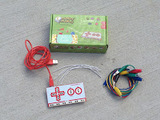
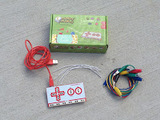
Basically, it is a small invention kit made for ALL ages. The kit comes with a small MaKey MaKey board, wires, alligator clips and a USB cable. You can take everyday objects and turn them into a touch pad that interacts with a computer program. Objects attached to the MaKey MaKey (fruit, Play-Doh, tin foil, copper tape) become "buttons" that replace a basic keyboard or mouse. Operate a computer game with play dough, fruit or even a glass of water!
When I first saw these contraptions my initial reaction was how in the world would we incorporate these devices with our demanding academic curriculum? The last couple of months my instructional technology team and I have had a ball coming up with strong academic tie-ins for using MaKey MaKeys and programming with our elementary students. I was astonished how easily and naturally programming and incorporating MaKey MaKeys have been, even for first graders! Just the other day I was working with first graders who were learning about the four cardinal directions. We had them create interactive compass roses by programming a sprite in Scratch to move north, south, east or west depending on the arrow key they pressed. Some students were even able to add voice recordings to their script!
To test their program, they hooked up a MaKey MaKey to their computer and attached their alligator clips to BANANAS. They called out a cardinal direction to each other and their partner had to tap the correct banana to make their sprite move in the proper direction. This simple activity stirred up such curiosity about how the MaKey MaKey circuit worked that the students wanted to extend their learning by testing out what other objects would activate their sprite.
Another MaKey MaKey lesson we did was with a 2nd grade class. The teacher said her students were struggling with counting US coins. Therefore, we hooked up the MaKey MaKey to a penny, nickel, dime and quarter and programmed Scratch to calculate the coin totals each time a coin was touched.
I hear that even high school students get quite excited over these devices. After all, I have seen most adults get giddy the first time they test out a MaKey MaKey. The engagement these invention kits bring to the classroom is extraordinary. I'm looking forward to discovering new ways to incorporate these kits into the K-5 curriculum!
A MaKey MaKey first experience (I LOVE the curiosity at the very end):
First Experience from Julie on Vimeo.
Programming and MaKey MaKey in action:
MaKey MaKey from Julie on Vimeo.
Julie Smith is an elementary Instructional Technology Coach for Henrico County Public Schools in Henrico, Virginia. She works with teachers and students in PreK-5th grade. Julie is the author of the blog, The Techie Teacher . You can also follow her on Facebook, Twitter and Pinterest.
This post originally appeared on Free Technology for Teachers if you see it elsewhere, it has been used without permission.
Related StoriesBig Tools for Little Kids - Little Kids Get in on the Learning With Android AppsCreating Narrated Slideshows with Google ToolsReaching Across Global Borders to Create with Technology!
Richard Byrne
.
Blog
.
<span class='date ' tip=''><i class='icon-time'></i> Aug 05, 2015 11:07am</span>
|
|
This week I am hosting some guest bloggers. This is a guest post from Susan Myers.
A group from an intellectually disabled class visits the media center once a week. During the year, we made bird houses, conducted science experiments, used the catalog to locate books, and listened to stories. I thought that these students could be authors and walked them through the different parts of a book. The students spent about five library sessions creating their stories. After watching the students make books using construction paper and markers, I looked into having them use the technology they just received - iPads (we are 1:1 with Macs, but the intellectually disabled students have a cart of iPads in their room).
The Our Story app starts by allowing the user to create a new story or using an existing one. The next screen is divided into four areas. Along the top, icons allow for sharing, printing, or saving. The left side gives access to the camera roll and to previously saved stories. Students will mostly use the main area which shows photos from the camera roll and the bottom area which is the storyboard area. Photos can be dragged into the storyboard and moved around within the storyboard. Clicking on a photo lets you type in text or speak your caption.
The Our Story app worked better than I expected for creating a story with the students. I decided to ask them to create a story about the school. The students really enjoyed walking around the school, taking photos of areas they found interesting. I found the option of typing or speaking for each photo extremely helpful as some students barely know the alphabet while one young man reads and writes on about a second grade level.
The app does require a hold down and drag action to move photos down into the storyboard area. Students with low motor skill abilities (like some of the students involved in this activity) may need one on one assistance.
The app allows students to share their work by printing (PDF format) or by placing the story on Dropbox, iTunes, or emailing it. For more information about the Our Story app, visit https://itunes.apple.com/us/app/our-story-for-ipad/id681769838?mt=8.
This post originally appeared on Free Technology for Teachers
if you see it elsewhere, it has been used without permission.
Related StoriesiRead a Book ... Now What? - Book Posters, Book Trailers, and MoreCreating Narrated Slideshows with Google ToolsCreating Concrete and Shape Poems on iPads
Richard Byrne
.
Blog
.
<span class='date ' tip=''><i class='icon-time'></i> Aug 05, 2015 11:06am</span>
|
|
Teach Your Monster to Read is a series of fun game designed to help students improve the speed and accuracy with which they recognize letters and sounds. Students play the games as a friendly monster avatar. The latest update to Teach Your Monster to Read comes in the form of new game called Champion Reader.
Champion Reader provides the third level of difficulty in the Teach Your Monster to Read series. The game introduces students to alternate pronunciations of letters and multiple ways of representing the same sounds. Like all of the Teach Your Monster to Read games Champion Reader sends students on a quest to complete by accurately recognizing words, letters, and sounds.
Teach Your Monster To Read - Champion Reader from Dina Makanji on Vimeo.
Applications for Education
Teachers can create and manage their students' accounts on Teach Your Monster to Read. Creating Teach Your Monster to Read accounts for all of your students is a simple process. Just register yourself as a teacher then enter your students' names (first names only) or upload a CSV file of your students' names. Teach Your Monster to Read will automatically generate a password for each student. As the teacher you can log-in anytime to see your students' progress. You can also turn off the password requirement during your class. Turning off the password requirement during class could be helpful when you want to get students into the activities as quickly as possible.
This post originally appeared on Free Technology for Teachers
if you see it elsewhere, it has been used without permission.
Related StoriesJohnnyAppl - Play Trivia Games and Plant Real TreesConsumer Education at the MallDinosaster - A Game About Dinosaur Extinction
Richard Byrne
.
Blog
.
<span class='date ' tip=''><i class='icon-time'></i> Aug 05, 2015 11:06am</span>
|
|
Disclosure: Storyboard That is an advertiser on FreeTech4Teachers.com.
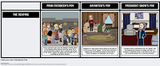
Storyboard That is continuously building new teacher guides. Their guides provide dozens of lesson plans for teaching language arts skills through the use of storyboards. The latest additions to Storyboard That's teacher guides include lesson plans on The Hunger Games and Fahrenheit 451.
The Hunger Games teacher guide includes plans for teaching point of view, cause and effect, and character analysis. The plans call for students to create storyboards to illustrate their understanding of the characters, themes, and plot of The Hunger Games. Like all Storyboard That teacher guides, the lessons in The Hunger Games teacher guide are aligned to ELA Common Core standards.
To learn more about how to use Storyboard That in your classroom, take a look at the recording of this webinar that I hosted back in February.
This post originally appeared on Free Technology for Teachers if you see it elsewhere, it has been used without permission.
Related StoriesUsing Sumo Paint and PicMonkey in Elementary ArtGetting Started With Canva - A Quick Guide to Creating VisualsMay Flowers - A Writing Lesson
Richard Byrne
.
Blog
.
<span class='date ' tip=''><i class='icon-time'></i> Aug 05, 2015 11:06am</span>
|
|
For a couple of years now Google has offered Street View imagery that takes you underwater around the Galapagos Islands, the Maldives, and a handful of other places around the world. This week Google announced an expansion of underwater imagery. Calling it Street View imagery is a bit silly so let's call it Sea View imagery.The expansion includes 40 new destinations around the world.
The Sea View imagery will let you virtually swim with dolphins and whales, explore reefs, and dive with sea turtles. You can find all of the Sea View imagery in the Oceans Street View collection.
Applications for Education
After exploring the Sea View imagery students have students dive deeper with Marine Explore. Marine Explore is an open data community in which scientists and others share data sets about oceans. As a member (membership is free) you can search for data sets according to location and type of data (temperatures, sea ice extent, pollution, etc).
This post originally appeared on Free Technology for Teachers if you see it elsewhere, it has been used without permission.
Related StoriesCreating Narrated Slideshows with Google ToolsTransforming Learning Through Student Content CreationReaching Across Global Borders to Create with Technology!
Richard Byrne
.
Blog
.
<span class='date ' tip=''><i class='icon-time'></i> Aug 05, 2015 11:06am</span>
|
|
Good evening from Maine where I am back home with dogs after a few days of traveling to speak in Sioux City, Iowa. Thank you to Kathy Bottaro and the staff of Sioux City Schools for the opportunity to work with 100 teachers this week. If you're interested in having me speak at your school, please click here.
A big thank you to all of the guest bloggers that appeared on my blog this week. It was great to have fresh voice on the blog.
Here are this week's most popular posts:
1. Six Styles of Classroom Video Projects - A Handout
2. Using Google Apps in a Math Classroom
3. Chromebook Rollout Through Teacher Leadership
4. Creating Narrated Slideshows with Google Tools
5. Learning to Program With MaKey MaKey in Elementary School
6. Champion Reader - A New Reading Game on Teach Your Monster to Read
7. Organizing Descriptive Feedback with Google Forms
Summer PD Opportunities With Me.Teaching History With Technology begins in July.
Getting Going With GAFE is offered in June and July.
Blogs & Social Media for Teachers and School Leaders is offered in July.
Brand new course! Blogger Jumpstart! - A two night event in which I'll share everything I've learned about turning a blog into a small business.
Please visit the official advertisers that help keep this blog going.Practical Ed Tech is the brand through which I offer PD webinars.BoomWriter provides a fantastic tool for creating writing lessons. Storyboard That is my go-to tool for creating storyboards and cartoon stories.MidWest Teachers Institute offers online graduate courses for teachers.HelloTalk is a mobile community for learning a new language.Discovery Education & Wilkes University offer online courses for earning Master's degrees in Instructional Media.PrepFactory offers a great place for students to prepare for SAT and ACT tests.The University of Maryland Baltimore County offers graduate programs for teachers.Boise State University offers a 100% online program in educational technology.EdTechTeacher is hosting host workshops in six cities in the U.S. in the summer.SeeSaw is a great iPad app for creating digital portfolios.
This post originally appeared on Free Technology for Teachers
if you see it elsewhere, it has been used without permission.
Related StoriesThe Week in Review - The Most Popular PostsTransforming Learning Through Student Content CreationMonth in Review - The Most Popular Posts
Richard Byrne
.
Blog
.
<span class='date ' tip=''><i class='icon-time'></i> Aug 05, 2015 11:05am</span>
|