Blogs
|
Warning! Small humble brag ahead.
This morning I set out on my bicycle to complete a challenge that I had accepted on Strava a couple of weeks ago. (Strava is an app for tracking running and cycling activities. It also has a social networking component through which you can give your friends kudos for their rides and runs). The challenge was to ride 100km or more in a single, continuous trip. I finished it 3 hours and 24 minutes later. It was my first metric century ride.
I recorded the ride in the Strava app on my phone then crashed on my couch to recover from the ride. A minute later I heard an alert on my phone and expected it to be a friend giving kudos on the ride. Instead it was Strava congratulating me and telling me that I had unlocked the Gran Fondo challenge award. The award is the right to purchase a cycling jersey commemorating the achievement. At $120 and in a color I would never wear, I passed on the purchase opportunity. Nonetheless, I was stoked to have the opportunity. That's when I realized that the way I feel about Strava is the way that students feel about ClassDojo and other services that have digital badges/ recognition.
For a couple of years I've had teachers telling me how much they and their students love ClassDojo. I never got terribly excited about it. I understood that kids liked seeing a record of their points for classroom behaviors, yet I didn't understand the excitement that some kids express in earning digital recognition. I felt much the same way about ClassBadges. My experience today gave me a new understanding of digital badges. It's not about the badge. It's about the feeling that comes with the badge.
This post originally appeared on Free Technology for Teachers if you see it elsewhere, it has been used without permission.
Related StoriesOld NYC & Old SF - Maps of Images of New York and San FranciscoA Crash Course for Kids on Weathering & ErosionHow to Quickly Create a Variety of Data Visualizations
Richard Byrne
.
Blog
.
<span class='date ' tip=''><i class='icon-time'></i> Aug 05, 2015 11:19am</span>
|
|
In my previous post I mentioned my new-found appreciation for ClassDojo. More importantly I have a new appreciation of why kids like it so much. If you haven't tried ClassDojo before or you have looked at it and thought, "my students won't go for that" take a look at the following nine videos featuring the various ways that you can use ClassDojo.
This post originally appeared on Free Technology for Teachers if you see it elsewhere, it has been used without permission.
Related StoriesWhat Strava Taught Me About Why Kids Love ClassDojo and Digital BadgesOld NYC & Old SF - Maps of Images of New York and San FranciscoA Crash Course for Kids on Weathering & Erosion
Richard Byrne
.
Blog
.
<span class='date ' tip=''><i class='icon-time'></i> Aug 05, 2015 11:18am</span>
|
|
Parts of this post originally appeared on one of my other blogs, iPadApps4School.com
PicCollage is one of my favorite apps for creating multimedia collages on my iPad. Creating those collages is a great way to visually summarize a trip, to tell a story, or showcase the highlights of research. I’ve shown PicCollage to hundreds of teachers over the last couple of years. The only complaint I’ve heard about it is that there is a public gallery of collages. I just discovered this morning that PicCollage for Kids removes that gallery. PicCollage for Kids also removes all social media connections to the app. Students do not need to create accounts in order to use PicCollage for Kids.
One of my favorite ways to enhance PicCollage projects is to use ThingLink to make the collages interactive. In the videos embedded below I demonstrate that process.
This post originally appeared on Free Technology for Teachers
if you see it elsewhere, it has been used without permission.
Related StoriesTelling a #Dogsofed Story With Shadow Puppet EduIn Pieces - An Interactive Site About Endangered AnimalsThree Tools for Creating Multimedia Year-in-Review Collages
Richard Byrne
.
Blog
.
<span class='date ' tip=''><i class='icon-time'></i> Aug 05, 2015 11:18am</span>
|
|
Last week I shared a new service called Riddle that enables you to quickly create image-based polls and quizzes. In the video embedded below you can see just how easy it is to create a poll or quiz on Riddle.
Applications for Education
Riddle's format of using images as response choices could make it a good option for giving informal quizzes on topics that require a lot of visuals. For example, a quiz on fractions might use pictures which represent various fractions. A quiz on art history might use Riddle to showcase works of art of answer choices.
This post originally appeared on Free Technology for Teachers
if you see it elsewhere, it has been used without permission.
Related StoriesRiddle - Create Image-based Polls and QuizzesHow to Quickly Create a Variety of Data VisualizationsPicCollage for Kids - Create Visual Stories
Richard Byrne
.
Blog
.
<span class='date ' tip=''><i class='icon-time'></i> Aug 05, 2015 11:18am</span>
|
|
Last fall I wrote about two good places to find stories based on their locations. This morning through Maps Mania I learned about another service that offers the same function. Love Reading's Google Maps Mash-up has geolocated hundreds of books. You can browse the map to find stories based on their geographic settings. If you have a specific location in mind, you can enter it into the search box to find stories too.
Applications for Education
It could be a fun summer reading challenge for students to try to read their way around the world. Ask them to try to read a story from each continent. Or to try to read stories from as many countries as possible. The Love Reading map would be a good tool for finding stories to read toward that goal.
This post originally appeared on Free Technology for Teachers if you see it elsewhere, it has been used without permission.
Related StoriesOld NYC & Old SF - Maps of Images of New York and San FranciscoHow to Create Image-based Quizzes and Polls on Riddle.comPicCollage for Kids - Create Visual Stories
Richard Byrne
.
Blog
.
<span class='date ' tip=''><i class='icon-time'></i> Aug 05, 2015 11:18am</span>
|
|
Last week I published a PDF titled 5 Good Ways to Send Text & Push Notifications to Students & Parents. In response to that PDF I've had a bunch of people suggest that I add Celly to that document. I was aware of Celly but I didn't try it until today.
Celly is a free service that enables you to create and manage contact groups for text messaging. Celly calls these groups "cells" and you can create as many as you need. You can manage these groups from your phone (Android or iOS) or from your laptop. Likewise, you can send messages from your phone or from your laptop. Like regular text messages you can attach files to your messages.
People can join one your Celly group by sending a text to the join code assigned to your group. People can also join via the web by going to the unique URL assigned to your group.
Applications for Education
From the perspective of a teacher or administrator Celly's big appeal is the option to archive all conversations that occur within a Celly group. You can set permissions in Celly groups to allow replies to messages that you send out. Or if you don't want to receive replies you can set permissions to not allow replies.
For students and parents who don't want to receive text messages, there is an option for them to receive email alerts instead.
Celly wasn't quite as intuitive to set-up as some similar services that I've used. I recommend watching the Celly intro videos to get started.
This post originally appeared on Free Technology for Teachers if you see it elsewhere, it has been used without permission.
Related StoriesRemind's Chat Feature Is Now Open to Everyone5 Good Ways to Send Text & Push Notifications to Students & Parents - A HandoutHow to Adjust the Chat Settings in Remind
Richard Byrne
.
Blog
.
<span class='date ' tip=''><i class='icon-time'></i> Aug 05, 2015 11:17am</span>
|
|
Make Beliefs Comix is a great service that offers comic strip templates and writing prompts in seven languages. The templates and prompts can be completed online or you can print them out to give to your students.
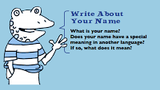
The latest release from Make Beliefs Comix is a free ebook called Something to Write About (link opens a PDF). The free ebook contains dozens of writing prompts. Students can write in the ebook online and print their work. Alternatively, you can print all or part of the book to give to students.
Applications for Education
One of the things that I like about Something to Write About is that the writing prompts aren't just one sentence, "tell me about something interesting" prompts. Instead, nearly all of the prompts have further suggestions to help students start their stories. In many cases student will find a full page of further suggestions related to the original prompt.
As you can use the writing templates online or as printed documents, Make Beliefs Comix is a good resource for classrooms that do not have enough laptops or tablets for every student.
This post originally appeared on Free Technology for Teachers if you see it elsewhere, it has been used without permission.
Related StoriesApricot - Create Writing Prompts for Students and Share Responses With ParentsUse the Love Reading Map to Find Good BooksOld NYC & Old SF - Maps of Images of New York and San Francisco
Richard Byrne
.
Blog
.
<span class='date ' tip=''><i class='icon-time'></i> Aug 05, 2015 11:17am</span>
|
|
Office Lens is an app from Microsoft that is designed for converting pictures of notes on whiteboards and paper into notes that can be edited in Microsoft Word or PowerPoint. I wrote about the app eight weeks ago when it was still in a limited beta for Android users. Office Lens is now available for all Android users. You can find the app in the Google Play store. The iPhone version is available here and the Windows Phone version can be found here.
Probably the best aspect of Office Lens is that hand-drawn images and figures captured through the app can be separated from the text to move and manipulate as individual objects in PowerPoint slides. See the video below for an overview of Office Lens.
Applications for Education
Office Lens could be a great app for students to use to snap a picture of something on a whiteboard then add their own comments to it in a Word Document.
The option in Office Lens to separate hand-drawn objects could be a good way to digitize a brainstorming session. When I brainstorm I often do it in a paper notebook that has pages of edits. By taking a picture of the brainstorming session I could separate each part of the notes then move them into new positions on slides or in a document.
H/T to The Next Web.
This post originally appeared on Free Technology for Teachers
if you see it elsewhere, it has been used without permission.
Related StoriesEdmodo for Parents - An App Just for ParentsQuick Key Mobile - Now for iOS and AndroidTry Scratch Jr. for Programming Fun on iPads and Android Tablets
Richard Byrne
.
Blog
.
<span class='date ' tip=''><i class='icon-time'></i> Aug 05, 2015 11:17am</span>
|
|
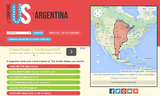
If It Were My Home is a neat site that provides comparisons of countries. If It Were My Home will show you a comparison of geographic size of your country with that of another of your choosing. Beyond the size comparison, If It Were My Home shows you comparisons of twelve health and economics statistics about life in different countries. To view the comparisons just select two countries from the lists and click compare.
Learn more about If It Were My Home in the following Tekzilla video.
This post originally appeared on Free Technology for Teachers
if you see it elsewhere, it has been used without permission.
Related StoriesMeasure Distances Between Places on NatGeo's Mapmaker InteractiveA Crash Course for Kids on Weathering & ErosionSilk Offers Great Tools for Creating Data Visualizations
Richard Byrne
.
Blog
.
<span class='date ' tip=''><i class='icon-time'></i> Aug 05, 2015 11:16am</span>
|
|
If you're looking for a learning activity that kids can do on their own at home this summer, consider introducing them and their parents to Scratch Jr.
Scratch Jr. is based on the popular online Scratch program in which students can learn to program. Scratch Jr for iPad and for Android uses the same drag and drop programming principles used in Scratch. On Scratch Jr students can program multimedia stories and games.
To program a story or game on Scratch Jr. students select background settings for each frame of the story. Then in each frame students select the actions that they want their characters to take. Students snap programming pieces together to make characters move and talk in their stories and games.
This post originally appeared on Free Technology for Teachers
if you see it elsewhere, it has been used without permission.
Related StoriesInsert Images Into Google Slides and Docs on Your iPad or Android TabletWhatsDue - Schedule and Send Reminders to StudentsScratch Jr. Provides a Great Environment for Learning About Programming
Richard Byrne
.
Blog
.
<span class='date ' tip=''><i class='icon-time'></i> Aug 05, 2015 11:16am</span>
|