Blogs
|
This week I am hosting some guest bloggers. This is a guest post from Jonathan Brubaker.
Right place at the right time. The place was Edcamp Palm Springs. The time was a session on video in the classroom led by Jessica Pack. This perfect moment pushed me to provide opportunities for students to use video in their projects.
Since my students have Chromebooks, I decided to use Google Slides to design content and screencasting extensions to record video. Google Slides is a very versatile image and text editing tool and I spent a lot of time throughout the year teaching my students how to use it effectively. In order to make our slide decks into video, I used screencasting tools for Google Chrome. The two best options are Screencastify or Snagit’s screen clipping app and extension. Both products have many of the same features, but Screencastify allows students to include their faces when creating video projects. Both of them work by clicking on the extension and then pressing the record button. Students can record a single tab or the whole screen.
One of the first projects my students completed was a screencast of a Google Slide presentation. Throughout the year my students worked in collaborative groups to create a slide deck to present to the class on a topic the class was studying. Unfortunately, this meant that students had to furiously take notes while the speakers presented. When we turned this assignment into a screen cast, the speakers could work on writing carefully worded scripts and the audience could pause and rewind the content as needed.
Next, I had my students create a Public Service Announcement after a unit on brain research. Students were required to come up with advice for fellow teenagers on how to use technology responsibly using the information my students had learned about the brain. Again, slides was an excellent resource for creating the visuals for the unit. While I usually tell students to stay away from animations in live presentations, many of the animations worked out well on a screencast. Students also had to think through how to create visuals to supplement what they had learned.
Finally, my 8th grade students had to create a children’s book for a performance task after completing a unit on Frederick Douglas. The book had to adapt an episode from his autobiography and turn it into a powerful narrative for fifth graders. After completing the books I wanted the students to share them with a wider audience and add a personal touch beyond the text. I decided to have them create an audio-visual book by screencasting themselves reading their book. Since the book was created in slides, all they had to do was record themselves reading the book while turning the pages. We could then share the links to the videos with one of our feeder elementary schools.
In the future, I would like students to create tutorials on how to use common web tools as a resource for other students. Screencasting can also be a great way to share Genius Hour projects with a wider audience. If it is on the screen, students can create a video project with it.
I am middle school teacher in Beaumont, CA. In 2014 I was the California League of Middle Schools State Educator of the Year. I have a passion for inspiring students to love reading, writing, discussing, and presenting. I do my best to incorporate technology into the classroom in a way that amplifies my instruction and engages students.
http://techtipsedu.blogspot.com
@mrjbrubaker
This post originally appeared on Free Technology for Teachers if you see it elsewhere, it has been used without permission.
Related StoriesThree Video Tutorials on Using Padlet in Your ClassroomMailbag - Answers to Questions from ReadersHow to Create, Edit, and Share Notes on Google Keep
Richard Byrne
.
Blog
.
<span class='date ' tip=''><i class='icon-time'></i> Aug 05, 2015 11:13am</span>
|
|
This week I am hosting some guest bloggers. This is a guest post from Mary Kate O'Meara.
If you have been searching for an online collaboration tool that is versatile and easy to use, then Twiddla may be what you are looking for. Twiddla is a real-time collaboration whiteboard that allows an unlimited number of people to come together at one time to share or edit documents, images or websites.
One of the things I like about Twiddla is a simplicity that makes collaboration a breeze. It’s so user friendly that my first, second and third grade students often use it throughout the day. This is one of the most hassle-free digital tools I have run across with its agnostic browser (Twiddla works with any browser- Firefox, Chrome, Internet Explorer on both Mac and PC), no plug-ins or downloads, and no firewalls to work around. Starting a meeting is as simple as going to twiddla.com and clicking on the green GO button. Invite others to join your session by sharing the collaboration url through the built in email. Simply by clicking on the shared url everyone joins the session. You can enter a session as many times as you like with no restrictions on time.
Best of all, Twiddla is free. There is no requirement to sign up for a paid subscription to create a meeting. If you are a teacher or a student Twiddla will provide you a free pro-account. Sign up for a free trial, then send them an email from a .edu or comparable address. Be sure to include your username. If you just want to check out the features Twiddla offers join a public session and play in their sandbox.
I was thrilled to find that Twiddla is not only user friendly, it also has more capabilities than typical online whiteboards. While Twiddla allows you to use the pen or shape template to write or draw on the plain white board, or on grid overlays, it also has the ability to upload documents (Word, Excel, Powerpoint, PDF), Web pages, Ethernet documents and images. These become a collaborative canvas that can be marked up by highlighting, adding sticky notes, or inline text. My students capture their work with a snapshot of their Twiddla session and export the snapshot as an image which can be reloaded in another session for further tweaking. Saved images also allow them to keep track of work that is completed in each meeting and I can monitor group progress.
The most important feature of Twiddla is that it encourages creativity and collaboration. I’ve used Twiddla across the curriculum for everything from introducing my class to new websites by highlighting key features then saving those images as a visual guide for the site to exploring the features of landforms and maps, then uploading those sessions in a Google Doc as a study guide. Twiddla has also come in handy during reading mini lessons to annotate text, highlighting details that identify main idea or in character analysis. I have even saved our Twiddled Chalk Talk thinking routines to evaluate class thinking over time.
My little ones have become great collaborators, initiating their own Twiddla sessions to create concept maps for projects, outline ideas for writing, or construct graphs for math and diagrams for science. Twiddla has also allowed them to extend their learning beyond the classroom. Some of my students have created Twiddla meetings at home for planning a shared project or explaining math problems to friends who don’t understand a concept. Twiddla is one of my favorite tools because it allows students to build on each others ideas and deepen their learning.
Click image to view full size.
I am a teacher for the Grosse Pointe Public Schools in Grosse Pointe, Michigan. I have a multiage class of first through third grade students. I have written for ASCD, and been a presenter for The University of Virginia’s Summer Institute on Academic Diversity, presented at The Michigan Reading Association Annual Conference, been a lead presenter for the Virtual 4 T Conference hosted by The University of Michigan’s School of Education and School of Innovation, and I will be presenting at The Institute for Innovation in Education gathering in Ann Arbor, in June.
This post originally appeared on Free Technology for Teachers if you see it elsewhere, it has been used without permission.
Related StoriesThree Video Tutorials on Using Padlet in Your ClassroomMonth in Review - The Most Popular PostsThe Week in Review - The Winds Are Changing
Richard Byrne
.
Blog
.
<span class='date ' tip=''><i class='icon-time'></i> Aug 05, 2015 11:12am</span>
|
|
This week I am hosting some guest bloggers. This is a guest post from Amy Pietrowski.
When I started teaching with Google Apps several years back, I never envisioned that I would be using them with Kindergartners and first-graders. The logging in factor (yyyylastname.firstname@mail.domain.org) alone would be enough to send any five or six year old into hysterics. Many of my second graders struggle with this well into the school year. Enter Android Tablets into our district: The bad news was that I had to enter each child’s Google ID into the tablet. The good news was it that was a one-time only deal. From that day forward I could walk into any kindergarten or first grade classroom and have students creating products, sharing with me via Google Classroom, and saving to their Google Drives in seconds. So, how did I do it?
Skitch and Google Classroom:
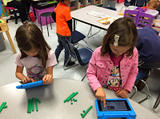
Skitch is a simple mark-up program from Evernote. Students would create a fact family with real two-sided counters. Next they would take a picture with their tablet using the Skitch app. After using the writing tool to write the addition fact, it’s "turn around" fact, and, depending on skill level, corresponding subtraction facts, the student would then share their product. There are several sharing options in Skitch, but for this assignment we chose to use Google Classroom. I created an assignment ahead of time. Once they had used a one-time short code to get into my class, they only had to click on the assignment and attach their picture to it. Once "turned in," I could view all of the creations in my classroom folder on Google Drive. In turn, I shared this folder with the classroom teacher, so she would have a copy of their artifacts.
Mindomo and Google Drive:
Teachers love graphic organizers, and using Mindomo is great way to save physical creations in a logical way. On this day, first graders were creating two digit numbers with base ten blocks. They captured two "numbers," then put them together to create the number at the top. They labeled their boxes and used Mindomo’s connecting tools to show the relationship between the three pictures. What is remarkable about this activity is that Mindomo let the students save their graphic organizer to their Google Drive. Now, and in the future, when the students open their Google Drives, they will see the work they have created in first grade.
Thinglink and Google Drive:
When the first grade teachers asked that I review parts of a plant with their students, I knew that Thinglink would be an awesome tool. My fifth graders used pictures from loc.gov earlier in the year and made great creations about their Civil War studies. Thinglink allows you to "tag" a picture with other pictures, audio, and video. While the desktop app would be difficult for my first graders, the mobile app was perfect! Using their Google Accounts (already on their tablets), students logged in, snapped a picture of a plant, and proceeded to add tags. They labeled words they knew (stem, leaf, etc) and added video files to talk about what a plant needs to survive. Here is one from a student who combined both aspects well. As the students finished up their "scenes," they saved them onto their thinglink accounts and into my group. They also used the save to Google Drive feature which creates a text file with a link to their scene.
All of these activities would have been nearly impossible without the combination of Google Apps, tablets, and a little bit of up-front work. I DID enter all of these students’ credentials into the tablets (just once). Also, if you would like to use a Google ID with your Thinglink EDU account, students must be added via Thinglink.com/edu on the computer. However, the up-front work was worth every artifact the students created, shared, and saved for the future.
Amy Pietrowski is an experienced classroom teacher who has taught at all grade levels and in many subject areas. Her passion for technology stems from an experience learning LOGO and BASIC at computer camp in the third grade, and she has since relished any opportunity technology has given her to create and share. Amy is currently an instructional technology specialist in Fayette County and an Instructor for the MAET Certificate program at Michigan State University. You can follow Amy on twitter @amylpie and read her blog here: http://techieteacherpie.blogspot.com.
This post originally appeared on Free Technology for Teachers if you see it elsewhere, it has been used without permission.
Related StoriesThree Video Tutorials on Using Padlet in Your ClassroomChanging School Districts and Want Offline Copies of Your Google Data? - Use TakeoutEncouraging Student Collaboration Through Twiddla
Richard Byrne
.
Blog
.
<span class='date ' tip=''><i class='icon-time'></i> Aug 05, 2015 11:12am</span>
|
|
This week I am hosting some guest bloggers. This is a guest post from Pamela Levine.
Using technology for ‘First Week of School’ activities serves multiple purposes: 1) conveying to students that their classroom is a place where learning will be engaging, 2) emphasizing the importance of expression and peer learning, and 3) providing safe, low-stakes opportunities to build skills and appropriate practices around our classroom technologies.
I’ve had many First Weeks of School: in elementary school classrooms (in Washington D.C.), in Massive Open Online Courses (at Stanford), and even in Tanzania (as a Peace Corps Volunteer). I currently teach rising educators at the Stanford Graduate School of Education to incorporate technology into their teaching in pedagogically-sound ways. Below are two First Week of School activities using Nearpod and PollEverywhere that can build classroom culture and help establish technology norms and routines.
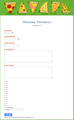
"1+1=1" Icebreaker on Nearpod.
This icebreaker inspires creativity and collaboration while familiarizing students with Nearpod. 1+1=1 involves combining two objects to design and describe a new invention. Nearpod’s ‘Draw It’ tool is great for this activity: it gives students a canvas on which to draw and insert images, and enables me to collect and share their work in real-time. Students (and adults) get a kick out seeing each other’s 1+1=1 inventions projected on the screen. Alongside engaging with the activity, students learn processes for connecting to, interacting with, and submitting work on Neapod. I also use this time to establish device usage cues and norms (such as "screens up/screens down"). The 1+1=1 icebreaker is appropriate for students and adults of all ages. Give it a try here, and download a copy to use in your own class or presentation here.
Community Building Discussion Starters with PollEverywhere.
Student response systems like PollEverywhere can be a great way to create a safe environment for participation, provide teachers and students with instantaneous formative feedback, and catalyze discussion, debate, and peer learning.
During the first week of school, I familiarize students with PollEverywhere while probing for their expectations and concerns and crowdsourcing their ideas. PollEverywhere’s Word Cloud question type can reveal shared student perspectives on questions like "How can we make the classroom a safe space?" and "When have you felt particularly successful in school?" The Clickable Image question type can be used to collect responses to visual questions, like "Where along this continuum would you describe your communication style?" After surveying the students, I display and use their responses to facilitate dialogue by asking discussion questions like "What trends do you see?", "What response(s) make you think about the question in a different way?", or by having students explain and elaborate with a partner about their answer. I think the real educational value in deploying student response systems for teaching and learning comes from these active discussions that follow from using the technology.
There are a myriad of ways to use Nearpod and PollEverywhere for teaching and learning beyond the First Week of School. Using education technology for introductory activities like the ones above provide opportunities to communicate values, teach skills, and model behaviors so that students are prepared to participate with these tools during later lessons and tasks.
It’s been my pleasure to share on Free Technology for Teachers! I welcome your feedback and continued conversation @PossiblyPamela on Twitter and at www.pamela-levine.com. Have a great First Week of School this Fall!
This post originally appeared on Free Technology for Teachers
if you see it elsewhere, it has been used without permission.
Related StoriesBig Tools for Little Kids - Little Kids Get in on the Learning With Android AppsEncouraging Student Collaboration Through TwiddlaMonth in Review - The Most Popular Posts
Richard Byrne
.
Blog
.
<span class='date ' tip=''><i class='icon-time'></i> Aug 05, 2015 11:12am</span>
|
|
This week I am hosting some guest bloggers. This is a guest post from Terri Eichholz.
We were recently gifted with a Makerbot Replicator (5th Gen) to pilot in our elementary school library. Our librarian, Angelique Lackey, and I knew that time was short before the end of the year, but we wanted students to experience the power of creating with this device.
If you search the web for 3D printing curriculum to use in elementary schools, you will find a sparse number of appropriate resources. Most of the "curriculum" turns out to be instructions on using a 3D printer like this, or lists of manipulatives teachers can make on a 3D printer. Angelique and I were looking for something that would be more transformational for our students, however.
As we researched, though, we came across the CityX curriculum. Written to teach students about the design process, this free curriculum was exactly what we wanted. The downloadable Toolkit includes an instructor’s guide, printable student workbooks, Common Core alignment, and videos. Angelique immediately found a group of students who could meet with her each day to test it out before the end of school. It has been exciting to see how the steps of the design process unfold and the confidence, collaboration, and creativity this project has engendered.
If you feel like the City X curriculum doesn’t suit your needs, I encourage you to check out the #makered Twitter chat that occurs every week on Tuesdays at 8 CST. The contributors are extremely experienced and happy to answer questions or offer resources. When I asked for app suggestions for creating, here were some that they offered:
BlokifyNovo ModelerModioTinkerplayMakerbot PrintshopSoftware that you can use for designing includes:
Tinkercad (free, cloud-based)Sketchup (free, but must be downloaded)I would caution you to try any of the above using student logins on your devices, as some may be restricted by district filters. This may be due to links to galleries, such as Thingiverse, that are great sources of inspiration, but may include inappropriate materials.
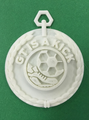
One of my 2nd grade students used Makerbot Printshop to design the medal below for our GT class.
A 5th grade student of mine, with no other instruction from me than, "See if you can design something for us to print in Tinkercad this weekend," created the following. It is the sled from the book, The Giver, by Lois Lowry. (It was printed in white plastic, then painted with acrylic paints.)
Speaking of literature, another resource I was able to obtain through the #makered Twitter chat was a list of books that can be used with elementary students to connect to inventing and 3D printing. I have not read the following books, but they were recommended:
How to Bicycle to the Moon to Plant Sunflowers
The Big Orange Splot
Galimoto
Leo the Maker Prince: Journeys in 3D Printing
An excellent book that my colleague recommended, and I have since read, is Skyjumpers. I would also suggest the following books for any kind of curriculum in which creativity and invention are encouraged:
The Most Magnificent Thing
Rosie Revere, Engineer
Iggy Peck, Architect
Going Places
Weslandia
A 3D printer should not be purchased for the sake of having the newest technology. However, you should not discount the idea of having one in an elementary school. Teaching our students about the design process is one of the most valuable skills we can give them. In addition, getting a chance to see the tangible results of planning, problem-solving, and collaboration can be the most powerful way to make an impact.
Terri Eichholz teaches Gifted and Talented students in San Antonio, Texas. She has been teaching for 24 years, and shares resources and idea at http://engagetheirminds.com. You can also often find her participating in educational Twitter chats (@terrieichholz). Angelique Lackey is Terri’s fabulous colleague, and is the librarian at Hidden Forest Elementary. She can also be found on Twitter (@lackeyangie).
This post originally appeared on Free Technology for Teachers if you see it elsewhere, it has been used without permission.
Related StoriesBig Tools for Little Kids - Little Kids Get in on the Learning With Android AppsMay Flowers - A Writing LessonElementary School Math Games for Touchscreen Computers and Interactive Whiteboards
Richard Byrne
.
Blog
.
<span class='date ' tip=''><i class='icon-time'></i> Aug 05, 2015 11:10am</span>
|
|
This week I am hosting some guest bloggers. This is a guest post from Todd Samuelson.
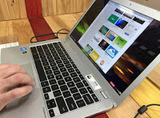
As the administrator responsible for technology in my school I had the opportunity to facilitate a Chromebook pilot project. Every grade seven student was loaned a Chromebook (CB) for the school year. The goal of the pilot was to determine the effectiveness of utilizing one-to-one devices to enhance learning in the classroom and to improve technology capacity among teachers as we move towards an eventual B.Y.O.D. school.
In early October nearly 200 Chromebooks were deployed and the journey began. Eight months later and the project can only be described as a success. One of the first steps in the process was to get CBs into the hands of teachers. We had an evening of professional development for teachers to receive support, but because CBs are so intuitive it did not take long for the majority of the teachers to become somewhat proficient. We created a google classroom that we used to communicate information, thoughts, concerns and tips. We sent a letter home to parents explaining the project and hosted an information night with presentations and an opportunity for questions.
For the students, in the beginning, a great deal of time was spent on building capacity regarding how to care for their device. Students were given formal lessons on proper care and respect for the device being loaned to them. This paid off tremendously as students took ownership for their CB and we were fortunate to have very little damage or issues related to misuse. Knowing that a goal would be to allow students to transport a device home, our teacher-librarian, Lisa, collected resources and created an extensive "Chromebook license." The license required that students reach certain benchmarks regarding general care, responsible use and cleaning before being allowed to take a Chromebook home.
The teachers and students were amazing as they learned side by side. As much support as was requested was provided from our central office who were actively involved in the initiative. The Chromebook pilot team provided support throughout the year and organized PD time embedded into the school day. Teachers took ownership for their own learning and developed and shared lessons, strategies, struggles and challenges.
As I reflect on the project I feel the biggest influence of its success has come from the lead team that was formed. This team was composed of two "lead teachers," Jen and Michelle, the school’s teacher-librarian, Lisa, and myself. These three guided, reflected and made decisions in every school-based aspect of the initiative ensuring a process that was ultimately best for students and most effective for teachers. They spent countless hours organizing, supporting, learning, taking risks and creating. The team shared a common belief, vision and passion for integrating technology into the classroom in a meaningful way to enhance learning.
By surrounding myself with people with skills and knowledge superior to mine in many areas and by encouraging and supporting these teachers to lead, it made for an extremely rewarding, transformative and powerful project.
I live and work in Medicine Hat, Alberta, Canada as a school administrator in a grade seven to 12 school of just over 1200 students and approximately 65 teachers. I am a supporter of challenging the status quo, innovative thinking, creativity, positivity, taking risks, technology in the classroom and wellness.
Twitter @todd_samuelson
Blog http://toddsamuelson.blogspot.ca/
This post originally appeared on Free Technology for Teachers if you see it elsewhere, it has been used without permission.
Related StoriesBig Tools for Little Kids - Little Kids Get in on the Learning With Android AppsStudent Created Videos: Google Slides and ScreencastingMonth in Review - The Most Popular Posts
Richard Byrne
.
Blog
.
<span class='date ' tip=''><i class='icon-time'></i> Aug 05, 2015 11:09am</span>
|
|
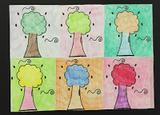
Art by Jane, a 5th grade student.This week I am hosting some guest bloggers. This is a guest post from Carrie Zimmer.
Andy Warhol was legendary for his work combining art and pop culture and his use of bright color and iconic images is known worldwide.
Warhol was provided as inspiration to American School of Milan 5th grade students several months back by art teacher, Julie Troyer. They chose a simple image that could be replicated and created the identical image six times in different color schemes.
Moving forward with the same inspiration, Julie and I decided to create different versions of one student selected photograph using our Dell tablets. We wanted to find programs that were web-based, free, and didn’t require registration. We selected Sumo Paint and PicMonkey as the best tools for our students. While copyright friendly pics can be found online in a Google filtered image search and several other places, this time our students used photographs that I gathered from my own collection.
Sumo Paint is a web-based photo editing tool. Registration is not required, as students are able to use the program and save files without creating an account. In our elementary program, this is key. We taught the students a few quick ideas using only the Adjustments and Filters, showing how they could change the image, but still maintain a reference to the original. Each student created three versions of their selected photo by experimenting with these controls, like Pixelate, Stylize, and Hue/Saturation.
Once their versions were complete, students used PicMonkey to collage their photos into one image. PicMonkey is an online photo editing and collaging tool. Again, registration is not required to use their site or save finished images. I find that this site is really easy for almost any user to understand as well. Users can drag and drop photos into collages and move them around as needed. The size and shape of the collage can also be customized to fit your needs.
Art by Nicole, a 5th grade student.
This project was completed in two 40 minute class segments. Written directions that can be modified for your situation can be found here.
A well deserved thanks goes to the amazing technologist, teacher and colleague, Tamara Wolpowitz, who shares her ideas and knowledge with me every day and provided the idea for this project. You, too, can find inspiration from her @tamwol.
Carrie Zimmer is a Technology Integration Specialist and Coach at the American School of Milan in Italy. She’s a Google Certified Teacher, Apple Distinguished Educator, but more importantly, a lifelong learner. Make your plans to come to ASM for Learning 2.016, the first Learning2 conference in Europe. Outside of the classroom, you can find Carrie reading, baking and blogging about life and travel in Europe at http://51500.blogspot.it/. You can also find her online at http://www.carriezimmer.me/ or @carrie_zimmer
This post originally appeared on Free Technology for Teachers if you see it elsewhere, it has been used without permission.
Related StoriesUsing Google Apps in a Math ClassroomIcebreakers and Discussion Starters with Nearpod and PollEverywhereBig Tools for Little Kids - Little Kids Get in on the Learning With Android Apps
Richard Byrne
.
Blog
.
<span class='date ' tip=''><i class='icon-time'></i> Aug 05, 2015 11:09am</span>
|
|
This week I am hosting some guest bloggers. This is a guest post from Kim Pollishuke.
Providing quality descriptive feedback is a significant part of day-to-day assessment practice. It was only a few years ago when I wrote these comments by hand. When report card time came around, it was difficult to generate comments that reflected student improvement and achievement because once I handed back their work, I no longer had access to previously generated feedback.
Later, I began to type my feedback and print off copies for my students. This gave me a soft copy but I found it tedious jumping from one word document to another to find the right information for a report card comment.
This year I found the solution!
By creating a Google Form to record students’ descriptive feedback for each subject, every single comment is in one spreadsheet and I can simply sort the sheet or filter it by name to see only one child’s feedback. This is unbelievably helpful when generating strengths and next steps for report card comments.
This is a sample of a Google Form I fill out each time I give my students descriptive feedback in reading. I type comments in their assignment and then quickly copy and paste them into this form.
The data collected in the Google Form automatically filters into a Google Spreadsheet.
Click image to view full size.
NOTE: I do not give students a level each time I provide them with descriptive feedback but sometimes I appreciate seeing the level in my own notes for formative assessment purposes. I intentionally select the checkbox question type so that I can select more than one level to show a range of ability.
As I prepare to write my report cards, I simply sort the spreadsheet so all the feedback for each student is grouped together.
For step-by-step instructions, visit How To Organize Descriptive Feedback with Google Forms.
In this document, I also explain how you can filter the spreadsheet to only see one child’s feedback. This is ideal for parent-teacher conferences.
Below is a screencast that shows the process I go through using Google Forms to organize my students’ descriptive feedback.
TIP from the screencast: Go to the Chrome Store and add the Tab Resize and Tab Glue extensions. One click evenly splits your screen so you can copy comments and paste them into your forms easily. One more click puts the tabs back together. I love these extensions and my students love them too!
With a Google Form for each subject, you’ll still be visiting multiple spreadsheets though. You can make your life even easier by linking all the forms to different tabs in the same spreadsheet. Visit How to Link Descriptive Feedback Forms to One Master Spreadsheet for step-by-step instructions or you can watch the screencast below.
If you’d like a head start, visit Links to Make a Copy of Google Forms for Descriptive Feedback. Click on the links and you’ll be prompted to make a copy of the spreadsheet. Change the name of the spreadsheet. In the Form drop down menu, click on Edit form and you’ll have access to the Google Form. Adapt it as needed.
Before you know it, all of your descriptive feedback will be at your fingertips!
As an elementary teacher for the past 12 years in the York Region District School Board, Kim has found that using a wide range of technology has proven to be an exciting tool when working with all learners. She is a Certified Google Educator and an Authorized Google Education Trainer. She has led numerous workshops on the integration of GAFE, most recently at EdTech Team’s Ontario Summit featuring Google Apps for Education. She sincerely believes that the purposeful integration of technology is the key to increased student engagement and improved student achievement. Along with Trevor Krikst and Wahid Khan, Kim publishes the EdTech blog InquireandInspire.ca, an online hub exploring the vast potential in the nexus where technology and education converge. She can be reached at kpollishuke@gmail.com, @KimPollishuke and +KimPollishuke.
This post originally appeared on Free Technology for Teachers
if you see it elsewhere, it has been used without permission.
Related StoriesBig Tools for Little Kids - Little Kids Get in on the Learning With Android AppsUsing Google Apps in a Math Classroom3D Printers in Elementary School
Richard Byrne
.
Blog
.
<span class='date ' tip=''><i class='icon-time'></i> Aug 05, 2015 11:09am</span>
|
|
This week I am hosting some guest bloggers. This is a guest post from Heidi Samuelson.
One of my goals this year was to integrate more technology into my second grade curriculum and reach beyond the walls of my classroom. I believe students need to learn how to engage and interact with technology, not just "play a game" on the computer. I want my students to become "global learners".
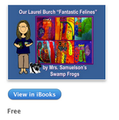
One way we were able to accomplish this goal was to create eBooks to share with our families and other classes around the world. Using the BookCreator App, we combined art projects with research and writing about Laurel Burch to create an informational ebook. BookCreator is a wonderful app that makes creating professional looking eBooks simple and fun. Students took pictures of their art projects to upload into the BookCreator app. They were able to type and add color to the pages within the app to create engaging pages to share their learning. You can download a copy of our story in the iBook Store. BookCreator provides a free version of the app so you can try it out BEFORE you buy it which is always a bonus in my eyes!
Another project we participated in involved Collaborative Writing with Global Connections. We paired with Mrs. Ladd’s class (located in North Carolina) to collaborate and create a fractured fairy tale story using technology to connect the two classes! After each class spent some time studying the elements of fairy tale stories, students logged into Google Docs on their devices and began typing a story together to create a fractured fairy tale. With so many students typing at the same time, we quickly decided to add another element of collaboration into the mix and introduced the group to Voxer. Students were so excited to be "talking in real time" with their writing partners using Voxer. This app helped the group decide on characters, settings, and plot elements. As they took turns typing out their story, they were able to see what each student was writing and ask questions to help guide them in their story creation.
As Mrs. Ladd’s class dove into their testing schedule, I had the "authors" from my room, choose classmates to help them color backgrounds and make pictures to illustrate the story from the collaborative writing sessions. Using our TurboScan app, we were able to upload images of the art into BookCreator and design another ebook to share with our collaborative friends in North Carolina, families, and classes around the world. You can download one of our stories from the iTunes store today! Cinderella and the Big Bad Wolf, Little Red, and Goldilocks and the Three Pigs Plus the Big Bad Wolf.
Join Mrs. Ladd (@BevLadd) to see what collaborative projects you can help create on #2ndChat Twitter Chat for second grade teachers. Using Twitter as part of my PLN has helped me to achieve my goal of integrating more technology into my curriculum this year. I can’t wait to try some more projects in the future!
My name is Heidi Samuelson and it is a great pleasure to be guest blogging on Free Technology for Teachers today! I’m a second grade teacher in Tennessee who LOVES to integrate technology into my classroom and Richard’s blog has introduced me to TONS of resources!! You can read about some of my activities and techie ventures on my teaching blog: Mrs. Samuelson’s Swamp Frogs. Thanks for reading along with me today! I hope you’ll "hop" over to the Swamp and check out some more ways we use technology in the room! I also share activities on Twitter, Facebook, and Instagram!
This post originally appeared on Free Technology for Teachers if you see it elsewhere, it has been used without permission.
Related StoriesBig Tools for Little Kids - Little Kids Get in on the Learning With Android AppsEncouraging Student Collaboration Through TwiddlaOrganizing Descriptive Feedback with Google Forms
Richard Byrne
.
Blog
.
<span class='date ' tip=''><i class='icon-time'></i> Aug 05, 2015 11:08am</span>
|
|
This week I am hosting some guest bloggers. This is a guest post from Bryan Davis.
For the last 6 years I have done all of my teaching on a tablet Windows PC. I have really liked using the tool for these reasons. I can have a digital copy of all of my lessons sync to all of my computers and be instantly searchable. Since my lesson was already digital I could easily upload it to my website. I could use any computer program (graphing utilities, geometric or algebraic drawing utilities, Excel, and more) in my lesson seamlessly.
But up until last year there was a drawback. I could never leave my podium for a couple of reasons. First, the computer did not have a way to wirelessly stream the video output to the projector. Also, the computer was not small enough to just pick up and walk around with using only one hand.
One of the best things about technology is how the tools we use are constantly changing. Last year I updated my school computer to a Surface Pro 2. The portability of this computer is incredible! I was inspired to look into ways of untethering myself from my podium. I originally used the software program AirParrot to send the video to my Apple TV. And while that solution was good, it was rather processor intensive and would drain the battery pretty quickly. Just recently I started using a Microsoft Wireless Display Adapter, which Windows 8 natively supports (the streaming stick uses the Miracast wireless streaming protocol). This setup has a much smaller drain on my battery which means more time away from my podium!
So now I walk around the classroom and have the ability to project anything I want on my screen. I use the camera to show student work directly from the desk of the student. I give my lesson from the front, middle and back of the class, sitting down anywhere to do my thing. I can quickly show any computer tool to help explain a concept. This tool has helped me be a better teacher.
Additional Resources:
Tablet PC List
Examples of Posted Lessons
About Bryan: I am a teacher of math, physics, and engineering at Healdsburg High School in beautiful Northern California. I have been teaching for 10 years. I have also had jobs as a software engineer and a test engineer. But my passion is education. I have really been trying to take elements of play and bring it into my classroom. Watch children play… they will try something, they might fail, but they fail safely. And then they try something else. And they will keep trying until they are successful. Isn’t that also what we want to see in our classrooms? I like to believe that this addition of play in my classroom is visible and making a difference for students.
This post originally appeared on Free Technology for Teachers if you see it elsewhere, it has been used without permission.
Related StoriesUsing Google Apps in a Math ClassroomGraphFree - An Online Graphing Tool for Students and TeachersHow to Quickly Create a Variety of Data Visualizations
Richard Byrne
.
Blog
.
<span class='date ' tip=''><i class='icon-time'></i> Aug 05, 2015 11:08am</span>
|