Blogs
|
Today’s post was written by Juliet Wei, senior product marketing manager for the Yammer team.
Whether it’s drafting a proposal, updating the quarterly budget, or putting the finishing touches on a presentation, creating great content requires teams to stay on the same page. That’s why the Yammer team has been hard at work building deeper integration with Office Online, bringing the familiar interface and rich capabilities of our Office applications right into Yammer. Today, we’re excited to announce several enhancements to the Yammer files experience, making it easier than ever to incorporate document collaboration into teamwork.
First, the document preview and edit experience for files uploaded into Yammer are now powered by Office Online. When you click the Edit File link in Yammer, a new browser tab opens up with a full-screen view of the document. Make changes and comments directly in the document using Office Online. When you’re done, simply close the tab. Your changes are automatically saved in Yammer, where you have the ability to review the version history of each file and mark documents "Official." In the near future, you’ll also be able to co-author documents in real-time and translate documents in Yammer into 30+ languages using the Bing Translator.
Preview files in Yammer using Office Online.
Click the Edit File link to launch the immersive Office Online experience.
Changes made in Office Online and file version history are automatically saved to Yammer.
Next, because we know teamwork often spans across companies, we’re extending document collaboration to external participants. This makes it possible to share and work on files with customers, partners and vendors using Yammer’s external messaging. PDF file previews are supported too.
Finally, we’re boosting the reliability and performance of the document collaboration experience in Yammer, reaping the benefits of the foundational work we’ve been doing to integrate Yammer into Office 365.
Our latest innovations bring documents to life by making it easy for teams to engage with and capture the thought process behind each piece of content. And because Yammer is open by default, others at your company can discover, use and build on that knowledge—ensuring that your team’s work lives on.
Best of all, we’re turning on these latest document collaboration capabilities for all Yammer networks—new and existing, free and paid—enabling every user to preview and edit Word, PowerPoint, and Excel files straight from their Yammer group or conversation.
So go ahead—create to your heart’s content. With Office Online and Yammer, collaborating on documents has never been simpler or more engaging.
Frequently asked questions
Q. When will Office Online integration with Yammer be available?
A. Office Online file preview has already shipped to all Yammer users. We are planning to ship the Office Online File Edit feature to all Yammer single-users later this month. Our aim is to enable real-time co-authoring and document translation during the first half of 2016. To learn more about how to use Office Online for document collaboration in Yammer, check out this article.
Q. Do I need to do anything to enable document collaboration in my Yammer network?
A. There is no action required to enable Office Online capabilities within Yammer. We will have a planned service outage starting Friday, July 24, 2015 from 5:00 p.m. PDT to Sunday, July 26, 2015 at 11:59 p.m. PDT to migrate existing files in Yammer to Azure Storage Service. During this time, file editing functionality in Yammer will not be available, although other Yammer functionality, including file preview and upload, will not be affected. Once Yammer file migration occurs, we will be able to turn on Office Online single-user file edit as well as any future innovations for all Yammer users.
Q. How does this fit in with Yammer’s existing document collaboration capabilities?
A. The Office Online native file preview and edit capabilities inside Yammer replace the third-party service Crocodoc in its entirety.
Previously, we announced the release of document conversations, which embeds Yammer conversations inside files stored in OneDrive for Business or SharePoint Online. However, we’ve seen very low engagement with this feature in its current implementation. Today’s announced Office Online integration brings document collaboration into Yammer. We believe giving teams the ability to work on files in the context of their existing Yammer groups and conversations provides a more engaging and relevant experience. As such, with this latest release of document collaboration using Office Online inside Yammer, we are rolling back the current implementation of the document conversation feature, but will continue to explore other ways for users to start new Yammer conversations from files.
The "Post" functionality, which lets users discuss and post files from OneDrive for Business and SharePoint Online to Yammer, is a great alternative to document conversations and will not be impacted by today’s changes. The recently announced Yammer integration with Delve and the Office 365 Video Portal, which enables users to have inline Yammer conversations and share content to Yammer, will also remain available.
Some networks are part of an earlier Yammer document collaboration experiment, which provides Office Online document preview, single-user editing, and multi-user co-authoring capabilities. We will be rolling back this experiment in favor of the Office Online integration announced today, which provides a more immersive, reliable and performant experience. Multi-user co-authoring will not be available in the latest implementation until 2016.
—Juliet Wei
The post Document collaboration in Yammer just got better with Office Online! appeared first on Office Blogs.
Office Blogs
.
Blog
.
<span class='date ' tip=''><i class='icon-time'></i> Aug 23, 2015 08:15pm</span>
|
|
For a company as large, international and diverse as GE, fostering team collaboration and individual productivity are paramount. The company’s IT organization has long been recognized as an innovative and forward-thinking one in its embracing the cloud.
Today, Microsoft and GE announced plans to roll out Office 365 to GE’s more than 300,000 employees across 170 countries worldwide. GE and its employees will get a comprehensive and integrated set of productivity capabilities including email, Skype for Business calling and meetings, real-time document co-authoring and team collaboration. The company will also benefit from the extensibility of the Office 365 platform, which will enable GE to enhance the capabilities of critical line-of-business applications by connecting to Office 365 through open APIs. And the IT organization values the IT controls and security capabilities built right into Office 365.
Read more about GE’s decision to choose Office 365 in today’s press release and over on the Business Matters blog.
The post GE selects Office 365 for employee collaboration and productivity appeared first on Office Blogs.
Office Blogs
.
Blog
.
<span class='date ' tip=''><i class='icon-time'></i> Aug 23, 2015 08:14pm</span>
|
|
Today’s post was written by Rajesh Jha, corporate vice president for Office 365 and Outlook.
Gartner recently published the 2015 Magic Quadrant for Secure Email Gateways, positioning Microsoft in the Leaders Quadrant. The Magic Quadrant represents Gartner’s evaluation of our completeness of vision and ability to execute in the market. We believe this positioning is a reflection of the value we’re delivering to our customers and the strength of our product vision. Microsoft has a number of services that are evaluated in this report including: Exchange Online Protection (EOP), Exchange Online Advanced Threat Protection (ATP), Data Loss Prevention (DLP) and Office 365 Message Encryption, which are part of the Office 365 suite and include other security and compliance services as well.
Continuous service enhancements
Exchange Online Protection (EOP) is an integral part of Office 365, providing native protection for hundreds of millions of Office 365 mailboxes. EOP is also used by thousands of large enterprises to protect tens of millions of on-premises mailboxes.
Our top priority is delivering new value to our customers in an evolving security landscape while continuing to strengthen our core protection capabilities. During the past year, we’ve been focused on strengthening protection against phishing, malware and spam attacks. Significant advancements include developing near-real-time protection against high-volume spam campaigns, providing support for inbound DKIM and DMARC to reinforce our anti-phishing and anti-spoofing protection, and empowering administrators to adjust the bulk mail experience for their organizations. We’ve also shipped Advanced Threat Protection (ATP), providing robust protection against "zero-day" attachments and real-time protection of users against harmful links.
We’ve enhanced our Data Loss Prevention (DLP) capabilities and extended them beyond email. We introduced DLP capabilities natively in Office client and expanded DLP coverage to SharePoint Online and OneDrive for Business. With Compliance Center, we’re providing administrators a simple, centralized policy management console to create their DLP policies that can be applied across different services.
We have continuously added new features to Office 365 Message Encryption. With "one time passcode," the recipient of an encrypted message simply enters a passcode to read it. We also shipped new mobile apps on iOS and Android to view encrypted messages easily while on the go.
To expand our commitment to filtering emails within a region of customer choice, we rolled out Exchange Online Protection in Japan, Australia and our U.S. Government Community Cloud.
This steady stream of service enhancements is a key benefit of Office 365 and part of Microsoft’s continuous commitment to building world-class security capabilities.
Our vision for the future
In light of escalating attacks on enterprise, governmental, educational and other institutions, it’s essential that we continue to expand the capabilities of these services. In the next year, we will focus on strengthening protection against external threats; empowering administrators to prevent data loss; streamlining administration of the solution; and expanding its coverage to a broader set of Office 365 workloads, including SharePoint Online, OneDrive for Business, Skype for Business and Yammer.
In the near to mid-term future our roadmap includes many new features—here are a few:
Innovations in protection against external threats
Strengthened anti-phishing, anti-spoofing and anti-malware (especially zero-day) capabilities.
Advancing customer-specific protection based on implicit behavior and signals from customers’ users (in addition to currently supported explicit administrators’ configuration and users’ Allow/Block lists).
Dynamic delivery, as part of ATP, eliminates latency in email delivery while the email attachment is being inspected in a sandboxed environment. This capability will deliver the original email with a "placeholder" attachment—after passing inspection, the original attachment(s) will be reconnected to the original email in the mailbox. During this process, the user will be informed that the attachment is being scanned.
Data Loss Prevention
We will bring DLP to Office Clients (Word, Excel and PowerPoint) with Office 2016.
Our capabilities for DLP for SharePoint will get an enhanced feature set.
Office 365 Message Encryption will support Revocation and Message Expiration capabilities, as well as track whether a message was read by a recipient.
Office 365 Message Encryption support for Bring Your Own Key (BYOK).
Expanded global presence
We will continue expanding our service’s global presence in addition to the U.S., Europe, the Middle East and Africa (EMEA), Asia Pacific (APAC), Japan, Australia and China, and plan to offer local email processing in India and Canada.
We look forward to delivering more innovation in this space and look forward to your continued feedback.
— Rajesh Jha
Gartner, Magic Quadrant for Secure Email Gateways, Peter Firstbrook, Neil Wynne, 29 June 2015Gartner does not endorse any vendor, product or service depicted in its research publications, and does not advise technology users to select only those vendors with the highest ratings or other designation. Gartner research publications consist of the opinions of Gartner’s research organization and should not be construed as statements of fact. Gartner disclaims all warranties, expressed or implied, with respect to this research, including any warranties of merchantability or fitness for a particular purpose.
The post Microsoft positioned as a Leader in Gartner’s 2015 Magic Quadrant for Secure Email Gateways appeared first on Office Blogs.
Office Blogs
.
Blog
.
<span class='date ' tip=''><i class='icon-time'></i> Aug 23, 2015 08:13pm</span>
|
|
With Office Mix, you can teach a lesson and quiz viewers to gauge their comprehension, which any educator will tell you is key to the learning process. But imagine if your ability to write quiz questions was limited to what you could type on the common QWERTY keyboard. How would you ask questions about mathematical and scientific formulae? E equals MC squared isn’t as recognizable or efficient as E = MC2, which you can type easily in any Office document that allows you to include symbols and superscripts. Up until recently, the best you could do in an Office Mix quiz or poll was to type E = MC2, which even a grade school student knows isn’t the same thing. The more complex the formula, the less satisfying the results.
But now, with WYSIWIG editing support in quizzes and polls, you can type formulae as simple as E = MC2 or as complex as:
If you’re a math or science teacher, the benefits are clear—and here’s just one example of the type of Office Mix quiz you can create now:
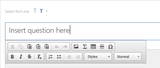
But even if you’re not a math or science teacher, you now have a lot more freedom to include images, tables, horizontal rule lines, font formatting, bulleted and numbered lists, and a whole range of special characters in quiz and poll questions in your Office Mix—thanks to the new floating toolbar that appears when you author a question:
For a complete list of available commands and instructions on how to use them, visit "Introducing WYSIWYG editing in quizzes and polls" at the Office Mix feedback and support site.
The post WYSIWYG editing in Office Mix quizzes and polls appeared first on Office Blogs.
Office Blogs
.
Blog
.
<span class='date ' tip=''><i class='icon-time'></i> Aug 23, 2015 08:12pm</span>
|
|
Earlier this year, we started the rollout of built-in Mobile Device Management (MDM) for Office 365, and now that it has been available for a while, we want to give you some tips on how to get the feature up and running in your organization.
It’s easy to get started—there are just a few steps, which are documented in detail here: Overview built-in Mobile Device Management (MDM) for Office 365.
Set up MDM for Office 365—Activate the feature and configure the environment.
Configure MDM policies—Configure Security Groups and Device policies.
Enroll devices—When users access Exchange, SharePoint or OneDrive using the MDM-enabled applications, they are required to enroll their devices.
Manage devices—You can wipe enrolled devices and run reports.
Set up MDM for Office 365
None of your users will be affected by setting up MDM until you configure the MDM policies. So to get started, go to the Office 365 Admin Center, and from the Mobile Devices tab, click Get started.
Depending on the size of your Office 365 tenant, it may only take a few minutes, or it could take a few hours, to activate the feature. In the background, we configure Azure Active Directory and Intune for your users and devices. This is all transparent to you—since you’ll be managing everything from Office 365. You don’t need to wait at this page for the process to complete. Come back when you are ready, and once the feature is activated, you’ll be able to continue the configuration.
You only need to configure a few tenant-wide settings, and you can access them from the Manage Settings link. Set up an Apple Push Notification Service certificate to manage iOS devices and configure any custom domains to support MDM for Windows devices.
How MDM Conditional Access works
MDM policies are applied to groups of users (it will affect all of the user’s devices) and they can enforce Conditional Access to Exchange Online, SharePoint Online and OneDrive for Business through any of the supported mobile applications.
Conditional Access works like this: when a user logs into Office 365 through a supported mobile app, the app checks with Azure Active Directory to see if the user is subject to a Conditional Access policy. If the user has a policy assigned, and the device is not marked as enrolled and compliant, the application prompts the user to enroll the device in MDM. In the case of an Exchange ActiveSync (EAS) client, Exchange sends an email with a link to enroll. Once the user has enrolled the device, the device settings policies are sent to the device, and the user must update the device to meet the appropriate settings such as PIN and encryption. After the settings are updated, the agent on the device informs the management service, which in turn marks the user’s device as enrolled and compliant in Azure Active Directory.
Configure MDM policies
You will want to start by setting up your first policy for a test group of users—you could start with just yourself in the group or add a few eager friends who want to help with the testing, to evaluate the effect on your environment and understand the device enrollment process.
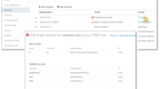
The MDM policies can only be applied to security groups (not distribution groups), so set up a security group (through Office 365 or Exchange) for your test group of users (or use one you already have). To create an MDM policy, select the Manage device security policies and access rules link, which takes you to the Compliance Center, where all the policies for your Office 365 tenant are managed.
The list of policy settings on the first page (What requirements do you want to have on devices?) lists the requirements that need to be met before the user’s device is considered to be compliant.
A couple of important notes on a few of the settings:
Setting
Notes
Require data encryption on devices
For Android devices this requires the user to encrypt the device through settings,and this can take some time.
Require managing email profile
This sends an email profile from Exchange Online to iOS devices. If a user already has an email profile connected to Exchange Online defined on the device, they will have to remove that profile before they are marked as compliant.
Allow access versus Block access
The last section (If a device doesn’t meet the requirements above, then…) determines how devices are treated when they connect. In both cases, users are prompted to enroll their devices before they can connect to Exchange, SharePoint or OneDrive. However, in the Allow case, the device does not have to be made compliant with the settings before access is granted. In the Block case, the user will not be able to access Office 365 until the device complies with any settings on this page of the policy. This option cannot be changed when updating a policy later—if you want to change the setting from Allow to Block later, you will have to re-create the policy.
The second page (What else do you want to configure?) has a list of device settings. These settings are pushed down to the device but are not used when calculating whether a device is compliant, and will not stop a device from connecting to Office 365.
The final step is to apply the policy to your group of test users. When you apply a policy to a security group, you need to search for the name of the group (Hint: * will display all groups, or search for the first few letters of the group name).
Once you have created the policy, the status of the policy is "Turning on…." while it distributes the policy to the right systems and changes to "On" once it has completed the policy distribution.
Enroll devices
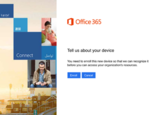
MDM policies can be triggered when any of the supported Office applications are used on iOS or Android devices. Make sure you have the latest version of the application. When you sign in with your Office 365 credentials (you must be in a Security group that has a policy applied), you will see this enrollment prompt:
When you tap the Enroll button, you are prompted to download the Intune Company Portal application. Log in to the application and enroll your device. Once all of the required steps are completed, the MDM device settings are sent to the device, and for any settings that haven’t already been configured, you are prompted to configure them.
Simply open the Company Portal app and select Check Compliance to determine if all the settings have been configured correctly. If not, the Company Portal provides a link with remediation steps.
When you tap the Enroll button, you are prompted to download the Intune Company Portal application. Log in to the application and enroll your device. Once all of the required steps are completed, the MDM device settings are sent to the device, and for any settings that haven’t already been configured, you are prompted to configure them.
Simply open the Company Portal app and select Check Compliance to determine if all the settings have been configured correctly. If not, the Company Portal provides a link with remediation steps.
Once the device is compliant, you restart the Office application and connect to Office 365.
MDM policies can also be triggered by using any native email client, which connects using EAS from iOS, Android or Windows Phone 8.1. When you connect to Exchange Online, you receive a message similar to this:
Select the Enroll your device link to go through the same enrollment process (assuming you are not already enrolled) as the Enroll button displayed from the Office applications. Once your device is enrolled and compliant (you can use the second link in the email to check), you also need to click the activate your email link to send the EASid to Active Directory.
For Windows Phone 8.1, there’s no Company Portal to install. Just follow the instructions to add a workplace account.
If you have previously connected to Exchange on this same device, then it may take up to 24 hours before your Quarantine mail is received—this is a result of the Exchange service caching your previous compliance status, which was most likely "no policy applies" since this is the first time you have any MDM policies defined.
Manage devices
The Mobile devices page in Office 365 lists all the devices that have enrolled into the MDM service for your tenant. From this list you see details of the devices, as well as issue wipe commands. Office 365 gives you two different wipe options:
Full wipe—Restores the device to its factory settings, deleting all data on a user’s mobile device.
Selective wipe—Removes only organization data and leaves installed applications, photos and personal information on a user’s mobile device.
For MDM for Office 365, the selective wipe option will remove the following organizational data:
Outlook for iOS and Android
OneDrive for iOS and Android
EAS mail for iOS (if the policy option Require managing email profile was defined)
For the other applications that access Office 365 data, and specifically for EAS mail on other devices (or on iOS when the manage email profile policy option was not selected), new access is blocked until the device is re-enrolled, however, existing data is not removed.
From the Office 365 Admin Center, you can also see device compliance reports to display information about the number of devices in your organization that have connected to your environment.
Next steps
Once you’ve tried out MDM for Office 365 with a policy for you and your closest friends, you can educate your users, create additional policies for them (perhaps you need different settings for different groups), and sleep just a little more soundly now that your Office 365 data is better protected.
Want more? MDM for Office 365 has a subset of the features of Intune (see the differences here). So if you are looking for protection beyond what’s included in Office 365, you can subscribe to Microsoft Intune, part of the Microsoft Enterprise Mobility Suite, and receive additional device and application management capabilities for phones, tablets and PCs. This includes the ability to restrict actions such as cut, copy, paste and save as to applications managed by Intune—helping keep corporate information even more secure.
If you want to use both Intune and MDM for Office 365 within the same Office 365 tenant, we don’t support that for all tenants just yet—but you can contact the support team, and we may be able to get you set up as part of our private preview program.
By the way, I talked about using Office 365 MDM at the Ignite Conference in May, so if want to see the product in action, watch the video from the conference.
Try out MDM for Office 365 and let us know what you think!
—Astrid McClean, senior program manager for the Office 365 Information Protection team.
The post Explore the built-in Mobile Device Management (MDM) feature for Office 365 appeared first on Office Blogs.
Office Blogs
.
Blog
.
<span class='date ' tip=''><i class='icon-time'></i> Aug 23, 2015 08:12pm</span>
|
|
Today we are excited to announce the launch of the Office 365 Channels on IFTTT to coordinate information flow in an automated way. IFTTT enables people to link to the various Triggers that exist for Internet apps, and then complete Actions against other products or apps. For example, you could have the lights in your house turn on when you are minutes from your house.
The Office 365 Channels include:
Mail
OneDrive for Business
Calendar
Contacts
When you activate these Channels, you are able to automate what happens with your Office 365 data to increase your productivity even more. For example, you create Recipes to program activities, like automatically save a photo to OneDrive for Business when it’s posted to Instagram with a particular hashtag, or sharing that a new Office 365 contact was added to the team’s Trello board or Slack team.
We created some Office 365 sample Recipes to help you get started.
Mail Channel
We live in our email these days. The Mail Channel helps you create a centralized place to review of all of the information coming in from across the Internet.
For example, this Recipe sends an email when you receive a refund in Square:
OneDrive for Business Channel
We all like to share highlights of our successes to our friends and peers.
This Recipe saves a photo from your Camera Roll on your iPhone to your OneDrive for Business if you’re within a particular radius of a location. This is a great way to automatically save all conference-related and team-building photos to your team’s OneDrive for Business photos folder:
Another great Recipe uses Instagram photos with the #work hashtag. For example, this Recipe saves photos from Instagram to OneDrive for Business to create a great #work photo album and share conference and team activity pictures with the rest of the team:
Calendar Channel
The Calendar Channel, keeps you on top of your meetings and important events all the time.
This Recipe creates a card in your team’s Trello board, reminding them of a team meeting, and then adds a task to follow up with meeting notes:
Or use the Calendar Channel to schedule a gym appointment for you for in the evening when you haven’t reached your FitBit steps goal by 5 p.m.
Contacts Channel
Keeping track of relationships and key contacts is critical today.
This Recipe creates a page in your OneNote when you add a new contact to Office 365:
This next Recipe creates an automatic follow-up calendar item for an easy reminder to follow up with a new contact a week after your initial meeting:
Get started today by visiting the Microsoft’s profile page on IFTTT, where we’ve posted 30 recipes to help you get started.
We’re looking forward to seeing the creative ways you can increase your productivity with IFTTT and Office 365.
The post Office 365 Channels are live on IFTTT appeared first on Office Blogs.
Office Blogs
.
Blog
.
<span class='date ' tip=''><i class='icon-time'></i> Aug 23, 2015 08:12pm</span>
|
|
Sometimes you just need to send a quick, short note to your co-worker. Of course, you can use Outlook for this, but today we’re launching a new app through the Microsoft Garage that is built specifically for those brief, snappy communications—Send, designed for in-and-out email.
Send is available for iPhone in the U.S. and Canada, and is coming soon to Windows Phone and Android phones. The app works for people with Office 365 business and school email accounts, and we expect to make the app more broadly available in the coming months.
While tools like text messaging and IM are great for short messages, you often don’t have your co-worker’s cell phone number or an IM app on your work phone. And we’ve heard loud and clear from people at work, they want all their communications available in Outlook—even if they send them from other apps. This is where Send comes in! Send gives you the simple, quick text message-like experience while allowing you to reach all co-workers and have all of your communications in Outlook for reference later.
Send lets you quickly and easily send any co-worker a message without a subject line or formal email constructs. Some examples of Send messages include:
Straight to the point: "Let’s chat in 10"
Super urgent: "Don’t send the presentation yet"
Simple back-and-forth conversations: "Are you in the Office today?" "No"
These are the sort of quick emails you send to the people you care about at work—your boss, your teammates, and sometimes partners or customers outside your organization. You’re usually busy or on the go when you send them, and Send is specifically designed for this get-in get-out scenario.
Imagine you’re walking into a big presentation and someone asks you to find out if your colleague will be attending. Chances are, you don’t have your colleague’s phone number, but you will probably have their email address—especially if you’ve been emailing with them recently. You don’t have time to search your inbox, start a new thread, or even type out a subject line. You just want to ask that person, "Will you be at the presentation?"
With Send, there are no signatures, subject lines or salutations required. Our design principle for the app was to make conversations fast and fluid while keeping the people who are important to you at its core. Send connects to Office 365 business and school email accounts to surface your frequent and recent contacts. The people who are important to you are put right at your fingertips—just tap on a contact to start a conversation. Or even better, simply swipe and choose a Quick Reply such as "On my way" or "I’ll get back to you." You can also see when someone is typing their response; there’s never been a quicker way to reach someone over email.
Send doesn’t show all your emails, just the ones started in the app, keeping you in control. All Send messages comply with your organization’s email compliance policies—they are treated like any other work email. And for IT Pros, we’re working on bringing more IT controls to the app in the coming months.
The connection with Office 365 means your conversations are synced with Outlook, letting you continue the conversation from anywhere. And just like regular email, you can message anyone with an email address. No need to exchange numbers, remember usernames or split conversations across platforms.
Now that you know a little bit about Send, we’d love to hear what you have to say. We’re listening to your feedback, which you can submit under the Help section of the app. We’ve added a FAQ section to the Office 365 Network on Yammer, and you can join us for a YamJam on Tuesday, July 28th 9-10 a.m. PDT to ask questions about the app.
To join the YamJam:
Request access to the Office 365 Network.
Join the Send app group. You can find it by using the Browse Groups function or through the search bar.
Log in at 9 a.m. PDT on Tuesday, July 28th to ask questions and provide feedback about Send.
If you are using Office 365 for your work or school email, we encourage you to try Send on iPhone and let us know what you think. You can also check out more productivity apps at the Microsoft Garage.
The post Introducing Send—designed for in-and-out email appeared first on Office Blogs.
Office Blogs
.
Blog
.
<span class='date ' tip=''><i class='icon-time'></i> Aug 23, 2015 08:11pm</span>
|
|
Shobhit Sahay is a technical product manager on the Office 365 team.
Earlier this year, we announced we are deeply committed to bringing encryption technologies on all platforms. At the core of encryption technologies is Azure Rights Management, which provides an easy way to protect data by assigning a policy to the data readily available in Office 2013, Office 2010 and Office for Mac. We are excited to announce that the same policy-driven protection is now available in Office for iPad and on iPhone devices. With this functionality, you are now able to view the rights protected Office documents natively on your iPad and iPhone devices.
Let’s look at this functionality in greater detail:
While using Office documents on iPad and iPhone, you can now view rights protected documents natively within the Office application. Word, Excel and PowerPoint all display the protected content with full file fidelity, retaining the same viewing rights permissions originally assigned to the document.
While you can view the rights protected documents with this release, the capability to create, edit and publish rights protected documents will be released at a later date.
Rights protected document viewed on the iPad.
Rights protected document viewed on the iPhone.
Our promise to bring Azure Rights Management to all platforms
While we are excited about bringing Azure Rights Management to Office for iPad and iPhone, we are continuously working to enable the same for other Office applications on different platforms:
Outlook app on iOS and Android will start supporting Azure Rights Management in the fourth quarter of 2015.
Office Mobile will support Azure Rights Management with the Windows 10 Enterprise release in the fourth quarter of 2015.
Office 2016 will come pre-instrumented with Azure Rights Management controls later this calendar year.
The rights management experience is going to get richer on Office for iPad and iPhone, with support for creating, editing and publishing rights protected documents coming in a later release.
Office for Android will also support Azure Rights Management in the fourth quarter of 2015.
We believe that providing you with such rights management controls will help you protect your data wherever you may be using the Office applications. We look forward to your feedback and releasing new enhancements in the coming months. For more news about other announcements from Azure this week, click here.
—Shobhit Sahay
Frequently asked questions
Q. When are the Office apps updated for this capability?
A. The updated Office apps will be available in the Apple App Store by July 23, 2015. You can then update the apps on your device and start using the functionality.
Q. Can a Word, PowerPoint or Excel document be rights protected from within the Office apps on an iPad or iPhone?
A. The current release will support only viewing of rights protected Word, PowerPoint or Excel documents on an iPad or iPhone. Creating rights protected content on iPads and iPhones will be supported later.
Q. Will the recipient be able to edit a rights protected document if the sender gives that permission?
A. This is not supported today but will be available in a later release.
The post Azure Rights Management support comes to Office for iPad and iPhone appeared first on Office Blogs.
Office Blogs
.
Blog
.
<span class='date ' tip=''><i class='icon-time'></i> Aug 23, 2015 08:09pm</span>
|
|
Today’s post was written by Kirk Koenigsbauer, corporate vice president for the Office Client Applications and Services team.
On June 24, we launched Office for Android phone, and the response has been amazing. In the last three weeks, there have been millions of downloads across Google Play, Samsung Galaxy and local app stores in China. We are also excited to see customers rate the apps so favorably, now at 4+ ratings on the Google Play store. Thanks to you all for using the Office apps.
We very much appreciate your feedback (the positive and the critical!) and have been reading all of your comments posted to the launch blog, within the App Stores, and submitted directly via the product. While we’ve been answering these questions across the various forums, we thought it would be helpful to consolidate, share and answer the top questions here on the Office Blog.
1. Will Office for Android apps be supported on any OS version below KitKat (4.4)?
The new Office for Android apps supports only KitKat (4.4) or higher. For customers running older Android OS versions, we are continuing to provide the original "Office Mobile for Android" app in the Google Play store.
2. When will the apps support the new Android M OS?
The Android M OS is still in preview, and we plan to support it within 2-3 weeks of general availability.
3. I have the old Office Mobile app on my Android phone. Can I keep using it?
Of course! Existing users of the previous Office Mobile app can keep using it on their Android phones. However, we recommend that existing users with more modern Android phones running 4.4 OS (KitKat) or higher download and use the new Word, Excel and PowerPoint apps.
4. What is the market and language availability for the apps?
Currently the Office for Android apps are available in the following languages: Bulgarian, Catalan, Croatian, Czech, Danish, Dutch, English (U.S.), Finnish, French, German, Greek, Hungarian, Indonesian, Italian, Japanese, Korean, Latvian, Lithuanian, Norwegian, Polish, Portuguese (Brazil), Portuguese (Portugal), Romanian, Russian, Serbian (Latin), Simplified Chinese, Slovak, Slovenian, Spanish, Swedish, Traditional Chinese, Turkish and Ukrainian.
Here is the list of countries where the Office for Android apps are currently available.
5. When will the apps be available in Arabic, Hebrew and other right-to-left languages?
They are coming soon! We have heard your feedback and will be delivering the Office for Android apps in local languages and regions with requirements for right-to-left (RTL) languages and Complex Script (CS) this fall. We plan to provide bi-directional, switchable text support in canvas, vertical text support, justification support, and translation for Arabic, Hebrew and Thai in the app experience. We’ll also localize all the text in the UI and "mirror" the UI, that is, move the command from left-to-right to right-to-left.
The apps will be available in the following languages: Arabic, Hebrew, Indic languages (Hindi, Tamil, Telugu, Kannada, Malayalam), Persian, Vietnamese and Thai; and in these markets: Algeria, Bahrain, Egypt, Israel, Jordan, Kuwait, Lebanon, Morocco, Oman, Qatar, Saudi Arabia, Tajikistan, Thailand, Tunisia, UAE, Vietnam and Yemen.
6. Do I need an Office 365 subscription to use the Office for Android phone apps?
The answer is "it depends."
For consumers (or what we refer to as "non-commercial use"), we provide core viewing, creation and editing features of Office for Android phone at no charge. There are a few advanced features that are only available for Office 365 subscribers, and you can find the list here.
For businesses and commercial users, viewing and printing are free, but you will need a qualifying Office 365 subscription for rights to create and edit documents. A list of qualifying Office 365 subscriptions can be found here.
A few months ago, I posted a blog on our business model and licensing approach for mobile apps. You can read that here for more details.
7. Can I use this app without signing in?
You can view documents without signing in. However, we recommend signing in with a Microsoft Account (MSA) or qualified Office 365 subscription ID to unlock core editing functionality.
Based on user feedback, we have simplified the sign-up process, so you can now create an MSA and sign in to the apps in three easy steps. BTW… signing in to any of the apps (Word, Excel or PowerPoint) automatically signs you in to all three apps.
8. How do I request my favorite feature?
We definitely want your feedback and it absolutely impacts our backlog! You can always submit your feature request on our brand new suggestion box sites: word.uservoice.com, excel.uservoice.com, powerpoint.uservoice.com, outlook.uservoice.com and onenote.uservoice.com.
9. I have a technical issue. Where do I go?
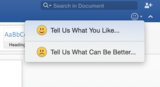
Get support at support.office.com/home/contact. Alternatively, you can inform us about any issue directly from the product using the feedback tool in the top right corner (the smiley face).
Thanks to everyone who has taken time to share comments—we appreciate it. Please keep sending us your questions and feedback and together we’ll keep making the Office apps for Android better.
—Kirk Koenigsbauer
The post Your top questions about Office for Android phone answered appeared first on Office Blogs.
Office Blogs
.
Blog
.
<span class='date ' tip=''><i class='icon-time'></i> Aug 23, 2015 08:09pm</span>
|
|
Editor’s note 8/17/2015:
The blog post was updated to reflect the upcoming availability of Skype for Business in 2016.
Editor’s note 7/28/2015:
We updated this post to reflect that support for Arabic, Hebrew and Thai language documents on iPad and iPhone was delivered on July 23, 2015. The Office apps for iPad and iPhone are now available in the Office App Store in Arab countries, Israel and Thailand.
Today’s post was written by Kirk Koenigsbauer, corporate vice president for the Office Client Applications and Services team.
The response to last week’s release of Office 2016 for Mac has been amazing—thank you to all our customers! The post was one of the most read and shared Office Blog posts this year, receiving hundreds of great comments and questions. We thought it would be helpful to share the top questions and answers with you.
1. Where do I get Office 2016 for Mac?
Office 2016 for Mac is currently only available for Office 365 subscription customers. It will be available via one-time purchase in late September. In the meantime, here are the instructions on how you can get Office 2016 for Mac today:
Office 365 subscribers—On your Mac, browse to your account page (office.com/myaccount), sign in and follow the installation instructions. If you have Office 365 through your organization, go to portal.office.com/OLS/MySoftware.aspx.
Non-Office 365 subscribers—Visit office.com/mac to learn about ways to purchase an Office 365 subscription, either for you or your organization.
Students—You may get Office 2016 for Mac for free or at a substantial discount. You can find out at office.com/student.
2. When will Office 2016 for Mac be available for people and businesses who don’t want a subscription?
For businesses, Volume Licensing customers will be able to download Office 2016 for Mac from their Volume Licensing Service Center in early August.
For consumers, Office 2016 for Mac will become available as a one-time purchase option in late September.
Additionally, MSDN subscribers will also be able to get the new Office for Mac in September.
3. When will the Office 2016 for Mac preview stop working?
We are extending the use of the Office 2016 for Mac preview until the end of October, in large part based on your feedback.
Originally, we planned to let the Office for Mac preview expire on August 9, 2015, 30 days after launch. However, several customers commented that this was before the availability of the one-time purchase version in September, leaving some preview participants without Office 2016 for weeks. As a result of this feedback, we are extending the life of the preview until the end of October. This will give preview participants about one month to move to Office 2016 as a one-time purchase, or over three months for those who want an Office 365 subscription.
4. Can I use Office 2016 for Mac and Office for Mac 2011 on the same Mac?
Yes, you can use them side-by-side on the same Mac. And by the way, here’s how you add the app icons for Office 2016 to the dock.
5. When will OneDrive for Business and Skype for Business for Mac be available?
OneDrive for Business will be available before the end of the year and Skype for Business in 2016. Stay tuned to the Office Blog if you want to participate in the preview of Skype and OneDrive.
6. I have a technical problem. Where do I go?
The best place to start is support.office.com/home/contact. Otherwise you can let us know if there is something you like or don’t like by clicking the "send a smile/frown" right from within Word, Excel, PowerPoint, OneNote or Outlook.
7. How can I request a new feature?
You can submit your feature request on the new suggestion box service for each application: word.uservoice.com, excel.uservoice.com, powerpoint.uservoice.com, outlook.uservoice.com and onenote.uservoice.com.
8. I’m having problems with Outlook connectivity and reliability. What’s happening?
A number of customers reported hangs or crashes in Outlook 2016 for Mac. The Outlook team is aware of these issues and has identified two specific issues along with their root cause. In one, a small subset of customers saw frequent crashes due to some optimization work that the Outlook team was performing. The other involved hangs for customers with multiple IMAP or POP accounts. Fixes for both issues will be released this week, and customers will be automatically notified by Microsoft AutoUpdate.
We’ve also heard the requests for Gmail and iCloud calendar and contacts sync. We’ll be adding these and other feature requests through monthly updates. Stay tuned to the Office Blog for further updates as we finalize our plans here.
9. What are your plans for Visual Basic support?
Existing macros continue to work in Office 2016 for Mac. When accessing local files, you may encounter permission prompts due to Mac OS X sandboxing. We’ve added methods to the object model to allow you to update macros to minimize the number of prompts.
Office 2016 for Mac provides a simplified Visual Basic Editor (VBE) for viewing/debugging existing macros. We recommend that customers develop macros or VB add-ins in Office for Windows and use Office for Mac to debug if needed. We will continue to ensure compatibility of existing macros and make improvements to the IDE. In the future, we will include the new web-based add-in model in Office for Mac products, which work across devices and platforms, giving add-in developers a modern web development experience. These new add-ins are already available in Outlook for Mac today and will come to the rest of Office for Mac over time. They are available today for Office for Windows for Word and Excel on iPad.
10. When will Office 2016 for Mac be available in Arabic, Hebrew and other right-to-left languages? What about other languages?
We’ve heard your feedback and questions about right-to-left (RTL) language support. We are committed to doing RTL languages for Office for Mac. We are currently working through timing and will communicate our plans when we have a clearer sense of the timeline.
Support for Arabic, Hebrew and Thai language documents on iPad and iPhone was delivered on July 23, 2015. The Office apps for iPad and iPhone are now available in the Office App Store in Arab countries, Israel and Thailand. And we will release additional updates for RTL languages shortly after the iOS 9 release.
More broadly, Office for Mac is currently available in the following 16 languages: Simplified Chinese, Traditional Chinese, Danish, Dutch, English, Finnish, French, German, Italian, Japanese, Norwegian, Polish, Brazilian Portuguese, Russian, Spanish and Swedish. And Office 2016 for Mac is available in all countries where Office 365 is available except for Turkey. Office for Mac will be available in Turkey in September when the Turkish language version is ready.
Thank you again for the incredible response to Office 2016 for Mac. The team is already hard at work on the first update for Office 365 customers. We’ll share more information soon. Please keep sending us your questions, feedback and suggestions—it’s very helpful as we prioritize the backlog to create the best Office for Mac experience for you!
—Kirk Koenigsbauer
The post Your top 10 questions about Office 2016 for Mac answered appeared first on Office Blogs.
Office Blogs
.
Blog
.
<span class='date ' tip=''><i class='icon-time'></i> Aug 23, 2015 08:08pm</span>
|