Blogs
|
Just nine months ago the OneNote team released the OneNote Class Notebook app, which has already had a huge impact in classrooms around the world. The app allows instructors to quickly set up a personal section for each student, a content library for handouts and a collaboration space for lessons and creative activities—all within one powerful notebook. Since then, we’ve continued to listen to your feedback and continued to improve the OneNote Class Notebook experience so we can best serve teachers needs when and where they need it in the classroom to organize and collaborate with students.
Today, we are delighted to announce that OneNote Class Notebook support for the Learning Tools Interoperability (LTI) standard is now available for public preview. This means instructors will be able to use OneNote Class Notebooks with any LTI-compliant Learning Management System (LMS). This integration streamlines the notebook creation process even further, and makes the OneNote Class Notebook easily accessible alongside other learning materials within the LMS.
Instructors, as well as IT administrators, can easily enable the app for their course in Blackboard, Brightspace, Canvas, Moodle or any other compliant LMS. Teachers will then be able to launch the OneNote Class Notebook LTI app from their LMS course page and walk through the notebook creation process directly within their LMS. Once a teacher has finished creating a notebook, it is added directly to their course for the students to access. All the rich content available in OneNote is now one click closer for students and teachers.
To get started and to find out more about integrating OneNote Class Notebook with your LMS, go to www.onenote.com/lti.
With the announcement of LTI support for OneNote and also Office Mix, Microsoft is committed to supporting open standards and interoperability, so we can work with others to provide the most seamless experience for our users. OneNote Class Notebook support for LTI will be in public preview for the summer season and is planned to be available for productive use ahead of the fall school year.
The post Now available for public preview—OneNote Class Notebook with LMS integration via LTI appeared first on Office Blogs.
Office Blogs
.
Blog
.
<span class='date ' tip=''><i class='icon-time'></i> Aug 23, 2015 08:29pm</span>
|
|
Office 365 is about helping you be more productive so you can make the most of every moment. We believe the future of productivity involves technology that is truly personal and can work on your behalf. This belief is a driving force behind Microsoft’s personal digital assistant Cortana, which is coming to PCs and tablets, with Windows 10. Cortana learns your preferences to provide relevant recommendations, fast access to information, and important notifications. Cortana in Windows 10 can help you at home, at work and on the go.
We’re pleased to announce the ability to integrate Cortana in Windows 10 with Office 365 for businesses, available in the latest Windows Insiders preview build. Cortana in Windows 10 will be now able to connect to Office 365 to help you accomplish more at work. You can preview this initial integration between Cortana and Office 365 starting today if your company is opted into First Release for Office 365, and you are enrolled in the Windows Insider Program and running Windows 10 preview bits.
Today, Cortana is already great at letting you quickly see what your day is going to look like, see when and where you first meeting is, get a sense of travel times to work, or even get updates for upcoming trips from your calendar.
Quickly glance at your day, know what’s next and take action.
Cortana gets even better when connected to Office 365. For instance, at work many of us spend significant time and energy on meetings. By integrating with Office 365, Cortana can proactively help you prepare for an upcoming meeting. Cortana brings you helpful information about the people you’re meeting with, recent documents they’ve worked on, and reminders about when and where you need to be next so you won’t be late.
Be better prepared for meetings with rich insights. See when and where you need to be next.
People are the heart of the workplace. Everything we do, whether it’s sending an email or preparing a presentation, all comes back to the people we work with and having a great relationship with them. Through Office 365, Cortana can pull together insights to help you be more connected—like how you and your colleagues are connected to each other, documents you share and your upcoming meetings with them. Cortana will even deliver reminders when that important person contacts you.
If you’re enrolled in the Windows Insider Program, running the Windows 10 preview bits, and have an Office 365 account at work, you can connect Cortana with Office 365 starting today. In addition, Office 365 admins can opt-out of Cortana connectivity in the Office 365 Admin portal.
We are just starting this journey, and we’d love to hear your feedback on the Cortana and Office 365 integration preview, so please join the Windows Insider Program to give it a try, and share your feedback with the Insiders community.
Frequently asked questions
Q. Is the ability to integrate Cortana with Office 365 now available to all Office 365 customers? What does someone need to have in order to try it out?
A. The requirements for you to be able to preview Cortana integration with Office 365:
Your company needs to select the First Release option in the Office 365 Admin Center
You need to be enrolled in the Windows Insider Program and running Windows 10 preview bits.
Also, please note that Cortana is only available in select languages and markets today. Please check the Windows Insider Program site for more information.
Q. What is the Windows Insider Program?
A. The Windows Insider Program is a public preview program to gather feedback from our users to help us shape and improve the experience before general availability of Windows 10 on July 29th.
Q. Which version of Windows will be supported? Will these support Windows Phone 8.1 Cortana?
A. The ability to integrate Cortana with Office 365 will be available in Windows 10 desktops and tablets. Mobile phone integration will happen later this year.
Q. Can Office 365 admins control access to Cortana?
A. Yes, we are providing a new Office 365 admin control for Cortana to Office 365 customers. At this stage it is available only to customers using First Release. When Office 365 access is disabled, Cortana will still work on end users’ devices, but it will not have access to Office 365 information. You can find out more information here.
The post An early look at Cortana integration with Office 365 appeared first on Office Blogs.
Office Blogs
.
Blog
.
<span class='date ' tip=''><i class='icon-time'></i> Aug 23, 2015 08:28pm</span>
|
|
Starting today, PowerShell for Office 365, a new website designed to help Office 365 IT administrators get started on Windows PowerShell for Office 365 is now live. Announced at Microsoft Ignite, this website is targeted at IT administrators with little to no experience with Windows PowerShell. The website is focused on simple scenarios that are focused entirely for Office 365 administration.
Learning PowerShell for Office 365 makes the job of IT admins easier and more efficient. For example, say your company goes through a large reorganization where departments change names and move to different management. If you are dealing with a few changes and a few people, the Office 365 Admin Center can quickly be used to make the changes. However, consider the task at hand if the changes involved hundreds or even a thousand users. While the Office 365 Admin Center is more than capable of making all the changes, the amount of work and the time it would take would be massive if the IT admin had to edit the users one-by-one.
With PowerShell the updates can be made in three steps. First, you export the list of users into a CSV (comma separate values) file. Second, you make the necessary edits in the CSV file. Third, you import the edited user list back into Office 365. With a few PowerShell scripts, you have just automated the process of updating the company directory to match your organization. And you saved yourself significant amounts of time.
PowerShell does not replace the Office 365 Admin Center. In fact, they are complementary tools and should both be used. The strength of PowerShell only really becomes apparent when you need to handle scenarios such as:
Adding or editing a large number of users.
Using multiple filters to sort through data.
Exporting data such as user lists and groups.
Configuring less commonly used settings.
The new PowerShell for Office 365 website is targeted to get you up to speed with PowerShell as soon as possible. The website is organized to provide you with the following right from the start including:
Consolidated guide to help you setup your machine to run PowerShell.
Simple and applicable common scenarios.
Sample scripts you can download, edit and then use right away.
Links to resources such as TechNet to get more details.
Connect with your peers and with us in the Office 365 Network.
By using the PowerShell for Office 365 website, you start the journey in learning a valuable tool for administering Office 365 to help you complete your tasks quicker and get more done. Get started on PowerShell for Office 365 today.
—Lawrence Chiu, senior product marketing manager for the Office 365 team.
The post Get started on PowerShell for Office 365 appeared first on Office Blogs.
Office Blogs
.
Blog
.
<span class='date ' tip=''><i class='icon-time'></i> Aug 23, 2015 08:28pm</span>
|
|
Compliance is no longer about email alone. It has extended into realms that include social media, instant messaging, and collaboration platforms, to name just a few. In just a few years, these communication channels have become so prevalent that entire industries have spun up around them. Governance and regulatory policies have been updated to reflect the growing influence of these new mediums. When thinking of compliance, organizations must now account for all of these new communication tools that are frequently used by their employees.
Today, Office 365 helps customers stay compliant with an archiving solution that covers email, documents in SharePoint and OneDrive for Business, and Skype for Business meetings and conversations. But, our customers require and have asked for more—they want Office 365 to provide the same rich archiving capabilities over non-Microsoft data sources, such as social and messaging data, as well.
To accommodate customers who require archiving of non-Microsoft data in Office 365, we are pleased to announce new partnerships with two popular vendors in the archiving space: Actiance and Globanet.
The Actiance platform provides real time policy enforcement, content monitoring and capture of 70+ leading social media, unified communications, collaboration, and IM channels. The company services small to large size businesses across all industries and counts among its customers all of the top 10 US, top 5 Canadian, top 8 European, and top 3 Asian banks.
Globanet’s social media and message capture platform - Globanet Merge1™ - extends archiving, eDiscovery and compliance to data sources including email, IM, social media, financial, and mobile text communications. The product is a dynamic, user-friendly and affordable way to merge all company data streams into a single database.
Thanks to extensive collaboration and deep integration with Actiance and Globanet, Office 365 extends its rich and comprehensive archiving solution to cover a wide array of third-party data sources:
Social — Twitter, Facebook, Yammer, LinkedIn, etc.
Instant messaging — Yahoo Messenger, GoogleTalk, Cisco Jabber, etc.
Document collaboration — Box, DropBox, etc.
Verticals — SalesForce Chatter, Thomson Reuters, Bloomberg, etc.
SMS/text messaging — BlackBerry, MobileGuard, etc.
The entire compliance stack in Office 365—eDiscovery, Retention, Hold and Auditing—will have access to these new data sources. Both Microsoft as well as non-Microsoft data will be treated alike throughout the system.
Our partners are doing work to integrate their products seamlessly with Office 365. By simply indicating Office 365 as an archiving destination in their products, customers will be able to immediately capture data from numerous data sources. There is no need for any additional configuration in Office 365. All captured data flows into Office 365’s auto-expanding archives. Once data is housed in Office 365, it is fully available to the Compliance tools that our customers are familiar with. Using our eDiscovery and Equivio analytics tools, customers will be able to search, preview and conduct extensive reviews on all ingested data and associated properties. Customers will be able to define retention policies for specific data sources—such as "Delete Facebook data after one year" and so on. And finally, every incoming piece of data, regardless of type or source, will be fully tracked and logged by our comprehensive Auditing tools, with full transparency to customers.
An early preview of our upcoming eDiscovery experience in Office 365 with native support for non-Microsoft data.
To give customers the full breadth of choice, we are also inviting more data capture specialists to integrate with Office 365. Interested parties can email Office 365 Archiving Partners to learn more and participate in this program.
We’re excited to deliver a solution that meets the varied requirements of all our customers and industries we serve across the world. We’ll begin to roll out this offering worldwide in the coming months.
—The Office 365 Archiving Team
The post Announcing archiving for non-Microsoft data in Office 365 appeared first on Office Blogs.
Office Blogs
.
Blog
.
<span class='date ' tip=''><i class='icon-time'></i> Aug 23, 2015 08:27pm</span>
|
|
Today’s post was written by Zig Serafin, corporate vice president for the Skype for Business team.
When Microsoft launched Skype for Business earlier this year, I described our plans to deliver new Skype for Business voice and meetings capabilities in Office 365, beginning with a technical preview this summer. These new capabilities will enhance the existing Skype for Business experience, and allow us to offer a complete, enterprise-grade communications solution at global scale as part of Office 365.
I’m pleased to announce that the technical preview is here. Starting today, Office 365 enterprise customers can register for the following previews:
Skype Meeting Broadcast, available to eligible Office 365 customers worldwide, enables broadcast of a Skype for Business meeting on the Internet to up to 10,000 people, who can attend in a browser on nearly any device. Skype Meeting Broadcast makes it easy to host large virtual meetings like internal "Town Hall" style meetings and public webinars. The preview includes integration with Bing Pulse, for real-time polling and sentiment tracking, and Yammer, to enable attendee dialogue during the broadcast.
PSTN Conferencing, available in preview to Office 365 customers in the U.S., allows people invited to a Skype for Business meeting in Office 365 to join the meeting by dialing in using a landline or mobile phone. This traditional dial-in capability is in addition to simple, single touch join options on PC, smartphone and browser, and allows people to join an online meeting even in places with no Internet access. PSTN Conferencing in Office 365 will also allow people to add others to a meeting by dialing out.
Cloud PBX with PSTN Calling, also available in preview to Office 365 customers in the U.S., provides people the ability to make and receive traditional phone calls in their Skype for Business client, and manage these calls with features like hold, resume, forward and transfer. This preview is built on the proven enterprise voice technology available in Lync Server and Skype for Business Server. Later this year, we will ship Cloud PBX for customers worldwide, with a configuration option for customers to use existing on-premises phone lines for inbound and outbound calling.
In addition to these previews delivered by Microsoft, our strategic partners, AT&T, BT, Colt, Equinix, Level 3 Communications, Orange Business Services, TATA Communications, Telstra, Verizon and Vodafone, we will deliver direct connections to Office 365 Skype for Business customers later this year through Azure ExpressRoute for Office 365. ExpressRoute enables customers to create private connections between their premises and Microsoft datacenters, and offers more predictable network performance, the ability to better manage network availability, the reliability that comes with dedicated connectivity and additional data privacy.
Office 365 is the world’s cloud for productivity. Through these investments, we are making complete, enterprise-grade communications an integral part of Office 365. In doing so, we’re enabling people to connect with one another across all forms of human expression—verbal, written, visual and emotional.
With these new services, we will bring traditional calling and conferencing into the new era of workplace communications, and also add an entirely new way of communicating at much higher scale with much greater flexibility over the Internet. We can’t wait for you to try them!
—Zig Serafin
To see a demonstration of the Skype Meeting Broadcast experience and learn more about how it works, watch this Office Mechanics video:
Frequently asked questions:
Q. What are the eligibility requirements to participate in the preview?
A. The Skype Meeting Broadcast preview is available worldwide to customers with an Office 365 enterprise plan or Skype for Business Plan 2. The previews of PSTN Conferencing and Cloud PBX with PSTN Calling are available in the U.S. to customers with an Office 365 enterprise plan or Skype for Business Plan 2.
Q. Can end users sign up for the trial?
A. No, the trial must be provisioned for the customer tenant by an Office 365 administrator. End users interested in trying the new services should contact their Office 365 administrator.
Q. Are interested Office 365 customers required to trial all of the services currently in preview, or can they choose to preview only a subset?
A. Eligible Office 365 enterprise customers may choose to trial any or all of the services now in preview according to the geographies where each preview is available.
Q. When will these services be generally available, and how will they be priced?
A. We expect to make these services generally available before the end of this year. We will share pricing and licensing details when we are closer to general availability.
The post Announcing preview of new Skype for Business services in Office 365 appeared first on Office Blogs.
Office Blogs
.
Blog
.
<span class='date ' tip=''><i class='icon-time'></i> Aug 23, 2015 08:27pm</span>
|
|
Today’s post was written by Kirk Koenigsbauer, corporate vice president for the Office Client Applications and Services Team.
When we launched the Office 2016 Preview in early May, we said that we would share regular updates on new features as they became available. Here’s a quick update on what we’ve delivered in the last month.
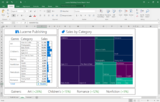
New charts in Excel—There has been a lot of enthusiasm for the new charts in Excel we delivered— all based on user feedback. The six new charts include Waterfall (shown), Histogram, Pareto, Box & Whisker, Treemap (shown) and Sunburst.
Real-time typing in Word—Real-time typing is now in Word! You can see where others are working and what they are typing as they type it. To try this, save a document to OneDrive for Business and invite your colleagues to join you in a simultaneous authoring session.
Insights in Excel and PowerPoint—Last month we delivered Insights in Word and Outlook, and we just brought it to Excel and PowerPoint. As a reminder, Insights, powered by Bing, brings you contextual information from the web right into your Office experience. Fact check or explore terms without leaving your spreadsheet or presentation. Just right click any word or phrase and select "smart lookup."
Tell Me—Tell Me is an entirely new way to find the commands you need. Just type what you want to do in the Tell Me box at the top of Word, PowerPoint, Excel, and Outlook, and you will get a set of results that let you take the desired action directly from within those results.
Convert Hand Written Equations to Text—Use the Insert Equation feature to write math equations in Word, Excel and PowerPoint with a digital pen, a mouse, or even your finger, and Office automatically converts it to a "typed" format.
We keep adding new features, and there’s definitely more to come. If you haven’t joined the Office 2016 Preview, it’s not too late, you can join here. Please stay tuned for future updates and thank you for your feedback and interest in Office 2016!
—Kirk Koenigsbauer
The post Office 2016 Preview—update 2 appeared first on Office Blogs.
Office Blogs
.
Blog
.
<span class='date ' tip=''><i class='icon-time'></i> Aug 23, 2015 08:26pm</span>
|
|
Today’s post was written by Jean Paoli, Rob Dolin and Doug Mahugh from the Microsoft Open Teach EDU team.
Last Friday at MS Open Tech we announced new open source integration with Open edX and Office 365 and also provided an update on the evolution of open source Moodle integration with Office 365. These are exciting developments in the education technology space, and in this post we’ll cover how they fit into the broader trend toward more openness and interoperability, which is being enabled by Office 365’s open REST APIs.
Whether you’re a fourth grader at your local elementary school, a forty-year-old working on an evening MBA, or a fourth year associate enrolled in training at your company, there’s a good chance that you use a popular LMS (Learning Management System) or MOOC (Massive Open Online Course) platform such as Moodle, Open edX or others for submitting homework and managing your education. There’s also a good chance that you use Microsoft Office 365—the world’s leading productivity suite—for creating content and collaborating with others.
Wouldn’t it be great if you could seamlessly move back and forth between Office 365 and your LMS or MOOC, using tools like OneNote and Word to create content, or OneDrive to store documents and Outlook to manage your calendar? The Office 365 open REST APIs enabled the open source community to work with MS Open Tech on turning this vision into a reality. Office 365 REST APIs can be used from any programming language. For example, Moodle is written in PHP and edX is written in Python, but in both cases we’ve used the same open REST APIs.
At the heart of these integrations is single sign-on (SSO), which allows instructors and students to move between Office 365 and Moodle or Open edX without the need to log in each time. For example, you could be logged in to Office 365 and working on a Word document, and then you’d like to go into Moodle to upload the document as an assignment or submission. In Moodle, you can now simply click Log in with Office 365 and you’re authenticated in Moodle with full access to Office 365 documents and services—ready to get your work done.
To further streamline the workflow, these integrations give students and teachers the option to allow Moodle or Open edX to appear in the My Apps app launcher within Office 365. So your LMS or MOOC can be one click away whenever you’re working in Office 365.
SSO integration with Moodle and Open edX leverages Azure Active Directory, using the OAuth2 standard and OpenID Connect (OIDC). We’ve also taken advantage of the Calendar API and OneNote API to enable a variety of integration scenarios in Moodle and both Moodle and Open edX can pull content from OneDrive into assignments. For example, students using Moodle can now choose to synchronize their Outlook calendars to the Moodle course calendar, so that when a teacher reschedules a class they’ll see the update immediately on their smartphones.
In the spirit of contributing to the open source community, OIDC support has been implemented for Moodle and Open edX in a manner that allows use by any OIDC provider—not just Office 365 and Azure AD. We’ve done the same for OEmbed support, so you can use the new OEmbed plugin for Moodle to embed an Office Mix, or to embed any other OEmbed source such as YouTube, Slideshare and many others.
The Moodle plugins for Office 365 were released in January, and include SSO, OneNote submissions and feedback, OneDrive integration, Outlook calendar sync and Office Mix (OEmbed) integration. Moodle is the world’s most popular LMS, used by both corporate and educational institutions worldwide. For this project we worked closely with Moodle’s partner, Remote-Learner, taking advantage of their deep expertise in Moodle and our team’s expertise in the open Office 365 APIs to create a seamless experience for educators and students. We’re continuing to work with Remote-Learner on evolving the Moodle plugins for Office 365 based on feedback from the community.
The Open edX integrations will be available in the Open edX "Cypress" release coming in early July, and initially include SSO and OneDrive integration. Open edX is the world’s most popular open source MOOC platform, and we’re continuing to work with the Open edX experts at OpenCraft to expand the ways the Office 365 and Open edX can be used together.
For more information about these projects, see the recent blog posts about Open edX integration and Moodle integration over on the MS Open Tech blog.
—Jean Paoli, Rob Dolin and Doug Mahugh
The post Office 365 now offers seamless integration with educational open source software appeared first on Office Blogs.
Office Blogs
.
Blog
.
<span class='date ' tip=''><i class='icon-time'></i> Aug 23, 2015 08:26pm</span>
|
|
Editor’s Note 7/7/2015:
We added the sample workbook used to create the charts, which you can download here.
As part of a wave of new updates delivered in the Office 2016 Public Preview last month, we unveiled a set of highly anticipated new charts to give you more ways to explore data and tell rich stories across Excel, Word and PowerPoint. Say hello to Waterfall, Histogram, Pareto, Box & Whisker, Treemap and Sunburst—six powerful charts that help you quickly visualize common financial, statistical and hierarchical data.
Read on to see how you can take advantage of these new charts and then try each one out by installing the Office 2016 Preview. You can download the sample data used to create these charts here.
Waterfall—visualizing financial statements with ease
Most business owners seek to better understand their finances in order to ensure their success. Profit and loss statements can help explain the bottom line of your business. However, quickly understanding and communicating your gains, losses and balances by viewing financial statements can be challenging. With a Waterfall chart, you can quickly illustrate the line items in your financial data and get a clear picture of how each item is impacting your bottom line. The example below shows the income statement for a bookstore. It’s clear to see that the cost of inventory nearly cut net revenue in half while operating costs accounted for an additional third of net revenue.
A Waterfall chart provides a simple visual of the running total of your financial data, identifies the contributions and provides clear subtotals, giving you a ready-to-present financial report in a few clicks.
Learn more about the Waterfall chart.
Histogram—exploring and analyzing a distribution
For a bookstore owner, it is important to continuously find new ways to attract customers. Stocking books with both high-end and low-end prices can help appeal to a wider range of readers. The new Histogram chart can display the distribution of the book prices in inventory so the bookstore owner can ensure inventory can meet the customer’s needs..
Commonly used in statistics, a histogram automatically displays the frequencies within a distribution. In this example, the horizontal axis represents the book price. Each column, called a "bin," shows the number of books within a given price range. Here we see that this bookstore has a good distribution of books, both high-end and low-end.
Excel now makes it is easy for you create the Histogram chart. After creating the chart, use the intuitive options to change the bin ranges to dig deeper into the data.
Learn more about the Histogram chart.
Pareto—finding the largest impact
Continuing with the bookstore example, the owner now wants to focus on quality control by reducing the number of returned books. Each day, a number of books are returned and tabulated for various reasons—maybe the book is a defect or the customer bought the wrong book. The Pareto chart will help the bookstore owner to see the most common reasons customers return books.
Using the Pareto chart, you can automatically sort the frequency of the most prevalent issues (the bar graph) and then show the additive contributions of each issue as you move along the horizontal axis (the line graph).
In the example below, each column represents a reason for a book return. The line graph shows how each column, or issue, contributes to the overall total of returned books. Notice, from the bar graph, that the "defect" category caused 2,025 book returns. From the orange Pareto line in the chart, we see that this means defects contributed to 40 percent of all book returns. By improving on just the top three reasons for returns—defects, incorrect pricing and wrong products—the bookstore owner can address over 80 percent of the returns!
The Pareto chart allows you to prioritize the improvements you want to make in the bookstore to address the most critical issues.
Learn more about the Pareto chart.
Box & Whisker—bringing statistics to distribution
Like the Histogram chart, the Box & Whisker chart shows the distribution of information. For deeper analysis, this chart goes further by providing key insights about the distribution in one view, including range, quartiles, mean and outliers. And you get all of this information with a few clicks.
In this example, we are able to compare the price distribution of books by genre. The Box & Whisker chart automatically groups the books by their genre and displays the characteristics of the distribution of pricing in a way that can be easily analyzed. Notice that the book prices of Romance have a wider range and is especially skewed by the one $300 item.
Box & Whisker chart adds a visual angle to Excel’s statistical functionality, creating a simple snapshot view of the data’s characteristics.
Learn more about the Box & Whisker chart.
Treemap—analyzing across hierarchies in one view
For the bookstore owner, it is very useful to know which book genres provide the largest source of revenue. But what if you could easily identify the largest revenue generators for each level of genre categorization … in one view? The Treemap chart is an ideal visualization for this purpose because it provides a hierarchical view of your data and an easy way to compare different levels of categorization.
In this example, we can see each sub-genre grouped to its parent genre automatically, by color and proximity. The size of each node, marking a sub-genre, represents the total revenue of all books under that category. You can easily see that most of the revenue comes from Children’s books and Romance books, but also that 1st Readers and Young Adult titles are the most lucrative.
With Treemap, large datasets with innate groupings can be effectively visualized in a simple way. Treemap draws the big picture, so you can draw comparisons between similar or competing products.
Learn more about the Treemap chart.
Sunburst—revealing every level of your hierarchy
While using a Treemap chart is ideal for comparing the relative sizes of groups, the Sunburst chart shows the full hierarchy of the groups to provide deeper analysis capabilities. With a Sunburst chart, it’s easy to see the largest contributing segments within a hierarchy of multiple levels.
The visual layout is intuitively natural for finding how each slice is broken down to the most basic contribution. The Sunburst is versatile, displaying any number of levels for any category.
Learn more about the Sunburst chart.
These six new chart types provide a rich new set of storytelling tools in Excel, Word and PowerPoint that enable you to do more with your data. Additionally, each chart can be customized to fit your specific needs with the intuitive design tools you are already familiar with in Excel. Use these features to change style and layout of the chart, add chart elements, like legends and data labels and fine-tune the fonts, colors and effects.
After the release of Office 2016, expect to see even more innovative chart types added to Excel through your Office 365 subscription. As part of the modern Office experiences, we are committed to providing the best in class visualizations for data analysis and storytelling.
Get started today by installing the Office 2016 preview and then apply these new chart types to your own data.
The post Introducing new and modern chart types now available in Office 2016 Preview appeared first on Office Blogs.
Office Blogs
.
Blog
.
<span class='date ' tip=''><i class='icon-time'></i> Aug 23, 2015 08:26pm</span>
|
|
Office 365 offers a comprehensive compliance toolset that spans Exchange email, SharePoint and OneDrive for Business documents, and Skype conversations. Some customers store valuable information in Exchange public folders, and have requested that we broaden Office 365’s compliance solution to cover public folder data as well. Previously, external archiving solutions were required to meet this need.
Today, we are pleased to announce that the Office 365 archiving and eDiscovery toolset is being extended to include public folders. Customers can now place public folder content on hold to preserve it for legal or regulatory requirements. They can perform eDiscovery functions on public folder data, including search, preview and export. Entire public folders or specific content (based on keywords) can be preserved immutably. They can delete aged items out of public folders. And all administrative activities on public folders are fully audited. Throughout all these operations, users can continue to interact with public folder data without any change in their experience.
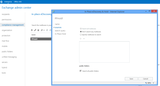
To perform an eDiscovery search on public folders, you simply specify "public folders" as the source.
Specifying public folders as a source for an eDiscovery search.
If you choose to put public folder content on hold, we preserve that data immutably using a model similar to the Recoverable Items architecture that we use in regular mailboxes. A DiscoveryHolds folder is created to store the data in a way that is accessible to eDiscovery searches, but not accessible or editable by end users.
We’re excited to bring Office 365’s rich compliance offering to Public Folders. We’ll begin to roll out this offering worldwide in the coming weeks.
—The Office 365 Archiving Team
The post Announcing compliance toolset for public folders appeared first on Office Blogs.
Office Blogs
.
Blog
.
<span class='date ' tip=''><i class='icon-time'></i> Aug 23, 2015 08:25pm</span>
|
|
In this episode, Jeremy Thake and Richard DiZerega talk to Mark Rackley about client side development on SharePoint.
http://officeblogspodcastswest.blob.core.windows.net/podcasts/EP52_Rackley.mp3
Download the podcast.
Weekly updates
Office 365 users gain one-click access to third-party apps
Azure Logic Apps
Implementing AD integration with Office 365 using a sub-domain (for dev/test) by Chris O’Brien
Hooking SharePoint APIs with Android by Kris Wagner
Inconvenient ADAL JS Angular with simultaneous CORS requests by Waldek Mastykarz
Using The Force With Office 365 by Todd Baginski
Office for Android phone is here!
SPTechCon Developer Days Follow Up by Marc Anderson
Got questions or comments about the show? Join the O365 Dev Podcast on the Office 365 Technical Network.
The podcast RSS has been submitted to all the stores and marketplaces but takes time, please add directly with the RSS http://feeds.feedburner.com/Office365DeveloperPodcast.
About Mark Rackley
Mark is Partner and CTO at PAIT Group with more than 20 years of experience designing and developing software solutions. Mark’s daily responsibilities include forging the direction of solution architecture and development projects for clients while providing the best solutions for clients’ unique problems. As a globally recognized SharePoint geek, Mark is an active blogger, presenter, author (and bacon aficionado) who is eager to lend his real-world knowledge of SharePoint to all who need it. In addition to speaking at various SharePoint conferences, Mark is the organizer of SharePointalooza in Branson, Missouri and can be found speaking at as many Saturday events as his professional and family life will allow. Mark engages his audiences with humor, real-world stories from the trenches, and practical solutions. You can follow him on www.sharepointhillbilly.com
About the hosts
Jeremy is a technical product manager at Microsoft responsible for the Visual Studio Developer story for Office 365 development. Previously he worked at AvePoint Inc., a large ISV, as the chief architect shipping two apps to the Office Store. He has been heavily involved in the SharePoint community since 2006 and was awarded the SharePoint MVP award four years in a row before retiring the title to move to Microsoft.
You can find Jeremy blogging at www.jeremythake.com and tweeting at @jthake.
Richard is a software engineer in Microsoft’s Developer Experience (DX) group, where he helps developers and software vendors maximize their use of Microsoft cloud services in Office 365 and Azure. Richard has spent a good portion of the last decade architecting Office-centric solutions, many that span Microsoft’s diverse technology portfolio. He is a passionate technology evangelist and frequent speaker are worldwide conferences, trainings and events. Richard is highly active in the Office 365 community, popular blogger at www.richdizz.com, and can be found on twitter at @richdizz. Richard is based, born and raised in Dallas, Texas, but works on a worldwide team based in Redmond. In his spare time, Richard is an avid builder of things (BoT), musician, and lightning fast runner.
Useful links
Office 365 Developer Center
Blog
Twitter
Facebook
StackOverflow
http://aka.ms/AskSharePointDev
http://aka.ms/AskOfficeDev
http://aka.ms/AskOffice365Dev
Yammer Office 365 Technical Network
O365 Dev Podcast
O365 Dev Apps Model
O365 Dev Tools
O365 Dev APIs
O365 Dev Migration to App Model
O365 Dev Links
UserVoice
The post Office 365 Developer Podcast: Episode 052 on client side dev with Mark Rackley appeared first on Office Blogs.
Office Blogs
.
Blog
.
<span class='date ' tip=''><i class='icon-time'></i> Aug 23, 2015 08:24pm</span>
|