Blogs
|
Today’s post was written by Kirk Koenigsbauer, corporate vice president for the Office Client Applications and Services team.
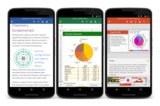
Today I’m pleased to announce the general availability of the new Word, Excel and PowerPoint apps for Android phone. These join our previously released Office apps for Android tablets to complete the Office experience for the millions of Android users around the world. Download Word, Excel and PowerPoint on your Android phone today to get started.
Five weeks ago, we announced the Office for Android phone preview. We are so grateful to our preview users, and with their help we were able to test the apps on over 1,900 different Android phone models in 83 countries. During the preview, we heard from thousands of these users, and over the last few weeks we were able to incorporate a lot of their feedback into the apps we’re launching today. For example, we made it easier to connect to other popular third-party storage offerings like Google Drive and Box, as well as many usability adjustments to make it easier to navigate commands within the apps.
Here are a few of my favorite aspects of our new Android phone apps:
On the go reviews and edits—I often need to squeeze in quick reviews in between appointments during the day. I can review documents in full fidelity, read comments and then easily add my own.
Presenting from my phone—I love just bringing my phone to a meeting to present wirelessly. PowerPoint for Android phone gives me the same transitions, animations and design that I would have from my desktop, and I can even use inking to highlight important points while presenting.
Quick access to my documents—I can quickly find the document I was working on in the office from my phone. It even shows me where I was last working. Additionally, while I am a faithful OneDrive user, I can also access documents stored in Dropbox, Google Drive or Box with our support for third-party cloud storage providers.
Easy to get—We’ve partnered with over 30 global, regional and local OEMs such as Samsung, Sony, LG and many more, to pre-load these apps on Android devices. Many of these devices will be landing in retail stores later this year.
You can download the Word for Android, Excel for Android and PowerPoint for Android apps from the Google Play* store beginning today. We hope you enjoy using them as much as we enjoyed making them.
—Kirk Koenigsbauer
*Word, Excel, PowerPoint apps are available in the following app stores in China: Tencent, Baidu, Xiaomi, CMCC, and through the Samsung Galaxy Store worldwide.
"Android is a trademark of Google Inc. Google Play is a trademark of Google Inc."
The post Office for Android phone is here! appeared first on Office Blogs.
Office Blogs
.
Blog
.
<span class='date ' tip=''><i class='icon-time'></i> Aug 23, 2015 08:34pm</span>
|
|
On this week’s show, we invite Michael Tejedor back to give us an update on Power BI. Michael explains the options for connecting Power BI to the cloud and even on-premises data sources. We share news about content packs allowing you to connect and gain insights into data from popular cloud services immediately. Finally, Michael demonstrates the new push APIs to allow Power BI to display real-time data from IoT devices.
On previous shows, we’ve highlighted the capabilities of Power BI - from quickly gaining insights to vast amounts of operational data to new dashboard capabilities in the Power BI Preview. We’ve even used Power BI to help us predict the outcome of the El Clásico match between Real Madrid and FC Barcelona.
This week we also give a quick recap of the Power BI Preview with its new dashboards, chart types and optional connectivity to on-premises data via SQL Server Analysis Services (SSAS) using the Power BI Analysis Services Connector. We highlight available and upcoming content packs to connect and quickly gain insights to Microsoft and third-party service data and demonstrate the new Power BI REST API for sending real-time push data into Power BI—like sensor data from IoT devices and more.
If you want to see all of this and more in action along with lightweight Power BI apps for iOS and Windows, check out this week’s show.
—Jeremy Chapman
The post Early look at Power BI updates and new customization options appeared first on Office Blogs.
Office Blogs
.
Blog
.
<span class='date ' tip=''><i class='icon-time'></i> Aug 23, 2015 08:34pm</span>
|
|
Today’s post was written by Shanen Boettcher, general manager for Class Dashboard and School Information Sync.
Today, we are announcing the first phase of a Preview program for two new Education services: Microsoft Class Dashboard and Microsoft School Information Sync, which will be available to Office 365 Education users at no additional charge. Class Dashboard and School Information Sync simplify connections between systems, and simplify communication and collaboration between teachers and students. As a result, teachers have more time to focus on what they love—engaging with students—using Microsoft Office tools that they use every day.
Introducing School Information Sync
Schools and districts are looking for ways to ease the challenge of connecting their data and systems. School Information Sync automates and simplifies the complex and manual processes of connecting school Student Information System (SIS) data with educational apps and class websites. It syncs user profiles and class rosters from a school or district SIS, provisions groups and class websites, enables single sign-on (SSO), and allows learning apps to access student data over an encrypted connection. Because security and privacy are so important, schools and districts determine which apps can access student data, so they can remain in compliance with their policies. With School Information Sync and Office 365, teachers spend less time managing administrative access to class materials and more time with students.
"School Information Sync will simplify the way we keep student profiles up to date across Office 365 and apps. Our students will log in once and access the apps we use. It saves time and simplifies access to important learning tools. We plan to expand our usage next school year and think School Information Sync will help make the back to school season a breeze," said John Nasset, Student Information Systems Manager, Helena (MT) Public Schools.
Education partners are also looking for easier and faster ways to work with school data systems. With this service, SIS vendors will be able to support more apps with integration through a single API, allowing them to more efficiently provide access to classroom data. Districts may enable third-party applications to access student data to personalize learning experiences, all at no charge via cloud APIs, and let students enjoy the benefits of single sign-on with Office 365. With School Information Sync, ISVs will be able to deliver SIS independent applications faster than ever.
Bryan MacDonald, Managing Director of School Systems, PowerSchool, says "PowerSchool is the market leading Student Information System. We are excited to partner with Microsoft to deliver a more integrated experience between PowerSchool and Office 365. Over 40 million parents, students and teachers rely on PowerSchool on a daily basis and through our integration with Office 365 we seek to drive improvements in both classroom and back-office productivity."
"Two-thirds of U.S. school districts use our assessment and instruction programs, and we are excited about the single sign-on and data sync benefits Office 365 offers students and teachers," said Jack Lynch, CEO of Renaissance Learning. "We are always looking for ways to make educators’ work easier, and streamlining the use of programs like ours with information systems and productivity tools is a win-win for schools and the organizations that serve them."
Introducing Class Dashboard
Class Dashboard is an easy-to-use website that brings together familiar Office apps including Word, Excel, PowerPoint, OneNote and Outlook in the context of the classroom. Teachers can get the most out of the tools they know and content they have, keep materials and classes organized and accessible, and engage students in new collaborative learning experiences to achieve better outcomes. Class Dashboard will be available to users of Office 365 Education at no additional cost.
With Class Dashboard teachers and students can stay organized and save time. Each class section has a OneNote Class Notebook, and class materials, notes, assignments and shared calendars will be stored online and in one place. Teachers and students can easily access class notebooks and documents from devices while at school or on the go. Teachers will be able to build rich assignments with documents, links, and online reference material, and collaborate with students using Office Online, web versions of Word, Excel and PowerPoint accessible from a web browser. They’ll be able to share assignments with students, track progress, give feedback and assign grades, quickly and in one place.
Engage your students in new ways
Class Dashboard will seamlessly connect with tools for interactive lessons and presentations, facilitate discussions and collaboration, and support feedback so teachers can enable students to learn in new ways. With OneNote Class Notebook, students will be able to show their creativity and collaborate in notes, drawings, and pictures.
"When we try new technology in our classes, the real test is whether teachers and students see the benefit. With Class Dashboard, the answer is yes!" said Kelly Arbuckle, Summer School Principal, Omaha, Nebraska. "Our teachers want to use their existing lessons and most of those are created with Microsoft Office products. With Class Dashboard teachers shared assignments with students in just a few clicks and gave feedback along the way. Our students liked the experience too! We’re excited to be part of this customer preview program, and looking forward to trying Class Dashboard in more classrooms next school year."
There are many different technology tools available to educators, so we built Class Dashboard to easily integrate with solutions teachers already use in the classroom. Using existing Office 365 public APIs, technology partners can access the classes, documents and assignments used by Class Dashboard within their own products and services.
For decades, we’ve invested in tools that enable people to communicate, collaborate, and unleash their creativity. We provide productivity services and devices for the mobile and cloud world. Building on solutions like Sway, Office Mix and OneNote Class Notebook, Class Dashboard is the latest example of our ongoing commitment to redefining learning and empowering teachers and students. School Information Sync will help schools put powerful teaching tools into the hands of teachers and students more easily. We are excited to bring these new services alongside the Office tools teachers and students love and use.
To learn more about Class Dashboard or School Information Sync, please visit their product websites and sign up to stay in touch.
To learn more about how to use OneNote in your class, please visit onenoteineducation.com.
For more technical information, ISV partners can visit dev.office.com to start building applications that support single sign-on via Office 365, and call Office Graph APIs, which will be extended with School Information Sync.
SIS Partners can also begin planning to integrate with School Information Sync. Contact your local Microsoft partner representative to share your integration schema and test data.
The post Coming soon—new ways to achieve more in your classroom appeared first on Office Blogs.
Office Blogs
.
Blog
.
<span class='date ' tip=''><i class='icon-time'></i> Aug 23, 2015 08:33pm</span>
|
|
Document imperfections can be distracting. Rather than producing more new content, you might spend time fixing a typo, correcting a formatting error, or moving a graphic. Over the next few weeks, Office Online is rolling out updates to eliminate these distractions to keep you focused on what matters.
Watch this short video to see all the new features:
Text formatting
Office Online is releasing new autocorrect features. The first implementation will make straightforward changes such as capitalizing the first letter of a sentence. In the coming weeks, you will see more advanced automatic formatting such as transforming two hyphens into a dash—just like you’d expect in Word.
Word Online is also adding the Format Painter, a popular office tool that can streamline document design. Format Painter allows you to copy formatting from the selected content (Ctrl + Shift + C) and paste it onto a different set of content (Ctrl + Shift + V).
Object formatting in PowerPoint Online
Text is great, but illustrations bring your presentation to life. PowerPoint Online’s latest update allows you to make your illustrations look perfect. You can easily select, move, resize and delete objects with your keyboard or mouse. The new Smart Guides feature helps you effortlessly align your objects with other content. Multiselect allows you to format more than one object at a time. You can even move objects outside the slide area while you format other content.
Previously, PowerPoint Online only allowed you to view and relocate existing tables. The latest updates will allow you to create, edit and format your tables in the browser. You can even resize rows or columns.
Easier viewing
We know our customers use Office Online on a wide range of devices. PowerPoint Online’s new full screen Reading View and Zoom tool in the Editing View allow you to have a more comfortable experience on small screen devices. Word Online is also releasing a High DPI experience for viewing PDFs.
Office Online is striving to be the best place on the web to create great content. If you have any feedback or a feature request for Word Online, Excel Online, PowerPoint Online or OneNote Online, please send it our way. If you haven’t tried Office Online yet, just go to Office.com to get started!
The post Office Online makes formatting easy appeared first on Office Blogs.
Office Blogs
.
Blog
.
<span class='date ' tip=''><i class='icon-time'></i> Aug 23, 2015 08:33pm</span>
|
|
When we launched Sway Preview, our first priority was ensuring anybody could use the rich Sway web experience in any modern browser, regardless of whether you’re on a PC, Mac or tablet. That way, the broadest amount of people could use Sway to quickly create and share polished, interactive reports, presentations, personal stories and more.
Every day, people also use native apps to get stuff done on their tablets, phones and other devices. Office has spent the last year bringing productivity applications like Word, Excel, PowerPoint, Outlook and OneNote to all major devices and platforms. Sway for iPhone is already available, and we’ve heard your feedback loud and clear that you’re eager for Sway apps on more devices and platforms. So today, we’re excited to share more news and a roadmap for Sway apps.
Sway for Windows 10 is coming this summer
Windows 10 is coming July 29, and it’s going to be a great time for millions (billions!) of people upgrading to a more personal computing experience. We will deliver a Sway native app experience for Windows 10 later this summer and we couldn’t be more excited. Sway for Windows will deliver a rich, touch-first experience that syncs your Sways across your devices and the web, helping you quickly create and share Sways that look great on any screen, for anyone you share with. Just as with Windows 10, Sway’s initial release on Windows 10 will be for PC and tablets. Reserve your free upgrade to Windows 10 (if you haven’t already), so you’re ready when Sway for Windows becomes available this summer!
Sway for Windows 10 is coming this summer.
Sway for iPad is now available, along with updates to Sway for iPhone
Today we’re also excited to announce that Sway for iPad is now available, as is an updated version of Sway for iPhone. Building on your feedback, it is now easier than ever to add pictures, videos and text to your Sway. Previewing your creations is also quicker than before—simply switch between Edit and Preview at the top to see the polished and cohesive design taking shape as you create.
Sway for iPad is optimized for the larger screen. It allows you to create, view and share Sways in landscape and portrait mode and also includes a few additional capabilities, such as the Remix! button for quickly trying out different layouts and styles. Now is a perfect time to download or update Sway for iPhone and iPad from the App Store today!
Sway for iPad is now available, along with an updated version of Sway for iPhone.
Sway for iPhone and iPad support Office 365 work and school credentials
Last month, Sway for Office 365 began rolling out to qualified Office 365 business and education customers. That rollout began with support just in Sway on the web for Office 365 work and school credentials. Today’s releases of Sway for iPhone and iPad now support these accounts as well! You can log in to Sway for iPhone and iPad using the simplified sign in interface just like in Sway on the web, or Sway can automatically log you in using the same account credentials if you’re already signed into Word, Excel, PowerPoint or OneNote on your iPhone or iPad.
As outlined previously, Sway for Office 365 is still available to First Release customers initially, and it will become available to all eligible Office 365 customers over the coming months.
Sway for iPhone and iPad support more languages and new markets
Last month, we also announced that Sway on the web had added support for six more languages, which has since grown to include Japanese as well. With today’s releases, Sway for iPhone and iPad now support these languages too, for both consumers and Office 365 business and education users. Now you can use the Sway interface in Dutch, French, German, Italian, Japanese, Portuguese and Spanish (in addition to English). Sway for iPhone and iPad are also now available in the App Store for 43 new markets where those are official languages.* More languages are on the way!
Sway for iPhone and iPad now support seven more languages and are available in new markets.
With Sway apps coming to more devices and more platforms, including Windows, even more people will be able to create and share their interactive reports, presentations, personal stories and more with their devices while on the go, and in new ways. As always, let us know what you think on UserVoice!
—Sway team, @Sway
*Sway for iPhone and iPad are now available in: Angola, Antigua and Barbuda, Argentina, Australia, Austria, Bahamas, Barbados, Belgium, Belize, Benin, Bolivia, Botswana, Brazil, Burkina Faso, Canada, Cape Verde, Cayman Islands, Chad, Chile, Columbia, Republic of Congo, Costa Rica, Dominica, Dominican Republic, Ecuador, El Salvador, Federated States of Micronesia, Fiji, France, Gambia, Germany, Ghana, Grenada, Guatemala, Guinea-Bissau, Guyana, Honduras, Hong Kong, India, Ireland, Italy, Jamaica, Japan, Kenya, Liberia, Luxembourg, Madagascar, Malawi, Mali, Malta, Mauritius, Mexico, Mozambique, Namibia, Netherlands, New Zealand, Nicaragua, Niger, Nigeria, Pakistan, Palau, Panama, Papua New Guinea, Paraguay, Peru, Philippines, Portugal, Saint Kitts and Nevis, Saint Lucia, Saint Vincent and The Grenadines, São Tomé and Príncipe, Senegal, Seychelles, Sierra Leone, Singapore, Solomon Islands, South Africa, Spain, Suriname, Swaziland, Switzerland, United Republic of Tanzania, Trinidad and Tobago, Uganda, United Kingdom, United States, Uruguay, Venezuela, and the British Virgin Islands.
Get Sway | Follow Sway
The post Bringing Sway apps to more platforms and devices appeared first on Office Blogs.
Office Blogs
.
Blog
.
<span class='date ' tip=''><i class='icon-time'></i> Aug 23, 2015 08:33pm</span>
|
|
In this episode, Jeremy Thake and Richard DiZerega talk to Chris Johnson, Andrew Connell, Eric Shupps and Rob Windsor about the upcoming Office UI Fabric that is being privately tested right now.
http://officeblogspodcastswest.blob.core.windows.net/podcasts/EP51_OfficeUIFabric.mp3
Download the podcast.
Weekly updates
Get SharePoint Apps for current web using JavaScript CSOM (Office 365) by Chris O’Connor
Transforming SharePoint customizations to add-in model training package by Vesa Juvonen
Why Are We Talking About the New Office 365 Authoring Tools Again? by Marc Anderson on ITUnity.com
Visual Studio 2015 RC Connected Services by Tim Ferro
Developing Yammer apps for iOS/OS X with ADAL, REST API and Swift 2.0 by Stephane CORDONNIER
MVP Dev Track Day1 - Native iOS Apps using Swift for Office365 by Sahil Malik
Got questions or comments about the show? Join the O365 Dev Podcast on the Office 365 Technical Network.
The podcast RSS has been submitted to all the stores and marketplaces but takes time, please add directly with the RSS http://feeds.feedburner.com/Office365DeveloperPodcast.
About the hosts
Jeremy is a technical product manager at Microsoft responsible for the Visual Studio Developer story for Office 365 development. Previously he worked at AvePoint Inc., a large ISV, as the chief architect shipping two apps to the Office Store. He has been heavily involved in the SharePoint community since 2006 and was awarded the SharePoint MVP award four years in a row before retiring the title to move to Microsoft.
You can find Jeremy blogging at www.jeremythake.com and tweeting at @jthake.
Richard is a software engineer in Microsoft’s Developer Experience (DX) group, where he helps developers and software vendors maximize their use of Microsoft cloud services in Office 365 and Azure. Richard has spent a good portion of the last decade architecting Office-centric solutions, many that span Microsoft’s diverse technology portfolio. He is a passionate technology evangelist and frequent speaker are worldwide conferences, trainings and events. Richard is highly active in the Office 365 community, popular blogger at www.richdizz.com, and can be found on twitter at @richdizz. Richard is based, born and raised in Dallas, Texas, but works on a worldwide team based in Redmond. In his spare time, Richard is an avid builder of things (BoT), musician, and lightning fast runner.
Useful links
Office 365 Developer Center
Blog
Twitter
Facebook
StackOverflow
http://aka.ms/AskSharePointDev
http://aka.ms/AskOfficeDev
http://aka.ms/AskOffice365Dev
Yammer Office 365 Technical Network
O365 Dev Podcast
O365 Dev Apps Model
O365 Dev Tools
O365 Dev APIs
O365 Dev Migration to App Model
O365 Dev Links
UserVoice
The post Office 365 Developer Podcast: Episode 051 on Office UI Fabric appeared first on Office Blogs.
Office Blogs
.
Blog
.
<span class='date ' tip=''><i class='icon-time'></i> Aug 23, 2015 08:32pm</span>
|
|
Todays’ post was written by Vijay Kumar, the senior product marketing manager for Office 365 Security.
If you’ve been following the From Inside the Cloud video series, you know we regularly bring you an insider’s view from the people who design, build and manage security, privacy and compliance in Office 365.
The recent RSA 2015 Conference in San Francisco prompted us to go outside the box to present over 20 sessions on the technologies and operational practices that Microsoft employs to protect your data in the cloud.
We recorded several sessions, which are now available for you to view on the Office 365 Trust Center:
Why trust Microsoft cloud services?—David Cross and Vijay Kumar
David and Vijay share an overview of the operating principles and no-standing-access approach to limit the ability to use customer data in the Microsoft cloud as well as additional measures and controls to protect data access from a security, privacy and compliance perspective.
Behind the announcements, Advancing Security and Trust in the world of SaaS—Vijay Kumar and Chang Kawaguchi
In this first show of the conference Vijay and Chang set context on the day’s announcements at RSA, including news about Office 365 Management Activity APIs, Customer Lockbox and Advanced Encryption.
How can you move forward with cloud innovation in highly regulated industries?—Shawn Veney, Pete Satchwell and Cristin Goodwin
A moderated discussion on what it takes to make the shift to cloud technologies in the face of constantly evolving regulations and laws at a regional, national and international level. Your hosts explore the ways in which you should seek to partner with your service provider as well as the specific efforts by Microsoft, both operationally and within the service, to help you answer the needs of your regulators and auditors.
A first look at Advanced Threat Protection to stop unknown malware and phishing attacks in email —Jeremy Chapman and Shobhit Sahay
For businesses looking to harden their email environment, Jeremy and Shobhit discuss what you can do with the latest in Advanced Threat Protection (ATP). They look at the new capabilities in Exchange Online that consistently protect against phishing attacks with new features such as Safe Attachments, Safe Link and more to safeguard against malware and bulk spamming.
Give us your feedback or ideas in the comment section below about future topics you would like to see—and of course you can access all the videos in the series and additional resources at the Office 365 Trust Center.
The post "From Inside the Cloud" goes outside the box on security appeared first on Office Blogs.
Office Blogs
.
Blog
.
<span class='date ' tip=''><i class='icon-time'></i> Aug 23, 2015 08:32pm</span>
|
|
Back in October 2014, we announced release of the Office 365 app launcher and My Apps—places where you can organize and personalize your list of first-party services accessible in Office 365.
This week, we’ve started deploying an Office 365 Store to make third-party solutions manageable in the same way, where external web applications can be launched with a single click—all within the Office 365 experience and with no admin configuration or additional sign in steps.
Rolling out to Office 365 customers in the First Release program, the Office 365 Store is accessible through an icon in the app launcher "waffle" in the top navigation bar (see below).
Clicking the icon takes you to a special version of the Office 365 Store, in which applications registered at the tenant level of Office 365 appears at the top the page (see below).
You can add these third-party solutions to your My Apps page with three clicks, which includes granting the app access to specified Office 365 data. Once loaded into My Apps, solutions can then be "promoted" to the app launcher simply by clicking the ellipsis next to the target app tile and "pinning" the app to the launcher. From there, you can launch any of these apps with no further sign in—existing Office 365 credentials do the job! You can also unpin or even remove apps you no longer need.
Initially we’re working with a select list of pioneering partners for the apps in the Office 365 Store, but over time we plan to add hundreds of popular third-party solutions as Single Sign On apps to the Office 365 Store.
Frequently asked questions
Q. When will I see the Office 365 Store feature in my Office 365 environment?
A. The Office 365 Store deploys to First Release customers the last week of June. Tentatively, all other customers should see it by July.
Q. What types of apps will appear in the Office 365 Store?
A. Any third-party web solution that is registered with Azure Active Directory (and uses OAuth 2.0 and OpenID Connect to provide identity federation and Single Sign On) can be published to the Office 365 Store. Azure AD is the same identity infrastructure that underlies Office 365. The Office 365 Store will give favorable merchandizing treatment to such apps that interact with Office data, but even web apps that don’t connect to Office can be published to the Office 365 Store by submitting a listing on the Seller Dashboard. For details on how to publish, see this article.
The Office 365 Store will also offer traditional "Add-ins" for Office and SharePoint further down the Store page. However, Add-ins will still be launched within the specific Office product or service experience (Excel, Outlook, SharePoint, etc.) rather than from within the Office 365 app launcher.
Q. How do I pay for Office 365 apps?
A. For now, only free Office 365 apps are available via the Office 365 Store. Paid Office 365 apps, purchasable by a user for themselves via Office 365 credentials and a credit card, are under consideration for the future. Group purchasing of Office 365 apps must occur through the developer’s own commerce site and a license assignment for group purchases is managed by your Office 365 admin via the Azure AD section of your Admin Center. Once assigned by the Admin, these group-purchased Office 365 apps will also appear in the individual assignees’ My Apps page.
The post Office 365 users gain one-click access to third-party apps appeared first on Office Blogs.
Office Blogs
.
Blog
.
<span class='date ' tip=''><i class='icon-time'></i> Aug 23, 2015 08:31pm</span>
|
|
Today Choose2Matter, a social movement founded by educator Angela Maiers, announced that it is collaborating with Microsoft to bring authentic, passion-driven learning to classrooms and communities around the world. Microsoft is excited to help accelerate Angela Maiers’ work to advance passion-based learning in schools and to celebrate the unique genius of every individual. This work has already had a profoundly positive impact on so many students and educators.
"I have been incredibly impressed by Microsoft’s commitment to understanding the needs of educators and students and providing them with the tools, information and educational experiences they need to succeed and thrive," said Angela Maiers. "Microsoft’s commitment to helping us move the Choose2Matter movement forward is stark evidence of this."
Angela Maiers helped launch Genius Hour in schools with the publication of her book, "The Passion Driven Classroom," in 2010 (co-authored with Amy Sandoval). Since then, tens of thousands of teachers around the world have set aside some time in the school day for students to work on "passion projects." Liberating Genius in the Classroom is a day-by-day guide to the first 20 days of implementing the Genius Hour, guiding teachers through the essential habits and attitudes that students must develop to be active and informed citizens, and instructing them how to help students find and explore their passion.
Microsoft will be the charter sponsor of Liberating Genius in the Classroom, a free e-book, authored by Angela Maiers, which guides teachers through the introduction of Genius Hour to their students. OneNote will be the preferred delivery platform for the e-book, and students will be able to download a custom OneNote genius notebook.
Microsoft will also sponsor four Choose2Matter LIVE events in the 2015-16 school year, with the option to sponsor additional events. Choose2Matter has conducted eight of these real-time innovation events at schools throughout the U.S., with more than 20,000 students participating. It is now creating a complementary curriculum and intends to host eight-to-ten live events per year, in venues throughout the world. Schools that are unable to participate live will be invited to participate via Skype.
Choose2Matter will announce availability of Liberating Genius in the Classroom and the OneNote genius notebook before the U.S. school year starts in August 2015. More details about Choose2Matter LIVE, including how schools can participate, will also be announced in August.
Sign up for the Choose2Matter newsletter today to get the free e-book on OneNote and updates on LIVE events.
The post Angela Maiers and Choose2Matter, Inc. collaborate with Microsoft for authentic, passion-driven learning appeared first on Office Blogs.
Office Blogs
.
Blog
.
<span class='date ' tip=''><i class='icon-time'></i> Aug 23, 2015 08:29pm</span>
|
|
Today’s post was written by Anne Mirtschin, teacher at Hawkesdale P12 College, a small rural prep school where students are culturally and geographically isolated. Anne is an active Skype Master Teacher.
Picture the ideal classroom where there is fun, frequent laughter, intense concentration, powerful research, dedicated learning, lots of questions posed, and thinking in different ways. Students are pushed outside their comfort zones, confidence is being instilled, valuable 21st century communication skills are learned in a collaborative work environment. Deep, powerful learning is taking place.
Mystery Skype can bring this atmosphere to the classroom—a classroom that can include any age group, culture, race and country across the world. Everyone loves a mystery and hence the increasing popularity of Mystery Skype. In this ‘game,’ students connect with another classroom or educator using Skype. Students do not know the location of their connecting classroom or educator.
Though a process of questioning, students determine where their virtual partners are located. The learning does not stop there as follow-up activities can be planned such as further research on the location, culture and people of the other classroom. Also ongoing skype connections can be made. Personal reflections on the learning that took place play an important role.
A wonderful and impressive resource is now available to document the skills and knowledge required and gained when using Mystery Skype in the classroom. Mystery Skype OneNote Notebook is now available for use on this brand new website: mysteryskypeonenote.com.
The site includes two options for getting the Mystery Skype OneNote Notebook, depending on your situation:
1. Mystery Skype Class Notebook app
Have Office 365? Get this app! In addition to curriculum for Mystery Skype activities, the Mystery Skype Class Notebook gives you an exclusive interactive space for handouts and collaboration. And you can add students to it and give them private, real-time 1:1 feedback.
Create a customized Class Notebook with this Office 365 app: mysteryskypenotebook
2. Mystery Skype Curriculum
Don’t have Office 365? You can still get a OneNote notebook pre-populated with great content to help you plan and play Mystery Skype with another classroom across the globe…or around the corner.
Download the notebook of curriculum now: mysteryskypecurriculum
For those of you who don’t know, OneNote is a fantastic tool for educational use. It is a digital binder that allows you to create sections for all subjects, topics, themes and then add multiple page links within the sections. OneNote allows learning to be demonstrated through all types of media—text, audio recordings, images, videos, links as well as the ability to write with a Surface pen and utilize many Microsoft programs and tools. It has infinite possibilities to develop into a rich digital record of powerful learning and critical thinking.
Sample of a collaborative OneNote reflection.
The Mystery Skype notebook has something for everyone—teachers both new and experienced to Mystery Skype, and students of every learning style and ability. For "newbies" there are guidelines, links, video tutorials, tips and hints to ensure a successful experience.
The notebook covers the nature of Mystery Skype, how to play the game and where to find others to play Mystery Skype with. There are sections for documenting class adventures; teacher resources; resources for students and tips/hints for successful use. Teachers can add the app to their Office 365 or download the curriculum on any device (since it is saved to your OneDrive) customize it to suit their needs. The only limit to its use is the teacher’s imagination and creativity.
The Mystery Skype Class Notebook also allows teachers to add their students to individual sections of their notebook so they can see 24/7 what students are learning and documenting. In the "Documenting Class Adventures" section, students and teachers can capture their journeys around the world and track where they have been. They can also add highlights of their learning, document questions and answers from the videoconference, list their job assignments and suggest further tips and hints for future calls. Students can add their reflections using text, voice, Surface pen, pictures or images. Even very young students or those with learning challenges or disabled students can keep a rich record.
"Mystery skype is a really good way to learn about other countries and their cultures. Last year when I came to this school I thought that it was amazing that I could do this and I really enjoyed it. It really makes you think about what cultures belong to what countries and you also learn a lot of geography when you are guessing what country they are from. It is an enjoyable way to learn!"
—Lucy, Year 8
As students in my school, in rural south eastern Australia, are geographically and culturally isolated, they love to show where they have "travelled around the globe" by adding pins to the Bing Maps app in Microsoft Excel and then add the map to one of their Mystery Skype notebook pages.
Sample of a Mystery Skype map for 2015.
One of Mystery Skype OneNote’s richest features is to allow the notebook to be shared and enable collaborative student writing and documentation take place.
If you haven’t tried Mystery Skype, do not delay, try the Mystery Skype Class Notebook app or download the Mystery Skype curriculum for FREE and research the depth of materials there.
Read more about my use of Mystery Skype and OneNote on my blog: www.murcha.wordpress.com.
—Anne Mirtschin
The post Learning adventures with the new Mystery Skype OneNote Notebook appeared first on Office Blogs.
Office Blogs
.
Blog
.
<span class='date ' tip=''><i class='icon-time'></i> Aug 23, 2015 08:29pm</span>
|