Blogs
|
Today, we are excited to announce that our digital storytelling app, Sway, is moving from Preview to General Availability! Sway is also moving beyond First Release and rolling out to all eligible Office 365 for business and education customers worldwide.* This makes it possible for many additional businesses, schools and other organizations to start using Sway to create and share interactive reports, presentations, assignments, lessons, projects and more. And of course, any consumer can use Sway with a free Microsoft account. Today, we are also introducing Sway for Windows 10, along with new layout and publishing capabilities.
We introduced Sway as a member of the Office family 10 months ago. Sway helps you create professional designs in minutes. You bring your ideas and raw content, and Sway’s intelligent design engine creates a polished, cohesive layout that helps your images, text, videos and other media flow together in a way that enhances your story. Sway makes sure your creations look great no matter what device they’re being viewed on—phones, tablets, laptops, PCs or even the largest Microsoft Surface Hub!
During Sway Preview, we’ve learned from the hundreds of thousands of amazing Sways you’ve built. Your invaluable feedback has helped us improve Sway to meet your needs—from adding fundamentals like multi-user collaboration, to the very "Sway" way we addressed photo cropping.
Sway for Windows 10 is now available
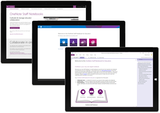
Sway for Windows 10 is now rolling out to the Windows Store. Sway for Windows combines the full richness of Sway on the web with additional capabilities on your PC or tablet.** This means you can use all of Sway’s integrated content sources along with the power of the built-in design engine to build, edit and share your Sways, whether you’re on the go with your Windows tablet or working at your desk with a PC or laptop. Want to capture the moment? Snap photos right into Sway using the built-in camera on your Windows device. And if you’re ready to present at a conference or to students and classmates, the Sways you’ve already loaded will be available offline when you don’t have Internet access or Wi-Fi is spotty. While some elements of your Sway may still need the Internet (such as interactive maps or cloud-hosted videos), this is a first step in addressing one of the most common feedback requests we heard during Sway Preview. Sway for Windows also allows you to stay logged in with multiple accounts at once if you use the same device for both work and home.
Sway for Windows offers a rich, consistent experience that integrates with your PC/tablet.
This initial release of Sway on Windows 10 is for PCs and tablets. We’re working on Sway for Windows Phones, which will arrive in the coming months. Stay tuned for more!
Present with confidence
Sway’s built-in design engine makes sure your creations look great not only on any device they’re viewed on but in whatever layout you’ve chosen as well. Sway already offers vertical scrolling and horizontal panning layouts where your content flows continuously as you swipe. One of the most popular requests we heard during Sway Preview was for another layout that lets you better control the timing of when content is revealed, particularly for presentation scenarios.
So, today we’re rolling out a new layout in the Navigation pane, which displays groupings of content (images, text, videos, tweets, etc.) one screen at a time. Whether it’s a few words with a knockout background image, a set of images and supporting bullet points, or a cluster of interactive elements, now you can deliver a killer presentation in-person or for viewing across many devices. Check out this interactive example:
Sway now has a layout for grouping collections of content, one screen at a time.
Share your Sways with the world using Docs.com
You’ve also been asking for a place where you can publish collections of your Sways to share with friends, fans and the rest of the Internet community. We’re excited to announce that with just a tap or click of the Share button, you can now choose to publish Sways directly to the newly relaunched Docs.com, an Internet destination to publish Office documents in full fidelity for the world to find, browse and share. Along with adding support for Sway, we’ve also improved the overall Docs.com experience for publishing, managing and consuming content.
Docs.com lets you organize your Sways and other Office content into collections. Word, Excel, PowerPoint and Office Mix files are displayed interactively and with full fidelity. You can also add PDFs and web links. Create a stylish Docs.com profile page using a Sway to share more about your passions and expertise. On Docs.com, Sways, documents, collections or profiles can be discovered by search engines, browsed on Docs.com, and shared in social media or on the web. Docs.com provides data on how many views you’re getting, and it’s easy for anybody viewing your Docs.com files to add comments and discover your other published work as well.
With just a tap or click, you can publish your Sways to Docs.com for the world to find, browse and share.
Sway is being used by so many people in such amazing ways
It’s been wonderful to see people use Sway in ways we anticipated, and it’s been incredible to watch them use Sway in really cool and inspiring ways we hadn’t even imagined.
For example, teachers have been using Sway to reimagine class lessons, recap class projects, provide supplemental material for parents, provide new accessible storytelling tools to their students and more. Sway has helped students breathe new life into school projects, class reports and even personal portfolios. Sway is helping even the youngest students become "active producers of their own original content" at the Bureau of Fearless Ideas (BFI), a local non-profit after-school program in Seattle. Watch this video to learn more:
As Sue from BFI explains, with Sway, students are "learning without realizing they’re learning, which is […] the gold standard."
In business, professionals have been using Sway to save time at work and easily create engaging, eye-catching interactive reports, presentations, newsletters, trainings and more. Sway can help you showcase a custom solution your IT services company built or demonstrate your industry thought leadership. Use Sway’s new format to blog publicly or share expense report training with your employees. Pitch prospective clients or attract customers with marketing materials that stand out and flow responsively across devices. Here at Microsoft we’re using Sway ourselves for internal trip reports, presentations, newsletters, corporate storytelling pieces and more—we even used Sway to share and collaborate on our plans for today’s announcements!
Check out the following video on how Sway has helped the interaction design firm Potion work together with clients and show off their work in new ways:
Potion Design Principal, Phillip Tiongson, explains how his firm uses Sway professionally.
As you can see in the video below about singer/songwriter Daria Musk, Sway has been a hit with musicians as well as digital artists and creatives of all sorts to combine mixed multimedia in a living digital collage or virtual portfolio that is easy to share with others. Sway has been helping talented and passionate hobbyists, foodies, travelers and even families stay in touch, share their adventures, and highlight their pursuits in meaningful new ways!
Singer/songwriter Daria Musk demonstrates how she uses Sway creatively to make a "living, breathing mood board" for her music.
Get started with Sway today
Professionals, teachers, students and consumers can all get started right away using your work, school or Microsoft accounts to log in to Sway.com, the new Sway for Windows 10 or updated Sway for iPhone and iPad. Sway is also integrated into the web-based Office Online, so it’s easy to switch between Sway and other familiar Office apps and Office 365 services in your browser and at Office.com.
Quickly access Sway alongside your other Office 365 apps and services and at Office.com (not shown).
Sway Preview has been an amazing journey over the last 10 months, but in many ways the journey really gets going today. We’ll keep listening to your feedback and rapidly update the product with your help. Drop us a line on UserVoice to let us know what you think of Sway, how you use it, and how you’d like to see it improve!
—Sway team, @Sway
Get Sway | Follow Sway
*Sway is available to most customers with an Office 365 plan that includes Office Online, Office 365 Business, or Office 365 ProPlus. For Government Community Cloud (GCC) customers and customers in certain geographies, Sway will be made available at a later date. Some legacy Office 365 plans that are no longer in market as of August 2015 may also not have access to Sway.
**Sway for Windows is now available in 214 markets: Åland Islands, Albania, American Samoa, Andorra, Angola, Anguilla, Antarctica, Antigua and Barbuda, Argentina, Armenia, Aruba, Australia, Austria, Azerbaijan, The Bahamas, Bangladesh, Barbados, Belarus, Belgium, Belize, Benin, Bermuda, Bhutan, Bolivia, Sint Eustatius and Saba Bonaire, Bosnia and Herzegovina, Botswana, Bouvet Island, Brazil, British Indian Ocean Territory, British Virgin Islands, Brunei Darussalam, Bulgaria, Burkina Faso, Burundi, Cape Verde, Cambodia, Cameroon, Canada, Cayman Islands, Central African Republic, Chile, China, Christmas Island, Cocos (Keeling) Islands, Colombia, Republic of Congo, Congo (DRC), Cook Islands, Costa Rica, Côte D’Ivoire (Ivory Coast), Croatia, Curaçao, Cyprus, Czech Republic, Denmark, Dominica, Dominican Republic, Ecuador, El Salvador, Equatorial Guinea, Estonia, Ethiopia, Falkland Islands (Islas Malvinas), Faroe Islands, Fiji Islands, Finland, France, French Guiana, French Polynesia, French Southern and Antarctic Lands, Gabon, The Gambia, Georgia, Germany, Ghana, Gibraltar, Greece, Greenland, Grenada, Guadeloupe, Guam, Guatemala, Channel Islands - Guernsey, Guinea, Guinea-Bissau, Guyana, Haiti, Heard Island and McDonald Islands, Honduras, Hong Kong SAR, Hungary, Iceland, India, Indonesia, Ireland, Isle of Man, Italy, Jamaica, Japan, Channel Islands - Jersey, Kazakhstan, Kenya, Kiribati, Korea, Kyrgyzstan, Laos, Latvia, Lesotho, Liberia, Liechtenstein, Lithuania, Luxembourg, Macau SAR, Macedonia, Madagascar, Malawi, Malaysia, Maldives, Mali, Malta, Marshall Islands, Martinique, Mauritius, Mayotte, Mexico, Micronesia, Moldova, Monaco, Mongolia, Montenegro, Montserrat, Mozambique, Myanmar, Namibia, Nauru, Nepal, Netherlands, New Caledonia, New Zealand, Nicaragua, Niger, Nigeria, Niue, Norfolk Island, Northern Mariana Islands, Norway, Palau, Panama, Papua New Guinea, Paraguay, Peru, Philippines, Pitcairn Islands, Poland, Portugal, Réunion, Romania, Russia, Rwanda, Saint Barthélemy, Saint Kitts and Nevis, Saint Lucia, Saint Martin, Saint Pierre and Miquelon, Saint Vincent and the Grenadines, Samoa, San Marino, Sao Tome and Principe, Senegal, Serbia, Seychelles, Sierra Leone, Singapore, Sint Maarten (Dutch part), Slovakia, Slovenia, Solomon Islands, South Africa, South Georgia and the South Sandwich Islands, Spain, Sri Lanka, Saint Helena, Suriname, Svalbard and Jan Mayen, Swaziland, Sweden, Switzerland, Taiwan, Tajikistan, Timor-Leste, Togo, Tokelau, Tonga, Trinidad and Tobago, Turkey, Turkmenistan, Turks and Caicos Islands, Tuvalu, United States Minor Outlying Islands, U.S. Virgin Islands, Uganda, Ukraine, United Kingdom, United States, Uruguay, Uzbekistan, Vanuatu, Vatican City, Venezuela, Vietnam, Wallis and Futuna, Zambia, and Zimbabwe.
The post Announcing Sway General Availability, Windows 10 app and more! appeared first on Office Blogs.
Office Blogs
.
Blog
.
<span class='date ' tip=''><i class='icon-time'></i> Aug 23, 2015 08:04pm</span>
|
|
Microsoft CEO Satya Nadella often talks about the importance of product teams being customer obsessed and the PowerPoint team loves this strategy. We’ve been doing lots of customer visits, talking to people from all over the world, and most importantly, learning about who our customers are and how they use PowerPoint. But we also believe that being truly customer obsessed means going beyond just learning about our customers. We want to make this a two-way street where we share more about building PowerPoint and you provide us with feedback to make PowerPoint even better. And that’s exactly what we’re going to do with this blog.
Our goal is to make the PowerPoint blog the go-to place for our team to share relevant information that is valuable and of interest to you—our customers. We want to help you discover the wide range of capabilities that PowerPoint has to offer, share tips and tricks to become more efficient, and highlight features to help you create and deliver beautiful and powerful presentations. You will have the opportunity to get some behind-the-scenes insights into our processes and decision making. Periodically we’ll invite other internal Microsoft teams and external guests to contribute to the blog to give you the most comprehensive picture of PowerPoint possible.
Going forward, the PowerPoint engineering team will be much more actively involved in this blog. And after spending almost two years taking PowerPoint to multiple platforms—now available on Windows, Apple and Android platforms—and getting PowerPoint on popular devices, we have a ton to share. Starting next week, Derek Johnson, senior program manager for the PowerPoint team, will share his thoughts on what’s new in PowerPoint 2016 for Mac. Next, we will follow up with a post from Jeffrey Chen, principal program manager, also on the PowerPoint team, who will cover the PowerPoint Mobile app for Windows 10.
We look forward to using this blog as a tool to continue a productive and fun two-way conversation with our customers. The product team will monitor and reply to comments on our blog and also on our powerpoint.uservoice.com site, where you can make suggestions on new features you would like us to build.
—Shawn Villaron, group program manager for the PowerPoint team
The post Learning and sharing information with our PowerPoint customers appeared first on Office Blogs.
Office Blogs
.
Blog
.
<span class='date ' tip=''><i class='icon-time'></i> Aug 23, 2015 08:03pm</span>
|
|
You know the feeling—you’re close to a critical deadline, working hard to finish that report, app or blog post (ahem). You are jogging in the morning, managing meetings or juggling life—but you still can’t afford to miss key inputs that could risk your project, or your day. In this highly connected mobile world, you must remain focused and deliver on time.
Wearables are an emerging type of device that promises to be always with you and provide relevant, personal notifications to keep you focused—through simple, natural and brief interactions. These context-aware devices become work companions, health advisors and even intelligent assistants. It’s a field still in formation, and with more than one-third of online U.S. adults reporting using a wearable device1, one that has the potential to help us do more in life and work.
Over the past months, we’ve delivered a number of experiences on wearables: OneDrive, OneNote, PowerPoint, Skype, Yammer, as well as some from our newly joined Sunrise and Wunderlist teams. You even have Cortana on your Microsoft Band!
Today we’re launching a new round of Wearable Productivity apps, as part of our quest to reinvent productivity on all platforms. Check out all our new and updated wearable apps below!
Outlook for Apple Watch—reply, schedule and archive right from your wrist
The all-new Outlook for Apple Watch is an extension of the Outlook you know and love—helping you keep up to speed with your emails, your calendar and your life. You’ll never miss what’s important with Focused Inbox Watch notifications. And browse and read full emails right from your wrist—even take action immediately by archiving, deleting, flagging or scheduling them to appear later. We’ve also added Quick Replies, with pre-written responses and voice dictation for a more personal touch. Finally, you can see unread emails and your next calendar appointment on the Glance screen. It’s never been easier to manage your work and life. Get Outlook for iOS devices now.
Reply, voice-dictate, schedule and more with Outlook for Apple Watch.
Wunderlist for Apple Watch gets Quick Add magic
It’s now even easier to capture your ideas on the go with Wunderlist. Say hello to Quick Add on Wunderlist for Apple Watch. Simply open the app, Force Touch and say, "Call the new clients tomorrow at 10 a.m." Wunderlist works its magic and creates the to-do item and automatically adds a Due Date and Reminder. We’ve also redesigned Wunderlist’s Glance to help you be even more productive throughout your day by showing you up to four to-dos on your agenda. Get Wunderlist for iOS devices now.
Use your voice to quickly add new tasks on Wunderlist for Apple Watch. Magic.
Yammer for Apple Watch—coming soon to unleash Handoff
Yammer for Apple Watch helps you to stay on top of your most important conversations and activities at a glance and take quick action so you have fewer to-dos at the end of the day. You’ll be notified instantly of Yammer announcements or updates to relevant conversations. Then tap your Apple Watch to Like, Mark as Unread, or View on Phone to continue working on your iPhone. And with Glances, you’ll get a quick view of the number of unread messages and notifications. Look out for Apple Watch support coming soon to Yammer for iOS.
Start collaborating on Yammer for Apple Watch. And with just one tap, continue on your iPhone.
Microsoft Translator for Apple Watch and Android Wear—talking with your hands never made so much sense
With the all-new Microsoft Translator for Apple Watch and Android Wear, just speak into your watch to get instant translations in 50 languages. You can translate even faster by pinning your most commonly used translations and settings to your watch screen for easy access, and browse your history of recently used phrases. The companion apps for iPhone and Android let you manage your settings and translate right from your phone or when you prefer to translate typed text. Get Translator for iOS devices or Translator for Android devices now.
Talk into your watch. Translate into 50 languages with Microsoft Translator. Instantly.
OneDrive for Android Wear—your recent memories always on time
The new OneDrive for Android Wear brings many improvements. Among the highlights, with the new OneDrive watch face, every time you activate your watch, you’ll see a great photo from the last 30 days. It’s a fun way to personalize your watch with new photos rotating through every month. And with OneDrive notifications on your watch, you’ll always be up-to-date on edits made to shared documents. Get OneDrive for Android devices now.
OneNote for Android Wear—redesigned to let you say, see and do more
With OneNote for Android Wear on your wrist, it’s now even easier to stay organized and keep track of your notes. You spoke, we listened. Now, in addition to dictating a new note with the ease of saying "Ok Google, take a note," you can see your most recently viewed notes right on your watch. No more balancing acts are needed between your phone and whatever else is keeping your hands full. Get OneNote for Android devices now.
Just say "Ok Google, take a note" to start dictating a new note instantly.
All our Wearable Productivity apps are in fashion year-round
So keep moving and start wearing our productivity apps now. We have one for every dress code, weather and time of year—pick one or many, and be more productive at life and work.
—Carlos Bohórquez Marín, product manager for the Modern Collaboration team
1Forrester Research, Inc., North American Consumer Technographics Consumer Technology Survey, 2015
Apple Watch, iPhone and iOS are trademarks of Apple Inc., registered in the U.S. and other countries. App Store is a service mark of Apple Inc. Android and Android Wear are trademarks of Google Inc.
The post Wearable Productivity—new apps for you to wear appeared first on Office Blogs.
Office Blogs
.
Blog
.
<span class='date ' tip=''><i class='icon-time'></i> Aug 23, 2015 08:03pm</span>
|
|
In this episode, Jeremy Thake and Richard DiZerega talk to Jim Epes on the App Awards from the Worldwide Partner Conference.
http://officeblogspodcastswest.blob.core.windows.net/podcasts/EP57_AppAwards.mp3
Download the podcast.
Weekly updates
Building Apps for Windows 10 with Visual Studio 2015
Office Mobile apps for Windows 10 hit general availability
Skype Group calls free
Snack videos
Souping up Office 365 by Andrew Connell
Creating our first SharePoint 2013 Hosted App—Image Slider by Michael Koger
Web Add-ins for (Word) VBA developers—Introduction by Cindy Meister
Web Add-ins: Analyzing the "Hello World" JavaScript by Cindy Meister
Office Web Add-ins: Developer IDE by Cindy Meister
AAD Apps versus Yammer Apps to consume Yammer APIs by Stephan Eysken
SharePointOnlineCredentials versus Azure Active Directory Apps versus ACS Apps by Stephan Eysken
Creating Office add-ins - using ADAL JS and the Office 365 Unified API by Matthias Einig
Office 365 OneNote API in Web Application by Garima Agrawal
Show notes
App Awards Winners 2015
App Awards Blog announcement
Better With Office
Got questions or comments about the show? Join the O365 Dev Podcast on the Office 365 Technical Network.
The podcast RSS is available iTunes or search for it on "Office 365 Developer Podcast" or add directly with the RSS http://feeds.feedburner.com/Office365DeveloperPodcast.
About Jim Epes
Office marketer with nine years’ experience at Microsoft, including several with the Windows Hardware team and five with Office Product Planning and Marketing, focused on Office 365 and the developer ecosystem. Jim oversees the app developer Go To Market, Office Store and various onboarding programs, including the Office Developer NDA Preview Program, Cloud Storage Program and liaison to the developer evangelism (DX) team. He has an MBA from the University of Washington, masters’ training at UC Berkeley and a bachelor’s from Duke.
About the hosts
Jeremy is a technical product manager at Microsoft responsible for the Visual Studio Developer story for Office 365 development. Previously he worked at AvePoint Inc., a large ISV, as the chief architect shipping two apps to the Office Store. He has been heavily involved in the SharePoint community since 2006 and was awarded the SharePoint MVP award four years in a row before retiring the title to move to Microsoft. You can find Jeremy blogging at www.jeremythake.com and tweeting at @jthake.
Richard is a software engineer in Microsoft’s Developer Experience (DX) group, where he helps developers and software vendors maximize their use of Microsoft cloud services in Office 365 and Azure. Richard has spent a good portion of the last decade architecting Office-centric solutions, many that span Microsoft’s diverse technology portfolio. He is a passionate technology evangelist and frequent speaker are worldwide conferences, trainings and events. Richard is highly active in the Office 365 community, popular blogger at www.richdizz.com, and can be found on Twitter at @richdizz. Richard was born, raised and based in Dallas, TX, but works on a worldwide team based in Redmond. In his spare time, Richard is an avid builder of things (BoT), musician and lightning-fast runner.
Useful links
Office 365 Developer Center
Dev Blog
Twitter
Facebook
StackOverflow
http://aka.ms/AskSharePointDev
http://aka.ms/AskOfficeDev
http://aka.ms/AskOffice365Dev
Yammer Office 365 Technical Network
O365 Dev Podcast
O365 Dev Apps Model
O365 Dev Tools
O365 Dev APIs
O365 Dev Migration to App Model
O365 Dev Links
UserVoice
The post Episode 057 with Jim Epes on the App Awards—Office 365 Developer Podcast appeared first on Office Blogs.
Office Blogs
.
Blog
.
<span class='date ' tip=''><i class='icon-time'></i> Aug 23, 2015 08:03pm</span>
|
|
PowerPoint 2016 for Mac is now available and we want to show you how it can help you present your ideas. While PowerPoint 2016 for Mac includes hundreds of improvements and changes, today we are going to look at some of the features that improve the look of your presentations and discuss new presentation and collaboration features.
Theme Variants feature
PowerPoint 2016 for Mac includes the theme Variants feature—providing you a simple way to switch between various color schemes and designs for your selected theme. Just click a Variant to see how it will look in your presentation. Every theme included with PowerPoint for Mac 2016 includes Variants, giving you even more design options for your presentation.
New Format Options pane
The new Format Options pane places all the Format properties right next to your content. As you adjust values, you can see your changes in the slide. This lets you quickly try different shape and text options to see what works best for your content.
Redesigned Animations pane
The Animations pane was redesigned for PowerPoint 2016 for Mac—bringing the power of the rich animation engine right next to your content. This allows for rapid changes and experimentation, helping you build both simple and complex animations more quickly and easily.
Improved media experience
As we modernized the Office 2016 for Mac suite, we also improved the performance of our media playback engine. Using the latest Apple technologies, your embedded media will play back smoothly and reliably.
Introducing the Comments pane
Gone are the days of adding shapes to act as comments when collaborating with others. With the new Comment pane, you can add and reply to comments right next to your slides—allowing you to easily track discussion threads.
Updated co-authoring conflict resolution
Occasionally, as you collaborate on the same presentations with your colleagues in real time (yes, PowerPoint allows real-time collaboration!), you may encounter conflicts. PowerPoint 2016 for Mac includes an improved experience to help you evaluate and resolve the conflicts, so you can get back to your work quickly and with confidence.
Improved Presenter View
Once your presentation is ready to go, the improved Presenter View in PowerPoint 2016 for Mac offers you more tools with an improved layout, leaving you in complete control. Take and read speaker notes, move between slides in the Thumbnail pane, and even resize each piece to fit your needs. We’ll remember where you had everything when you come back.
But that certainly isn’t all! In addition to hundreds of other changes in PowerPoint 2016 for Mac, the Office 2016 for Mac suite includes a number of great updates including an updated ribbon and keyboard shortcuts familiar to Windows users. Office 2016 for Mac is also fully cloud-connected, looks great on Retina displays, and includes richer collaboration and sharing tools. See what’s new in Office 2016 for Mac.
More than ever, the PowerPoint team is listening to your feedback and regularly updating the app for Office 365 subscribers. The best way to provide your feedback is to click the smiley face icon in the upper right corner to tell us what you like or don’t like.
What are you waiting for? Download Office 2016 for Mac now! If you don’t have an Office 365 subscription, you can start a free 30-day trial today.
—Derek Johnson, senior program manager for the PowerPoint team
The post What’s new in PowerPoint 2016 for Mac? appeared first on Office Blogs.
Office Blogs
.
Blog
.
<span class='date ' tip=''><i class='icon-time'></i> Aug 23, 2015 08:02pm</span>
|
|
Back in May, we announced the summer rollout of a number of top requested features for OneNote Class Notebooks, OneNote Staff Notebooks, and OneNote across platforms to Office 365 customers. As part of this rollout, Office 365 Education customers with E1 or E3 plans can now easily access the OneNote Staff Notebook app on their My Apps page in the App Launcher or through a simple link with additional resources at onenote.com/staffnotebookedu. The app is also now available globally in 35 languages across 51 markets. Support for right-to-left languages such as Arabic and Hebrew are coming soon.
Use OneNote Staff Notebook to cultivate and manage educator collaboration
OneNote Staff Notebooks have a personal workspace for every staff member or teacher, a content library for shared information, and a collaboration space for everyone to work together—all within one powerful notebook. With OneNote Staff Notebooks, administrators and teachers can save time, be more organized and collaborate effectively. You can read how one principal in the UK, Andrew Howard, is streamlining administration by using OneNote Staff Notebook in his school, Sandymoor School.
Finding the OneNote Staff Notebooks is now much easier
We made it much easier for administrators to discover the OneNote Staff Notebook app by adding it to your My Apps page. Creating Staff Notebooks is now as easy as signing in to Office 365 and going to the My Apps page in the App Launcher.
1. Sign in to Office 365 and click the App Launcher.
2. Click My Apps and you will see the OneNote Staff Notebook app in the list of Office 365 apps.
You can learn more about OneNote Staff Notebooks at www.onenote.com/staffnotebookedu, where you will find videos, descriptions and interactive guides. You can also sign in and start creating your Staff Notebooks on this website.
What’s next for OneNote Staff Notebooks?
As we mentioned in our blog post last month, we have more changes coming before next year. Stay tuned on this OneNote in Education blog and follow us on Twitter at @OneNoteEDU to stay informed on everything. Let us know if you have questions in the comments or by emailing us at OneNoteEDU@microsoft.com. Submit other feature requests on our feedback and suggestions site, which we use to prioritize our next round of improvements to make you and your students’ lives easier for next school year.
The post School administrators, get your Staff Notebook at My Apps or OneNote.com/staffnotebookedu appeared first on Office Blogs.
Office Blogs
.
Blog
.
<span class='date ' tip=''><i class='icon-time'></i> Aug 23, 2015 08:02pm</span>
|
|
Catalent, a global pharmaceutical technology company, is undergoing a transformation from a collection of 30 semi-autonomous sites to an increasingly productive, cohesive global organization. One reason is that Catalent deployed Microsoft Office 365 to build a faster, more productive and interconnected work environment. Today, employees are using Office 365 communication and collaboration services to drive engagement, expedite clinical trials, improve customer service, and build a competitive advantage.
"Imagine the communications required to organize the 150,000 clinical shipments that we deliver to 80 countries every year, or the coordination required to successfully deliver the 70 billion doses that we manufacture annually. The more seamless the communication and collaboration among global sites, the more we can build our competitive advantage—that’s the value we are getting from Office 365." —Michael Del Priore, senior vice president and chief information officer at Catalent
Read the Office 365 case study from Catalent.
The post Catalent—pharmaceutical tech company boosts global efficiency, productivity with Office 365 appeared first on Office Blogs.
Office Blogs
.
Blog
.
<span class='date ' tip=''><i class='icon-time'></i> Aug 23, 2015 08:01pm</span>
|
|
Today’s post was written by Jared Goralnick, principal group program manager for the Skype for Business team.
We’ve seen great momentum in the first few months since the arrival of Skype for Business, and today, I’m excited to announce the preview of the new Skype for Business apps for iOS and Android. Here’s a look at what’s new and how you can participate in the preview.
What’s new?
We’ve infused Skype simplicity throughout the new iOS and Android apps, created a new dashboard for easy navigation of your contacts, calls and meetings, and updated the In-Call and In-Meeting experience.
The updated dashboard brings the contact search bar, your upcoming meetings and most recent conversations to one place.
Contact search bar—Search your Global Address List by first name, last name, email alias or even a phone number! On iOS, your phone contacts are also included in the search.
Upcoming appointments—Here you can see your current and next meetings in your calendar. You can either click through to read more about the meeting or click the Quick Join icon to join the meeting right away.
Recent conversations—Makes it easy to refer back to your most recent chats, phone calls and meetings.
We rebuilt the In-Call and In-Meeting experience with new features that make it easier to navigate calls and meetings on your mobile phone or tablet.
Larger buttons make it easier to mute, add participants and manage your call.
Video, which now fills the screen, brings you closer to your colleagues.
We made it easier to navigate between video and content with just one tap by simplifying the IM, video and content panes. While you can still view content in full screen, you can now also view content and see the speaker’s video at the same time!
Join our preview
If you have Lync 2013 on your iOS or Android device, you’ll get the new Skype for Business app as an update later this year. Skype for Business mobile apps work for anyone on Lync Server 2013, Skype for Business Server 2015 and Skype for Business Online.
To ensure IT administrators can prepare their end users and organizations for this change, we’ve added our Skype for Business iOS and Android apps to our Skype for Business Preview program.
To participate in the preview, IT administrators can visit www.skypepreview.com to nominate up to four end users for iOS and four for Android to participate in the preview. Please apply by Friday, August 14, 2015 to be considered in our first batch of participants. We will begin notifying IT admins via email of their acceptance starting the week of August 17, 2015.
Learn more about the preview in our FAQ for Skype for Business on iOS and Android and sign up today!
The post Announcing the preview of Skype for Business apps for iOS and Android appeared first on Office Blogs.
Office Blogs
.
Blog
.
<span class='date ' tip=''><i class='icon-time'></i> Aug 23, 2015 07:59pm</span>
|
|
So far, we introduced you to our new cast of modern chart types and placed the spotlight on Waterfall charts—the classic financial powerhouse chart. Today, we dive deeper into the Treemap and Sunburst charts to help you visualize hierarchical data beyond the classic bars and circles. Bold and modern, the Treemap and Sunburst charts complement and strengthen the existing proportional chart types, like pie, doughnut and stacked column.
You can download the sample data we used for this blog post and try these new charts with the Office 2016 Public Preview.
What is hierarchical data and what does it look like?
Hierarchical datasets are perfect for layers within the data where natural groupings exist. They can be organizations within a business, regions within a country, makes or models of a product, or disciplines within a subject. Hierarchical data just requires some level of order and organizational structure. The example below, following a small bookstore inventory, illustrates the look and feel of hierarchical data.
Notice the table headings: Genre, Sub-Genre and Topic. These naming conventions create a hierarchical dataset. Topic is a subset of Sub-Genre, while Sub-Genre is a subset of Genre. Recognizing data within a hierarchy is intuitive and simple. In a sparse hierarchy form of data, like the example above, the parent—the category that represents a collection of data points (e.g. Genre)—is identified to the left. In the case of an empty cell, the parent category is the previous (or above) line item. If all the cells were filled out, like in the example below, a Treemap or Sunburst chart can still be created.
Regardless of the format of your hierarchical data, you can create a Hierarchy Chart by clicking the Treemap or Sunburst icon on the Insert ribbon to reveal insights into your data.
Picking between Treemap and Sunburst
After getting acquainted with the concept of hierarchical data and the Treemap and Sunburst charts, you might wonder, "Why use one over the other?" The answers lie in what information you want to convey in the chart. Treemaps, by their rectangular nature, are better suited for comparison among hierarchical levels. Just in the way our minds differentiate size and shape, rectangles and straight lines are easier to compare than slices and angles. Treemaps are optimized to show lots of data, because it stretches to within its bounding box, whereas plotting a Sunburst is fitting a circular chart into any rectangular window. Space that could be used to tell a story with your data is lost in the corners.
When space is not an issue, Sunburst shines through by painting the full picture of the hierarchy and thereby illustrating the different depths of hierarchical groups. A Treemap loses the categories in the middle. Upon further analysis of the "Children’s Books" at the top-left of Treemap, the Sub-Genre of "Age 3-5" is not shown, whereas the Sunburst adds that additional layer of information in the same colored slice. From the Sunburst, we know "ABCs" and "Tolstoy for Tots" are grouped together under the "Age 3-5" parent group.
Sunburst also wins in adding the dimension of depth to each parent branch. The Sunburst unveils that the "Children’s Books" Genre has Sub-Genres that extend into specialty topics. In your work, use the uneven branching to emphasize and draw attention to a single slice, further teasing apart the contributions. For example, a sales report may want to highlight a specific month. A deeper look into that category will elicit more insights and naturally draws attention to your message.
Tips to create hierarchical charts
We want you to design beautiful charts that are intuitive and friendly. With that in mind, we grouped associations by color. Displaying all data labels—especially long ones—would give the illusion that your chart is uncomfortably bursting at the seams. So labels are automatically truncated or dropped off of the visual to produce an elegant, uncluttered look. Simply enlarge the size of the chart to add more information in a clean, measured way. The Sunburst on the right shows fewer data labels since there is less chart real estate to display information.
Treemap has the added benefit of adding parent labels—labels specific for calling out the largest parent groupings. To display these options, double-click anywhere on the Treemap, and the Formatting task pane appears on the right. Under the Series Options, you can snap and toggle between Overlapping and Banner, or have no parent labels at all.
The label options for Overlapping and Banner are shown below, respectively, for side-to-side comparison.
Your turn
Try out Treemap and Sunburst, along with the other new charts, in the Office 2016 Public Preview and create a look for your data unlike any other chart you have previously used in Office.
If you have any comments or questions, please feel free to leave them below.
Learn more about using the Treemap chart type.
Learn more about using the Sunburst chart type.
Share your ideas for Excel chart types and other features at Excel UserVoice.
—The Excel team
The post Breaking down hierarchical data with Treemap and Sunburst charts appeared first on Office Blogs.
Office Blogs
.
Blog
.
<span class='date ' tip=''><i class='icon-time'></i> Aug 23, 2015 07:59pm</span>
|
|
Earlier this year, we announced a preview of the new Outlook.com that lets you make the most of the moments that matter to you, featuring a refined inbox, new ways to collaborate, an upgraded calendar and support for partner add-ins. Today, we are pleased to announce new partnerships with Evernote, Yelp, IFTTT and Wunderlist to deliver solutions for both consumer and commercial Outlook users. Additionally, the Uber, PayPal, Evernote and Boomerang add-ins are beginning to roll out today. We’re excited about how partners are enhancing the Outlook experience through this integration.
In addition to new partners, we are also expanding the preview of the new Outlook.com to a broader audience. We enhanced the service based on feedback from our initial set of preview users and are broadening the rollout so that more users get access to these features faster.
Partner add-ins extend your email capabilities
Partner add-ins help you get more done right from your inbox—from finding cool restaurants for a dinner with friends to setting up a ride to get there and paying your portion of the tab. Here are more details on what you can do with these partner solutions:
Uber—Need a ride to your meeting or event? No problem, set up an Uber ride reminder for any calendar event with a single tap. Prior to the time of your ride, you get an Uber reminder on your phone with the destination already set. Simply swipe the notification, confirm your Uber ride, and your car will be on its way! Starting today, the Uber add-in is available in Outlook 2013 and Outlook on the web for users with Office 365 and Exchange 2013 mailboxes. It’s coming to users of the new Outlook.com within the next month.
PayPal—Need to pay your portion of the dinner tab or send money to your loved ones on their birthdays? You can do this directly from your inbox using the PayPal add-in for Outlook. Starting today, the PayPal add-in is available in Outlook 2013 and Outlook on the web for users with Office 365 and Exchange 2013 mailboxes. It’s coming to users of the new Outlook.com within the next month.
Evernote—Sharing your work with colleagues is simple with the Evernote Outlook add-in. Start an email, use the add-in view to find the note you want, and click to send it on its way. You can also clip emails from Outlook to Evernote, save them into a designated notebook, and add tags for an extra level of organization. Working effectively in and out of your inbox has never been easier. Starting today, the Evernote add-in is available in Outlook 2013 and Outlook on the web for users with Office 365 mailboxes. It also works with Exchange 2013 mailboxes but requires your Exchange IT admin to install the add-in. It’s coming to users of the new Outlook.com within the next month.
Boomerang—Schedule emails to send at the perfect time, get a reminder if your email doesn’t receive a response, and add a smart calendar assistant that lets you schedule meetings and share your real-time availability—all without leaving your email. Starting today, the Boomerang add-in is available in Outlook 2013 and Outlook on the web for users with Office 365 mailboxes. It’s coming to users of the new Outlook.com within the next month.
IFTTT (coming soon to Outlook.com)—Want to add the weather report to your calendar at 6 a.m. every day? Or automatically send a notification to your phone when you receive a high importance mail? You will soon be able to use IFTTT to automate tasks and take action on your email in Outlook.com. It works anywhere, anytime, on any device. IFTTT is already available in Office 365. We are now excited to announce it’s coming soon to Outlook.com as well.
Yelp (coming soon)—Need to find some cool restaurants for a dinner get-together with your friends? Stop the back and forth in email! Use the Yelp add-in in Outlook to find and suggest restaurants or coffee shops of your choice. The add-in will provide Yelp pictures, reviews, restaurant address and phone number and will insert these details directly into the body of your message or meeting invite.
Wunderlist (coming soon)—You will be able to create to-dos within Wunderlist right from your email using the Wunderlist add-in in Outlook.com.
Are you interested in building apps for Outlook?
You can use Outlook add-ins and Outlook REST APIs for mail, calendar and contacts to reach both Office 365 and Outlook.com users. Learn more at dev.outlook.com.
Join the conversation, we’re listening
As we expand the rollout of the new Outlook.com and add new partner solutions, we’re eager to hear your thoughts. Joining the conversation in the updated Outlook.com experience is easy—just click Feedback under the gear icon and you can make your suggestion without leaving your inbox. If you’d like to see and vote on other ideas, you can always visit Outlook.UserVoice and sign in with your Microsoft account.
We hope you’re eager to try out these new features. Watch this space for more news from the Outlook.com team, including new partner add-ins and features.
Thanks!
—The Outlook.com team
Frequently asked questions
Q. How can I get started with the new add-ins?
A. Starting today, the Uber, PayPal, Evernote and Boomerang add-ins are available in Outlook 2013 and Outlook on the web for users with Office 365 mailboxes. The Uber, PayPal and Evernote add-ins also work for users with Exchange 2013 mailboxes. These add-ins will be available to users of the new Outlook.com within a month.
Instructions for installing add-ins:
In Outlook 2013, click the File menu and then click Manage Apps. If you are an Office 365 web user, click the gear icon on the top right, and then click Manage Apps/Add-ins.
In the Manage Apps/Add-ins page, click the + sign and then select Add from the Office Store.
Select the add-in you want to install and then click the Add button to begin installation.
Note: For Evernote, Exchange 2013 users require their Exchange IT admin to install the add-in.
Q. You mention these updates are available to Office 365 users. Which Office 365 subscriptions are eligible?
A. The add-ins can be used with all Office 365 commercial subscriptions that include the web-based version of Outlook, including Business, Enterprise, EDU and Government plans. IT departments can manage user access to these and other add-ins through the Office 365 Administration center.
Q. What’s changed in the new version of Outlook.com?
A. The new Outlook.com will let you do more, faster, through features such as a refined inbox, a new Skype experience, simplified sharing from OneDrive; new themes; and a new and improved calendar with search, as well as add-ins from a variety of partners. See our May blog post for more details about the features available in the preview.
Q. When will I get the Outlook.com update?
A. We’re broadening the rollout of the Outlook.com preview, in stages, over the next several weeks. We are bringing new users into the preview gradually so we can respond to feedback in a timely way as we improve the product leading into general availability.
The post New Outlook partner add-ins and expanded rollout of Outlook.com preview appeared first on Office Blogs.
Office Blogs
.
Blog
.
<span class='date ' tip=''><i class='icon-time'></i> Aug 23, 2015 07:58pm</span>
|