Blogs
|
In this episode, Jeremy Thake and Richard DiZerega talk to Pierre-Élie Fauche about how the Sunrise team swapped out their old approach to fetch calendar information locally from the phones to use the Office 365 APIs instead.
http://officeblogspodcastswest.blob.core.windows.net/podcasts/EP55_sunrise.mp3
Download the podcast.
Weekly updates
Office Dev Show
Office 365 YouTube Channel
Debugging errors in SharePoint add-in development
Automated testing of a Provider Hosted App with PowerShell
Apply grid system to SharePoint using SUSY
Office 365 Profile Angular sample
JavaScript for VBA Developers—a short history
Building a SharePoint Online chat room with SignalR and Azure
Visual Studio 2015 ship event
"Caption this photo" by Tobias Zimmergren
Show notes
https://calendar.sunrise.am/
Outlook Notifications REST API reference (preview)
Office 365 is now available in Sunrise!
Charles Proxy
Got questions or comments about the show? Join the O365 Dev Podcast on the Office 365 Technical Network.
The podcast RSS has been submitted to all the stores and marketplaces but takes time, please add directly with the RSS http://feeds.feedburner.com/Office365DeveloperPodcast.
About Pierre-Élie Fauche
Pierre-Élie is the lead backend engineer at Sunrise Calendar. Sunrise, acquired by Microsoft in February of 2015, develops calendar apps for iOS, Android and the web with a strong emphasis on design and user experience. It’s rather uncommon take on handling calendaring operations server-side enabled Sunrise to offer innovative features on three platforms at once and a wide range of services often ignored by other calendar apps.
About the hosts
Jeremy is a technical product manager at Microsoft responsible for the Visual Studio Developer story for Office 365 development. Previously he worked at AvePoint Inc., a large ISV, as the chief architect shipping two apps to the Office Store. He has been heavily involved in the SharePoint community since 2006 and was awarded the SharePoint MVP award four years in a row before retiring the title to move to Microsoft. You can find Jeremy blogging at www.jeremythake.com and tweeting at @jthake.
Richard is a software engineer in Microsoft’s Developer Experience (DX) group, where he helps developers and software vendors maximize their use of Microsoft cloud services in Office 365 and Azure. Richard has spent a good portion of the last decade architecting Office-centric solutions, many that span Microsoft’s diverse technology portfolio. He is a passionate technology evangelist and frequent speaker are worldwide conferences, trainings and events. Richard is highly active in the Office 365 community, popular blogger at www.richdizz.com, and can be found on twitter at @richdizz. Richard is based, born and raised in Dallas, TX but works on a worldwide team based in Redmond. In his spare time, Richard is an avid builder of things (BoT), musician and lightning fast runner.
Useful links
Office 365 Developer Center
Blog
Twitter
Facebook
StackOverflow
http://aka.ms/AskSharePointDev
http://aka.ms/AskOfficeDev
http://aka.ms/AskOffice365Dev
Yammer Office 365 Technical Network
O365 Dev Podcast
O365 Dev Apps Model
O365 Dev Tools
O365 Dev APIs
O365 Dev Migration to App Model
O365 Dev Links
UserVoice
The post Episode 055 on how Sunrise uses the Calendar API with Pierre-Élie Fauche—Office 365 Developer Podcast appeared first on Office Blogs.
Office Blogs
.
Blog
.
<span class='date ' tip=''><i class='icon-time'></i> Aug 23, 2015 08:08pm</span>
|
|
Every year, Microsoft welcomes some of the world’s most innovative educators and students from around the world at its annual E2 Summit to share best practices on how to use technology to enhance student learning. At this year’s summit, the Office Mix team got to meet Kelli Etheredge, director of Teaching and Learning Resources at St. Paul’s Episcopal School in Mobile, Alabama. Kelli shared the story of how St. Paul’s students used Office Mix to teach each other about human body systems in their 4th-grade science class.
The next thing she knew, the Office Mix team was interviewing the students and their teachers over Skype for Business to hear firsthand how they learned about Office Mix, how they created mixes for the first time, and more importantly, how it impacted—and improved—the students’ desire to learn and listen. Episode 1: 4th graders become teachers at St. Paul’s tells their story in a lightweight and visually appealing way thanks to Microsoft Sway.
Why not use Office Mix to tell your student’s story? For now, we focused on their words and pictures. But we reserve the right to make the movie version as a mix!
Check out Superheroes in the Classroom, and if you have an idea for an upcoming episode, please contact us at support@officemix.uservoice.com!
The post Announcing the Superheroes in the Classroom blog series on Office Mix appeared first on Office Blogs.
Office Blogs
.
Blog
.
<span class='date ' tip=''><i class='icon-time'></i> Aug 23, 2015 08:08pm</span>
|
|
Today’s post was written by Alexis Parker, special education teacher at a K-5 school in Florida.
I am a special education teacher for kindergarten through 5th-grade students who are highly impacted with autism. While every person with autism has a variety of talents and challenges, many of the students in my classroom face similar challenges—specifically in the areas of behavior, communication and fine motor skills. Six of my students exhibit behavioral challenges when presented with tasks they don’t want to do. Seven are either non-verbal or have limited verbal skills. A few of my students are beginning to use alternative communication devices. Two of my students are able to reproduce letters of the alphabet, two can copy letters given an example, and three can trace letters.
Behavior, communication and fine motor deficits make it extremely difficult to evaluate what information a student has gained. In a typical classroom, you can assess a student’s understanding of the lesson by asking the student a question, and the student can verbally respond. Or given a worksheet and pencil, a student with typical fine motor skills can complete the worksheet to show understanding of the material. These approaches do not work with my students. Typically, the best way to evaluate my students’ knowledge is through receptive communication avenues. For example, I can place three pictures of food in front of the student and ask them to point to the apple. Laminated folder activities are another tool we use in the classroom, where the student affixes laminated cards onto laminated manila folders using Velcro to answer questions or demonstrate skills. These have many drawbacks, including the expense of laminating and Velcro, as well as the time spent creating the activities. Also, you need a lot of different folder activities for the different skills that need to be taught. After continued use, some students memorize the answers, so it’s not a true indicator of concept mastery. Another method is to use letter and number stamps to answer on worksheets. Let’s say the student is doing an addition problem. Instead of writing the number, the student could use a number stamp to put the correct answer in. The drawback is the student is more focused on stamping than actually completing the worksheet, and you end up with ink everywhere. However, these are three common strategies used in many classrooms similar to mine.
In October 2014, we received a new online, interactive curriculum called the Unique Learning System. We used the interactive features for some things, but I still needed to print out many worksheets. What I discovered was that my students’ limited fine motor skills were preventing them from independently completing the worksheets. My paraprofessionals and I had to physically assist them, thus preventing them from giving independent responses.
At the end of October, I went to a training on OneNote. It sounded like an amazing tool that I could use in the classroom. Following the training, I made my first OneNote notebook for lesson planning. My previous lesson plans included all sorts of codes for which interactive whiteboard notebooks needed to be opened, followed by navigating to the interactive lessons. This was very confusing to my paraprofessionals.
Old lesson plans—interactive whiteboard and interactive lessons.
With OneNote, I was able to put the links directly into the page, as well as any other file I needed—such as interactive whiteboard files, PDFs, PowerPoint slides and videos. This made lesson planning much easier and user-friendly for my staff. When students completed their work on the interactive whiteboard, they were able to demonstrate knowledge of the subject material.
Lesson plans in OneNote.
In December, I decided to create student portfolios in OneNote. Now all the work my students completed on the interactive whiteboard could be saved in the student portfolio. This solved two problems: it reduced the number of worksheets I was printing and it gave the students the ability to complete the task independently. After the student completes the interactive assignment, we write a grade with the interactive whiteboard’s ink feature, which lets you write in the Internet browser. Next, we screen clip it and send it to a OneNote page pre-named with the assignment name. At the end of the week, I move all the assignments into OneNote folder sections labeled by quarter, then by subject. I share each student notebook with the student, and parents have instructions on how to access their student’s OneNote notebook. Now my students’ parents can see what their students are doing in the classroom.
Example of math assignment from student portfolio in OneNote.
In addition to student work samples, I have a section called "Videos," where I have short videos of the students doing work in the classroom. There is also a section called "Homework activities." I create interactive whiteboard notebooks for all my students’ Individualized Education Program (IEP) goals and put it on this page. The interactive whiteboard software we use has an iPad app or an online version, which can be used for free.
In January, I procured three Microsoft Windows tablets for the students. This allowed me to do two things: I could now use the interactive curriculum on the tablet, and students could work on their IEP goals on the Windows tablet using the interactive whiteboard software. I created a new section group in each student notebook called "IEP goals" with each of their individual goals. Twice a week we assess their progress toward the IEP goals and send the information to their OneNote notebook. This is amazing! Now my students’ parents can see the progress the student is making toward their IEP goals as well as the errors the student is making. I created a datasheet to track progress so I can easily see when students are getting closer to reaching their goals. Moreover, students are more engaged in doing work on the tablet and are making more progress toward their IEP goals.
Having the tablets and Bluetooth keyboards allowed me to introduce my students to typing. Because most of my students are non-verbal, typing may be the best form of communication for them. As I began writing new annual IEP goals, I started to include typing skills into their goals. One of the goals I wrote for a non-verbal student I will call Mike was to put interactive word tiles with pictures in order to create a sentence and then type the sentence using correct capitalization, punctuation and spacing. He mastered the goal in one month.
Example of Mike’s IEP goal for typing sentences.
Using the Windows tablets also allowed me to get a better understanding of my students’ knowledge base. I started creating various activities, such as cloze and sorting activities, using the interactive whiteboard software to assess my students’ knowledge of the content. Students are able to independently complete the assignments and demonstrate their knowledge. Furthermore, the tablets make it possible for me to stop printing worksheets, and I no longer have to create tons of folder activities.
Assignment before and after completion.
Microsoft OneNote and Windows tablets have had a huge impact on learning and instruction in my classroom. They have given my students a way to demonstrate their knowledge that was previously unavailable to them. They have provided me a way to plan effectively and efficiently. They have also given me the ability to save students work and share it with their parents, so they can see on a daily basis what their child is doing in the classroom and how they are progressing toward their IEP goals.
Student doing an activity on a Windows tablet.
The post Using OneNote and Windows tablets in a classroom for students with autism appeared first on Office Blogs.
Office Blogs
.
Blog
.
<span class='date ' tip=''><i class='icon-time'></i> Aug 23, 2015 08:07pm</span>
|
|
Today’s Office 365 ProPlus post was written by Todd Frantz, senior technologist for Adventist Health System.
As a healthcare organization, we have a great responsibility to protect the personal data of our patients. This concern for patient privacy has often meant that we take a measured approach to technology adoption. We want to deliver the latest capabilities to our users so they can work however they want to, whether that means with increased mobility or easier collaboration, but we can never sacrifice security to get there.
Finding a comfort level
Because Microsoft understands our need for HIPAA compliance, we were able to help our management team feel at ease with moving to cloud-based tools. Microsoft provided us with a business associate agreement (BAA), which is needed for HIPAA compliance and also delivers security and compliance capabilities within Office 365, that enabled Adventist Health System to expand our compliance efforts without additional effort or expense.
With these measures in place, we moved forward with our deployment of Office 365 ProPlus, including the full Office suite, Office Online and OneDrive for Business, to ensure that we always have the latest version of the apps. Because of our large and varied environment, we’ve traditionally found it challenging to keep our Office products current. With Office 365 ProPlus, we receive a lot of value from providing the most current capabilities and security features to everyone at Adventist Health System.
Deploying Office 365 ProPlus
Taking advantage of the latest Microsoft Office Click-to-Run deployment technology for Office 365 ProPlus has helped the transition proceed smoothly. Even with the diversity of environments we support—from large hospitals with thousands of devices to small clinics with only a few devices and limited bandwidth—we have deployed the software with very few issues.
We did not face any show-stopping application compatibility issues with corporate-supported applications. Our only concerns came with a handful of machines using locally supported applications that needed updates. When a problem did come up, we could deploy Office 365 ProPlus in a side-by-side configuration and avoid challenges that could have slowed us down.
We took advantage of our existing Microsoft System Center Configuration Manager (SCCM) solution to distribute the installation files and then install Office 365 ProPlus on devices from a local copy. We also took advantage of BranchCache, a bandwidth optimization technology built into Windows, to facilitate deployment to small offices. Updates happen automatically after we release them to the local System Center servers. The way Click-to-Run schedules downloads and manages data rates has eliminated throughput challenges around patch distribution, allowing us to focus on deploying new capabilities.
We have deployed Office 365 ProPlus to 13,000+ devices to date. We prioritized machines with older versions of Office and left those running Office 2013 for the next phase of upgrades. Our focus is delivering function and value to our user community, and this mix allows us to move forward.
Taking the next step
Now that the oldest versions of Microsoft Outlook had been updated with the move to Office 365 ProPlus, we quickly migrated more than 70,000 mailboxes and moved our full email solution to Microsoft Exchange Online. Moving 70,000 of anything is complex, but our primary challenge was our ability to provide the support experience desired for our migrated users. The most significant issue we faced during the migration was dealing with the large number of shared calendars and conference rooms across the organization. All users that shared a calendar or managed a conference room needed to be migrated at the same time to minimize the disruption. Mapping the web of resource relationships ended up being the most complex part of the migration.
Having achieved our initial goal of improving email productivity and security, we are looking at other Office 365 capabilities that will help our employees be more efficient. One of those capabilities is Microsoft OneDrive for Business. With the continued growth of the security feature set in Office 365 and OneDrive for Business, such as rights management and data loss prevention, we can now enable our employees to access files from various devices and collaborate more easily.
In an early use case, we gave a group of cancer researchers access to OneDrive for Business, which saved them significant time and headaches. Previously, they had to complete many steps to share files at the level of security we require, but OneDrive for Business made the task easy. Compliance remains a priority at Adventist Health System, so when we can enable people to work the way they want and still meet our compliance needs, that’s a big win. We get the best of both worlds with Office 365.
We saw Office 365 as an opportunity to license a great technology. We can upgrade our existing technology with the latest security and compliance capabilities, and we can evaluate new technologies that benefit our employees. Though we may still approach the deployment of new technology slowly, we are impressed with the Microsoft philosophy of designing for the continued evolution of the product. We have been pleasantly surprised by the rate at which Microsoft has evolved the platform not only for features, but also for security and audit capabilities. We look forward to continuing this valuable partnership.
—Todd Frantz
With nearly 75,000 employees, 44 hospital campuses and more than 8,100 licensed beds in 10 states, Adventist Health System facilities incorporate the latest technological advancements and clinical research to serve more than 4.5 million patients annually.
The post Adventist Health System boosts productivity with Office 365 ProPlus while complying with HIPAA appeared first on Office Blogs.
Office Blogs
.
Blog
.
<span class='date ' tip=''><i class='icon-time'></i> Aug 23, 2015 08:07pm</span>
|
|
What capabilities in Windows 10 will benefit Office 365 admins? During the Microsoft Ignite conference in May, we invited Michael Niehaus—veteran Windows deployment and management expert—to present updates for managing Windows 10. Many of these updates accrue to and leverage the work people are doing to implement Office 365 and broader Microsoft Cloud services.
In this week’s Office Mechanics, we describe three areas where IT admins can benefit from Windows, Office and Azure Active Directory integration:
Joining Windows 10 to Azure Active Directory for single sign-on (SSO) to Office 365 and other services.
Using the Business Store portal in Windows Store to deliver Office apps.
Adding Windows 10 devices to Mobile Device Management for Office 365.
Joining Azure Active Directory
Most organizations using Office 365 with an on-premises Active Directory (AD) will synchronize their directory with Azure AD. We’ve covered the options for directory sync, password hash sync and federation on previous shows. The great news with Windows 10 is that it can join Azure AD to enable single sign-on (SSO) to Azure AD-integrated services. On the show Michael Niehaus demonstrates the first run experience in Windows 10 to join Azure AD and automatically enroll in Mobile Device Management. To find out more about this, check out Jim Alkove’s Windows 10 and Azure AD: Embracing the Cloud blog or try it out.
Business Store portal in Windows Store
We’ve recently launched the Office Mobile apps for Windows 10, and the Business Store portal will be available this fall—enabling organizations to acquire, distribute and manage software in the store for users. The Business Store portal works with Azure AD for authentication as well. Organizations will be able to distribute software—including Office Mobile—using built-in simple tools, via integration with popular software distribution and management solutions, or as a third option through an organization-managed private section in the Windows Store app accessible only by employees. Michael Niehaus demonstrates the Business Store portal on the show, and you can find out more in Todd Brix’s Distributing Windows apps to the world blog post. Keep checking back to the Windows Blog for more news about the Business Store portal.
Mobile Device Management (MDM) for Office 365
Mobile Device Management (MDM) for Office 365 was launched a few months ago as part of Office 365. Windows 10 PCs and devices can be enrolled in MDM. This is an additional option for Windows management—introduced in Windows 8.1—allowing admins to use the same lightweight management technique with desktops, laptops and tablets as they use for other mobile devices. Windows 10 combined with Microsoft Intune will extend management capabilities even further. In the show, I demonstrate how to enroll a Windows 10 tablet into MDM for Office 365, and you can find out more in Jim Alkove’s Windows 10: Manageability Choices blog post.
More to come
These are a small selection of capabilities that impact Office 365 admins, and there is much more to come. There are several improvements coming to Windows 10 deployment as well. Keep checking back at the Windows and Office blogs for more information—and try out the new Office Mobile apps for Windows 10.
See you next week!
—Jeremy Chapman
The post Windows 10 updates for Office 365 admins appeared first on Office Blogs.
Office Blogs
.
Blog
.
<span class='date ' tip=''><i class='icon-time'></i> Aug 23, 2015 08:06pm</span>
|
|
Today’s post was written by Kirk Koenigsbauer, corporate vice president for the Office Client Applications and Services team.
It’s a big day for Microsoft and we are excited to be part of it! Today, we’re pleased to announce the availability of the Office Mobile apps on Windows 10—bringing us one step closer to our vision of reinventing productivity. Customers can immediately download and install the apps from the new Windows Store in 190 countries.
The Office Mobile apps—Word, Excel, PowerPoint and OneNote—are built from the ground up for touch, offer the familiar experience that Office customers expect, and deliver the capabilities people need for on-the-go productivity on Windows 10 tablets and small screen devices. Across each of the apps, customers will appreciate full fidelity viewing of their Office documents, knowing edits and changes made on any device will render perfectly across all their devices. Tightly integrated with OneDrive, the Office Mobile apps are fully cloud connected, making it easy to access your documents from anywhere, pick up where you last left off, and co-author with others on documents and projects. Your docs are now automatically saved for you, ensuring you won’t lose a change and that others can see your edits as you work together. And there are new intelligent features, like Tell Me, that make it easier for you to do what you want in fewer steps.
Each of the Office Mobile apps is uniquely designed to help you be productive on the go.
Word—Word Mobile has the features you’d expect for touch-first productivity. All the core formatting commands, styles, fonts and spell check tools are there. You can insert tables, pictures, text boxes, hyperlinks, and add headers and footers—even footnotes and endnotes—all with touch. You can easily share and co-author with other editors and utilize features like track changes and comments as you collaborate. We’ve also introduced some exciting features focused on mobility scenarios. For example, the Read mode is a new way to view documents: Word beautifully reflows your document to adapt to small screens and improve readability by adjusting font sizes and allowing you to zoom on charts and tables with a quick tap. Smart Lookup, powered by Bing, brings additional online resources like images and web references directly into your document to give you deeper insights and new ideas.
Excel—All the power and precision of Excel is now made easy for mobile. Reordering columns, adding formulas, changing chart types, and filtering data are effortless and natural using Excel’s new touch-first gestures. If you prefer to use the onscreen keyboard, you’ll find the familiar controls tuned for touch, so you can even do advanced spreadsheet work comfortably on a small tablet. Excel’s new Recommended Charts feature is ideal for smaller screens and gives you the power to quickly visualize your data with just a few taps. And we’ve added modern templates tuned for mobile scenarios, so you can be up and running quickly.
PowerPoint—Customers will appreciate the richness of PowerPoint Mobile’s presentation capabilities coupled with a touch-first design. You can easily make gorgeous slides with new touch gestures for inserting and editing pictures, tables, shapes and SmartArt. All the transition and animation effects that you’re familiar with on the desktop are built right in. And when you’re ready to present, cut the cables and engage with the audience more personally by presenting wirelessly. The Presenter View gives you full control over what your audience sees on the big screen and shows you (and only you!) your speaker notes on your tablet. And new ink, laser pointer and highlighting features let you emphasize key concepts as you present.
OneNote—Never forget again with OneNote. Capture, organize and share your ideas with notebooks that you can access on any device. Type, write or draw and find your notes (even handwritten) with lightning fast search. Bring them to life with tags, tables and pictures, and share your notebooks to work with others at the same time. OneNote automatically saves your work and synchronizes changes made by everyone working in the notebook. OneNote is pre-installed on Windows 10, so simply go to the Start menu and tap the OneNote tile to get started.
Office on Windows desktops, tablets and phones
Today’s Office Mobile apps release is the first of three important Office deliverables this year for the Windows platform. In September, we’ll release Office 2016 for Windows desktops and then—later in the fall—we’ll release Office Mobile for Windows Phones.
Here is a quick summary of the product lineup for Windows desktops, tablets and phones:
Office Mobile for tablets
Office 2016 for desktops
Office Mobile for phones
For on-the-go productivity, touch-first experiences built for Windows 10 tablets. Great for reading, reviewing and editing.
Richest feature set for professional content creation. Designed for the precision of the keyboard and mouse.
For on-the-go productivity, touch-first experiences optimized for phones. Great for viewing, triage and quick editing.
Available TODAY on Windows 10.
Available this fall on Windows 7, 8 or 10.
Available this fall with Windows 10 mobile OS.
Get the new Office Mobile apps today!
We’re really excited about the new Office Mobile apps and hope you are too. If you’re interested in experiencing them for yourself, here’s how to get them today:
Do you have a tablet with Windows 10? Starting today, you can download Word Mobile, Excel Mobile and PowerPoint Mobile apps from the Windows Store. OneNote is pre-installed on your Start menu.
Do you want access to all of the latest Office experiences across all of your devices? Purchase an Office 365 subscription. You can use fully installed Office desktop and mobile applications now and get access to Office 2016 and the latest new features as they become available.
Thanks to all of the Office Mobile apps previewers whose feedback helped us to get to where we are today. Please keep your input coming, and we will continue to improve the Office experience.
—Kirk Koenigsbauer
The post Office Mobile apps for Windows 10 are here! appeared first on Office Blogs.
Office Blogs
.
Blog
.
<span class='date ' tip=''><i class='icon-time'></i> Aug 23, 2015 08:06pm</span>
|
|
In this episode, Jeremy Thake and Richard DiZerega talk to Doug Ware about his experience building products on top of SharePoint Online using our APIs called IQAppStudio.
http://officeblogspodcastswest.blob.core.windows.net/podcasts/EP56_DougWare.mp3
Download the podcast.
Weekly updates
Office Tools for Visual Studio 2013 November 2014 update—Visual Studio 2013 April 2015 update breaks Add Connected Service
Getting all Apps from your Tenant App Catalog using the Office 365 (CSOM) API
JSOM Provisioning: Creating SharePoint artifacts without declarative XML
STOP using SPDisposeCheck (or MSOCAF) with SharePoint 2013! Now!
Office Add-in training updates
Office 365 API training updates
Show notes
Apps.InstantQuick.com
www.instantquick.com
SOLID Principles and .NET with Chris Klug
Cloud Saturday Atlanta (Sept. 2015)
Atlanta Code Camp (Oct. 2015)
Got questions or comments about the show? Join the O365 Dev Podcast on the Office 365 Technical Network.
The podcast RSS has been submitted to all the stores and marketplaces but takes time, please add directly with the RSS http://feeds.feedburner.com/Office365DeveloperPodcast.
About Doug Ware
Doug Ware is the founder of InstantQuick and a SharePoint MVP based in Atlanta, GA. Doug is best known as the author of many SharePoint books and videos focused on SharePoint development. He helps a crew of fellow Microsoft MVPs organize community events including Atlanta Code Camp and Cloud Saturday Atlanta.
About the hosts
Jeremy is a technical product manager at Microsoft responsible for the Visual Studio Developer story for Office 365 development. Previously he worked at AvePoint Inc., a large ISV, as the chief architect shipping two apps to the Office Store. He has been heavily involved in the SharePoint community since 2006 and was awarded the SharePoint MVP award four years in a row before retiring the title to move to Microsoft. You can find Jeremy blogging at www.jeremythake.com and tweeting at @jthake.
Richard is a software engineer in Microsoft’s Developer Experience (DX) group, where he helps developers and software vendors maximize their use of Microsoft cloud services in Office 365 and Azure. Richard has spent a good portion of the last decade architecting Office-centric solutions, many that span Microsoft’s diverse technology portfolio. He is a passionate technology evangelist and frequent speaker are worldwide conferences, trainings and events. Richard is highly active in the Office 365 community, popular blogger at www.richdizz.com, and can be found on twitter at @richdizz. Richard was born, raised and based in Dallas, TX, but works on a worldwide team based in Redmond. In his spare time, Richard is an avid builder of things (BoT), musician and lightning fast runner.
Useful links
Office 365 Developer Center
Blog
Twitter
Facebook
StackOverflow
http://aka.ms/AskSharePointDev
http://aka.ms/AskOfficeDev
http://aka.ms/AskOffice365Dev
Yammer Office 365 Technical Network
O365 Dev Podcast
O365 Dev Apps Model
O365 Dev Tools
O365 Dev APIs
O365 Dev Migration to App Model
O365 Dev Links
UserVoice
The post Episode 056 on building products on top of SharePoint Online with Doug Ware—Office 365 Developer Podcast appeared first on Office Blogs.
Office Blogs
.
Blog
.
<span class='date ' tip=''><i class='icon-time'></i> Aug 23, 2015 08:06pm</span>
|
|
The Steward of Trust
For UL’s information security director, Robert Jamieson, maintaining the security of customer IP is his top priority.
Speed of Innovation
With Office 365 and the Microsoft Cloud, UL has enabled secure collaboration and the speed of innovation the company seeks.
The Circle of Trust
Consumers and companies worldwide trust UL, and UL trusts Microsoft and Office 365.
For more than a century, UL has been a leader in safety. Now the company relies on Microsoft to help it innovate, iterate and become a fast-moving digital enterprise for its next hundred years.
"It has involved a complete overhaul of our entire technology footprint, from the wire and cabling that goes through the walls, all the way to the state-of-the-art products that we have on the desktop," said Mike Nuteson, director of Sourcing and Architecture at UL.
The tools behind this transformation include Microsoft Office 365, Microsoft Dynamics CRM, Microsoft Azure and the Windows operating system. With these solutions, UL evolved from a legacy company to one that has revolutionized the way it works, including how employees collaborate with each other and how UL communicates with clients.
The experts at UL use Microsoft products to work with customers at every stage of a product’s life cycle, prototype to launch. "As innovation accelerates in the marketplace, it’s paramount that we stay ahead of the curve in helping ensure that safe products continue to make their way to the market at the speed of innovation," Nuteson says. "Office 365 has enabled us to very quickly create an external collaboration platform that allows not only our customer, but their supply chain to all securely get up and running, sharing information across the world. And we did so in a matter of days."
UL’s technological renaissance has also changed the way the company stores, shares and secures information—its bread and butter. The company wants to remain a steward of more than a century’s worth of product information, even in the cloud.
"This is very important. Because losing customers’ intellectual property could cause them to lose their business," says Robert Jamieson, information security director at UL. "Our job is to make sure that our company can keep its data and our customers’ data safe."
Security must balance with access, and UL also needs data to be accessible to the right employees and customers.
"We were able to engage with Microsoft and start thinking about our identity and access management, our encryption capabilities. And we can monitor it throughout that entire stack," Jamieson said. "This has been one of the most exciting things that’s happened inside of our organization for quite some time."
UL puts its mark on 22 billion products, systems and materials each year; the average American home contains at least 125 of those objects, from drywall to mattresses to environmental systems.
"UL has an incredible archive of product information," said Jamieson. "Customers have come to trust that products with the UL mark are safe and reliable. Companies worldwide have trusted UL with their product information. And now, UL trusts Microsoft to help create a future that is safe and to help us innovate at the speed of our customers."
For more on the world of UL, check out the full story at www.microsoft.com/stories.
The post UL—product safety leader maintaining security and moving at the speed of innovation with Office 365 appeared first on Office Blogs.
Office Blogs
.
Blog
.
<span class='date ' tip=''><i class='icon-time'></i> Aug 23, 2015 08:05pm</span>
|
|
Today, we are happy to announce exciting updates coming to the web version of Outlook in Office 365. As part of our ongoing work to deliver the richest email and calendar experiences on the web, we are rolling out an improved user interface (UI) and new features that help you be more efficient, stay on top of your inbox, and better manage your calendar. Formerly known as the Outlook Web App (or OWA for short), our browser-based Outlook experience will simply be referred to as "Outlook on the web" going forward. Let’s take a closer look at what’s new.
A cleaner look for greater efficiency
Outlook on the web now sports a simplified, cleaner UI to help you work more efficiently. This starts with the new action bar available across our Mail, Calendar, People and Task experiences in Outlook on the web. The Action toolbar provides quick access to the most common commands, whether you are clearing out your inbox, replying to an email, or adding an event to your calendar.
We made a number of tweaks and improvements throughout the UI for a cleaner look. The email subject line is larger and more prominent, and messages in the reading pane are now indented for easier reading. In Calendar, more prominent buttons make creating a new meeting request straightforward and navigation of your calendar simpler.
The new unified Action toolbar (highlighted in orange) spans Mail, Calendar, People and Tasks and provides quick access to the most commonly used commands, including search.
Stay on top of your inbox
We’ve added new tools to help you sort through your email and identify the most important items to tackle first.
Pin—You can now pin any message in your inbox to have it highlighted in yellow and kept at the top of your inbox. Pins are a terrific way to keep important messages handy and prevent them from getting buried in your inbox.
Pinned messages are kept at the top of your inbox and easily identified with a yellow highlight.
Sweep—Sweep provides a simple set of actions to manage emails from specific senders. It is great for managing reoccurring messages like newsletters, digital coupons, and other email received on a regular basis. With Sweep, you can choose to keep messages from a specific sender for a specified number of days, only keep the latest message, or delete all messages from the sender. This feature first debuted as part of our consumer Outlook.com email service—and we are excited to bring it to Office 365 customers!
Archive—One-click archiving allows you to quickly move messages out of the inbox to a folder of your choice.
Undo—We included a dedicated Undo button so you can quickly undo unintended actions with a single click.
Improved single line view—If you prefer the single line message view over the traditional reading pane, Outlook on the web now includes a preview of the message contents in-line with the subject. In addition, you can now perform common actions in bulk, which makes managing your inbox not only easier, but also a lot faster.
Immersive reading pane—When in single line view, clicking a message now displays the message in the same window—no pop-up or separate windows!
With the preview pane turned off, the single line view of your inbox now provides a preview of the message contents to quickly scan your inbox. Messages you want to read can be opened with a single click.
Craft visually engaging emails
Expressing yourself in email has never been easier—or more fun! Outlook on the web now provides the ability to easily resize images, add custom borders, apply shadow effects, rotate images and more. We’ve also added a full set of emojis to help you better express yourself.
New image formatting tools make it easier to tell your story in pictures.
Finding the people you want to reach has also been improved. When you place your cursor on the recipient line (To, Cc, Bcc), Outlook on the web shows a list of the most common people and distribution groups you have been emailing. As you type, the list of recipients is automatically refined to filter only those matching your search. The list of common recipients is intelligent and adapts as the people you email changes over time.
As you add recipients, Outlook on the web suggests people and distribution groups that you most commonly email.
Better ways to manage your calendar
Planning your schedule can be tough—so we’ve made improvements to Calendar to help you manage both your work and personal life. One of these improvements is a five-day weather forecast included right in your calendar. Icons next to each day give you a quick look at the forecast; simply click one to see a more detailed view. Never be without your umbrella again!
In addition to the traditional color-coding approach, Calendar now supports charms—icons you can apply to Calendar items as visual cues that help you quickly identify specific types of events. Add an airplane charm to an upcoming flight, a knife and fork for a business dinner, or a music note for a piano class. There are a number of charms to choose from, and once added, each charm appears in the lower right corner of the calendar event.
Calendar now includes a five-day weather forecast and charms.
In addition to weather and charms, additional features in the Calendar experience include:
Email reminders—You can create email reminders for any Calendar event. You can specify the recipient list, include a quick message, and set the day and time you want the email reminder to be sent. This is a great feature to keep everyone updated on important items and deliverables.
Birthday and Holiday calendars—We created Birthday and Holiday calendars to help you easily manage your work and personal life. These calendars can be overlaid across your work calendar or viewed separately.
A better mobile browser experience
To deliver outstanding email and calendar experiences on Windows Phone, iOS and Android, we built the mobile Outlook apps to deeply integrate with these platforms. But occasionally users need to interact with their Office 365 email without installing an app—for example, when they are borrowing a friend’s phone. They can do this by signing in at outlook.office365.com from the device’s mobile browser.
To enhance this mobile browsing experience, we’ve made a number of UI and navigational improvements, including:
Updates to closer resemble the UI look of Outlook apps on Windows, Mac, iOS and Android.
Improved navigation for switching between Mail, Calendar and People.
More prominent search command.
Ability to switch between emails without returning to the message list.
Time strip updated to show the full week within the calendar.
Improved UI for creating new events and using the scheduling assistant in Calendar.
Your voice, loud and clear
In addition to the new features we’re announcing today, we’re making it easier for you to provide feedback to us. We want to foster an ongoing conversation by giving you a direct line of communication to the team that builds Outlook on the web, while also providing you the opportunity to see what other users are saying.
With the rollout we’ll be adding an Outlook on the web forum to Outlook UserVoice, where you can share your feedback, recommend features and vote for the ideas you like best. Joining the conversation in the updated web experience is easy—just click Feedback under the gear icon and add your suggestion without leaving your inbox.
Rollout of these changes
Users with an Office 365 plan that includes Exchange Online and have opted into our First Release program will begin seeing these updates today, while the rest will begin receiving these updates the first week of September.
Frequently asked questions
Q. What Office 365 plans are receiving these updates?
A. Any Office 365 plan that includes Exchange Online (e.g. Office 365 Enterprise E1, Office 365 Business Essentials), including commercial, academic and government plans.
Q. Does anything change in how I access my email through the web?
A. No, your email address, sign in page, emails, calendar and contacts will not be affected. You will simply have a richer interface and additional features.
Q. Can I delay receiving the new updates or go back to the old experience?
A. No, to enable us to fulfill our commitment to continually improve our products, these enhancements to the product cannot be delayed or rolled back.
Q. Is the updated Outlook on the web UI available for my tablet?
A. Our Outlook apps provide the best email and calendar experiences on tablets. The improved mobile browser experience is currently only available from smartphone browsers (iPhone, Android and Windows Phone). We will be updating the tablet UI at a future point in time.
—The Outlook Team
The post New features coming to Outlook on the web appeared first on Office Blogs.
Office Blogs
.
Blog
.
<span class='date ' tip=''><i class='icon-time'></i> Aug 23, 2015 08:04pm</span>
|
|
Last month, we introduced six new chart types that will be available as part of Office 2016. Today, we will show you how to take advantage of the Waterfall chart, one of the most popular visualization tools used in small and large businesses. With this new chart, what used to take complicated and multiple iterative steps can now be done in a few quick clicks. And since the Waterfall chart is built natively into Excel, you automatically get all the rich and intuitive customization, styling and formatting capabilities you’ve come to expect with the Excel charts.
Waterfall charts are ideal for showing how you have arrived at a net value, by breaking down the cumulative effect of positive and negative contributions. This is very helpful for many different scenarios, from visualizing financial statements to navigating data about population, births and deaths.
We added the sample workbook used to create the charts, which you can download here.
Getting started with the Waterfall chart
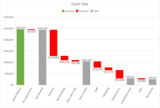
A classic example for Waterfall charts is visualizing financial statements. The example below illustrates how a Waterfall chart can visually display an income statement, also known as a profit and loss statement:
There are multiple ways to insert a Waterfall chart into your worksheet: the Recommended Charts tab and the All Charts tab. You can also insert a Waterfall chart directly from the ribbon.
Using the Recommended Charts feature in Excel helps you find the most effective and visually aesthetic chart for your data. Based on the range of data you have selected, the Recommended Charts feature suggests the charts that will best display your data. The Waterfall chart is recommended when the data has a column of category text, a mix of positive and negative values, and no more than a few empty value cells. The ideal dataset size for recommending charts is anywhere between 8 to 20 values, and given its most popular use case of financial statements, currency-formatted data will favor Waterfall charts. In this example, the parenthetical notation, i.e. ($2,412), is a variation of our currency formatting and denotes a negative value, -$2412.
To start, select your data and then under the Insert tab click the Recommended Charts button. The list of recommended charts is displayed. Select the Waterfall recommendation to preview the chart with your selected data.
The All Charts tab allows direct insertion of Waterfall charts.
You can also use the ribbon to insert the Waterfall chart regardless of the data’s characteristics. Because we know that this is a popular chart, we dedicated a spot in the Chart gallery with a Waterfall icon. Additionally, Stock Charts are also available under this drop-down because of the financial context associated with both chart types.
After the new Waterfall chart is created, notice that the order in which your data is shown in your table is preserved in the chart. In this example, Gross Revenue will always be the first column since it is the first data point, followed by Rev Adjustments, and so on, until Net Income—the last data point and therefore the last column.
Using subtotals as a visual checkpoint in the chart
To truly make our Waterfall chart understandable, we want to set subtotals of certain accounts. Subtotals, in this case, denote balances. In any Waterfall chart, you might set a subtotal to show the absolute value rather than as a floating value relative to the previous column. In this example, the line item accounts—Net Revenue, Gross Income, Operating Income and Net Income—are all totals that behave like checkpoints in understanding our financial statement. Currently the chart characterizes these accounts as increasing cash inflow, resulting in a positive skew.
To set a subtotal, right click the data point and select Set as Total from the list of menu options. We designed Waterfall charts so customers never have to make edits to their data in the Excel worksheet. Everything can be done in the chart.
Any column can be set as a total, but if the previous columns do not add or subtract to this total, then the connector line—the line bridging each column—will not be flat, rather resulting in a slanted or skewed connector line. The Waterfall chart’s effectiveness lies in the trust that all the accounts and columns will ultimately be balanced. If a column is mistakenly set as a total, the steps to correct the chart are the same as setting a total. Select the incorrect total column, and when it is the only item selected, right click and then click Clear Total. The example below shows a skewed connector line and how to clear the total to correct it.
After adding subtotals, we can easily see the breakdown between Gross Revenue to Net Revenue, or Net Revenue to Gross Income, and so on. Setting subtotals makes your visualization cleaner and easier to read and digest.
Customizing for maximum impact
Depending on the context of your chart, you may want to change the colors of the different types of values to bring more clarity and impact to the chart details that are most important. For example, in most financial contexts, the color red signifies loss in cash or assets. One way to change the chart’s color is on the Design tab, by opening the Change Colors gallery. Here you can select a color scheme that is automatically populated with themes suited to your document.
If you’d like to customize which colors correspond to Increase, Decrease or Total, you can rearrange the palette on the Page Layout tab and then click the Change Colors button in the Themes group. At the bottom of the gallery, select the option Customize Colors to open the Create New Theme Colors gallery. From there you can select the Accent 1, 2, 3, etc. colors to change your chart colors. However, keep in mind any changes will affect the entire theme of the document beyond the chart—including other charts you may have created in the workbook.
Data labels is another visual tool as part of your Waterfall chart that can be customized to help improve effectiveness. By default, we designed data labels so they are added in the direction of the column, which intuitively follows the progression of the Waterfall chart. However, if you prefer a more minimalistic chart, it is easy to remove the data labels—just click on any of them and press delete or backspace. You can additionally remove only select data labels by clicking twice, to focus on one data label, and press delete or backspace. The end result creates a Waterfall chart that only emphasizes the important points.
Using the Waterfall chart beyond financial analysis
The Waterfall chart can apply beyond the financial context. The chart is also perfect for highlighting the positive and negative contributions that ultimately derive the net value or outcome of any data. Below is an example of using the waterfall chart to effectively visualize year-over-year population changes by plotting the births and deaths, along with the net growth.
Data for year-over-year changes in population
After quickly setting all population category items as subtotals, we now have an effective visualization, which easily depicts the contributions of births and deaths to the total population. The Waterfall chart adds another layer of information beyond what a typical clustered column chart would show.
Get started now!
We’ve shown you just two examples of Waterfall charts and there are many more relevant features waiting to be explored. Download the public preview of Office 2016 for Windows to try the new chart types in Excel now.
If you have any comments or questions, please feel free to leave them below.
Learn more about using the Waterfall chart type
Share your ideas for Excel chart types and other features
The post Introducing the Waterfall chart—a deep dive to a more streamlined chart appeared first on Office Blogs.
Office Blogs
.
Blog
.
<span class='date ' tip=''><i class='icon-time'></i> Aug 23, 2015 08:04pm</span>
|