Blogs
|
This wordle is free by linking back to==> mrkirsch.edublogs.org <==
Digital Citizenship: Henry from Mr. Kirsch on Vimeo.
Part #1 - Case Study ==> Read the scenario below:
"Paul spends a lot of time online illegally downloading (pirating) music, movies, and games. He then uploads the files and shares them with friends and even on peer-to-peer sharing websites. "I’m spreading the wealth," he says. One day his older sister finds out what he is doing and tells him, "It’s illegal, it’s stealing!" Paul says, "I don’t care. Why should I have to pay for something when I can get it for free? Besides, these artists and the record companies make tons of money." His sister then asks, "If you made a song or a movie, would you want people to just get it for free, and without giving you credit?"
Part #2 - Apply New Knowledge (Answer these questions on your blog).
1. Why should Paul care about his behavior?
2. How does pirating affect creators?
3. What are honest ways Paul could obtain music and movies he wants?
4. How would this affect you if this was you?
Part #3 - Complete this post by Friday, March 20, 2015 @5pm.
Mr Kirsch's ICT Class Blog
.
Blog
.
<span class='date ' tip=''><i class='icon-time'></i> Jul 23, 2015 10:05am</span>
|
|
What are some strategies for helping students with academic writing? Alice Savage, Effective Academic Writing co-author, will look at this topic in her upcoming webinar on December 10th. In this article, she presents a task to help build students’ confidence in their writing.
When hikers plan an adventure, they agree to take on a challenge. They understand that it might be hard sometimes, but they also know that if they stick together and have faith in the process, they will make it to their destination. The same is true for writers, particularly writers learning to operate in an academic English context. In my webinar, we will examine the writing process and look at specific strategies and activities that can support English learners along the way.
The following group task is one of several strategies in the webinar. Its aims of community-building and orienting students to process writing techniques can ensure that a class gets started on the right foot.
Objective: To help students build community, confidence and an understanding of the writing process.
Start by putting the students in groups of four and creating roles such as manager, note-taker, writer, dictionary-person, or editor. Tell them that they are going to do a writing task together that shows their combined experience and talent. Then set the following questions:
How many languages does your group speak in total?
How many years has your group been studying English in total?
How many countries has your group traveled to in total?
What kinds of writing has your group done in the past?
What is a name that fits your group?
Once they have shared information, instruct the writer to turn the answers and notes into a paragraph. Have them start by introducing their group’s name in a topic sentence. Then have them explain why they chose it. They can include answers to the questions or other ideas that come up while they were talking. The teacher can circulate and provide assistance as needed.
When the writing section of the task is finished, the group can work together to edit. The editor, with help from peers, can check for complete sentences, grammar and spelling. As they work, they have an opportunity to see how their knowledge and skills fit with their classmates and to see how they can benefit from or help others later.
To mirror the stages of writing, the task ends with publishing. The groups can post or circulate their finished texts and compare results. The class can identify which group speaks the most languages, has studied English the longest, or seen the most countries. This final stage, in addition to serving as an icebreaker, allows the class to experience one another’s writing as readers. This publishing stage can instill a habit of responding to content that will pay off later during peer feedback throughout the term.
Finally, the teacher can build confidence in the process by leading a reflection on the stages that the groups went through. They can look at generating ideas and developing content, planning, revising, editing, and publishing.
The teacher might then use the opportunity to highlight the activities and aims of each stage. For example, many teachers do not address grammar errors in the early revision stages because students are still shaping content and often cutting or changing sentences. Many students do not automatically anticipate these major revision tasks, so working through revision techniques in an explicit way in a practice activity can foster trust in the process.
The discussion can end with the question, "What do you know now that you didn’t know when you started this assignment?" as a way to finish with a focus on writing as knowledge making. If all goes well, students see the advantages of the writing process and its ability to provide a sequence that allows them to focus at distinct stages. They know their classmates and the writing process better, and perhaps they feel better equipped for the adventure of a new task.
To find out more about improving students’ writing skills, register for the webinar at either 12:00 or 15:00 GMT on December 10th.Filed under: Adults / Young Adults, Skills Tagged: Academic English, Academic writing, Adults, Alice Savage, EAP, Effective Academic Writing, English for Academic Purposes, Task-based language learning, Webinar, Writing process, Writing skills, Writing strategies
Oxford University Press ELT blog
.
Blog
.
<span class='date ' tip=''><i class='icon-time'></i> Jul 23, 2015 10:04am</span>
|
|
This wordle is free by linking back to==> mrkirsch.edublogs.org <==
Part #1 - Tackk
The link here ==> Tackk takes you to the platform Tackk. This is the web tool we will be utlizing to create our Job Descriptions.
Part #2 - What is a job description mean? What does it include?
Lesson 79- My job description - English Basic Communication. from Mr. Kirsch on Vimeo.
Please click the ==> link and read about different job descripiton duties. What it is and what does it include when employers are looking for new employees for specific jobs.
Part #3 - Job Descripition Examples
Please click here to access some different examples of what job descriptions are and what they look like. There is also a guide for a "How To" write a job description as well. This will be your background information when you begin creating your job description on Tackk.
jdHowToWrite_printerFriendly
Job Description Template
Use the template ==> below when you begin creating your job descripiton on your favorite job utilizing @Tackk.
7th Grade Student Job Description Tackks ==> 2015
Mr Kirsch's ICT Class Blog
.
Blog
.
<span class='date ' tip=''><i class='icon-time'></i> Jul 23, 2015 10:04am</span>
|
|
Image courtesy of lynnwallenstein via Flickr
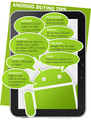
Matt Steele, a specialist digital publishing consultant, looks at the use of Android tablets in the classroom and gives his tips on what to look for when purchasing devices.
There are now Android apps available that add real value to any ELT classroom, from pronunciation apps (English File) to dictionaries (Oxford Advanced Learner’s Dictionary), game-based vocabulary apps (Headway Phrase-a-Day), Graded Readers (Bookworms), and last but not least, complete coursebooks and Readers as e-books via the Oxord Learner’s Bookshelf app. See all of Oxford’s ELT apps and e-books here.
Many of these offer a distinct edge over paper-based options by virtue of their interactivity, and in particular their use of video and audio.
But which device do you buy? This post concerns itself with Android devices - what to look out for, and what to avoid.
Introduction: What it means to use tablets in the classroom
I’m going to make some assumptions about you based on the fact that you are reading this post:
You’re prepared at least to entertain the idea of using a tablet device in your classroom
You’ve done a bit of research into methodology and some of the apps available to you
You’re aware that the tablet software market is divided roughly into three main competitors: Android, Apple’s iOS, and Microsoft Windows
You’re thinking of buying an Android tablet
What you may still be in two minds about is who will use the tablet device in the classroom. Will it be you, the teacher, presenting content on the tablet, using the tablet as a lookup device, finding pictures, videos, or collocations to illustrate certain parts of the lesson?
A lot of the discussion around tablet usage in an educational setting assumes the possibility of the teacher and the teacher alone using the device. But why would you do that? Why wouldn’t you simply use a computer connected to a projector and/or an interactive whiteboard?
So, if we can assume that when we are talking about using tablets in the classroom we are talking about everybody in the classroom using tablet devices, then we are forced to the conclusion that, unless we work for a particularly wealthy school or college that can afford to purchase at least one classroom’s worth of devices, then the only realistic scenario for using tablet devices is BYOD, or Bring Your Own Device.
The idea behind BYOD is, broadly speaking, that the student brings their device along to the lecture and uses it to take notes, to view material, online or offline, that the lecturer provides. They might even do interactive exercises or tests that the lecturer might assess via his/her own device during or after the class. This means that a student might turn up with their Android / Windows / Apple smartphone, tablet, or even ‘phablet’ (a phone that is almost tablet sized). What should your policy be in that case? Should you allow, and support, any mobile device at all, with any operating system?
In my view, unless you will be relying solely on Apple technologies for classroom management and monitoring purposes, then you should be all-inclusive in your approach. The only thing that you might insist on would be that your students bring along a device that is practical for reading and writing with, which for me would mean a screen no smaller than 7 inches in width, with a resolution of at least 1024 x 768 pixels.
Overview of the Android tablet market
Android is the single most popular Operating System for smartphones and tablets. The reason for this is twofold: firstly, Android has the backing of almost every hardware manufacturer in the world other than Apple, most notably Samsung; and secondly, it’s owned by Google.
In that sense the Android tablet market is like cable TV: lots of choice but also lots of things to avoid.
The Samsung connection is an important one for educational customers. The Samsung hub is an ever increasing set of educational content and services that is set to rival Apple’s iTunesU.
While Android is owned by Google, it is still open source, so the code is constantly added to by developers not necessarily in Google’s employ. The upshot of this is that any given piece of hardware can run its own version of Android, and its own set of software applications. This means that there is a lot of variety available - some better than others.
Things to think about when thinking about buying an Android device
Android tablet checklist
Here are a few things you should bear in mind when selecting which Android tablet to choose:
How much should you expect to spend?
Android is a free operating system, so the money you spend on an Android tablet is determined by its build quality (especially its screen), the quality of its components (especially its processor), its size (7", 9", 10"), and any additional software that the manufacturer includes. For me, the screen size is only of importance with regard to its resolution and how it affects the price of the tablet: bigger screen size means higher price. Because you are either connecting it directly to a projector or mirroring it through the laptop that is itself connected to the projector, the size of the screen is of little importance. The resolution of the screen is important, however, for two reasons:
A higher screen resolution means more detail and a more attractive interface. Many reasonably priced tablets now come with full HD displays.
Many websites now check what your screen resolution is when you land on them. Often anything below 1024 x 768 will mean that the website will be shown as a ‘mobile’ site compatible with smartphones, rather than the ‘desktop’ version with more information. For me, this alone was the reason I dropped my Nexus 7 for a tablet with a higher resolution.
An important point to bear in mind is whether or not Google Play is available on the model you want to buy. Many of the cheaper tablets won’t give you access to Google’s app store, because Google require that they pay them for its distribution, which will condemn you to buy apps from no-name app stores with no guarantee of quality.
For a school setting it seems to make sense to focus on the build quality first and foremost. Prices vary enormously, from around £70 for a ‘white box’ tablet (manufactured in huge numbers in China), to the superlative Asus Transformer Pad Infinity currently retailing at £600. For our purposes, however, expect to pay anything from around £120 to £370.
Can you test one out?
If you buy in store, yes. Obviously this would mean you couldn’t purchase online, which is where you will find cheaper examples of the same high street product. Like so many things it’s a trade-off between cost and peace of mind.
Do you want to restrict what students can do / download on the tablet device?
How can you know that your students are doing what they are supposed to be doing when they are bent over their tablet devices? Well, there are ways. It means installing software on students’ machines called Mobile Device Management (MDM). There are a number of MDM software vendors about. Most, if not all, support Android. There is a good comparison site here.
Device Support
This is very important. A lot of the very cheap models will provide you with no resource to upgrade the Android operating system. This will seriously inhibit your tablet’s shelf life, which in turn will mean you have to spend money on new hardware sooner.
Some models worth thinking about:
For around £100
Asus Memo Pad HD 7
This 7" pad has an HD resolution of 1280 x 800 px, which isn’t bad. It has a micro SD slot, and a very useful standard USB port. For around £100 it’s a decent budget tablet.
Lenovo IdeaTab A2107A-H
Again, this is a 7" model. Lenovo is the Russian hardware manufacturer who bought the licence to build IBM’s ThinkPad laptop. The build quality of the IdeaTab is every bit as solid. It has two cameras, which is unusual for a tablet costing just over £100.
For around £200
Google Nexus 7 (2)
This is the second generation Nexus 7. It’s a 7" tablet that compares favourably to the iPad mini. It has a huge screen resolution at 1920 x 1200 px. It also sports an extra camera. Drawbacks, though, are its lack of an HDMI port and an SD card slot, so memory can’t be expanded.
Samsung Galaxy Tab 2 10.1
This has a 10.1" screen and is the descendant of the hugely popular Samsung Galaxy Tab 10.
For around £300
Acer Iconia Tab A200
This is a 10.1" tablet, with 12.5 GB of internal memory, and a micro SD card slot should you want more.Filed under: Multimedia & Digital Tagged: Android tablets, Apps, Bring Your Own Device, BYOD, Comparison of Android devices, E-books, EdTech, Matt Steele, mlearning, Mobile Device Management, Mobile learning, Tablet devices, Technology, Technology in education
Oxford University Press ELT blog
.
Blog
.
<span class='date ' tip=''><i class='icon-time'></i> Jul 23, 2015 10:03am</span>
|
|
This wordle is free by linking back to==> mrkirsch.edublogs.org <==
Ezine Introduction
Applying Technology Skills
Critical Thinking, Problem Solving, and Decision Making
8.ET.RL.2 Students determine the reliability and relevancy of information.
Students will review online magazines and evaluate them using a provided rubric.
Step #1: Watch the video below ==> What is an Ezine??
Ezine from Mr. Kirsch on Vimeo.
Step #2:
Ezine Review: Students you will review online magazines and evaluate them using the provided rubric.
Step #3:
Click the link here ==> websites to access the websites for the evaluation assignment. Students you may choose any website for the evaluation.
Use the following essential questions for evaluating your chosen websites ==>
1. What were the effective techniques and presentations?
2. What made the Ezine appealing to the audience?
3. Was the Ezine user-friendly, and how did that either help or interfere with the presentation?
4. Based on your reviews, how will this impact your articles and the production of our class Ezine? What will you avoid, include, or be aware of?
Mr Kirsch's ICT Class Blog
.
Blog
.
<span class='date ' tip=''><i class='icon-time'></i> Jul 23, 2015 10:02am</span>
|
|
Mr Kirsch's ICT Class Blog
.
Blog
.
<span class='date ' tip=''><i class='icon-time'></i> Jul 23, 2015 10:01am</span>
|
|
Shaun Wilden, a freelance teacher trainer and materials writer for OUP, considers how tablets and apps can help you encourage the less confident students in your class.
As a teacher trainer, I’ve often been asked how to deal with mixed ability classes. The asking teacher is generally of the opinion that mixed ability is something unusual. To me, it’s always seemed the norm, perhaps best summed up by this near twenty-year old quote.
We do not teach a group but (up to) thirty separate people. Because of this the problem of mixed abilities in the same room seems absolutely natural, and the idea of teaching a unitary lesson - that seems odd."
Rinvolucri 1986, quoted in Podromou: Mixed Ability Classes
Mixed ability classes bring with them a whole manner of challenges for teachers to overcome. Students who perceive themselves as weak are often the ones that go unnoticed, the ones that are too shy to ask, the ones that don’t ask for the listening exercise to be played again and the ones who feel the pace of the lesson is too fast for them. Of course, should a teacher try and slow it down then those who are more confident complain the pace is too slow. Teachers have always been creative in finding ways to overcome the mixed ability issue. Be it through adjustment of course materials by subtle adaptations and grading or imaginative regroupings during exercises.
If, like me, you spend a large amount of your time reading about and using tablets in education, you’re bound to have run across the idea that tablets are the saviour to all things mixed ability. This, of course, is not true. However, perhaps tablets do offer some genuine alternatives for a teacher and their class. While we’re still a long way from most schools having class sets of devices, over the last couple of years we have seen a slow move towards tablet-based course materials. While some view this negatively, there are immediate advantages for the mixed ability class. Take for example, a listening lesson. Typically, such a lesson is more akin to a listening test.
The teacher establishes context, does a variety of pre-listening exercises and then presses play. Playing a few times but generally working with the class as a whole. Here’s where the mixed ability student falls behind: not getting all the answers and not asking for it to be played again. A tablet-based coursebook and set of headphones are a step towards overcoming this. Since every student has a copy of the listening, control can be handed over to them and they can listen as much as they like (and no one will know how much they needed to listen).
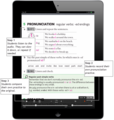
In this example from English File Pre-Intermediate you can see how the student is able to control the listening themselves.
Staying on the topic of listening, adding audio to reading texts is another way to help some students. In a class you’ll have students who enjoy reading, some who enjoy listening and some who have difficulty with one or both. A tablet-based coursebook gives them the chance to do both, giving the students a choice they wouldn’t necessarily have. Having the choice makes such a task more amenable to a mixed ability class.
In this example from Solutions Pre-Intermediate, you can see how a student is able to listen and read at the same time.
A tablet-based coursebook also gives every student a voice. Not literally, of course, but a voice when it comes to working with, for example, pronunciation. As a digital book can do more than simply have the printed word, the students at appropriate times can record themselves and listen to their own pronunciation when compared to a model. In a large class, it is difficult for a teacher to be able to hear and react to everyone. Recording also builds the student’s confidence as it acts as rehearsal time, so if they are then asked to say something in front of the class they feel more able to speak.
As you can see in this example from English File Pre-Intermediate, a student is able to record and play back their pronunciation.
All these tools allow for self-pacing. The ability to work at one’s own pace is a key element of differentiated learning. However to be able to measure and then tailor learning, the teacher needs to be able to get feedback on how a student is doing. A tablet combined with cloud storage can add a digital equivalent to material adaptation; for example, a teacher can use a word processor to create individualised questions for a reading comprehension. Saving a copy of the questions for each student to access them, do the text and re-save via a cloud link on their tablet.
There are a number of apps that can be used on a tablet to achieve this. For example, Socrative, a student response system, is an app that allows a teacher to create exercises, quizzes and games that they can then get each student to do on their device. As they do it, Socrative gives feedback on each student and how they are doing. It provides the digital equivalent of ‘Do you understand?’. However, unlike when asking the question to the whole class, feedback is telling you exactly how each student is doing. Or to put it another way, the shy struggling student is not put on the spot in front of everyone. In a similar vein, an app such as Nearpod allows a teacher to create presentations that cater for a mixed ability classroom, creating lessons that include listening, video and presentations. The presentation is sent to the students’ device and while they are working the teacher can get instant feedback on how the student is doing.
Once a teacher has this feedback, they know who needs what help and where. They perhaps then can use a tablet’s screen recording ability to produce personalised instruction.
By this point you might be thinking that using the tablet in this way is turning the classroom from a place of communication into one where the students sit silently staring at tablet screens. However, that is assuming I am advocating these things are done for the whole lesson, which is not the case. In the listening, the individualised listening is a small portion of a larger lesson. With perhaps the pre- and post-listening tasks taking place as they usually would. Using the student response app is only done selectively, perhaps taking up only a few minutes of lesson time. Furthermore, such assumptions overlook a third way tablets can help address mixed ability: project work.
Project-based learning (PBL) is coming back into fashion as a result of what a tablet and its apps can do.
In most books on the subject of projects you’ll find reference to mixed ability:
…they allow learners with different levels of competence to co-operate on an equal basis in the completion of the tasks the project requires. This goes some way to solving the problems of mixed-ability classes."
Projects with young learners: Phillips, Burwood and Dunford, p7.
Project work leads to personalisation - another factor known to help confidence in mixed ability classes. All tablets can record sound, take pictures, and record video, giving the students tools that were previously difficult to get either in or out of the classroom. Collaborative projects involving things such as podcasting, film making, and digital stories need more than language skills to be successful. They involve good direction, a steady hand with the camera and an eye for design, so those that lack confidence in language can gain it by bringing those skills to the project.
An article in the Times educational supplement lists three categories of differentiation to help deal with mixed ability:
differentiation by task, which involves setting different tasks for pupils of different abilities
differentiation by support, which means giving more help to certain pupils within the group
differentiation by outcome, which involves setting open-ended tasks and allowing pupil response at different levels.
While teachers have been finding ways to do these things in the language classroom for years, using tablets can perhaps do this to levels previously never considered. Used effectively, and at the right moments in a lesson, they can help overcome what many teachers see as the difficulty of teaching mixed ability students.Filed under: Adults / Young Adults, Multimedia & Digital, Teenagers Tagged: Android tablets, Apps, E-books, EdTech, Mixed-ability, mlearning, Mobile learning, Oxford Learner's Bookshelf, Project work, Project-based Learning, Shaun Wilden, Tablet devices, Technology in education
Oxford University Press ELT blog
.
Blog
.
<span class='date ' tip=''><i class='icon-time'></i> Jul 23, 2015 10:01am</span>
|
|
8th Grade Students in Mr. Kirsch’s ICT are creating E-zines aka Electronic Magazines. The goal was for students to demonstrate their ability to write, edit, and publish content on multiple platforms. What you see below is the embed content the students created; however we used educlipper as our platform to curate the students content. More editions will be coming soon. Stay tuned!
Period 2 Class Ezine - 1st Edition
Period 5 -Class Ezine - 1st Edition
Period 5 - Class Ezine - 2nd Edition
Period 2 - Class Ezine - 2nd Edition
Period 2 - Class Ezine - 3rd Edition (2015)
Period 5 - Class Ezine - 3rd Edition
Period 2 - Class Ezine - 4th Edition
Period 5 - Class Ezine - 4th Edition
Period 2 - Class Ezine - 5th Edition (Travel Brochures)
Period 5 - Class Ezine - 5th Edition (Travel Brochures)
Mr Kirsch's ICT Class Blog
.
Blog
.
<span class='date ' tip=''><i class='icon-time'></i> Jul 23, 2015 10:00am</span>
|
|
Image courtesy of TBR
Mohamed El-Ashiry takes a look at ways of using Google Forms in the classroom.
I am one of Google Forms‘ biggest fans! I have many reasons to love the service, and I use it in many different ways.
While there have been many other advantages, the biggest advantage of using Google Forms in my classroom is being able to give students immediate feedback. I often connect my tablet to the projector, and hide the column displaying the names of students submitting their responses (whether they are responding to a test, or self-assessment or peer-assessment, etc.). The students like to see the spreadsheet being populated by all their submissions. We use this as an evaluation and feedback exercise after a test or quiz, for example: we look at each question and together agree on the most accurate and well-written responses. This is also a very useful literacy-building exercise because we look at the way the best answers are structured.
In my classroom, students have had tablets (iPads) for two years now. I started using Google Forms about 18 months ago, and I keep finding new ways of using it all the time. Here are ten ways I use Google Forms in my tablet classroom (including hyperlinks to examples of each):
1. Student self-assessment
Student self-assessment is a very powerful tool in any classroom. Tablets have also made that easier, since students can ask a classmate to record a video of them presenting something. After the presentation, the students watch themselves on video and then fill in a simple self-assessment checklist that I’ve prepared on Google Forms. In this situation, the biggest advantage of Google Forms is being able to see a summary of responses in a visual format (bar graphs). This gives me an indication of which specific skills I may need to focus on a bit more in the following classes. Sharing that visual summary of responses with the students also shows the things they may have in common in terms of which skills/techniques they need to develop further or improve upon.
2. Peer assessment
Peer-assessment also plays a critical role in any classroom. Students watch their assigned peer’s presentation while using a peer-assessment checklist that I’ve prepared on Google Forms. The visual ‘summary of responses’ can also be very useful in these situations. Students then conference with each other to share their feedback. Sometimes, I ask the students to take screenshots of the peer assessment checklist before they submit it, and email that screenshot to their peer.
3. Rubrics
In my classes, whenever I assign the students a major assessment task, I show them them the rubric that will be used to assess their work. I use Google Forms to create these rubrics, and while I am marking/grading the students’ work, I just tick the relevant boxes on the rubric. All student grades would then be compiled by Google Forms in a spreadsheet. A great idea I got from my PLN is to print the whole spreadsheet and cut it into strips, then just give each student the strip that shows their marks/grades.
4. Classroom management logs
Google Forms has been a great way of documenting student merit points and rewards for positive behaviour. At the beginning of the year, I created a ‘merit points log’ and a ‘behavior management log’ on Google Forms. Then I QR-coded the links to both forms, and stuck them right next to my teacher’s desk. At the end of every lesson, I quickly scan the code and input the merit points given to the students who earned them (I write them on a chart on the board during the lesson). Additionally, if there were any discipline issues, I use the behavior management log to record the type of behavior and how I responded to it. I can also share each spreadsheet with the relevant year-level coordinators as a way of keeping records of discipline issues inside my class.
5. Documenting PD
Teachers are required to maintain evidence of any professional development they undertake. Sometimes, this can be a hectic task. I started this year to collect all my PD on a Google Spreadsheet. Once a PD event was finished, I would scan the QR code to access the PD log I created on Google Forms. I would write the title of the activity, a brief description of it, a brief reflection on it, and the teaching standards it satisfies. All my PD is now compiled in that one spreadsheet.
6. Student reflection
I have created several reflection forms for students to use in my classroom. Since Google Forms introduced the feature that allows inserting images into a form, I have been taking screenshots of handouts that include reflection starters or reflection prompts, and inserting them into the form. I can also sometimes insert images to be used as prompts for reflective writing, or even short videos from YouTube (a great feature Google Forms introduced recently).
7. Quizzes and tests
Google Forms can definitely be used to create tests and quizzes, some of them can even be self-grading! I have often used the ‘Flubaroo’ script to self-grade a quiz assigned to the students on Google Forms. This script works with multiple-choice and true/false questions. The script also allows for automatically sending the students an e-mail with their results. This has saved me a lot of time with my formative assessments.
In my History classes, students are often required to analyse historical sources. Again, having the ability to insert an image in a Google Form has made it easier to assign source analysis tests on Google Forms. After all students submit their responses, I connect the tablet to the projector and we review their answers and evaluate/select the best ones. This allows me to give timely feedback to the students, which later saves marking/grading time.
8. Lesson planning
I have a Google Form where I input my lesson’s ‘learning objectives’, ‘learning activities’, ‘assessment/s’ and ‘resources/materials required’. This helps me document all my lessons in one spreadsheet. I can later add a column in the spreadsheet where I document my reflections on what worked and what may need to be adjusted for the next teaching cycle.
9. Data collection
I have used Google Forms many times just to simply collect data from the students. For example, at the beginning of the year, I often use a Google Form to collect their email addresses, which compiles all their emails in one spreadsheet. When students create digital portfolios, I usd a Google Form to collect the URLs to their portfolios as well.
10. Surveys
Some teachers use Google Forms to survey students about their interests, as a getting-to-know-you exercise. I have also used Google Forms several times to collect feedback from the students on my teaching and on my lessons. This is a great reflection exercise as I can easily display the responses in a visual format (bar graphs and pie charts), and that highlights certain areas of my lesson delivery that might need improvement.
There are many other resources on the web showing multiple ways of using Google Forms in the classroom, like this blogpost for example: "80 Interesting Ways To Use Google Forms In The Classroom". Of course, these ideas are non-exclusive and non-exhaustive, and please feel free to share more of your ideas by leaving a comment below.Filed under: Multimedia & Digital, Professional Development Tagged: Bring Your Own Device, BYOD, Classroom, EdTech, Google Forms, Google in Education, ipadedu, mlearning, Mohamed El-Ashiry, Professional Development, Tablet devices
Oxford University Press ELT blog
.
Blog
.
<span class='date ' tip=''><i class='icon-time'></i> Jul 23, 2015 10:00am</span>
|
|
7.NC.4.1 - Apply the universal nature of the design process to different situations.
This wordle is free by linking back to==> mrkirsch.edublogs.org <==
What is the design process?
The design process is a set of steps that one should follow when trying to problem solve. We use the design process every time we create a project in ICT.
Follow the links on this website to learn more about the DESIGN PROCESS ==> Below.
** DO NOT SKIP AROUND IN THE VIDEO! WATCH IT ALL, PLEASE.**
Answer the questions (for each) below after you have finished ==> this will be your blog post!
1. ANALYZE
Go to the following link and watch the video on the right hand side. It is an example of how a game show host is helping the contestants identify (or ANALYZE) the problem.
Question #1 - What is the problem? Answer this question in your blog post.
http://pbskids.org/designsquad/parentseducators/workshop/process_id.html
2. BRAINSTORM
Go to the following link and watch the video on the right hand side. It is an example of the teams brainstorming ideas of how to complete their challenge.
Question #2 - What kind of brainstorming did the groups do? Answer this in your blog post.
http://pbskids.org/designsquad/parentseducators/workshop/process_brainstorm.html
3. DESIGN
Go to the following link and watch the video on the right hand side. It is an example of the team in the design section of the project.
Question #3 - What kinds of DESIGNING did the groups do? Answer this in your blog post.
http://pbskids.org/designsquad/parentseducators/workshop/process_design.html
4. EVALUATE and REVISE
Go to the following link and watch the video on the right hand side. It will give you examples of the EVALUATE and the REVISE portion of the design process.
Question #4 - What examples do you see for EVALUATE and REVISE? Why are these important? Please answer this question on your blog.
http://pbskids.org/designsquad/parentseducators/workshop/process_build.html
5. PRODUCTION
Go to the following link and watch the video on the right hand side. It will show you how the teams review and reflect on the project. This is also the time where the teams would decide what kind of production (if any) needed to be completed.
Question #5 - What examples did you see about reviewing, reflecting, or production?
http://pbskids.org/designsquad/parentseducators/workshop/process_share.html
Mr Kirsch's ICT Class Blog
.
Blog
.
<span class='date ' tip=''><i class='icon-time'></i> Jul 23, 2015 09:59am</span>
|