Blogs
|
Last week Google introduced a new presentation feature to Google Slides for Android. The latest update to the app enables you to quickly present your slides through a Google Hangout. I finally had a chance to test it this morning and it worked fairly well although not nearly as well as using full webinar service like GoToTraining.
To remotely present your slides through Google Slides for Android simply open your slides and choose the "present" option. After choosing "present" you will be asked to either initiate a new Google Hangout or join one that you have previously scheduled in your Google account. I tried it both ways and found it much easier to just initiate a new Hangout.
Applications for Education
Students who are working with partners to develop a presentation and are Android tablets, might appreciate the new option to quickly share slides remotely.
This post originally appeared on Free Technology for Teachers
if you see it elsewhere, it has been used without permission.
Related StoriesHow to Schedule Reminder Notices in WhatsDueSeesaw 2.0 - More Great Features for Building and Sharing Digital PortfoliosWhatsDue Gets a Refresh for the New School Year
Richard Byrne
.
Blog
.
<span class='date ' tip=''><i class='icon-time'></i> Aug 17, 2015 02:03pm</span>
|
|
As we head into a nice summer weekend in Maine, here's a fun lesson from It's Okay to be Smart. In the video we'll see graphics that explain the process of hydrolysis and its role in the cooking process. In other words, The Science of BBQ explains why cooking meat at a relatively low temperature for a long time tenderizes it and what happens when it is cooked too quickly.
Texas A&M's website on barbecue science is one of the resources consulted in the creation of The Science of BBQ. That site will provide you with many more resources to share with students.
This post originally appeared on Free Technology for Teachers
if you see it elsewhere, it has been used without permission.
Related StoriesTwo Lessons on Blood Pressure & Blood TypesChemical Reactions in a Safe, Online EnvironmentMore Physics Lessons About Bikes
Richard Byrne
.
Blog
.
<span class='date ' tip=''><i class='icon-time'></i> Aug 17, 2015 02:03pm</span>
|
|
Following up on my previous post about the science of BBQ, here's another cooking-related science lesson. Making a Solar Oven (link opens a PDF) is a nice hands-on learning activity that I found on Climate.gov. I think elementary, middle, and high school students could enjoy making a solar oven (link opens a PDF). The Making a Solar Oven PDF includes directions for building your solar oven and tips for cooking in it. You and your students can build a solar oven using materials that are commonly found in schools, homes, and grocery stores.
Applications for Education
Making a solar oven and baking some cookies in it could be a great way to get students excited to learn about solar energy. At the middle school and high school levels you could have students experiment with modifications of the original design to see if they can increase or decrease temperatures and cooking times in their solar ovens.
If you haven't explored it before, take some time to search for teaching resources on Climate.gov. On the site you can find videos, interactive activities, and lesson plans for teaching about climates and climate change.
This post originally appeared on Free Technology for Teachers
if you see it elsewhere, it has been used without permission.
Related StoriesThe Science of BBQBBC iWonder - Multimedia Answers to Interesting QuestionsHow to Create a Progress Chart in Google Sheets
Richard Byrne
.
Blog
.
<span class='date ' tip=''><i class='icon-time'></i> Aug 17, 2015 02:03pm</span>
|
|
This morning on my Facebook page someone asked for a recommendation for a countdown timer. The first thing that came to my mind was to suggest using the timer function built into Google.com. You can simply type into Google search "set timer" followed by an amount of time and a countdown timer is displayed. An alarm beeps when time is up. You can make the timer appear full screen without advertisements by clicking a little box icon to the right of the timer. You can see this feature in action in the video below.
If you're looking for a timer that has a few more features, take a look at Russel Tarr's Classtools Countdown Timer which has two slick features. You can create and set multiple timers on the same page. This means that if you had students sharing in rapid succession you wouldn't have to reset the timer for each student, you simply move onto using the next timer on the page. The second feature of note in the Classtools Countdown Timer is the option to add music to your timers. You can have your countdown timers set to music. Mission Impossible, The Apprentice, and Countdown are the standard music options. You can add other music by using the YouTube search tool built into the timer.
This post originally appeared on Free Technology for Teachers
if you see it elsewhere, it has been used without permission.
Related StoriesHow to Create a Progress Chart in Google Sheets5 Good Google Tools for Social Studies Teachers - And How to Use ThemHow to Create Freehand Drawings in Google Slides
Richard Byrne
.
Blog
.
<span class='date ' tip=''><i class='icon-time'></i> Aug 17, 2015 02:03pm</span>
|
|
Late last winter I started to organize the screencast videos that I've made over the years. I called the list Practical Ed Tech Tips. Since I started that list I've made an effort to add one or two new screencasts to it every week. The playlist now contains 135 videos.
In the playlist you will find videos about tools for flipping your classroom, videos on managing workflow, social media tips, search strategies, and media production. The playlist also contains videos about tools like Remind, Duolingo, ClassDojo, Classtools, and many other popular web services for teachers and students. The entire playlist is embedded below.
This post originally appeared on Free Technology for Teachers
if you see it elsewhere, it has been used without permission.
Related StoriesThe Week in Review - The Most Popular PostsA Quick Way to Access a Countdown Timer on Your ComputerUse Tags and Labels on Classroom Blog Posts
Richard Byrne
.
Blog
.
<span class='date ' tip=''><i class='icon-time'></i> Aug 17, 2015 02:03pm</span>
|
|
Last month Next Vista for Learning asked viewers to vote for the best videos of the 2014-2015 school year. Videos were arranged in three categories; student creations, teacher creations, and collaborative creations (teachers and students producing together). This weekend Next Vista sent out the results of that voting and announced the Videos of the Year. The winners are Literally in the student category, The Digestive System won in the teacher category, and in the collaboration category Team Text Features was the winner. Each of the winning videos is embedded below.
This post originally appeared on Free Technology for Teachers
if you see it elsewhere, it has been used without permission.
Related StoriesThe Science of BBQHelp Next Vista Choose the Best Student and Teacher Videos of the YearThe Black Death In 90 Seconds - Three Years Later
Richard Byrne
.
Blog
.
<span class='date ' tip=''><i class='icon-time'></i> Aug 17, 2015 02:02pm</span>
|
|
While I appreciate services like Remind and WhatsDue for sending reminders to students about upcoming assignments, I also think it is important for students to take ownership of keeping track of their assignments. As we start the new school year many students will be looking for tools that can help them keep track of assignments. Here is a selection of tools that I've used and or my students have used over the years.
Strike App is a simple to-do list creation and management tool. To use Strike App just title your list of things to do and start typing your list. When you've completed a task just come back and strike it out by clicking on it, dragging it off the screen, or "x-ing" it out. You can share your to-do lists by sending people the link to your list. For those people who like to experiment with different backgrounds and themes, Strike App offers a handful of designs to choose from.
Fetchnotes is a neat service for creating and keeping notes online. Fetchnotes uses an interface for creating and sharing notes that will feel familiar to Twitter users. When you write a note, just use a hashtag to label your note. Then whenever you want to search for a note just enter a hashtag. For example, if I was a student taking notes in a history course I might use the hashtag "#revolution" for all notes related to revolutions. Then I could go back and read all of my notes about revolution by just searching for that hashtag. When you want to share a note with someone in your contacts you can do so by just putting "@" before the person's name. Fetchnotes works in your web browser and offers Android, iOS, and Chrome apps.
If your school is using Google Apps for Education or your students have personal Gmail accounts, they already have some great tools at their disposal. In Gmail students can simply select "tasks" under the "Mail" drop-down menu in Gmail. That will open a small pop-up window in which they can enter their lists of tasks. Google Calendar is what I use for keeping track of longer term projects. After entering a project due date I set a series of reminder alerts to be emailed to me at various intervals until the due date.
Dayboard is a free Google Chrome extension that opens your daily to-do list every time you open a new tab in Chrome. When you open a new tab for the first time Dayboard will appear and ask you to enter your to-do list for the day. After creating your to-do list for the rest of the day whenever you open a new tab you will see your list. You can place a checkmark next to items as you complete them. Dayboard does not require you to create an account, it works offline, and when I installed it it only asked for permission to view activity on the Dayboard website.
Google Keep can be an excellent to-do list app for Android and Chrome users. You can color code notes, make lists, and share notes. On an Android device you can set reminder alarms too. Click here for a video on how to use Google Keep.
This post originally appeared on Free Technology for Teachers
if you see it elsewhere, it has been used without permission.
Related StoriesGoogle Keep Gets a Couple of Needed UpdatesSet Location-based Reminders on Google Keep135 Practical Ed Tech Tips
Richard Byrne
.
Blog
.
<span class='date ' tip=''><i class='icon-time'></i> Aug 17, 2015 02:02pm</span>
|
|
Late last spring a new platform called Riddle was launched for creating online quizzes. The first time that I tried it, I liked it. Since then the developer of Riddle has steadily added features to it. The latest batch of updates to Riddle is particularly useful to teachers.
The most important update to Riddle that teachers should note is a new option to require user names when replying to questions on a Riddle quiz.
Second, you can now build Riddle quizzes based on embedded YouTube videos. Previously you could only use images or text as question prompts in Riddle.
The third update of note is a new selection of text formatting tools. You can now bold and italicize your text. An option to make bullet lists is now available too.
Learn more about Riddle in my instructional video embedded below.
Applications for Education
Riddle's format of using images as response choices could make it a good option for giving informal quizzes on topics that require a lot of visuals. For example, a quiz on fractions might use pictures which represent various fractions. A quiz on art history might use Riddle to showcase works of art of answer choices.
This post originally appeared on Free Technology for Teachers
if you see it elsewhere, it has been used without permission.
Related Stories135 Practical Ed Tech TipsA Quick Way to Access a Countdown Timer on Your ComputerCollect Names on Image-based Riddle Quizzes
Richard Byrne
.
Blog
.
<span class='date ' tip=''><i class='icon-time'></i> Aug 17, 2015 02:02pm</span>
|
|
Last winter I was contacted by a high school student who had developed a neat tool for generating vocabulary lists and study sheets from a document. That tool is called Vocabulist. Vocabulist enables students to upload a document and have it extract words and definitions from it. Each word in the document is matched to a definition. If the definition rendered isn't exactly right, students can modify it within Vocabulist. Once the list of words and definitions is set students can download the list as a PDF or export the list to Quizlet where it will then be turned into a set of digital flashcards. (Students must have a Quizlet account). In the video embedded below I demonstrate how easy it is to create a vocabulary study sheet through Vocabulist.
Applications for Education
Vocabulist could be a nice aid to students when they need to learn a set of definitions. The Quizlet integration is a nice feature as it will allow students who use Vocabulist to put their flashcards on their mobile devices.
This post originally appeared on Free Technology for Teachers
if you see it elsewhere, it has been used without permission.
Related Stories5 Tools Students Can Use to Keep Track of Assignments This YearBack to School With BoomWriter Activity PacksVocabulist Helps Students Create Study Aids
Richard Byrne
.
Blog
.
<span class='date ' tip=''><i class='icon-time'></i> Aug 17, 2015 02:02pm</span>
|
|
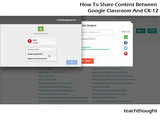
How To Share Content Between Google Classroom And CK-12
by Neeru Khosla, co-founder and executive director, CK-12 Foundation
We’re proud to announce that we have integrated the Google Classroom share button within CK-12. Now, teachers and students will be able to access our entire library of content in conjunction with the Google Classroom platform. Our goal has always been to allow you do things your way, so offering greater flexibility through Google Classroom was a no brainer.
So, now if you find an interesting textbook, video, activity, or assessment for your class on CK-12, all you need to do is click- and voilà, your entire class can now freely view what you shared. Assigning homework, reading assignments, or making announcements for reviewing material has never been easier. All it takes is one click and you have assigned homework or made an announcement to your entire class. It’s just that simple. For teachers and admins that love to use both CK-12 and Google Classroom, life just got a little easier.
How It Works
Here’s how to use the share button:
Go to CK-12’s website (http://www.ck12.org/).
Find an interesting textbook, video, activity, or assessment that you’d like for your class.
Click on the green paper airplane icon that says "Share Me" at the bottom right hand corner of the page.
A pop-up window that says "Share this Resource" will appear.
On the right side of the pop-up window, you will see logos for the various ways the content can be shared (Google Classroom, Facebook, Twitter, Pinterest).
Click on the green Google Classroom icon, which looks like this:
Clicking on the icon will open up a new "Share to Classroom" pop-up window.
Click on the dropdown menu that says "Choose Class," then select your class and either create an assignment or make an announcement.
Add a title, any details you’d like your class to know about the assignment and include a deadline.
Then, click "Assign" and CK-12’s content will be assigned to your class.
Assigning homework, reading assignments, or making announcements for reviewing material has never been easier. All it takes is one click and teachers can assign homework or make an announcement to their entire class. CK-12 and Google Classroom are streamlining the learning process so teachers can more time in the classroom with their students and less time fussing with technology.
How To Share Content Between Google Classroom And CK-12
The post How To Share Content Between Google Classroom And CK-12 appeared first on TeachThought.
TeachThought Blog
.
Blog
.
<span class='date ' tip=''><i class='icon-time'></i> Aug 17, 2015 02:02pm</span>
|